If YouTube isn’t working on your Android device, it can be frustrating to resolve. To help you, here are six different fixes you can try to resolve YouTube if it isn’t working on your Android device.
Restart Your Android Device
One of the simplest ways to fix an issue with YouTube not working on your Android device is by restarting it. Restarting your Android device can help clear any temporary glitches and allow the app to function properly.
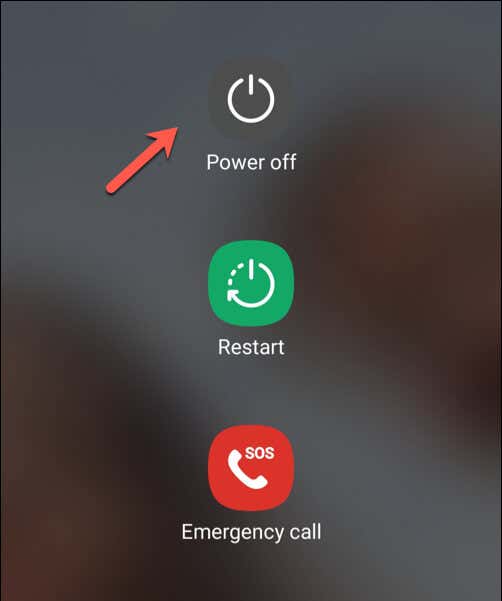
To restart your Android device, follow these steps.
With a freshly restarted Android device, your YouTube app should start to work again. If it isn’t, however, you’ll need to try one of the further fixes below.
Check Your Time Is Synced Properly
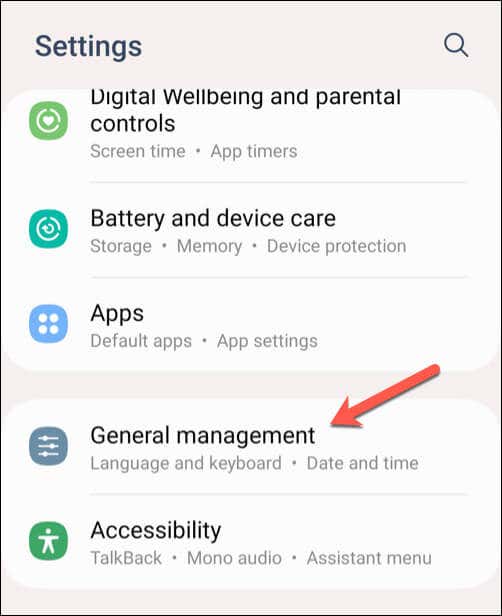
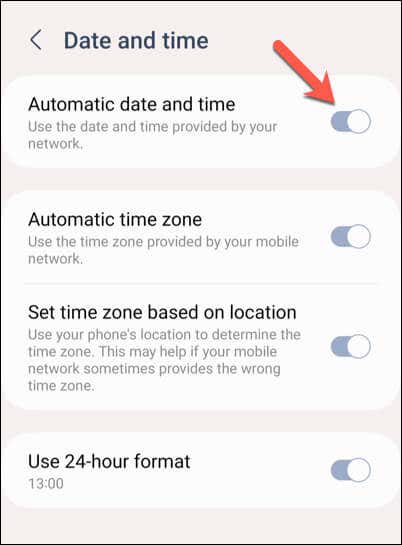
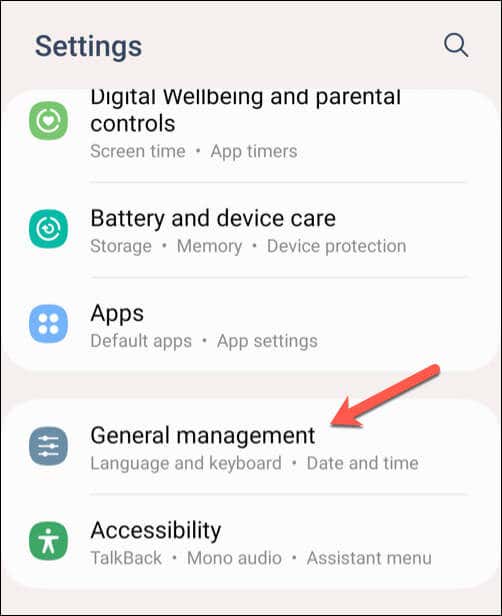
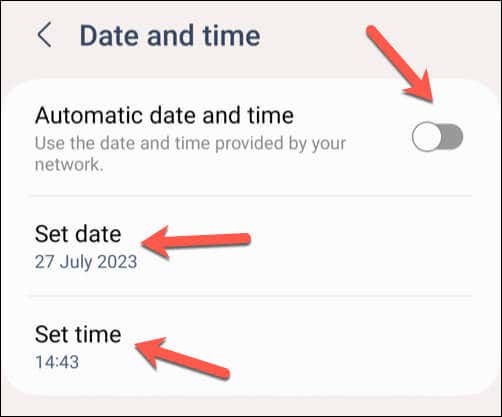
It might seem odd, but if your Android device has the wrong time, YouTube might stop working. This is because the time between your device and YouTube’s servers need to be synced properly for certain (hidden) services behind-the-scenes to work properly. To ensure your device’s date and time are synced correctly, follow these steps. If enabling the automatic date and time feature doesn’t work, you can manually set the correct date and time for your device. After adjusting your device’s date and time settings, open the YouTube app and check if the issue has been resolved.
Check Your Data or Wi-Fi Connection
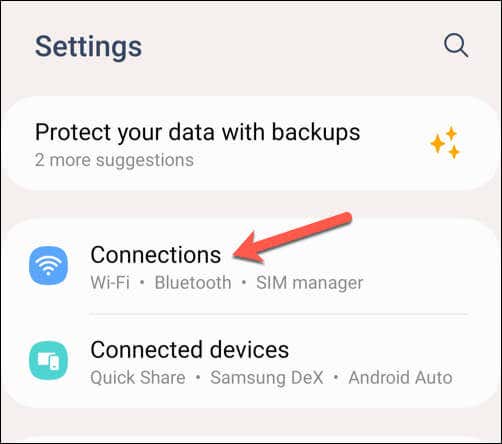
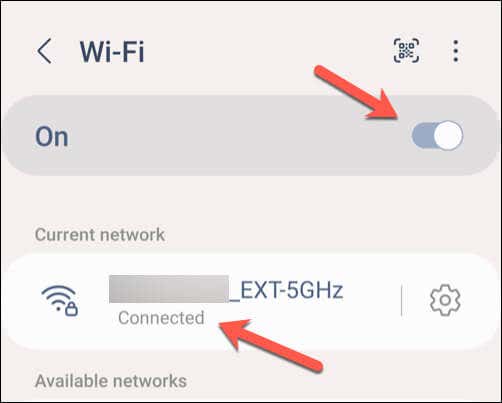
One of the most common reasons that YouTube might not work properly on your Android device is a poor internet connection. Issues like YouTube videos pausing or choppy video playback can often be resolved by checking that your mobile data or Wi-Fi connection is active and working properly.
To check your data connection, follow these steps.
Clear the Data and Cache for the YouTube App
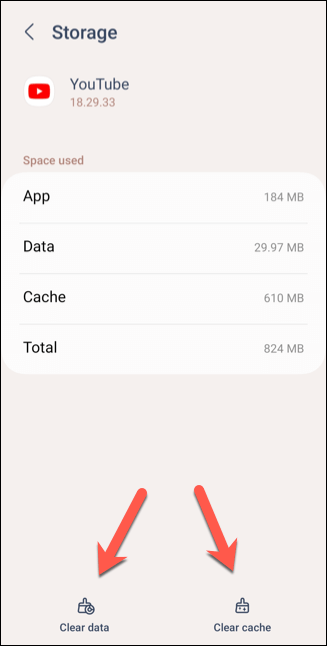
If you’re having trouble trying to troubleshoot an issue with YouTube not working on Android, you may find it easier to clear your cached data from the app. This can help you resolve minor glitches with the app itself that could stop it from working, such as the YouTube search bar not working.
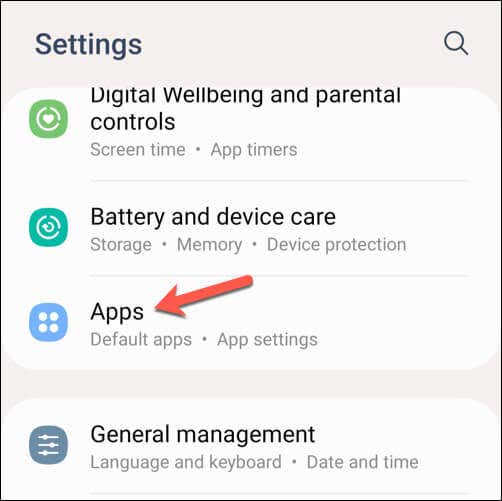
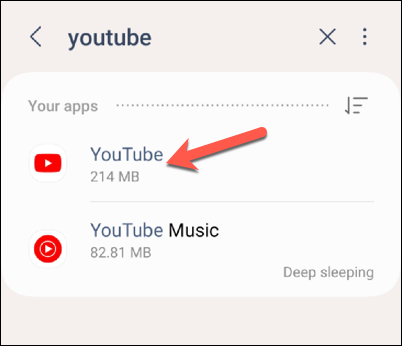
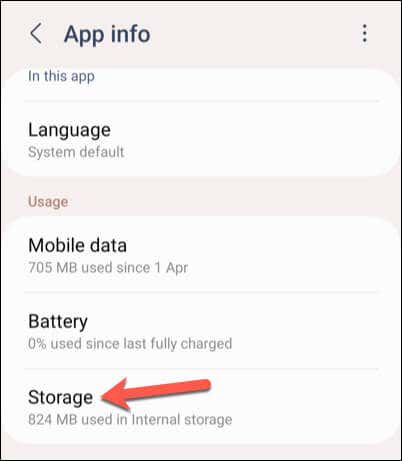
To clear the data and cache for the YouTube app, follow these steps. The steps below might slightly vary depending on your phone model.
After clearing your data, restart the YouTube app and check if the issues are resolved.
Check for App and Device Updates
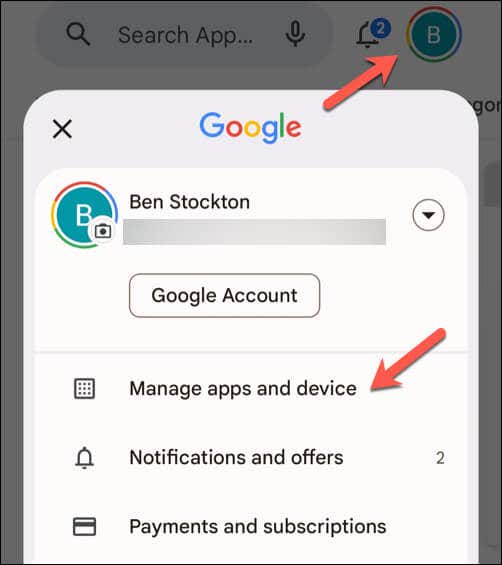
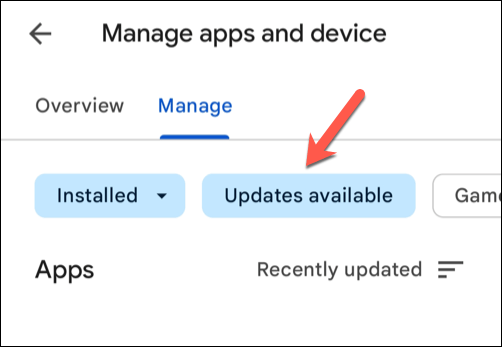
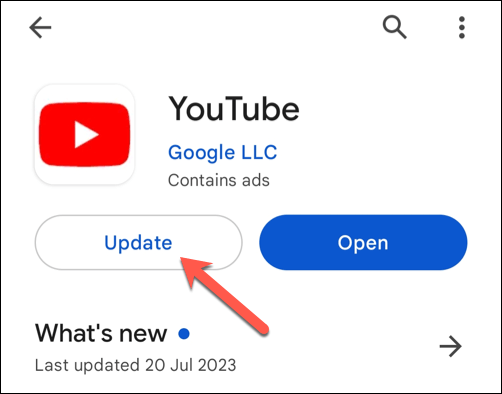
Keeping your YouTube app and device software updated is crucial as it ensures that you have the latest bug fixes, security patches, and features. By regularly updating the app, you can minimize the chances of encountering any issues.
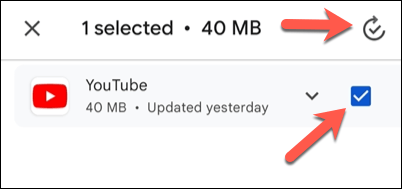
To update your YouTube app, follow these steps.
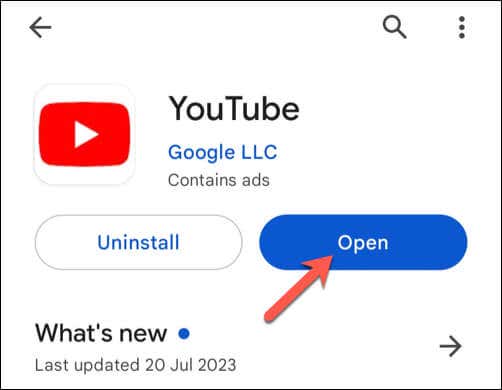
Once the YouTube app is updated, open it to see if the issues are resolved.
Remove and Reinstall YouTube App Updates
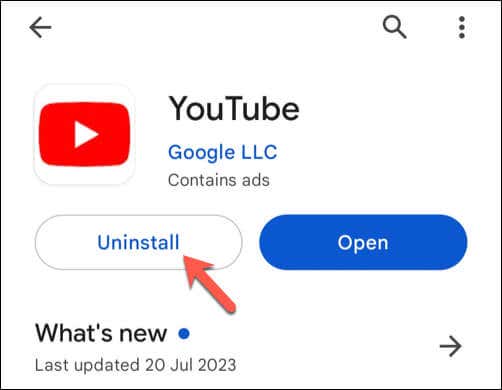
If you’re still having problems with YouTube crashing on Android, you might need to try and remove any recent updates and reinstall them. Most Android devices come with YouTube preinstalled, so you won’t be able to remove it entirely.
However, removing and reinstalling any app previous YouTube app updates will ensure that you have the latest version with any available bug fixes.
To remove and reinstall the YouTube app, follow these steps.
After successfully reinstalling the updated version of the YouTube app, check to see if the issues you’ve been having are now resolved.
Use the YouTube Mobile Website
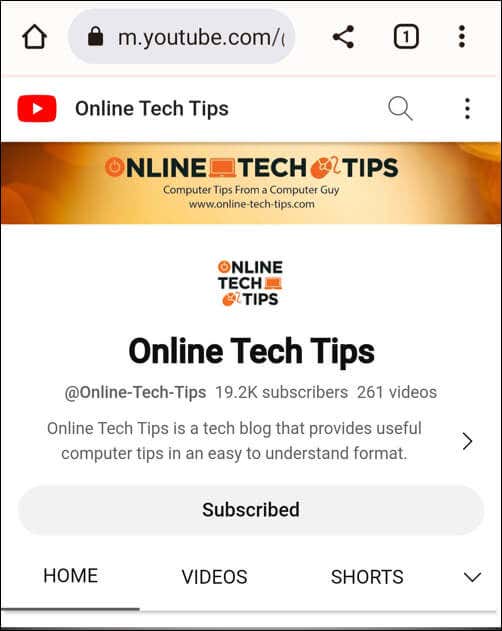
It’s a last resort, but if the YouTube app still isn’t working on Android, you can try and use the mobile website instead. You won’t have the same level of functionality as you would have in the app, but using the YouTube website will still allow you to watch videos.
To do this, open your preferred mobile web browser—Chrome is recommended, but you can use Firefox or an alternative if YouTube isn’t working in Chrome. In the address bar, type m.youtube.com and press Enter.
The YouTube website will load and you can begin to watch videos. If you want to access your watch history or subscription list, you can sign in using your Google account details first.
Using YouTube on Android
By following the steps above, you can quickly resolve the problem with YouTube not working on Android (in most cases). If the YouTube app is too slow, don’t forget to give your device a quick restart—it should help to fix things quickly. If you still have trouble, don’t forget to try using YouTube on another device, such as using the YouTube app on Roku. If you get a black screen on YouTube, make sure to check that your connection is working properly and you’re not using any ad blockers on your device.