In this article, you’ll find practical solutions and tips to resolve call issues on your Android device. I’ll cover a range of troubleshooting steps, from checking for software updates to resetting network settings to help you regain full use of your phone.
Why Is My Phone Not Allowing Me to Make Android Calls?
There are many reasons why your Android phone might not allow you to make or receive calls. For the most part, however, they’ll boil down to these core issues:
Network issues: A good start is to check for network outages or issues with your mobile service provider. Sometimes, network congestion or maintenance can affect your ability to make calls, especially if it’s localized to your particular area. SIM card problems: If you’ve put your phone through some damage (or even just a quick rain shower), your SIM card might be in trouble. Water, fluff, or just a misaligned SIM card after removing and reinserting it could stop you from making calls. Software issues: Android is a pretty stable system, but that doesn’t mean the apps you’re running on your phone are stable. A bad third-party app could block your calls, as could out-of-date device firmware or incorrect carrier settings. Signal strength: You may need to move to make a call in many cases. Weak signal strength or network coverage can affect your call quality or stop you from making calls. Wi-Fi calling might be a fix if your carrier supports it, but you’ll need to make sure you’re connected to Wi-Fi for this to work.
Tips To Resolve Issues With Phone Calls On Your Phone
The Android ecosystem doesn’t use a standard interface, but the steps you can try to resolve calling issues on your Android phone are roughly the same, no matter the device you’re using. You can follow these steps to resolve the calling issues you’re having.
Restart Your Phone
Can’t make phone calls? Before you try anything else, switch your Android phone off and on again. A restart is a good way to fix any temporary glitches your phone might have, especially if it’s been running without a restart for a long time. Don’t underestimate this old IT trick. A restart will clear out your device’s active memory and will force your device to reconnect to your mobile network.
Disable Airplane Mode
If you’ve accidentally switched airplane mode on for your Android device, you won’t be able to make a call. You’ll be able to tell if this is the case because you’ll see a plane symbol appear in the upper right corner of your Android display. This is a quick and easy fix to resolve if this happens. Swipe down the top of your screen to access your device’s quick settings panel, look for the airplane mode icon, and then tap it to switch it off. You can also find it in your phone’s settings menu.
Check Your Network Settings
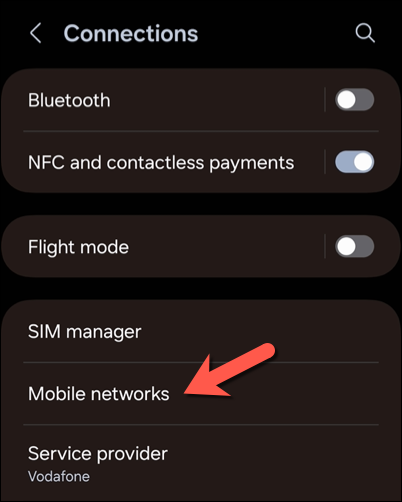
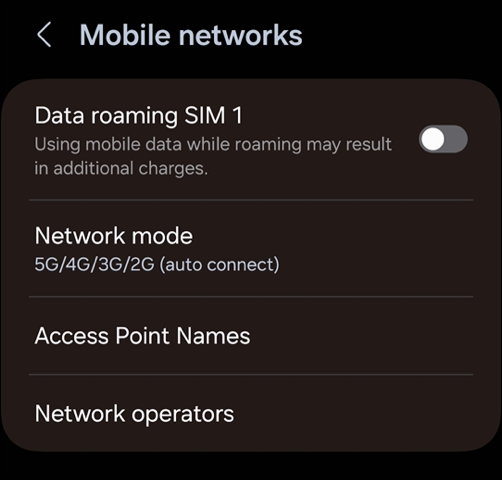
Bad carrier settings will prevent you from connecting to your network provider and might cause a drop in calls. Using the wrong network type (such as 3G in a 4G-enabled area) can also prevent you from using your phone properly. You can check if you’re using the correct settings via your device’s network settings menu. Follow these steps to check this for yourself. These steps have been written with a Samsung Galaxy in mind but should be similar to those on other Android devices.
Check for Device Updates
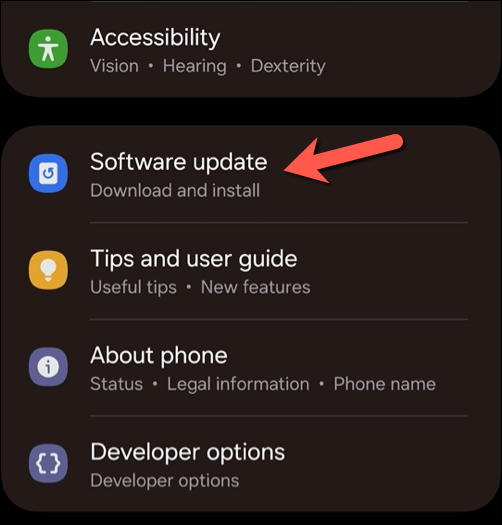
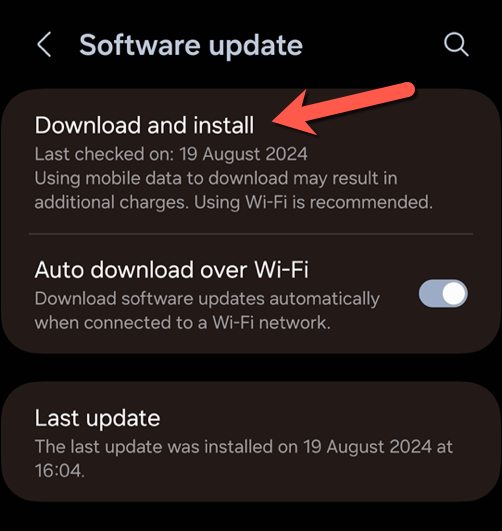
Your Android phone should receive regular updates to help fix bugs and improve functionality and security. If you’ve not checked for or installed any Android updates recently, it’s a good idea to do this next.
Remove, Clean, and Reinsert Your SIM Card
Unless you’re using an e-SIM, you must ensure that your physical SIM card is in full working order. A dirty or poorly installed SIM card will prevent you from making calls. To resolve these issues, switch your phone off, remove your SIM card, give it a quick clean, and then reinsert it. You’ll need to check for specific instructions on how to remove your device’s SIM card, but you’ll usually need a SIM ejector tool to eject the SIM card first. If you do this, clean the SIM card with a dry cloth and rubbing alcohol (if you have some handy), then reinsert it into the device.
Remove Any Third-Party Party Apps Impacting Calls
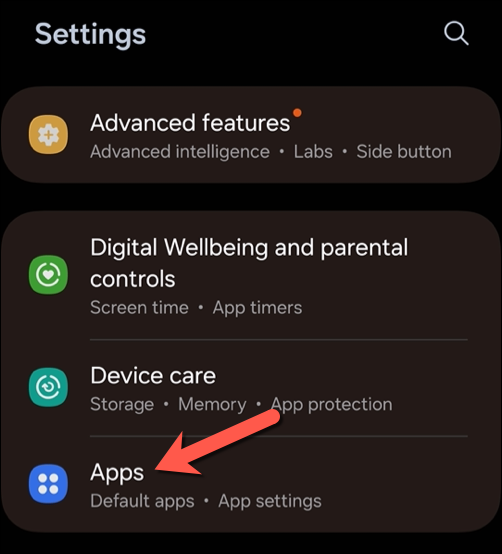
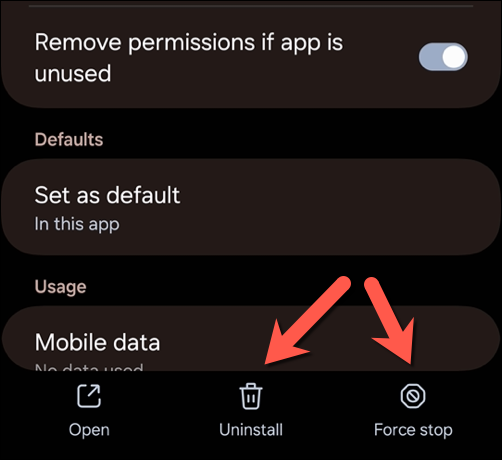
Finding third-party apps that might impact your ability to call out on your Android device is rare but not impossible. If you’re using apps that impact your mobile network usage, such as forcing you to use a specific network type, these apps might block your calls. The same applies to parental control apps on your device and third-party call apps. You’ll need to look through your apps list and determine if there are any apps that are likely culprits. If you spot any, you can remove them using these steps.
Perform a Factory Reset
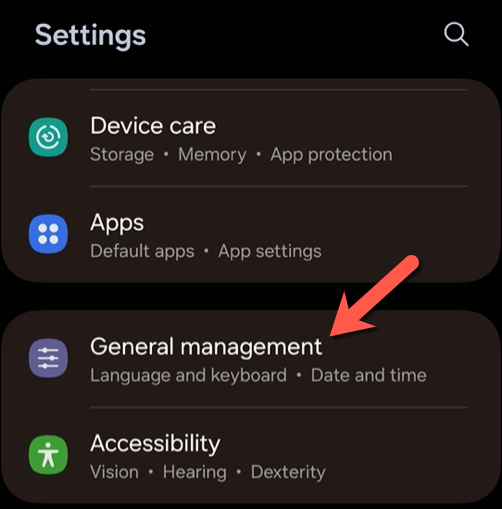
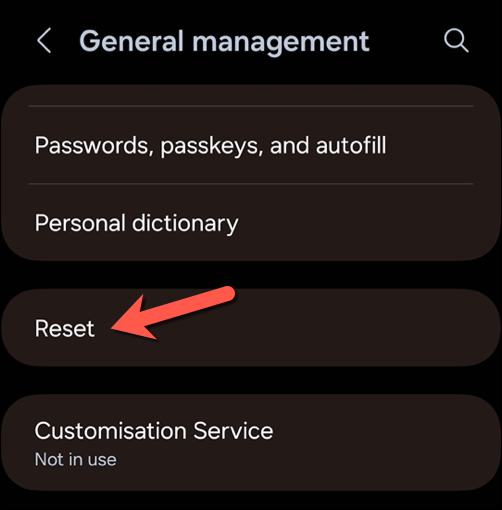
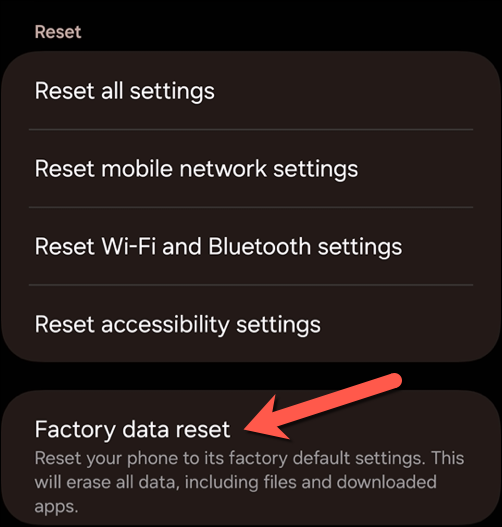
If all else fails, it might be worth performing a factory reset. A factory reset will restore your device to its default configuration, wiping away any apps or settings that might be secretly affecting your ability to call. It’ll also reset your device’s network settings. This step should be a last resort because it will remove data from your phone (unless you choose a less invasive reset method). To perform a factory reset, follow these steps:
Managing Call Issues on Android
There isn’t always an obvious cause behind calling issues on an Android smartphone. If your phone isn’t allowing you to make calls on Android, you can follow the steps I’ve outlined above to help you fix the problem. These fixes are a good start, but if you still have issues, you should contact your carrier or device manufacturer for further support. If your device is still under warranty, you can request a repair in case of hardware failure.