Use the Correct Google Account
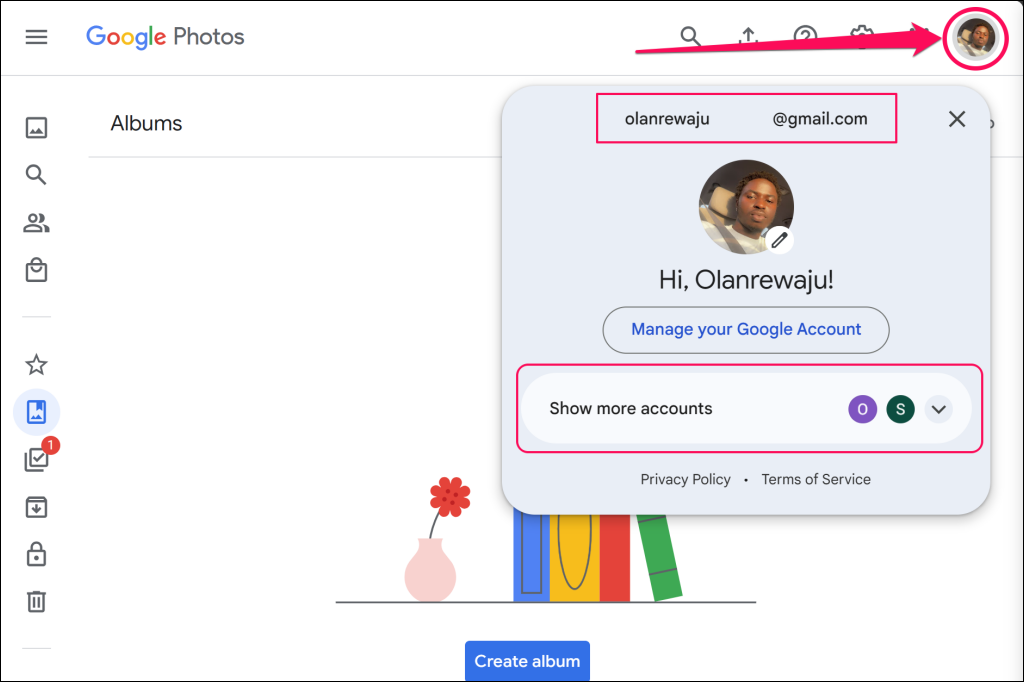
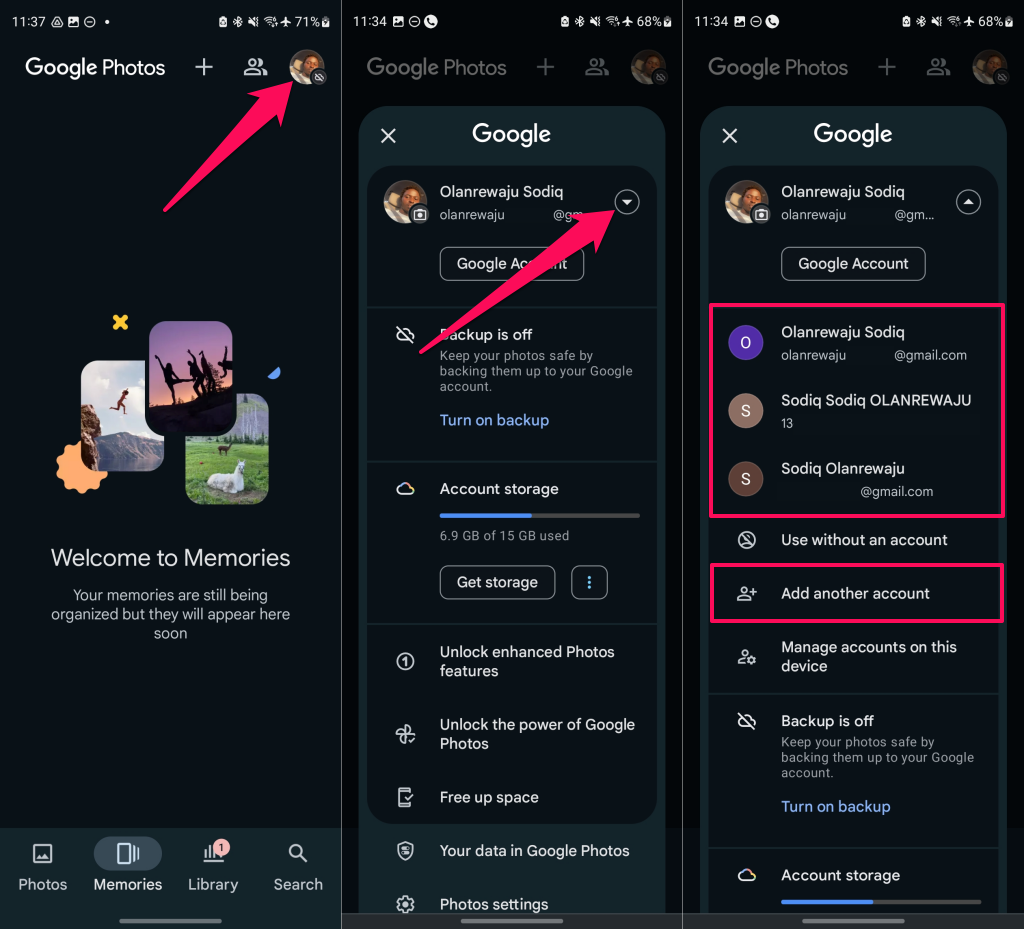
When you can’t find your photos, the first thing to do is verify that you’re signed in to the correct Google account. If multiple Google accounts are linked to your device, ensure you’re searching the right account for your photos. Follow the steps below to check and switch accounts in Google Photos.
How to Verify/Switch Google Photos Account on Desktop
How to Verify/Switch Google Photos Account on Mobile
Search for Photos on Google Photos
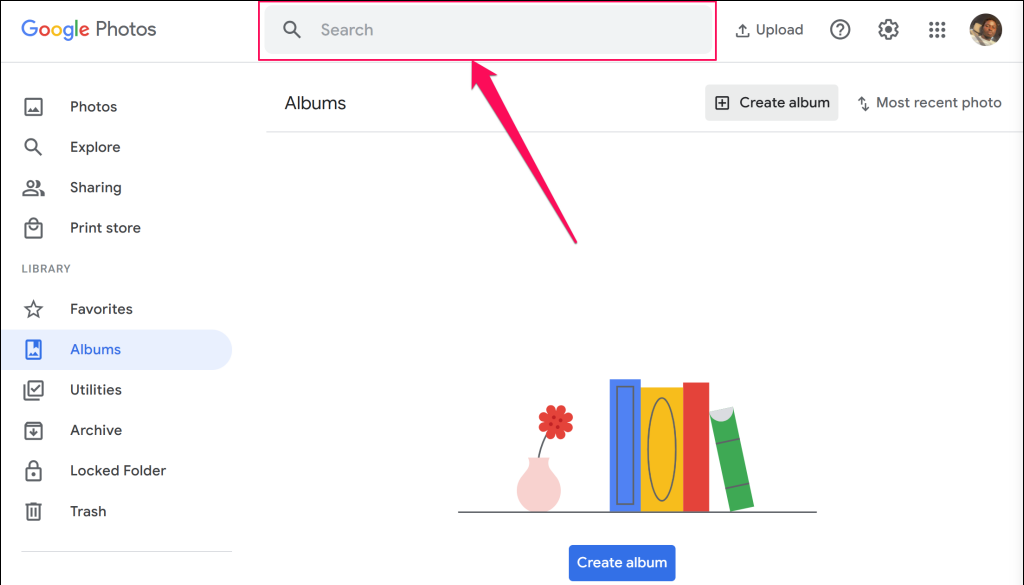
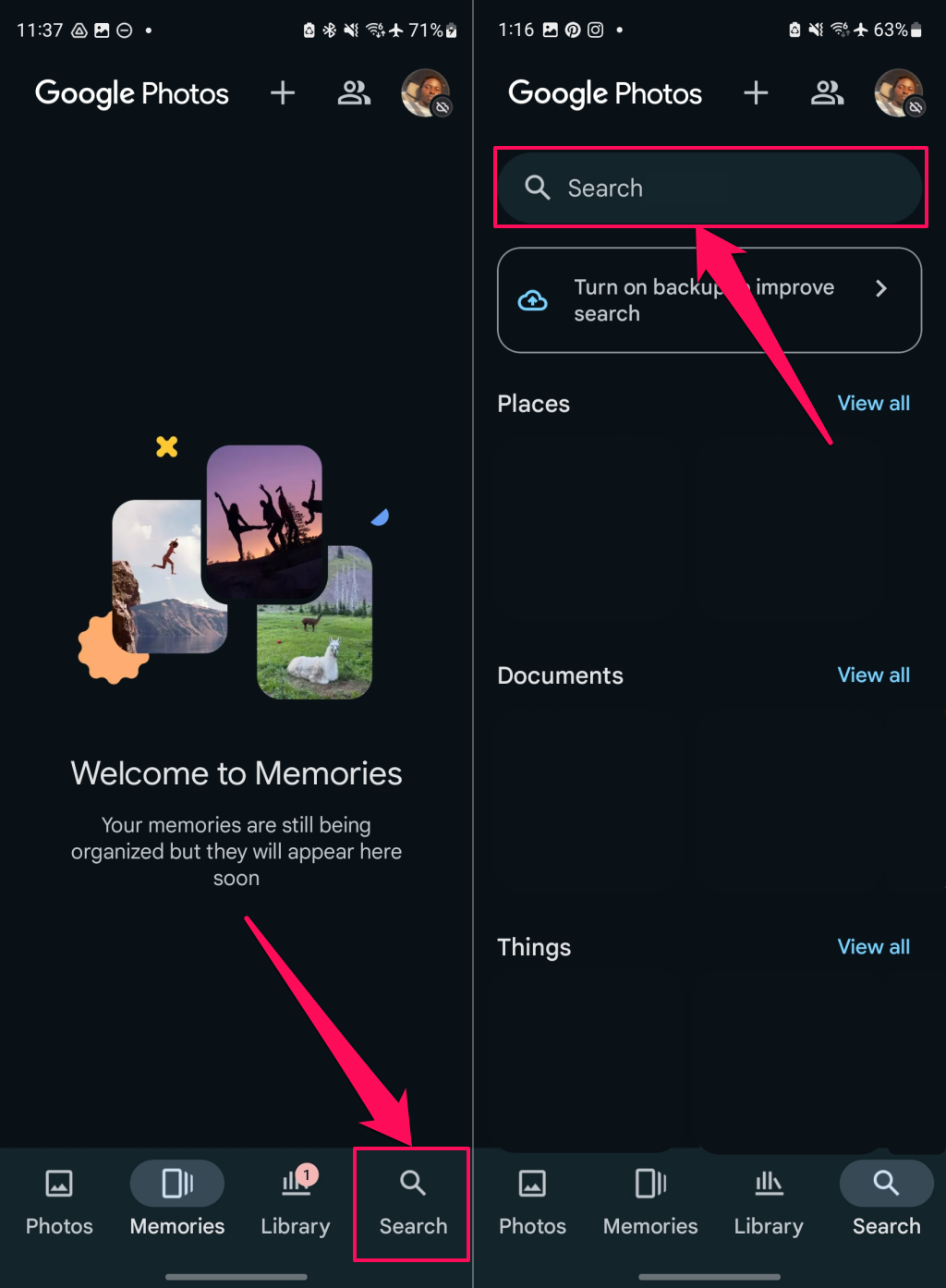
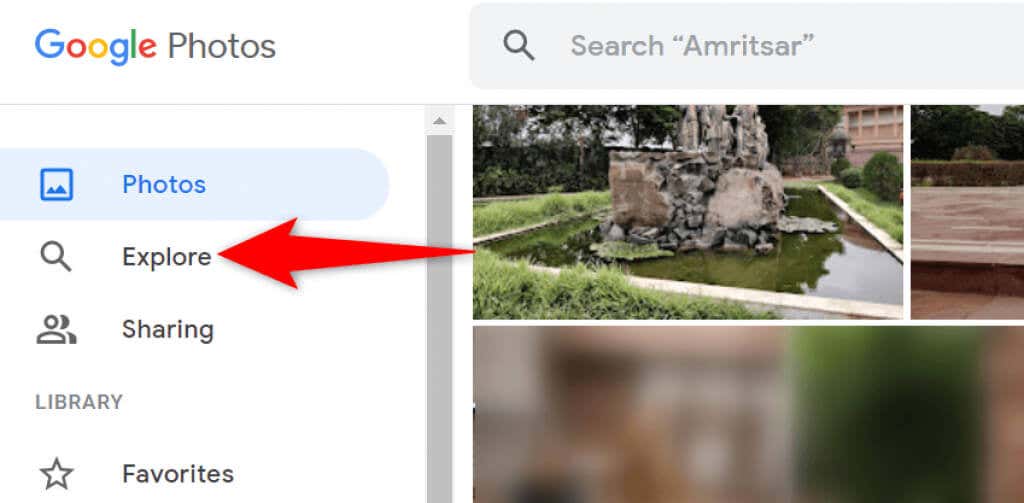
Google Photos offers an advanced search function to help you quickly find specific photos in all your albums. This search function can use various filters, including location filters.
How to Find Photos in Google Photos (Web)
How to Find Photos in Google Photos (Mobile)
Review Google Photos Backup Setting
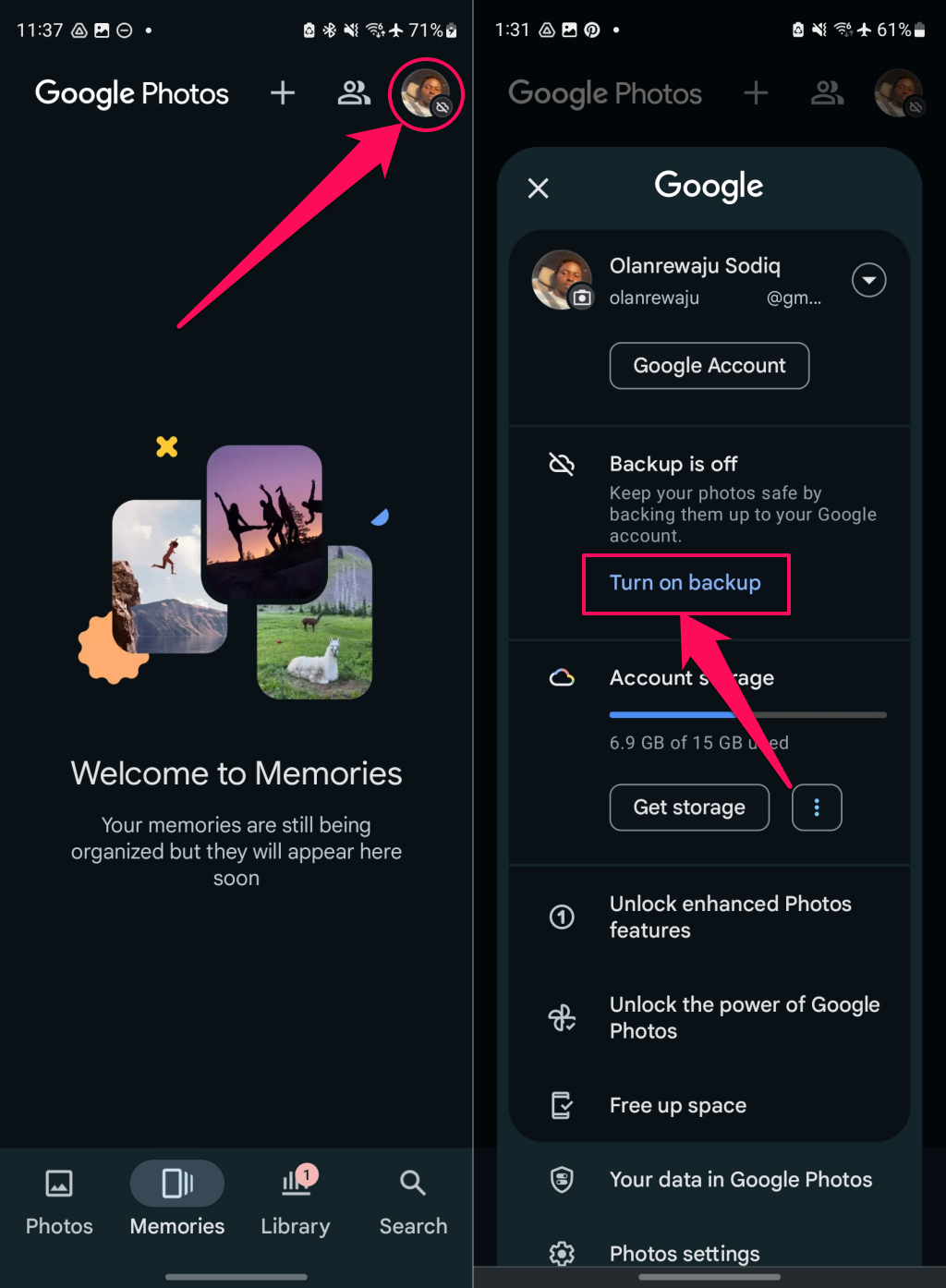
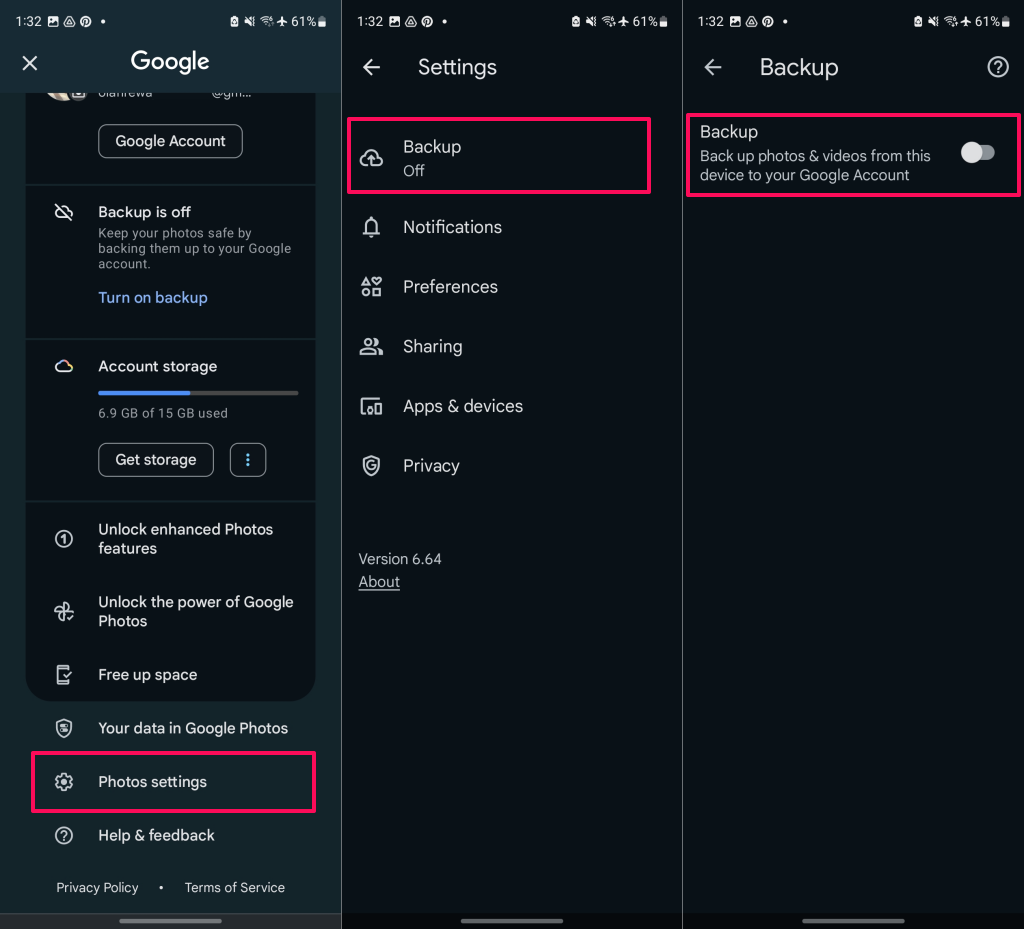
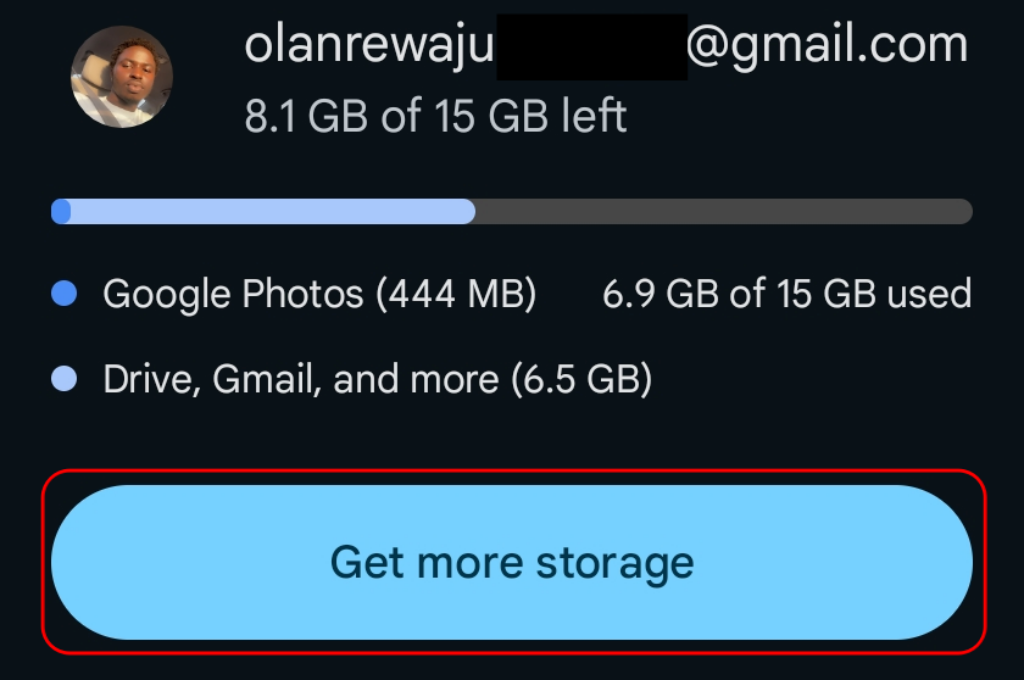
If you’re missing specific photos in Google Photos, chances are you’ve turned off the sync option on your phone. Your phone stops uploading additional images when sync is disabled. You can get around that issue by re-enabling the sync option in Photos. Your phone will then start uploading all your new photos to your Google account. Check the Google app on your phone and turn on photo backup and synchronization. Jump to step #3 if you don’t see the “Backup is off” notification in your profile menu. Ensure you have enough free storage space in your Google account to accommodate new photos. If you run out of storage, turn off photo backup or upgrade your storage (tap Get more storage on the Backup page).
Backup Your Device Folders to Google Photos
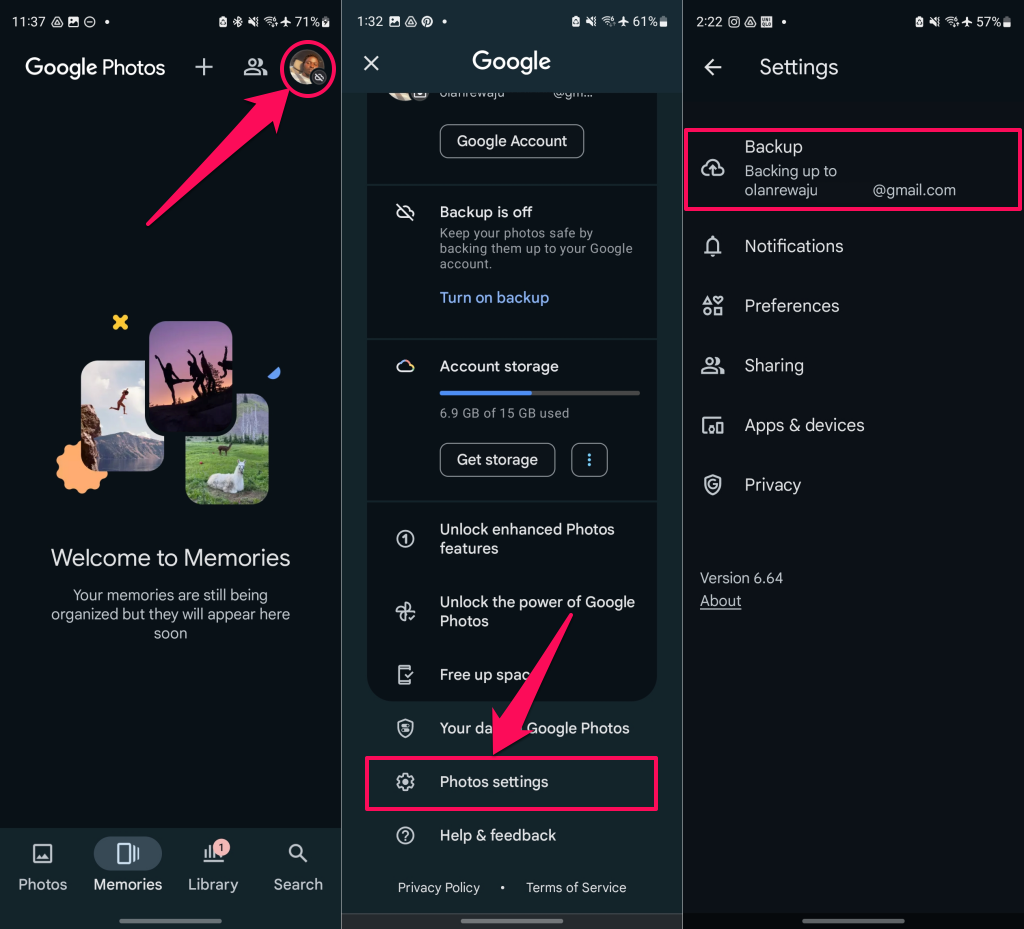
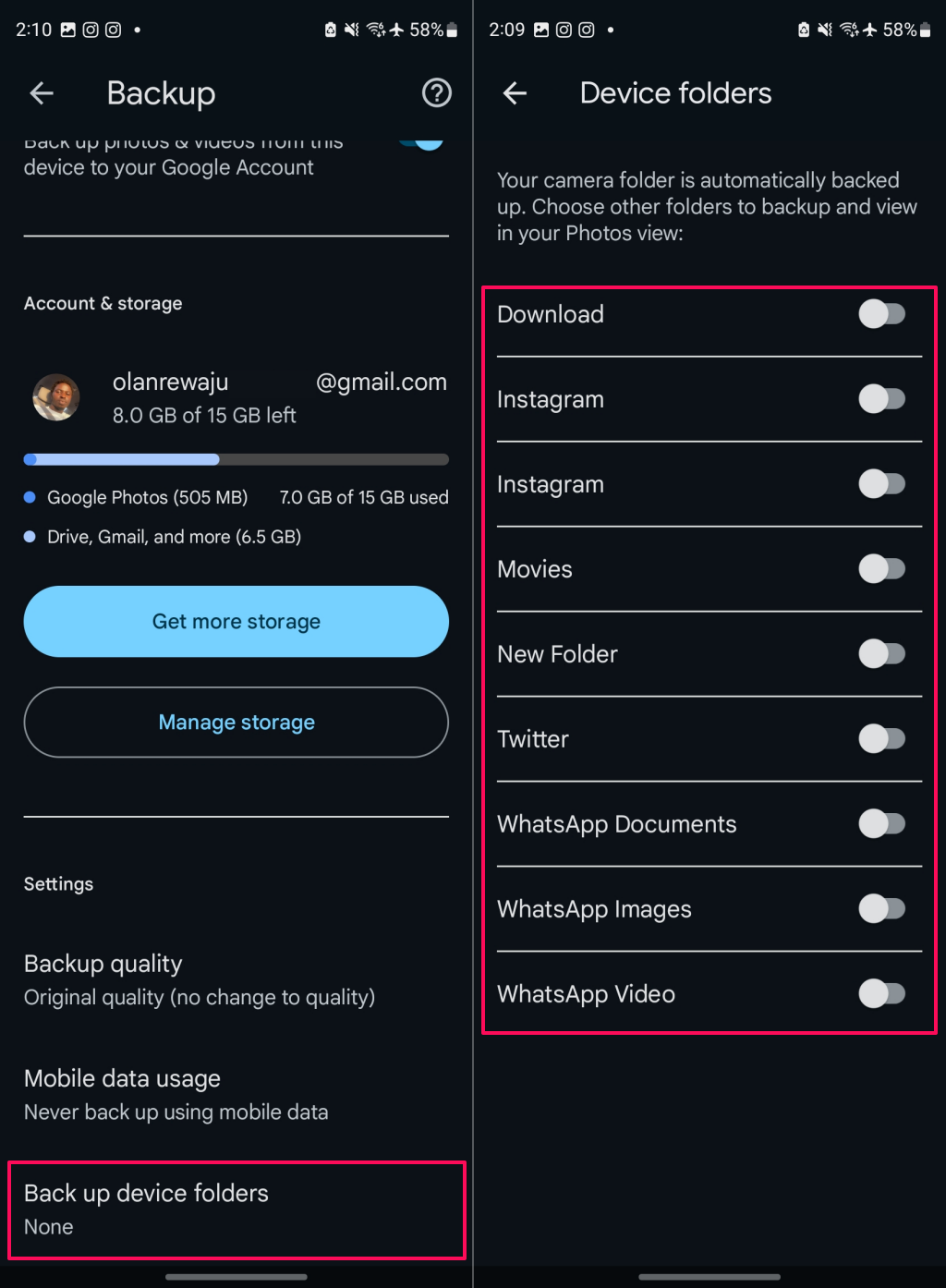
By default, Google Photos only backs up photos from the camera folder on your phone. Enable folder synchronization in your Google Photos backup settings to access photos saved in other folders.
Find Deleted Photos in the Trash Folder
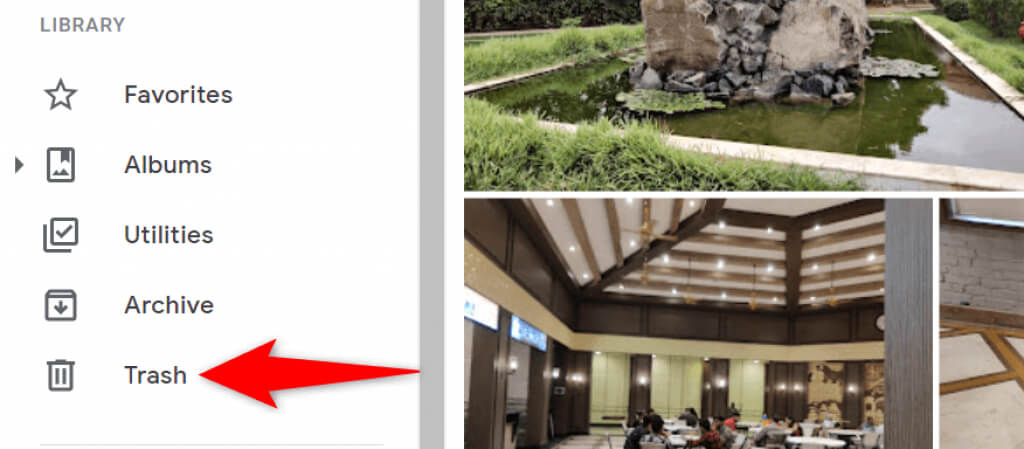
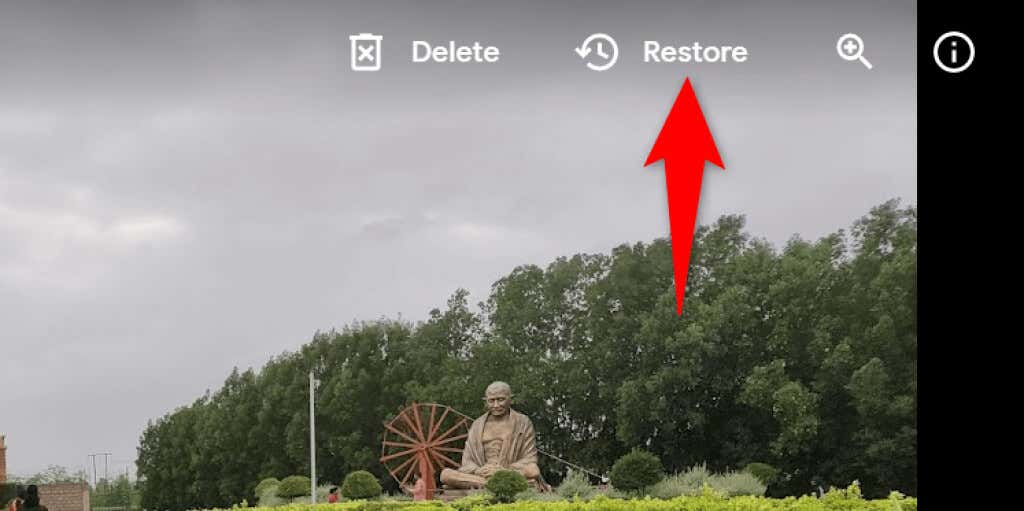
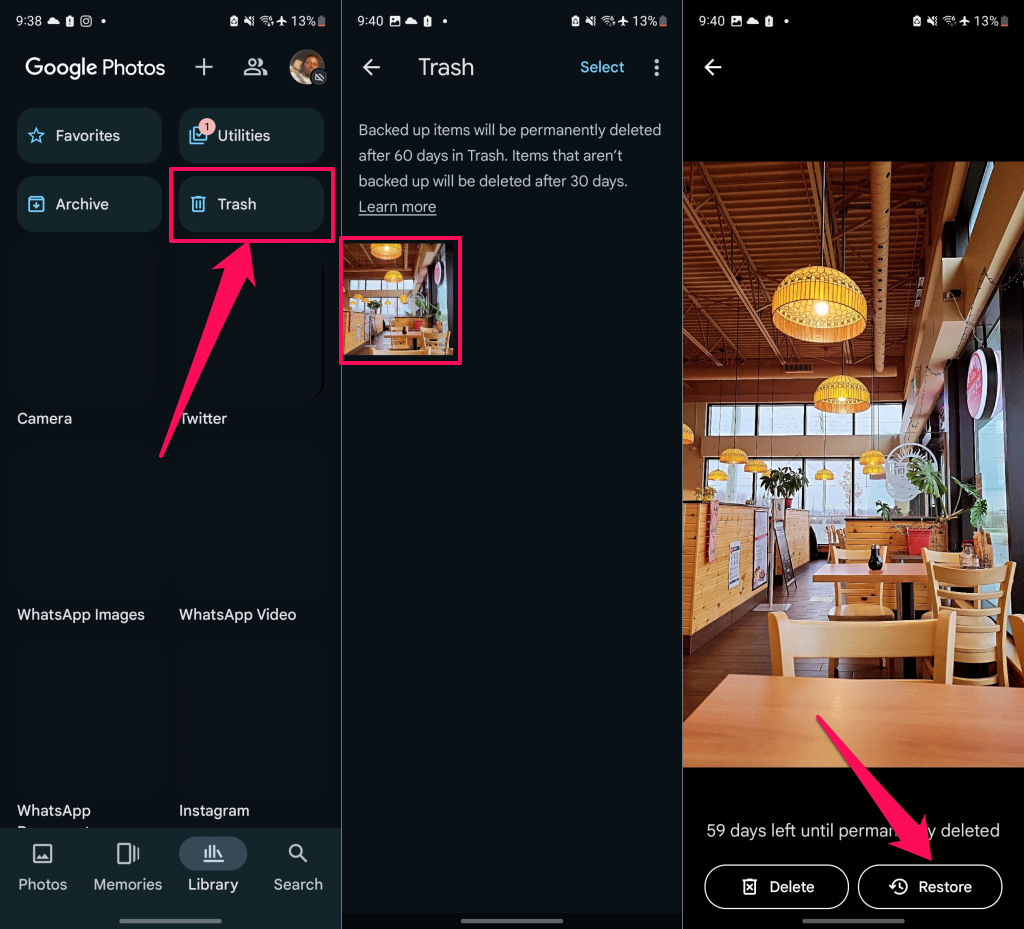
Another possible reason you can’t find a photo in Google Photos is that you’ve (accidentally) deleted the photo. Check out the Trash folders to see if your image is still available to restore. Google Photos keeps your backed-up items in that folder for 60 days and non-backed-up items for 30 days. You can access the Trash folder from the Google Photos mobile and web applications.
Find and Retrieve Pictures from Google Photos’ Trash Folder (Web)
Find and Retrieve Pictures from Google Photos’ Trash Folder (Mobile App)
View Your Photos in Archive on Google Photos
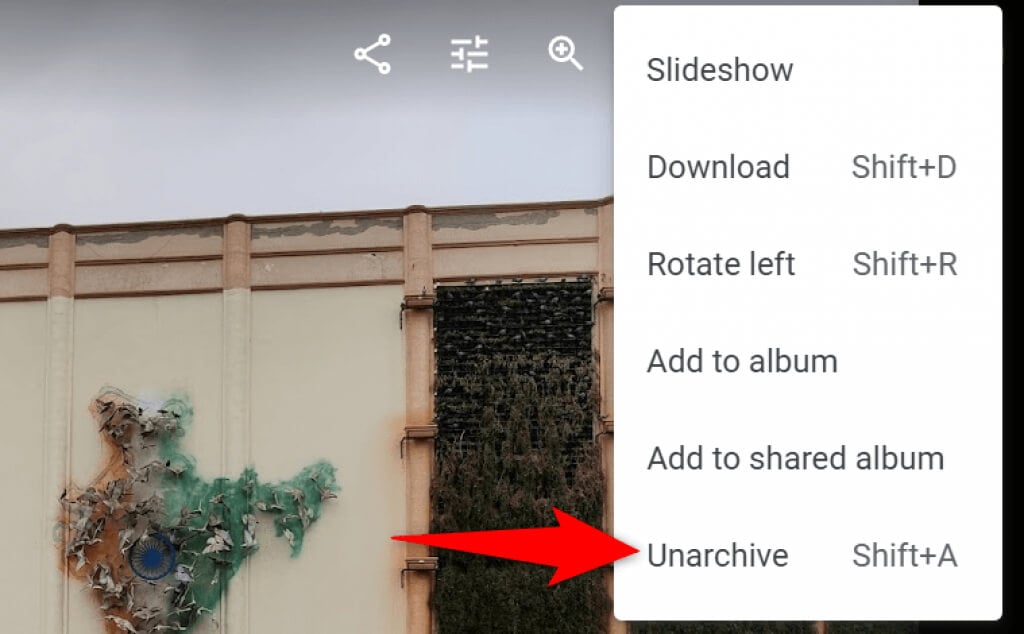
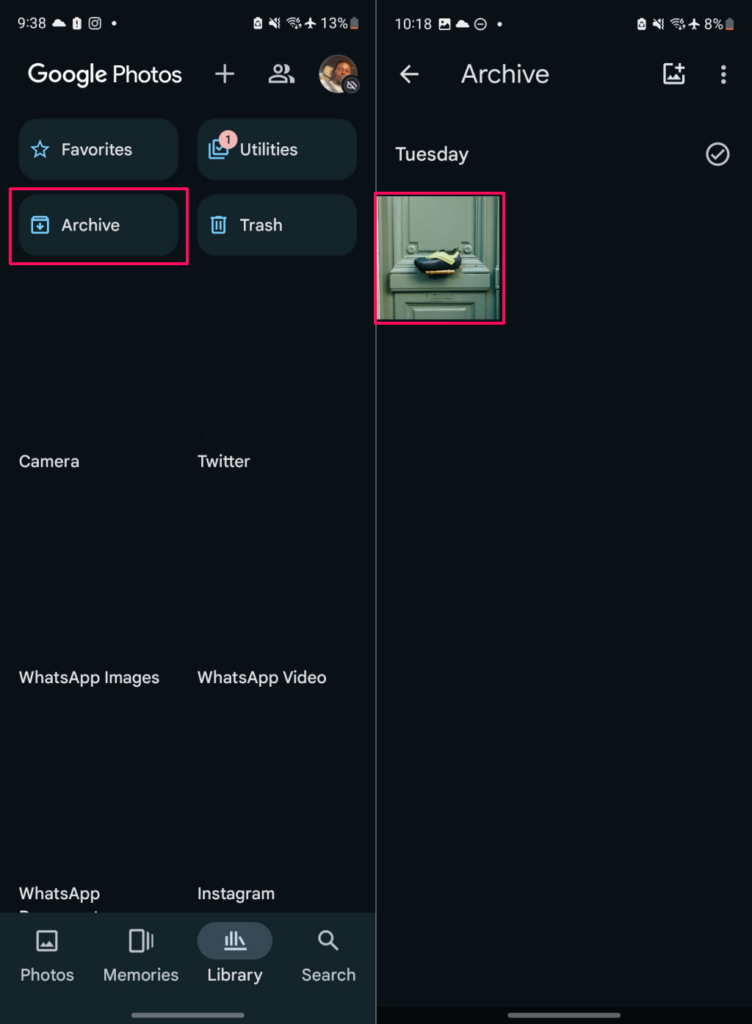
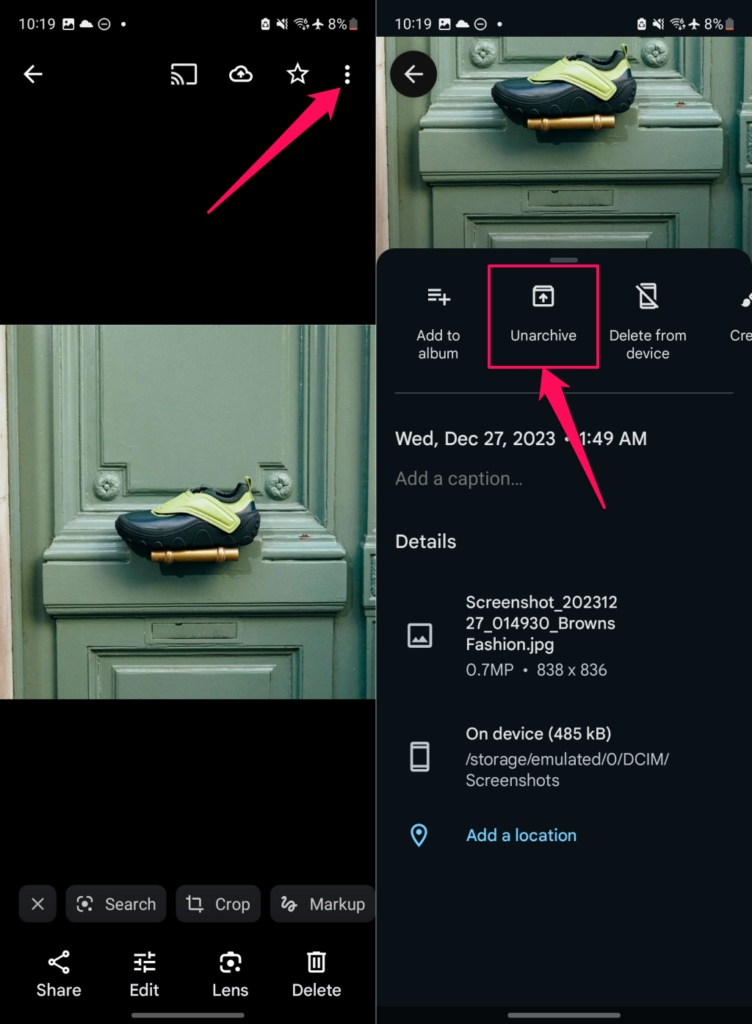
Check Google Photos’ Archive folder for missing photos if you’re sure you didn’t delete or move them to trash. You can then move archived pictures or videos back to the main library if you don’t wish to keep them archived.
How to Unarchive Pictures in Google Photos (Desktop)
How to Unarchive Pictures in Google Photos (Mobile App)
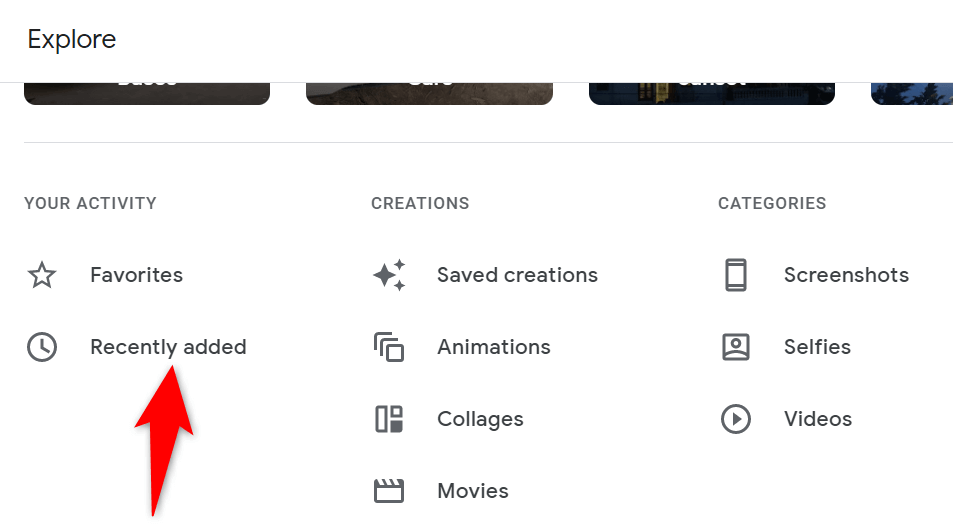
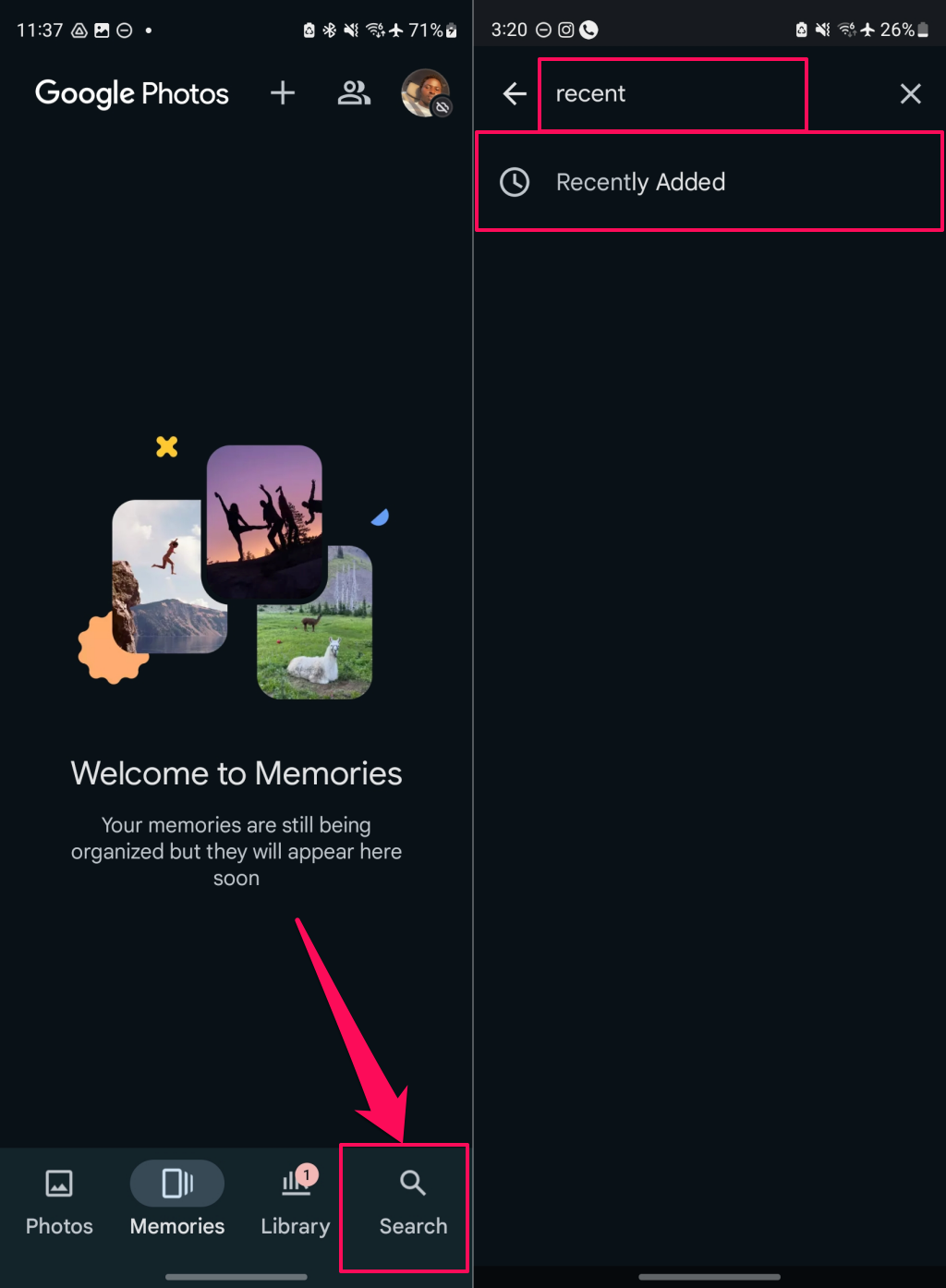
Check the “Recently Added” Folder
If you can’t find a photo you’ve recently uploaded, check out Google Photos’ Recently Added section. This section only hosts the items you have recently uploaded to your account. You can access this list on both your desktop and mobile. Find Pictures in Google Photos’ Recently Added Folder (Desktop) Find Pictures in Google Photos’ Recently Added Folder (Mobile) Google Photos app will display all your recently added photos and videos, from the newest to the oldest.
Find Your (Google) Photos Quickly and Easily
Google Photos’s built-in search functions make it easy to find photos and videos. If your pictures or videos go missing in Google Photos, the above methods should help you locate them.