Restart Your PC
When Twitter won’t work in Chrome, a quick restart of your PC may solve the problem. Try restarting your PC to see if the issue is fixed.
Restart Google Chrome
If Twitter isn’t working, you could try restarting Chrome.
Try Browsing In Incognito Mode
If none of the above fixes have worked for you, why not try browsing in incognito mode? Google Chrome’s incognito mode — known as private browsing on some other browsers — could help resolve the issue with Twitter if it’s caused by connectivity issues.
Update Google Chrome
You could always try updating Google Chrome to ensure you’re running the latest version. Here’s how to do that:
Check if Twitter Is Down
If Twitter won’t work in Chrome, it could be caused by something as simple as a Twitter outage. You can check to see if Twitter is down by visiting DownDetector — though if there’s an outage, you’ll have to sit tight and wait for Twitter to fix the problem.
Restart Your Router
Sometimes a router restart can resolve any issues accessing Twitter or other sites if the problem is caused by poor internet connectivity. If your router has a power button, press it and wait for it to finish turning off. Once it’s powered off, unplug it from the mains, wait for a few minutes, then plug it back in and turn it on to see if the issue persists.
Disable Chrome Extensions
Chrome Extensions can come in pretty handy for a variety of tasks, but they can also cause conflicts which could interfere with Twitter loading properly, for example if they’re corrupt or have a bug. You can disable Chrome extensions to see if this resolves the issue connecting to Twitter.
Clear Your Browser Cache
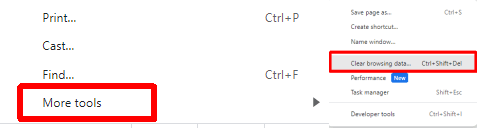
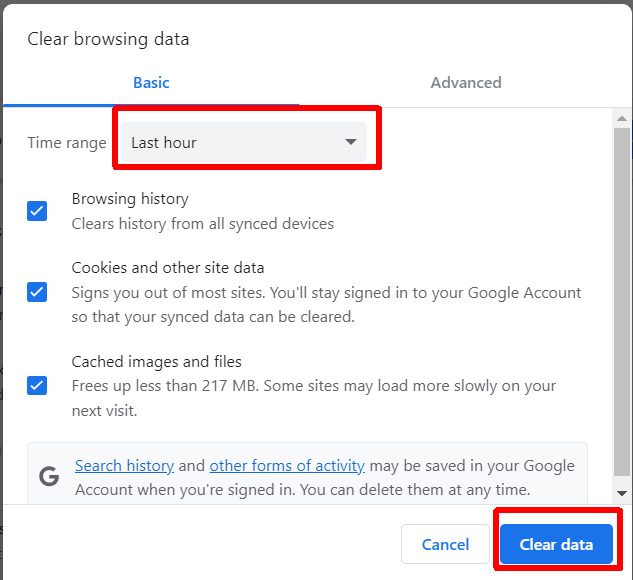
Clearing your browser cache can fix a variety of issues, so if something goes wrong while accessing Twitter, here’s how to clear your browser cache:
Reset Chrome Browser
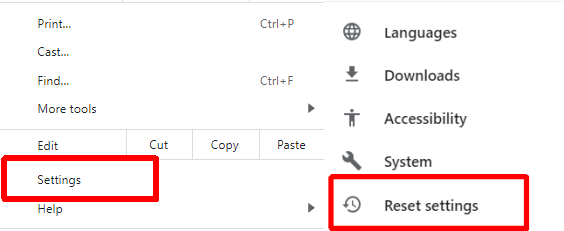
It may seem like a fairly drastic option, but you could always reset Google Chrome. This resets all Google Chrome’s settings to factory mode, and here’s how to do it:
Disable Your VPN
If you use a VPN to protect your IP address, you may be unable to access Twitter or location-specific Twitter content. Disabling your VPN could help. The steps to do this will vary depending on the VPN you’re using.
Disable Your Antivirus Program
We don’t necessarily recommend disabling your antivirus, but if Twitter won’t work in Chrome, you could give it a try. If your antivirus software is flagging Twitter as a threat, it may not load properly. Don’t forget to enable your antivirus again once you’ve finished on Twitter.
A better long-term solution is to add Twitter as an exception or mark it as safe so that your antivirus doesn’t prevent access. The steps to do this will depend on which antivirus software you’re using, but you’ll usually find this information in your antivirus software’s help pages.
Turn Off Proxy Servers
If you’re still experiencing issues with Twitter in Google Chrome, you could try turning off proxy servers in Chrome. Here’s how to do that:
Contact Twitter Support
None of the above fixes solved your problem? It’s probably time to contact Twitter support. You might find this is a known issue that’s affecting others too. Even if it’s only affecting you, Twitter support should be able to help and advise what to try next if the above fixes didn’t work for you. As you can see, there are several fixes to try when Twitter won’t work in Chrome, so there’s no need to panic. Hopefully, you’ll only need to try a few of these fixes before you find one that works for you.