Some other reasons you can’t get past the Steam captcha page are that your web browser cache is corrupted, your DNS cache is faulty, you’re using an incompatible VPN or proxy, and more. In this tutorial, we’ll take a look at all these reasons, starting with the most likely ones.
Enter Your Steam Captcha Correctly
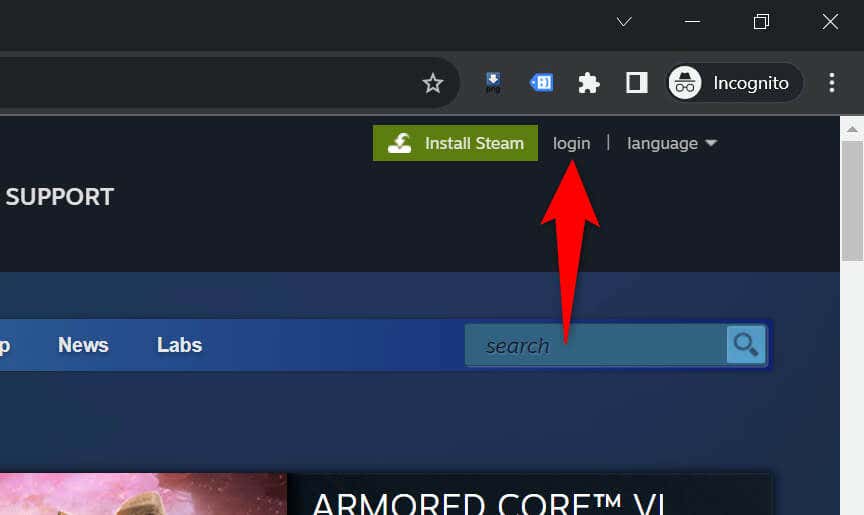
When you face issues with the captcha on Steam, ensure you’re entering the captcha correctly. You may be making mistakes while entering the digits and alphabets from the shown image, leading to your issue. Be very careful while entering the captcha, and double-check the entered value before submitting the form. If you have someone around you, it may be a good idea to seek their assistance in filling up the captcha field.
Close and Relaunch Your Web Browser
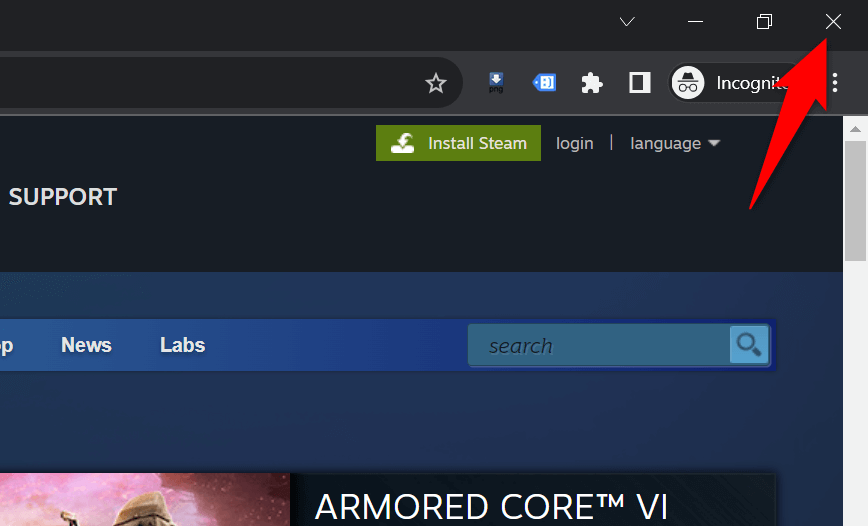
If Steam doesn’t accept your captcha despite entering the value correctly, your web browser may have a temporary issue. Such minor problems can cause your browser to malfunction, leading to a captcha issue in some cases. In this case, you can give your browser a reboot to potentially fix your error. Closing and relaunching the browser turns off and back on all the browser features, fixing minor issues with those items. Make sure you’ve saved your unsaved work before closing and reopening your browser.
Delete Your Web Browser Cache
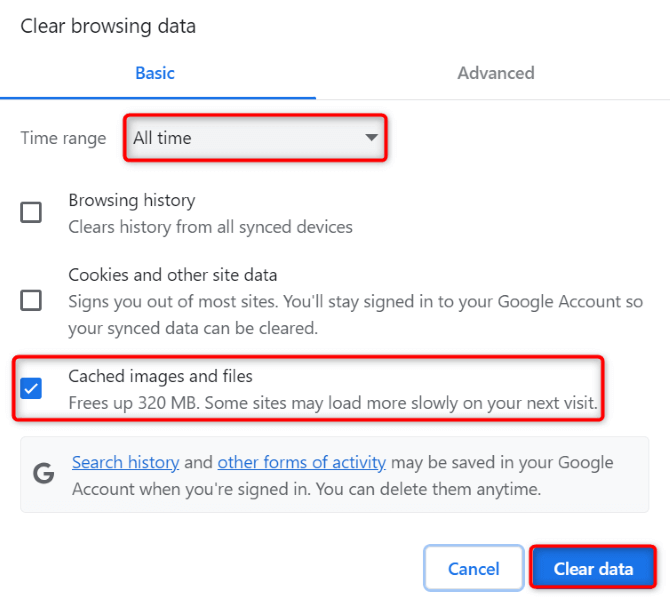
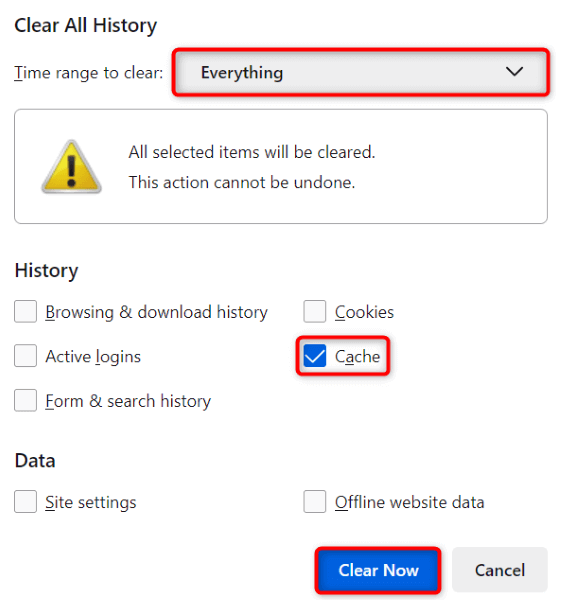
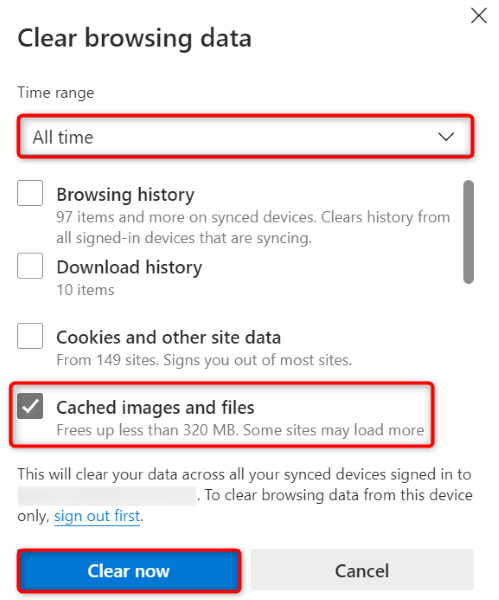
Your web browser caches various web files to improve your browsing experience. Sometimes, these saved files become corrupted, causing random issues in the browser. Your browser may be suffering from a bad cache, causing your problem. In this case, clear your web browser’s cached data to resolve your issue. Your web browser will rebuild this cache as you visit sites. Also, you don’t lose your bookmarks, passwords, browsing history, and other content when you clear the browsing cache.
Google Chrome
Mozilla Firefox
Microsoft Edge
Flush DNS Cache on Your Computer
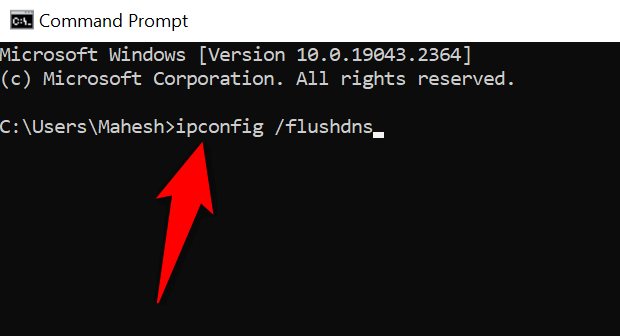
Your computer caches DNS queries to help your web-enabled apps quickly translate domain names to IP addresses. It’s possible this cache has become corrupted, causing the Steam site not to work as expected. In this case, clear your DNS cache, and your issue will be resolved. You don’t lose any personal data when you do this, and your computer will rebuild your DNS cache.
Turn Off Your VPN and Proxy to Fix Steam Captcha Not Working
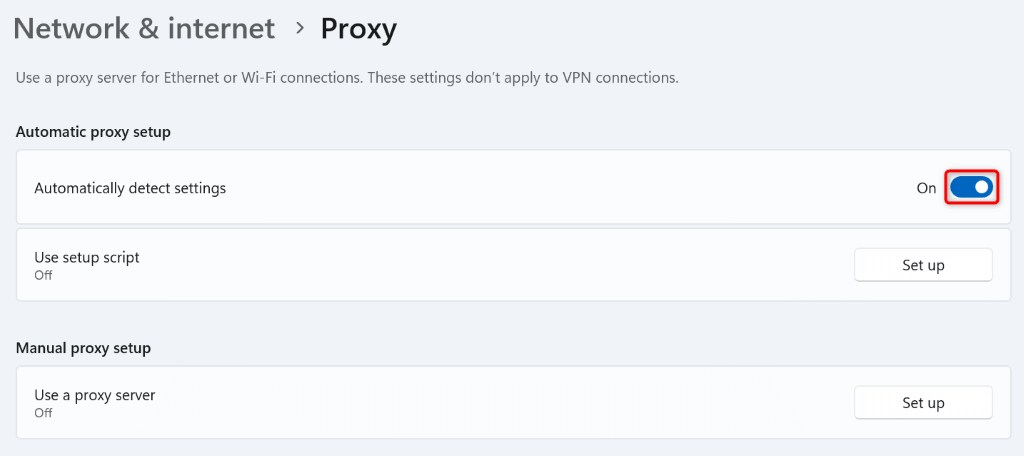
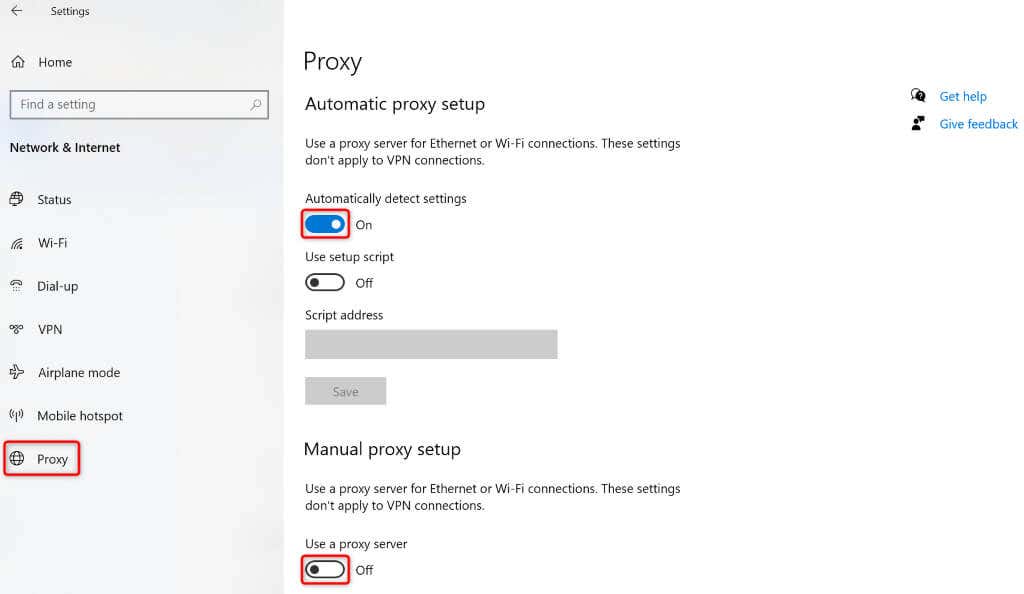
If you’re using a VPN or proxy server on your computer, these items may be interfering with Steam’s captcha system. It’s a good idea to turn these features off when you experience issues loading or working with an online site. Disabling your VPN service is as easy as launching your VPN app and turning off the main toggle. You can turn off the proxy server on your Windows 11 or Windows 10 PC as follows:
Windows 11
Windows 10
Use Steam’s App on Your iPhone or Android Phone
If you still can’t solve Steam’s captcha and can’t sign in to your existing account or create a new account, use Steam’s app on your iPhone or Android phone to get around the issue. User reports say that Steam gives relatively easy captchas on the mobile app, allowing users to log in or create new accounts with ease. Once you’ve created a new account using Steam’s mobile app, or you’ve logged in to your existing account in the app, you can scan a QR code on your desktop using your Steam mobile app to sign in to your account on the desktop.
Troubleshooting Steam’s Captcha Error Using Many Ways on Your Computer
Steam’s captcha error prevents you from signing in to your account or creating a new account. If your issue doesn’t go away after multiple attempts, use the methods outlined above to fix the items causing the problem. Your Steam issue will then be fixed. You can then access your Steam account settings, games, and any other content available in your profile. Happy gaming!