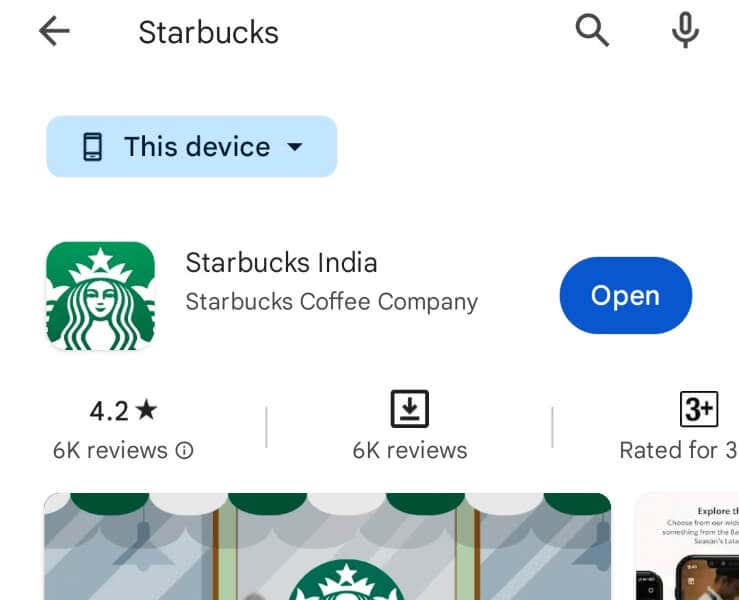
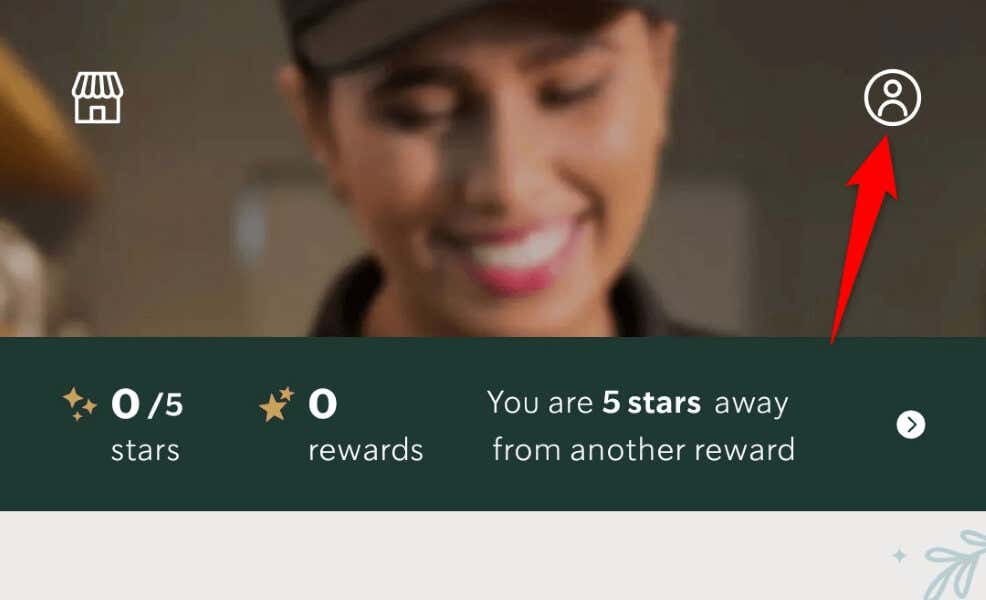
Some other reasons you can’t use the Starbucks app are that your phone has a minor glitch, Starbucks’ servers are down, you have an outdated app version, your login session has a problem, your app’s core files are corrupted, and more.
1. Close and Reopen Starbucks on Your Phone
When you experience issues using an app, a basic fix you can apply to potentially fix your issues is to restart the app. You can quit and relaunch your Starbucks app to resolve your app problems.
On Android
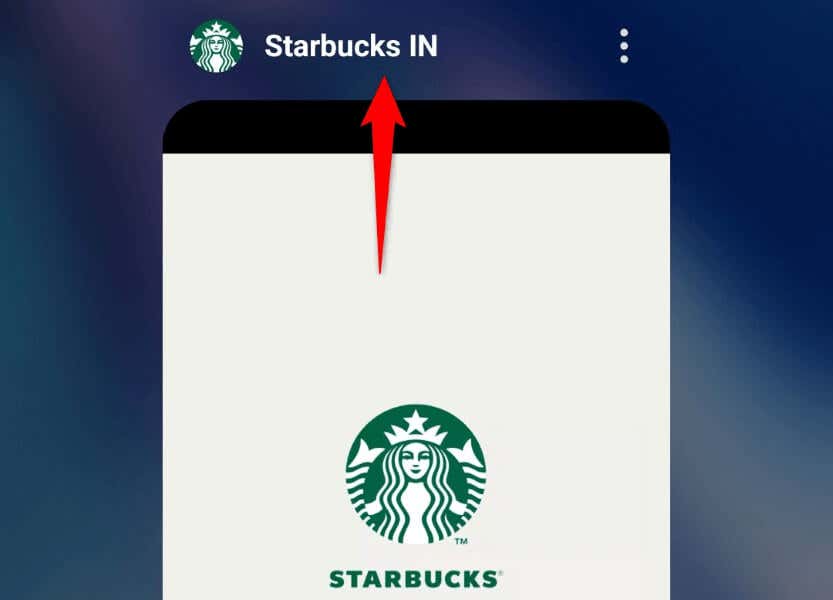
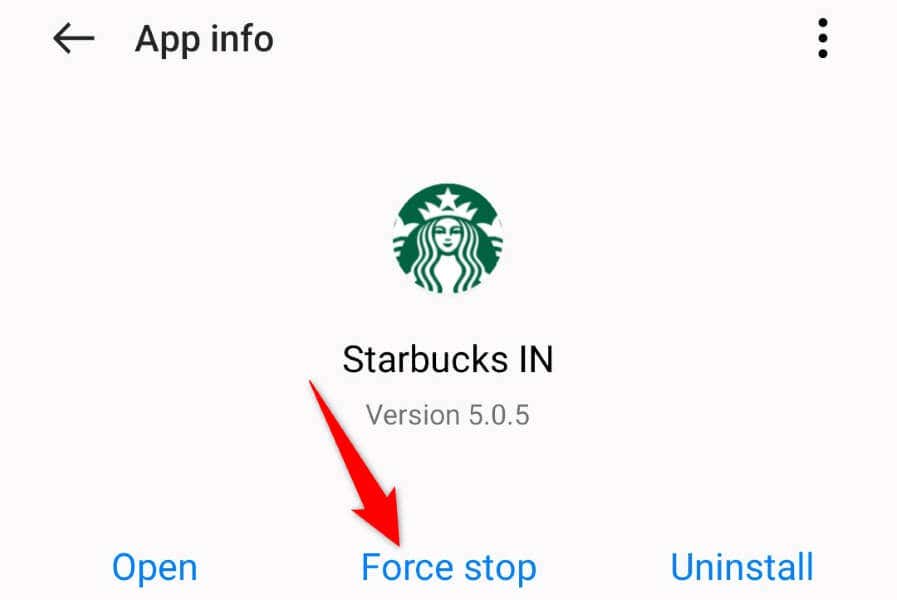
If your app doesn’t work even after a restart, force-close and reopen the app on your phone to potentially fix your issue.
On iPhone
2. Check Your Phone’s Internet Connection
If your Starbucks app doesn’t work even after a simple reboot, check and ensure your phone’s internet connection is working. The app requires access to the internet to load various content. An inactive connection prevents the app from doing that. You can check your phone’s connection status by launching a web browser and opening a site. If your site fails to load, your connection is the culprit. In this case, you can try to fix the issue by restarting your router, reconnecting to your Wi-Fi network, or using your phone’s mobile data.
3. Fix Starbucks App Not Working by Restarting Your Phone
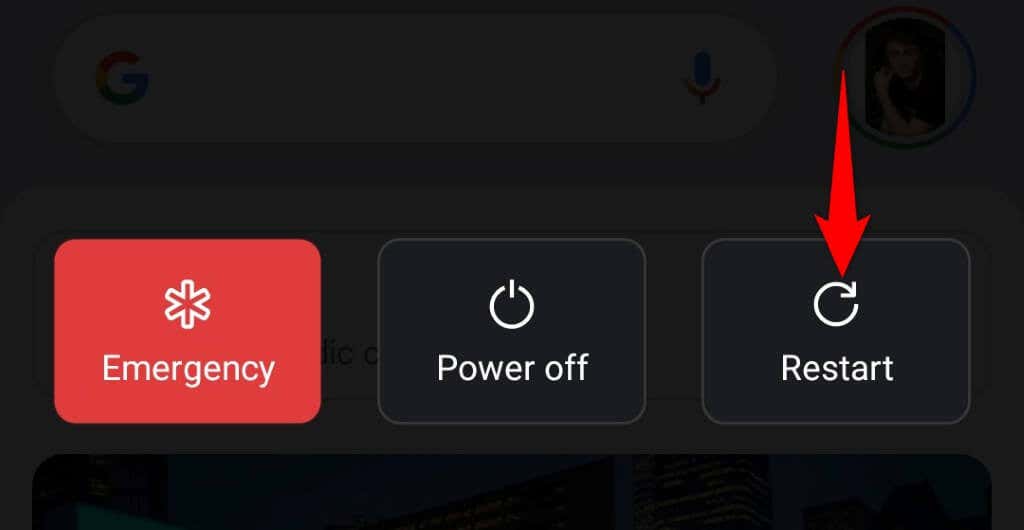
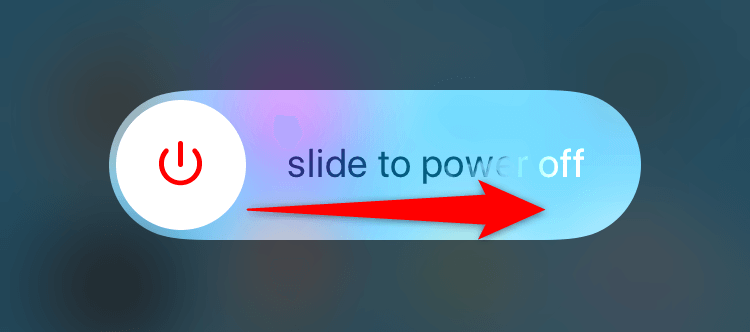
If you still have issues with your Starbucks app, your iPhone or Android phone may be experiencing technical issues. In this case, you can try to resolve those issues by restarting your phone. Make sure to save your unsaved work before powering off your phone.
On Android
On iPhone
4. Check if Starbucks Server Is Down
Sometimes, you can’t use the Starbucks mobile app because the company’s app servers are down. This outage prevents your app from fetching information from those servers, leading to various issues. You can check if Starbucks is down using the Downdetector site. If this site says that the company’s servers are down, you’ll have to wait until the company fixes those faulty servers and brings the service back up.
5. Give Starbucks Access to Your Location
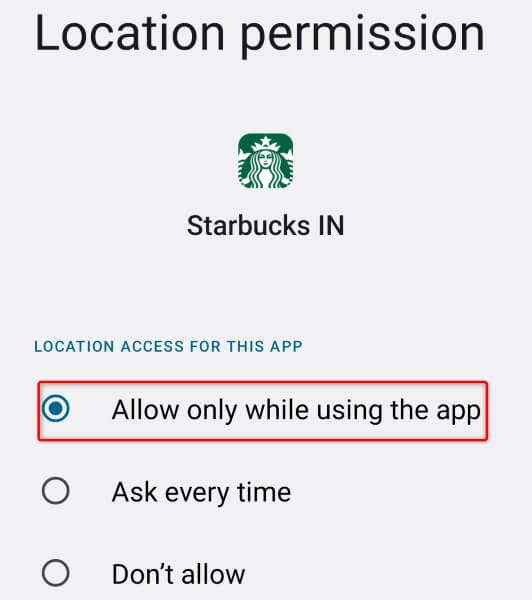
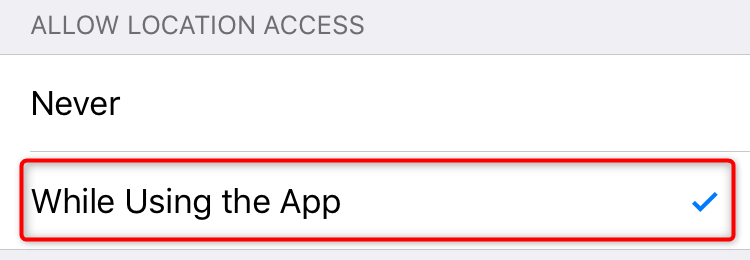
The Starbucks app requires access to your location to deliver your orders. If you’ve denied this permission to the app on your phone, that may be why you can’t use the app. In this case, access your phone’s permission settings and give Starbucks all the permissions it needs.
On Android
On iPhone
6. Clear Starbucks App Cache
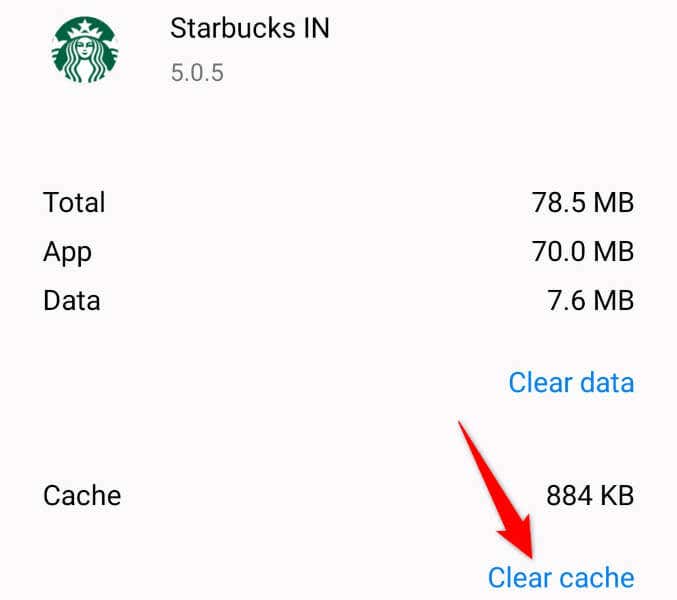
The Starbucks app creates and saves cache files on your phone to enhance your app experience. These cache files are vulnerable to corruption, and your app’s cache may have become corrupted, leading to app issues. In this case, you can get rid of all the cache files of your app to fix your issue. You don’t lose your order history or other account data when you do this. Note that you can only clear an app’s cache files on Android. You’ll have to remove and reinstall the app on an iPhone to delete an app’s cache files.
7. Update Your Starbucks App
One reason you have trouble using Starbucks is that your app version may be outdated. Older versions are known to cause many issues, and this may be the case with your app. You can fix that by updating your app to the latest version from your phone’s respective app store.
On Android
On iPhone
8. Log Out and Back Into Your Account in Starbucks
If your updated Starbucks app refuses to work, your current login session may be problematic. The app may have trouble locating your account or there may be another issue. In this case, sign out and back into your account in the app to fix your issue. You’ll need your Starbucks login credentials, so keep those handy.
9. Remove and Reinstall Starbucks on Your Phone
If your Starbucks app doesn’t work despite following the above methods, your app’s system files may be corrupted. Such corruption can break your app’s features or make certain features completely unavailable. In this case, you can resolve the issue by uninstalling and reinstalling the app on your phone. Doing so removes all the app files and brings new files.
On Android
On iPhone
Resolve Starbucks’ App Issues and Start Ordering Your Favorite Coffee
If you rely on Starbucks for your morning coffee, it’s really frustrating to find that your app doesn’t work. Luckily, your app issues won’t last too long, as our methods outlined above should fix all your app problems. Once you’ve repaired the Starbucks app, fire up the app, and you should be able to order all your favorite items. Enjoy!