Other reasons your Spotify search function isn’t working are that the platform’s servers are down, Spotify doesn’t have access to your phone’s camera, your app’s cached files are corrupted, your app is old, and more.
1. Check Your Internet Connection
When you have problems using an internet-enabled app like Spotify, check and ensure your internet connection is working. Your connection may be inactive, causing Spotify’s search feature not to work. You can check if your connection is working by opening a web browser and launching a site. If your site doesn’t load, your connection is faulty. In this case, try to resolve your internet connection problems by restarting your device, rebooting your router, fixing your network adapter problems, or contacting your internet service provider (ISP).
2. Check if Spotify Is Down
One reason Spotify’s search feature isn’t working is that the platform’s servers are down. In this case, you can’t use various app features as the servers providing those features are unavailable. You can check if Spotify is down using the Downdetector site or the Spotify Status account on X (formerly Twitter). If these sites say Spotify is down, wait until the company fixes the issue.
3. Turn Off Spotify’s Offline Mode
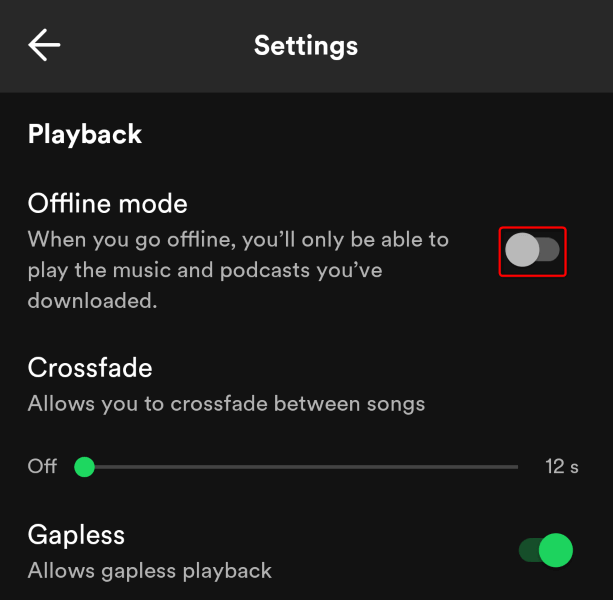
Spotify offers an offline mode that allows you to listen to your downloaded music when you aren’t connected to the internet. If you’ve enabled this mode, that may be why you can’t use the search function. You can resolve your issue by turning off your app’s offline mode.
On Android and iPhone
On Windows and Mac
4. Give Spotify Access to Your Phone’s Camera
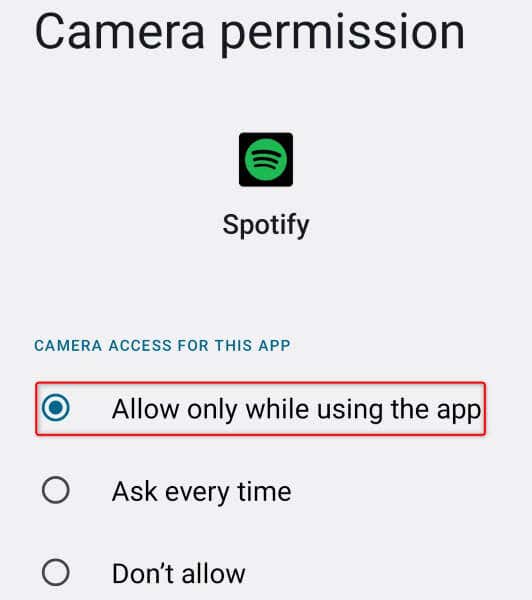
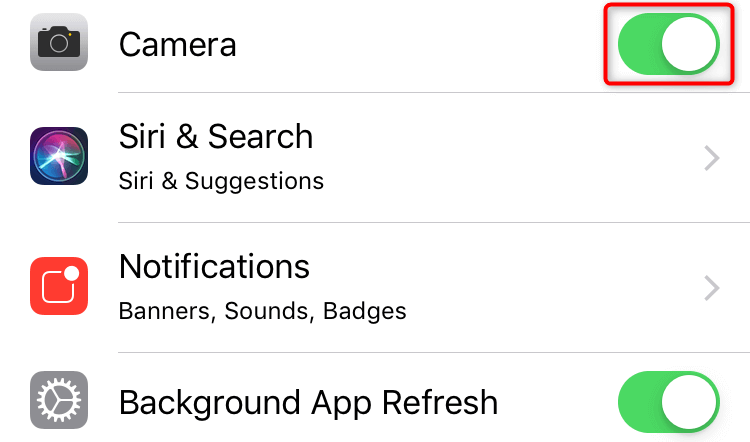
If you’re trying to scan a code using Spotify’s search feature, ensure you’ve given the app access to your phone’s camera. This is because the app can’t scan codes without camera access.
On Android
On iPhone
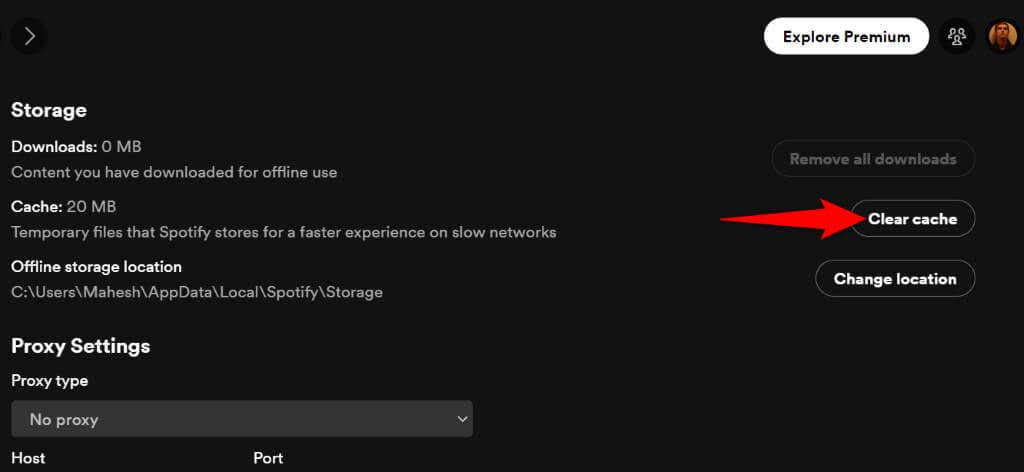
5. Clear Spotify’s App Cache
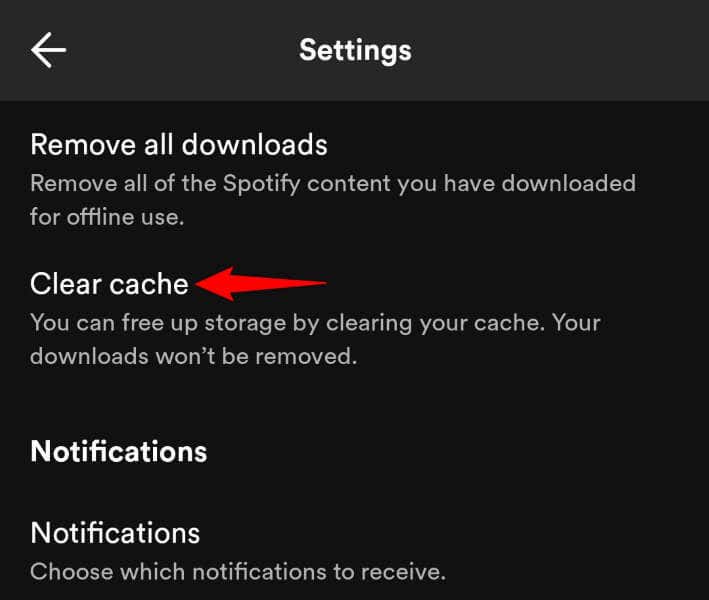
Spotify caches various content to improve your app experience. If this cache becomes corrupted, you experience various issues in the app. This may be the case with your Spotify app. Luckily, you can fix your app’s bad cache by deleting the cache. This doesn’t delete your account data in the app.
On Android and iPhone
On Windows and Mac
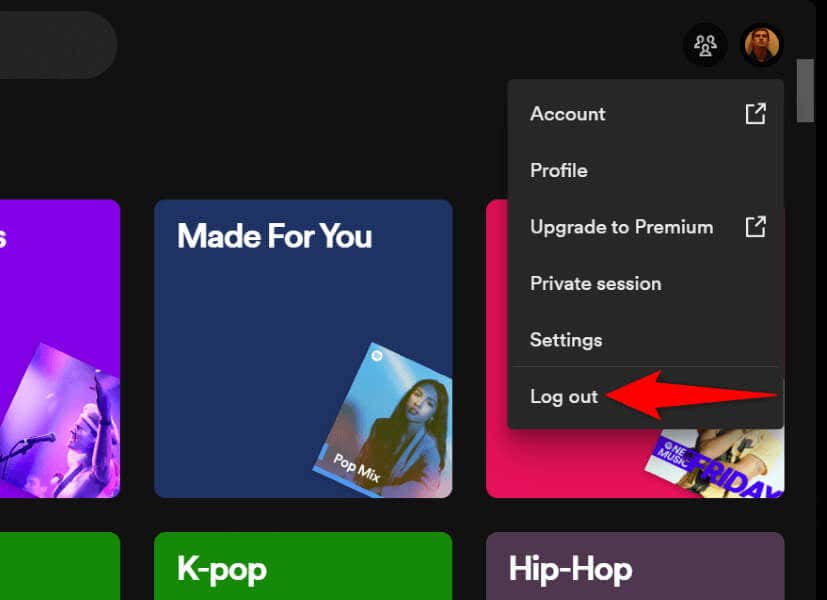
6. Log Out and Back Into Your Spotify Account
If your search issue persists, your app may have a login session problem. In this case, you can sign out and back into your account in the app to resolve your issue. Note that you’ll need your Spotify login credentials to log back in, so keep those details handy.
On Android and iPhone
On Windows and Mac
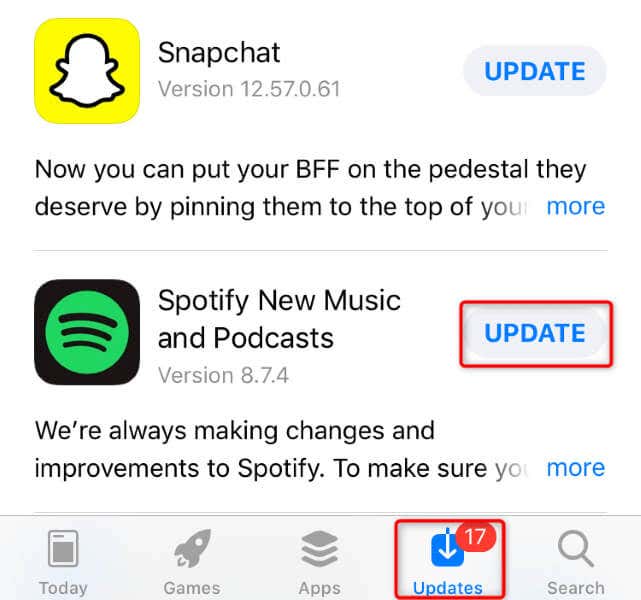
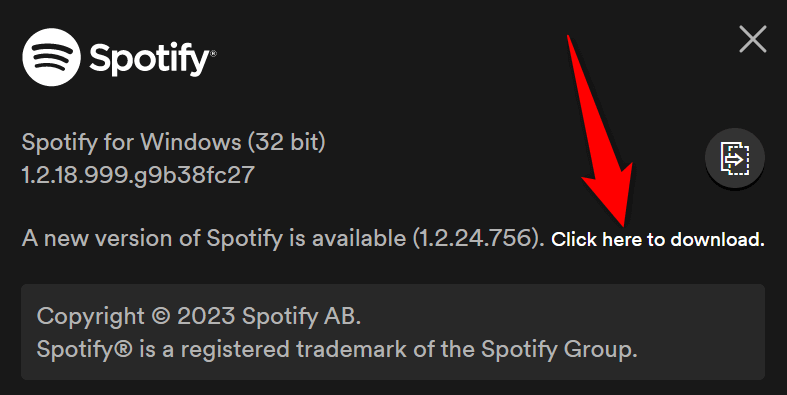
7. Update Spotify to Fix a Spotify Search Not Working Issue
If you have an old Spotify version, that may be why you can’t utilize the search feature. Old software versions often have many issues, and you can patch those problems by updating your app to the latest version. It’s quick and easy to update Spotify on your mobile and desktop devices.
On Android
On iPhone
On Windows and Mac
8. Remove and Reinstall Spotify on Your Device
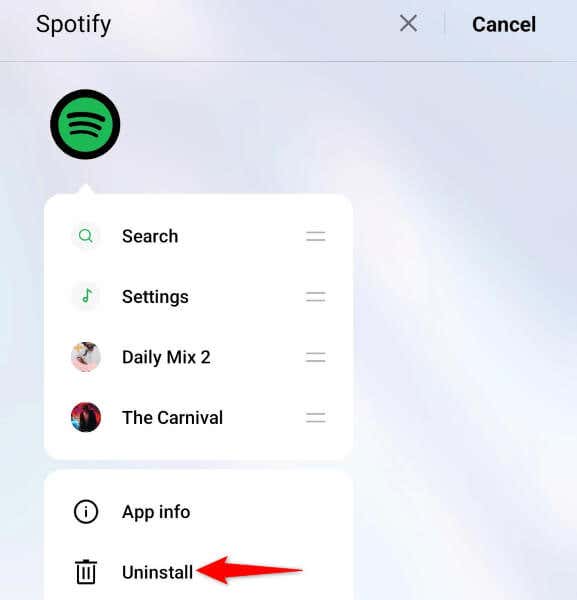
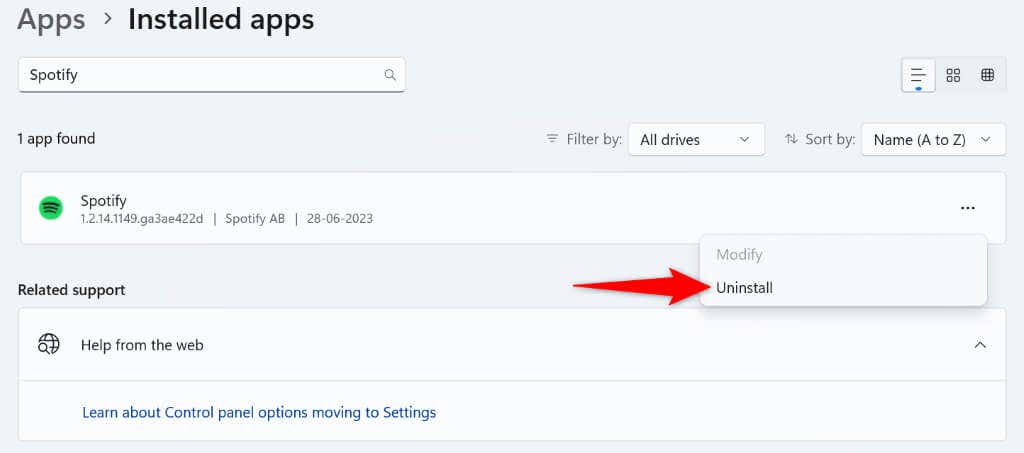
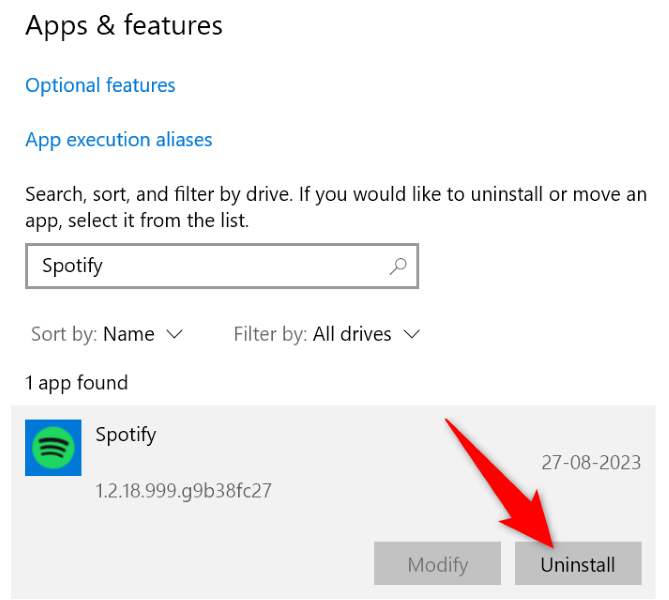
If your issue still isn’t resolved, Spotify’s core files may be corrupted. In such a case, your only option to fix the problem is to uninstall and reinstall the app. Doing so deletes all the existing app files, some of which are faulty. Note that you don’t lose your created playlists and other account data when you reinstall Spotify.
On Android
On iPhone
On Windows
On Mac
9. Use the Spotify Web Player
If nothing fixes your issue and you can’t find your favorite music, use Spotify’s web player that allows you to access all your favorite music from your device’s web browser. This web-based Spotify works pretty much the same way as your desktop Spotify app, allowing you to sign in to your account, access your playlists, find music tracks, and listen to your favorite songs. You can launch a web browser on your device and open the Spotify Web Player site to access the tool.
Restore Spotify’s Broken Search Functionality
Spotify’s search function stops working for various reasons. If you’ve run into this problem and can’t find a way to fix it, use the methods outlined above. These methods resolve issues with the items that can potentially cause your problem, allowing you to restore your favorite music player’s find function. Good luck!