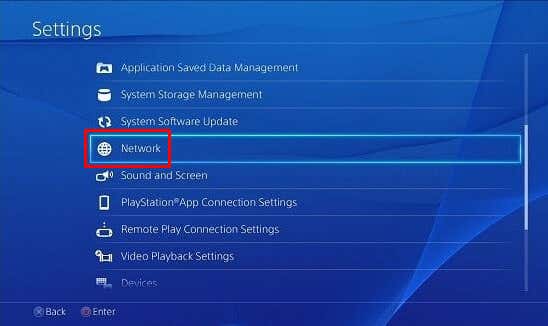
In this article, we’ll discuss why your PlayStation 4 console keeps disconnecting from WiFi, and we’ll show you several potential fixes. However, you’ll have to do some troubleshooting first to discover the reasons behind the constant disconnections. Fortunately, all the proposed fixes are quick to try and you’ll be back playing your favorite PS4 games in no time.
Why Does My PS4 Keep Disconnecting from WiFi?
If your PS4 constantly drops the WiFi connection, it could be due to: As you can see there are different reasons why your PS4 gaming console keeps disconnecting from WiFi. So try to figure out why you are experiencing this issue or simply apply each fix on our list until one works for you.
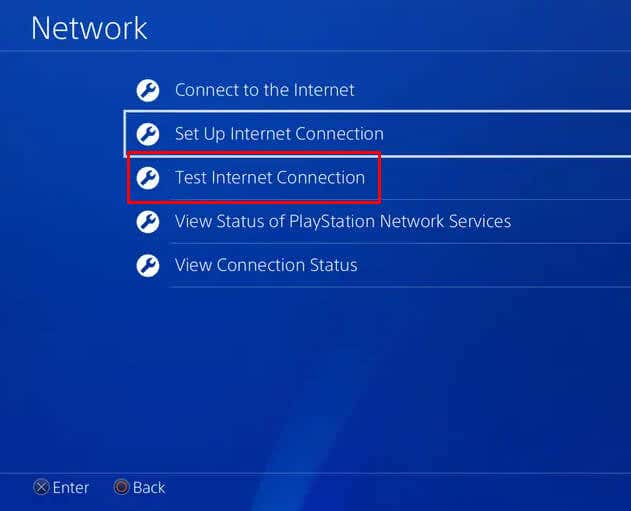
1. Perform a Connection Test
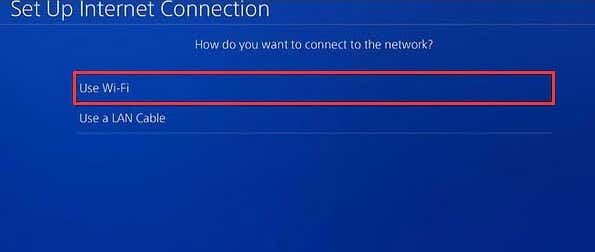
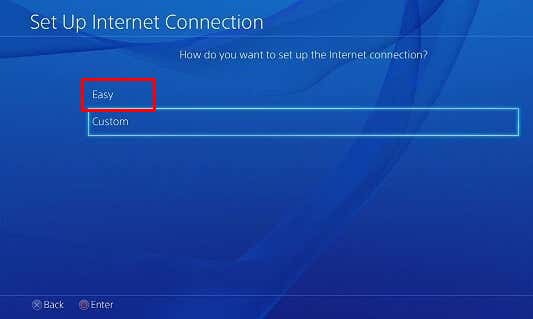
If you’re wondering if your PS4 has a stable WiFi connection, you should perform a connection test. It’ll help you get an insight into the network problems that are causing your gaming console to frequently drop the WiFi connection.
If you’re certain your PS4 console has a stable WiFi connection, but you keep getting disconnection errors, you should know that some games, such as Ghost of Tsushima, send false disconnection notifications during the gameplay.
2. Move Your PS4 Console Closer to the WiFi Router
If you notice your WiFi connection is not stable, just moving your PS4 console closer to the router could solve this problem. This will increase the signal strength and reduce the chance of experiencing disconnections. You can also opt for moving the router somewhere where it won’t be physically blocked by anything else. Metal objects that are blocking the router are the main problem, so make sure there are no house appliances, other gadgets, or even walls between your PlayStation 4 and the router. If you’re not only experiencing frequent WiFi disconnections but also noticed your games are lagging, you should consider switching to an ethernet cable. Don’t rely on a patchy WiFi connection when an ethernet cable ensures optimal connection stability and speed.
3. Power Cycle the PS4 and Restart Your WiFi Router
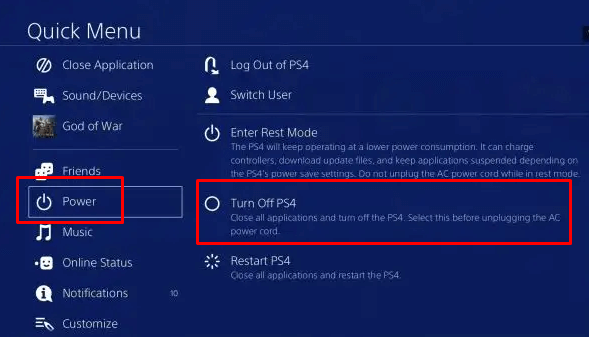
Your PS4 device might be getting constant WiFi disconnects because there’s a temporary glitch with your console or router, such as a glitch in the communication modules between the PS4 and the router. The best course of action is to perform a cold restart of both devices. Follow these steps to Power Cycle the PS4 gaming console and the router simultaneously: If the problem persists, check if other devices work properly when they are connected to the same WiFi.
4. Change the WiFi Frequency Settings
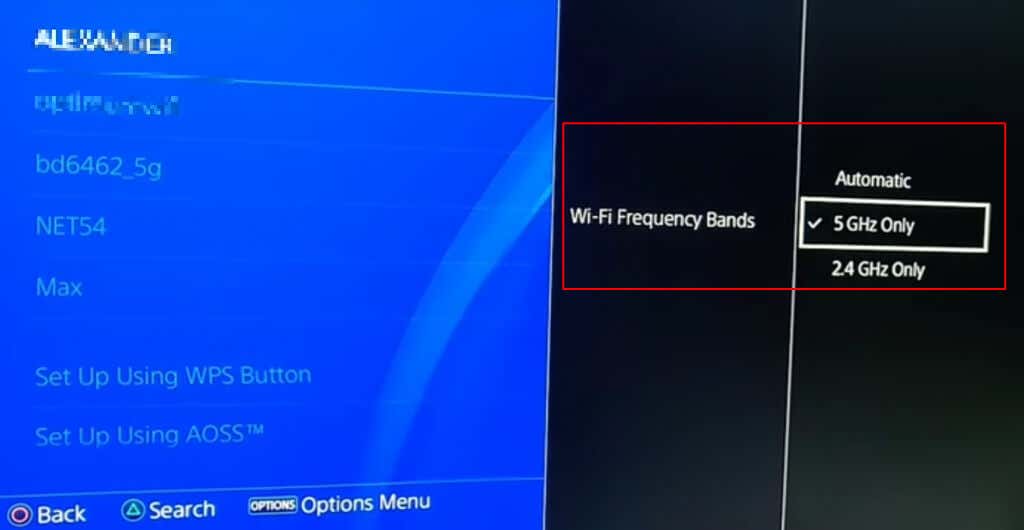
While the old PS4 models support only the 2.4 GHz frequency, PS4 Pro supports both 2.4 GHz and 5 GHz. However, the 2.4 GHz frequency is the default one for all PS4 models. If you have PS4 Pro don’t hesitate to change the frequency settings. 5 GHz offers a faster rate of data transmission. This could resolve your issue with the WiFi connection.
Follow these simple steps to change the frequency settings on your PS4 Pro console:
Make sure you reboot your PS4 and see if this solves your WiFi issues.
5. Update the PS4 Firmware
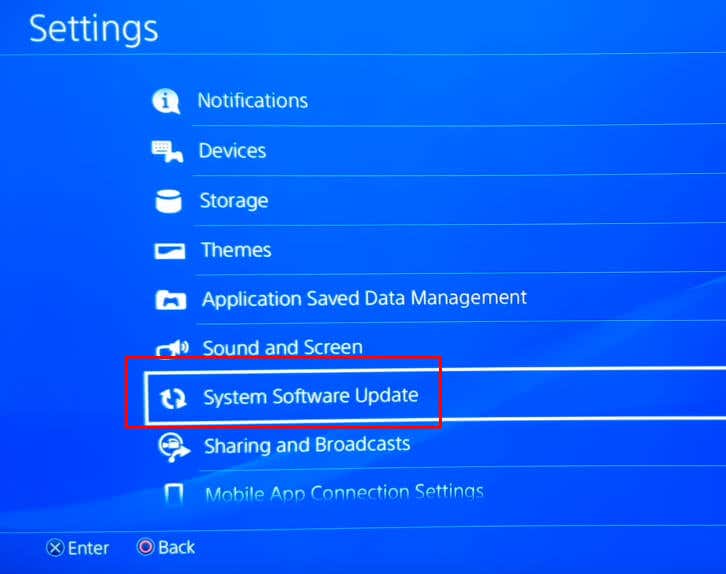
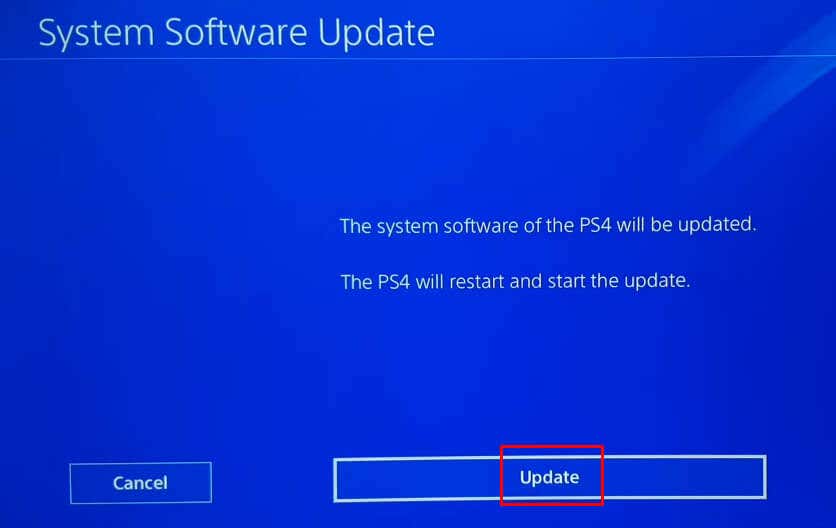
Updating the PS4 firmware to the latest version is a great way to deal not only with the WiFi connection issues but also with any glitches and bugs you might be experiencing with your console.
Here’s how you can update PS4 firmware:
6. Change DNS Settings
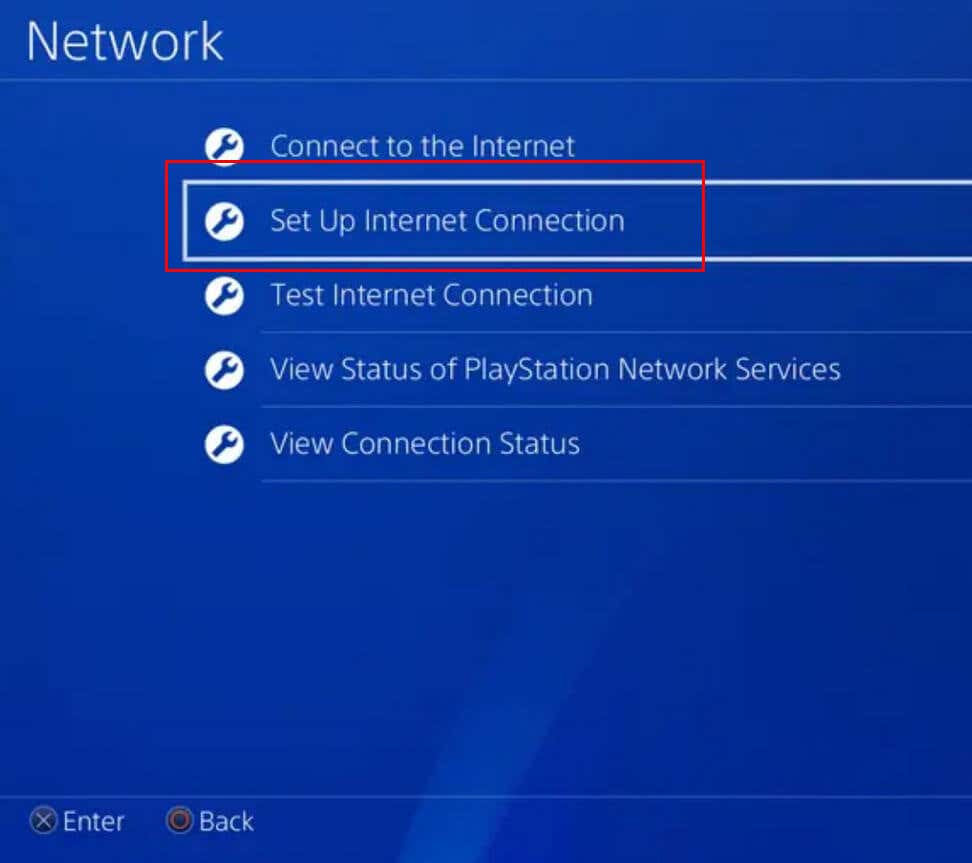
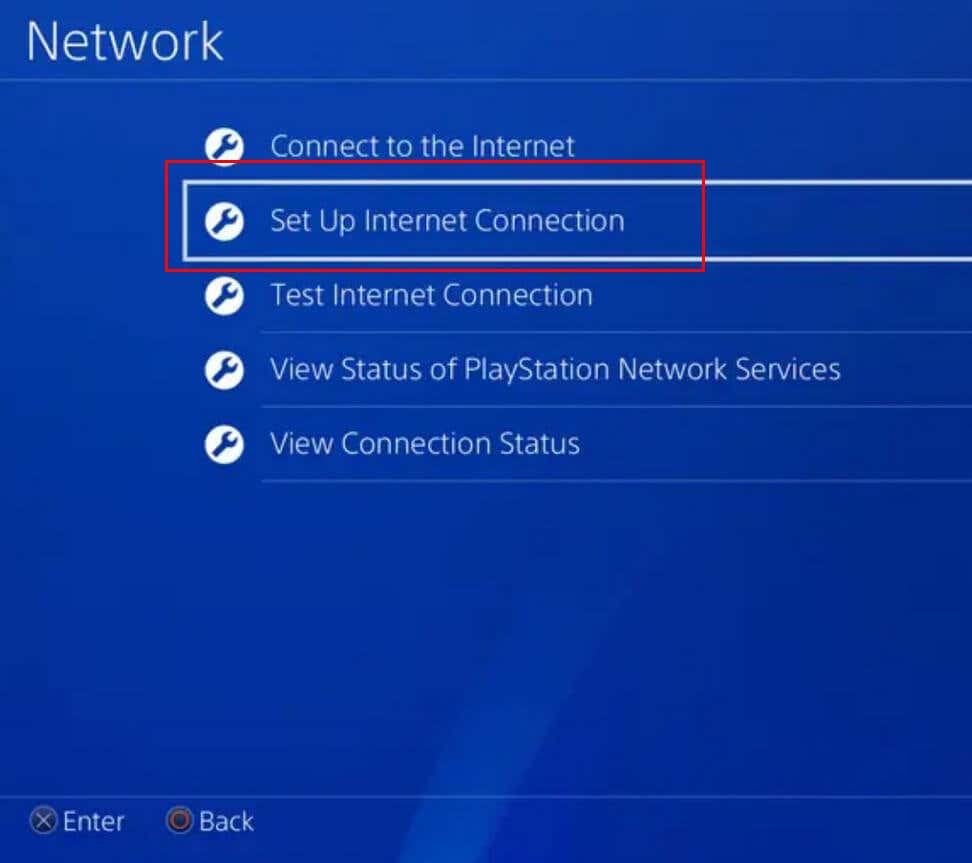
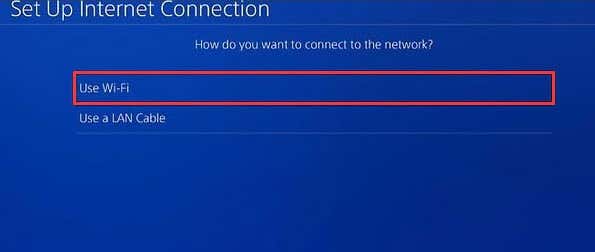
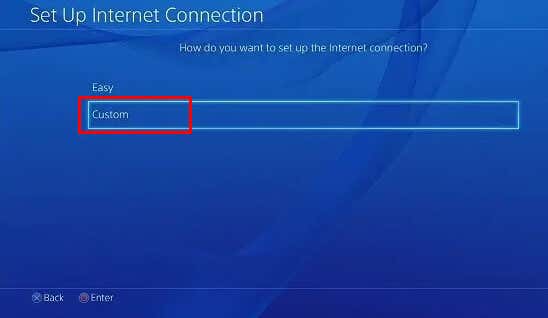
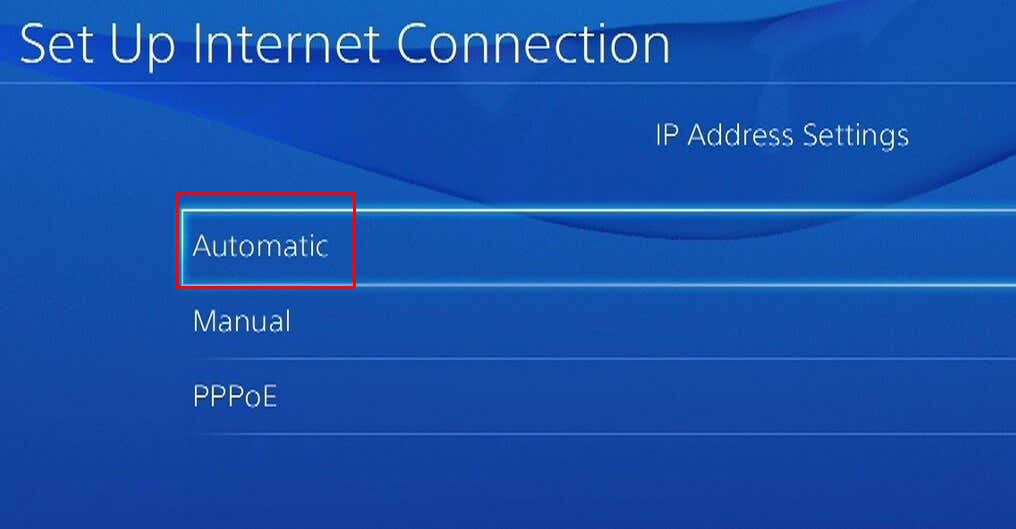
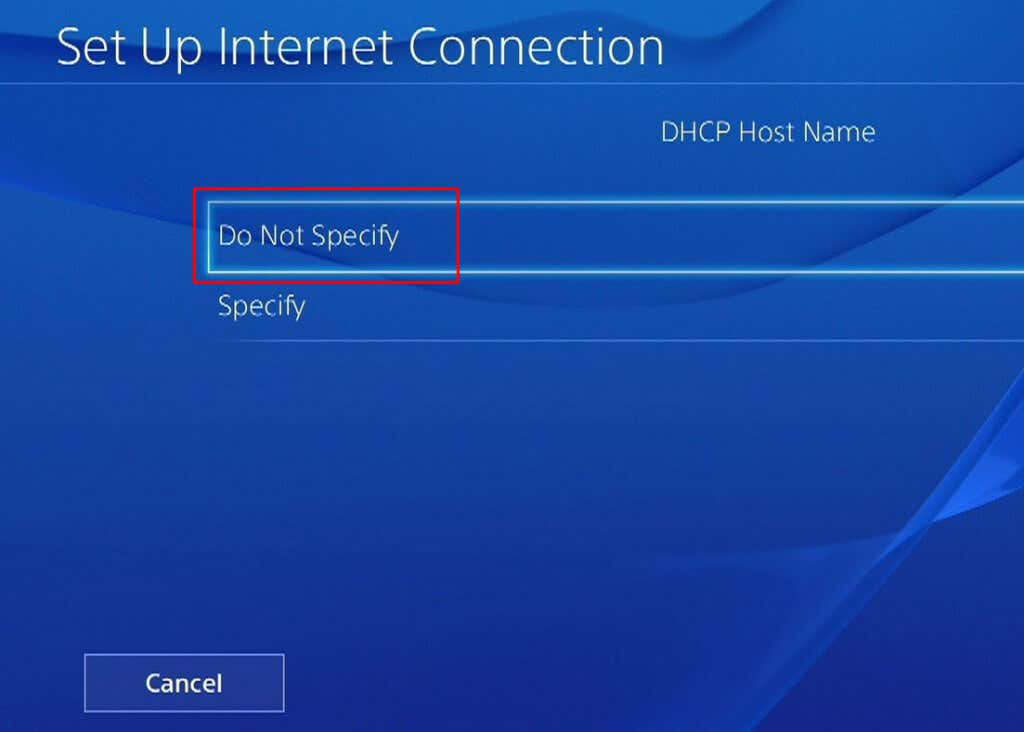
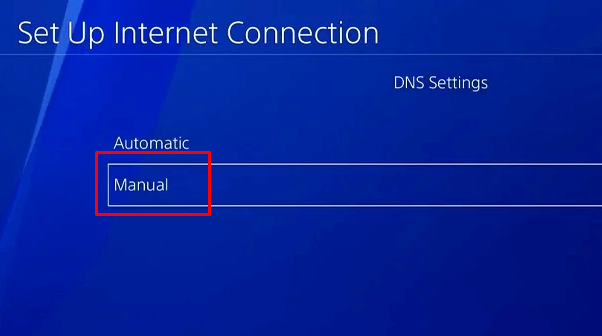
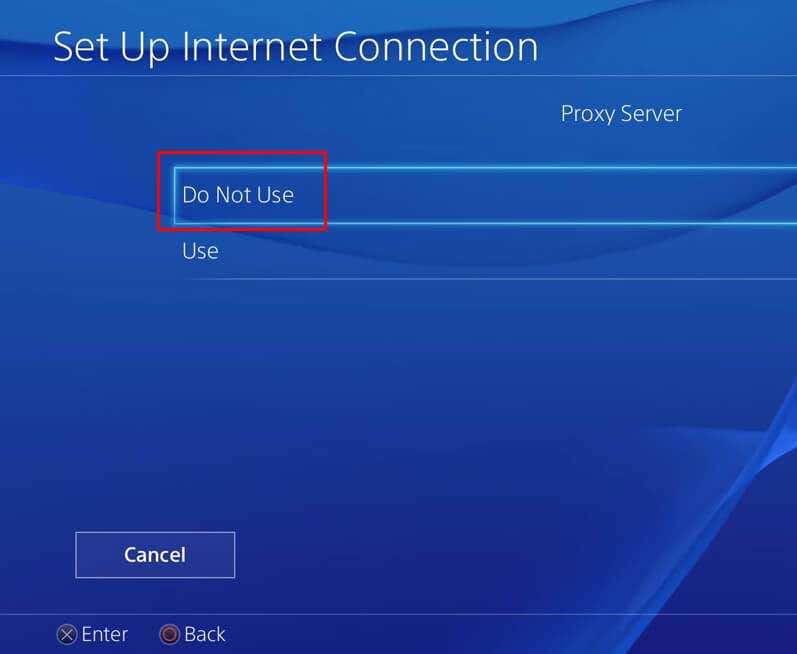
DNS stands for Domain Name System and it’s a crucial part of the PS4 network connection settings. Its role is to make the communication between the console and the router seamless. Changing the DNS settings might fix network problems and help your PS4 console establish a stable wireless connection. Follow these steps to change the DNS settings on a PS4 console: GooglePrimary: 8.8.8.8Secondary: 8.8.4.4 CloudflarePrimary: 1.1.1.1Secondary: 1.0.0.1 Finally, select the Test Internet Connection button to check if your Wi-Fi connection works properly.
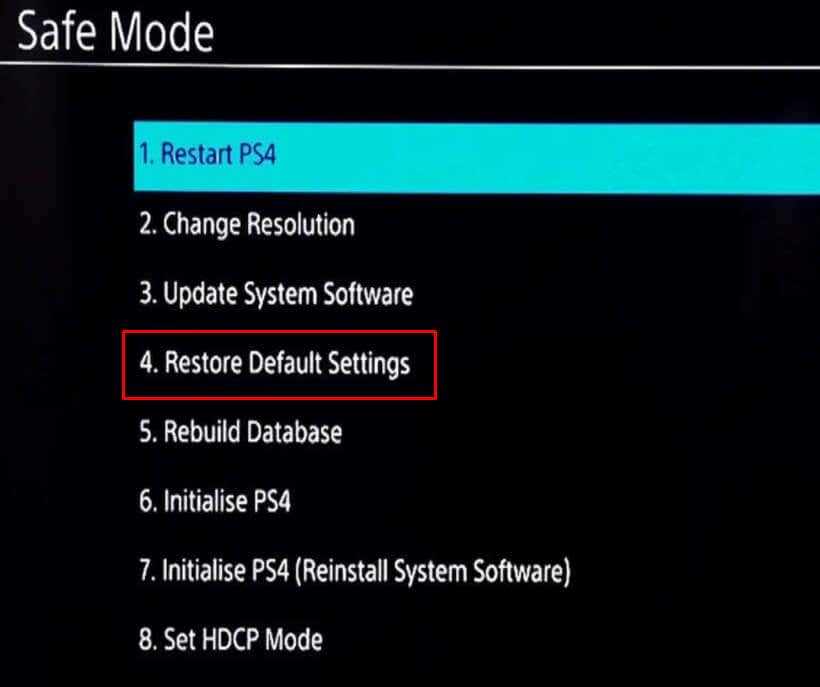
7. Restore Default PS4 Settings
If your PS4 console settings are improperly configured, you might experience frequent WiFi disconnections. Just resetting them to default might fix the issue for you. If you opt to reset the console’s settings, you should know you might lose some game saves, but no content will be deleted. All your games, screenshots, videos, and apps will remain intact. Here’s how to reset the PS4 settings to default:
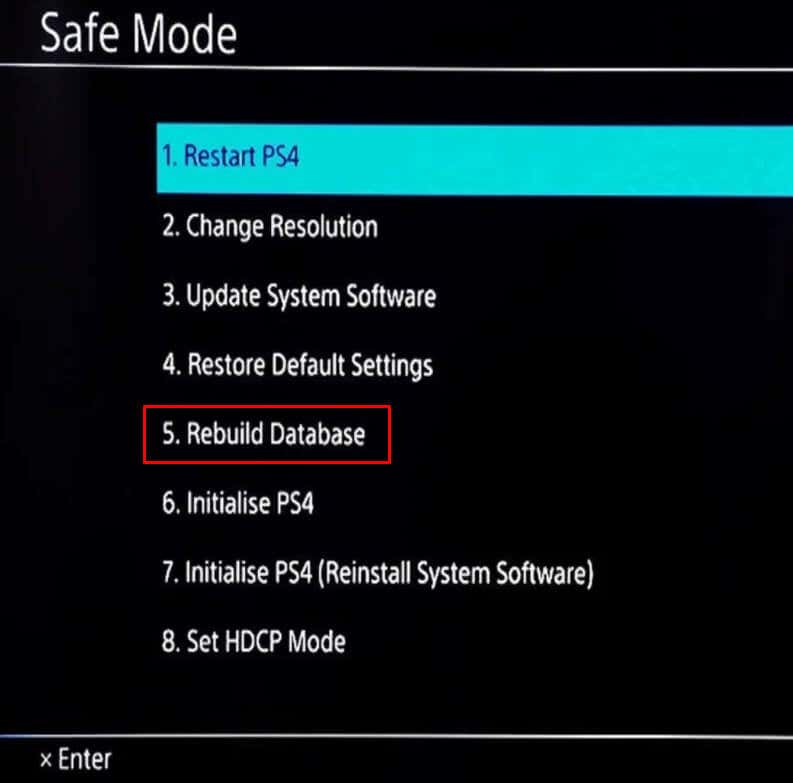
8. Rebuild PS4 Database
Maybe your current data table on the PS4 is overloaded, or not optimal, and is causing constant WiFi disconnects. If this is the case, your only option is to rebuild the PS4 database. During the process, the system will scan the storage drive and create a new database of all the content. All the corrupted data discovered during the scan will be automatically deleted. But don’t worry, but that doesn’t mean you’ll lose data from your console. The deleted corrupted files will simply be replaced with fresh versions. This means rebuilding the PS4 database is a safe process. Here’s how to do it: If this didn’t solve your issue you might want to try rebuilding the database for the second time. But this time, keep your PlayStation 4 console powered off for a whole day. Remember that a stable Wi-Fi connection is crucial for an uninterrupted gaming experience, and by following these steps, you can regain control of your gaming destiny. Whether it’s resolving interference issues, optimizing your network settings, or performing a factory reset, these methods can help ensure your PS4 stays connected to the internet, allowing you to immerse yourself in your favorite games without interruption.