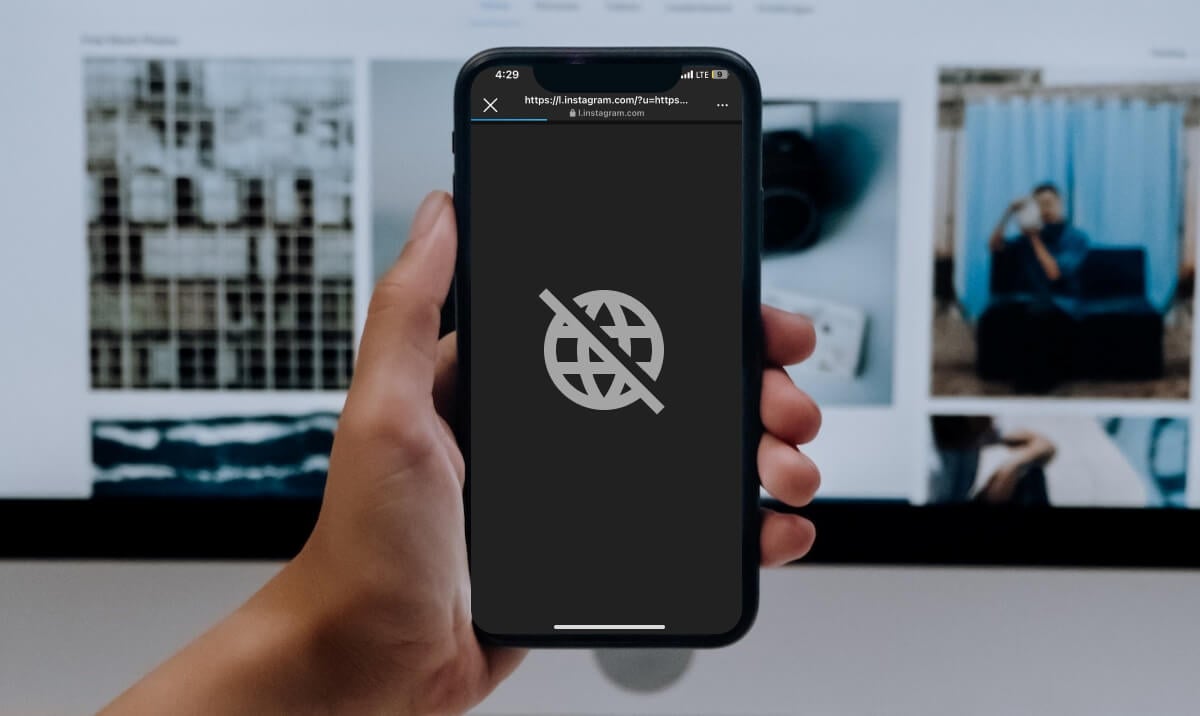
Try the troubleshooting tips below if Instagram fails to open web links on your Android or iOS device.
1. Check Your Internet Connection
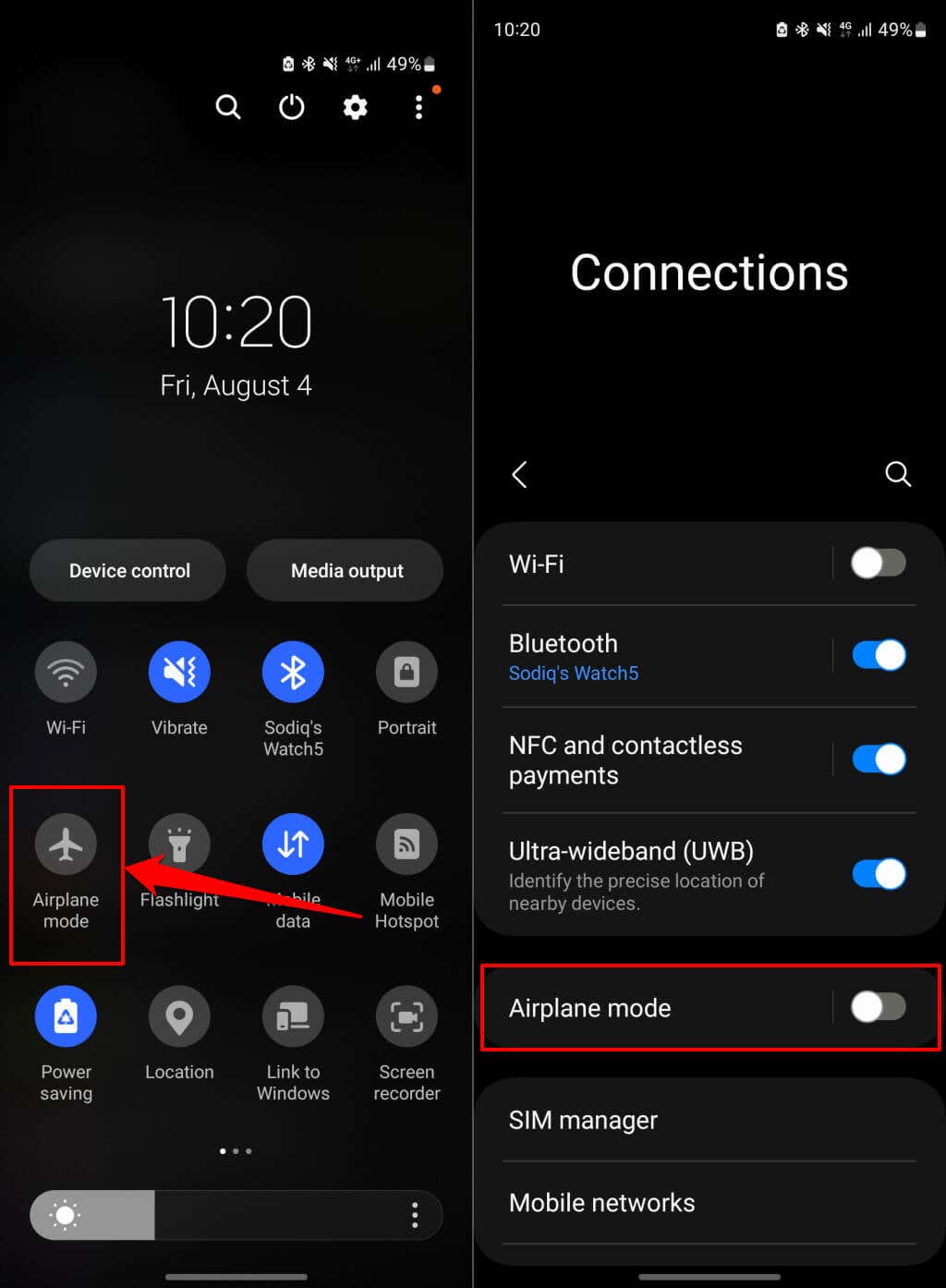
Instagram might fail to open website links on a slow, unstable, or weak internet connection. Switch to a Wi-Fi network if you’re using cellular data and open the link again. Reboot your router or contact your internet service provider if the issue persists. Refresh your cellular and Wi-Fi connection by putting your phone in and out of airplane mode. Swipe up from the top of your Android device’s screen and tap the airplane icon to enable airplane mode. Wait 3-5 seconds and tap the icon again to turn off airplane mode. Alternatively, head to Settings > Network & internet (or Connections), toggle Airplane mode on, and turn it back off. If you use an iPhone, open the Settings app, toggle on Airplane Mode, and turn it back on after a few seconds. Reconnect your phone to the internet via cellular data or Wi-Fi, open Instagram, and check if the app opens web links. If you’re using a Virtual Private Network (VPN), turn it off, and try opening the link again. Also, check your router, firewall, or proxy app settings for website restriction—especially if Instagram won’t open links to specific websites.
2. Clear Instagram’s Browser Cookies and Data
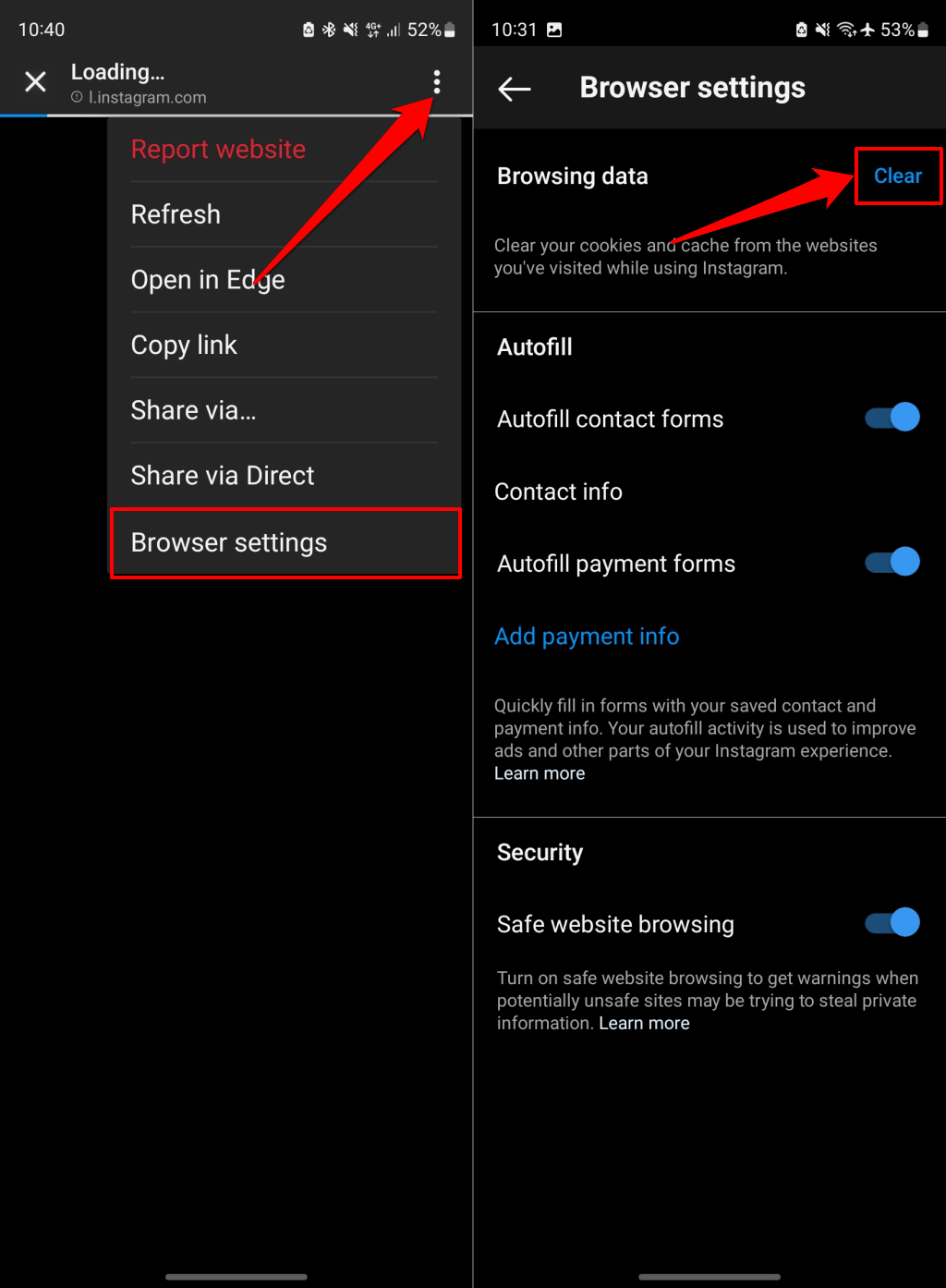
Instagram saves data from websites or links you visit in the in-app browser. Instagram might fail to open links if the browser’s data over-accumulates or gets corrupted. Clear Instagram’s browser data might get the app opening website links again.
Clear Instagram’s Browser Data (Android)
Open any website link on Instagram and follow the steps below. Close the browser, reopen the link, and check if Instagram loads the website. Restart Instagram and open the link again if the issue persists.
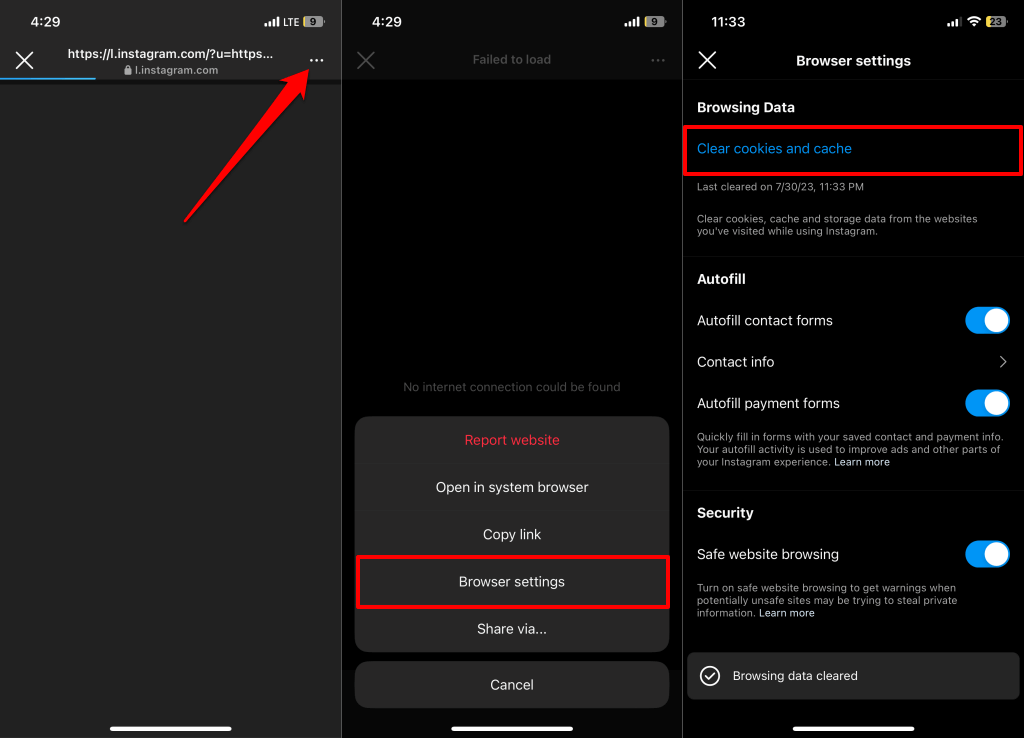
Clear Instagram’s Browser Data (iOS)
Open any link in the Instagram app and follow the steps below. Close the browser and revisit the web link. Close and reopen Instagram if the browser still doesn’t load the website.
3. Force Close and Restart Instagram
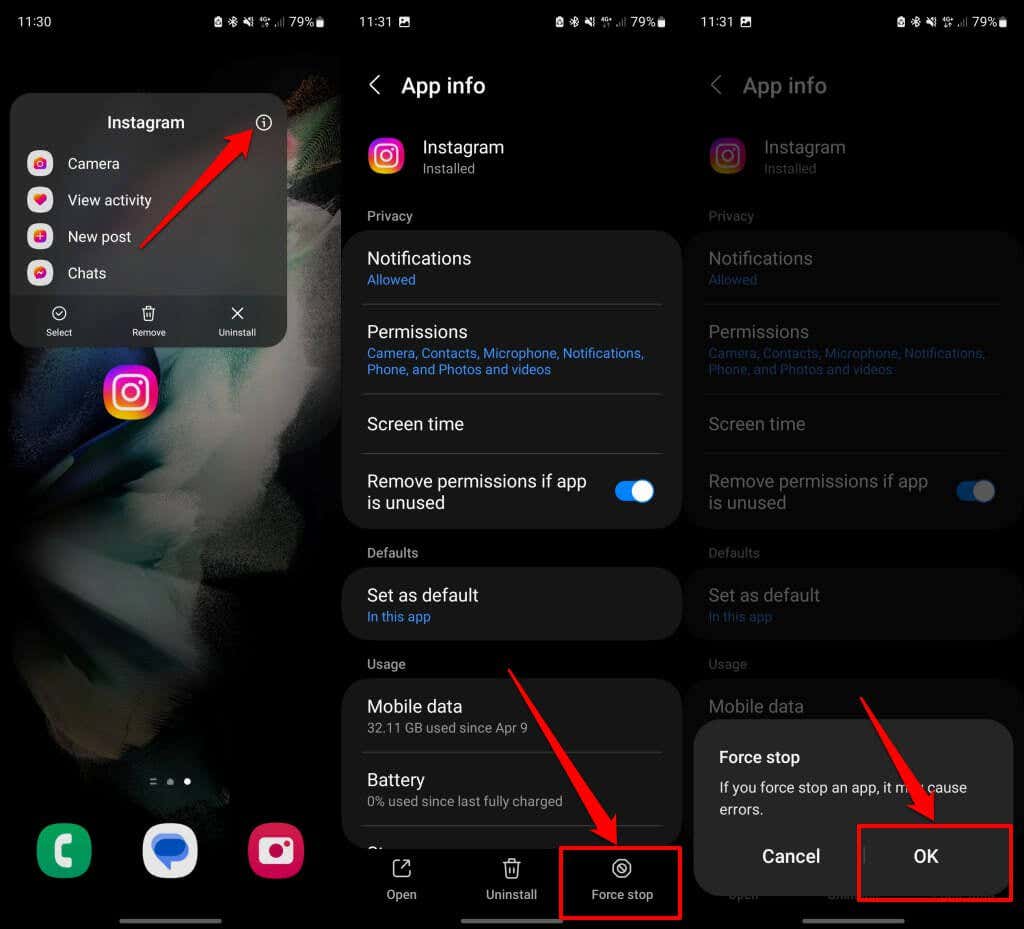
Force close Instagram on your phone if the app doesn’t respond when you tap website links.
Force Close Instagram on Android
Force Close Instagram on iPhone
If your iPhone has Face ID, swipe up from the bottom of your screen and stop in the middle of the screen. Locate Instagram in the App Switcher and swipe up the app to close it. Double-click the Home button to open the App Switcher on iPhone SE, iPhone 8, or earlier models. Swipe up Instagram’s preview to close the app.
4. Use Your Phone’s Default Browser
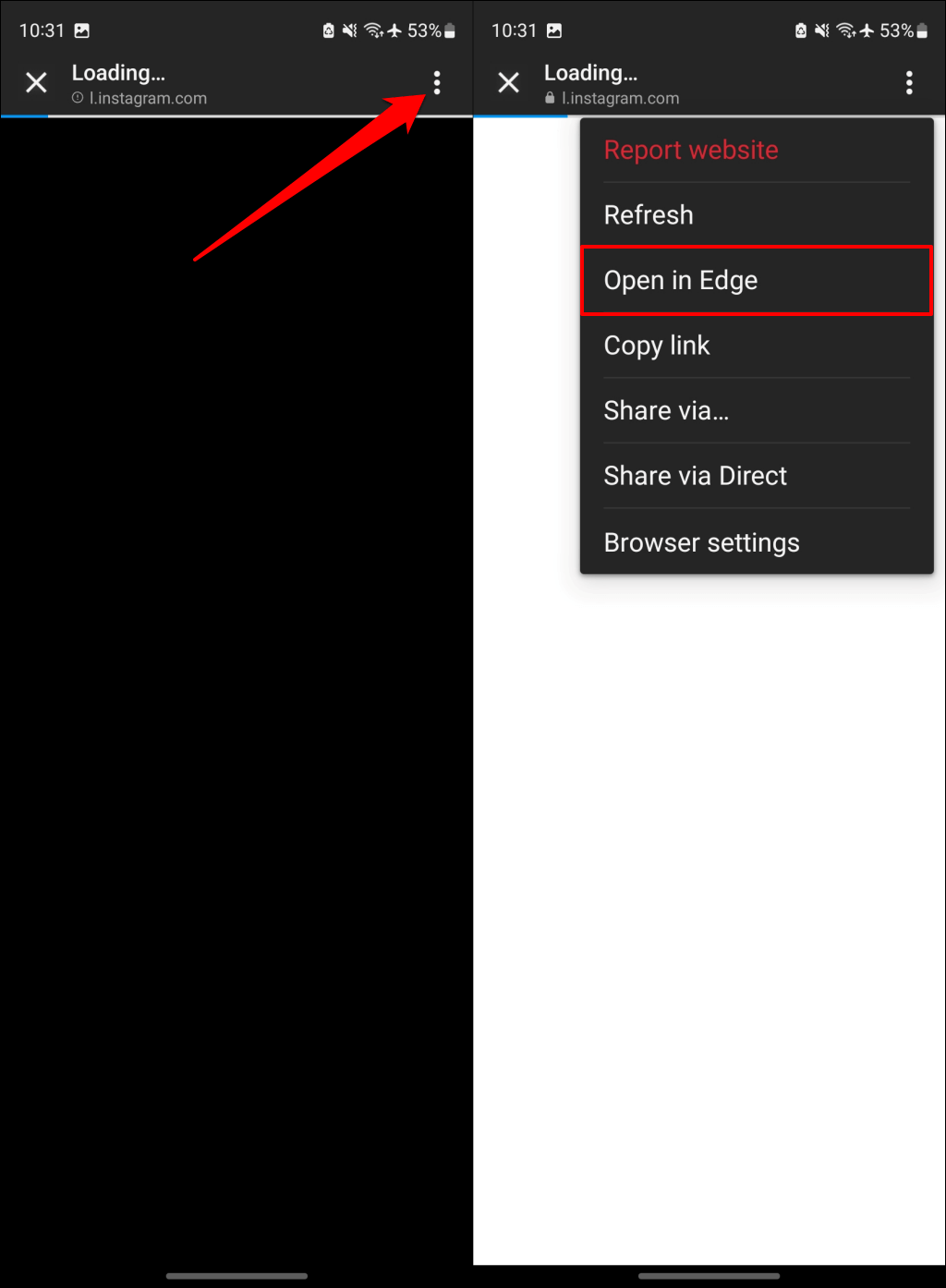
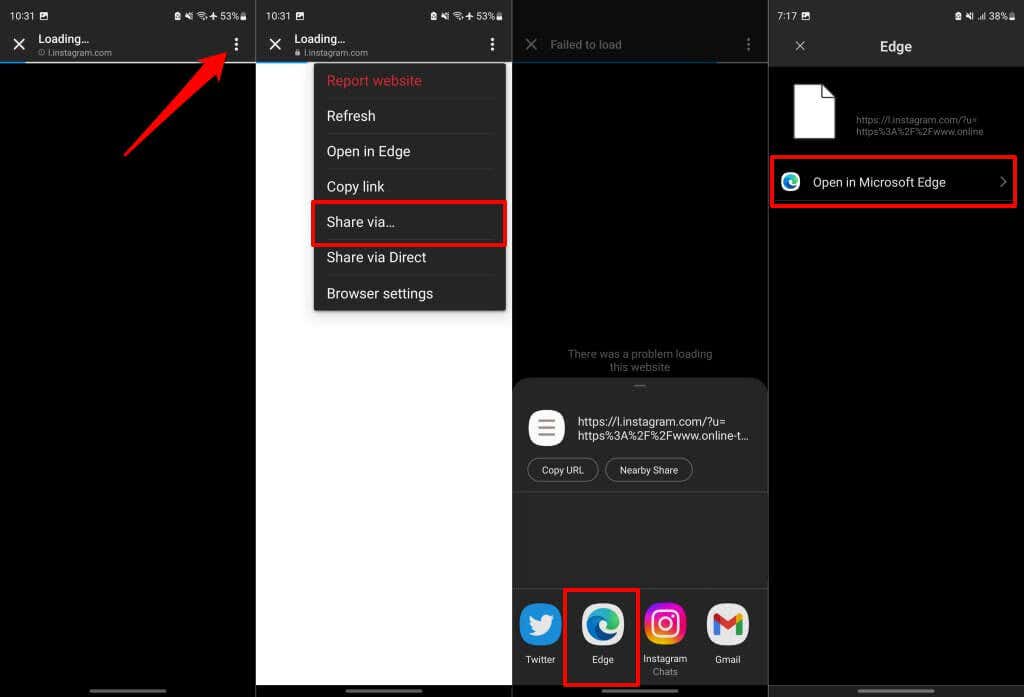
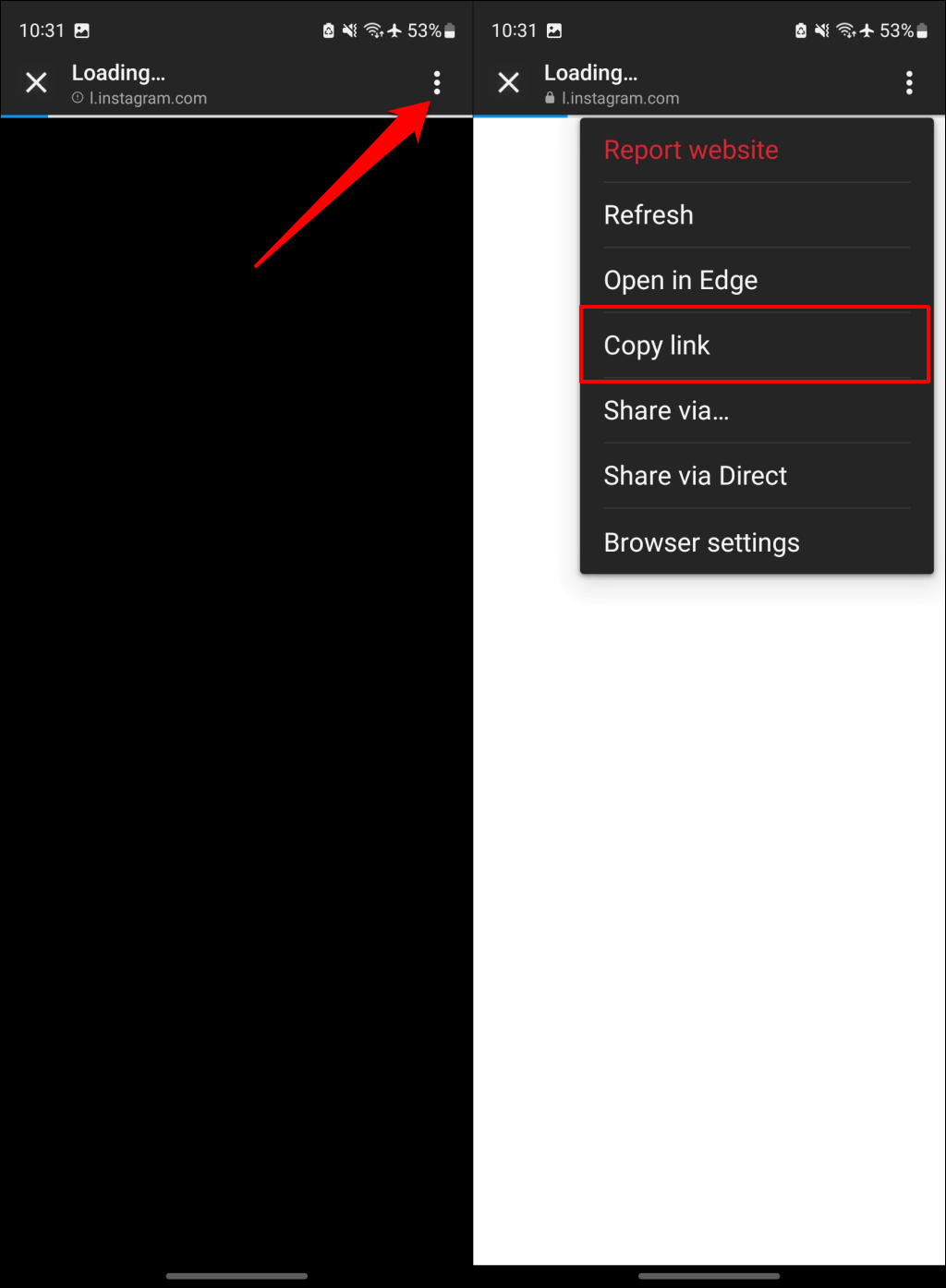
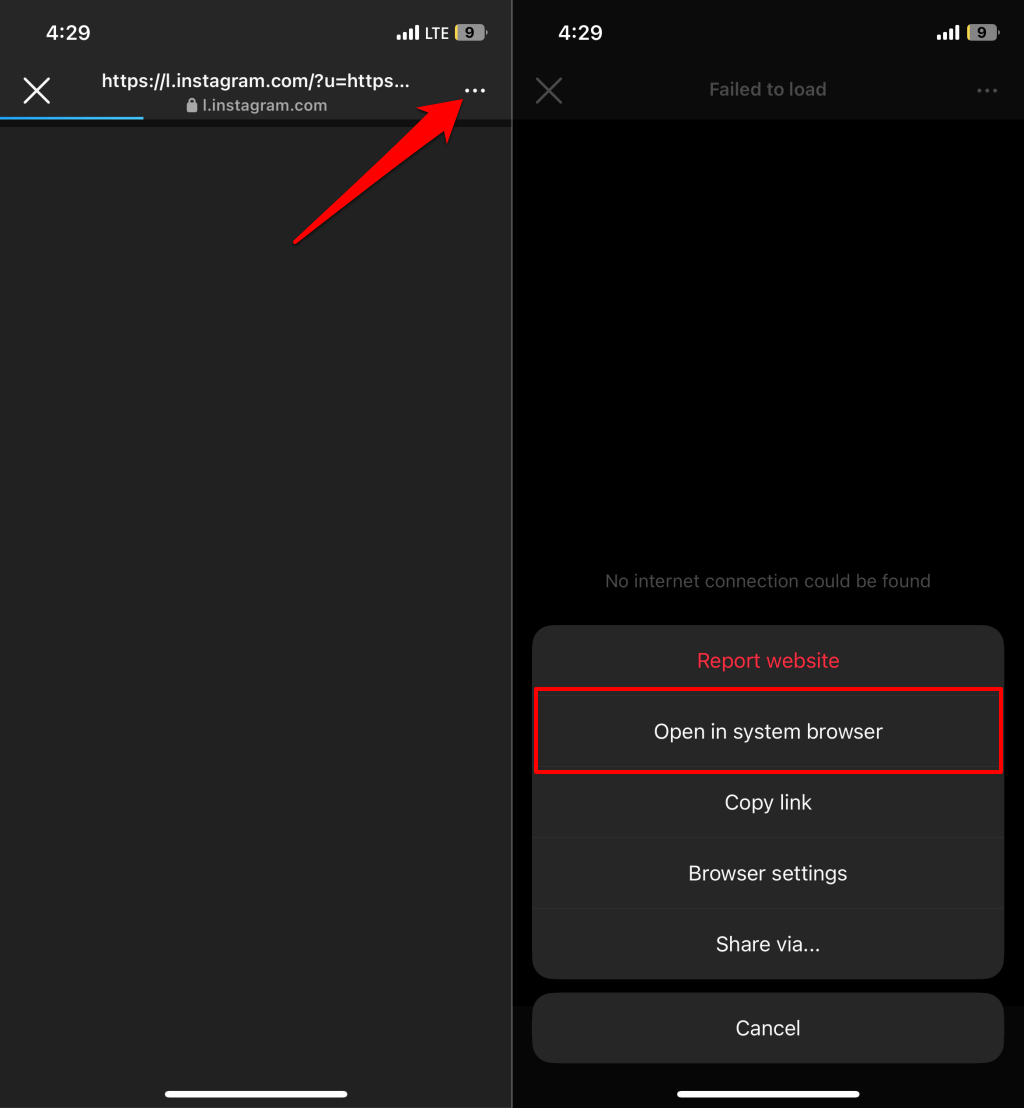
Instagram blocks certain types of links—e.g., shortened links and links to platforms sharing explicit content or spam. You might also encounter trouble accessing links to other social media platforms like Telegram and Snapchat through Instagram. If Instagram doesn’t open specific websites, try opening the links in your phone’s default browser or any external web browser. On Instagram for Android, tap the three-dot menu icon in the top-right corner, and select Open in [Browser Name]. Alternatively, tap the menu icon, select Share via…, choose your browser in the share menu, and select Open in [Browser Name]. You can also copy Instagram links and open them in your preferred (external) browser. Tap the menu icon in the Instagram browser and select Copy link. Paste the copied link in your preferred browser to visit the website. In the iOS Instagram app, tap the three-dot menu icon in the top-right corner, and select Open in system browser. Want to change your phone’s default browser? See our tutorial on changing default browsers on iPhone and Android devices.
5. Update the Instagram App
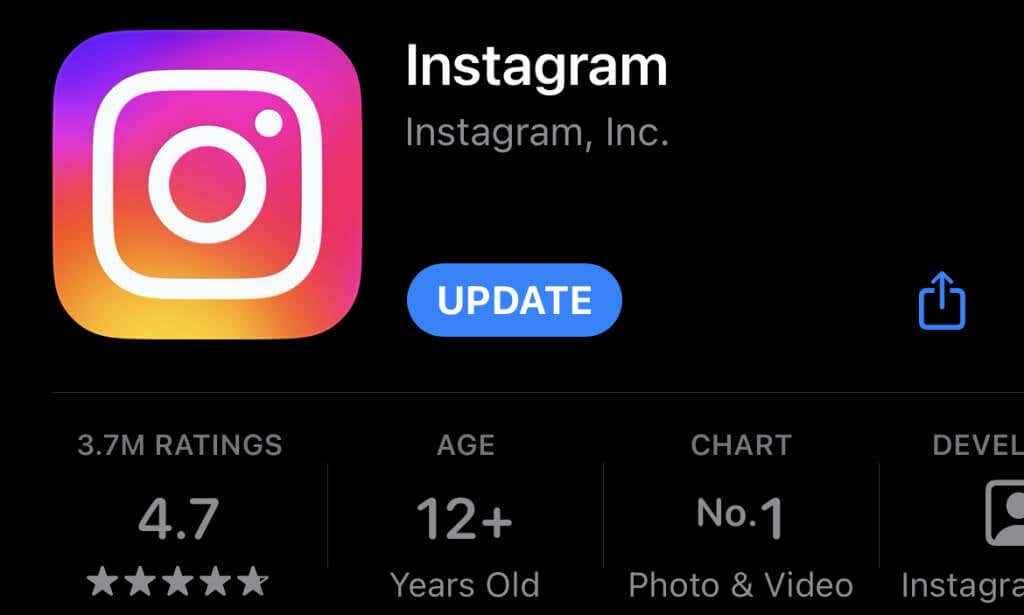
Instagram might malfunction if you’re running an outdated version of the app on your device. Updating Instagram to the latest version can restore broken functionalities to normal. Open the Play Store (Android) or App Store (iPhone), search for “Instagram,” and tap Update to update Instagram.
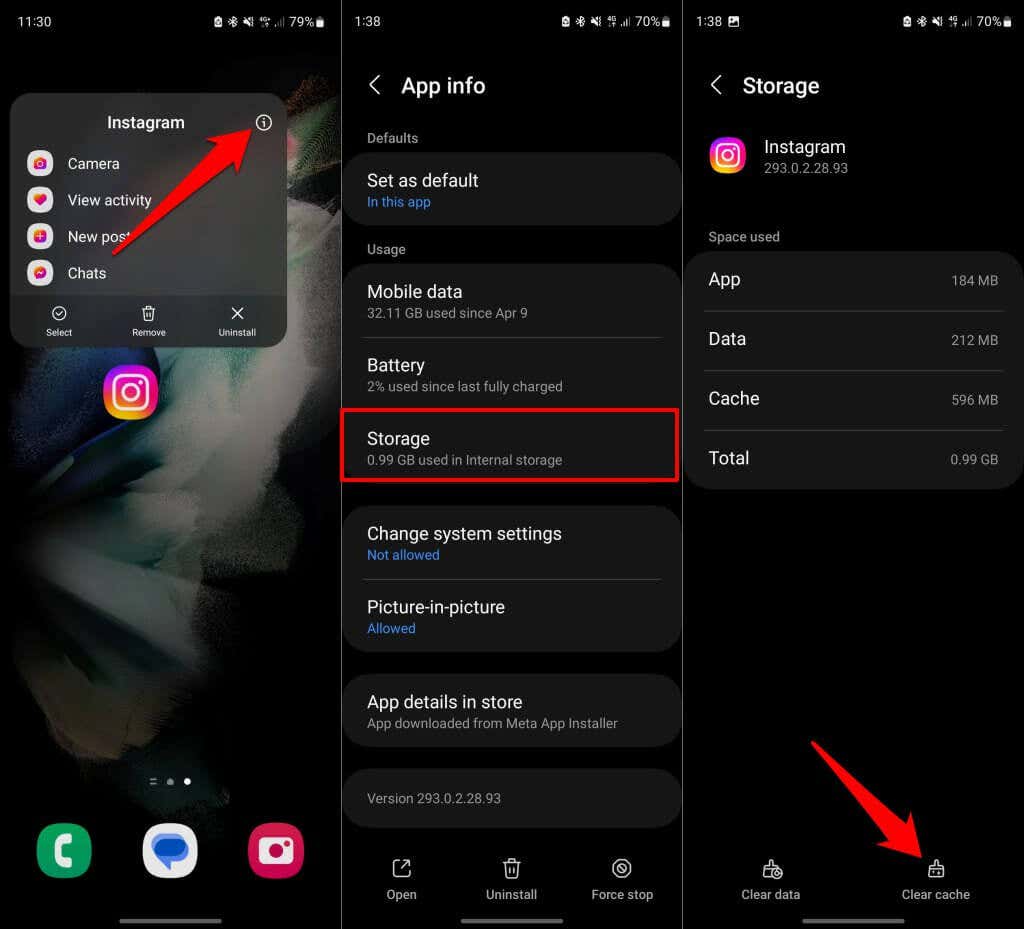
6. Clear Instagram App Cache and Data (Android)
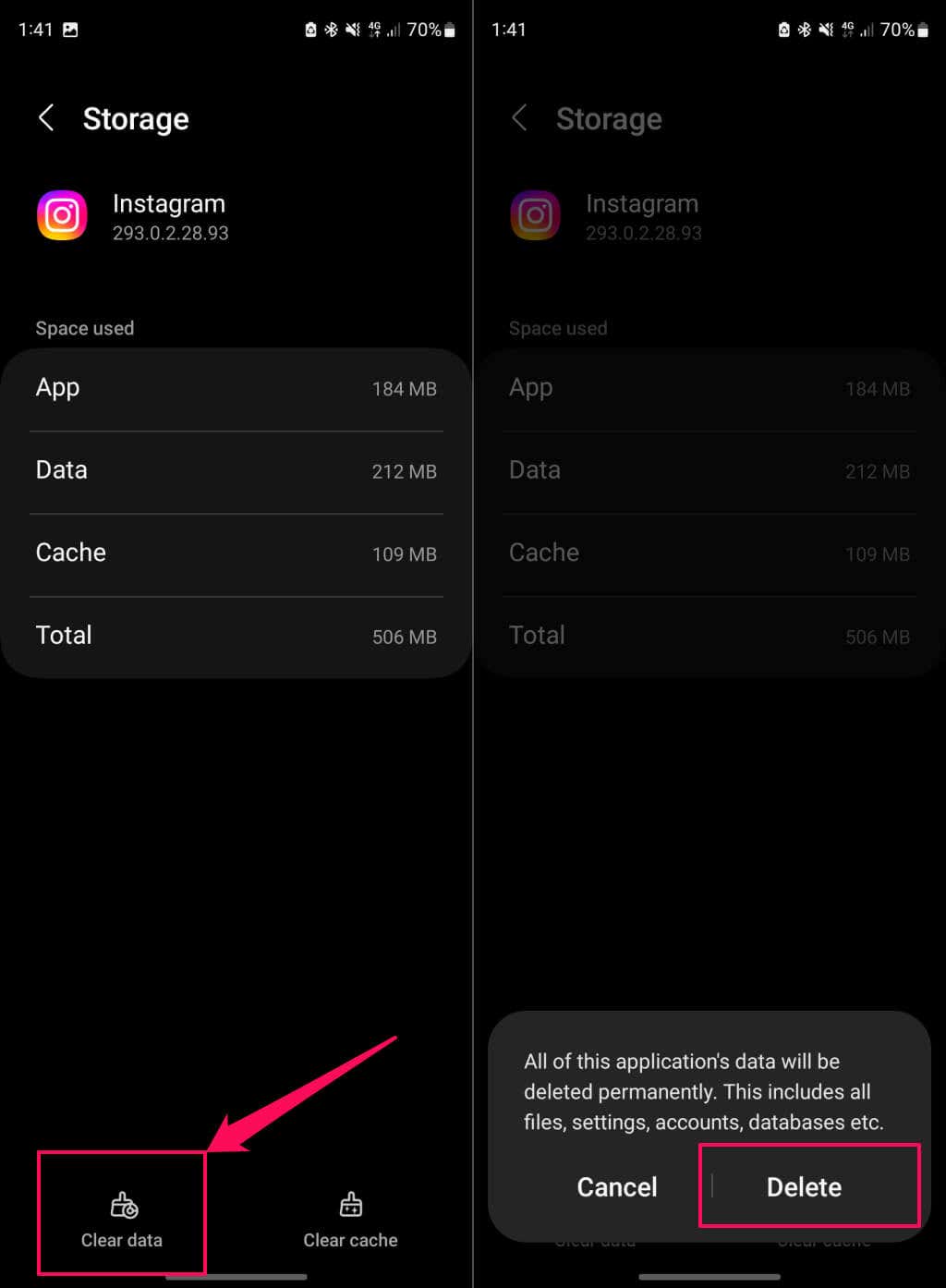
Delete Instagram’s cache or data if you still can’t open web links after updating the app. Restart Instagram and check if the app opens website links. Clear Instagram’s app data (see step #4) if the issue persists. Reopen the app, sign into your Instagram account, and try opening website links in DMs, bios, or stories.
7. Contact the Instagram User or Page Admin
Web links won’t open in Instagram (or any browser) if broken or expired. If someone shared the link via direct message (DM), ask if they can access the webpage in their Instagram app or web browser. If they can, you likely have the wrong URL/link. Request a new link from the sender/user or report the glitch to the website administrator. If an Instagram bio link isn’t clickable, text the user or page admin to send the link via DM.
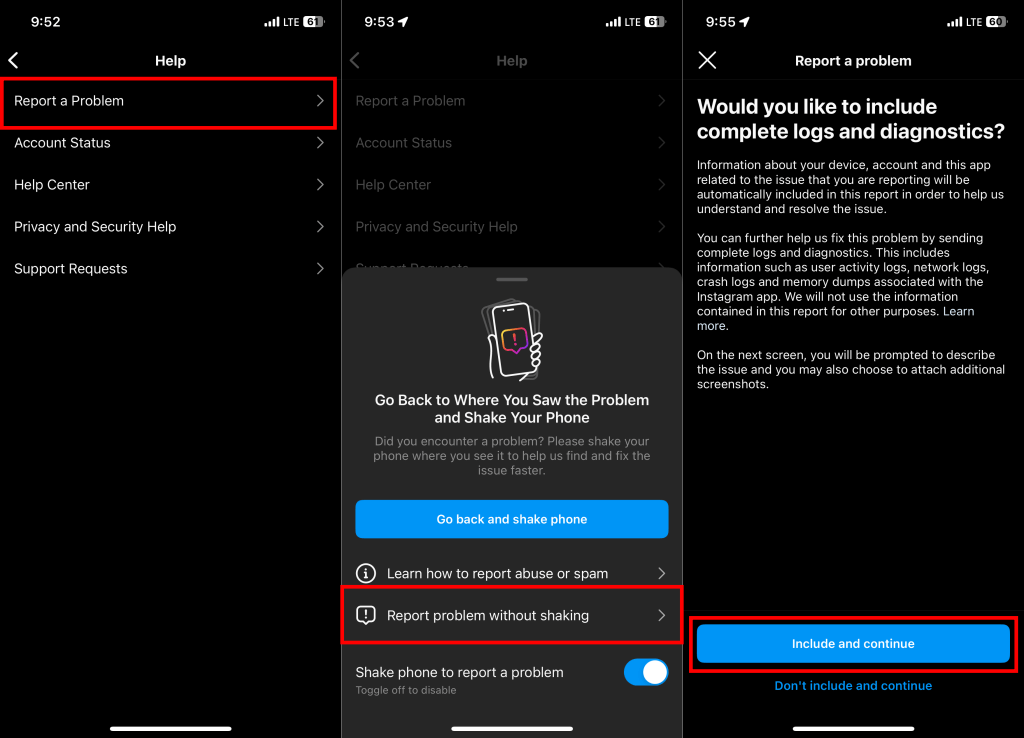
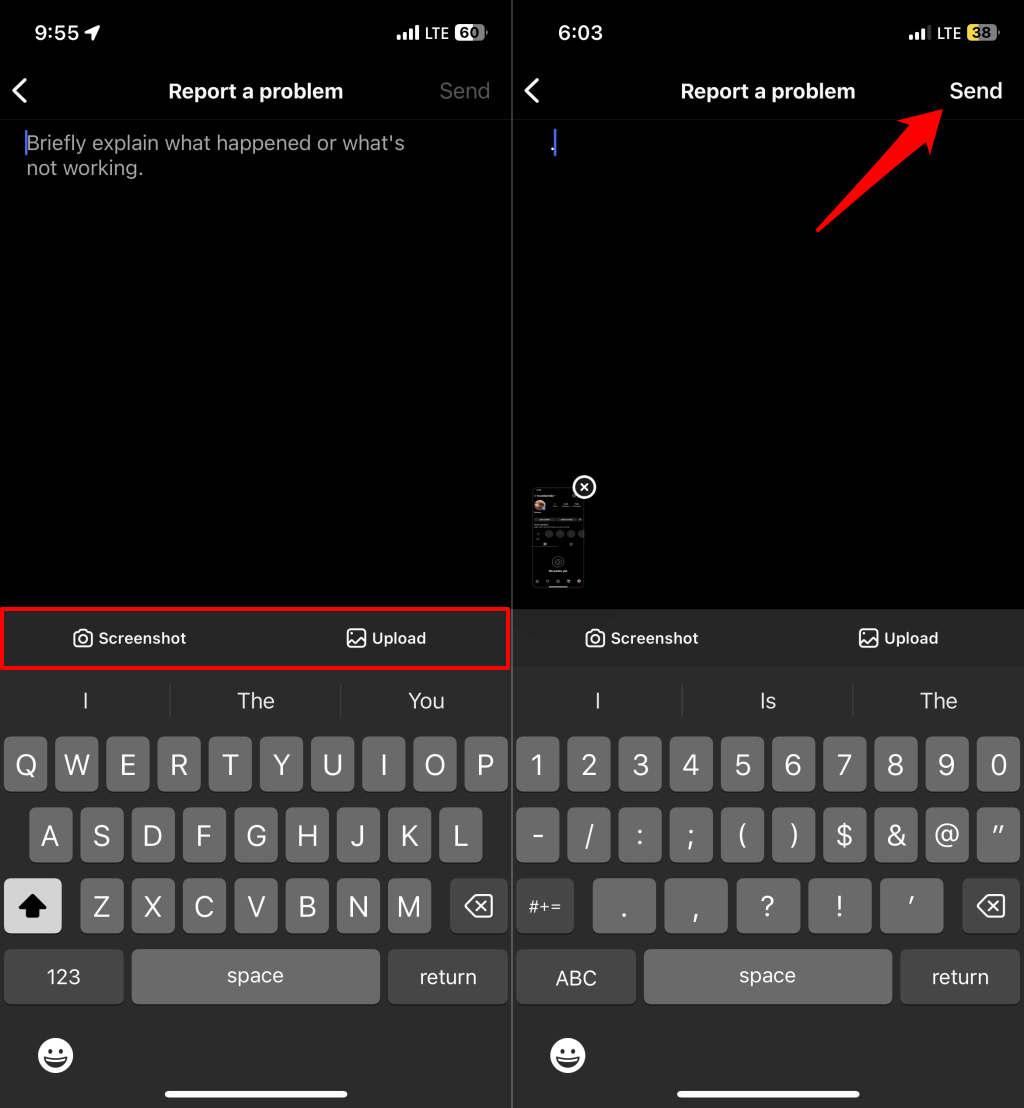
8. Report the Problem to Instagram
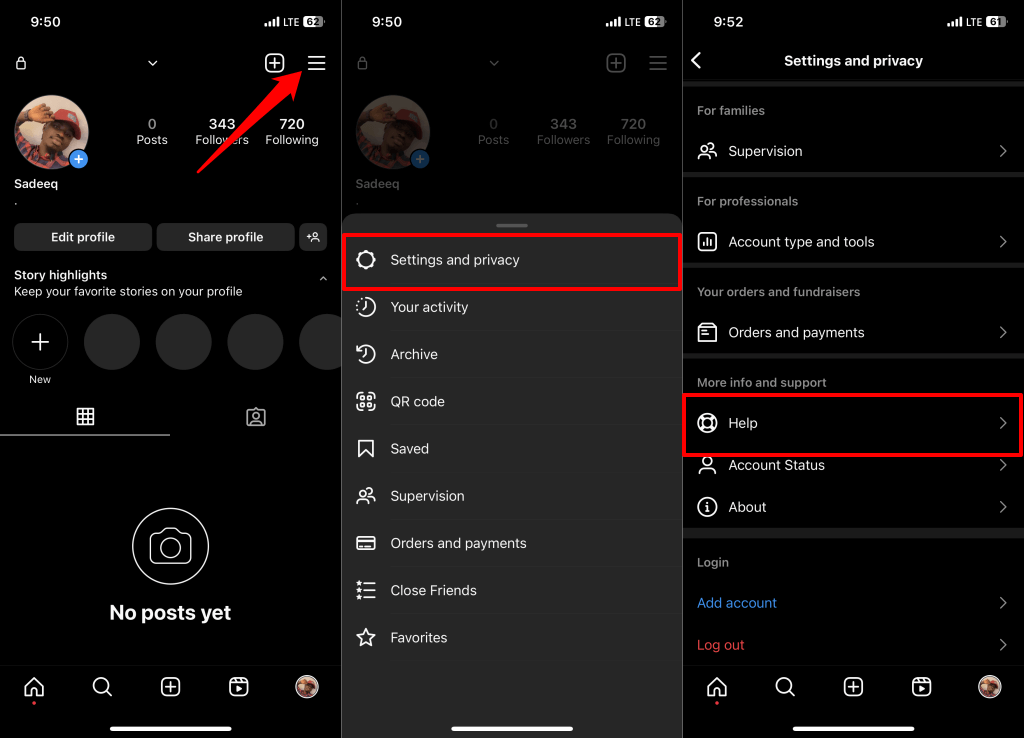
If Instagram still won’t open links, there’s likely an unresolved bug or technical problem with the app. Report the issue to Instagram through the app’s settings menu. Open your Instagram profile and follow the steps to send a bug report.
Access Webpages on Instagram
Uninstall and reinstall Instagram if the app still won’t open web links. Also, watch the Instagram page in your device’s app store for an update.