If Instagram works properly on your phone, you shouldn’t be seeing a loading screen when watching stories. At worst, you should see it for a split second if your internet connection isn’t optimal. But what to do if IG stories are not working, and the only thing you can see is that annoying spinning circle? This article discusses several possible fixes for both Android and iOS devices. Let’s jump straight to it.
1. Check Internet Connection
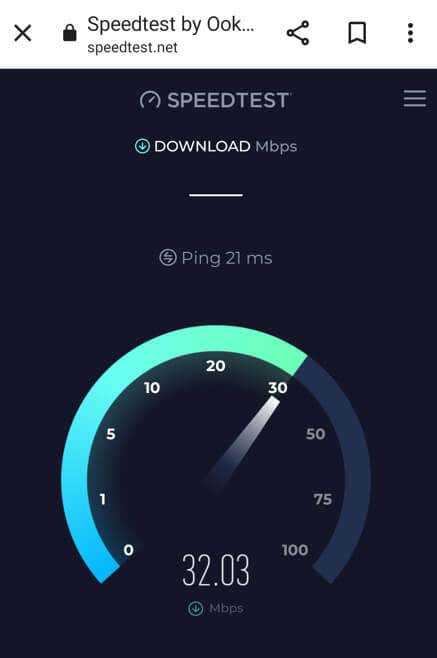
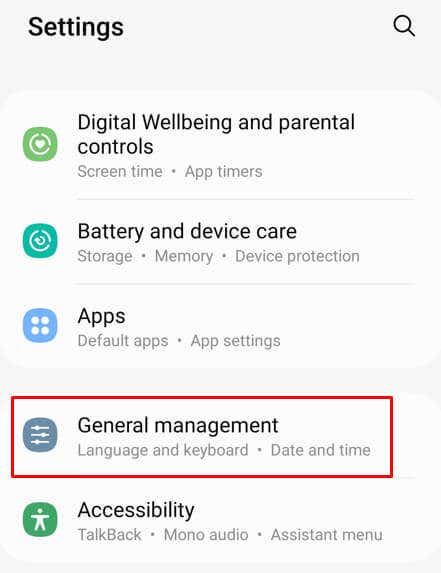
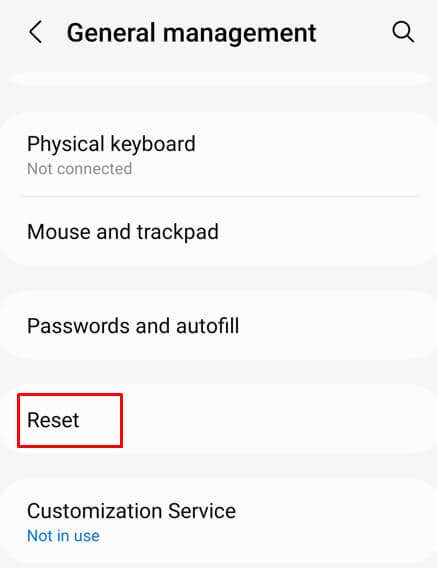
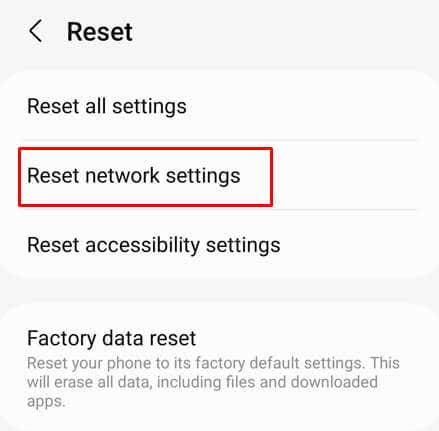
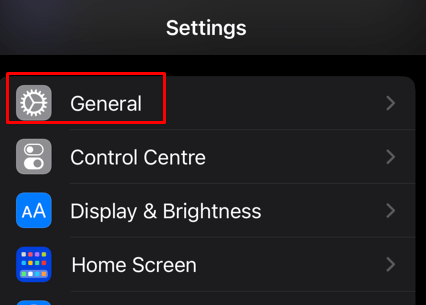
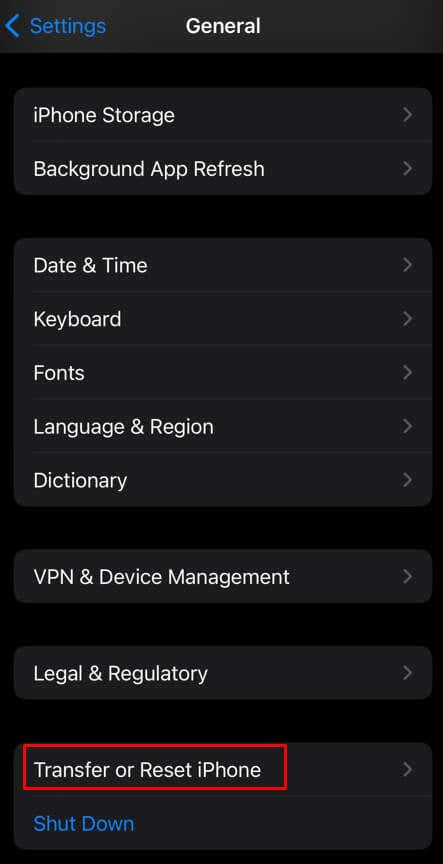
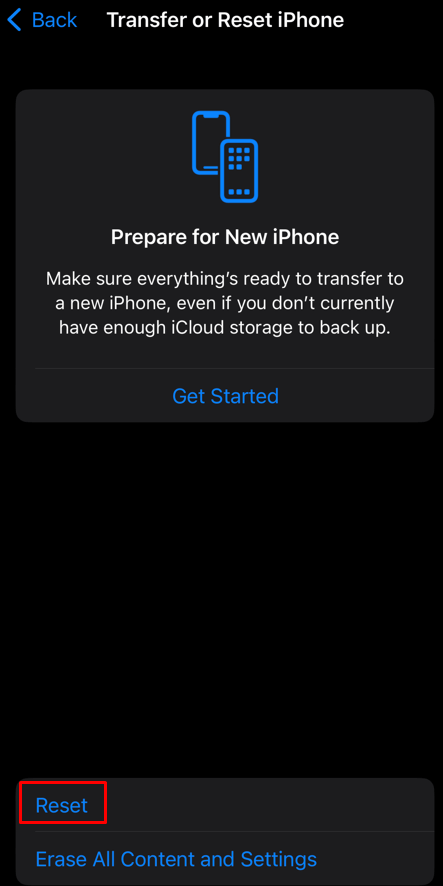
The most common reason behind Instagram stories and reels not loading properly is poor network connection which makes Instagram lag. Either the Wi-Fi or mobile data signal is weak, or something is wrong with your smartphone or network area. If you notice you have issues loading content on other apps, not just on Instagram, this is a clear sign the root problem is the internet connection. Try opening Facebook or YouTube videos and see if you have trouble loading them. You can also perform an internet speed test to check if everything is okay with your connection. You can access SpeedTest by Ookla through the web browser or you can download their app. Using the speed test is more accurate than trying to figure out if your internet is okay. That’s because an intermittent internet connection might trick you into believing everything is fine. The speed test will show if there is an intermittent connection. If there is a problem with your internet connection, you can try fixing it by turning the airplane mode on and off. This will force your phone to disconnect from the internet and reconnect. If that doesn’t work, you’ll have to reset the network settings on your device. Here’s how to do it both on Android and iOS devices.
Reset Network Settings on Android
Your Android phone will restart, and once the system is up, you can check Instagram and see if the stories load properly.
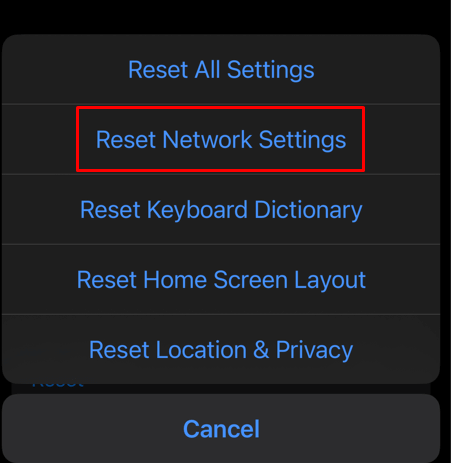
Reset Network Settings on the iPhone
The iOS device will ask you to input your screen unlock code. The phone will restart and after the system is up you can try if Instagram stories are loading properly.
2. Restart the Instagram App
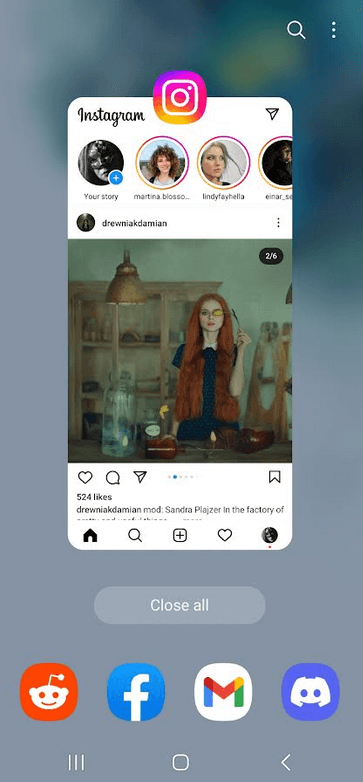
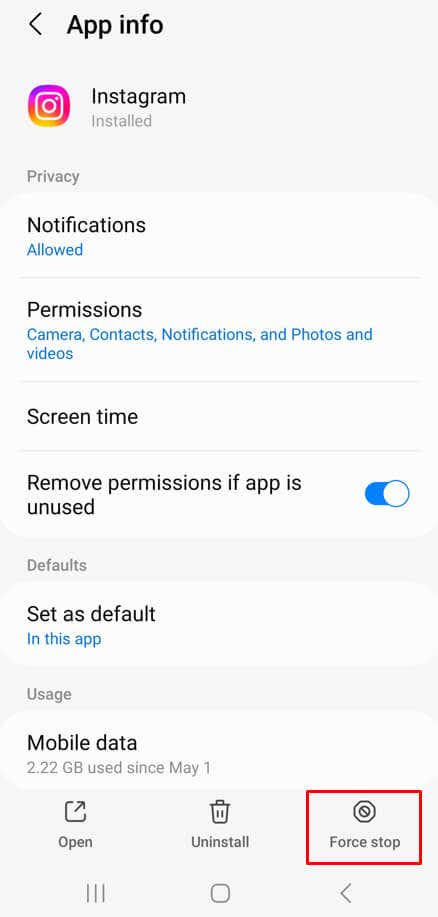
If you don’t have internet connection problems, but you can’t see the Instagram stories as they are continuously loading, the problem might be in the app itself. It’s possible it bugged out or it’s glitching. You should try restarting the app. All you need to do is close the app and reopen it. But make sure to first access the multi-task menu to close all active tasks, among which the Instagram app should be. Both Android and iOS users can access the multi-task menu from the home screen and then swipe up to close the active apps. Android device users also have the option of force closing an app. Here’s how:
3. Check If Instagram Is Down
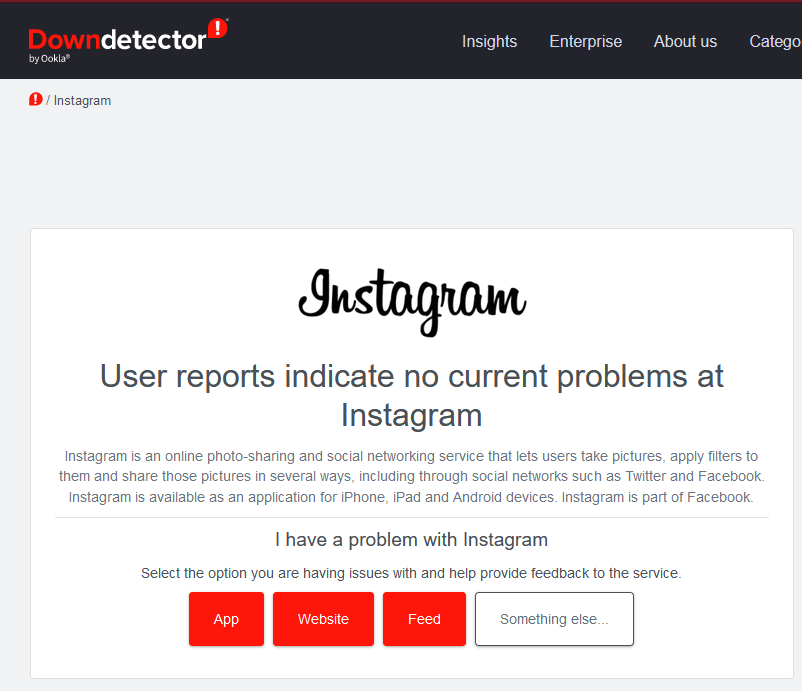
If your internet connection is not causing Instagram stories not to load, perhaps the problem lies with Instagram servers. If IG is down, you should check Twitter to see if there’s an announcement about it. Alternatively, you can go to a website such as Downdetector, type Instagram in the search bar, and wait for the results. If Instagram servers are down, there’s nothing you can do to fix this. All you can do is wait until Instagram fixes this issue.
4. Restart Your Phone
It’s highly unlikely your phone is causing the problem with Instagram stories but you never know. It could be a system glitch or a background process that’s causing the Instagram app to not work properly. If you suspect this is the case, restarting your phone could help. It doesn’t matter if you have an Android or iOS device, power cycling should reboot and resolve all temporary system errors that could affect the app’s behavior.
5. Update Instagram App
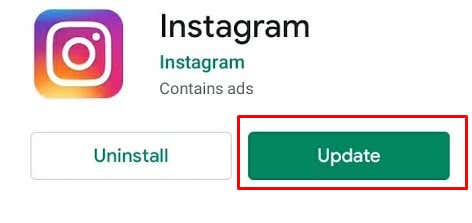
Updating the Instagram app is simple but it could fix various problems you might experience with the app, among which are stories stuck on the loading screen. All you have to do is go to Google Play Store for Android or Apple Store for iOS devices, search for the Instagram app, and see if there’s an update button available. Hit it to download and install the latest version of the Instagram app.
6. Clear Instagram App Cache
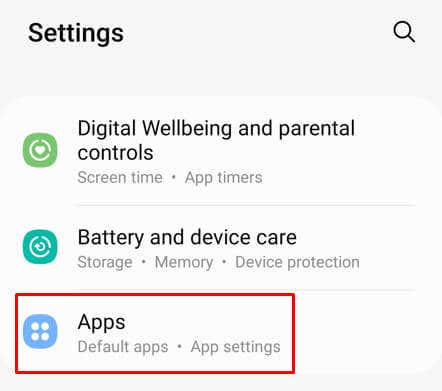
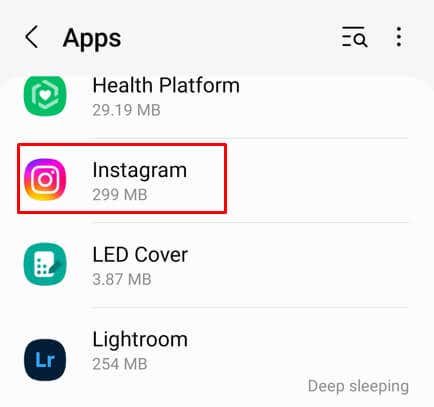
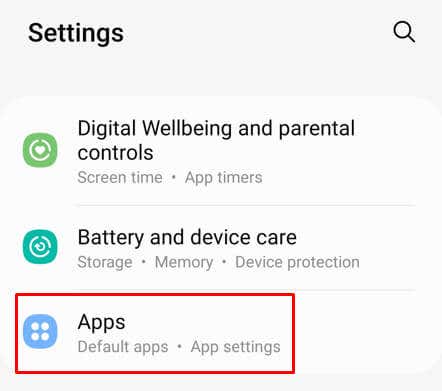
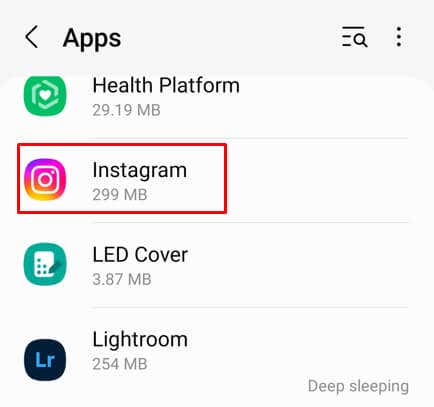
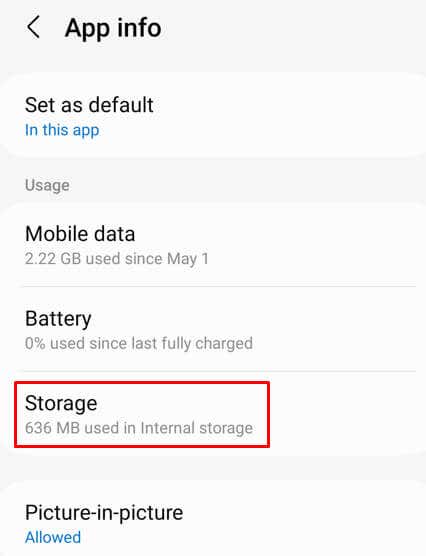
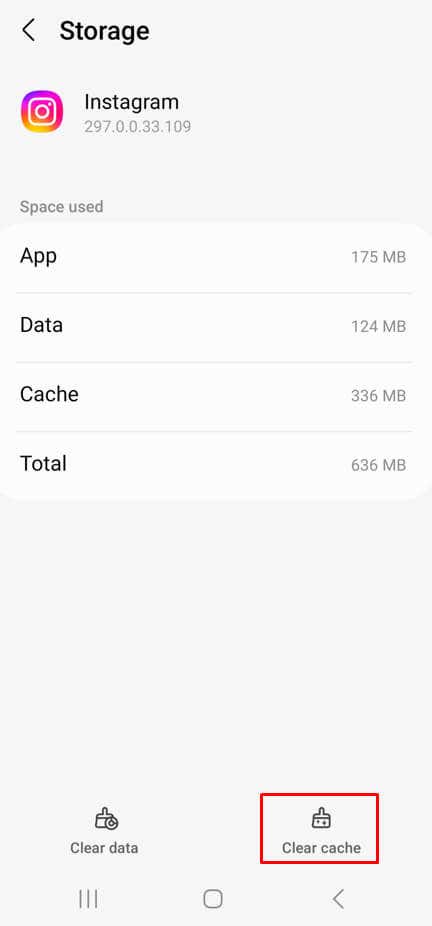
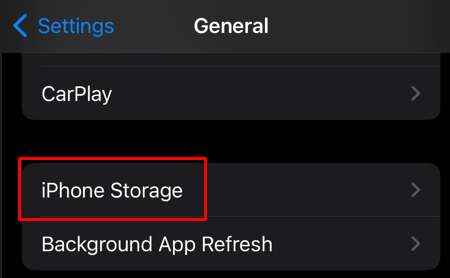
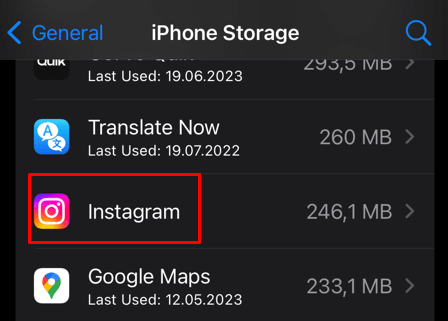
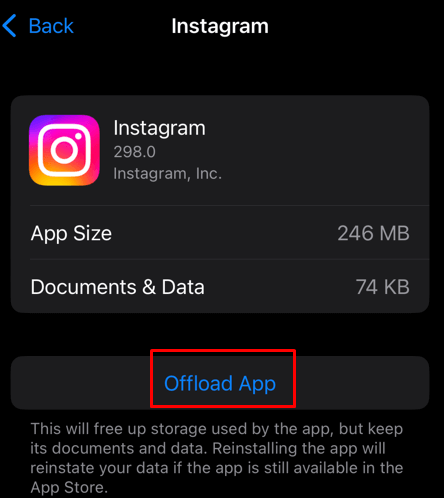
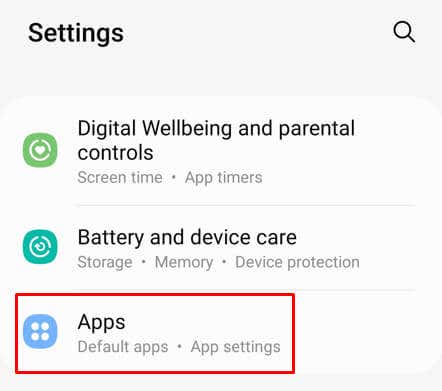
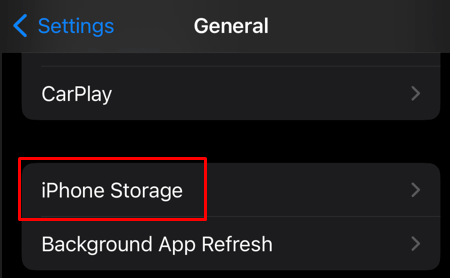
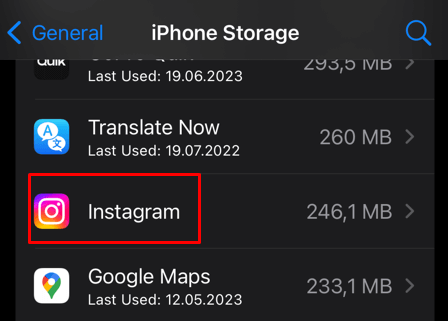
Every app has a cache folder in which it stores temporary files that help the app work faster and better. Unfortunately, these files can sometimes get corrupted and cause specific problems. Sometimes it’s Instagram stories not loading. That’s why you should clear the Instagram app cache if you are experiencing this problem. The way to do it will depend on whether you have an Android or iOS device.
On Android
Note: You can also tap Clear Data, it won’t affect Instagram stories but you’ll have to log back into your Instagram account. If you have any drafts made they’ll be lost.
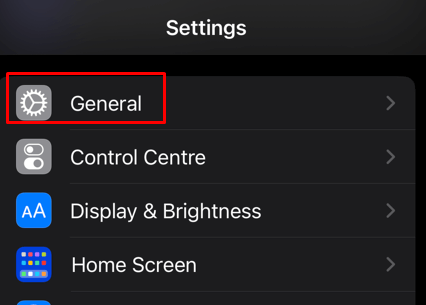
On iPhone
7. Uninstall and Reinstall Instagram
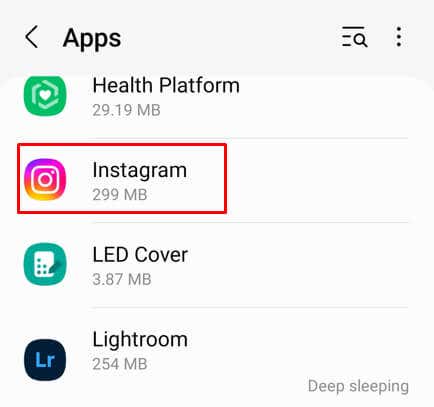
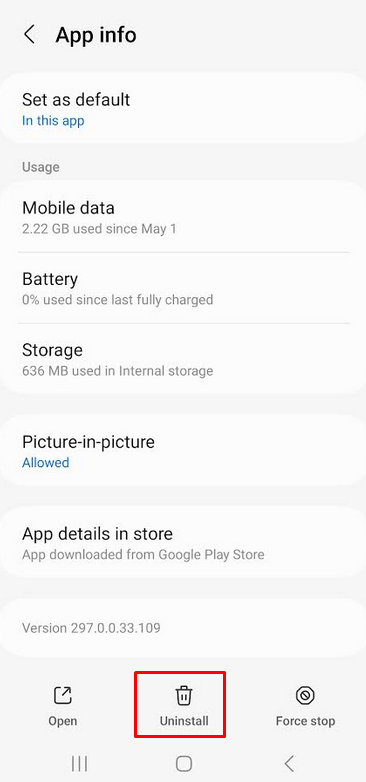
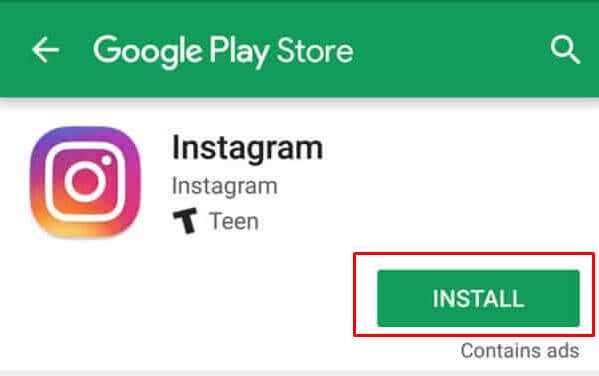
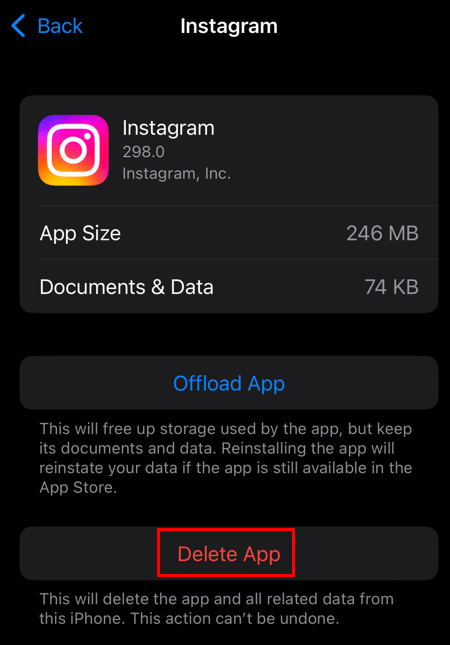
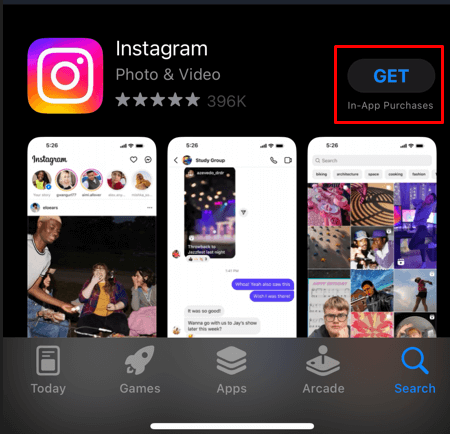
If clearing the Instagram cache doesn’t work, and you are still experiencing issues with the Instagram app, you should uninstall it and install it again on your smartphone. This could get rid of any stubborn bugs and glitches your app was having. However, you should know that reinstalling the Instagram app will delete any saved drafts, and you’ll have to log back into your Instagram account again.
On Android
On the iPhone
8. Check the Date & Time on Your Phone
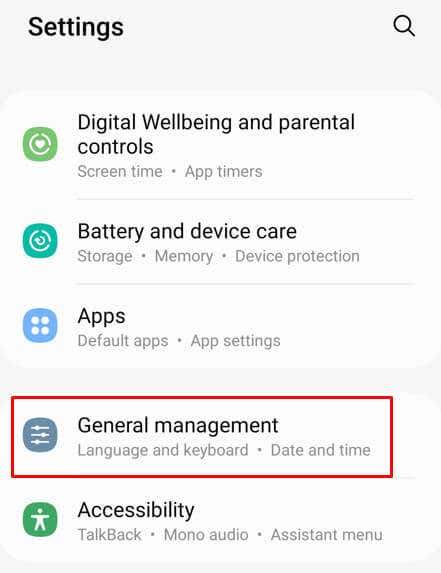
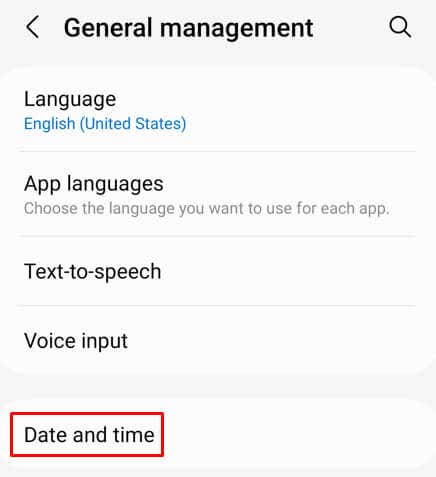
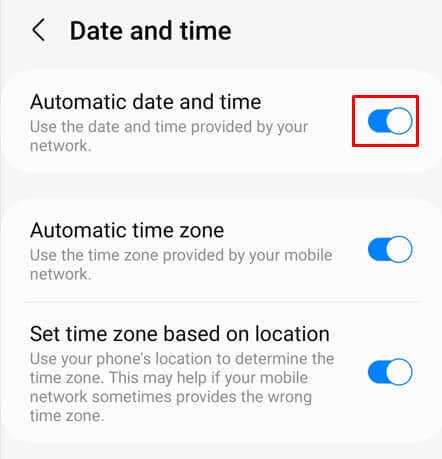
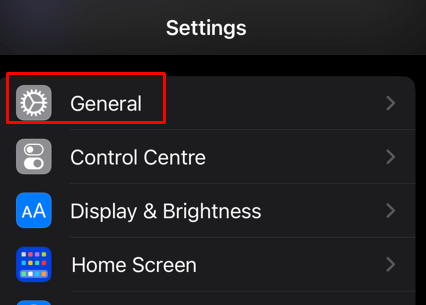
Although it might seem odd, the Date & Time settings of your device can cause various problems on both Android and iOS devices. Although Date & Time should update automatically, it can glitch, or you could unintentionally change it. This could cause Instagram stories not to load fully. You should check and, if needed, correct the Date and time on your phone.
On Android
On the iPhone
9. Contact Instagram
If you tried all of the above solutions and Instagram stories still won’t work on your iPhone, consider contacting Instagram to report a problem you’re having. Describe your problem in detail and include what phone model you’re using, as well as which version of the app it’s running.