How to Sign Up for Midjourney
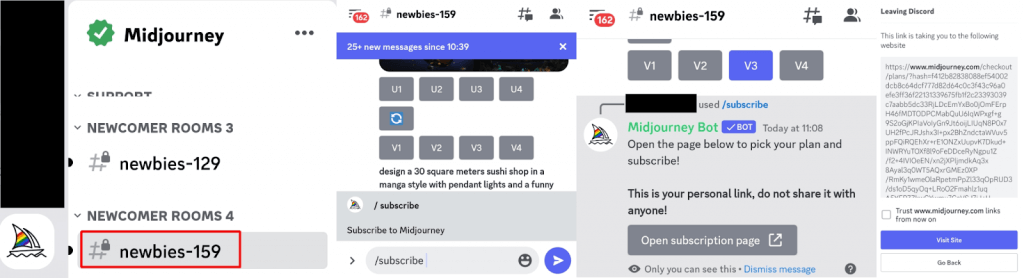
First things first, you’ll need a Discord account. Assuming you already have one, it’s time to sign up for Midjourney. Midjourney generally offers a free trial to new members, with around 25 free images, but as of the time of publication of this article (July 2023), free trials have been suspended due to abuse of the system. Though they may be reinstated at some point, the only way to use Midjourney is to subscribe to a paid plan.
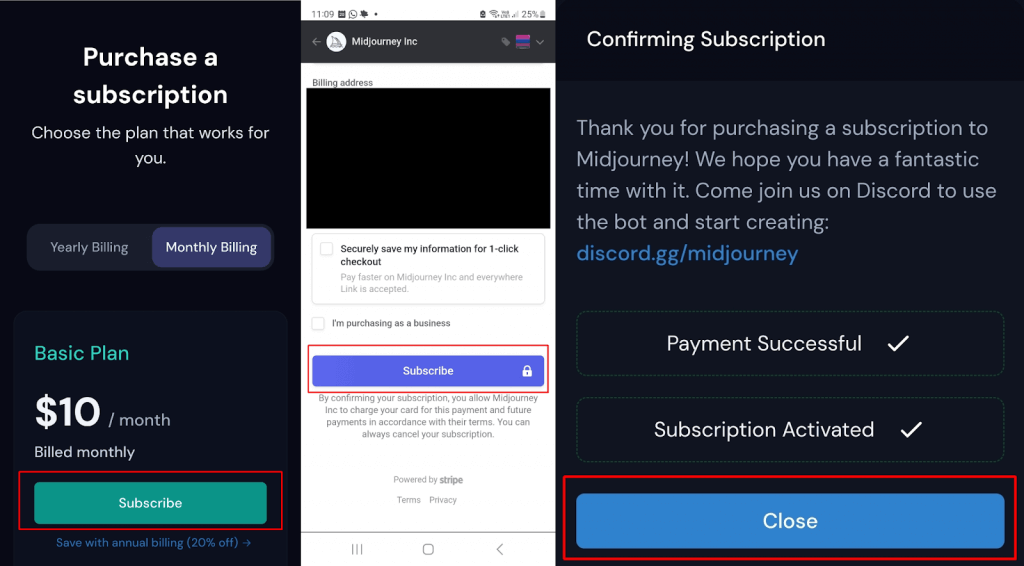
How to Subscribe to Midjourney
Here’s how to set up your Midjourney subscription:
How to Generate Images on Midjourney
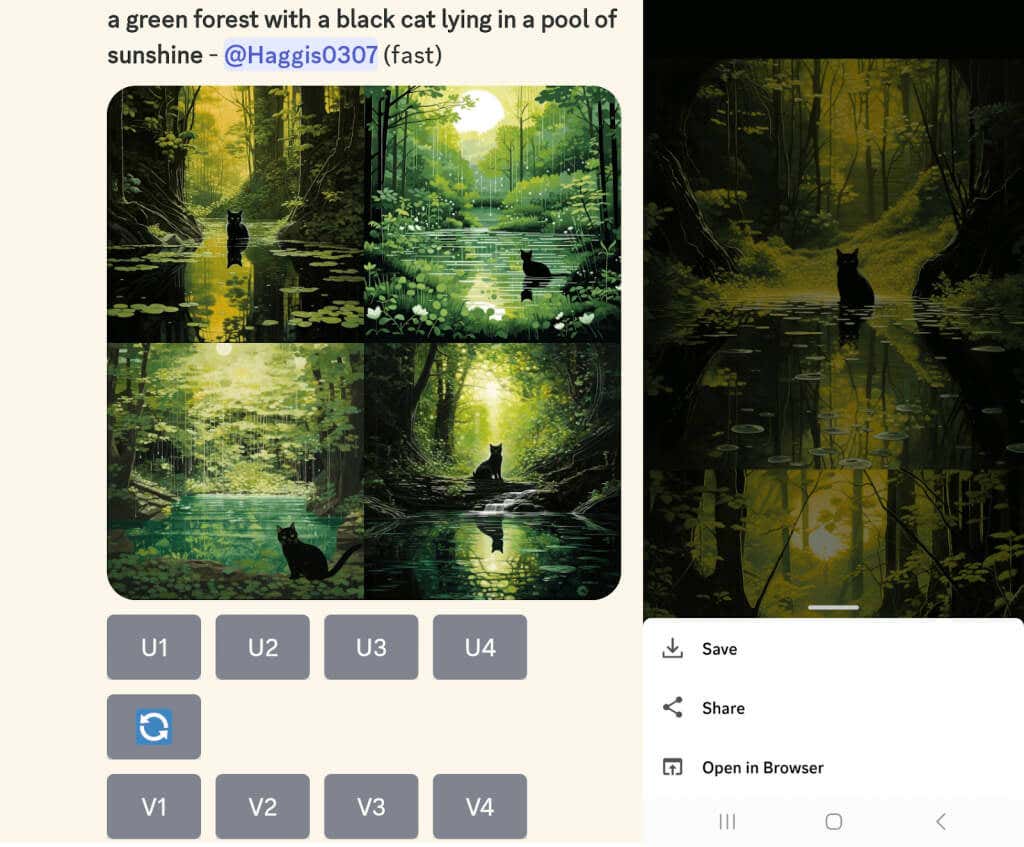
To get started generating images on Midjourney, you can use a #newbies channel, but it can get hectic with prompts constantly being posted. However, it’s a good way to see what prompts other people are posting, and what works. You can also send commands to the Midjourney Bot via DM. Note that these prompts and generated images will still appear in the member’s gallery unless you’re a Pro Plan subscriber. We recommend starting in a #newbies channel and moving to DM once you’ve got the hang of things. Here’s how to get started generating images in a #newbies channel. The next step is editing your images to get the desired results.
How to Edit Images on Midjourney
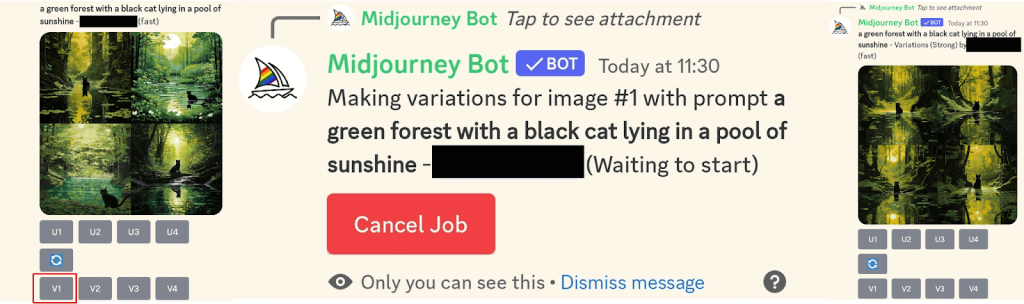
Underneath the generated images, you’ll see eight buttons: U1, U2, U3, U4, V1, V2, V3, and V4. The U buttons are for upscaling the selected image, so you’ll get a larger and more detailed version. The V buttons create four new variations of that specific image, with the same composition and style. If you’re unhappy with any of the generated images, you can also hit Re-roll to re-run your prompt, generating four new images. Play around with things, as it’s all a matter of learning how Midjourney works and what prompts will get you the best results. For example, here’s how to create four new variations of an image that you quite like but want to change slightly:
How to Ensure Great Results With Midjourney
When you first learn how to use Midjourney on Discord, you’ll likely see experienced creators generating amazing images and wonder how they’re doing it. That can be a bit disheartening, but remember, they started out as a beginner at some point too. Getting excellent results from any AI image generator is all about writing great prompts. The notable thing about Midjourney is that it provides amazing results even from basic prompts, so it’s easy to get started using the tool. Here are some tips to help you get great results every time:
Be specific about what you want, but don’t over-describe. If you’re unsure how to write great prompts, check out some YouTube videos, or look at what prompts others use in a #newbies channel. The devil really is in the details. Think about every aspect of your image, from color to lighting, mood to environment, and the subject to the medium. Use your own images. You can add images to prompts by pasting in a URL. You can add your image to Discord by pressing the + in the message bar, then dragging it into the prompt to add the URL automatically. Don’t forget that any images you add will be visible to everyone else in the channel. You could upload a few images and use the /blend command to merge them.
We hope this has helped you learn how to use Midjourney on Discord, including signing up for Midjourney and generating your own images. We’d recommend reading Midjourney’s help docs for advice on prompting, multi-prompts, and more. There’s a lot to learn, and you can sink hours and hours into becoming proficient with Midjourney, but the results are worth the effort.