Why Update TikTok on Your Devices
Bug fixes are a big deal. Updating TikTok means tackling technical glitches like crashes that might be causing a less-than-optimal experience.
TikTok keeps adding new features like updated filters, stickers, effects, and other trending TikTok video editing tools. The latest app version often translates to smoother performance. Let us guide you through the process.
How to Update TikTok App on Android
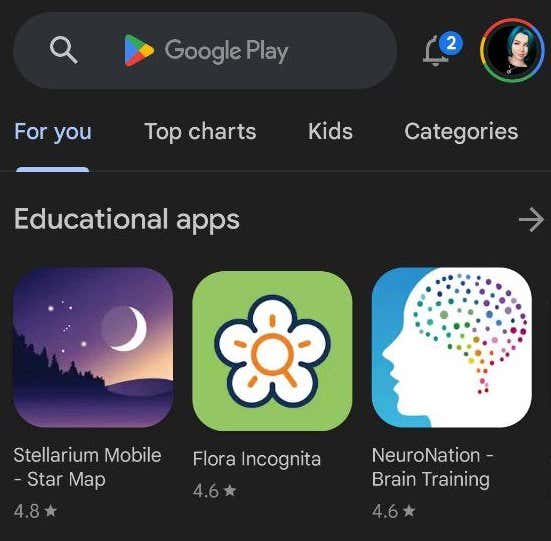
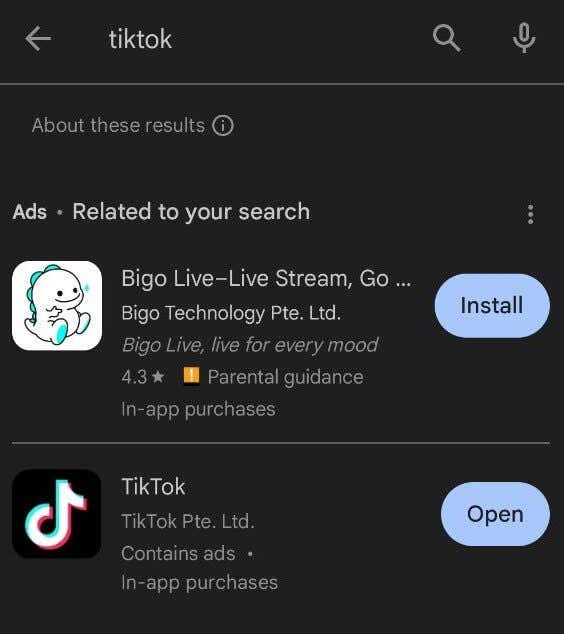
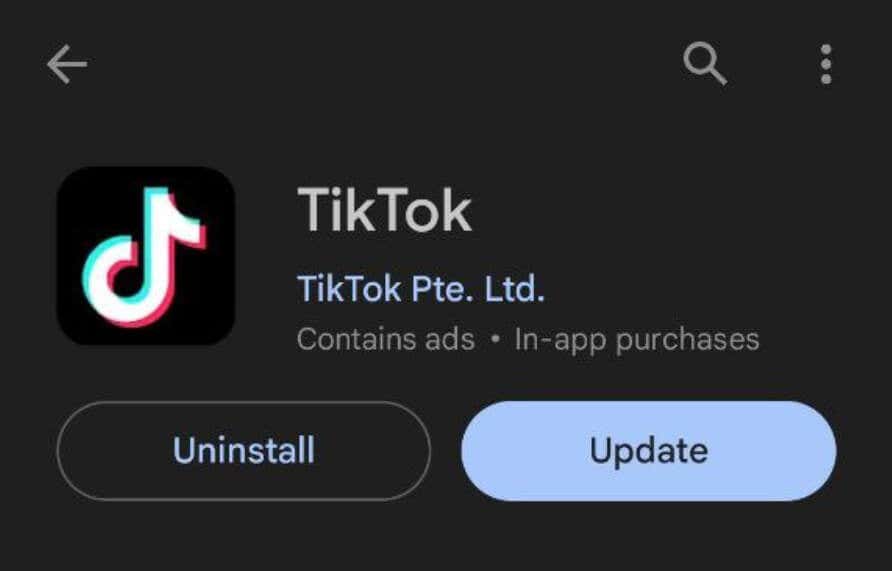
If your Android device doesn’t install automatic updates for your social media mobile apps like TikTok, you must use the Google Play Store. Before you begin, check that your phone is connected to Wi-Fi and that you have a strong internet connection.
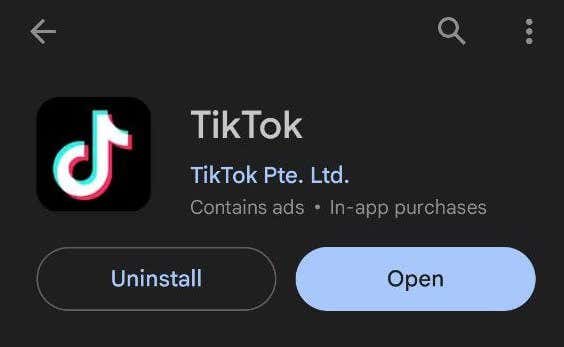
Your phone will now start downloading the new TikTok update. After it’s finished, select Open to use the latest app version.
How to Update TikTok on iPhone and iPad
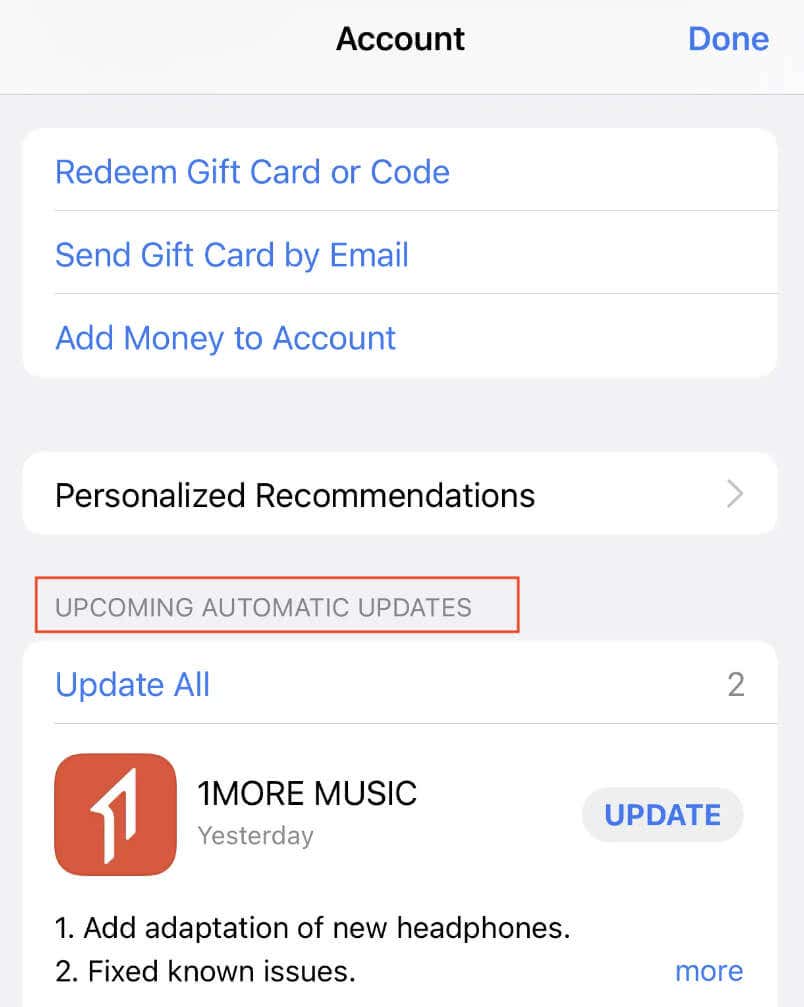
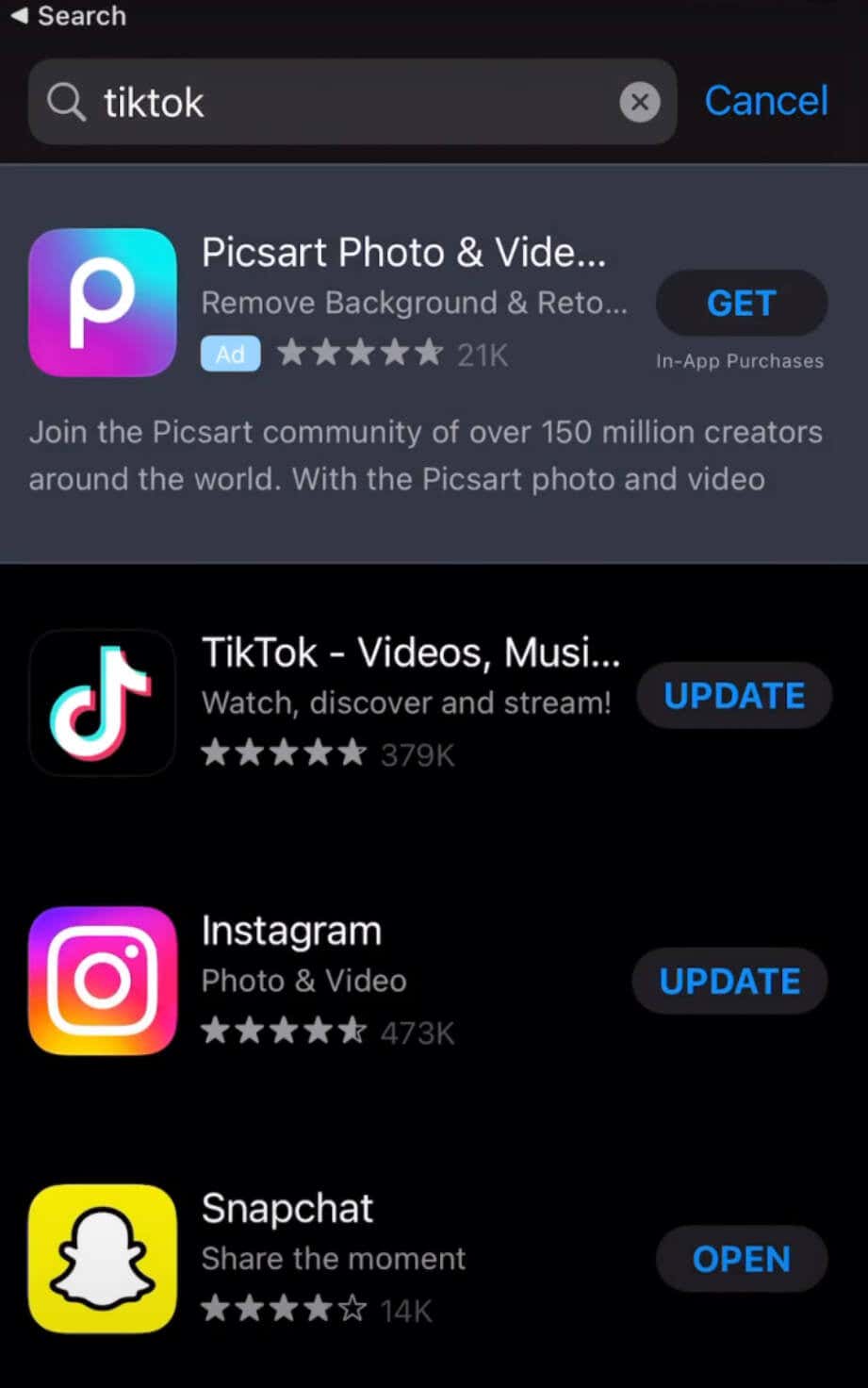
On iOS, you’ll need to use the Apple App Store to find and install the latest TikTok updates. To update TikTok on iPhone and iPad, follow the steps below. Your device will now download and install the latest updates. When it’s finished, open TikTok to use the latest app version.
What if You Can’t Update TikTok?
Ensuring TikTok is up-to-date is critical to unlocking its full potential with the latest features and fewer app bugs. If you’re encountering update issues, this could be a minor glitch, internet connectivity hiccups, or storage overload.
Sometimes, a quick reboot, switching between mobile data and Wi-Fi, restarting your router or modem, and clearing your device’s storage space can fix most update issues.