Because of that, stopping Chrome from using hardware acceleration is a routine troubleshooting step if the browser behaves erratically. This guide will show you how to disable hardware acceleration in Chrome, including what you must do if the problem persists.
Understanding Hardware Acceleration
Hardware acceleration is a feature in Chrome—and other browsers like Firefox—that leverages your computer’s GPU to handle tasks like page rendering and video playback. This approach makes web browsing feel faster and snappier because the GPU is more specialized for these tasks. Unfortunately, hardware acceleration also has downsides. It can induce issues such as screen tearing, freezing, or crashes, especially in system configurations where the hardware cannot fully support the feature. Disabling hardware acceleration can actually improve performance in these cases.
How to Turn Off Hardware Acceleration in Chrome (Desktop)
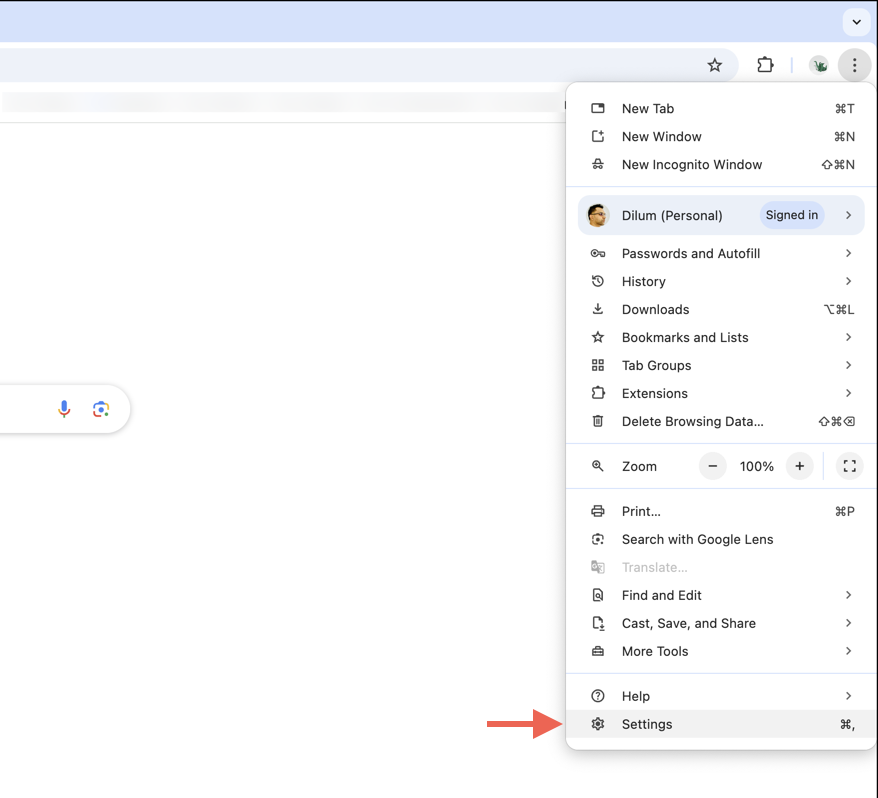
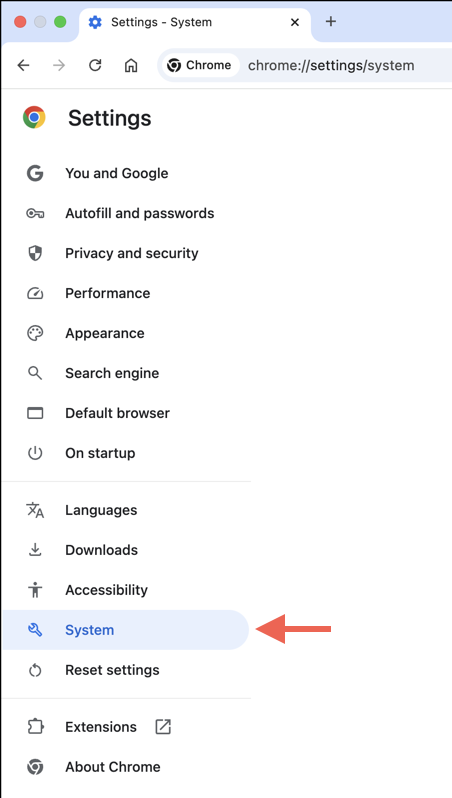
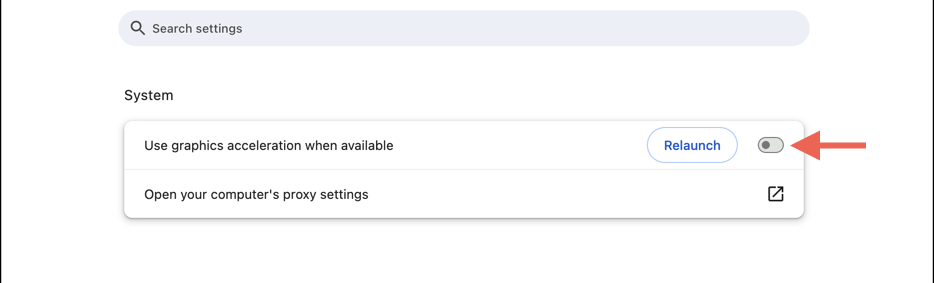
Hardware acceleration is active by default on Windows and macOS, but Chrome allows you to turn it off if needed. The steps to turn off hardware acceleration in Chrome are the same for both desktop platforms. To turn hardware acceleration off in Google Chrome: That’s it! Chrome should automatically close and reopen with the hardware acceleration option disabled.
How to Turn Off Hardware Acceleration in Chrome (Mobile)
Chrome’s mobile version handles hardware acceleration differently compared to desktop devices, so it’s not available as an option you can toggle on or off directly. On Android, it’s impossible to disable hardware acceleration if it’s enabled by default (which is the case on most modern phone models). Therefore, you can only turn the feature off if it was forcibly activated. Here’s how: If you’re on an iPhone, Chrome operates on Apple’s WebKit engine (the same engine Safari uses), so there are no methods or workarounds to disable hardware acceleration. If you experience browsing issues, your best options are to:
Update Chrome via the App Store. New browser versions offer performance enhancements that might resolve your problem. Update iOS to the latest version by heading over to Settings > General > Software Update. iOS updates often fix underlying problems with the system software that causes apps like Chrome to malfunction.
Verifying Changes in Google Chrome
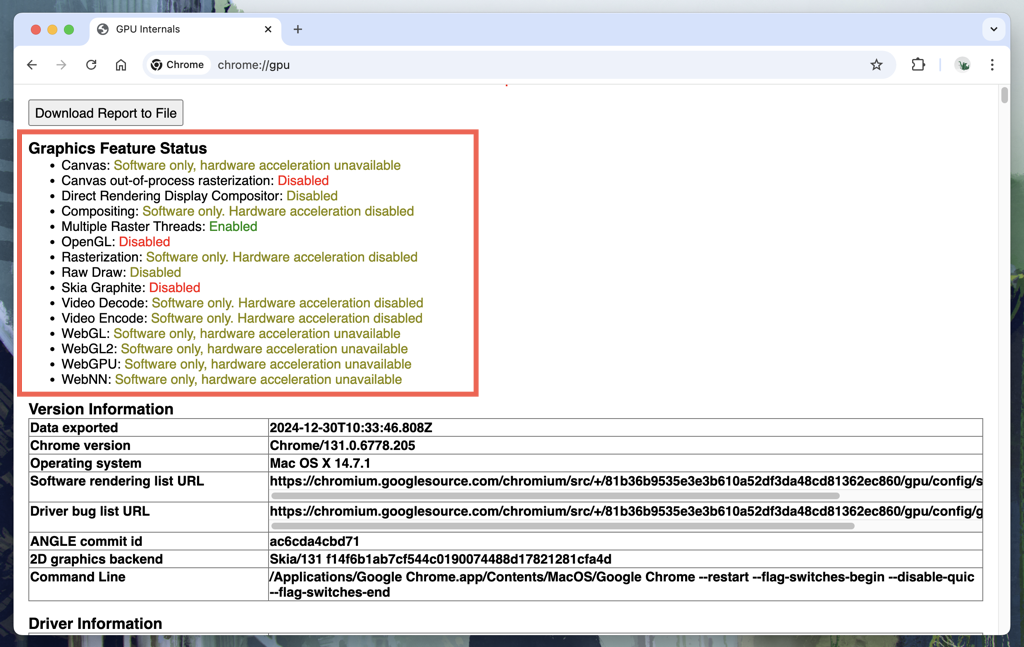
You can double-check if hardware acceleration has been disabled in Chrome by typing chrome://gpu into the address bar. This will load a tab displaying information about Chrome’s graphics settings and help you determine whether hardware acceleration is active. After confirming that hardware acceleration is disabled, it’s a good idea to test how Chrome functions. If the same issues persist, you should re-enable hardware acceleration and try other troubleshooting steps to address the problem.
Troubleshooting Common Issues
If Google Chrome gives you trouble even after turning off hardware acceleration, work through the troubleshooting tips below.
Update the Chrome Browser
Chrome updates include bug fixes and performance enhancements, so keeping the browser up-to-date is crucial. While Chrome updates itself automatically, it’s a good idea to double-check.
To do that, open the Chrome menu and select Help > About Chrome. If there’s a pending update, Chrome should begin downloading it. Select Relaunch to finalize the update.
Clear the Chrome Cache
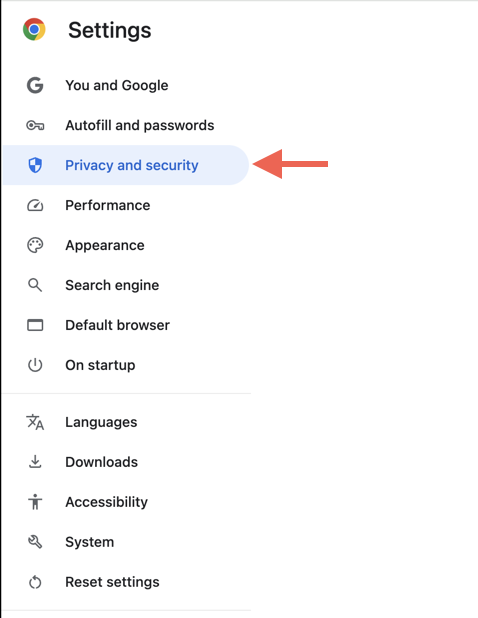
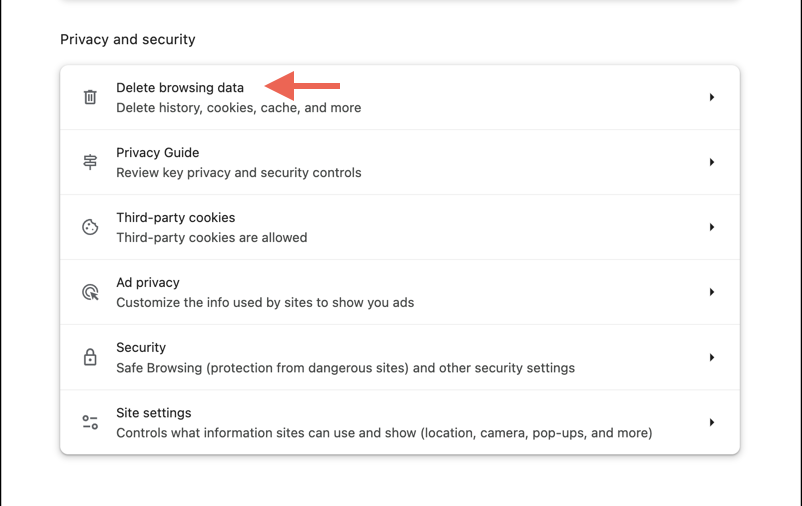
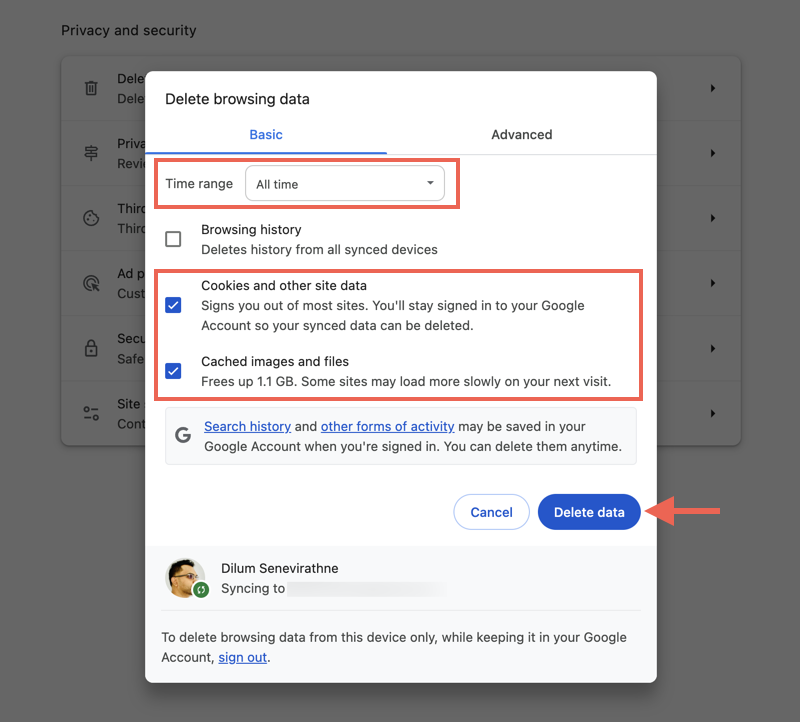
Chrome caches a lot of data to speed things up, but sometimes, this data can adversely impact performance. Try clearing the Chrome cache and checking if that helps. To clear the Chrome browser cache:
Check the Chrome Extensions
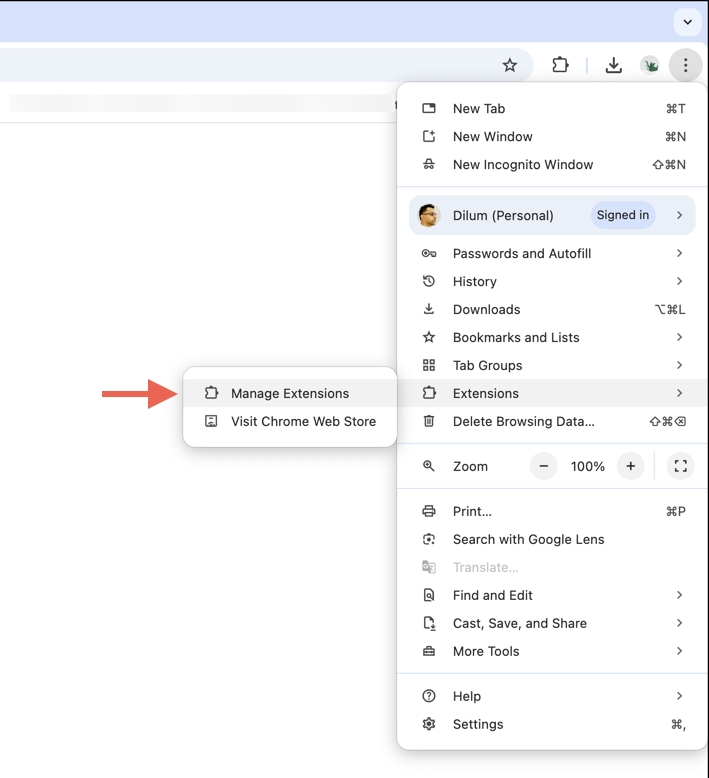
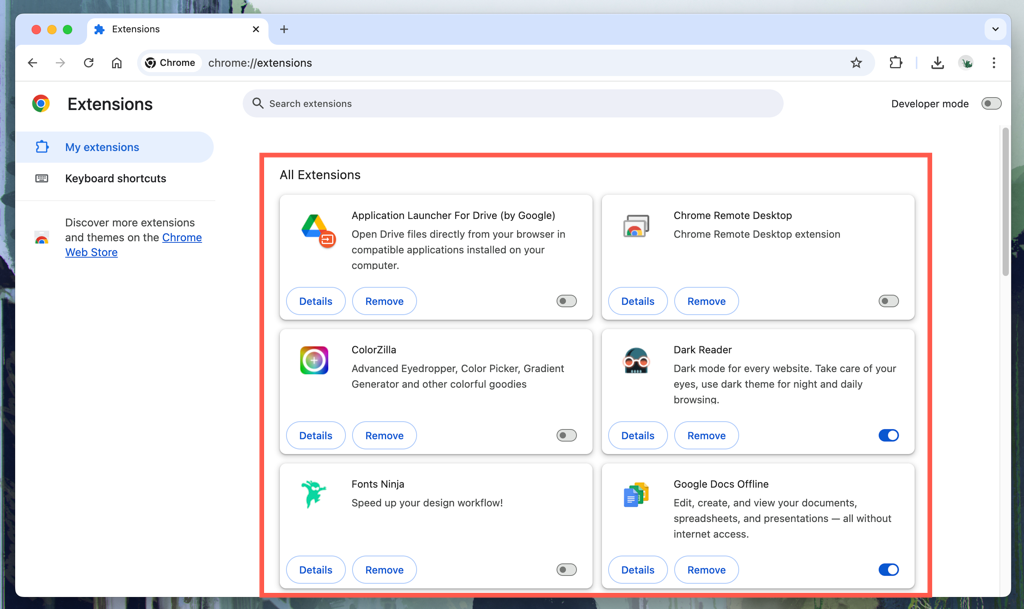
Browser extensions can sometimes cause conflicts and other issues, so it’s a good idea to identify any that could be causing problems. To check your Chrome extensions:
Update the Graphics Drivers
Updating your computer’s graphics drivers can potentially fix compatibility issues with applications that attempt hardware acceleration. On Windows, visit the website of your video manufacturer (NVIDIA, AMD, or Intel) to download and install the latest drivers.
If you use a Mac, graphics drivers are updated as part of macOS system updates. Go to System Settings > General > Software Update and install any pending updates.
Reset Chrome to Factory Defaults
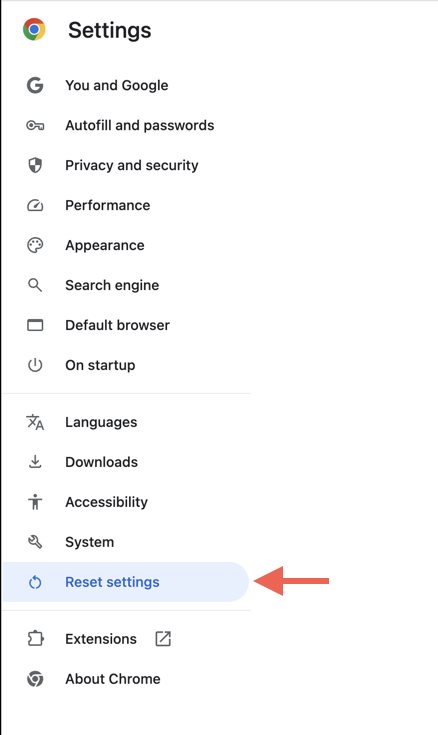
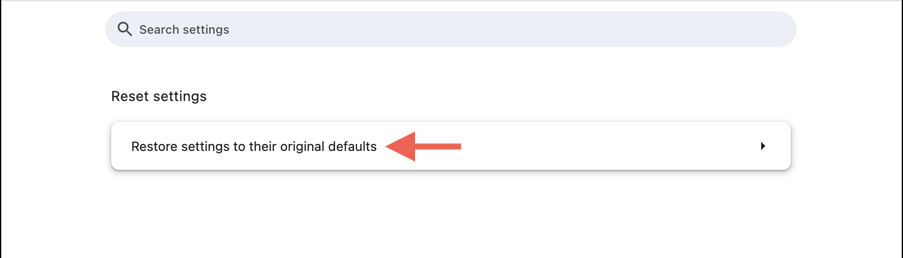
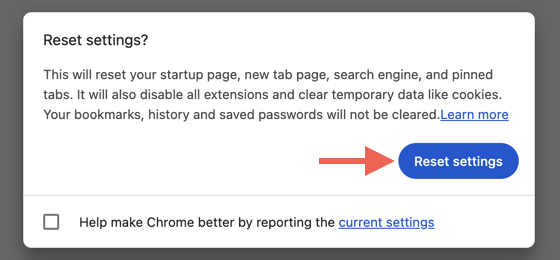
If none of the above fixes work, you might need to reset Chrome. This process automatically deletes the browser cache, disables all extensions, and reverts settings to factory defaults. Your saved bookmarks and passwords will remain intact. To reset Chrome to factory defaults: Once the procedure ends, Chrome might prompt you to sign back in using your Google Account credentials. Remember to re-enable any extensions that you regularly use.
Conclusion
Turning off hardware acceleration in Chrome is pretty straightforward and could help resolve severe performance and stability issues. However, it’s not a universal solution, so you must continue troubleshooting your browser if the problems persist. If you have any questions or tips that you’d like to share, feel free to drop them in the comments.