If you enabled DND by accident or no longer need to silence notifications, follow the steps below to turn it off.
Turn Off Do Not Disturb (Stock Android)
Google Pixel phones and Android One devices typically run the basic or pure Android operating system—popularly called Stock Android. You can turn off Do Not Disturb from the Settings menu or Notification Panel on stock Android devices.
Disable Do Not Disturb from the Notification Panel
Turn Off Do Not Disturb in Settings Menu
Check the “Schedules” section and turn off all configured Do Not Disturb schedules.
Turn Off Do Not Disturb on Samsung Phones
The steps for disabling Do Not Disturb on Samsung devices are slightly different (from stock Android). This is due to differences in the user interface, design, and software skin. On Samsung phones or tablets, you can turn off Do Not Disturb from the Notification Center, Quick Settings panel, System Settings, or using Bixby.
Turn Off Do Not Disturb from the Notification Center
When you enable Do Not Disturb on Samsung Galaxy devices, a “Do not disturb turned on” tile appears in the Notification Center. You can disable Do Not Disturb from the notification tile. Can’t find “Do Not Disturb” in the Quick Settings panel? Tap the three-dot menu icon in the top-right corner and select Edit (or Edit buttons). Tap and hold the Do not disturb icon, drag it to the Quick Settings area, and tap Done. Afterward, tap the icon to enable or disable Do Not Disturb on your Android device.
Turn Off Do Not Disturb from Quick Settings Menu
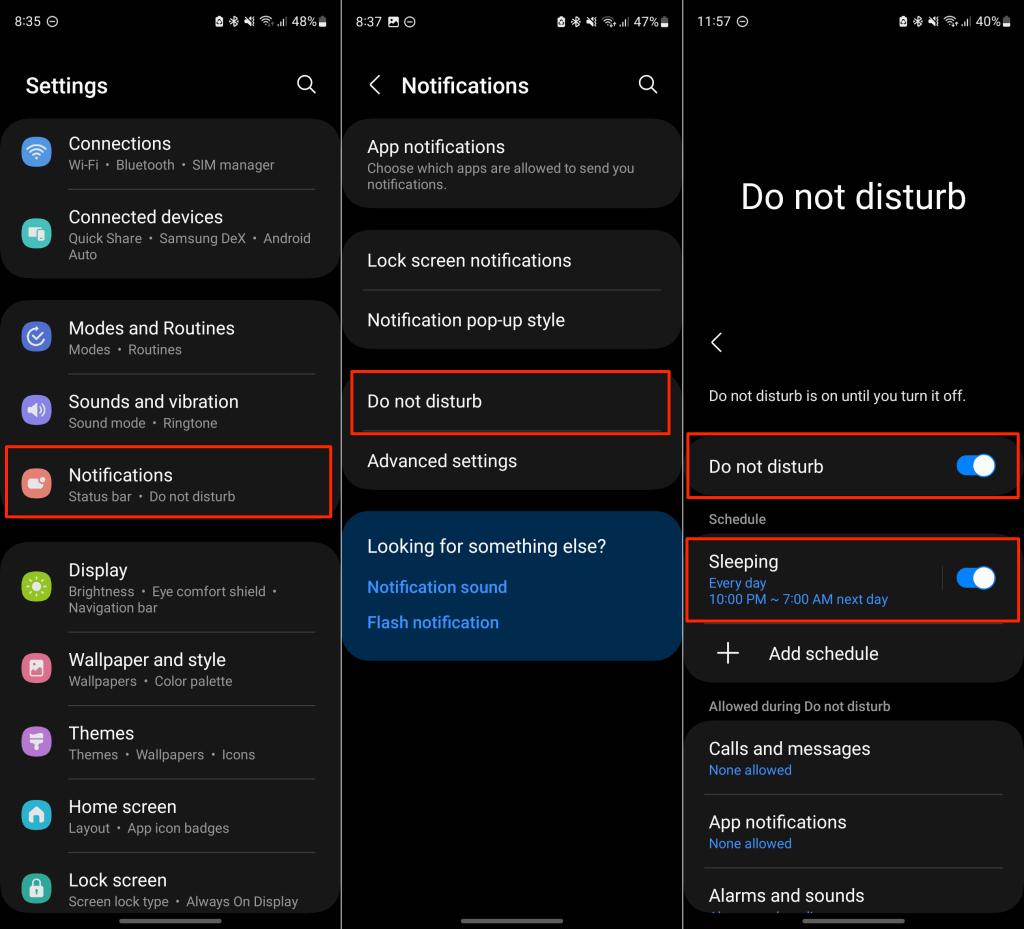
Turn Off Do Not Disturb from the Settings Menu
Additionally, check the “Schedule” section and turn off any Do Not Disturb schedule you no longer need.
Turn Off Do Not Disturb Using Bixby
If you’ve set up Bixby on your Samsung device, you can disable Do Not Disturb hands-free using the virtual assistant. Unlock your phone and say, “Hi Bixby, turn off do not disturb.” or “Hi Bixby, turn off do not disturb.” If Bixby doesn’t respond, press and hold your device’s Side button to summon Bixby and repeat the command.
Turn Off Do Not Disturb for Modes and Routines
Samsung allows you to create modes or routines that automatically activate certain features on your mobile device. In Driving mode, for instance, you can configure your phone to enable Do Not Disturb, switch wallpapers, read notifications aloud, or change media volume when it connects to your car Bluetooth. If a Mode or Routine automatically enables Do Not Disturb, you should be able to turn it off in the Notification Center. Swipe down from the top of your screen, expand the “Do not disturb turned on” card, and tap Turn off. Follow the steps below to configure a Mode or Routine to stop automatically turning on Do Not Disturb.
Turn Off Do Not Disturb Using Google Assistant
You can turn off Do Not Disturb using voice command if you have Google Assistant set up on your Android device. Unlock your phone and say, “Hey, Google! Turn off do not disturb.” or “OK, Google! Turn off do not disturb.” You should hear a “Turning Do Not Disturb off” response. Tap OK to dismiss the Google Assistant.
Do Not Disturb Disabled
These are the methods available for disabling Do Not Disturb on Android devices. You can also follow the same steps to re-enable the feature on your device.