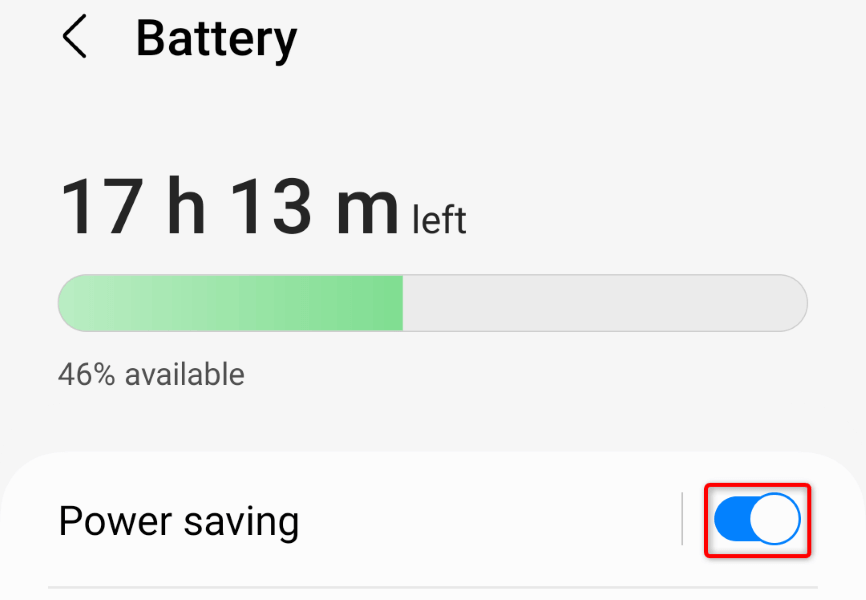
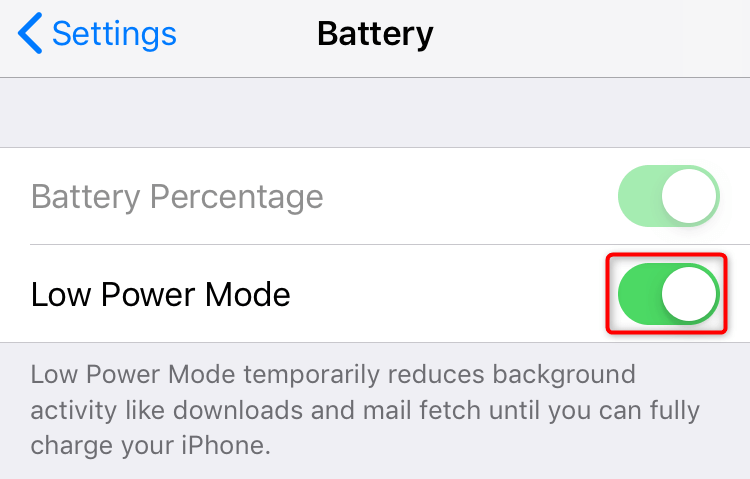
Once you turn off the battery-saver mode, your device’s system functions, and installed apps can run at full capacity. This is because the power-saving mode restricts your apps’ functionalities to conserve battery, and disabling the feature lifts those restrictions.
Disable Battery Saver Mode on Windows 11
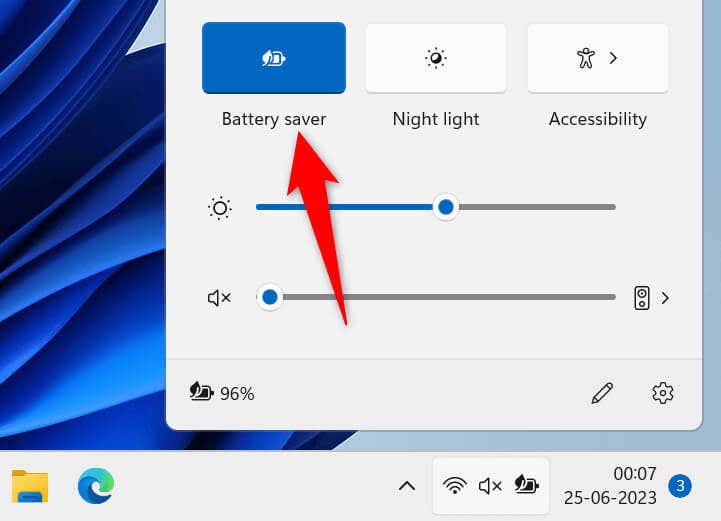
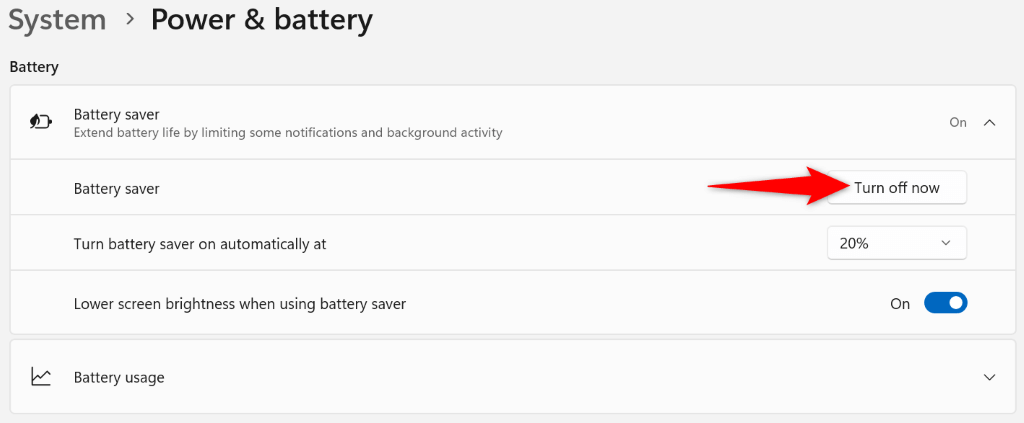
Turning off Windows 11’s battery-saver mode is as easy as selecting an option in Quick Settings or turning off a toggle in the Settings app. Both methods achieve the same result, so you can choose your preferred method.
Using Quick Settings
Using Settings
Turn Off Battery Saver Mode on Windows 10
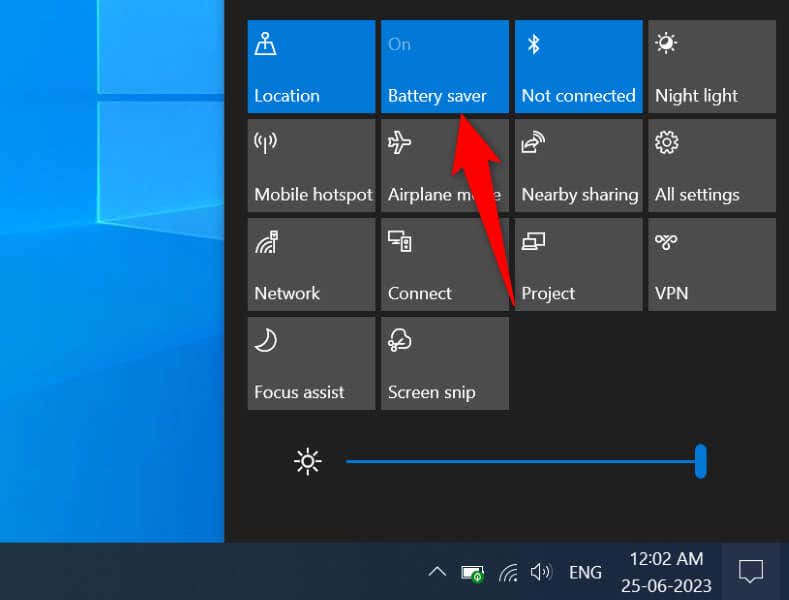
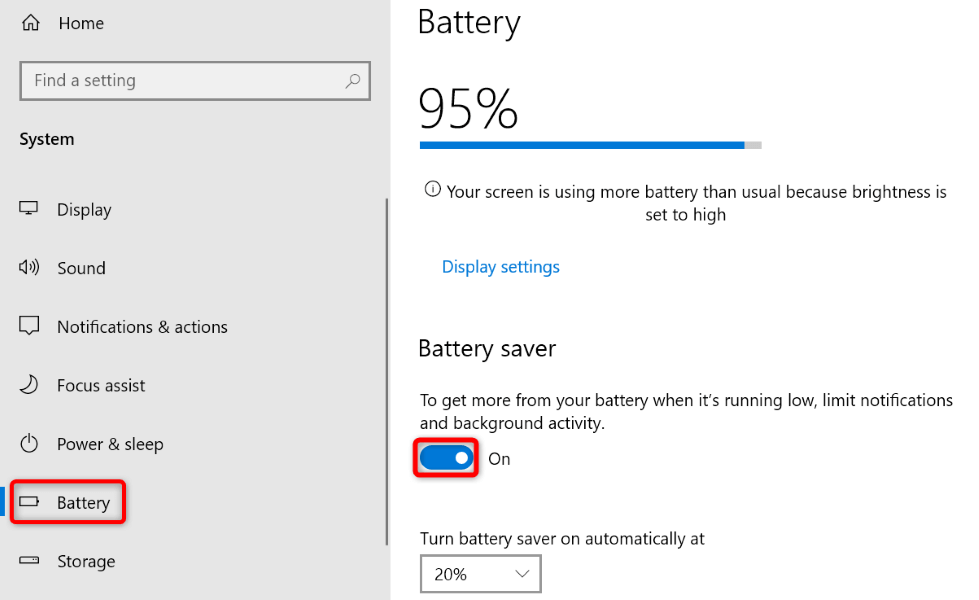
Like Windows 11, you can disable Windows 10’s battery-saver mode by choosing an option in Quick Settings or turning off a toggle in the Settings app. Both turn off the same feature, so use your preferred method.
Using Quick Settings
Using Settings
Deactivate Low Power Mode on macOS Ventura 13 or Later
Apple’s battery-saver mode is called Low Power Mode, and the feature, like on any other device, allows you to conserve your Mac’s battery to use your machine for longer. If you don’t need the feature anymore, toggle it off as follows.
Turn Off Low Power Mode on macOS Monterey 12 or Earlier
The steps to disable Low Power Mode on macOS Monterey 12 or earlier are slightly different. You’ll still use your Mac’s settings menu to turn off the feature.
Disable Power Saving Mode on OnePlus Android Phones
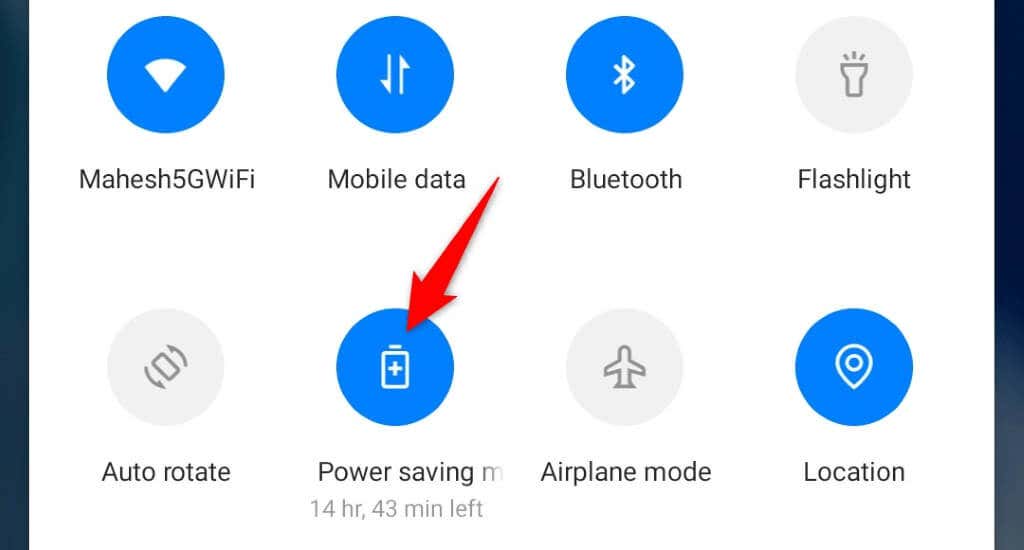
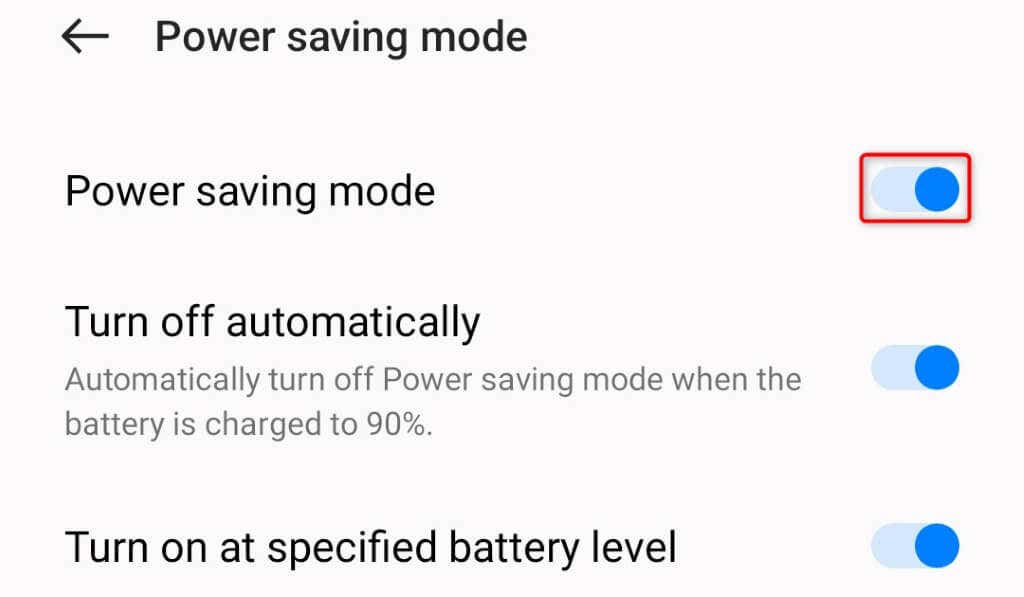
Like many other Android devices, OnePlus’ Android phones offer a power-saving mode, allowing you to save battery juice on your phone. You can turn this feature off if you don’t use it, and there are two ways to do that.
Using Quick Settings
Using Settings
Deactivate Battery Saver Mode on Samsung Android Phones
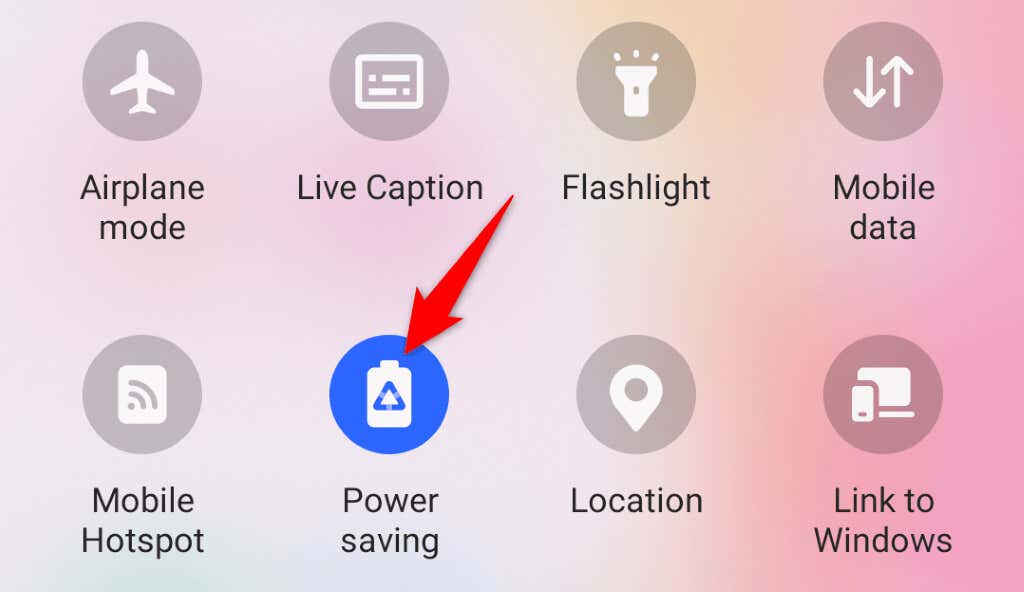
Like other Android phone makers, Samsung offers multiple ways to turn on and off the power-saving mode on your Samsung Galaxy phones.
Using Quick Settings
Using Settings
Turn Off Battery Saving Mode on Google Pixel Android Phones
Google’s Pixel phones are equipped with the Battery Saver mode, letting you extend your phone’s battery time. If you’ve enabled the feature on your phone and are now looking to turn off the feature, here’s how to do that.
Using Quick Settings
Using Settings
Turn Off Low Power Mode on iPhone
iPhone’s Low Power Mode affects many phone features to conserve battery. If you’d like to re-enable 5G, get a higher screen refresh rate, make your apps automatically fetch emails, or let your apps refresh their data in the background, turn off your phone’s power-saving mode as follows.
Disable Low Power Mode on iPad
Apple’s iPad also comes with a Low Power Mode to help you save your device’s battery. You can turn off the mode to allow your device’s system features and apps to run with maximum resources.
Bringing Your Devices Out of Power-Saving Mode
Power-saving mode is a great way to extend your device’s battery life, but the feature comes at the cost of compromising several device features. If you have enough charge left on your device or access to a charging station, consider turning off your desktop or mobile device’s battery-saver mode to enjoy your device.