Here, we’ll show you how to translate a web page in Google Chrome, Mozilla Firefox, Microsoft Edge, Safari, and Opera. For either the entire page or just a portion of it, you can read news, articles, and information in your native language or even in a language you’re learning.
Translate a Web Page in Google Chrome
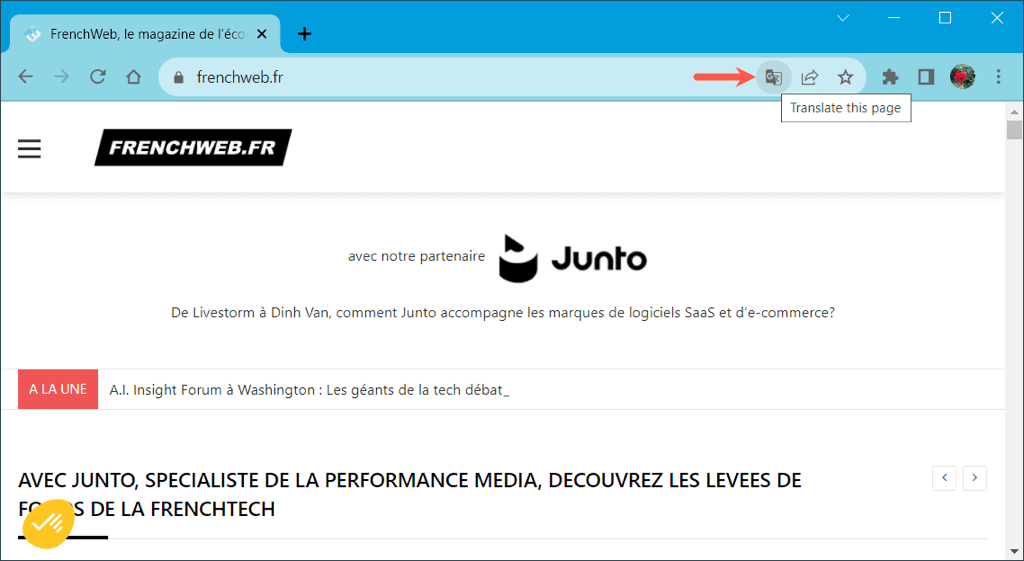
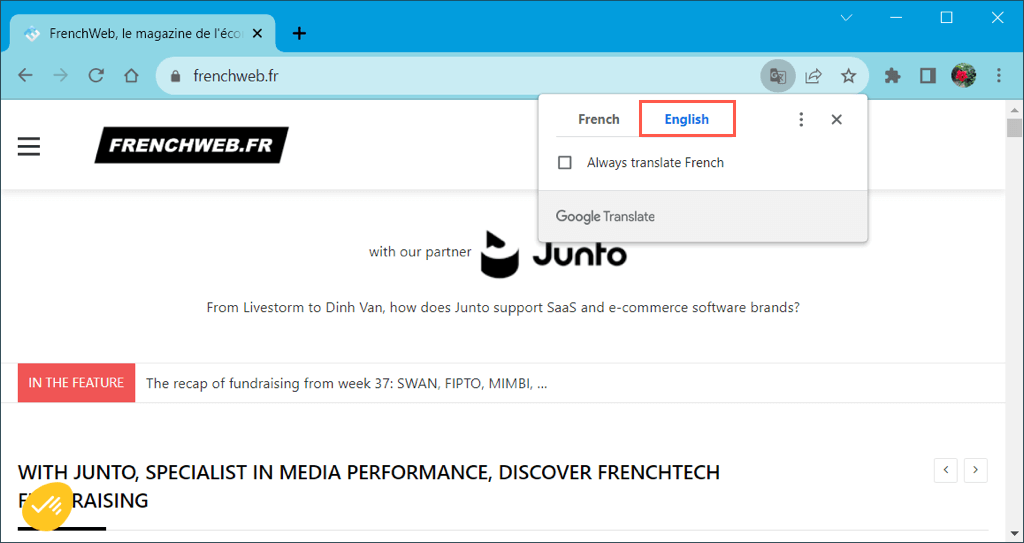
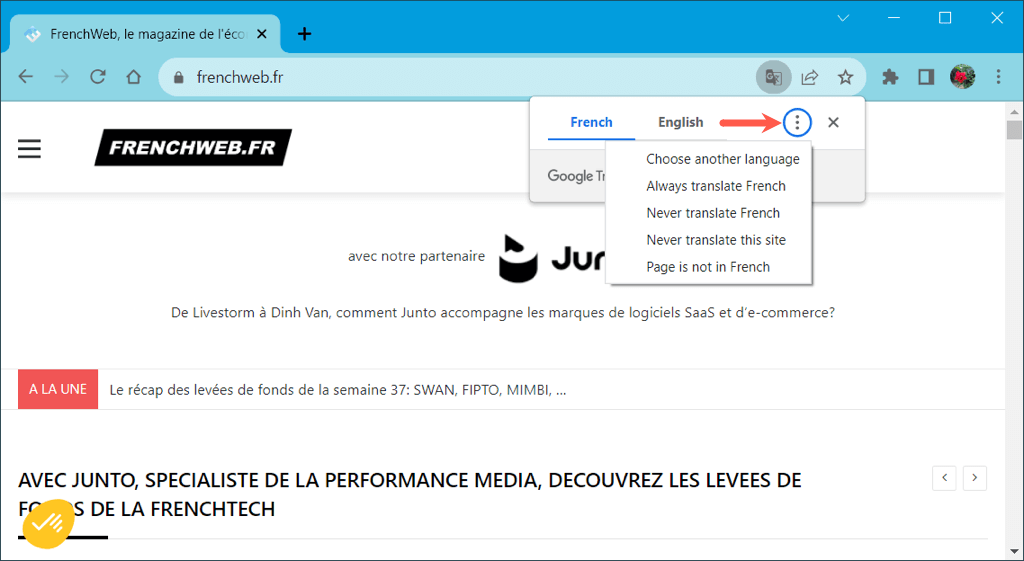
The Google Chrome browser offers a built-in translation tool in the form of Google Translate, making web page translations a breeze.
Translate Part of a Web Page in Chrome
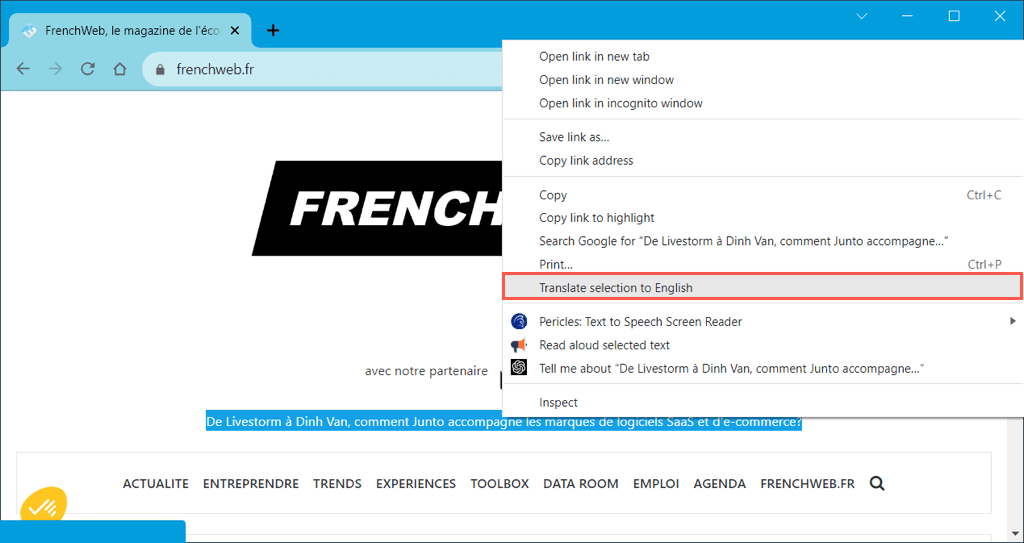
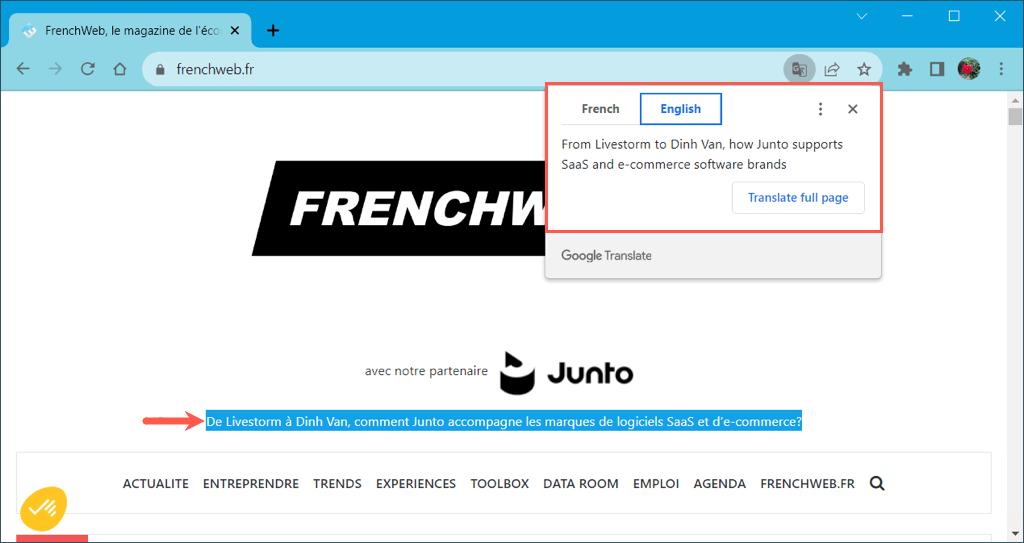
If you only want to translate certain text on a web page, this is another option in Google Chrome. Select the text you want to translate by dragging your cursor through it. Then, right-click and pick Translate selection to [default language]. You’ll see a small window appear with the translation along with the option to translate the full page.
Translate a Web Page in Firefox
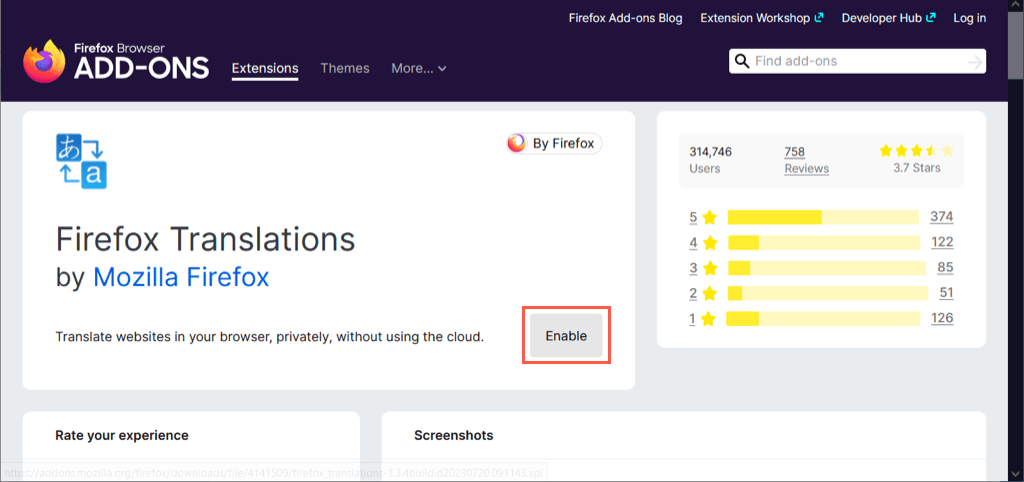
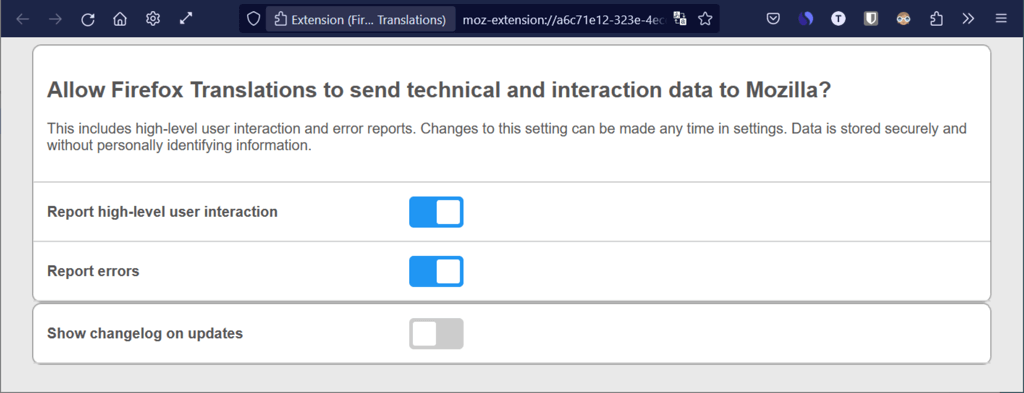
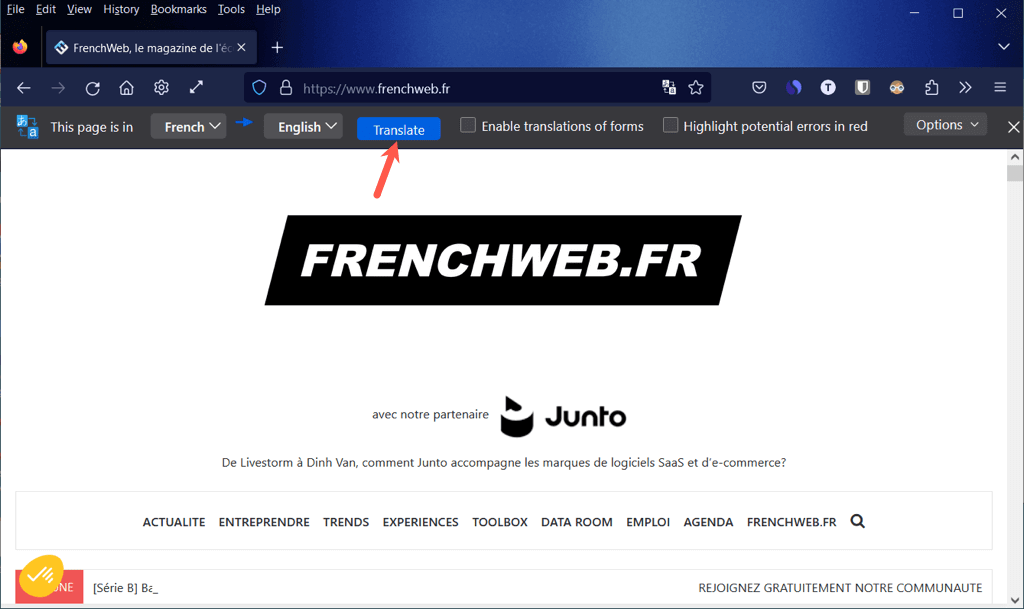
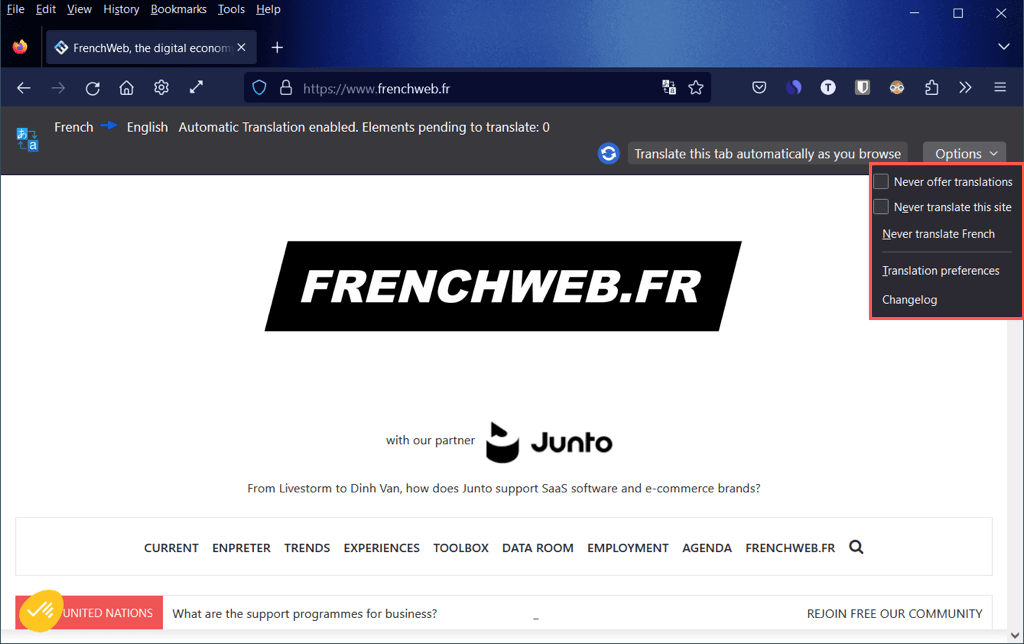
While Mozilla Firefox doesn’t have a built-in translation tool, it does offer an official extension called Firefox Translations. Once you enable the add-on, you can use it effortlessly to translate a web page.
Translate Part of a Web Page in Firefox
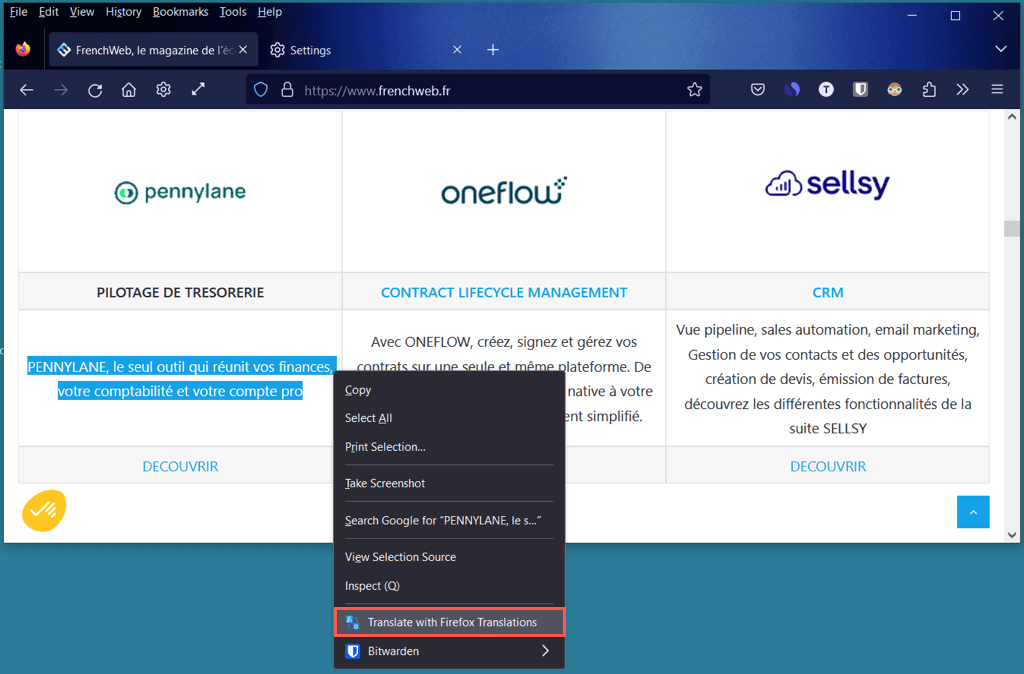
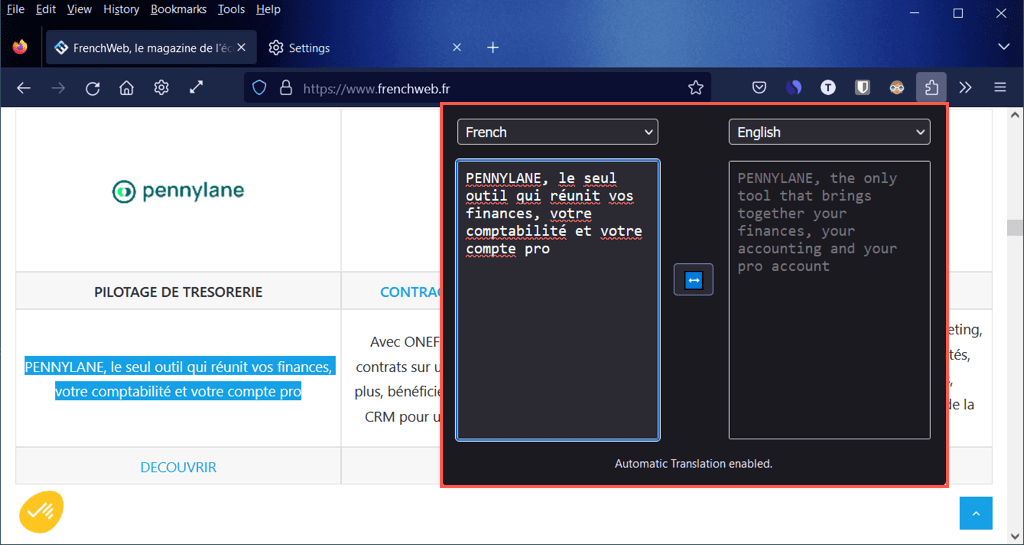
Maybe you only want to translate a portion of the selected text on the web page. With the Firefox Translations extension, it’s easy. Select the text on the page you want to translate, right-click, and pick Translate with Firefox Translations. You’ll then see the translation in a pop-up window where you also have the option to change the language(s).
Translate a Web Page in Microsoft Edge
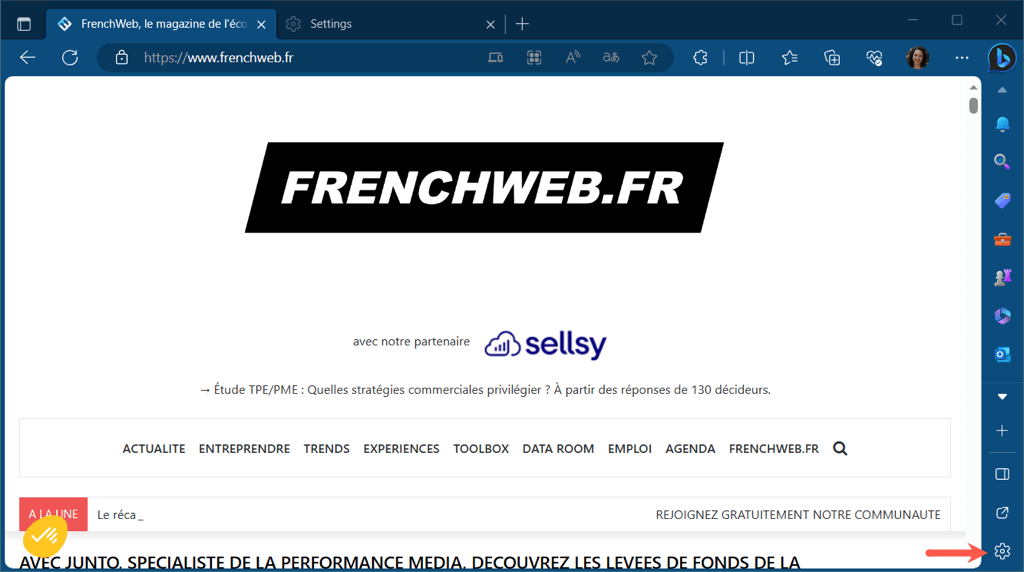
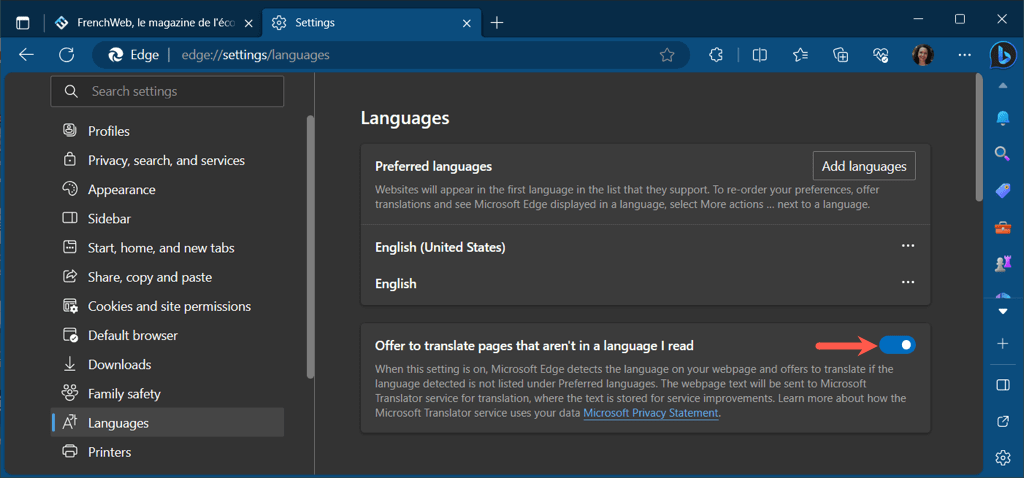
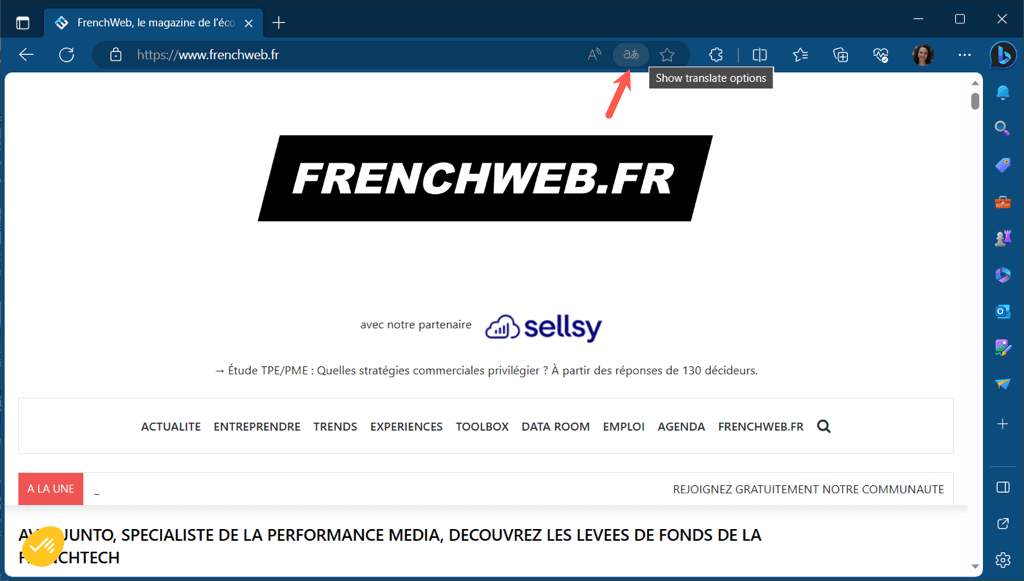
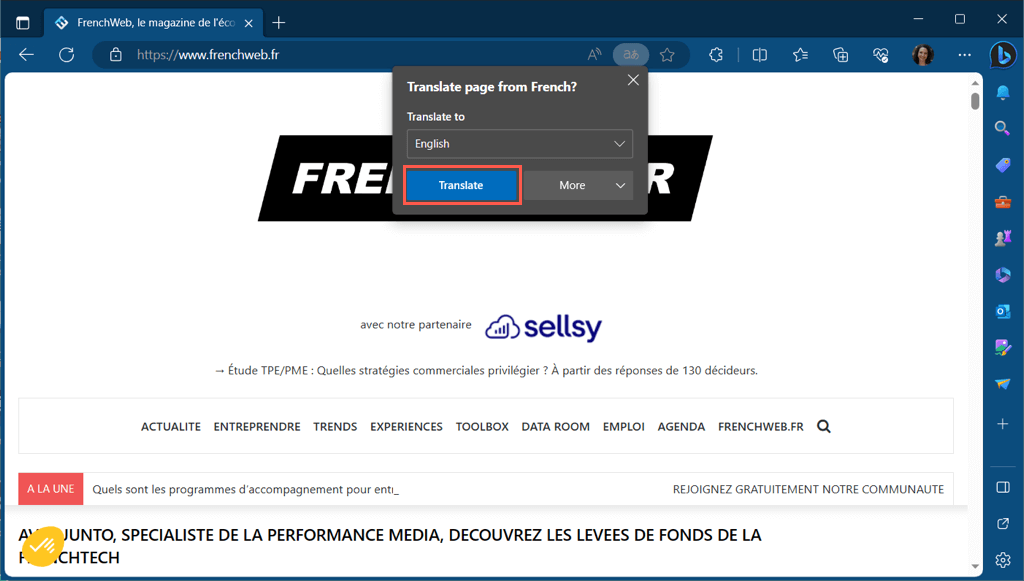
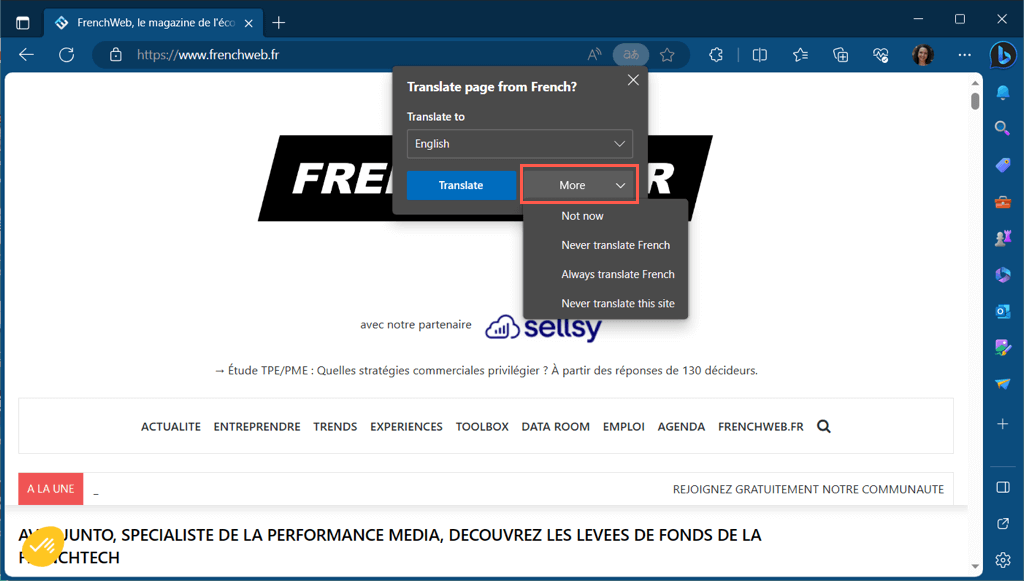
Like Google Chrome, Microsoft Edge provides a built-in translation tool using Microsoft Translator which is similar to Google Translate.
Translate Part of a Web Page in Edge
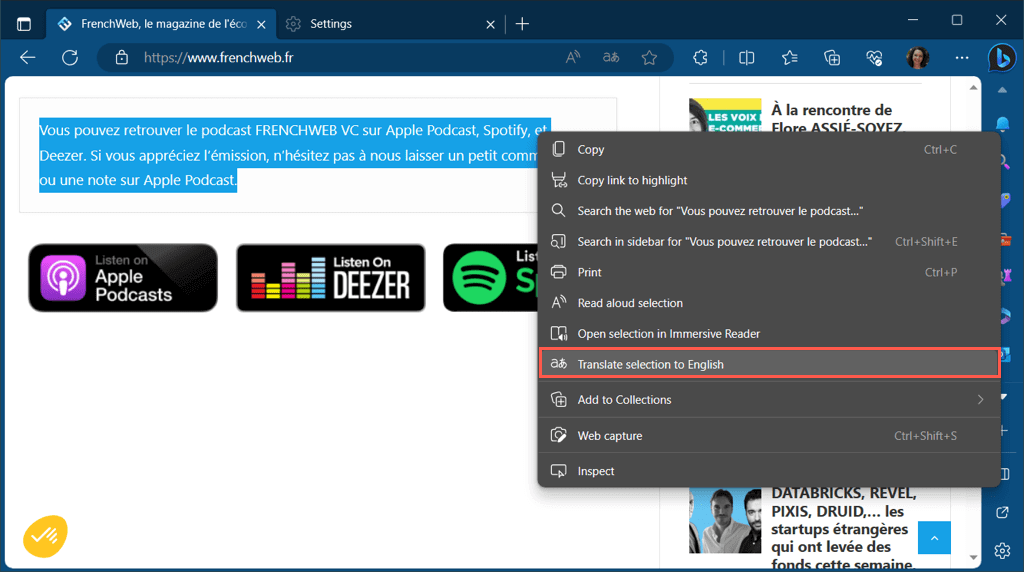
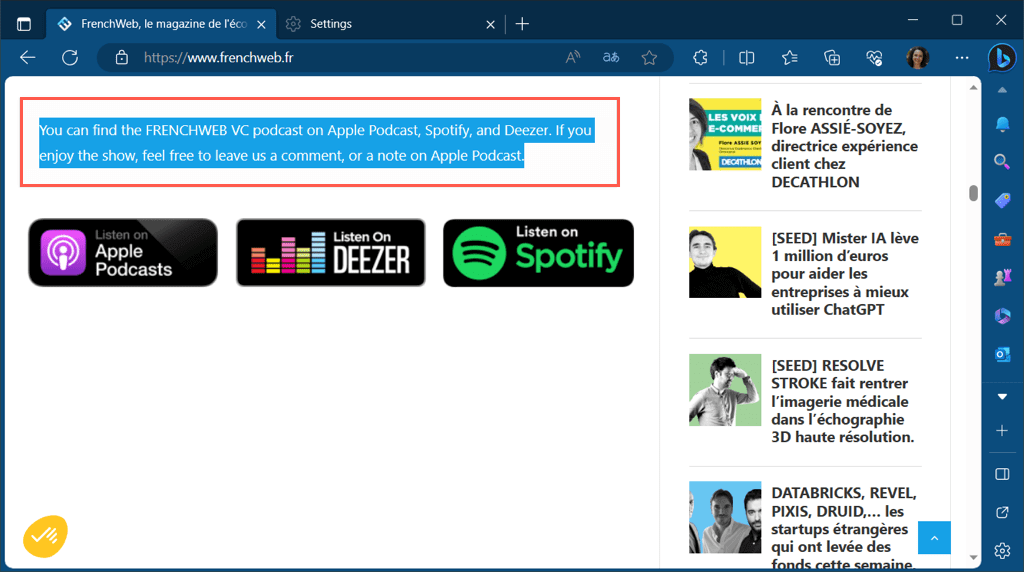
With the built-in translator in Edge, you can also translate part of a web page. Select the text you want to translate, right-click, and choose Translate selection to [default language]. You’ll then see that portion of the web page update, rather than a separate pop-up window, to display the translation.
Translate a Web Page in Safari
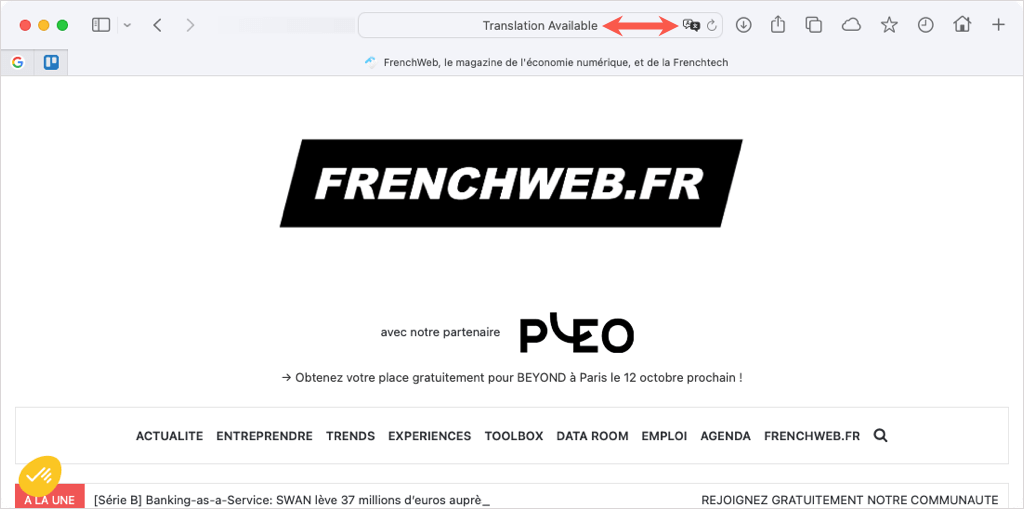
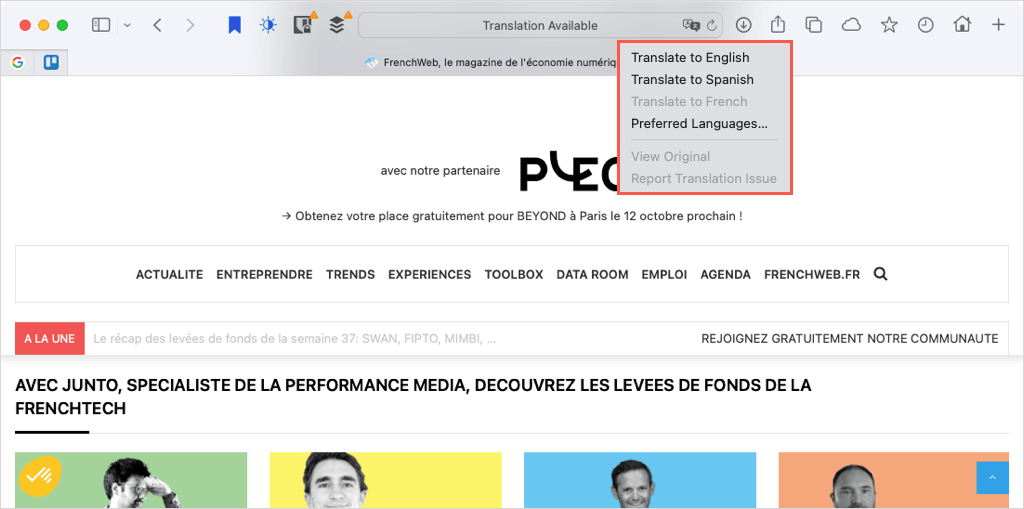
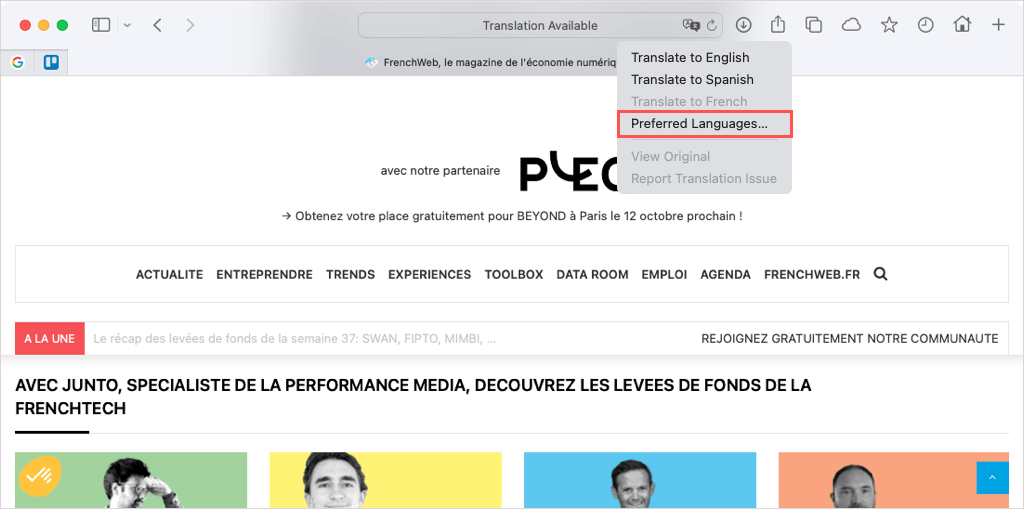
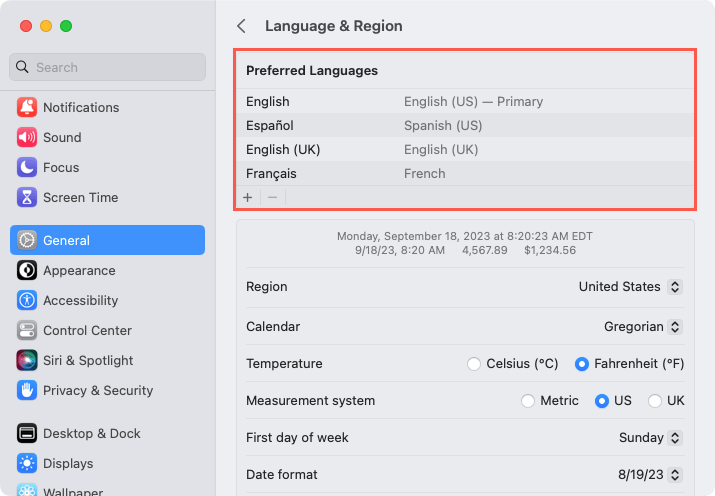
Another browser with its own translation feature is Apple’s Safari web browser.
Translate Part of a Web Page in Safari
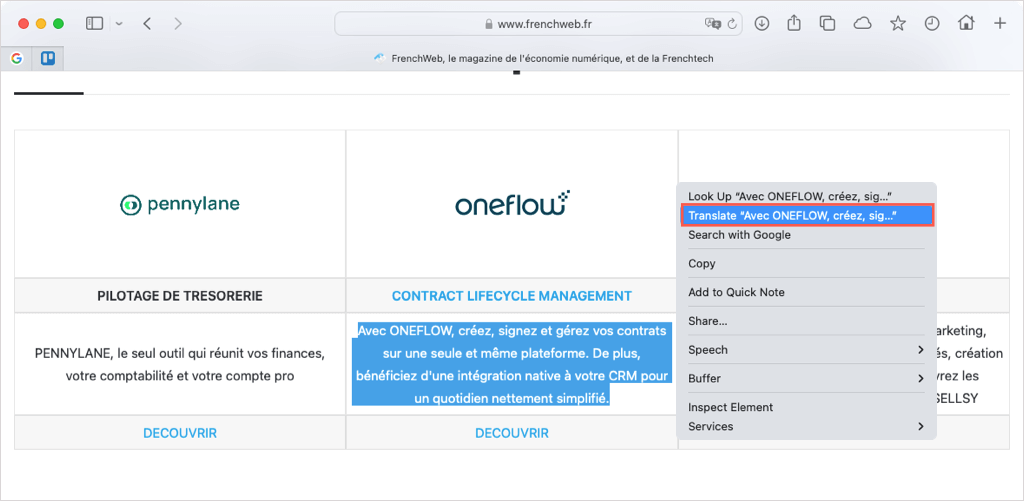
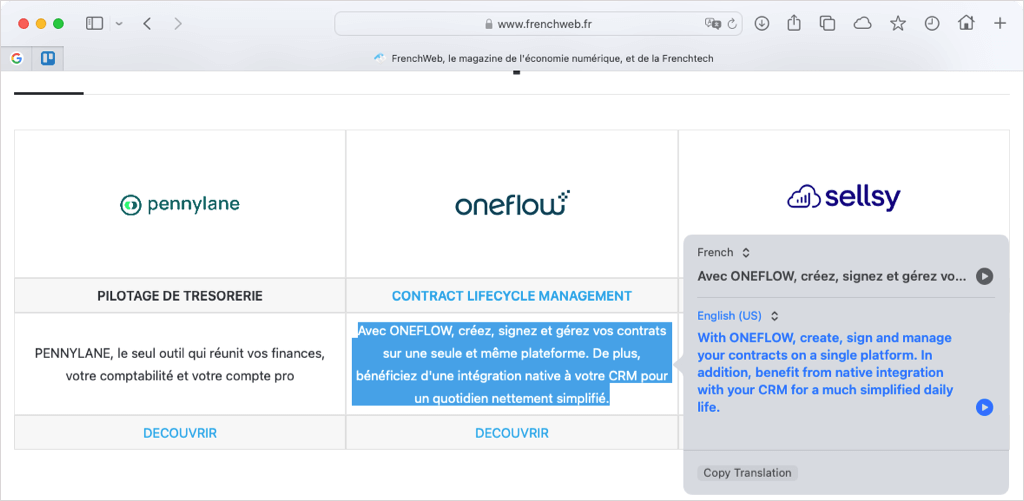
Like the browsers above, you can translate a portion of a web page in Safari as well. Select the text, right-click, and choose Translate “[selected text].” You’ll then see the translation in a pop-up window with options to hear the text spoken out loud or copy the translation.
Translate a Web Page in Opera
The Opera web browser doesn’t have a built-in translation tool or an official add-on. However, there are many translator extensions you can pick from with two popular options below.
Translator
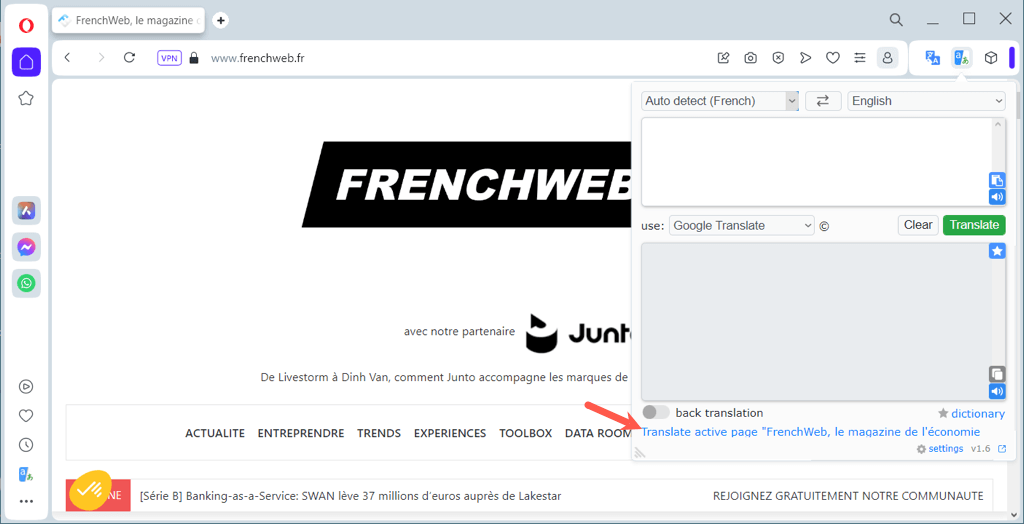
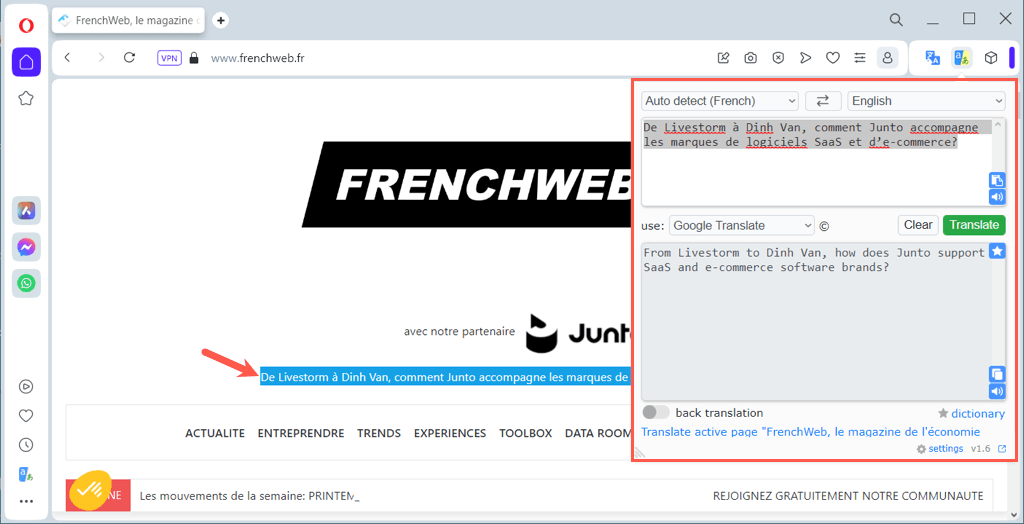
Once you install the free Translator extension, you can translate an entire web page or a specific portion quickly. To translate the current page, select the Translator button in your toolbar. In the pop-up window, optionally pick your language at the top and then use the link at the bottom for “Translate active page.” To translate a part of the page instead, select the text with your cursor. Then, use the Translator button to view the translation in a pop-up window.
Google Translate
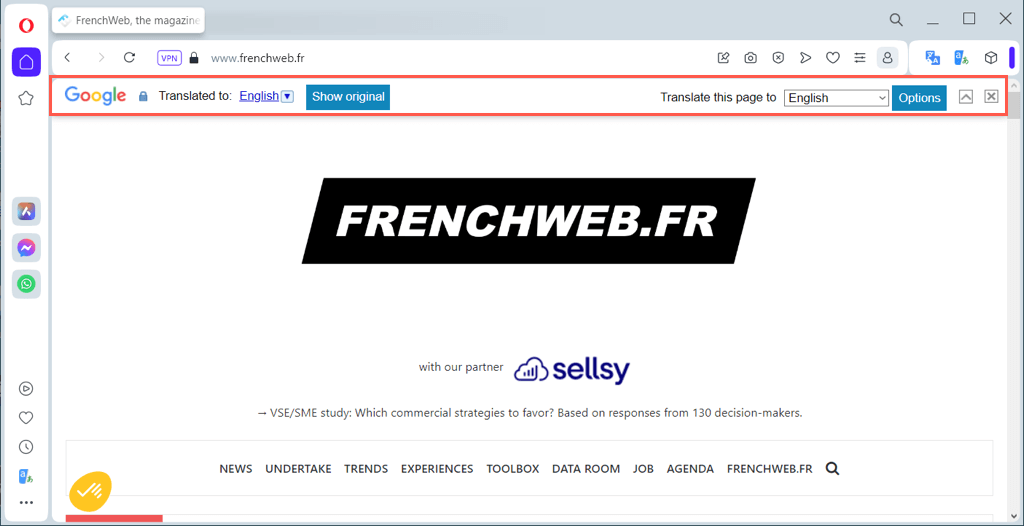
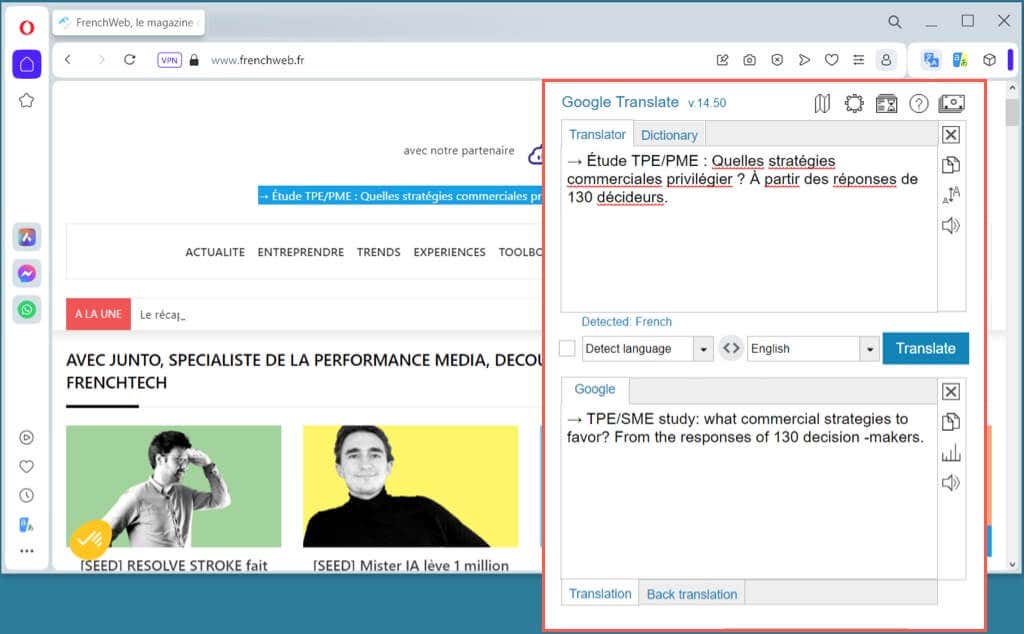
The Google Translate extension for Opera works similarly to the Translator option above. You can translate the whole page or just a certain part. To translate the current page, use the keyboard shortcut Ctrl + Alt + P. You should then see the page translated and the translation toolbar appears at the top. Use the toolbar to choose a different language or view the original language. To translate a portion of the page instead, select the text. Then, use the Google Translate button in the toolbar to see the translation in a pop-up window along with options to copy, listen, or change the text size.
Take Down the Language Barrier
There are plenty of terrific websites out there all over the world. Why stop visiting one because it’s in a language other than your own? Whichever browser on our list is your favorite, you have an easy way to translate a web page. For more, look at language learning apps that can teach you to speak in a different dialect.