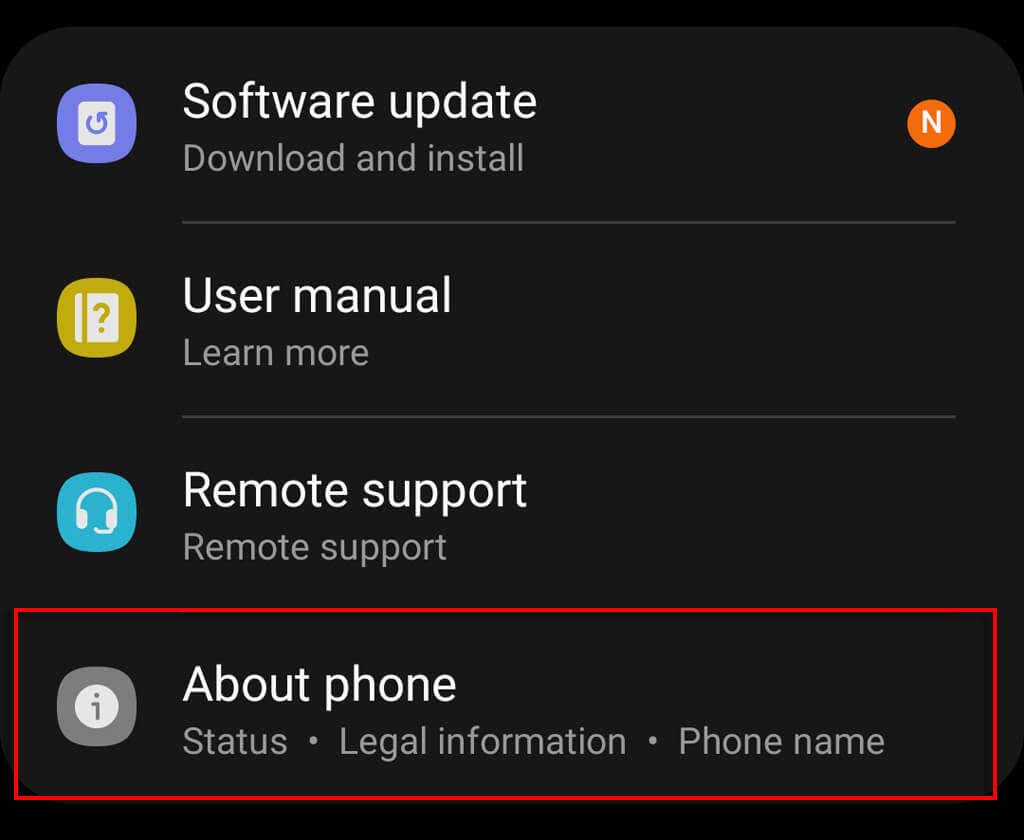
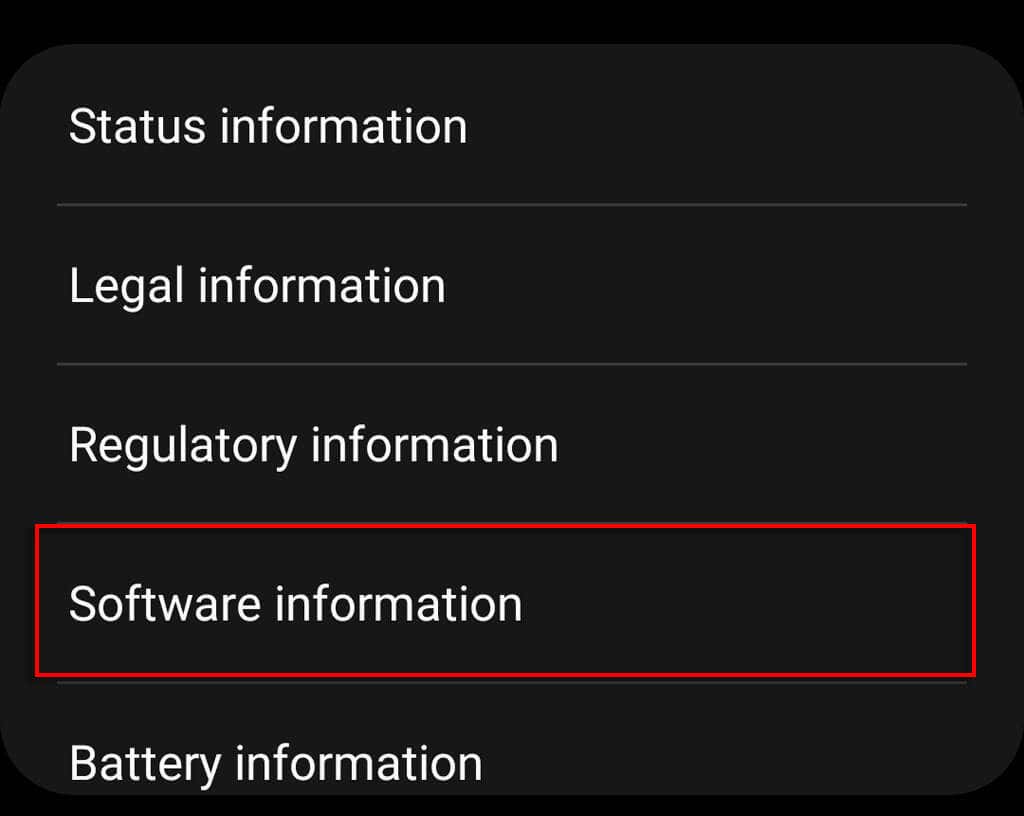
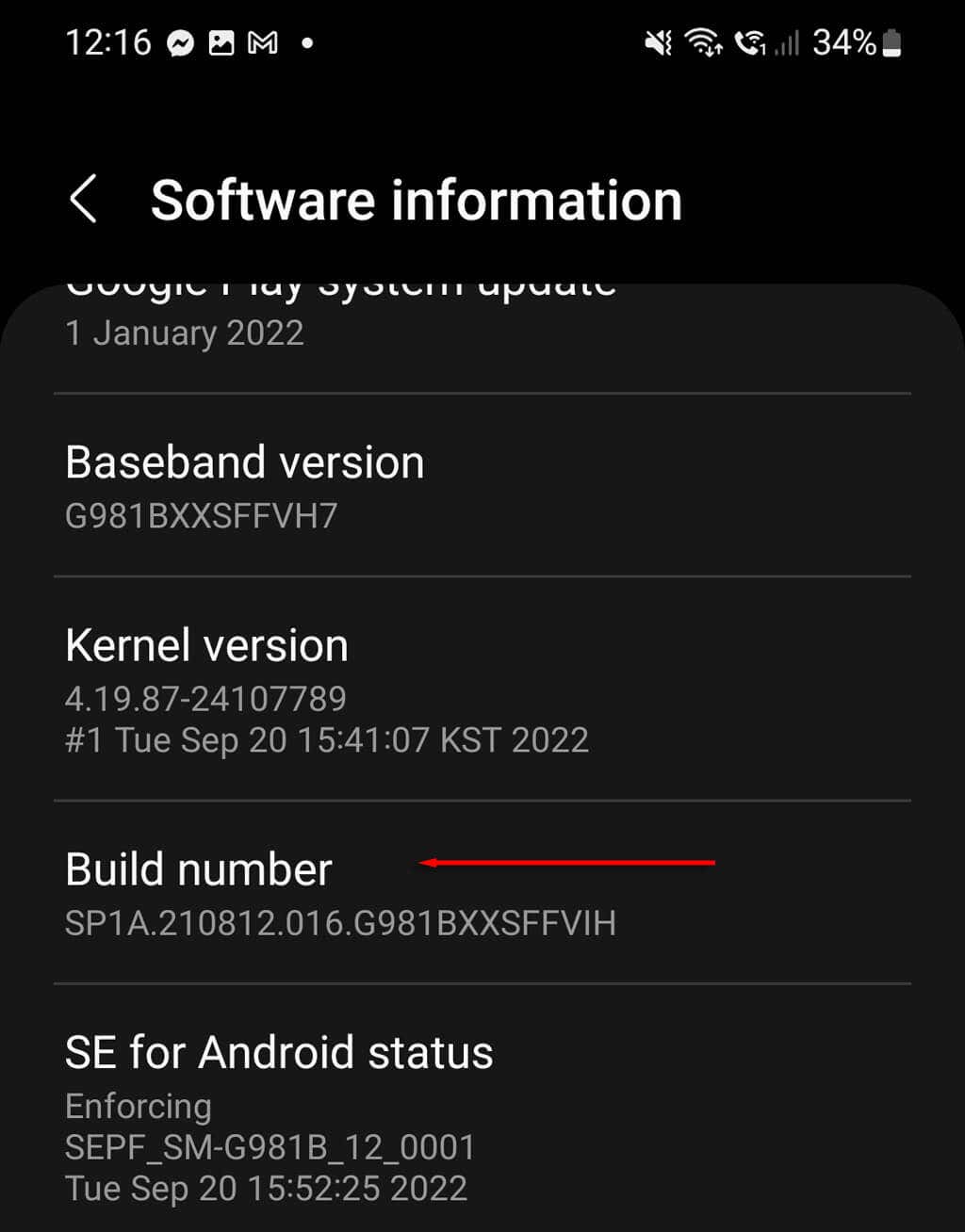
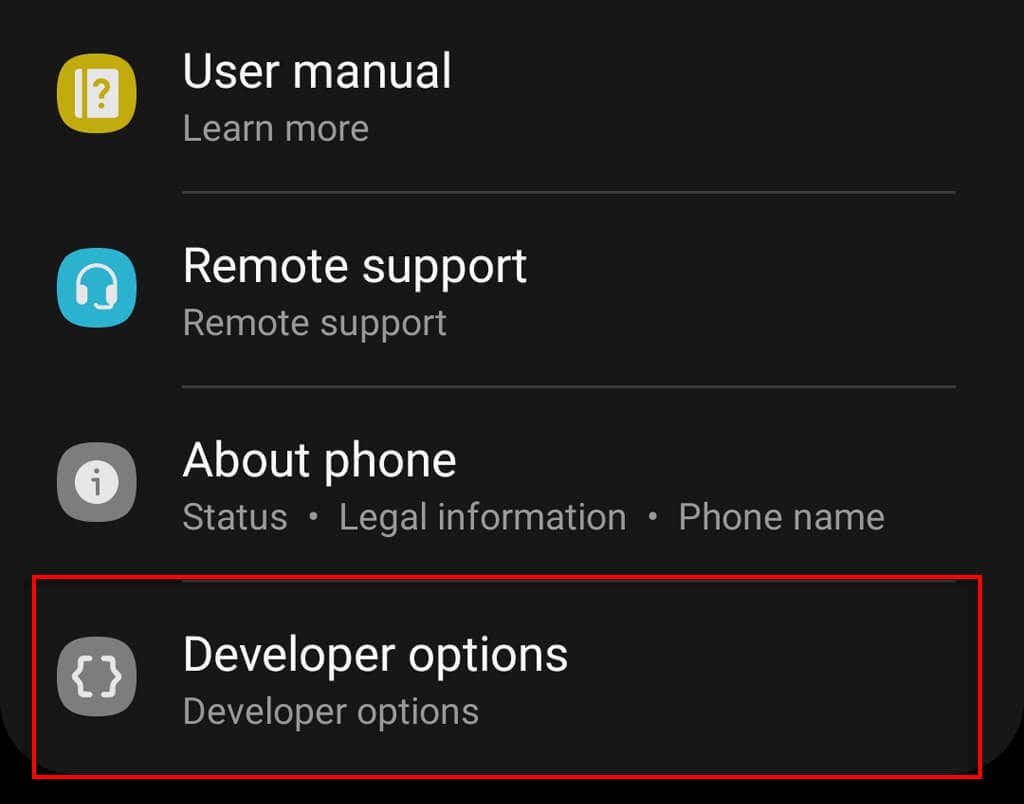
In this tutorial, we’ll explain how to keep your phone from turning off too soon.
1. Change the Phone’s Display Settings
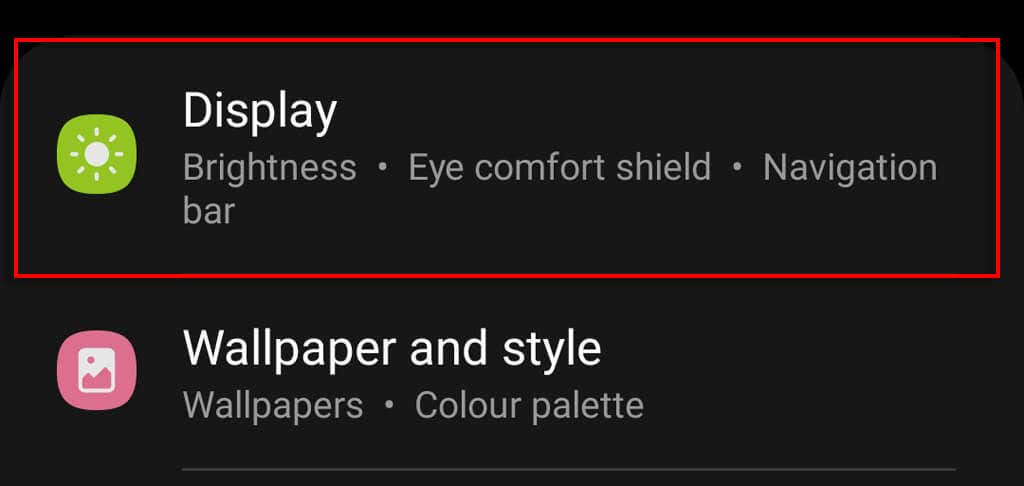
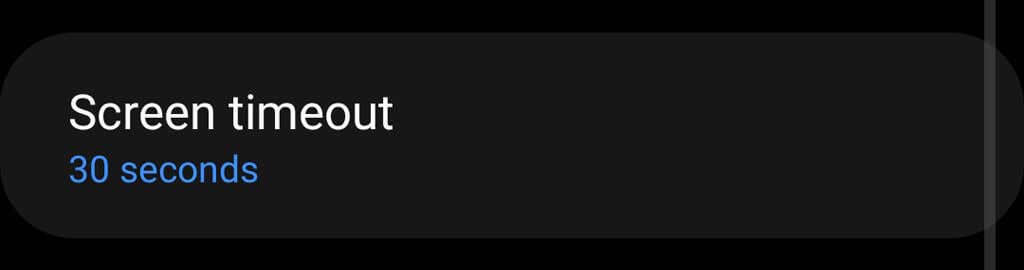
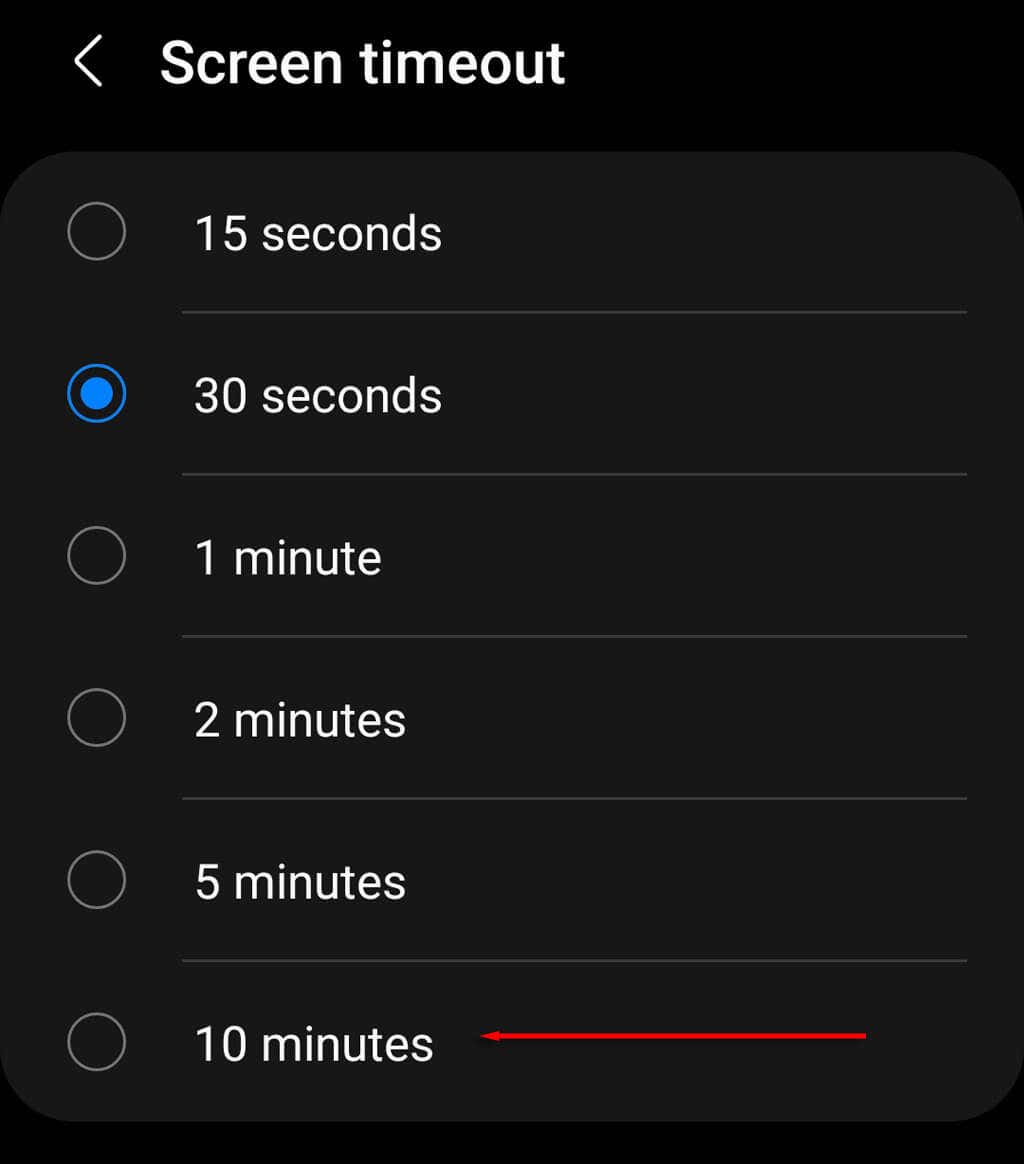
Just like Apple iOS provides a way to disable auto-lock and keep your iPhone screen on longer, Android also provides an easy way to ensure your phone screen doesn’t turn off. Here’s how to change your Android phone’s screen timeout duration from the settings menu: On some models, you may have to navigate to Settings > Lock Screen > Sleep and choose Never. Note: Some Android devices provide a Never option, ensuring that your phone screen will never automatically turn off. However, other Android models including Samsung smartphones do not provide this option.
2. Use the Android Developer Options
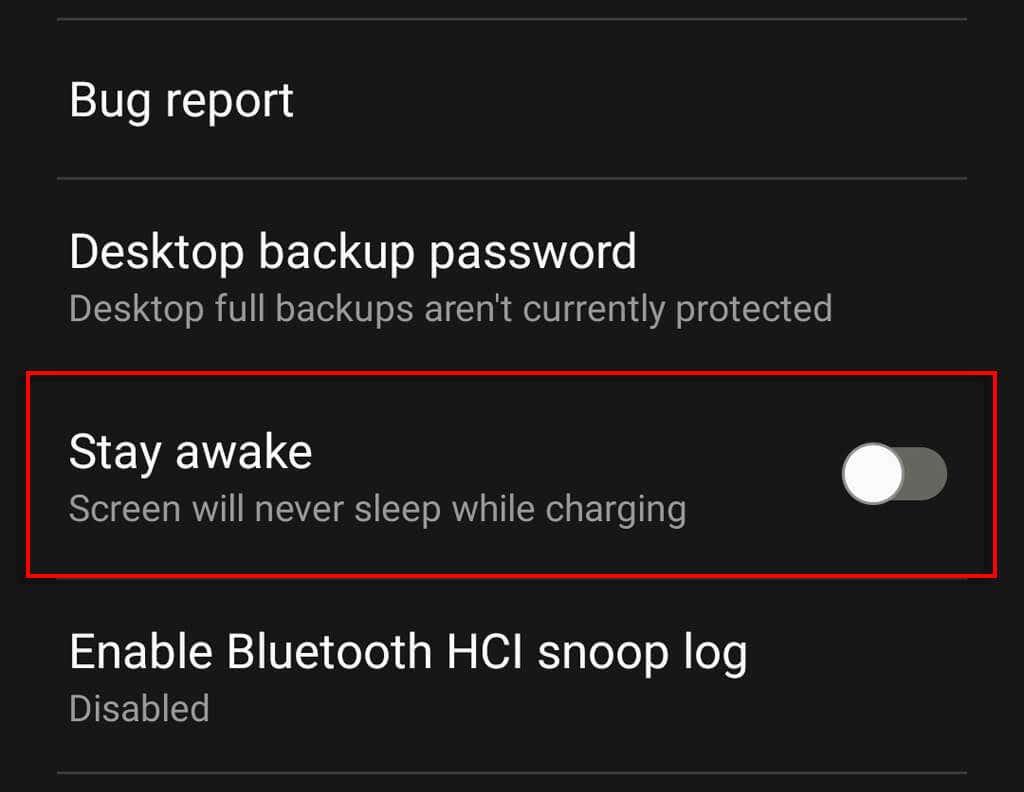
Developer Options is a menu of hidden settings that lets Android users use USB debugging and make advanced changes to their phones. One of these settings is called “Stay Awake,” which prevents your screen from turning off while the phone is connected to a charging cable. Here’s how to set your Android phone to “Stay Awake” mode: Note: If you change your mind and want to make it so your phone turns off its screen again, you can simply revert to default settings.
3. Use Android’s Advanced Features
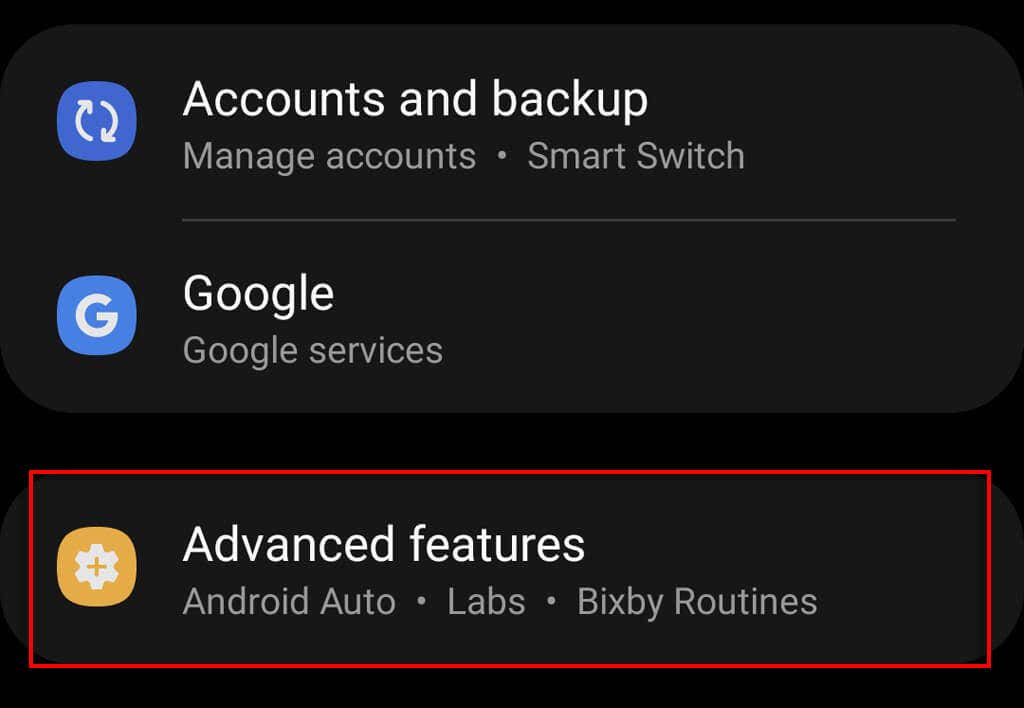
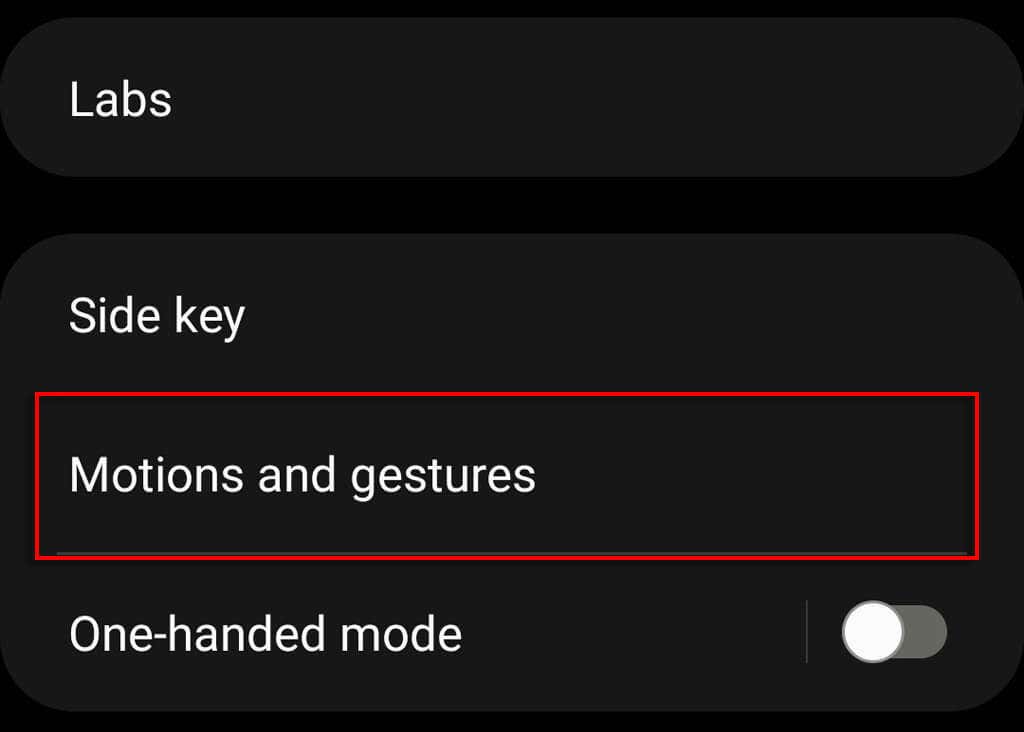
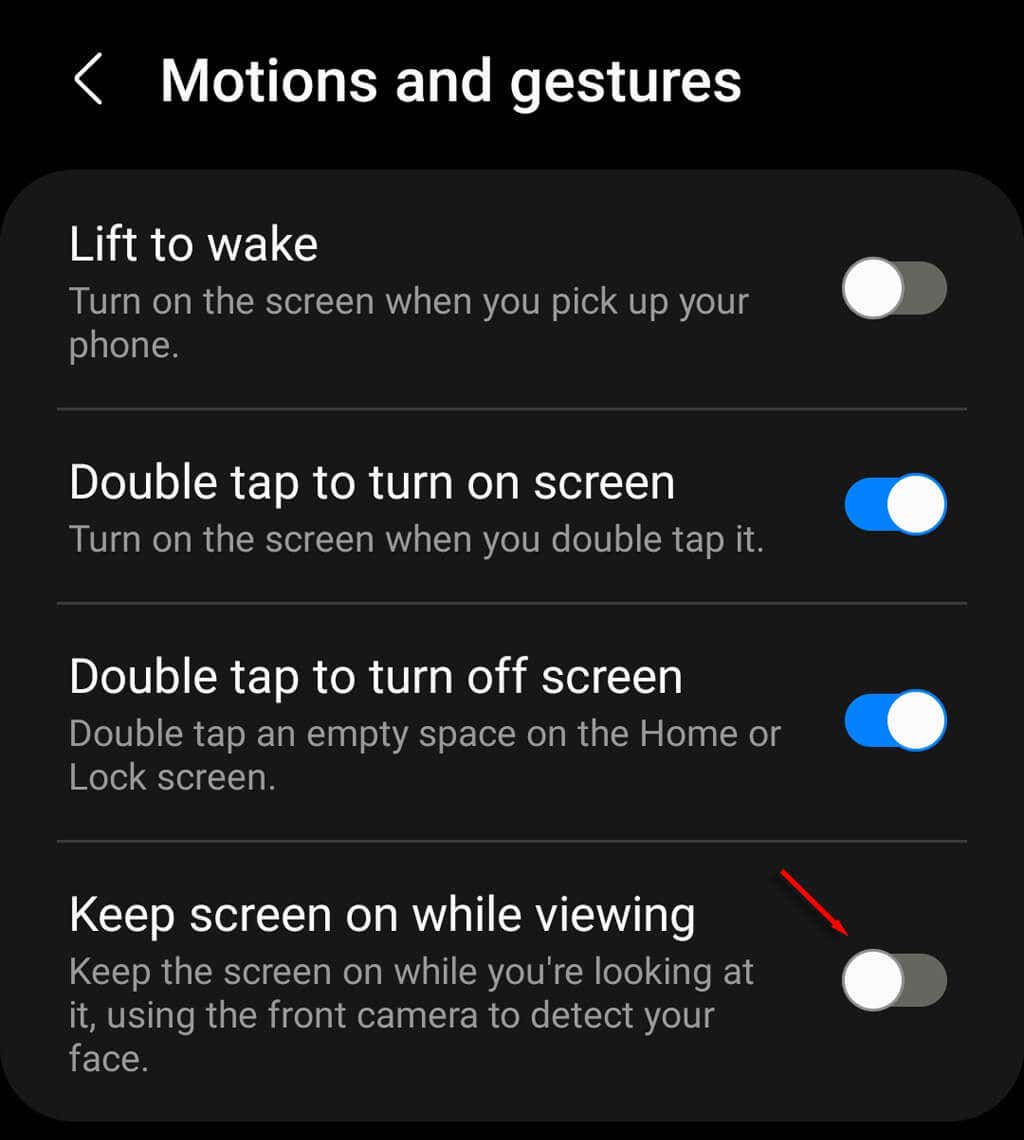
Some Android smartphones, including some Samsung Galaxy models, have advanced motion and gesture settings. One of these settings makes sure your phone screen stays on while you’re looking at it. To enable this setting:
4. Use Third-Party Apps
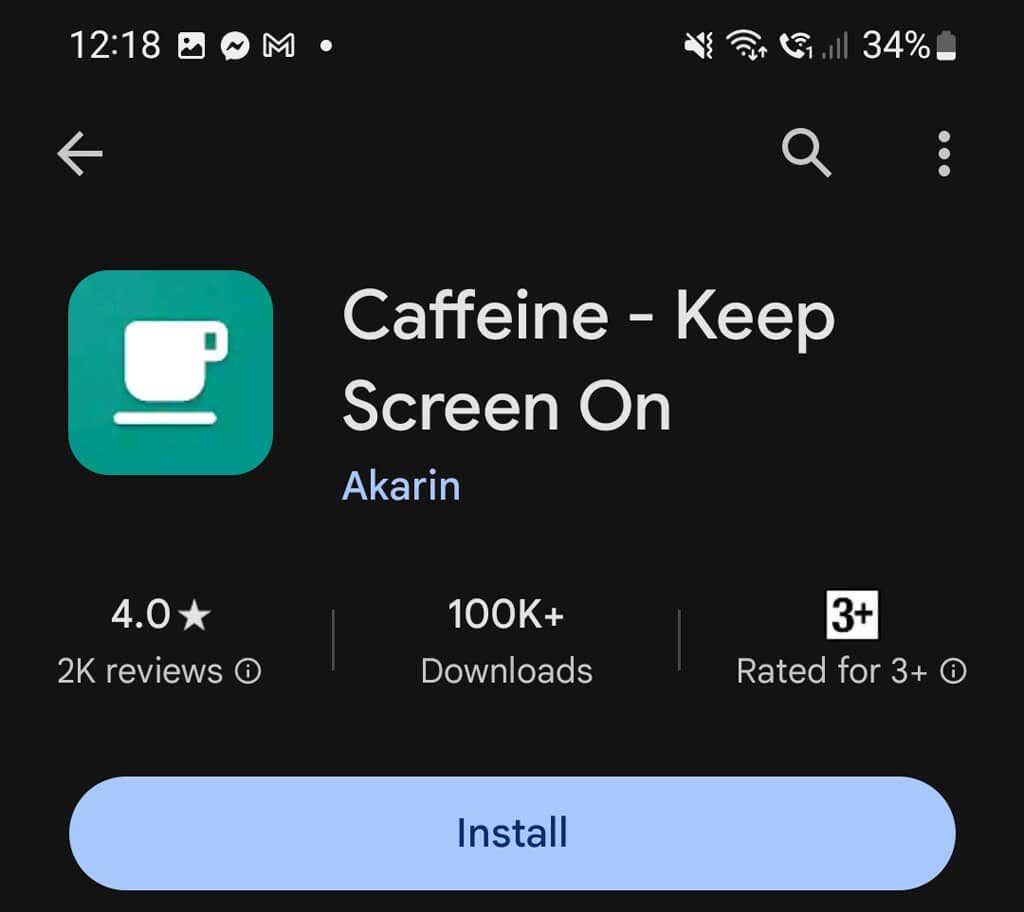
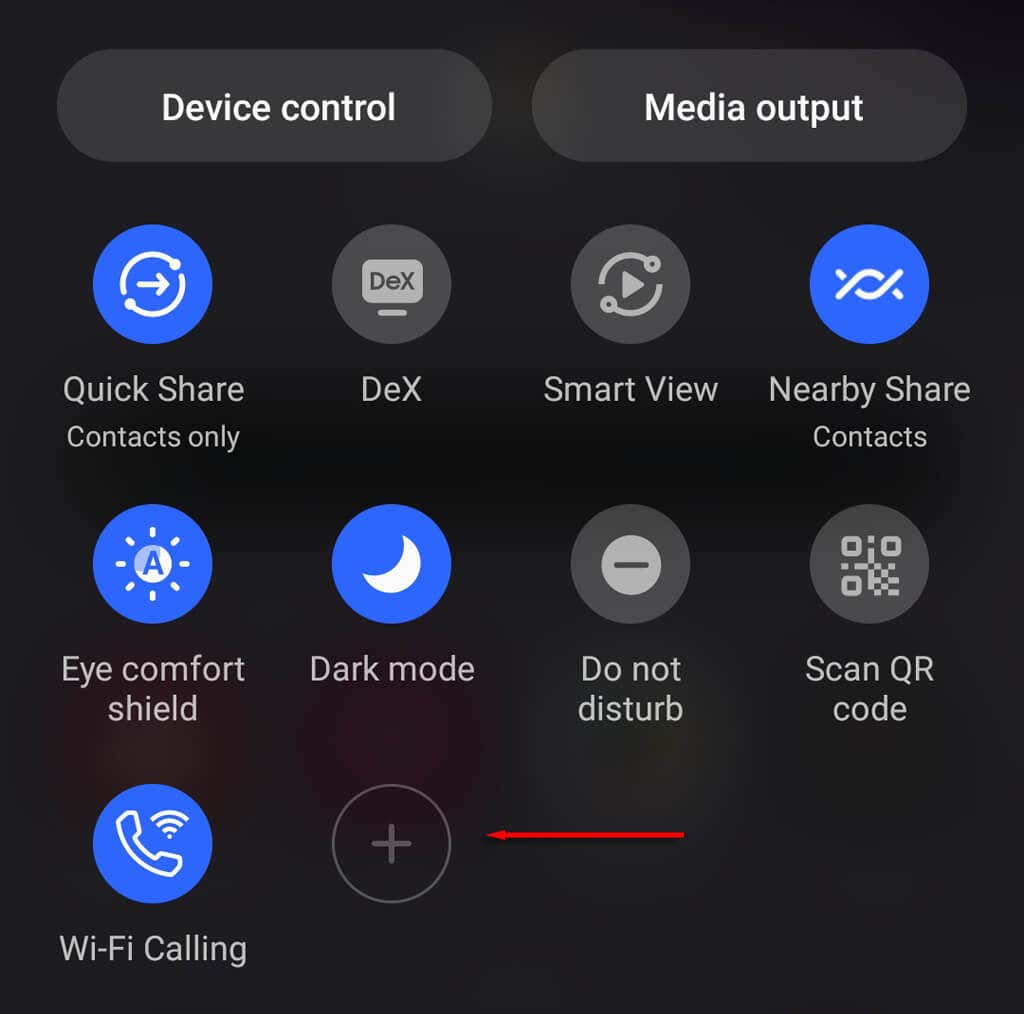
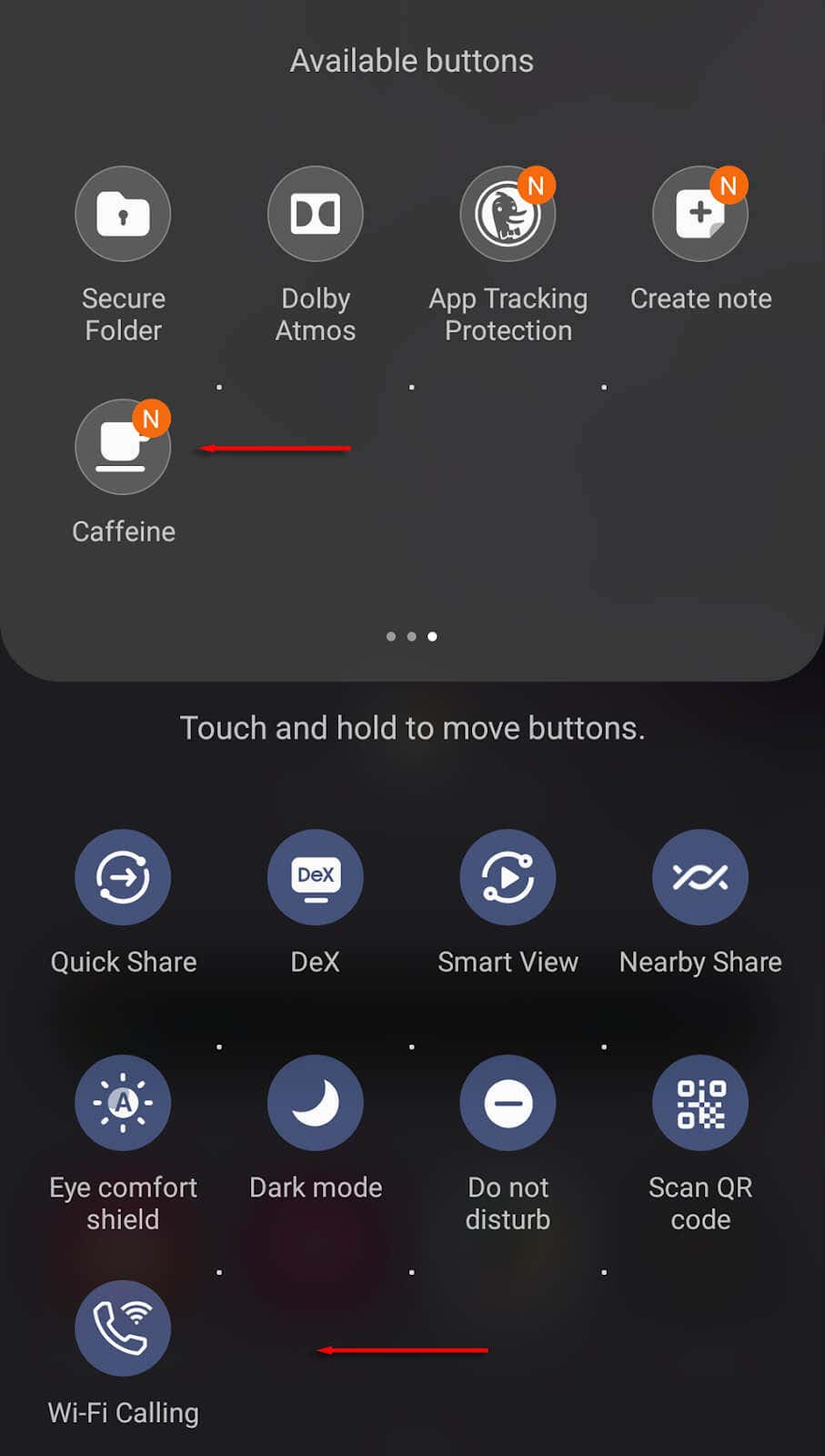
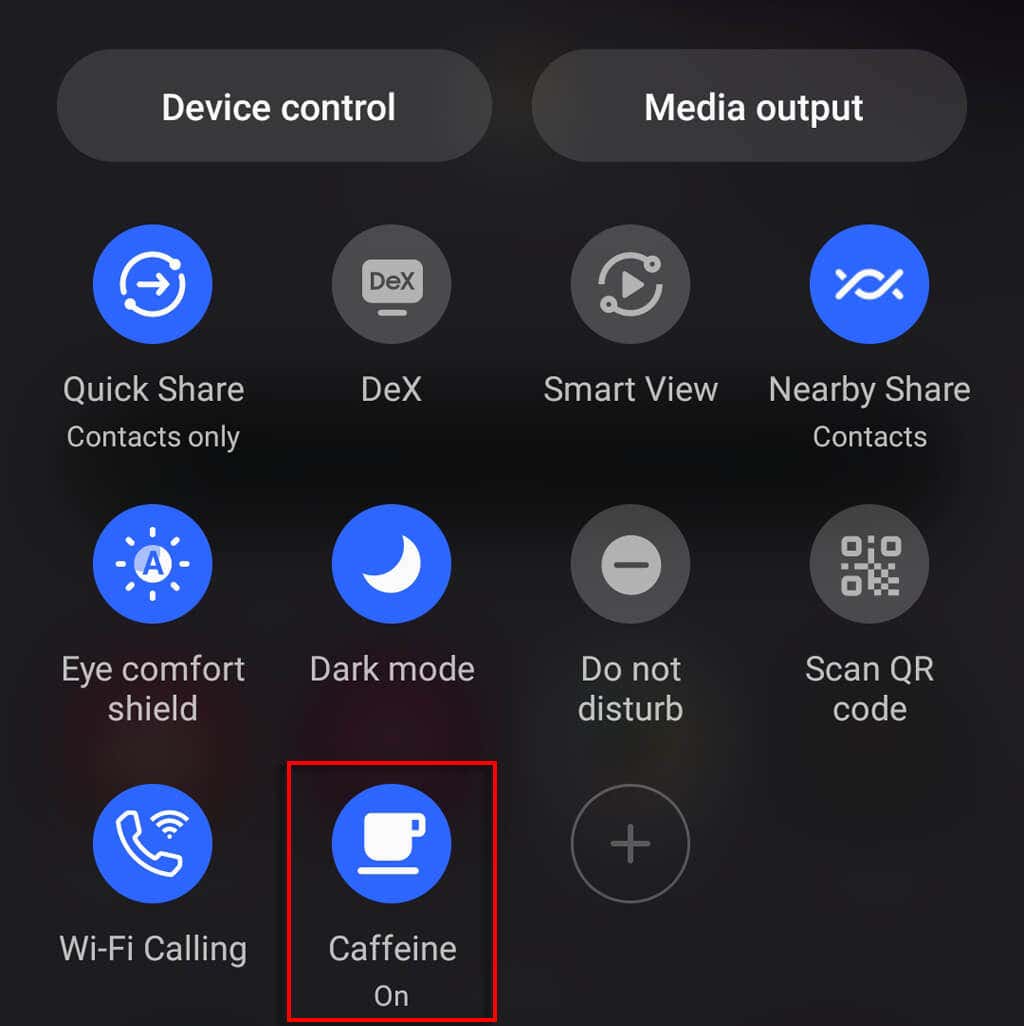
There are dozens of third-party apps on the Google Play Store that promise to make your phone have an always on display. One of the most reputable of these apps is called Caffeine – Keep Screen On. To download Caffeine:
Endless Screen Time
Keep in mind that while constantly having your phone screen turn off is annoying, it does help preserve your battery life, even on low power mode and low brightness settings. If you change it so your phone keeps your home screen on, don’t forget to turn it off via the power button to preserve your battery.