How to Recover Deleted Instagram Posts
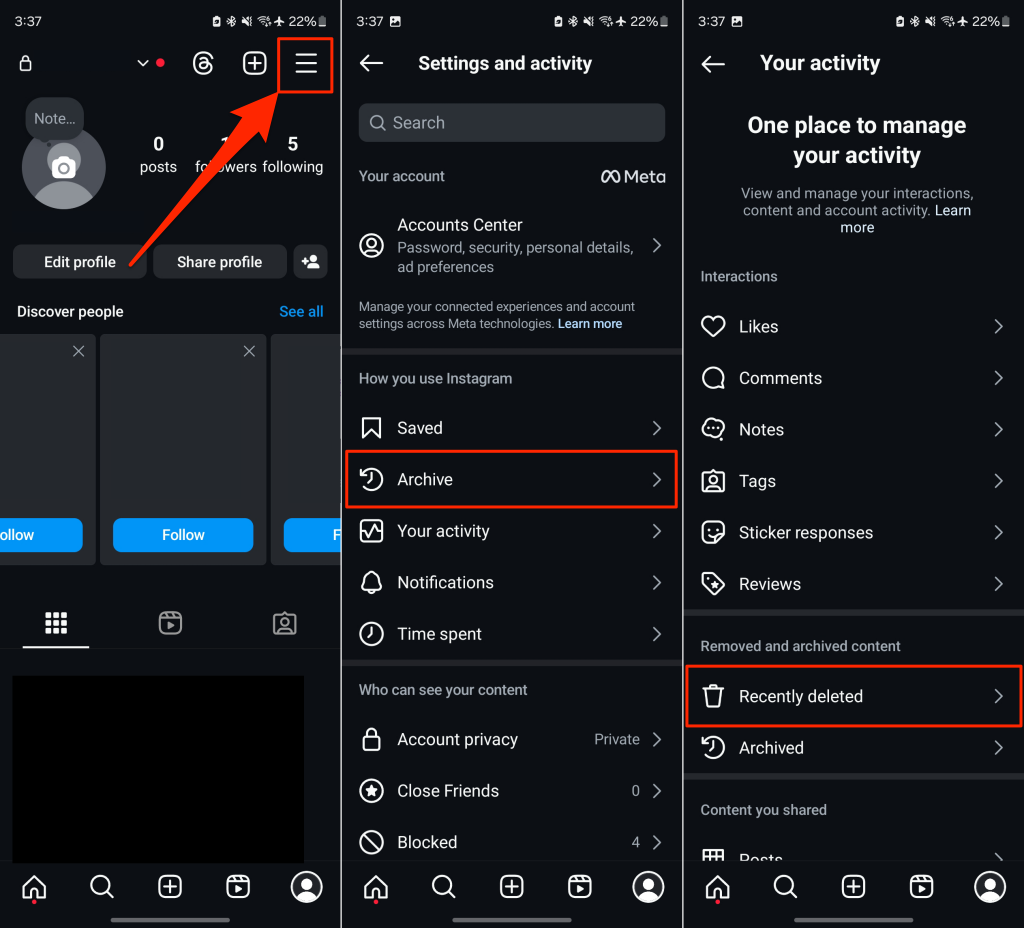
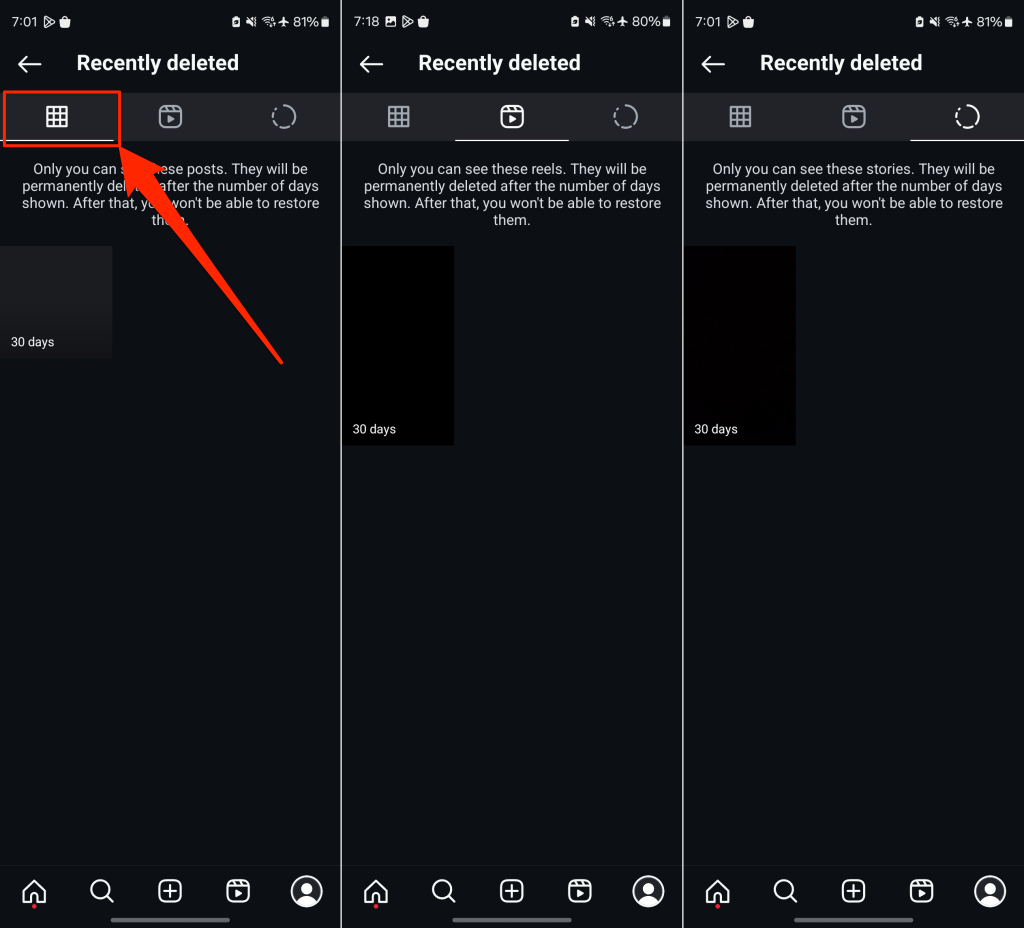
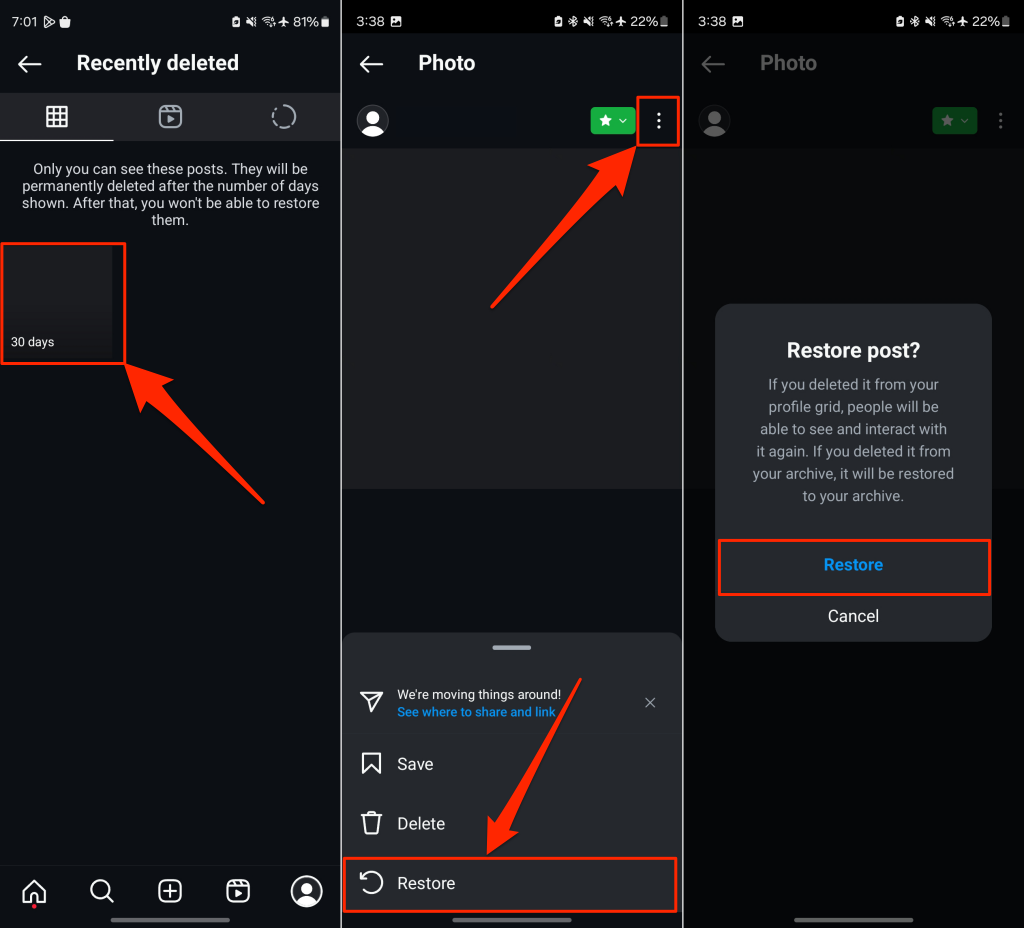
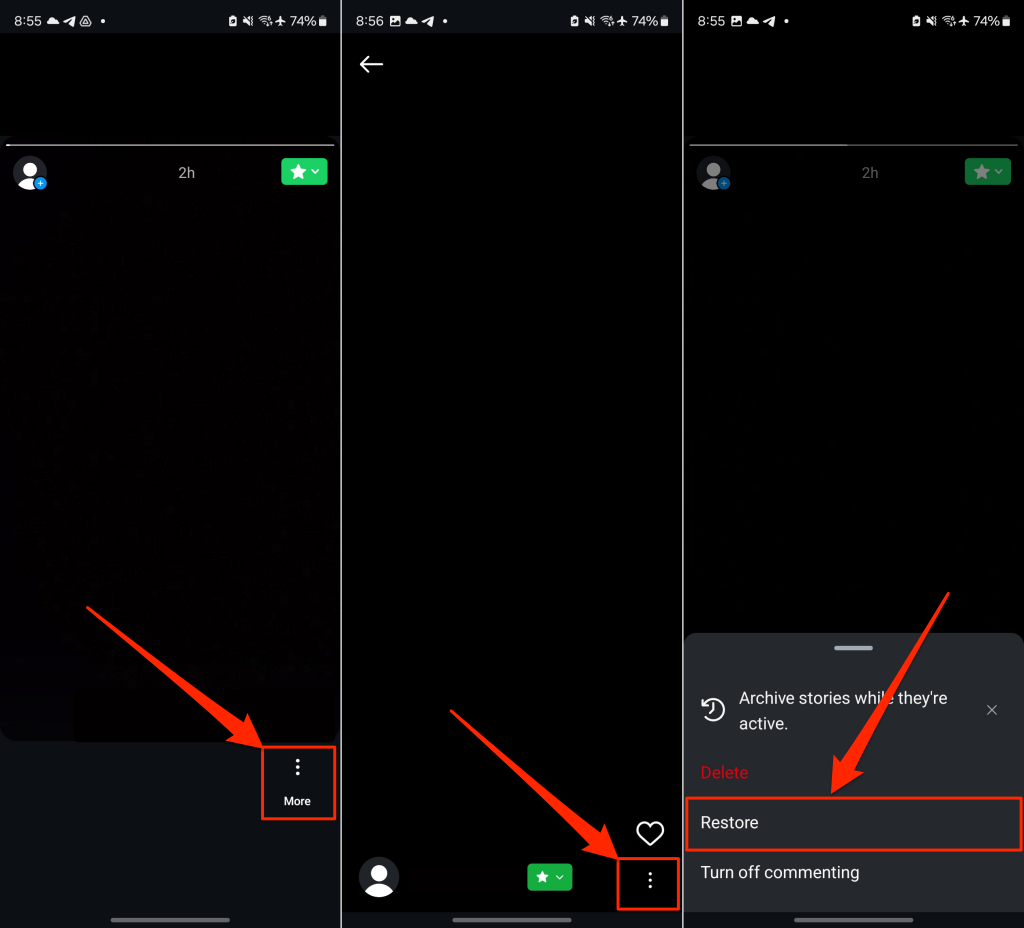
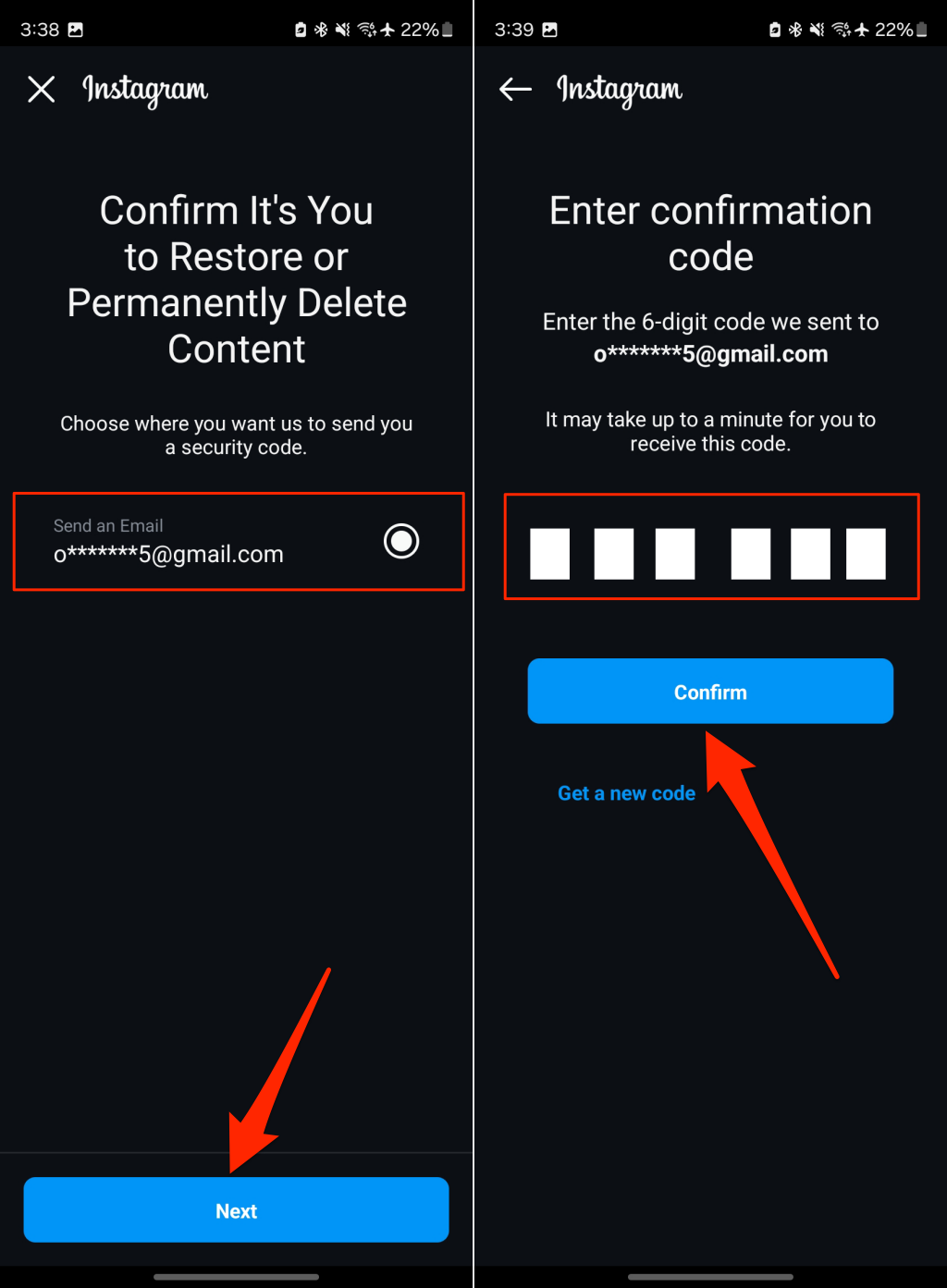
Instagram stores deleted content for up to 30 days (or 24 hours for non-archived stories) after removing them from your profile. This includes deleted Instagram photos, stories, and reels. You can recover deleted posts from the Instagram app on an iPhone or Android device. The Instagram web application doesn’t have the functionality to display or restore recently deleted content. Follow the steps below to restore photos or videos deleted from your Instagram profile. The recently deleted folder/page groups deleted reels, stories, and posts in separate sections. You’ll find regular Instagram posts (photos and videos) in the Posts section—with the Grid icon. You should see how long (in days) you have to restore the post before Instagram deletes it permanently. For deleted reels or stories, tap the More icon in the bottom-right corner, and select Restore. Tap Restore again on the confirmation pop-up to proceed. You may get a prompt to verify your identity by providing a security code sent to the email or phone number linked to your account. This extra layer of security prevents hackers or unauthorized persons from accessing your account or recovering deleted Instagram posts without your consent. Verifying your identity should move the post from the recently deleted section to your profile. If nothing happens, you can manually restore the post (see step #5). You can follow the same steps above to restore deleted reels and stories to your profile. If you need to remove/hide something from your profile without completely deleting it, use Instagram’s “Archive” feature. We’ll show you how to use the Instagram archive feature in the next section.
How to Archive Instagram Posts
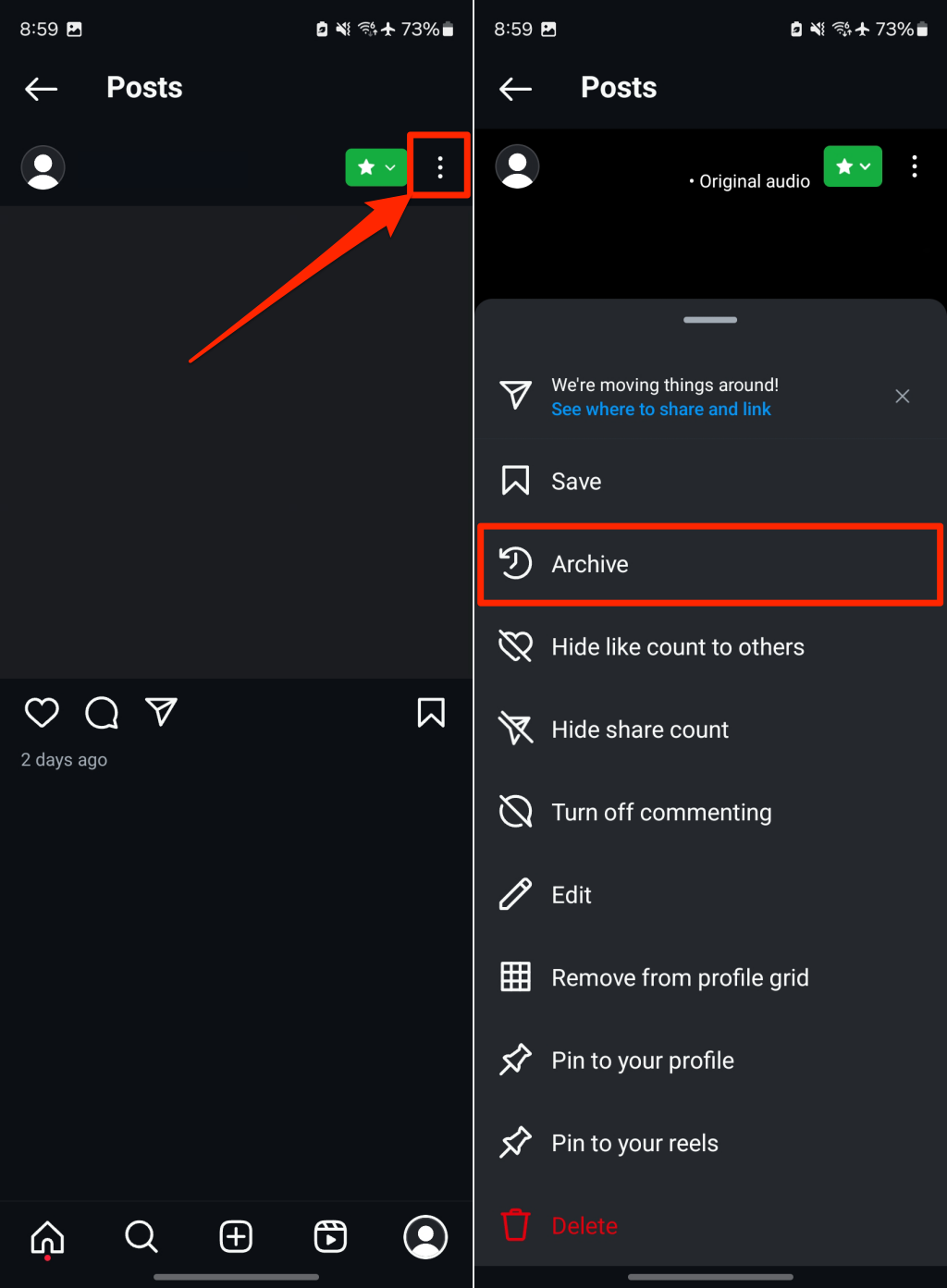
Archiving a post or reel removes it from your profile and hides it in a special folder. You can also archive Instagram stories and live content.
Archive Instagram Posts on Mobile (Android and iOS)
How to Find Archived Instagram Posts
You can view archived content (posts, reels, and stories) in the Instagram app for Android and iOS. The Instagram web app only lets users view archived stories. We’ll show you how to find posts, stories, or reels you archive on Instagram.
Find Archived Instagram Posts on Mobile
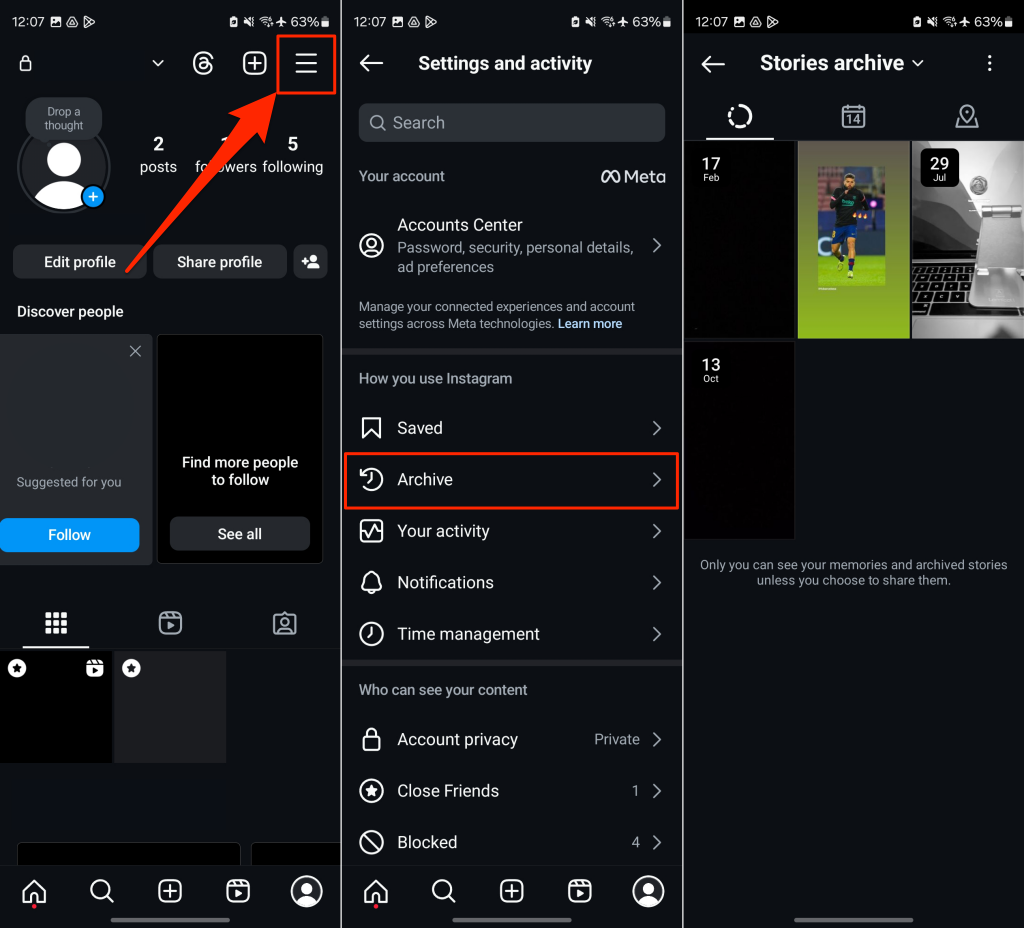
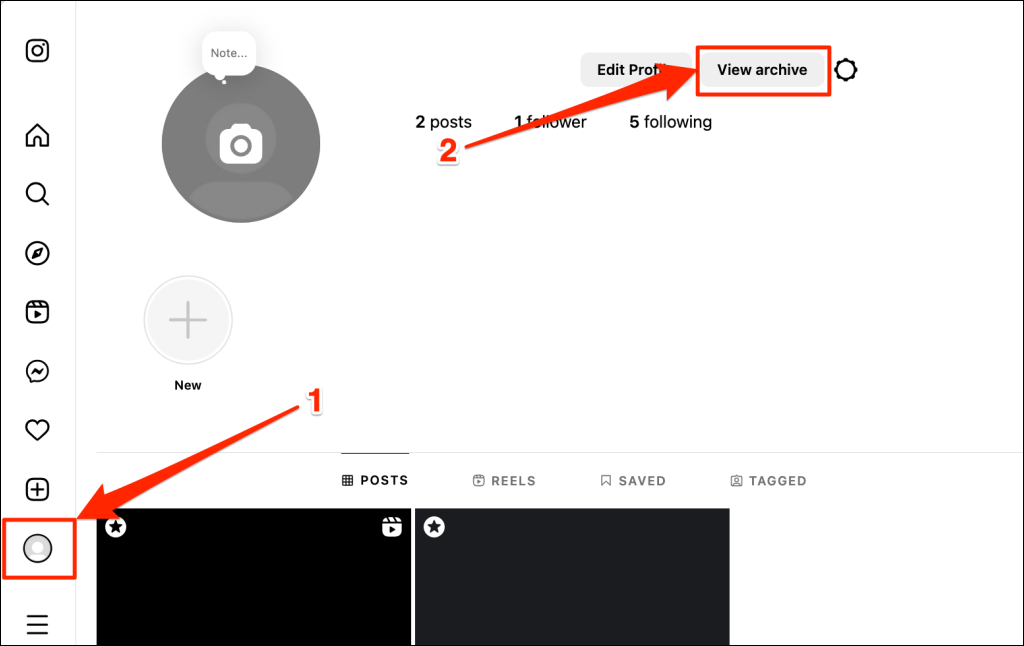
Open your profile page in the Instagram app on your Android or iOS device and follow the steps below.
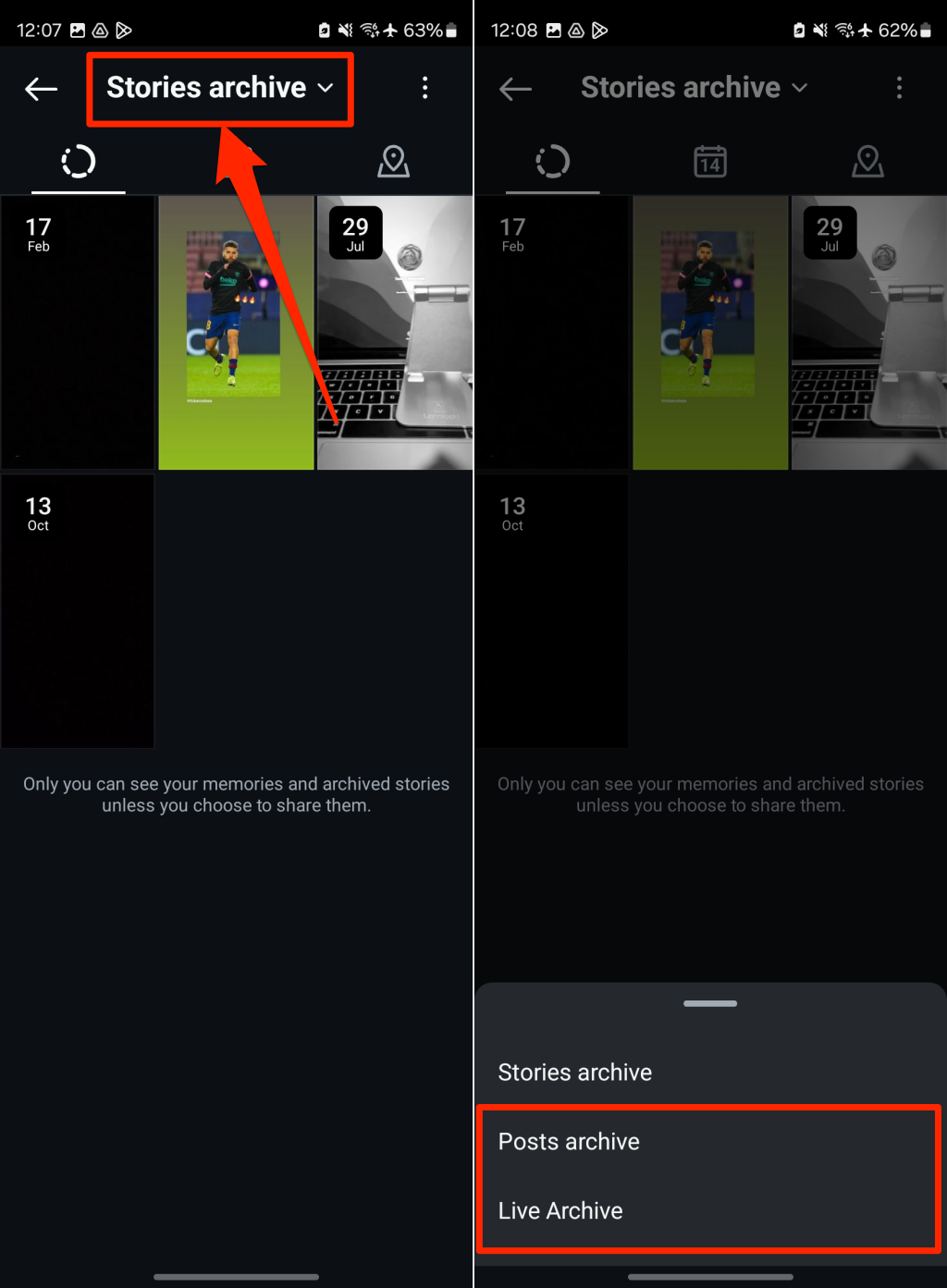
Instagram displays your “Stories archive” by default, and you should see stories you archived on the screen.
Note: Instagram archives Live videos for 30 days only. If you don’t find a live stream archived for over 30 days, Instagram likely deleted it.
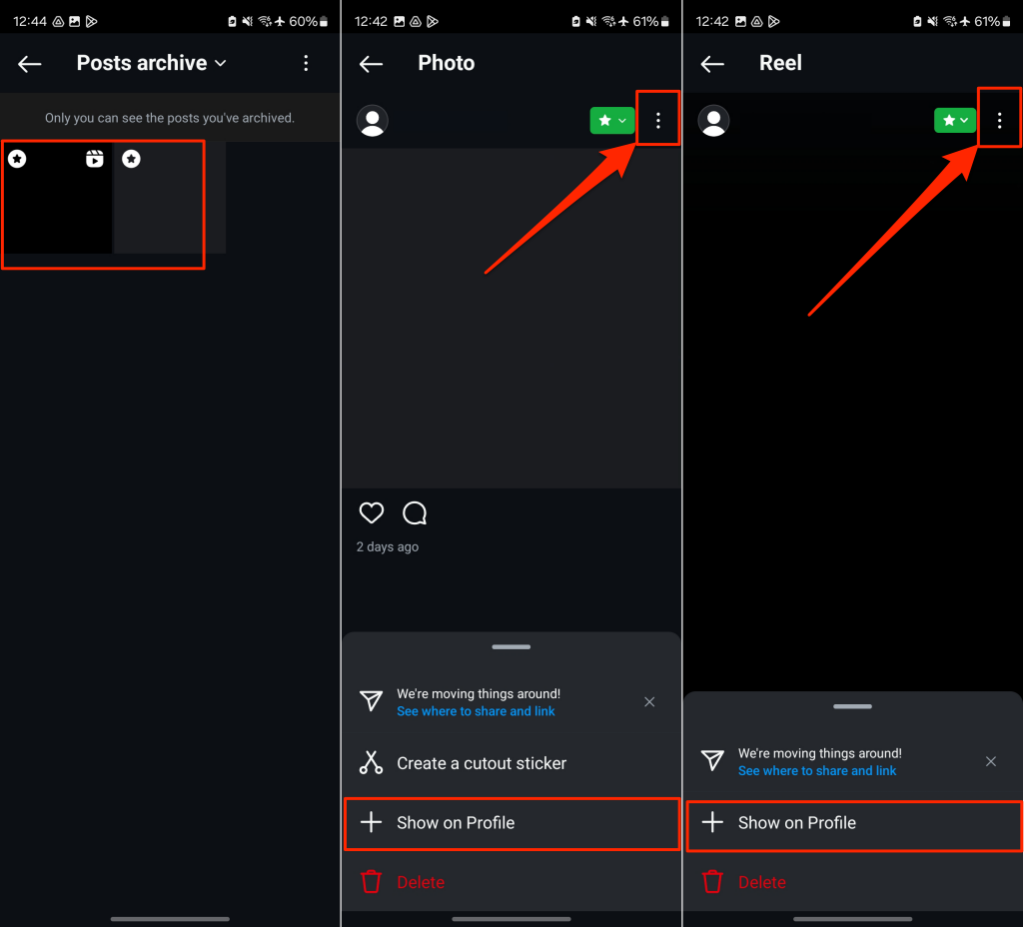
You can unarchive and restore archived posts and reels to your profile. For archived stories, you can reshare them as new stories.
Find Archived Instagram Stories on the Web
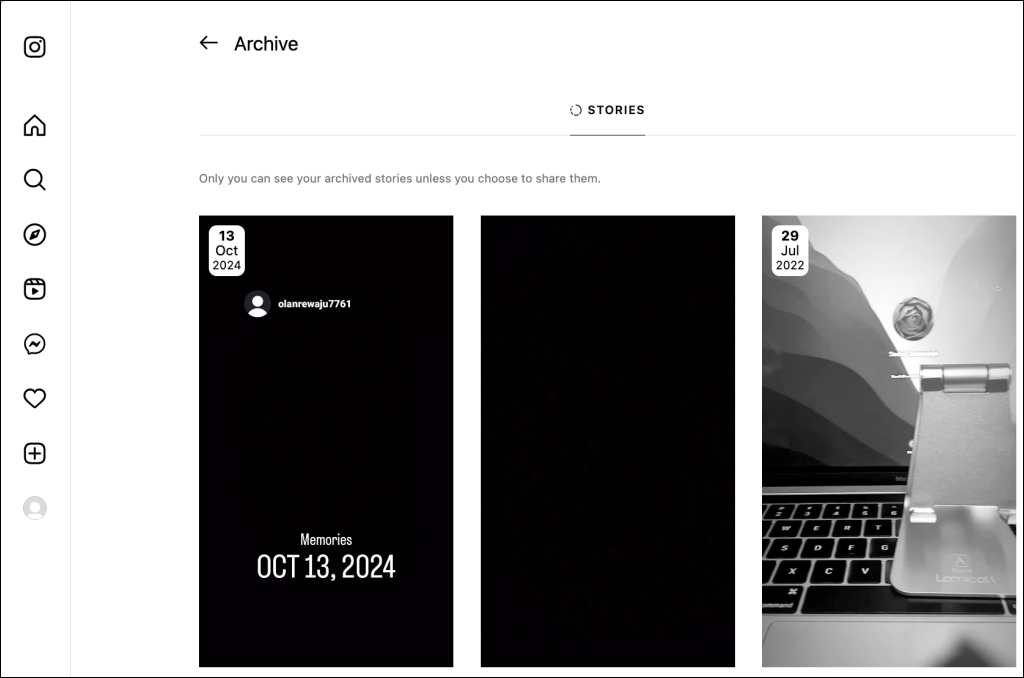
You can view archived stories on the Instagram web app. Sign in to your Instagram account in a web browser and follow these steps to view archived stories. You should see your archived stories on the next screen.
How to View Someone Else’s Deleted Instagram Posts
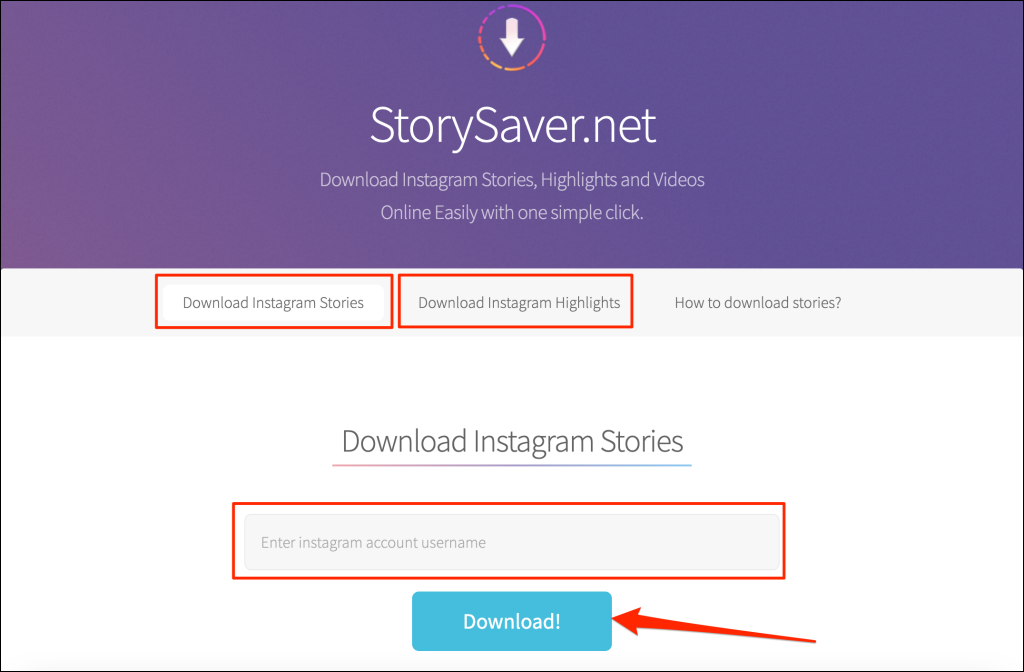
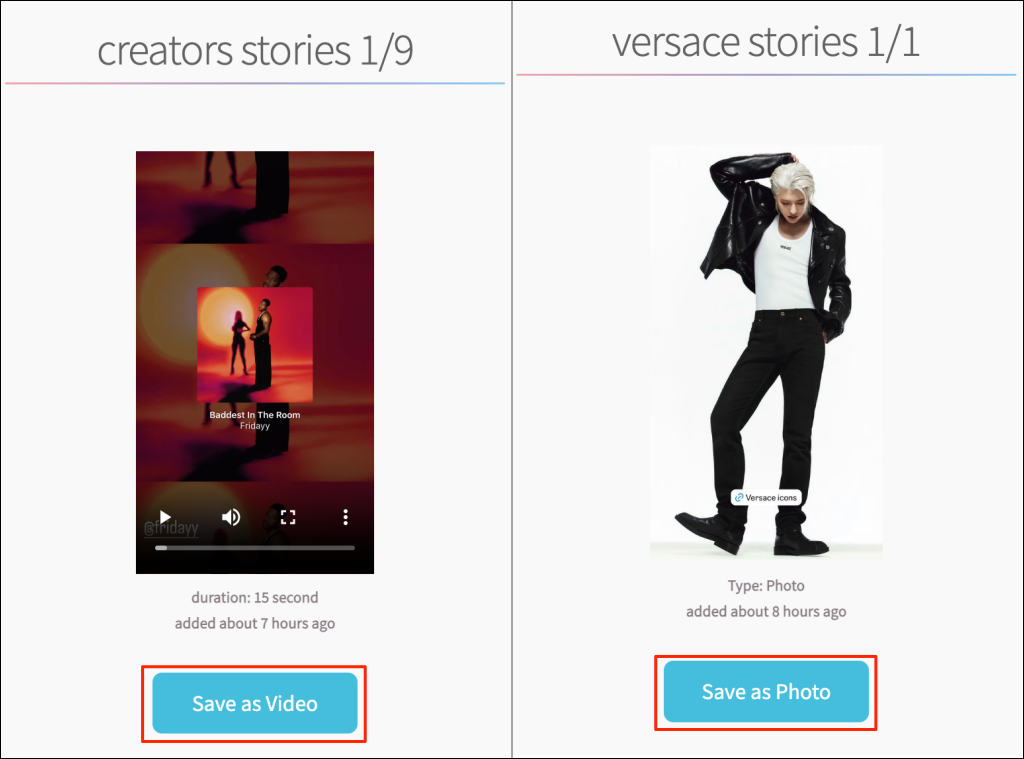
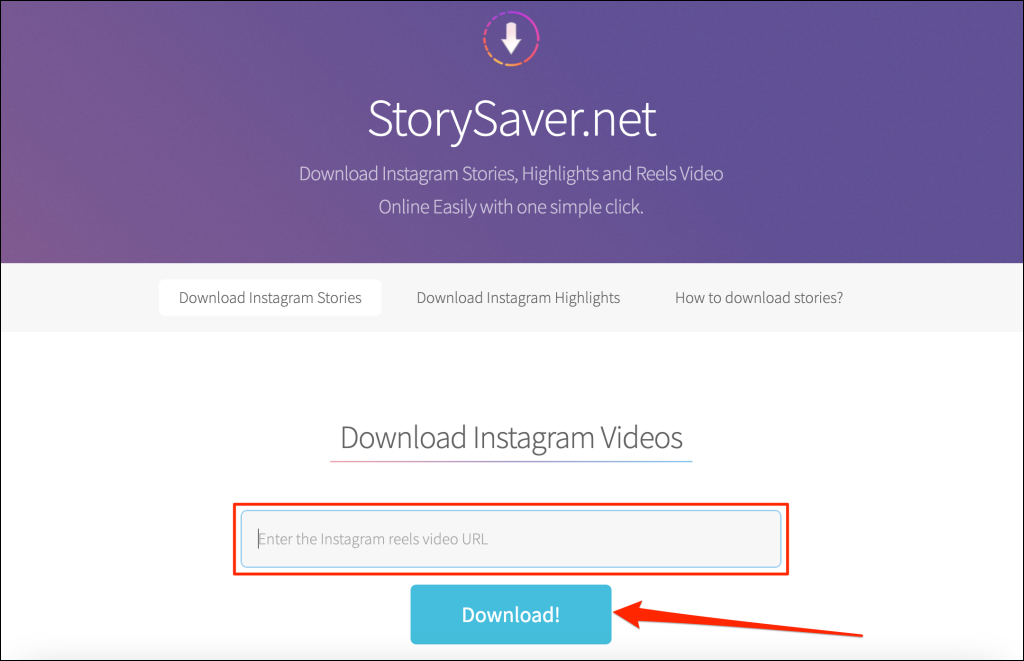
Some third-party apps claim to let you view another person’s deleted Instagram photos, but there’s no official way to do this. These apps or workarounds may or may not work. However, we recommended respecting people’s privacy and avoiding digging up content they delete from their Instagram account (or any social media platform). There’s no official way to view someone’s deleted Instagram posts. When someone deletes or archives their content from Instagram, it becomes unavailable to everyone else. Only the account holder can view or restore their deleted posts, reels, stories, or live videos. If you suspect someone will delete their Instagram picture, take a proactive approach and save it before it gets deleted. You can take a screenshot of a post and store it in your phone gallery, photos app, or cloud storage. A third-party application called StorySaver can download Instagram stories and highlights. While you can access it through your Android or iOS device, using a computer (Mac or PC) web browser is better. StorySaver also has a tool for downloading other Instagram posts—posts, reels, videos, etc. Open StorySaver’s download tool in your web browser, paste the URL/link of the post/video/reel you want to download, and select Download! Our tutorial on downloading Instagram reels covers more ways to save Instagram content to your device.
Get Back Deleted Instagram Pictures and Videos!
Instagram lets you delete photos you no longer wish to keep. If you do so accidentally or change your mind about deleted photos, Instagram’s 30-day window provides a second chance. You’ll find deleted posts, stories, and reels in the recently deleted section of your account’s activity settings menu. Instagram will permanently delete items in the recently deleted folder after 30 days of initial deletion. Third-party apps cannot help you find or recover your deleted Instagram posts. For more information, refer to Instagram’s official document explaining what happens to deleted Instagram content.