How to Save Pictures as a PDF on Mac
There are several ways to convert picture or image files to PDF on macOS devices. You can export images as PDFs using Preview or the macOS’ Print utility. We cover the steps for both methods in the sections below.
Convert Pictures to PDF Using Preview: Method 1
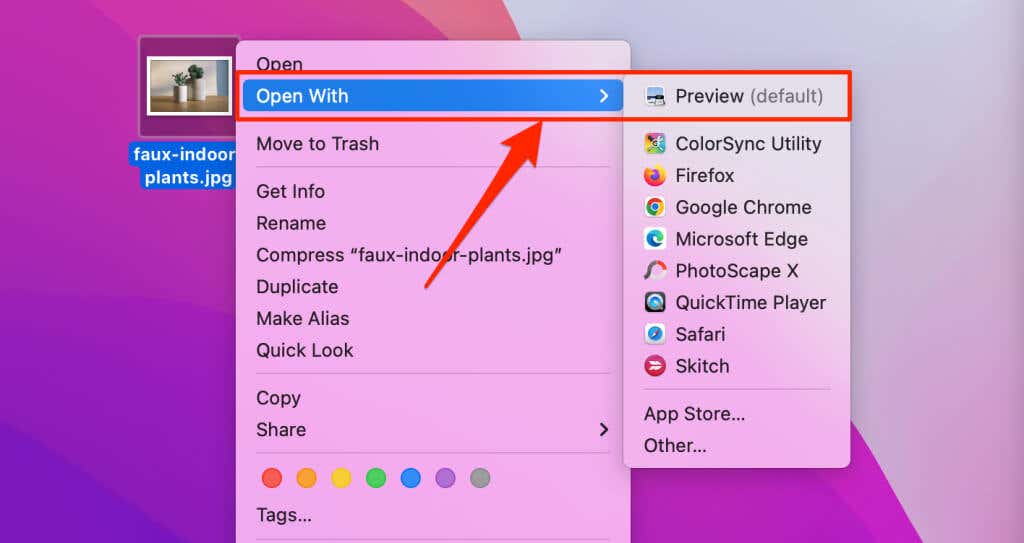
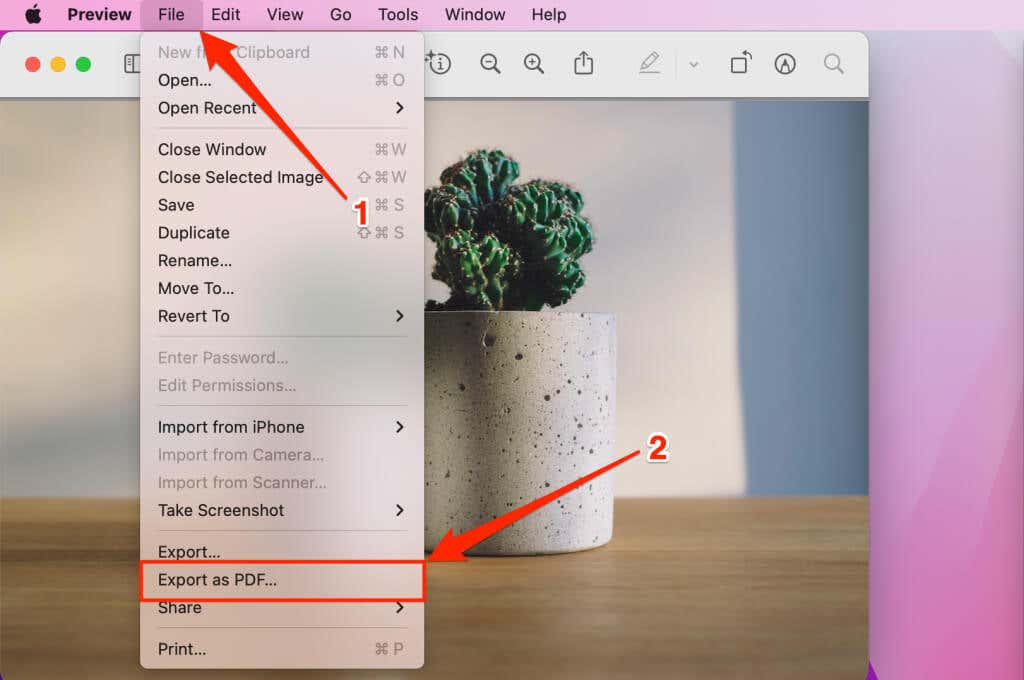
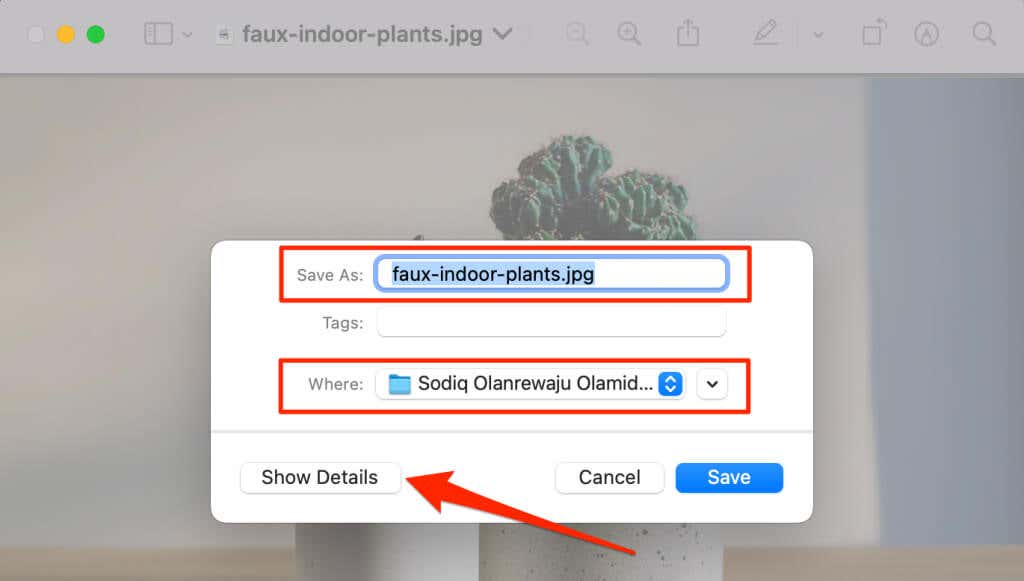
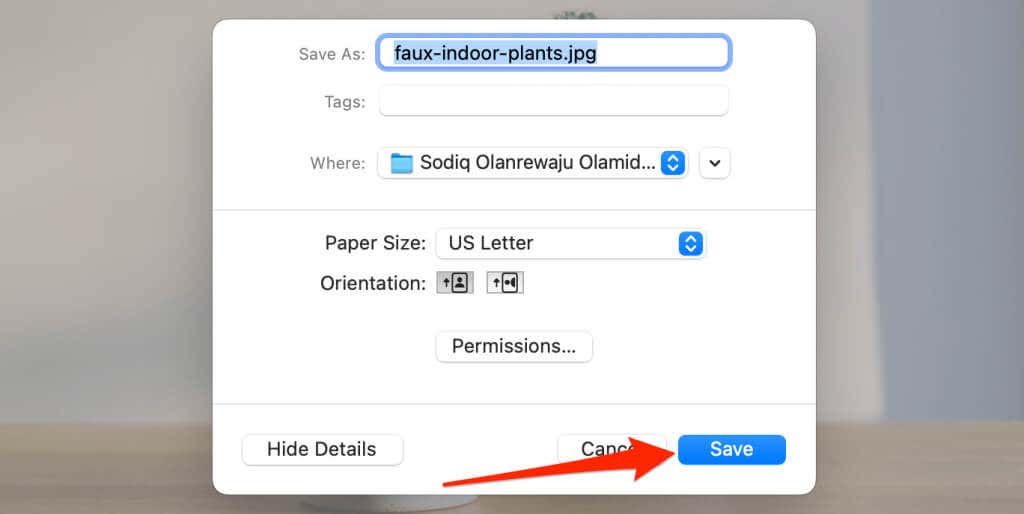
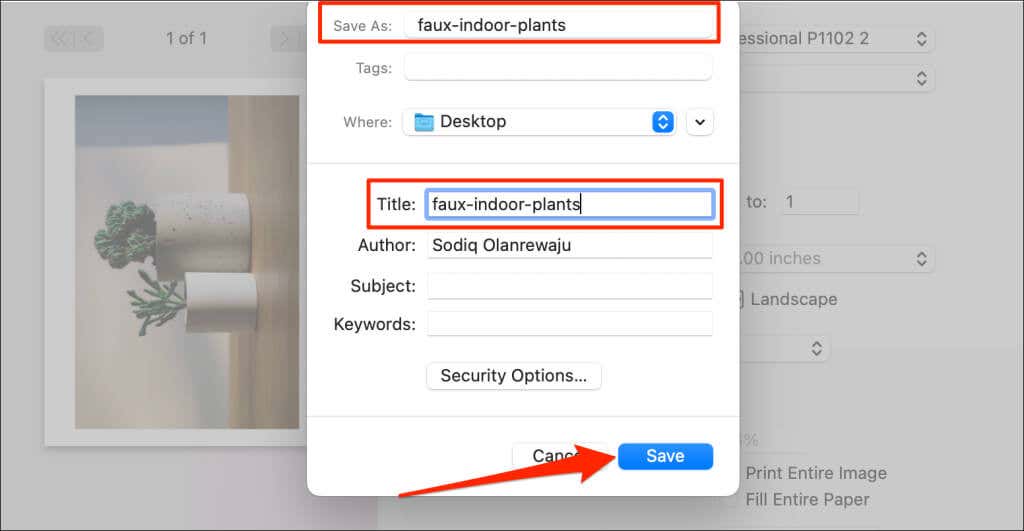
Preview is macOS’ default image viewing and editing tool. It has an image export feature that allows users to convert images to PDF files and different image formats. Here’s how to use Preview to save a picture as a PDF: Note: Remember to delete the image file’s extension (e.g., .jpg, .png, .tiff, etc.) from the PDF file name. Select Show Details if you want to change the paper size and orientation of the resulting PDF file. The Permission option allows you to password-protect the PDF file.
Convert Pictures to PDF Using Preview: Method 2
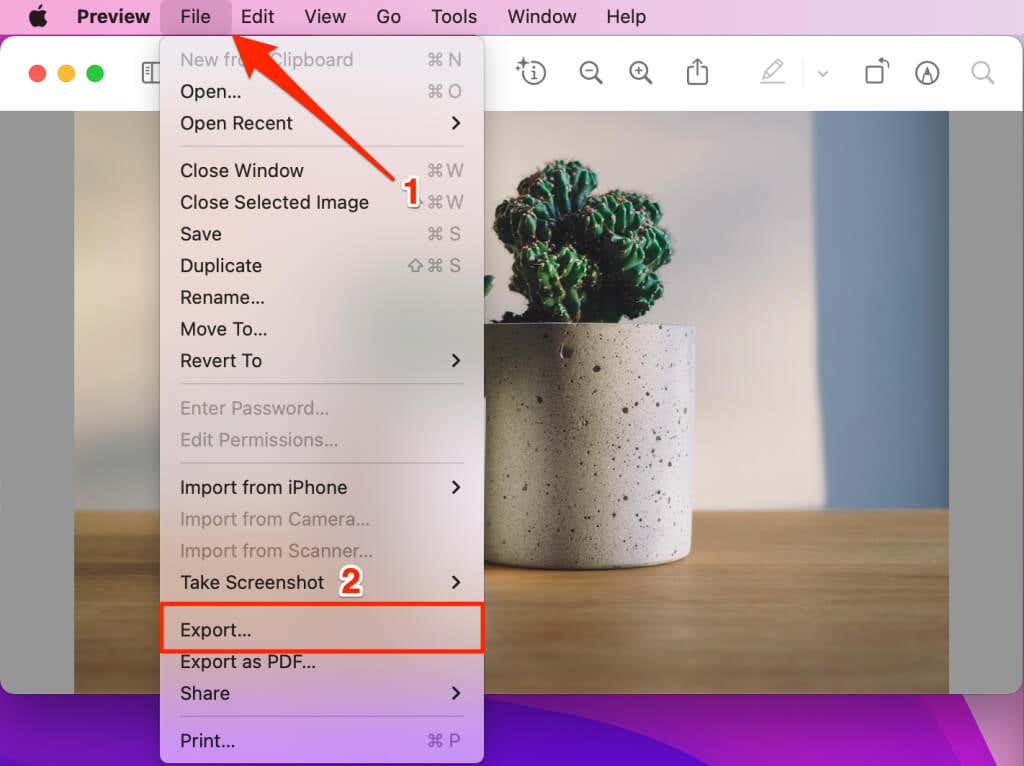
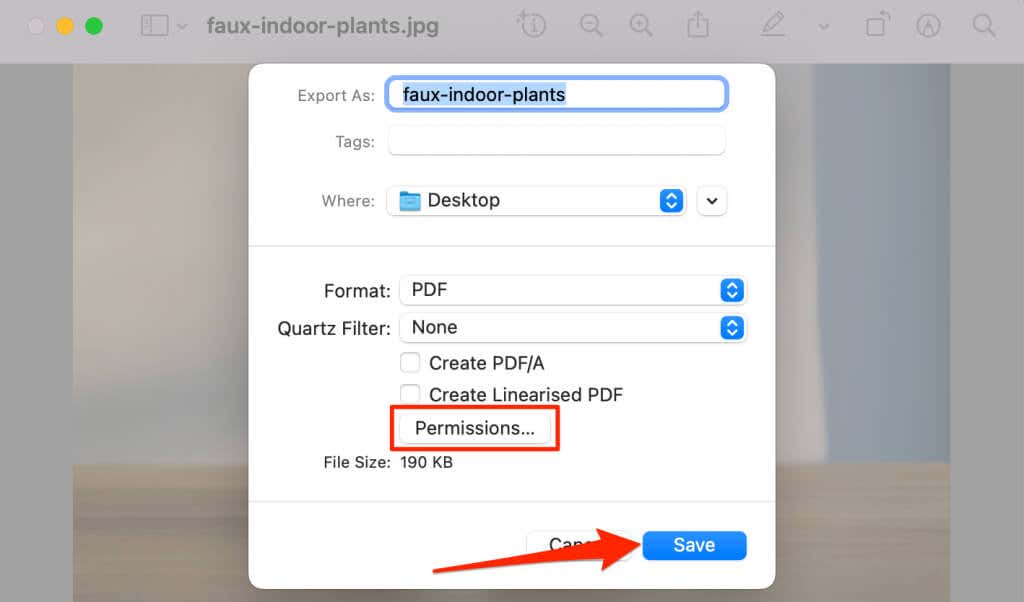
Here’s another way to turn a picture into a PDF using Preview. First, open the image in Preview and follow the steps below.
Save Pictures As PDFs Using macOS Print Utility
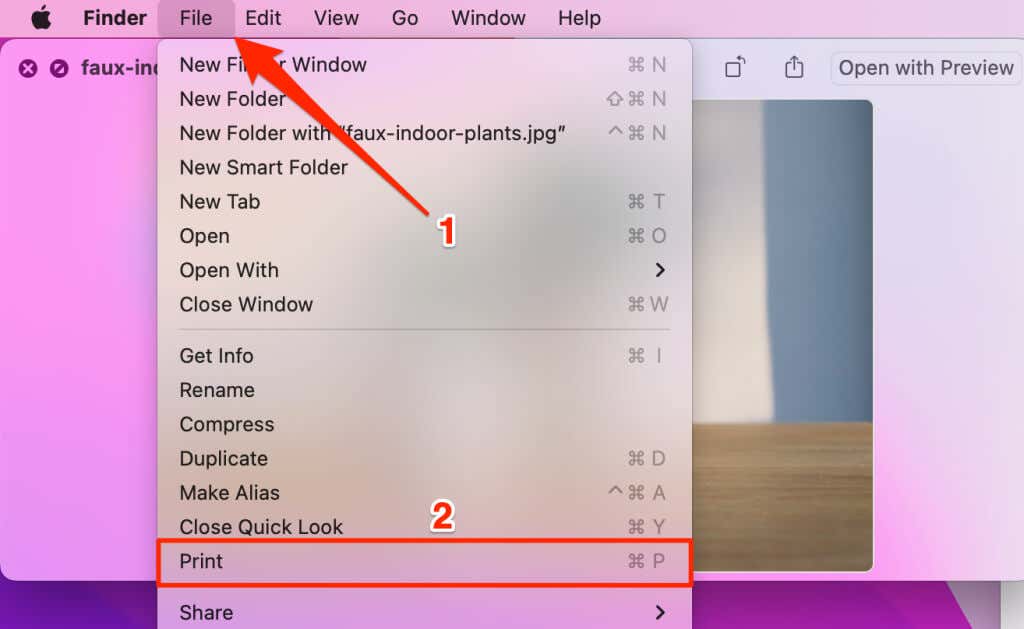
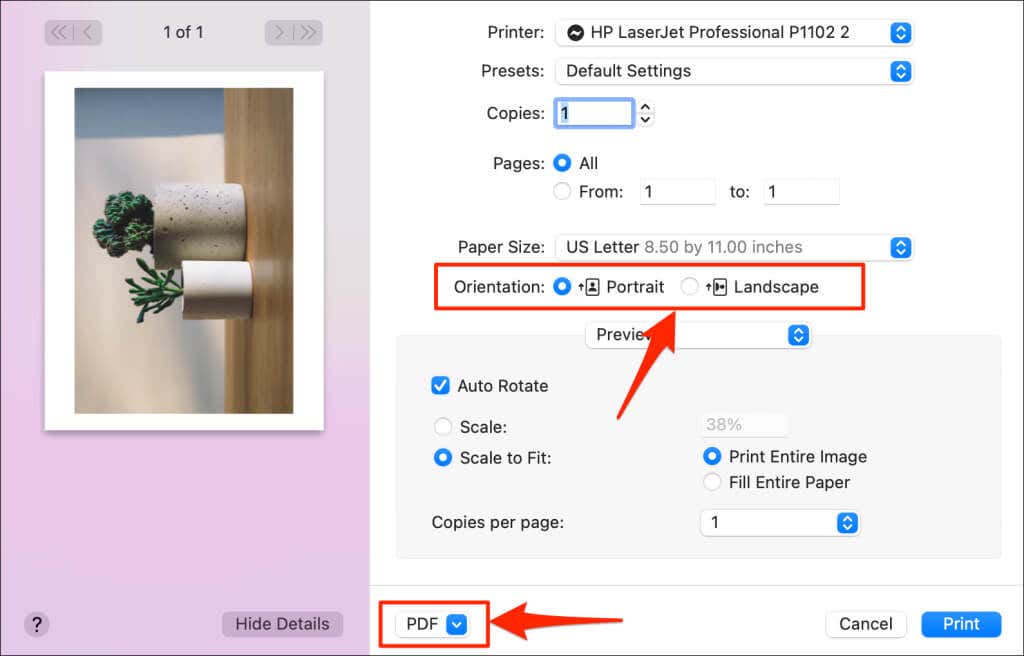
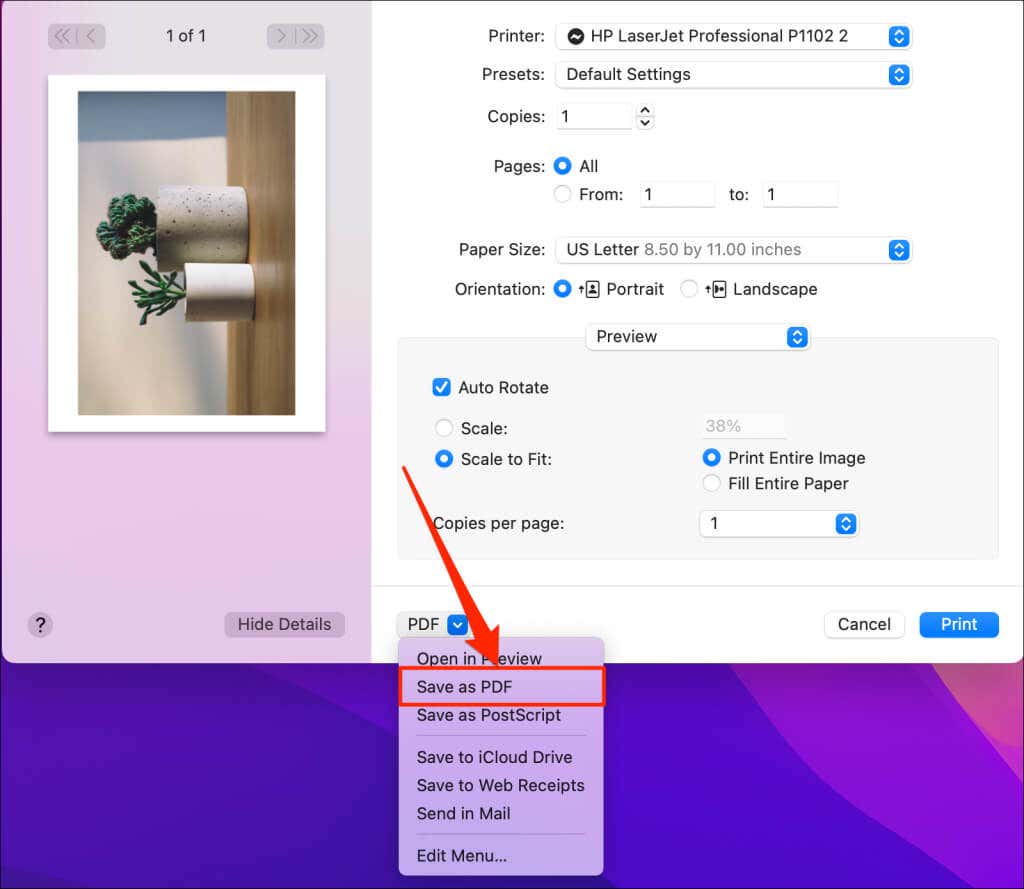
The print utility in macOS can save images as PDF files. You can access the PDF converter by printing a picture from Preview. Double-click the image you want to save as a PDF and follow the steps below.
Save Picture as PDF in Windows
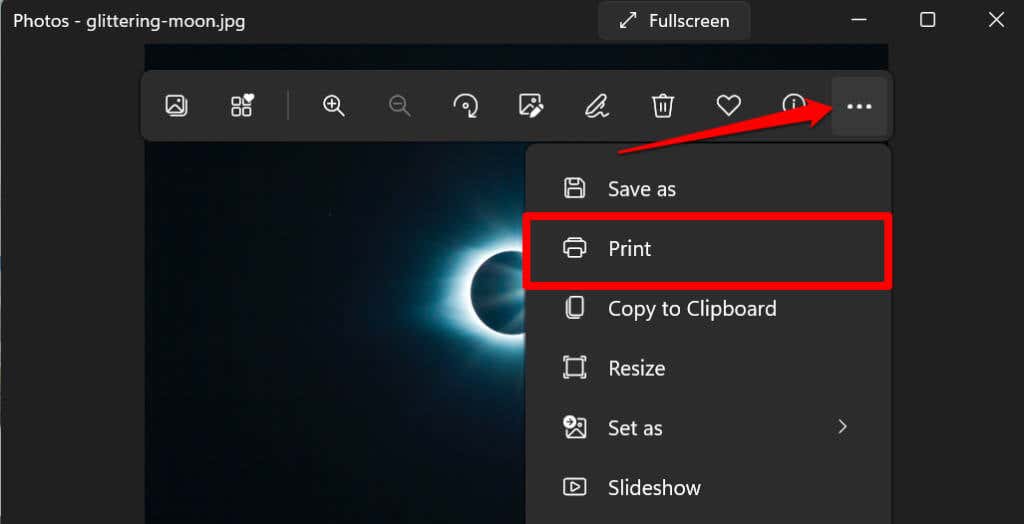
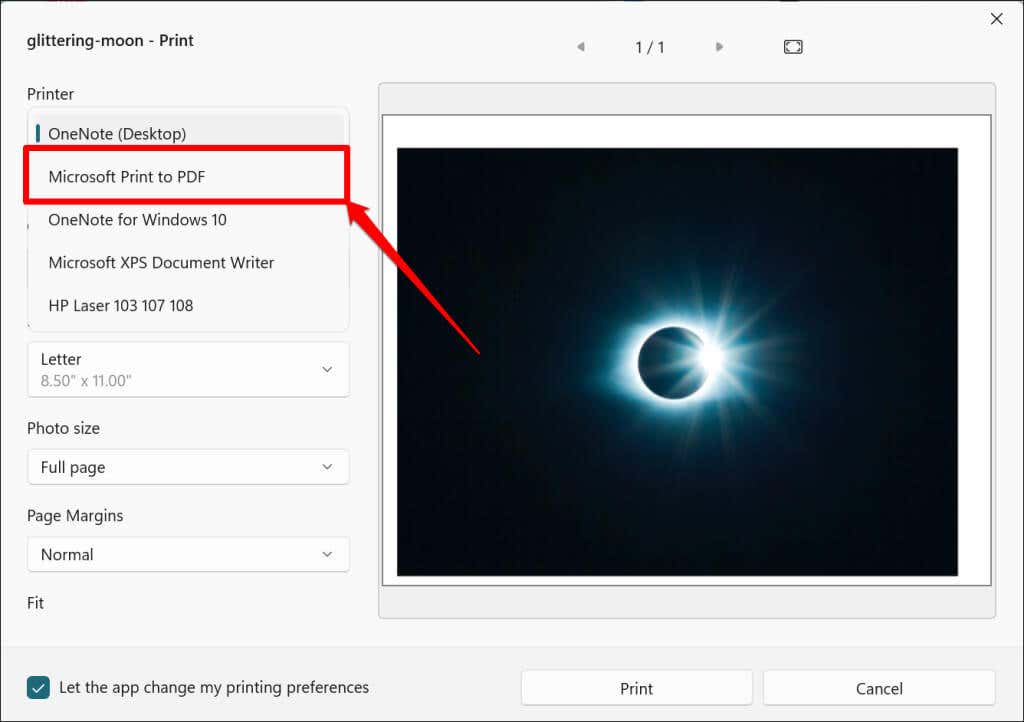
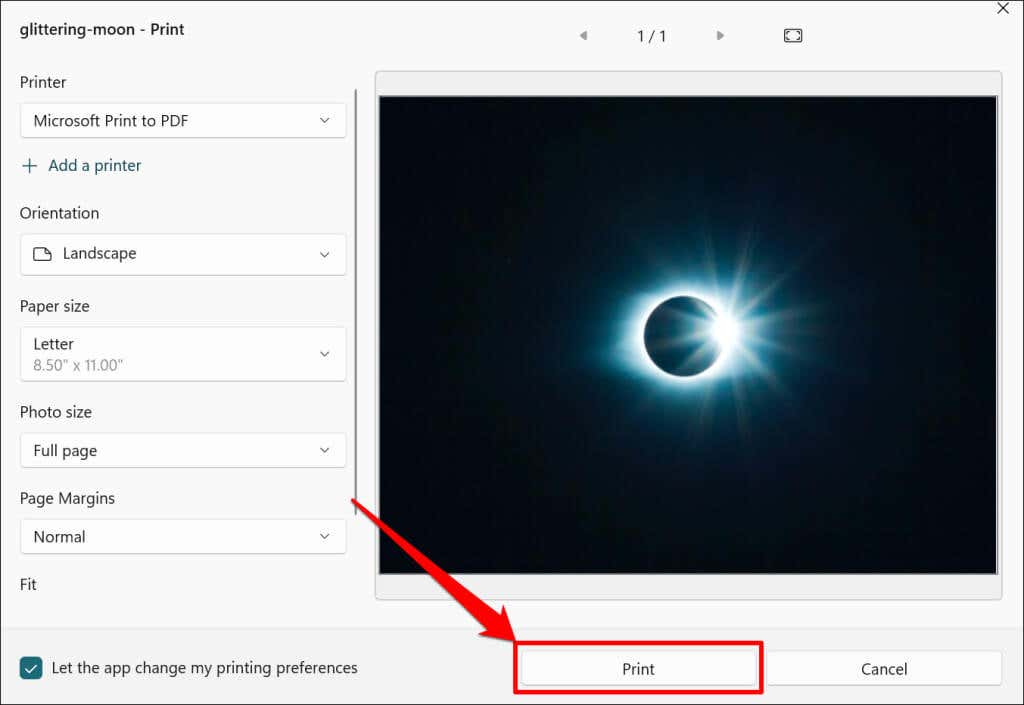
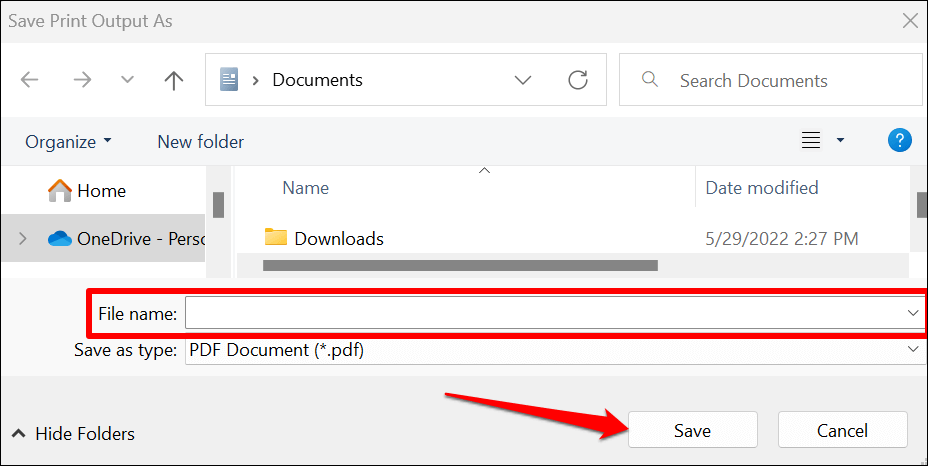
Windows has a “Microsoft Print to PDF” tool for converting printable files into digital PDF formats. Follow these steps to use the tool to turn pictures into PDF files on your PC.
Unlike macOS, the “Microsoft Print to PDF” utility in Windows doesn’t have security features to password-protect PDF files. However, you can use third-party programs or online tools to prevent unauthorized access or modification of the PDF file. Refer to our tutorial on password-protecting documents in Windows for more information.
Save Picture as PDF on iPhone and iPad
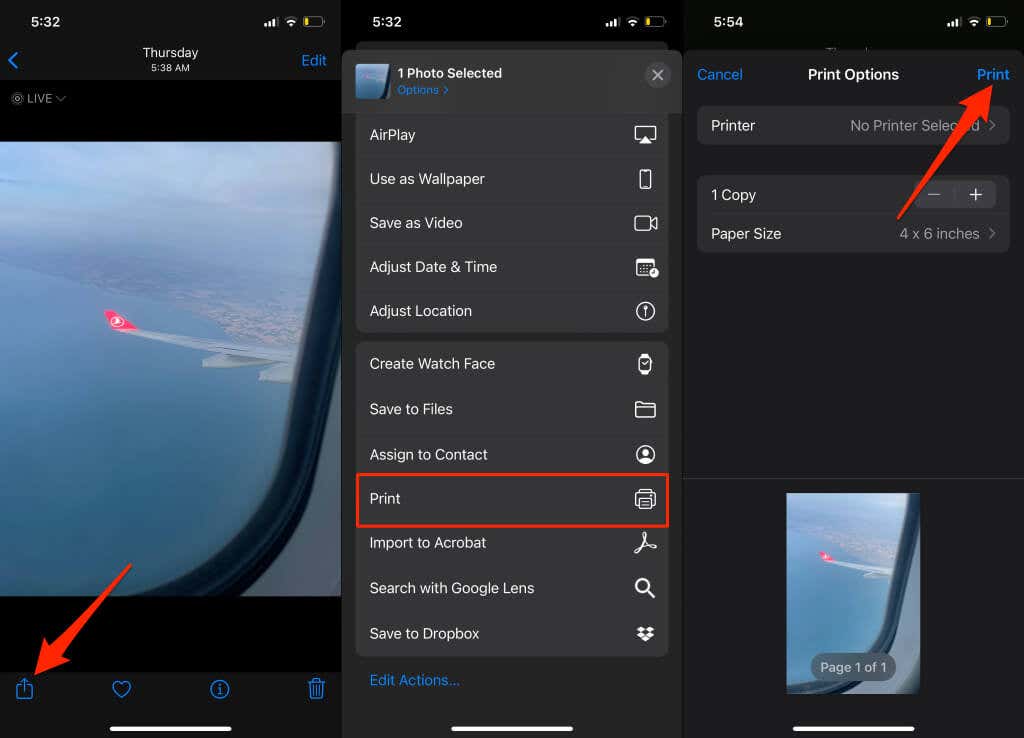
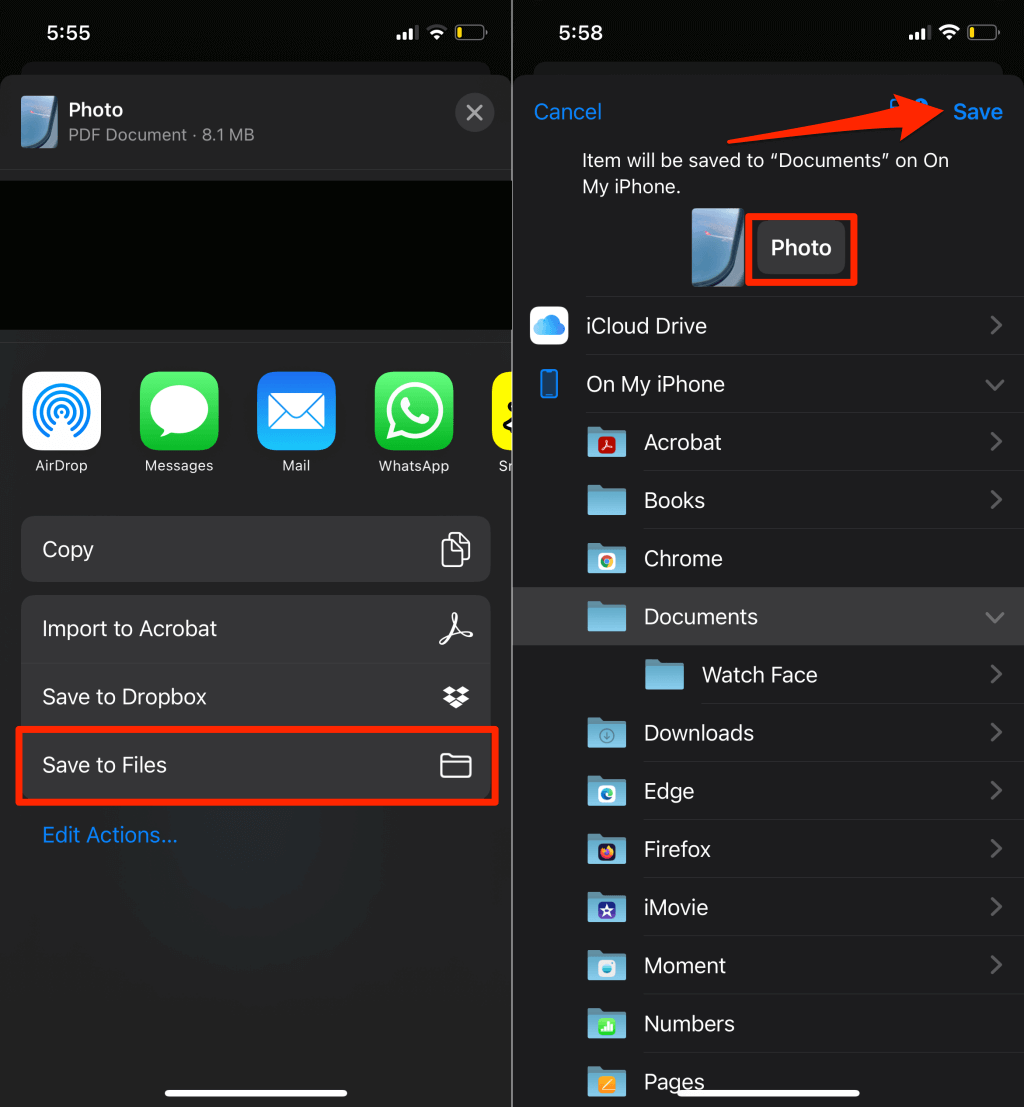
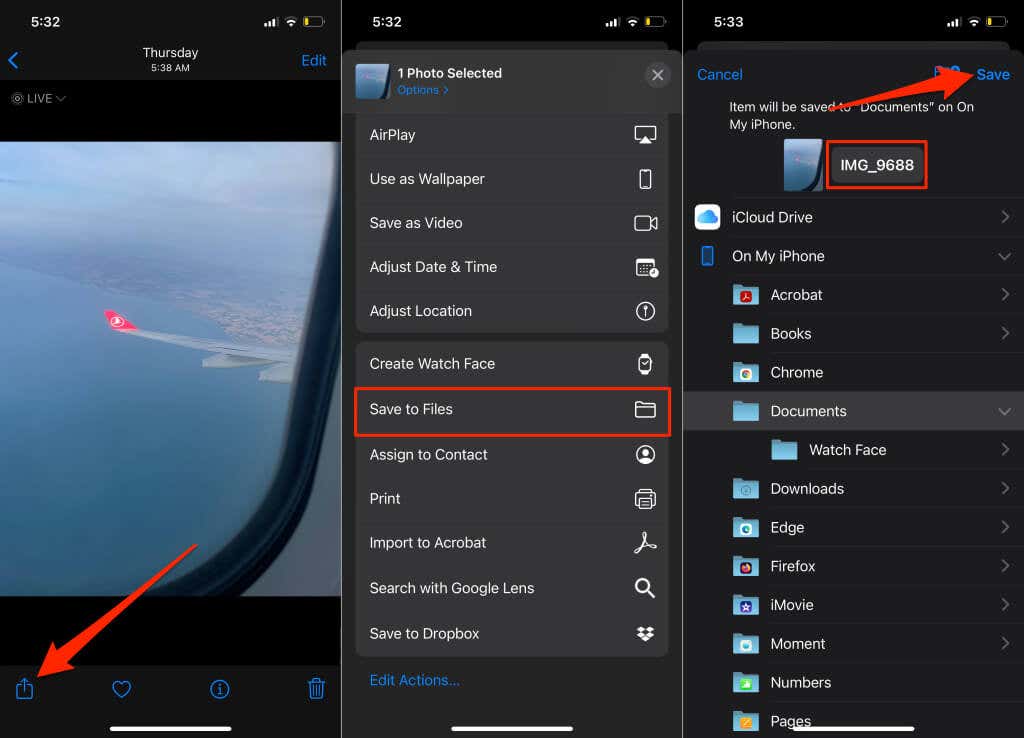
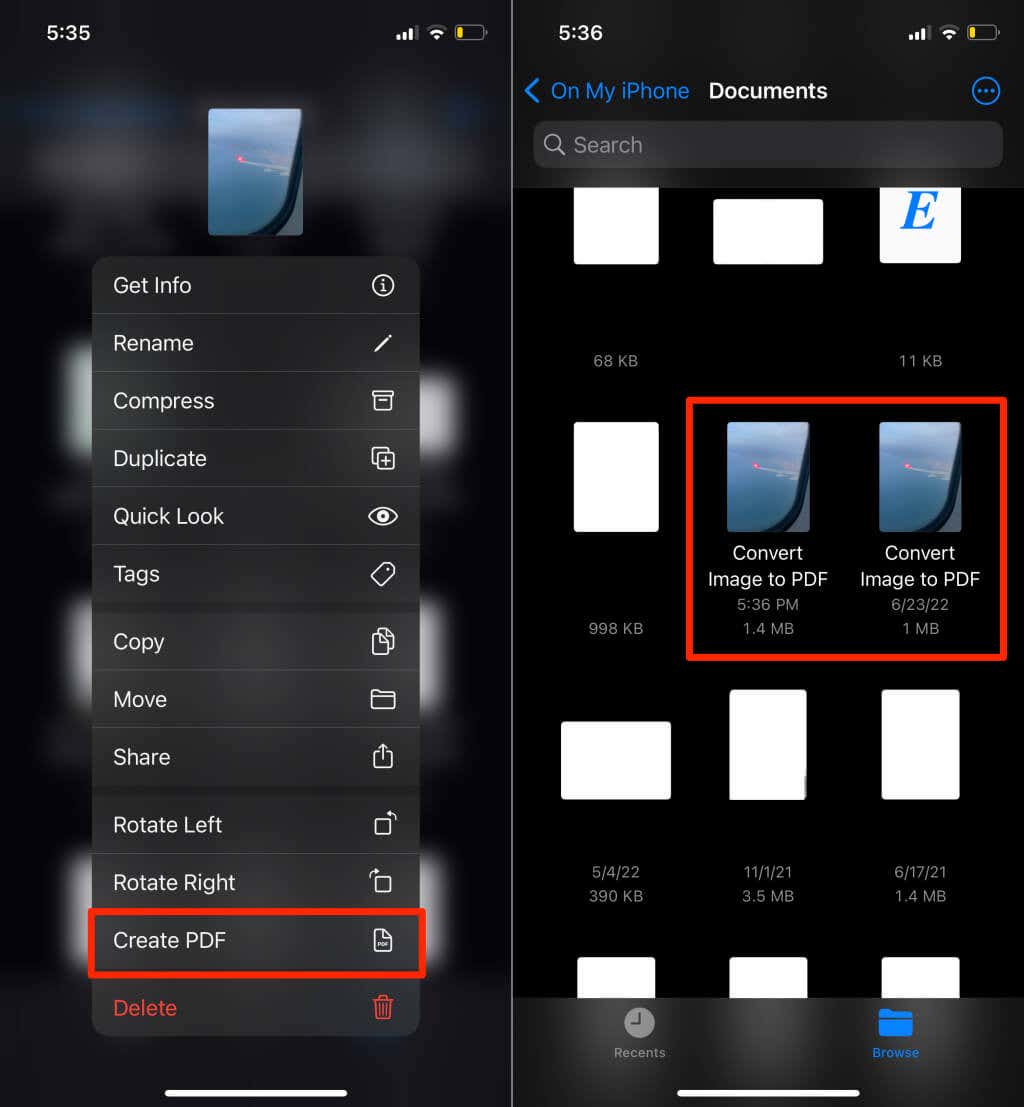
You can convert pictures to PDF files through the Photos and Files app on iOS and iPadsOS devices.
Save A Picture As PDF in the Photos App
Save A Picture As PDF in the Files App
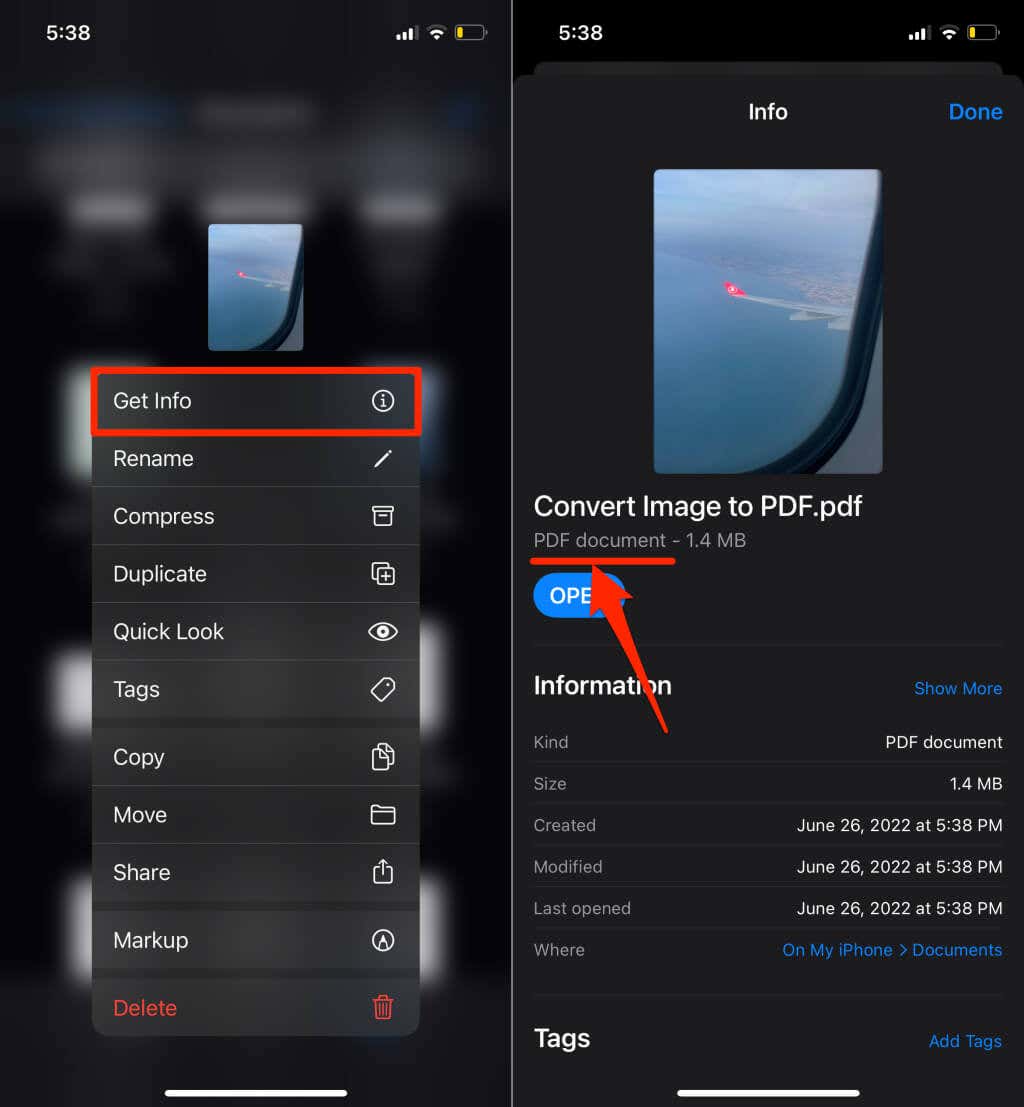
The newly created PDF file and the original image will have similar thumbnails, but you can always verify which of the lookalikes is a PDF document. Tap and hold any of the files and select Get Info. You should see the file format on the info page.
Save Picture as PDF in Android
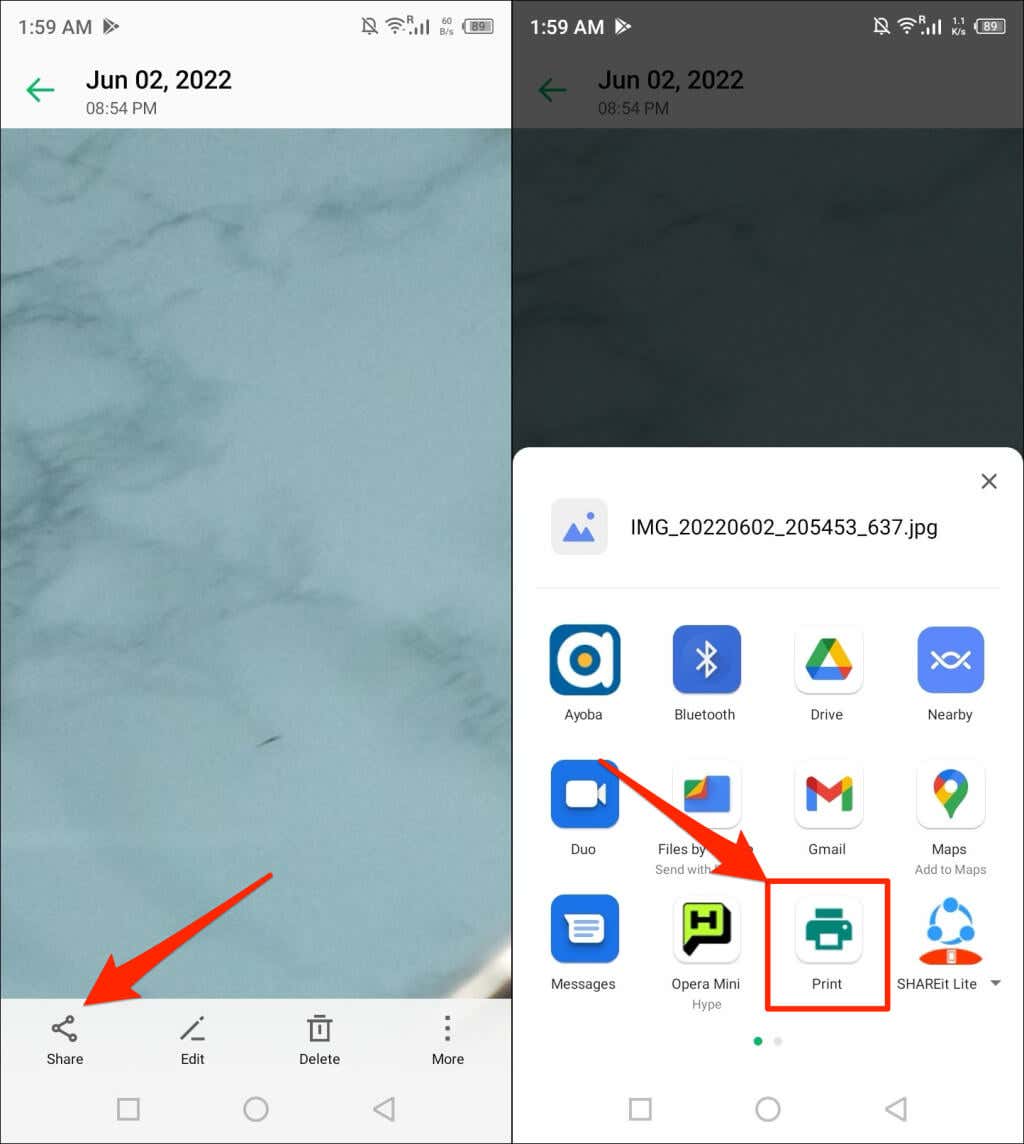
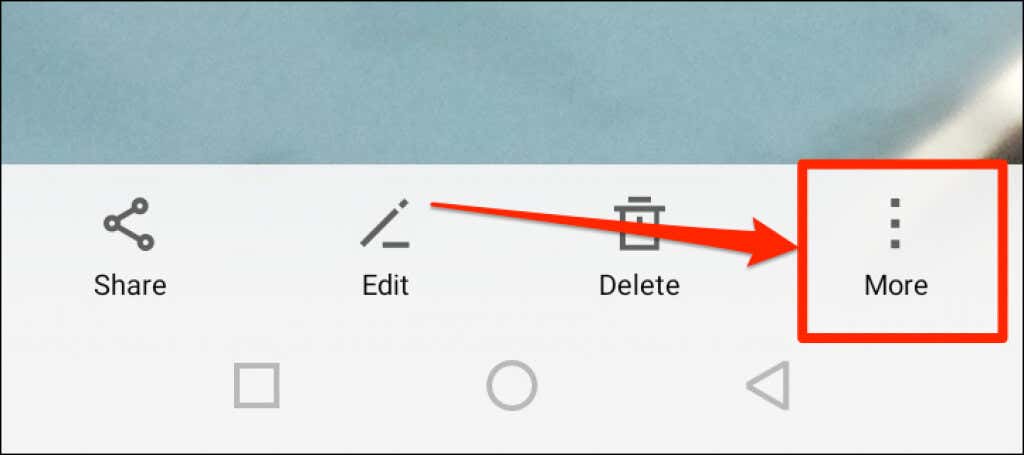
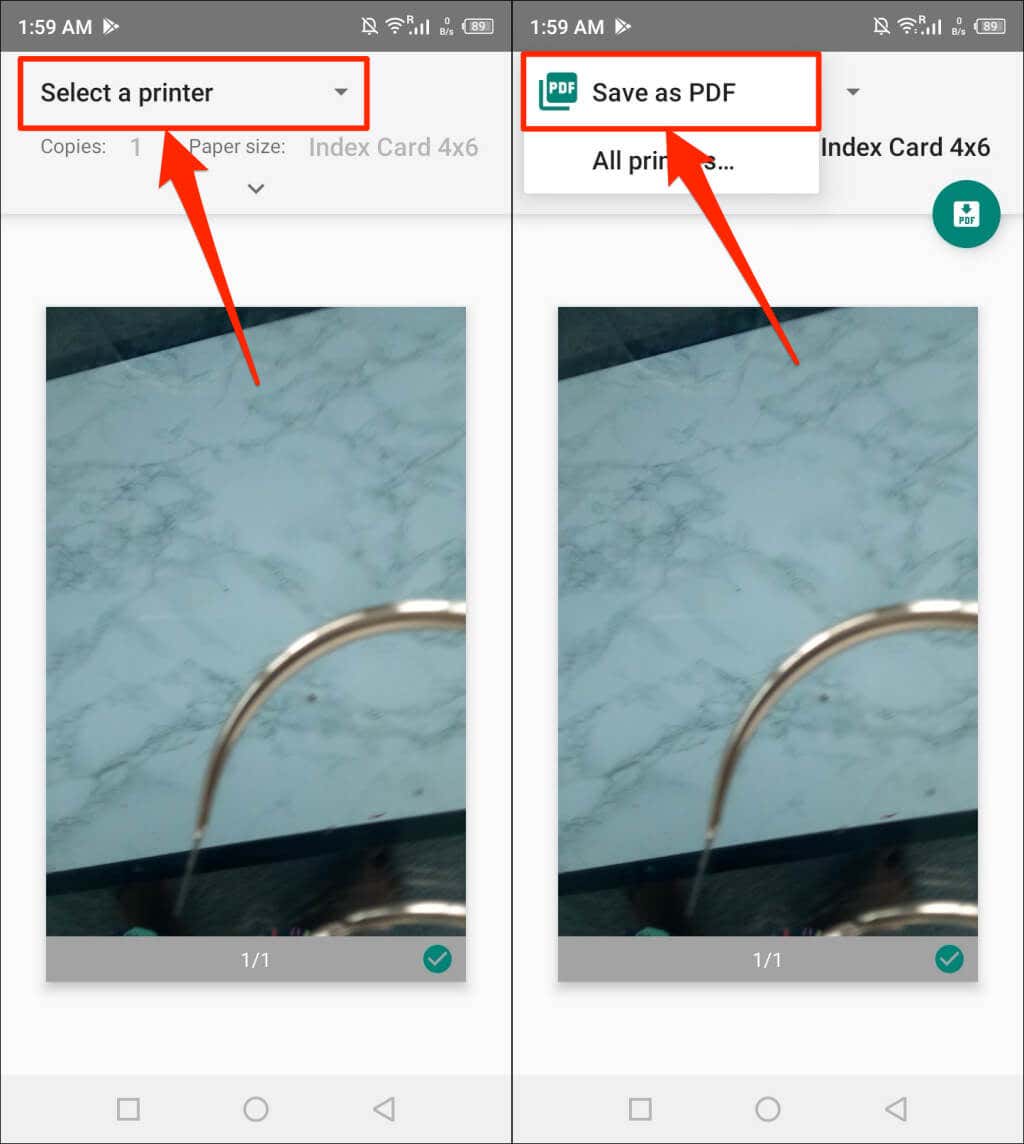
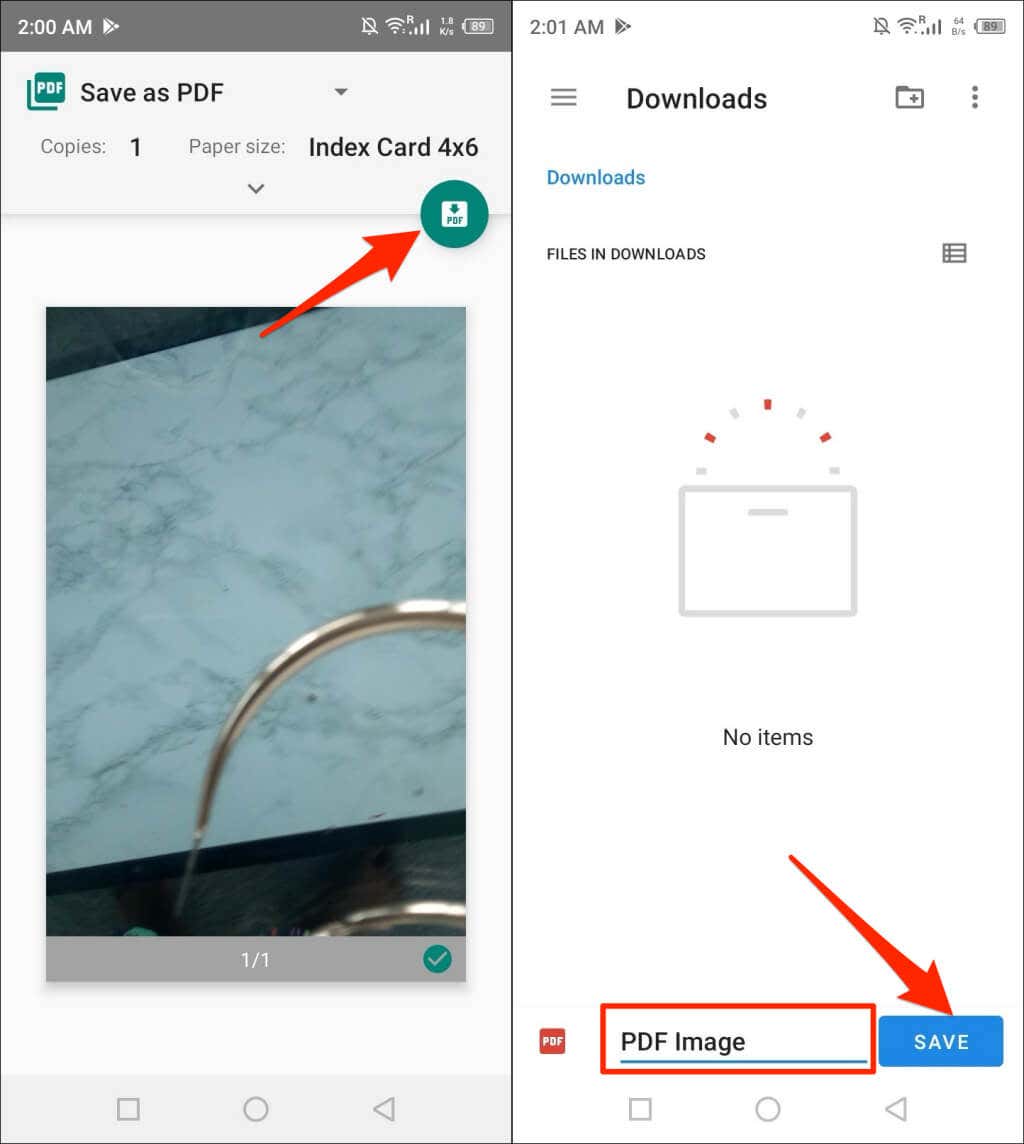
Android has a built-in PDF generator that converts images in different formats (JPEG, PNG, TIFF, etc.) to PDF files. Follow the steps below to save a picture as a PDF on your Android device. Note: The steps below may vary depending on your Android device’s brand, model, or operating system version. Check the image menu if you don’t find a “Print” option in the Share menu. Tap the menu icon in the top or bottom corner of the image viewer.
Convert Pictures to PDF Using Online Tools
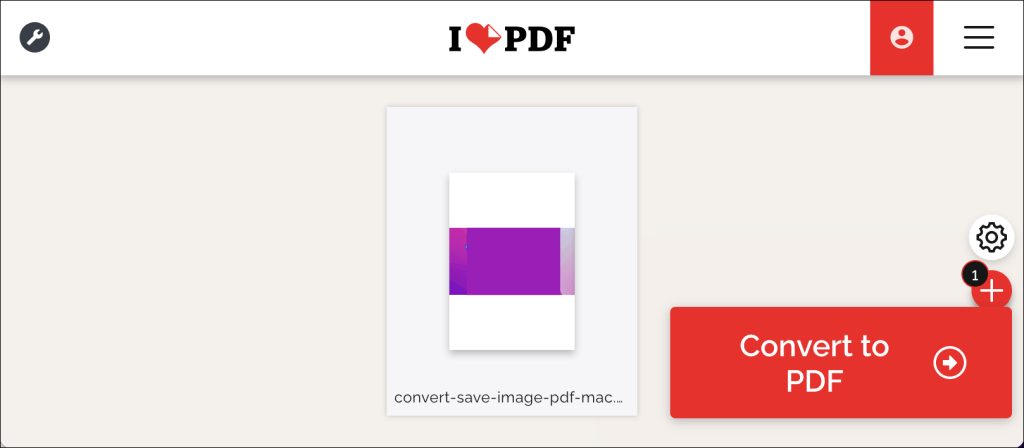
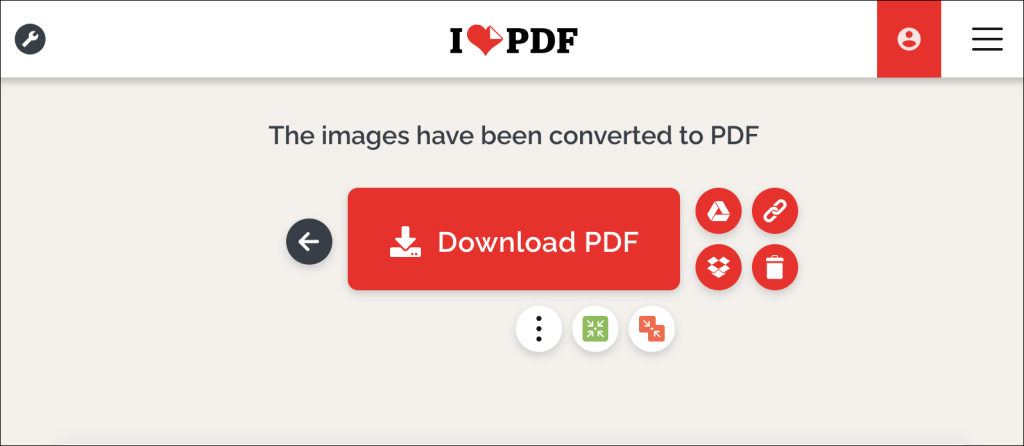
iLovePDF and SmallPDF are two free and reputable image conversion tools available on the internet. Adobe also has a free online image converter, and you can also use it to edit, compress, or merge multiple JPEG files if necessary. You only need a mobile or computer web browser, internet connection, and the image you want to convert. Converting pictures to PDF using online tools involves a three-step procedure:
Make PDFs from Your Pictures on Any Device – It’s Easy
Converting a single image file to a PDF file is straightforward. Combining several images into a single PDF file is a different ballgame, but it’s also easy. For step-by-step instructions, refer to our tutorial on converting multiple images into PDF files.