You may need to restart your Fire TV Stick when troubleshooting connectivity problems, playback errors, or performance issues. Rebooting your Fire TV Stick refreshes its operating system and sets things back in order.
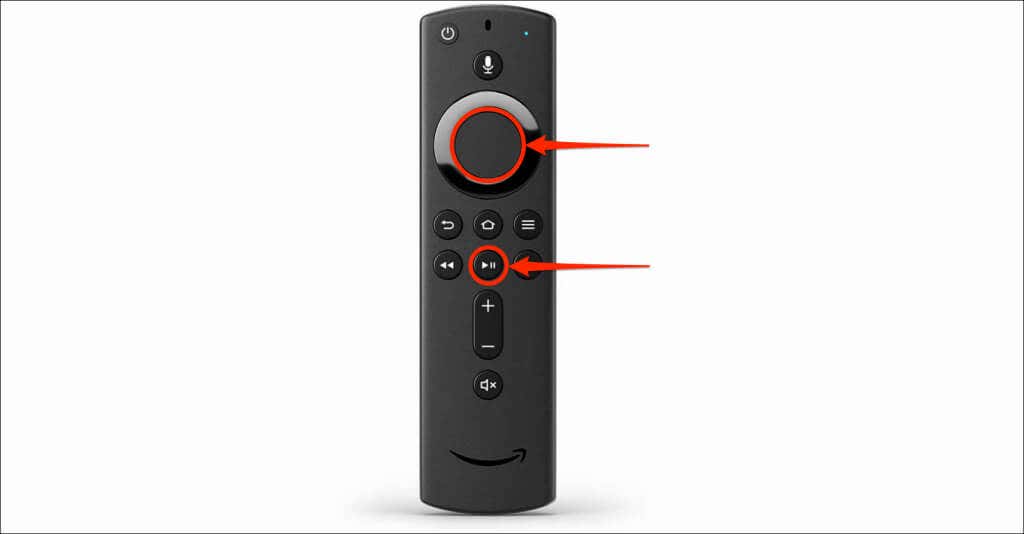
Restart the Firestick Using the Remote
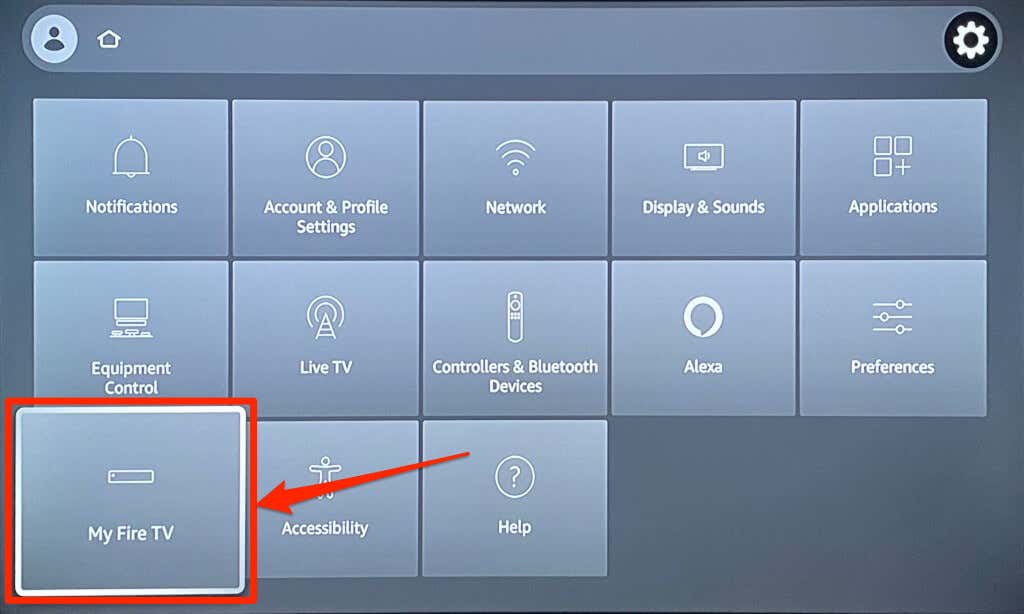
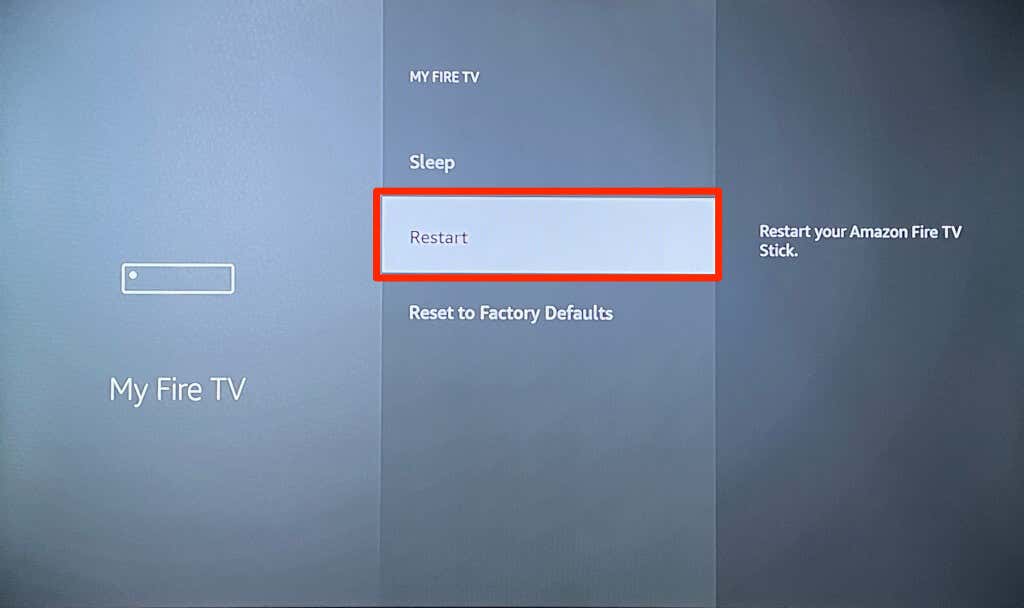
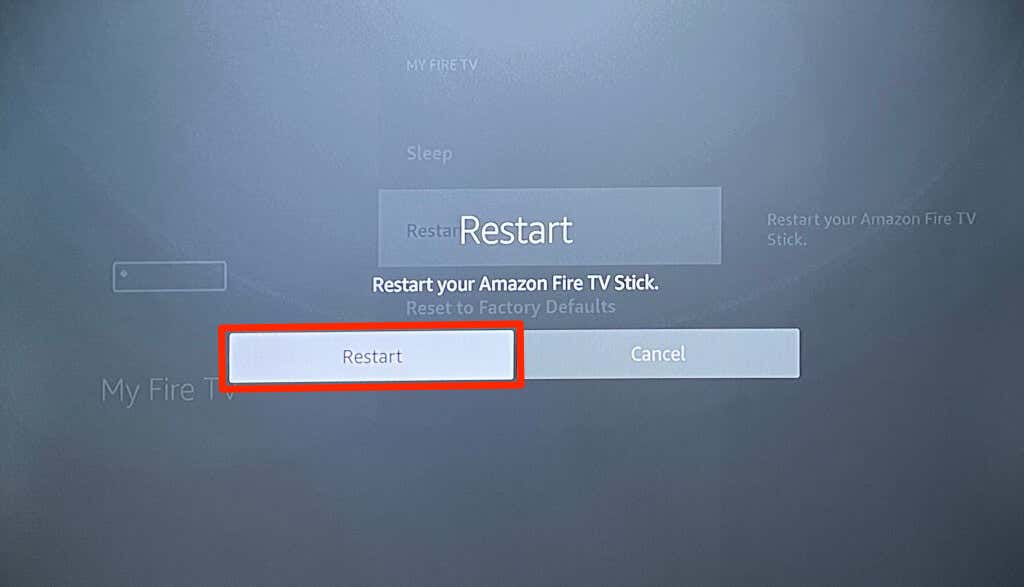
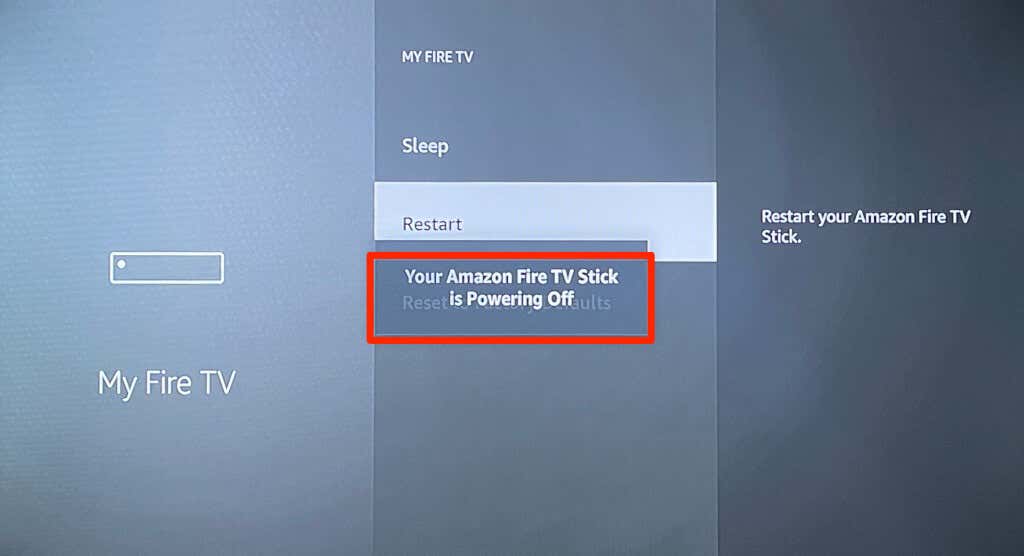
Restart Firestick From the Settings
There’s an option to perform a system reboot in your Fire TV Stick settings menu, and it’s easy to access.
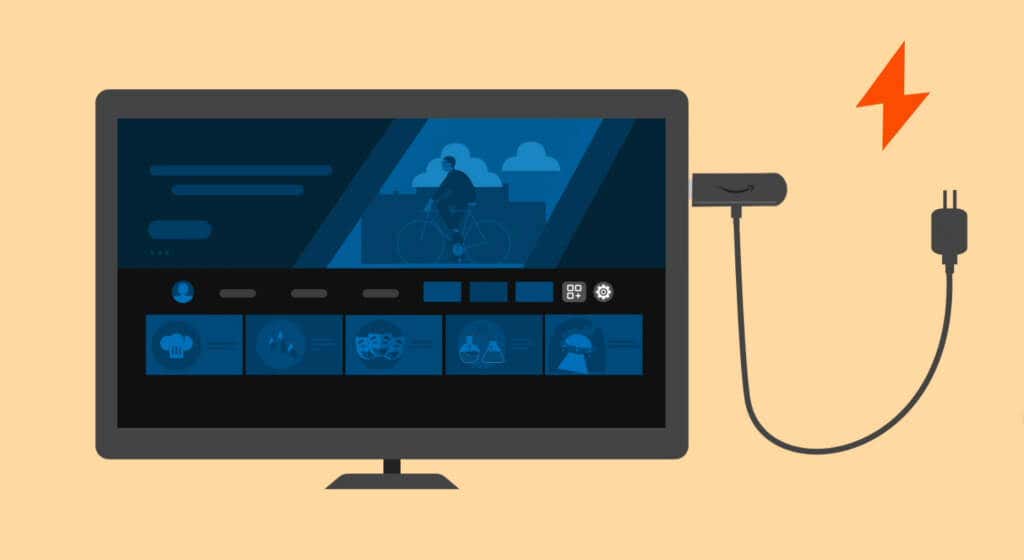
Restart the Firestick by Unplugging the Power Cord
You could unplug the power adapter from the wall outlet or the USB power cord from the Fire TV stick to force a restart. Wait 3-10 seconds before plugging the streaming back into its power source.
Other Options to Fix a Fire TV Stick That Won’t Restart
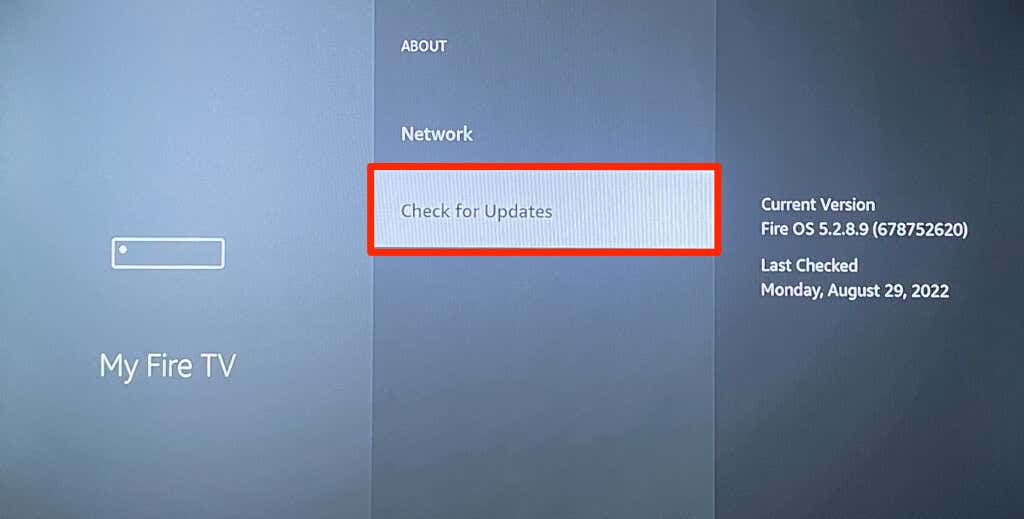
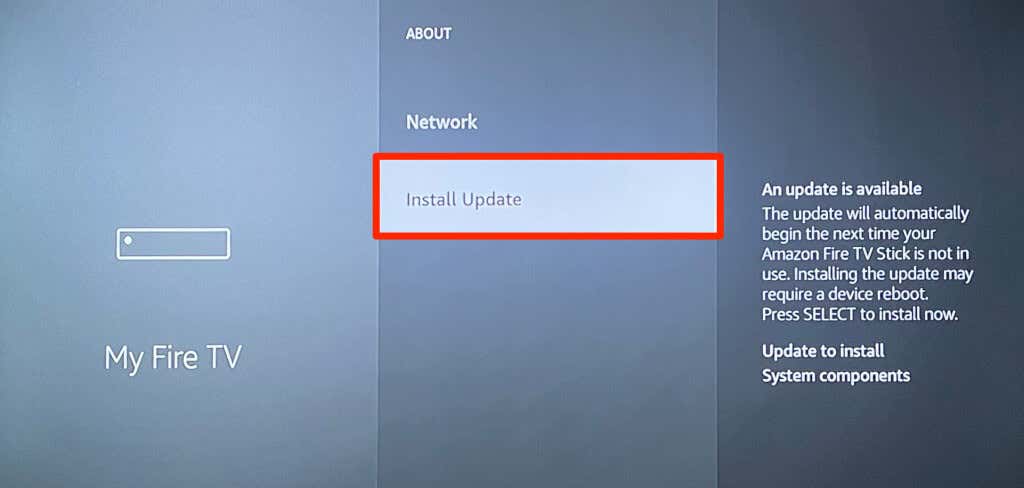
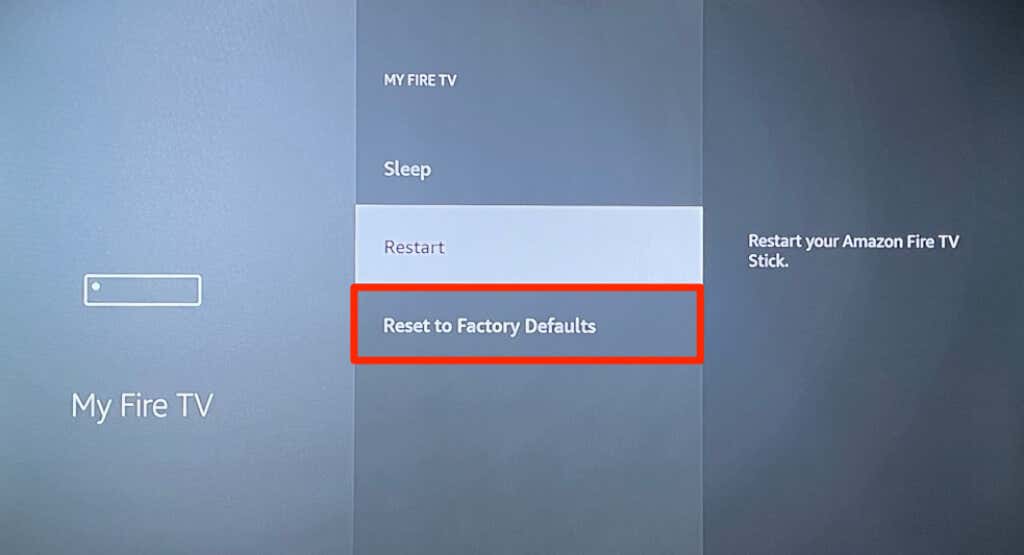
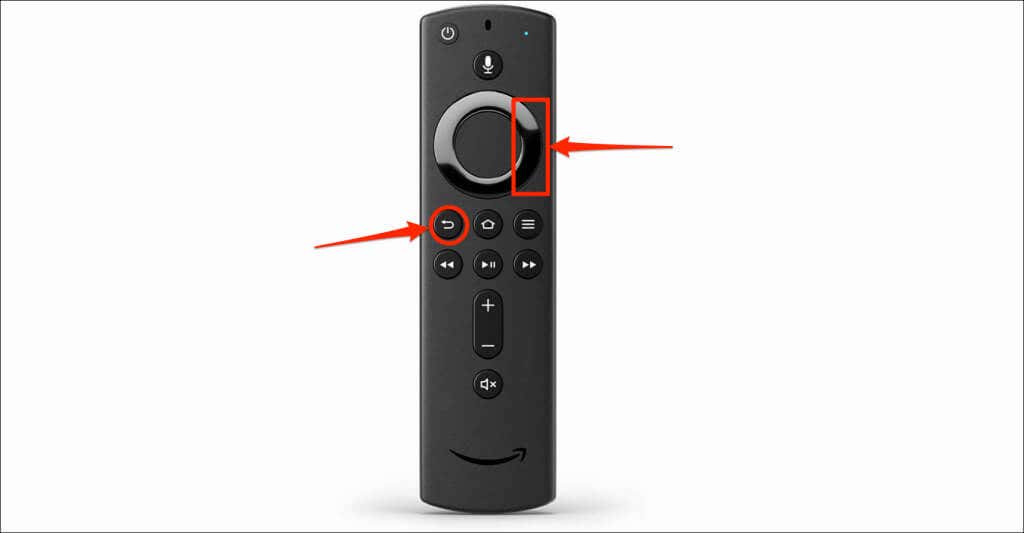
Head to Settings > My Fire TV > About and select Check for Updates (or Check for System Update). Select Install Updates to install a pre-downloaded update. To reset your Fire TV Stick, head to Settings > My Fire TV > Reset to Factory Defaults, and select Reset. You can also factory reset your Fire TV Stick directly from the remote. Press and hold the Right navigation button and Back button for 10-15 seconds. Next, select OK on the confirmation prompt that pops up on your TV.
Fixing Power-Related Issues on the Fire TV Stick
Additionally, plug your Fire TV Stick’s power cable into a wall outlet, not your TV’s USB port. Removing cable extensions and other HDMI devices from your TV might also help your Fire TV Stick restart correctly.