Exit and Relaunch Steam via the Steam App
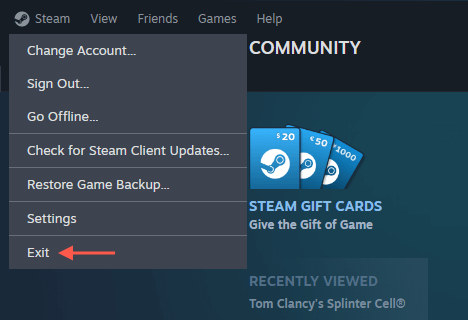
If the Steam app is responsive on your PC or Mac, you can exit it directly through the app before relaunching it. To do this, follow these steps. If you’re experiencing connectivity issues with Steam, you might want to toggle Offline Mode—select the Go Offline option in the Steam menu—before exiting the application. After restarting Steam, re-open the Steam menu and choose Go Online to reconnect to Steam’s online services.
Force-Quit and Relaunch Steam
If Steam is unresponsive, forcibly closing and relaunching the application might get it working correctly again. The method you’ll need to follow differs depending on whether you’re on a Windows PC or an Apple Mac.
Force-Quit and Relaunch Steam—Windows
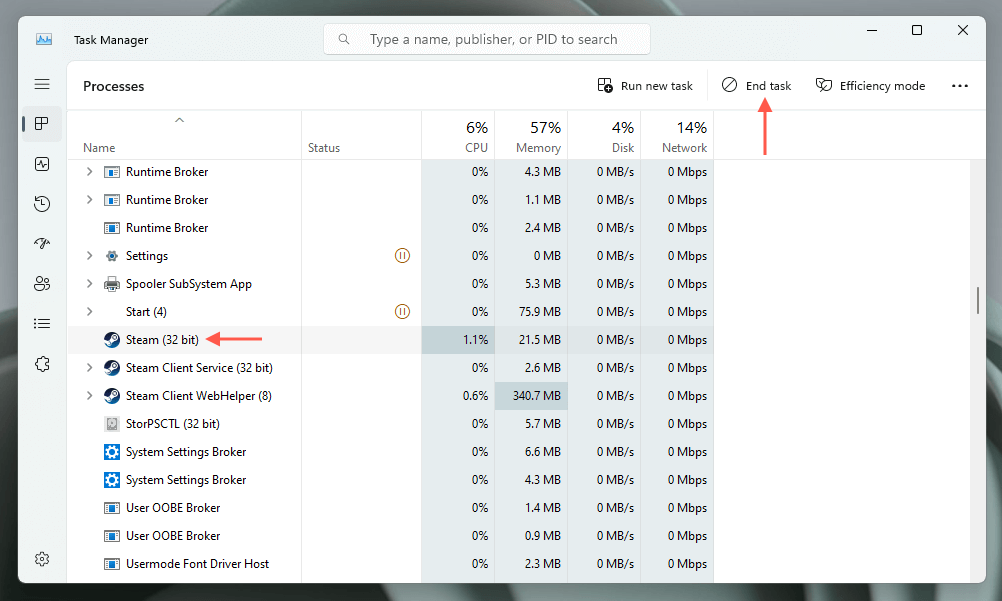
If you’re on a Windows PC, use the Task Manager to shut down the Steam client. Here’s how:
Force-Quit and Relaunch Steam—macOS
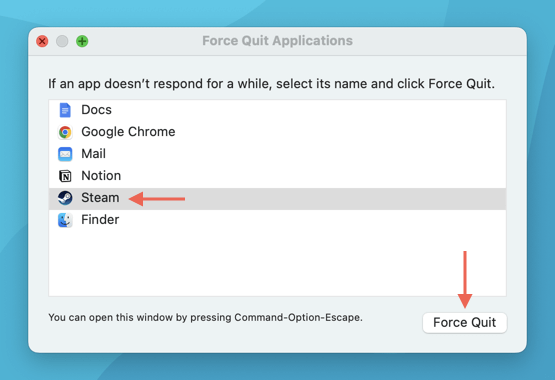
If you’re on a Mac, use the Force Quit Applications dialog to force-close Steam. Just: An alternative method is to use the Activity Monitor on your Mac to force-quit Steam. Start by opening the Launchpad and selecting Other > Activity Monitor. Next, highlight Steam under the CPU tab, select the X button on the top of the window, and choose Force Quit.
Restart Steam via Command Line
Suppose you have trouble quitting an unresponsive instance of Steam through the Windows Task Manager or the Force Quit Applications dialog on a Mac (or the Activity Monitor). In that case, you can resort to your computer’s command line to end and relaunch the Steam process.
Restart Steam via Command Line—Windows
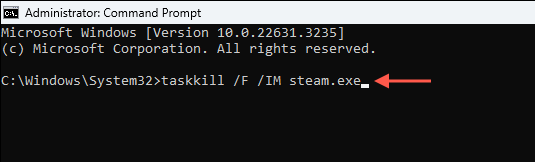
On Windows, use the Command Prompt console to shut down and re-open Steam. Here’s how:
Restart Steam via Command Line—macOS
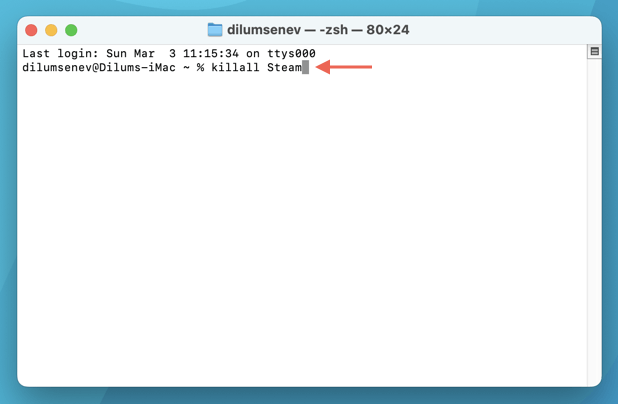
You can use Terminal on a Mac to quit and re-open Steam. Just:
Clear Steam Download Cache
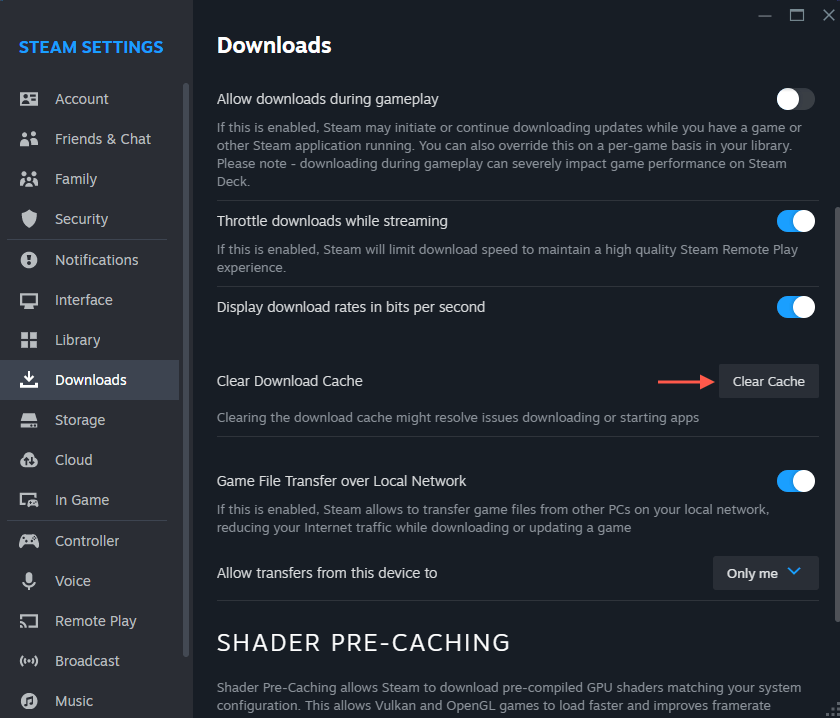
Another way to force-restart Steam is by deleting its download cache. Unlike the standard and force-restart techniques mentioned above, this method can address various issues related to downloading or updating video games. The most straightforward way to clear the Steam download cache is through the Steam app’s Settings console. Just:
Clear Steam Download Cache—Alternative Method
If you have trouble accessing Steam’s Settings console, use the following workarounds to clear the Steam download cache.
Clear Steam Download Cache—PC
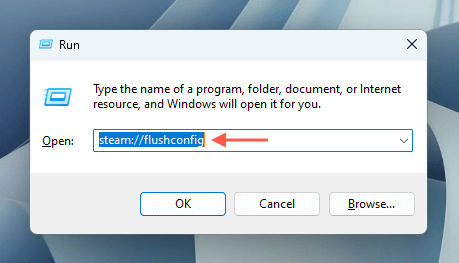
You can use a Run command to clear the Steam download cache on the PC. Just:
Clear Steam Download Cache—Mac
On the Mac, you must run a command through a browser to clear Steam’s download cache. Just:
Start Fresh
Restarting the Steam app on a PC or Mac can resolve many issues and is also a great starting point for more advanced fixes. Try quitting and relaunching Steam normally first. If that doesn’t work, force-closing the Steam processes, using your computer’s command line, or clearing its download cache should help.