In this troubleshooting article, we’ll explain how to restart a Samsung TV, then we’ll provide a few extra device care tips to get it running better than ever.
How to Restart a Samsung TV
There are a few ways to restart Samsung TVs, including:
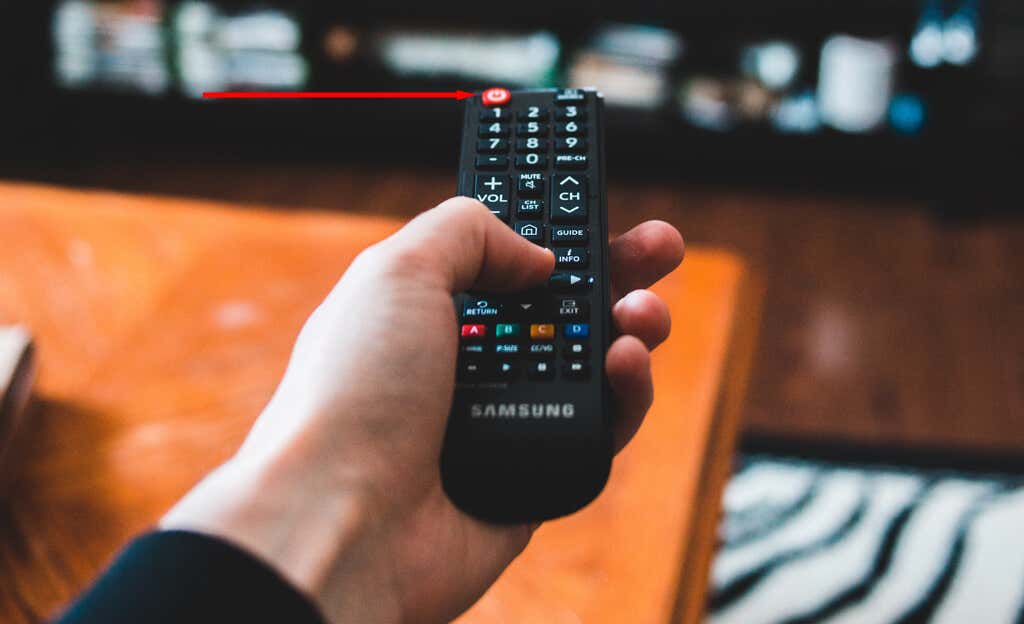
Press the power button on the Samsung TV remote control: Press the power button, then wait for the TV to turn off. Press the power button again to reboot it. If the TV isn’t responding, press and hold the power button for a few seconds. This will cause it to cold boot.
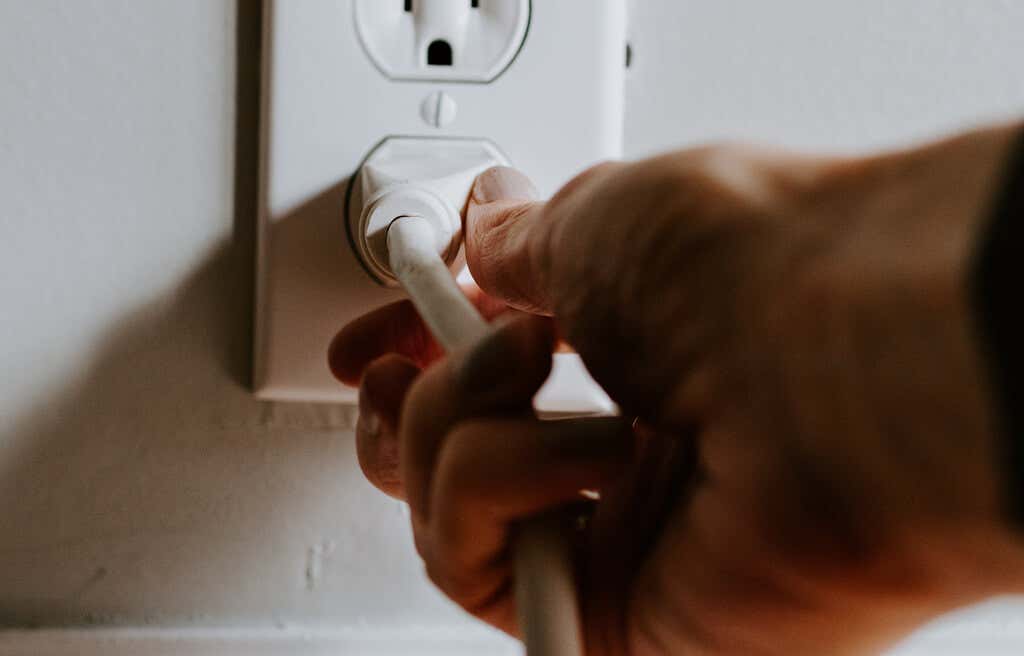
Press the power button on the Samsung TV: Find the external power button on the TV itself. It’s usually along the bezel, somewhere near the front right-hand corner of the screen. Once your TV turns off, wait a few seconds then turn it back on. Unplug the power adapter: If your TV won’t reboot via the power button, try power cycling the device. Because most TVs enter standby mode when turned off, a soft reset can be more effective. Try unplugging the TV’s power cord. Press and hold the power button and wait for 30 seconds to discharge any residual electricity. Then, boot the TV back up again.
How to Factory Reset Samsung TVs
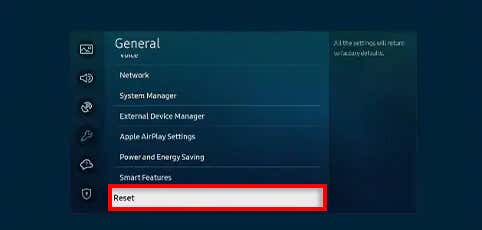
If restarting your TV doesn’t fix the problem, you can try performing a hard reset. This will erase all of your smart TV data, delete anything you’ve installed in the Smart Hub, and revert the TV’s software and firmware to factory default settings. Here’s how to perform a factory reset:
Contact Samsung Customer Support
If all else fails, try contacting Samsung’s Customer Support team. They might be able to help you run through the user manual and determine exactly what’s going wrong with your TV. If your TV is broken, they might be able to help you get a replacement on warranty.