Follow our guide to find out how to reset your Instagram Explore Feed and get more interesting content shown to you on the app.
How to Reset Your Instagram Explore Feed
Instagram creates your Explore page based on your activities. Consistently liking, commenting, following, searching, or sharing similar content shapes what you see, creating a personalized experience.
Yet, sometimes, you might encounter content that is not aligned with your preferences. This could be influenced by interactions with users who have different preferences or region-specific viral content. Instagram’s intricate algorithms also play a role, suggesting content based on what you do and what type of content you view when you use the app.
See too many posts you dislike on your Explore page? No worries – we’ve got your back with a complete guide on resetting your Instagram Explore page. Use the following methods to completely reset your Explore page and get fresh content on Instagram.
Regularly Refresh the Explore Page
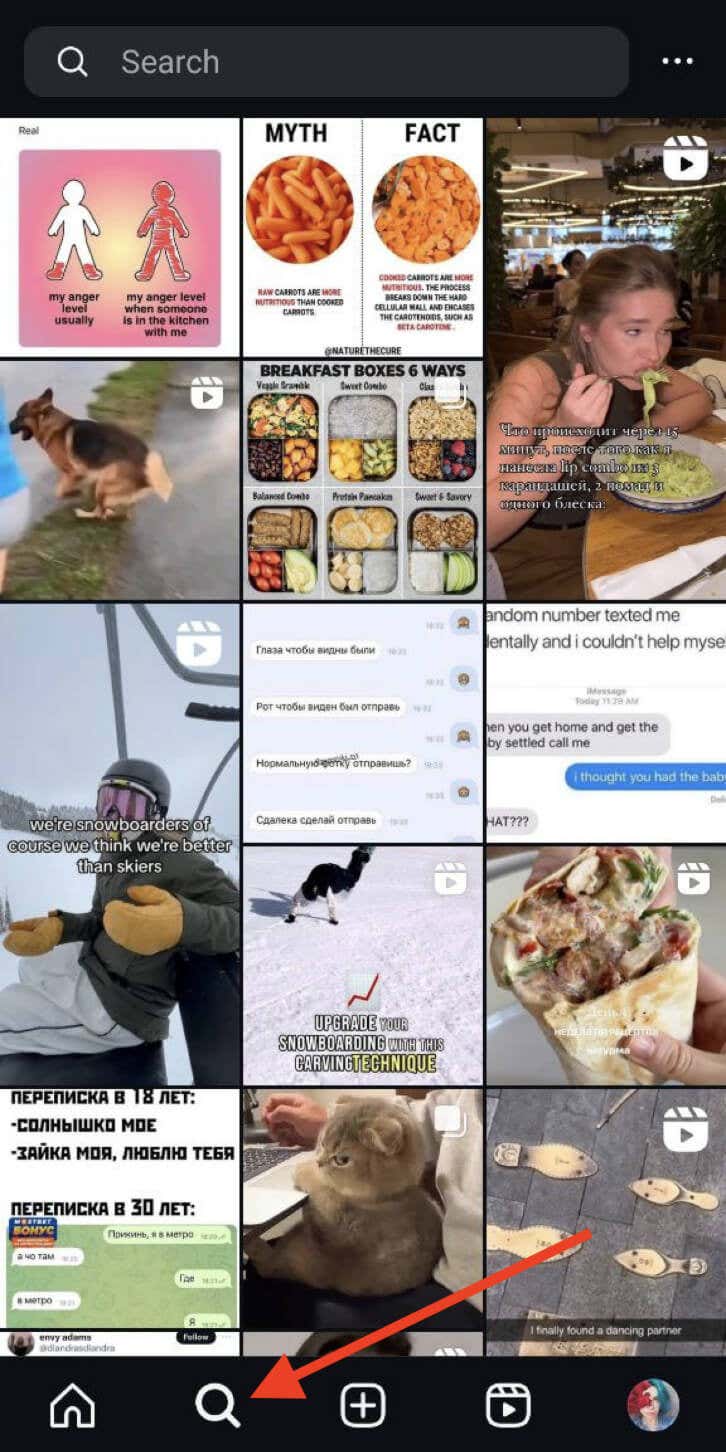
If you keep getting the same posts and Reels on the Explore page and want to check out something new, you can use the following quick method to refresh your Explore content.
To refresh the Explore page on Instagram, follow the steps below. The instructions are the same for both Android and iOS users.
Remember, though, that while this method refreshes your content, it might not change the type of content Instagram suggests to you.
So, you might still come across content similar to what you’ve seen before. For a more tailored approach, check out the following methods to improve your Explore page for a more tailored approach.
Personalize Instagram’s Algorithm
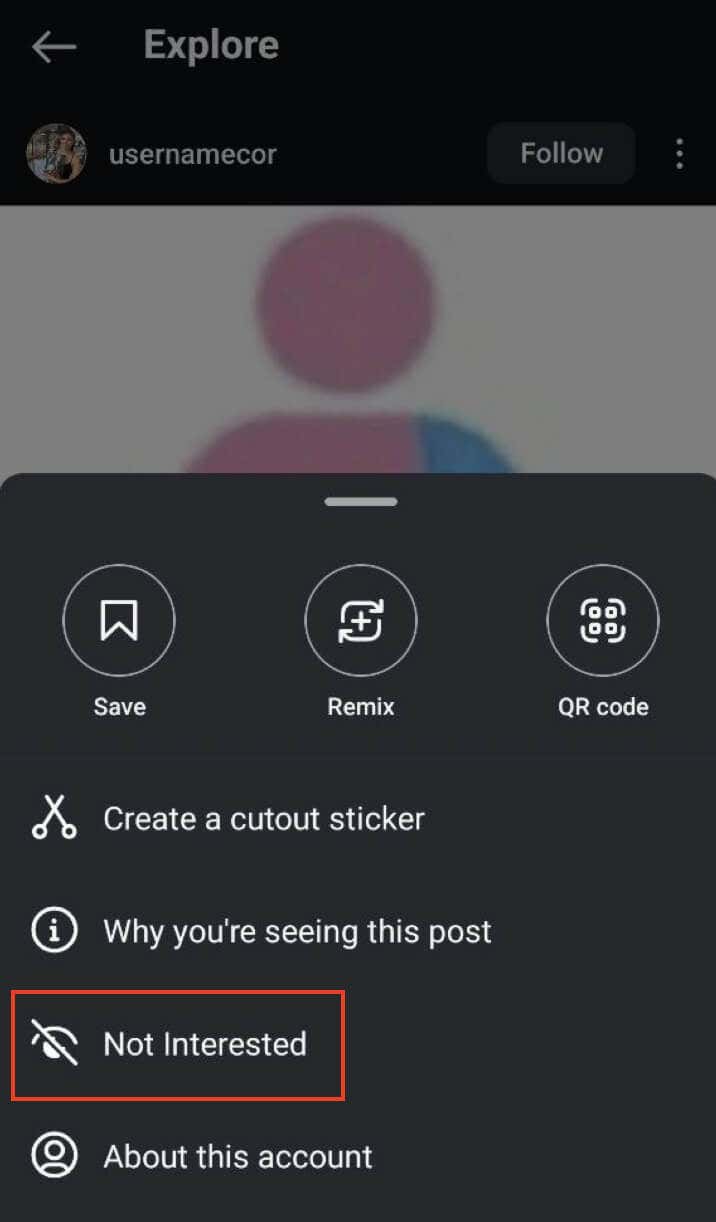
If your Explore page is cluttered with unwanted content, you can let Instagram know what you don’t want to see. While it may take a while for the algorithm to catch on, marking posts as Not Interested is an effective method for refining your recommendations.
Here’s a quick guide on how to use the Not Interested option to reset your Explore page on Instagram.
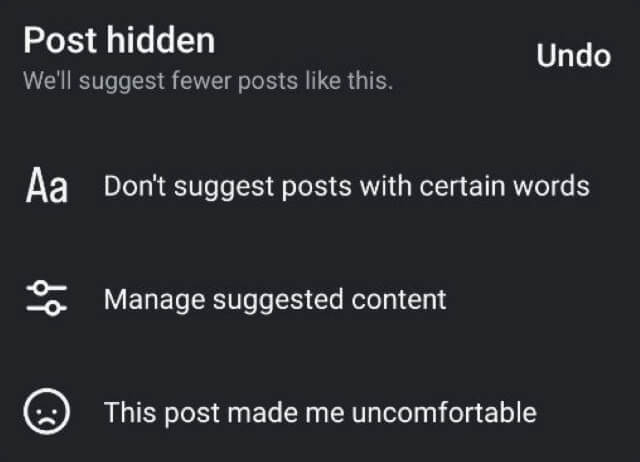
Instagram will immediately hide this particular post and try not to show you similar posts in the future. You’ll also see a box with suggestions, from which you can choose: Don’t suggest posts with certain words, Manage suggested content (more about this option in a bit), and This post made me uncomfortable. Feel free to choose any of these options to tailor your Explore page content even further.
By doing this, Instagram learns your preferences gradually, improving your content suggestions. If similar content keeps appearing, repeat the process for those posts. Consistently marking posts as Not interested sends a clear signal to Instagram’s algorithm that you’re not a fan.
While the change may not be instant, this method proves to be the most effective for resetting your Explore page. The more you continue marking posts as Not Interested, the more tailored and enjoyable your Explore experience becomes.
Clear App Data & Cash
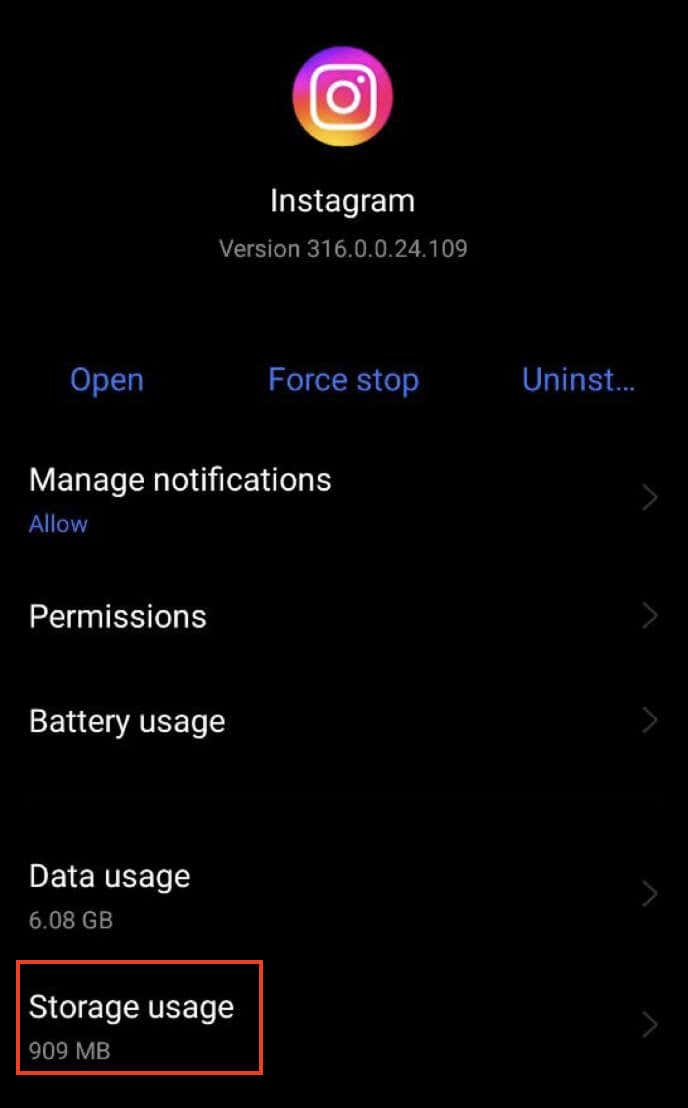
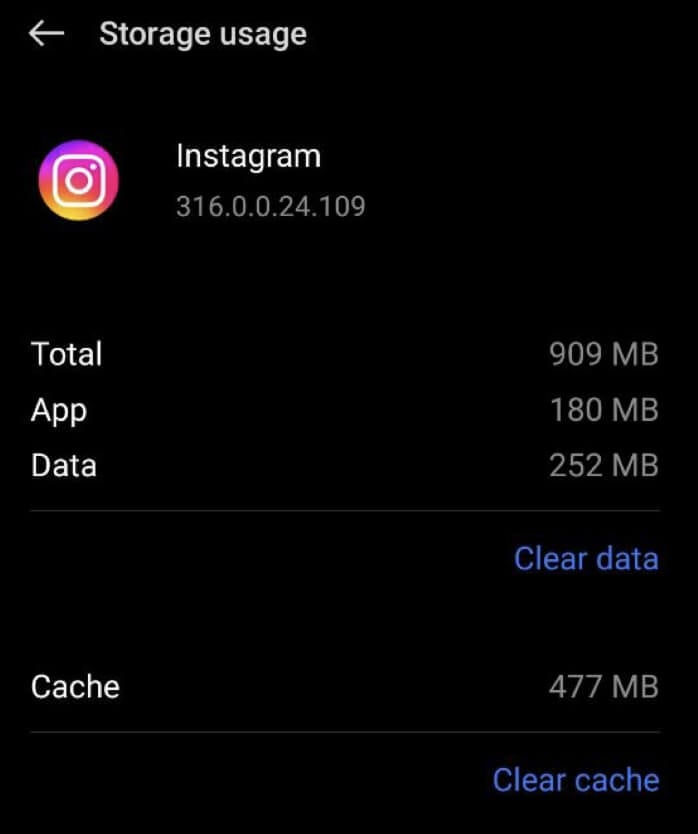
The next method you can try to reset your Instagram Explore feed is to clear the data and cache on your smartphone. Before you do it, keep in mind that clearing data will most likely change the type of posts that you see on your Explore page. However, this action will also wipe all your saved data and log you out of the Instagram app, so you’ll need to sign in again.
If you don’t want to clear all your saved data, you can only clear the cache. This will not remove your account’s data but might improve your Explore page content.
Clear Data & Cache on Android
Follow the steps below to clear your Instagram data and cache on an Android.
These instructions differ slightly for various Android devices, but the options should be similar.
After you finish, restart the Instagram app and check the Explore feed for fresh content.
Clear Data & Cache on iPhone
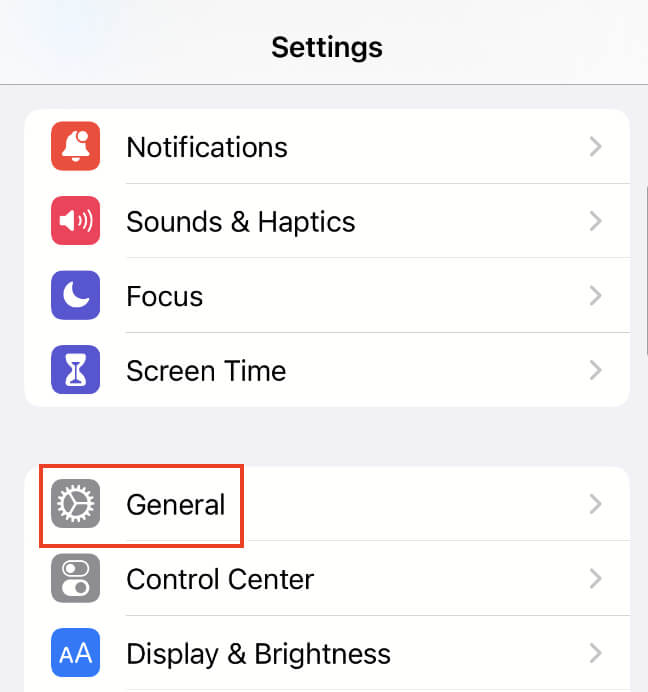
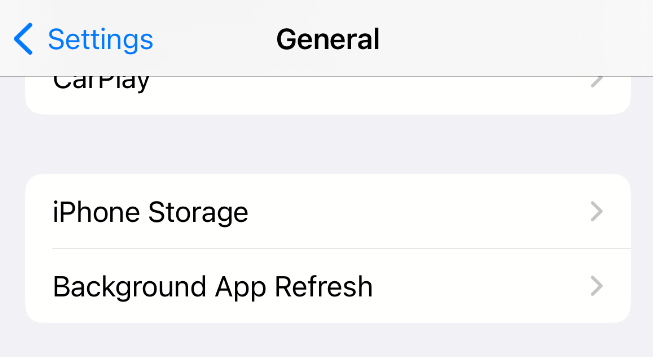
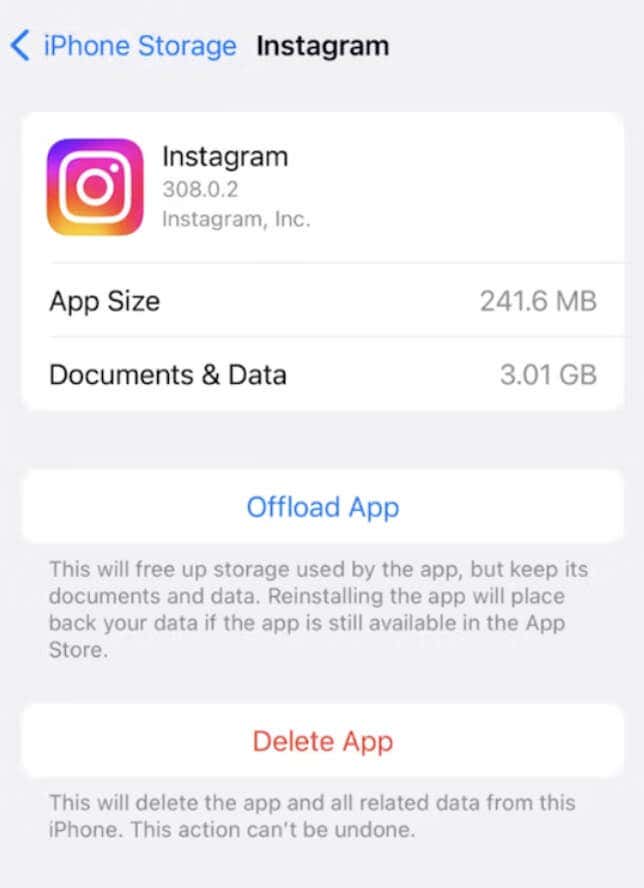
Unfortunately, iOS lacks a direct data/cache clearing option. Instead, you’ll need to delete and reinstall the app to clear Instagram data and cache. To do that, follow the steps below. After you’re finished, reinstall the app from the App Store and sign in again to check if the content on your Explore page changed.
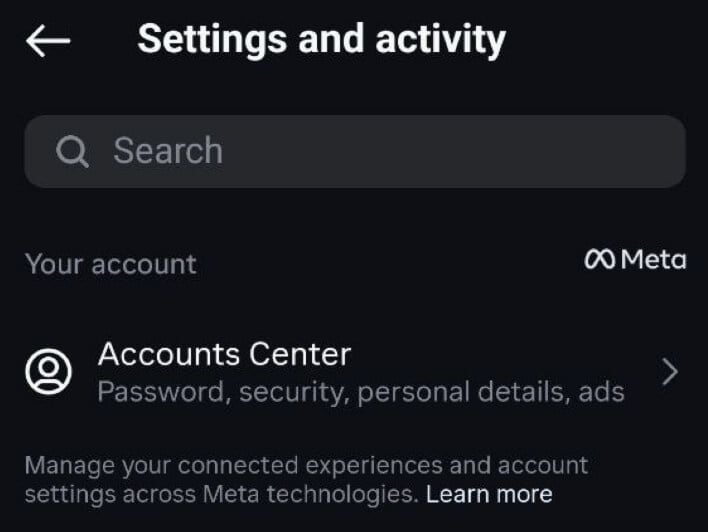
Clear Your Instagram Search History
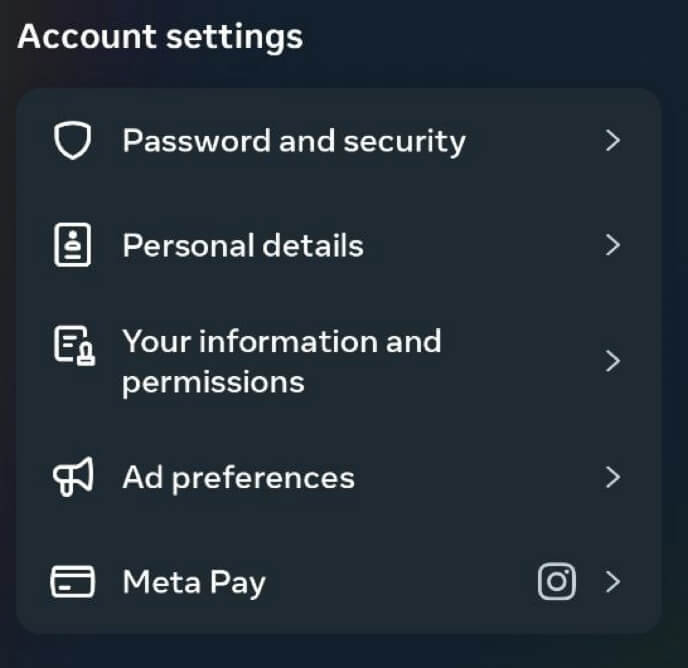
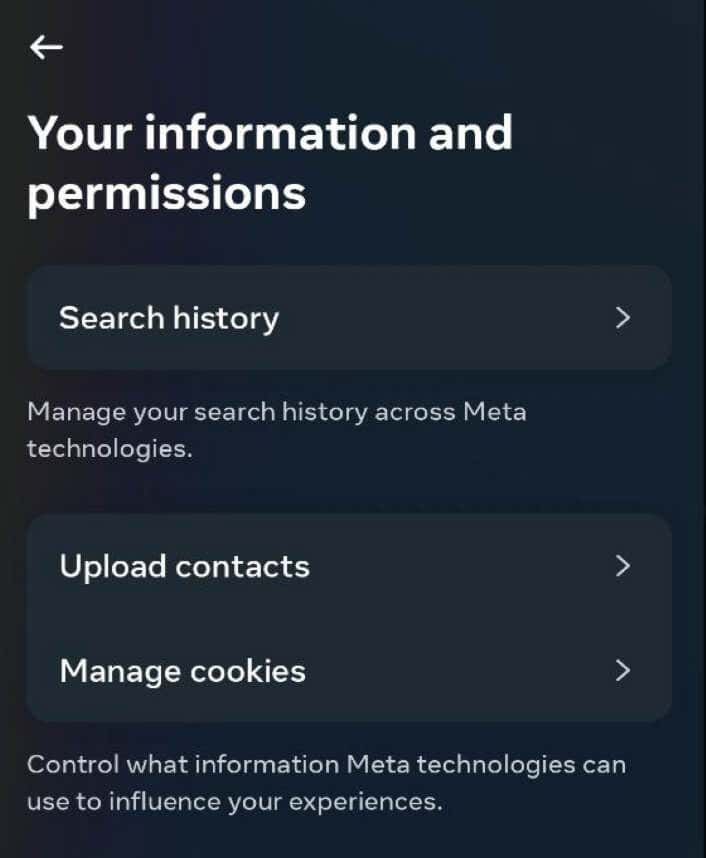
Another method you can use is erasing your Instagram search records. Clearing your Instagram search history will also give you a fresh start regarding the content you see on your Explore page.
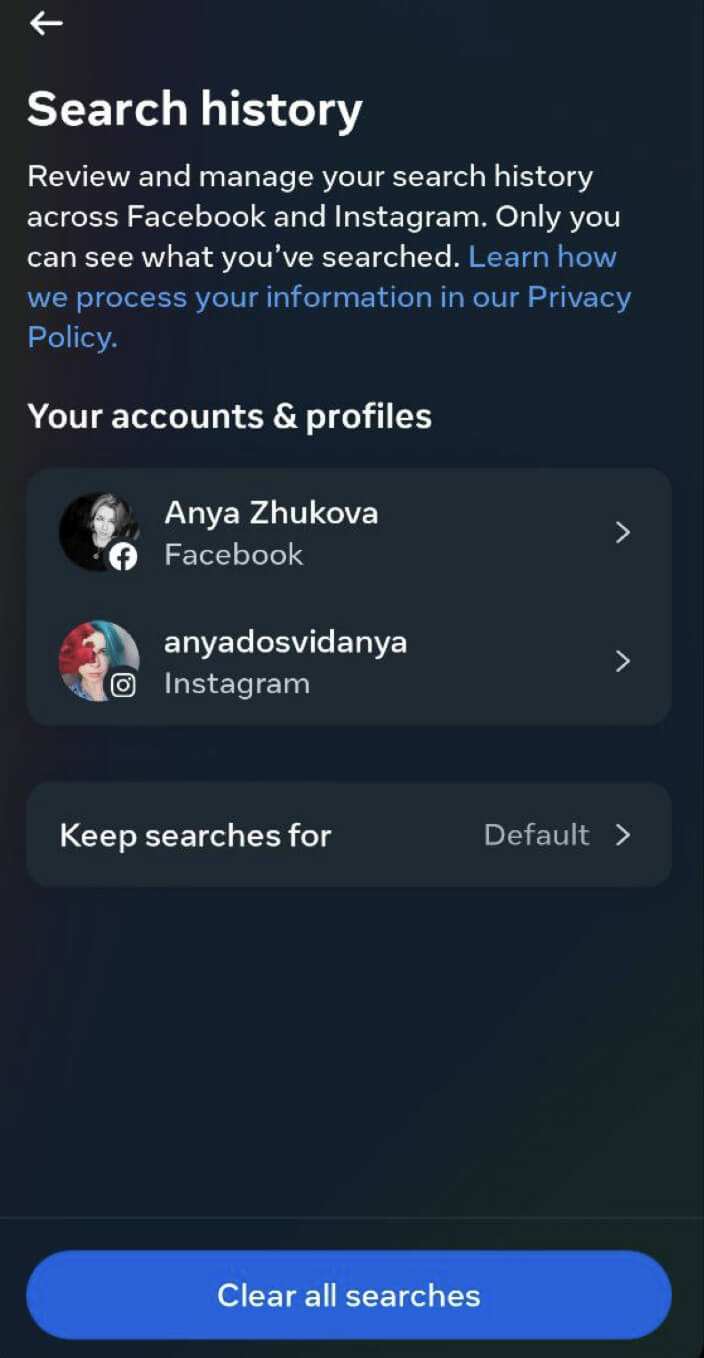
To clear your Instagram search history, follow the steps below.
For a more selective approach, you can manually delete searches by tapping your account under Your accounts & profiles. After you choose an account, it’ll open your Search history and you can manually delete individual search entries from the list that you don’t want to have effect on your Instagram suggestions.
Additionally, you can select the Keep searches for option and pick a duration: 3 days, 7 days, 14 days, 30 days, or Default which stores your Facebook searches for a year and your Instagram searches for 30 days.
Clearing your search history is the ultimate way to ensure a fresh Explore page based on your evolving interests.
Control Your Suggested Content
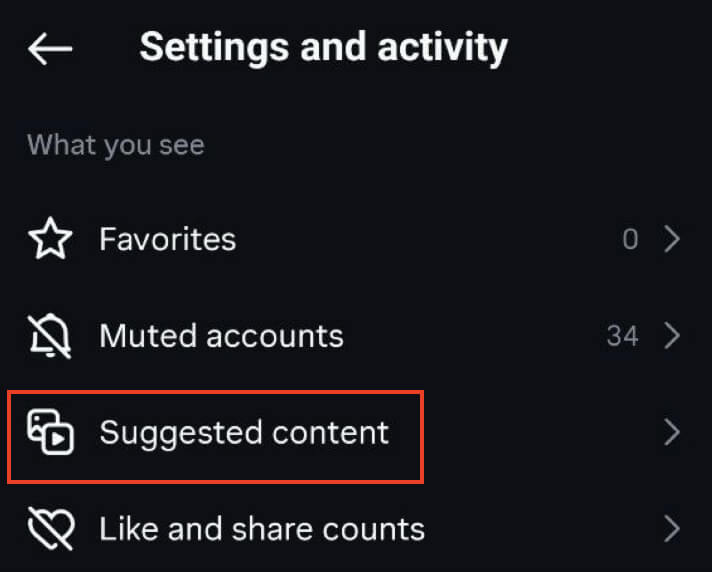
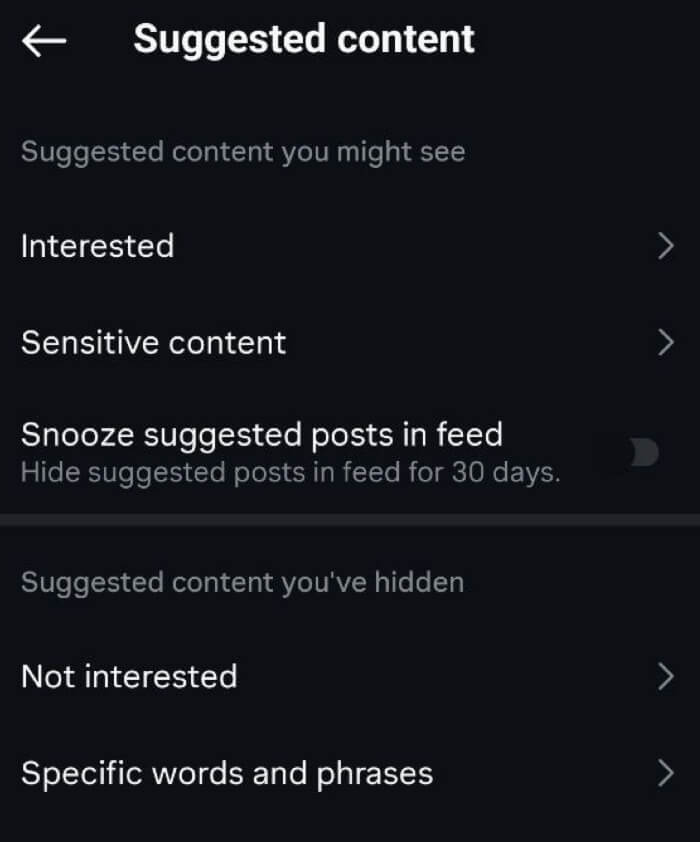
If your Instagram is up to date, you can use the newly added functionality that allows you to control what type of content Instagram suggests for you.
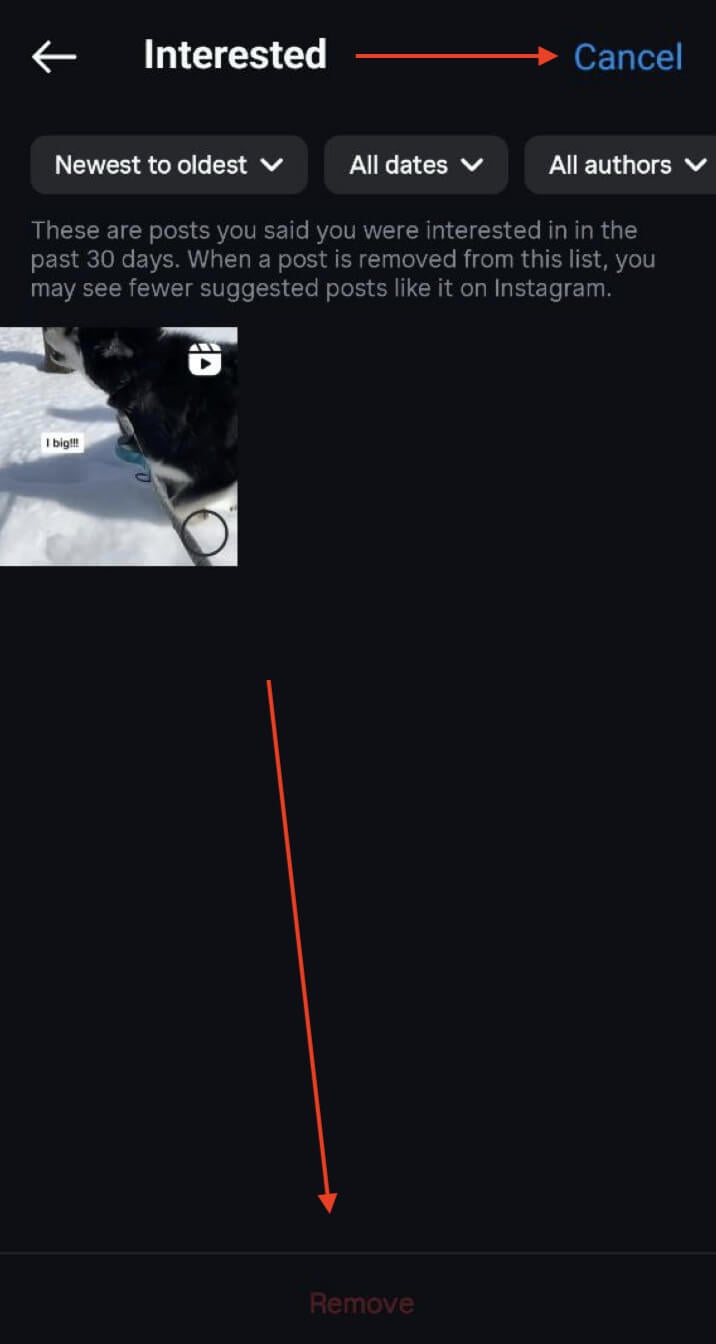
Interested
This section has all the posts you’ve marked as Interested in the past 30 days. If you remove a certain post from this list, Instagram will take a note and show you less of similar content.
To remove a post from the Interested section, tap Select in the upper-right corner of the screen, choose one or multiple posts you don’t want to see and select Remove.
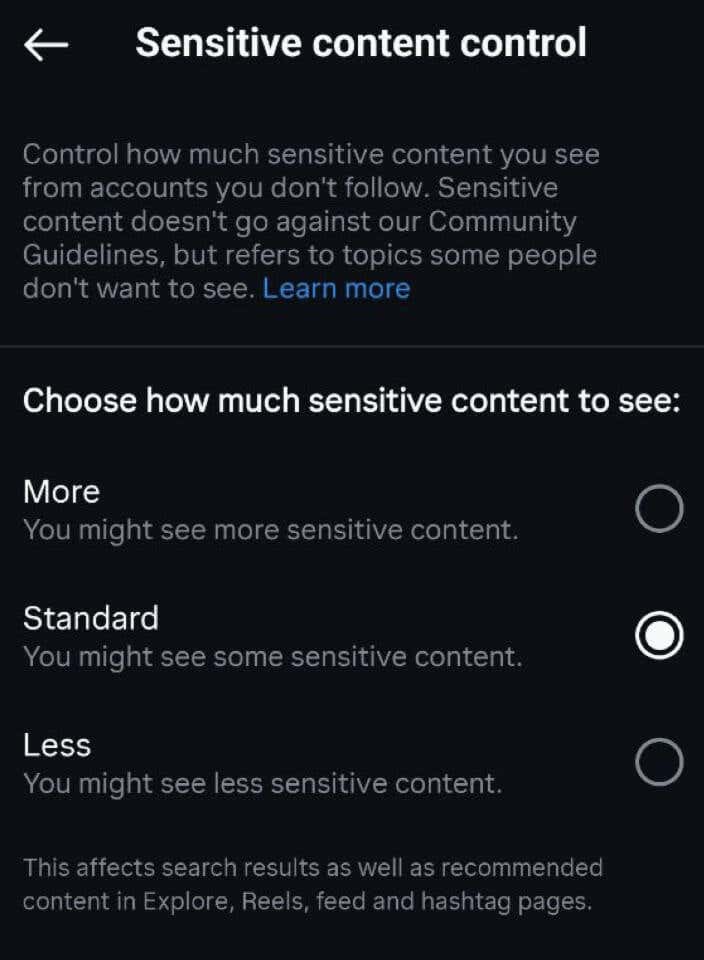
Sensitive Content
Sensitive content is not something that goes against Instagram Community Guidelines, but instead it’s the content that some people don’t want to see.
Here, you can choose between the three options: More, Standard, or Less. If you find the posts on your Instagram Explore feed inappropriate, select Less to see less sensitive content.
Snooze Suggested Posts In Feed
Aside from the Explore page, Instagram also shows you suggested content from accounts you don’t follow on your Home feed. This option temporarily hides these suggested posts from your feed for 30 days.
If you never want to see this content, you can return to this setting every 30 days and switch on the toggle to hide the suggested posts.
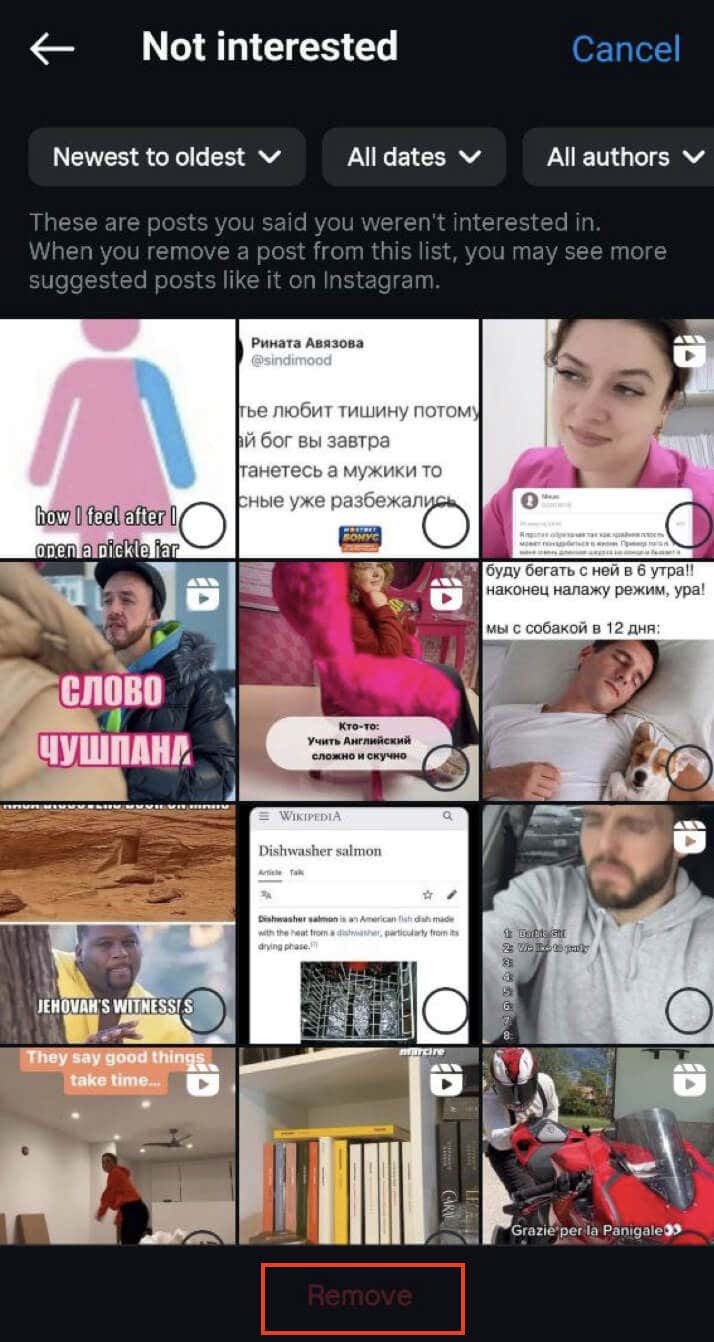
Not Interested
This section contains the posts that you’ve previously marked as Not interested. If you decide to remove a post from this list, Instagram will take a hint and start suggesting more similar content to you.
Specific Words And Phrases
In the last section, you can input words, phrases, and even emojis you don’t want to encounter on Instagram. As a result, Instagram will filter out the content containing these specific words and phrases, and you won’t see them displayed in your feed anymore.
These controls provide a unique opportunity to shape your Instagram experience. By using these options, you can actively control content that resonates with your preferences, ensuring your Explore page aligns with your interests.
Make the Instagram Explore Feed Great Again!
Turning your Instagram Explore into a personal haven is about tweaking and tuning. From clearing the app’s cache, to marking interests, to handling sensitive stuff – you’ve got the power to mold your Explore feed the way you like.