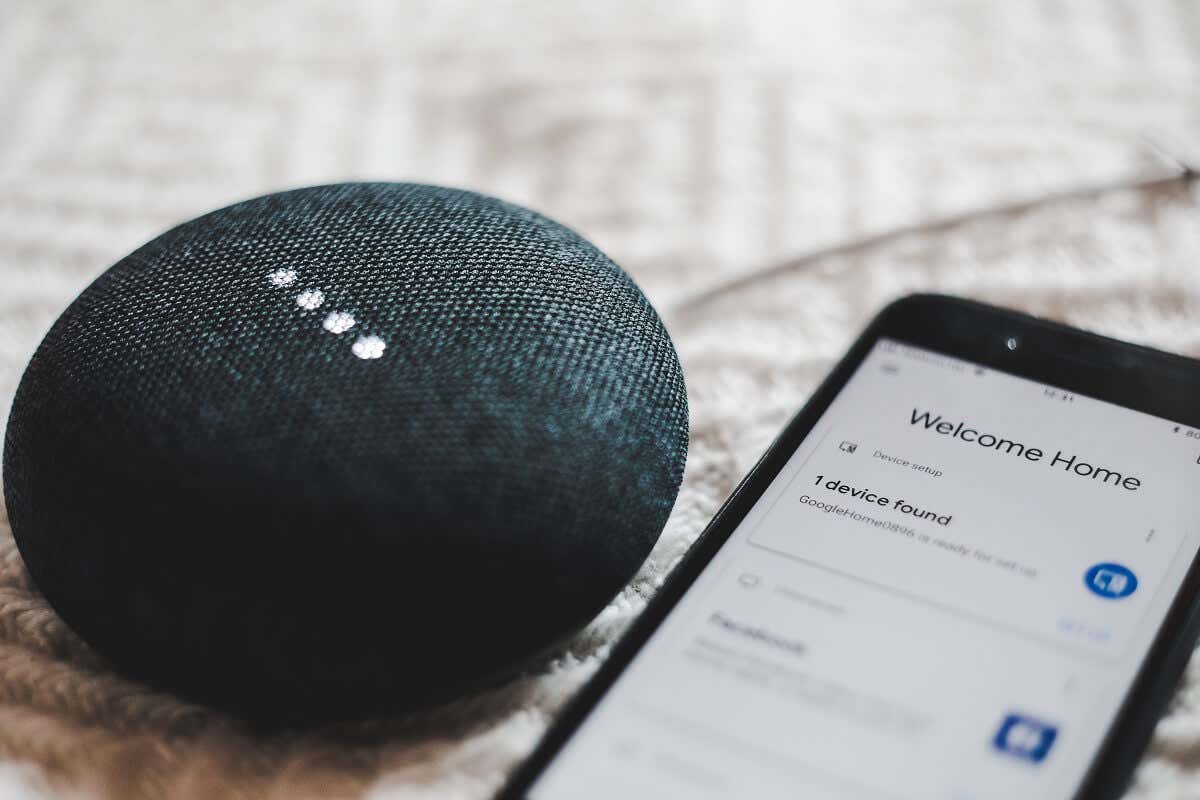
In this tutorial, we’ll explain how to factory reset your Google Home Mini or Google Nest Mini.
Why Should You Factory Reset Your Google Home?
A factory reset deletes all the data on your Google Home device, restoring it to default settings. If you’ve forgotten your password or your device is playing up, a factory reset can get it working correctly with minimal effort. We also recommend performing a factory reset before selling or throwing out your Google Home Mini. As with other digital devices, your Google Home stores your personal information. A factory reset will remove this information and protect your privacy if it ends up in someone else’s hands. Remember that after a factory reset, you’ll need to sign back into your Google account, connect your Google Home to your Wi-Fi network, and reconnect any Bluetooth devices you connected earlier.
How to Factory Reset Google Home Mini
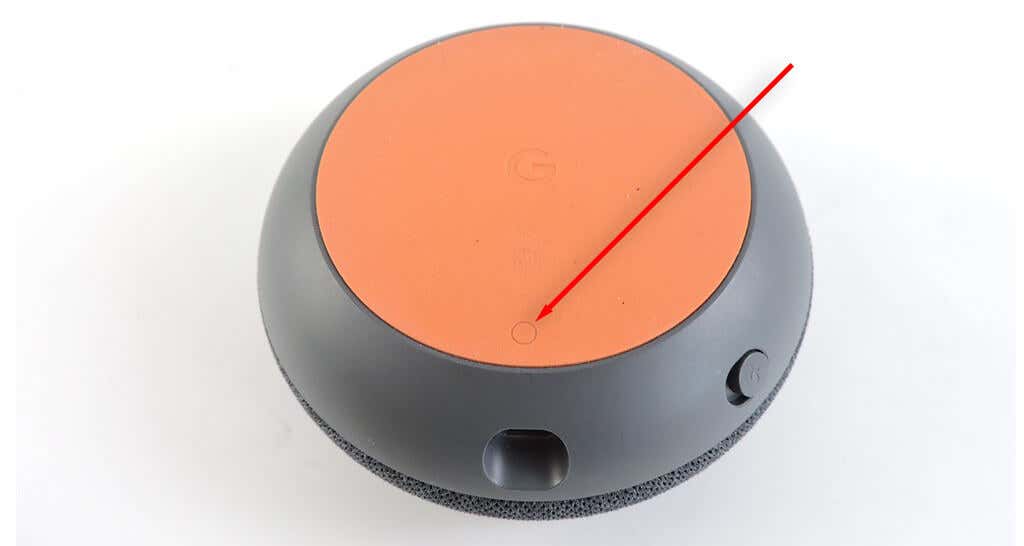
To reset your Google Home Mini (1st gen):
How to Factory Reset Google Nest Mini
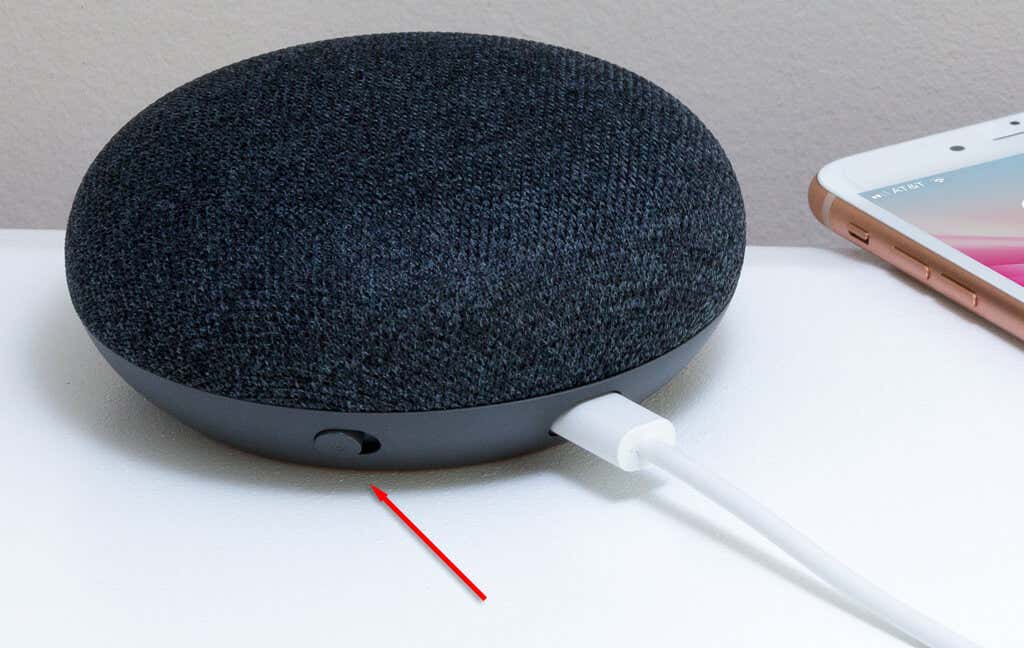
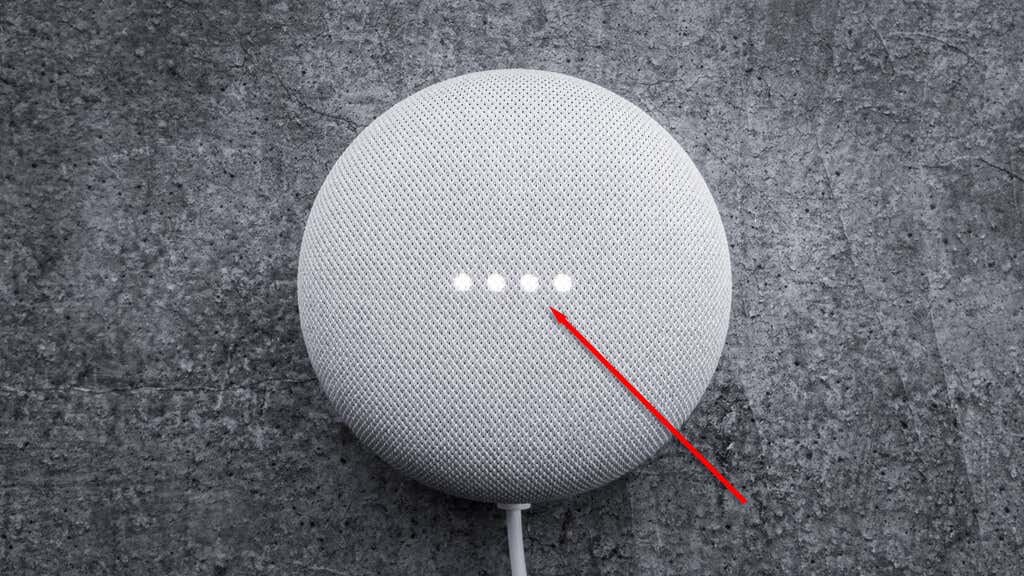
To reset your Google Nest Mini speaker (2nd gen): Note: You can only reset Google Home devices via the factory reset button. It’s impossible to perform a reset through the Google Home app.
How to Factory Reset Other Google Home Devices
There are a handful of other Google Home speakers that you might want to reset. These include the Google Home Max, Google Nest Hub, Google Nest Audio, and Google Nest Hub Max. To revert these devices to factory settings, you need to switch the microphone off, then press and hold the factory reset button for 15 seconds, as shown above. The Nest Hub is the only device that’s slightly different. To reset the Google Nest speakers, press and hold both volume buttons together for 10 seconds. The factory reset button is found either on the back of the device or on top of the speaker where the LED lights are housed.
Smart Home, Happy Home