In this guide, we’ll walk you through resetting a SIM card on Android and iPhone devices. We’ll cover various methods and troubleshooting tips to ensure a smooth and hassle-free experience. Whether you have a Samsung Galaxy, an iPad, or any other mobile phone, we’ve got you covered.
Why Reset a SIM Card
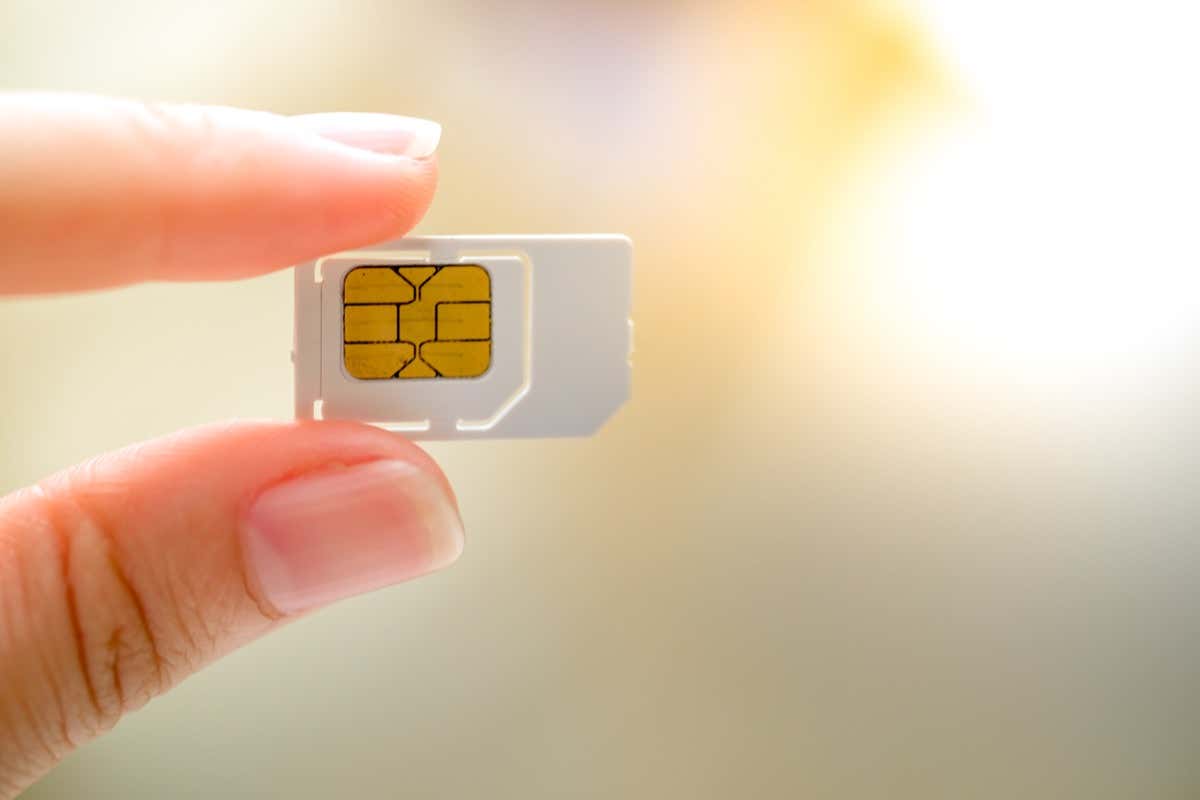
SIM card’s an essential component in your mobile phones. It stores crucial information, such as your phone number, network data, and contacts. Without a properly functioning SIM card, your phone won’t be able to make calls, send texts, or connect to mobile data networks. There are several situations when you may decide to reset your SIM card.
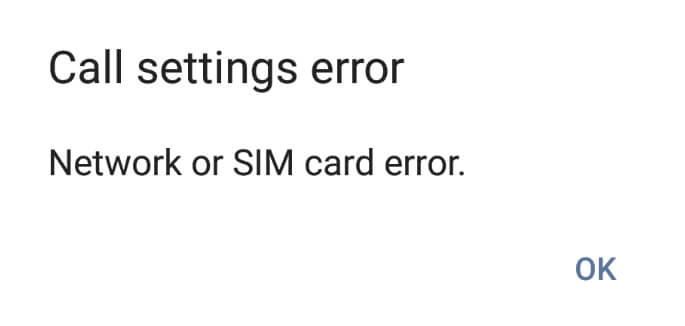
Poor network connectivity. If you’re experiencing constant drops in network signals or slow data speeds, a reset might help re-establish a connection with the mobile network. SIM card errors. Sometimes, your phone may display messages like SIM card not detected or SIM card error. A reset can resolve these issues. Switching to a new SIM card. When you replace an old SIM card with a new one from your service provider, you’ll need to reset your device to use the new SIM card’s data and phone number. Troubleshooting other issues with your smartphone. If you’re facing any other unexplained issues related to your SIM card, resetting it can be a helpful troubleshooting step.
Back Up Your Data Before Resetting Your SIM
Before resetting your phone’s SIM card on either Android or iOS, back up your data to avoid losing critical information. Backing up your data will keep your contacts, text messages, photos, and other valuable data safe and easily restorable after the reset.
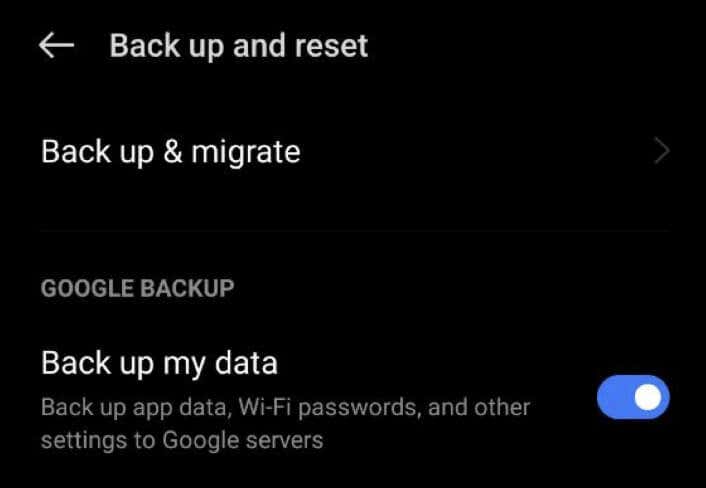
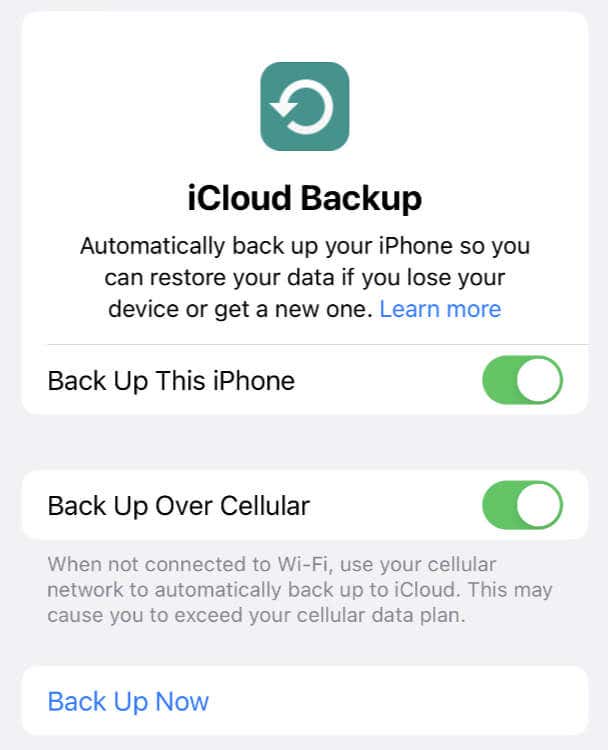
Here’s how to back up your Android and iPhone data.
For Android:
For iPhone:
Once you finish backing up, you can reset the SIM card without losing your important data. Regularly backing up your data is a good practice to keep it safe.
How to Reset a SIM Card on Android
You can use several methods to erase all data on a SIM card on your Android device. They include a factory reset, erasing all the data manually, and using a SIM card reader.
Method 1: Perform a Factory Reset
If you want to remove any connection between your SIM card and your phone, consider doing a factory reset. Please note that a factory reset will erase all data on your Android device. Make sure to back up your data before proceeding with this method.
To factory reset your Android phone, follow the steps below. The exact steps may differ depending on the model of your Android phone.
Your Android device will restart and then reset to its factory settings.
Method 2: Clear Your SIM Card Manually
After the factory reset, your SIM card’s data will remain there. You can manually erase the data from your SIM card by clearing the call logs and contacts from your cell phone.
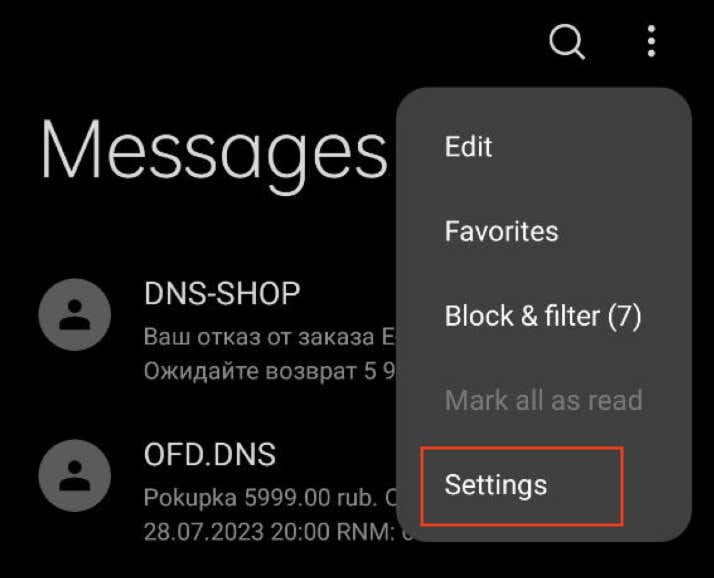
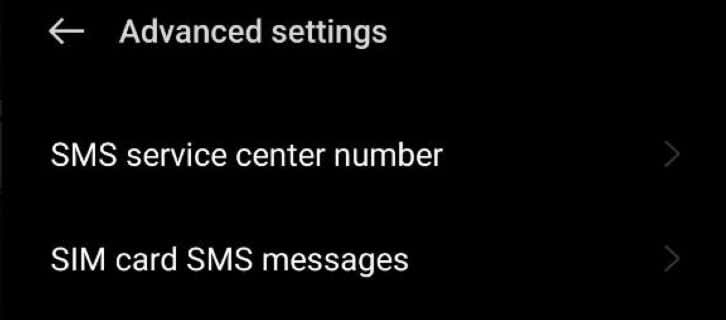
To delete contacts and call logs stored on the SIM card, follow these steps:
Next, here’s how to delete call logs:
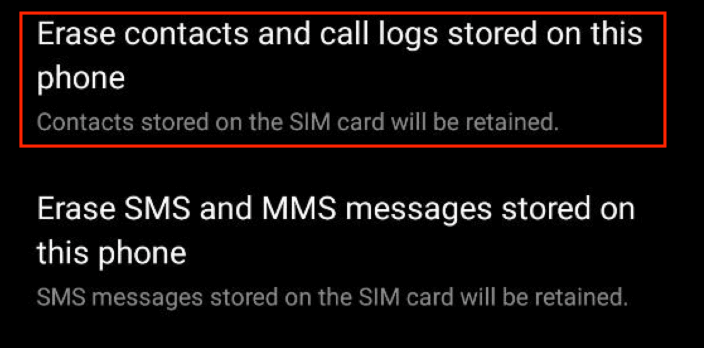
Some Android phones may also have a separate option to Erase contacts and call logs stored on this phone in the phone’s Settings app, which allows you to clear the SIM card memory quickly.
Method 3: Reset SIM Card Using USB Card Reader
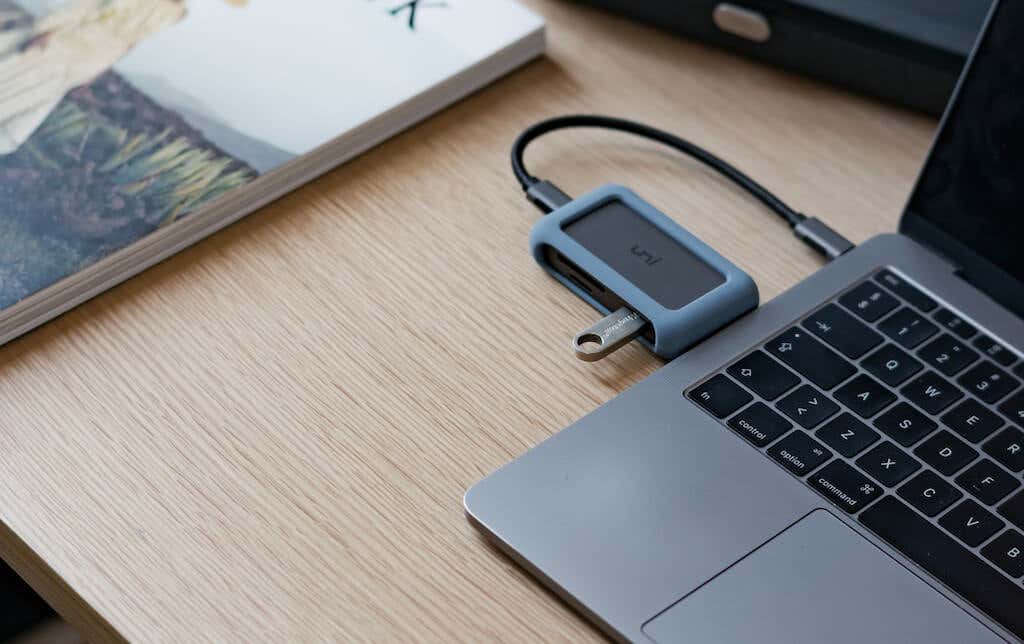
If you want more control over erasing data from your SIM card, consider using a SIM card reader/writer. This affordable and portable device allows you to directly access the storage of your SIM card on your computer.
Note that the exact steps may vary depending on the specific SIM card reader/writer device and the software it uses. Be cautious while using this method, as it directly accesses and modifies the data on your SIM card. Make sure you have a backup of any important data before proceeding.
To erase the entire SIM card data using a SIM card reader, follow the steps below.
How to Reset a SIM Card on iPhone
Unlike other phones, the iPhone doesn’t store any data on a SIM. So if you need to wipe your data from the phone, you can use the factory reset method like you would on Android.
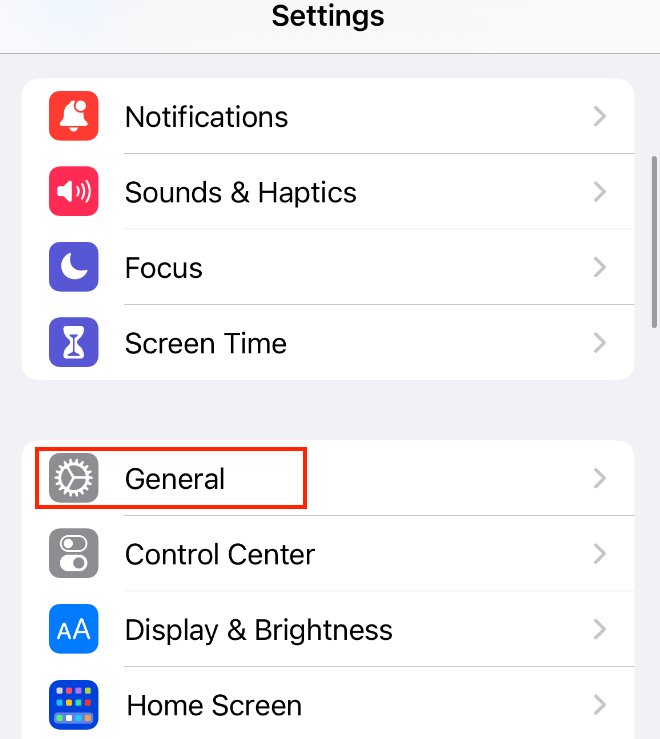
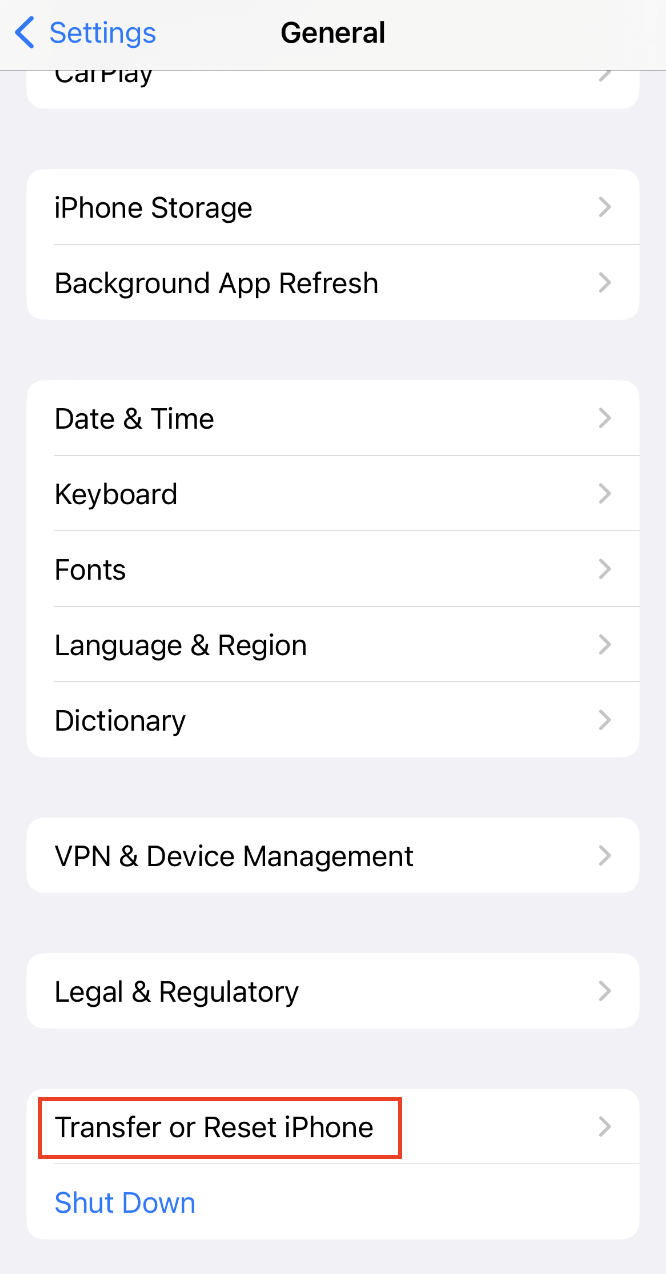
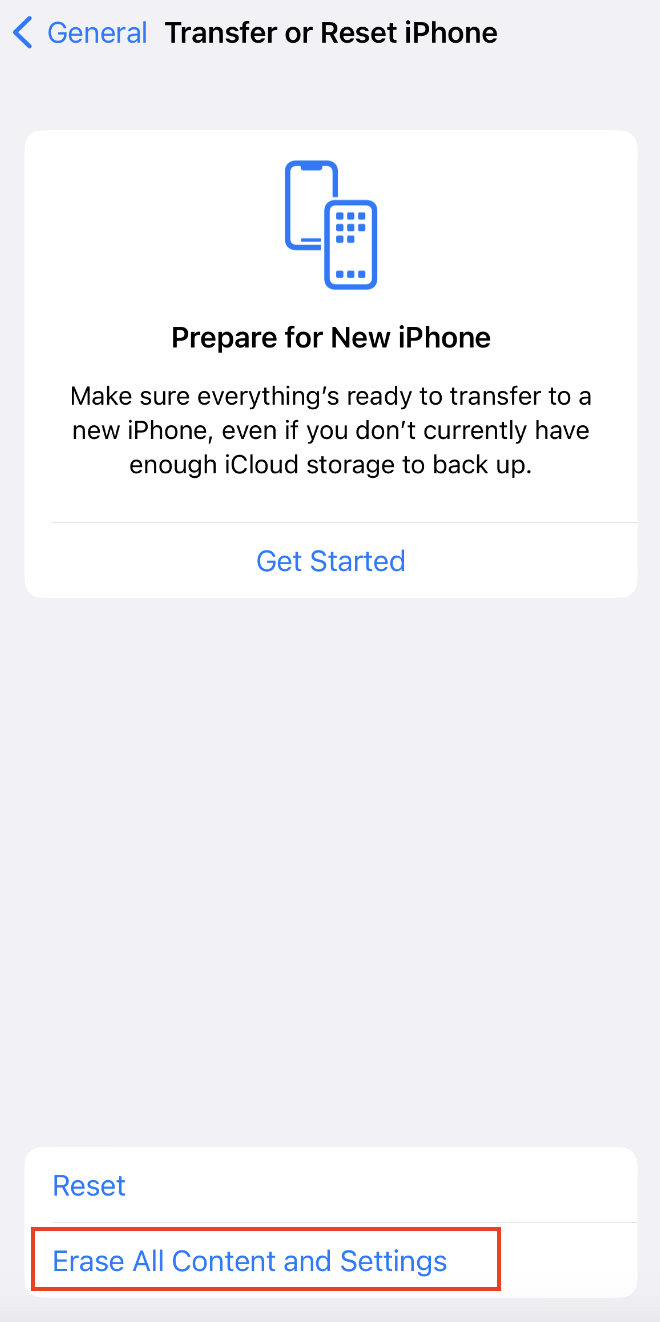
The steps may vary depending on the version of iOS you have. The following steps apply to some iOS versions, but you should explore your specific device settings to confirm.
Here’s how to erase your data on iOS:
By following these steps, you can remove all data from your iPhone. You can also use a third-party app to delete your personal information from your iPhone, like Dr.Fone or iMyPhone.
Tips to Troubleshoot a Faulty SIM Card
If you have trouble making a call or get an error message on your phone saying your SIM card is not working, there are several ways to troubleshoot the problem. While resetting your SIM may solve the issues, the error may not be related to your SIM card. For example, the problem could be with your carrier settings.
Before resetting your SIM card, we recommend performing the following troubleshooting steps to see if they fix the problem.
Toggle Airplane Mode. If you encounter SIM card errors, try turning on Airplane mode, wait for a few seconds, and then turn it off again. This simple trick can resolve some software-related issues. Update Carrier Settings. Check for carrier updates on your iPhone under General and About. For Android, search for Carrier Settings and tap Update Profile if available. Reset Network Settings. As a last resort, reset your phone’s network settings or reset all settings, but be aware that it will also reset Bluetooth pairings and Wi-Fi passwords. Restart Your Phone. Reboot your phone to clear out temporary glitches. Turn off your iPhone and wait a minute before turning it back on. On Android, swipe down from the top of the screen and select the Power icon. Clean Your SIM Card. Ensure the card is clean and the SIM card contacts are clear. Gently wipe the card with a microfiber cloth, and use compressed air to remove debris. Make sure to keep your SIM card dry. Remove and Reinstall the SIM Card. If the issue persists, reset your SIM card. Turn off your phone. Use the SIM card removal tool or a paperclip to pop out the SIM card tray, remove the card, and then carefully place the SIM card back into the SIM card slot. Then turn the back cover on if necessary and turn on the phone. Test SIM Card in Another Device. Try the SIM card in another compatible device to see if it works. If it does, the problem may be with your phone, not the SIM card.
Reset Your SIM Card for a Fresh Start
Resetting your SIM card on Android and iPhone is vital for resolving issues and maintaining a smooth mobile experience. Whether you reset network settings, perform a factory reset, or use other methods, follow the steps carefully to avoid data loss.
Remember to back up your data before any reset, and consider contacting your service provider if you encounter persistent problems. By taking these actions, you can troubleshoot any SIM card-related issues effectively.