Thankfully, most, if not all browsers have features that allow you to reopen websites you viewed previously and restore the tabs you just closed by an errant mouse click.
How to Reopen Closed Browser Tabs in Chrome, Safari, Edge and Firefox Browsers
There are several ways you can reopen closed tabs in your web browser. These methods include:
Using keyboard shortcuts Using the built-in Undo closed tab feature Through a hotkey Using a few mouse clicks Checking your browsing history
How to Reopen Closed Tabs in Google Chrome
There are several ways you can reopen closed tabs in Google Chrome, including keyboard shortcuts, the reopen closed tab feature, or using the browser history.
Using Keyboard Shortcuts
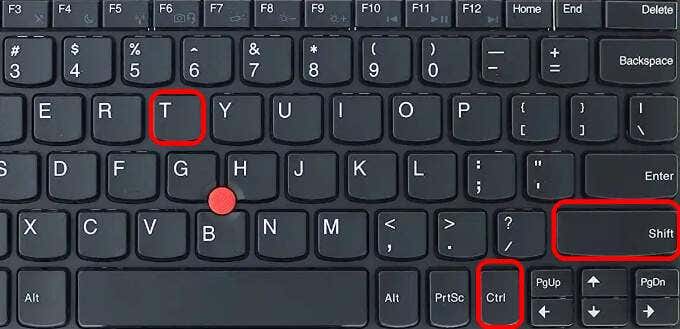
You can reopen a closed tab in Chrome using the following combination of keys. Note: If you hit the keyboard shortcut once on your computer, it’ll bring up the last tab you closed. Keep hitting the keys until you get the tab you want.
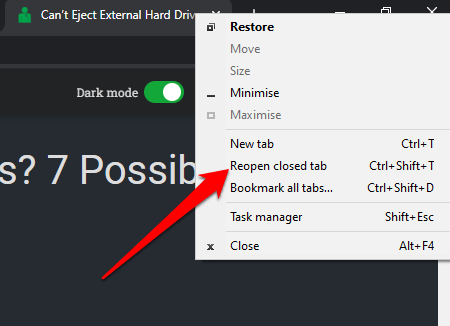
Using the Reopen Closed Tab Feature
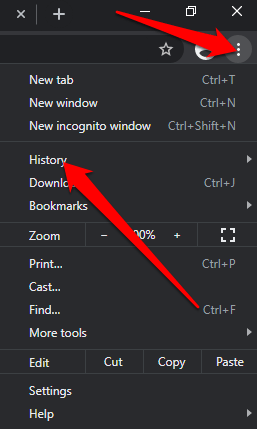
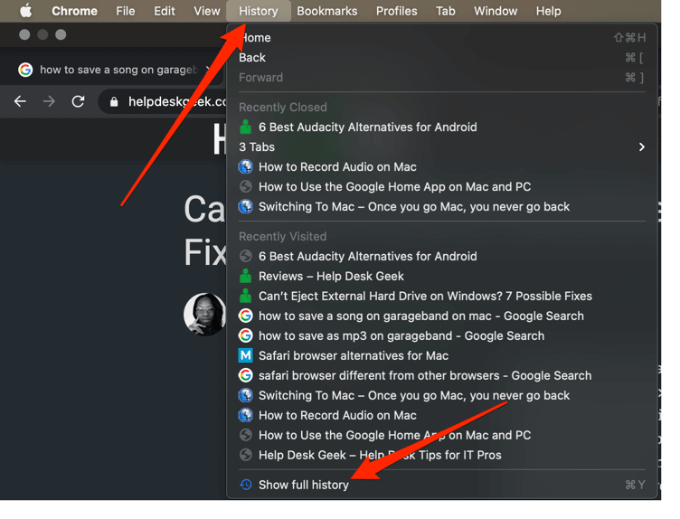
Using Your Browser History
You can go through your browser history and check the sites you visited in the past hour, day, week or month.
How to Reopen Closed Tabs in Safari
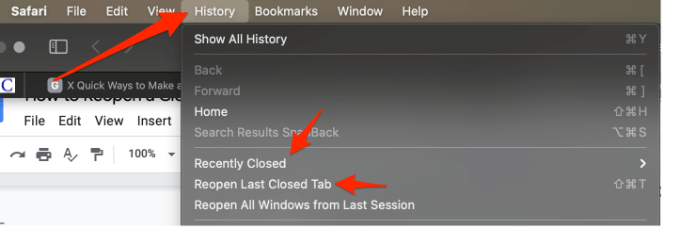
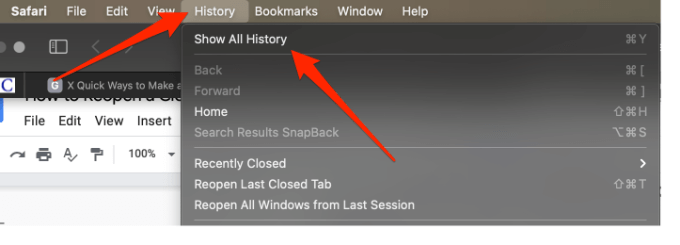
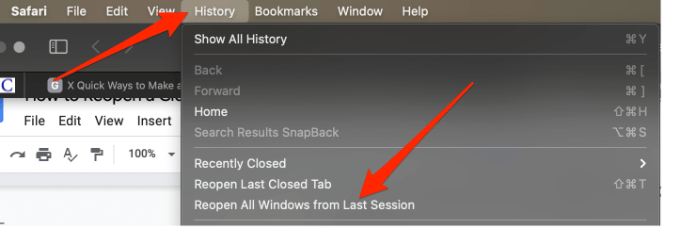
On a Mac, you can reopen a closed tab using a keyboard shortcut, the Undo Closed tab feature, or go through your browsing history to find the tab you’re looking for.
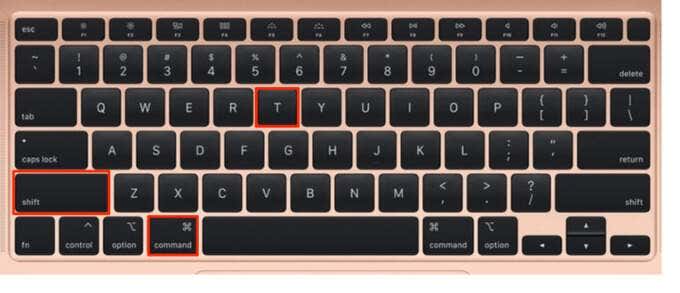
Using a keyboard shortcut
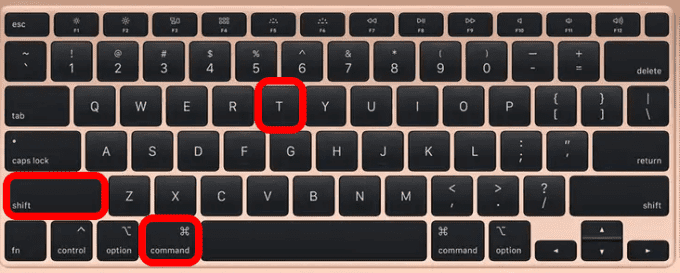
Use the following shortcut keys Command + Shift + T to reopen a closed tab or press Ctrl + Z.
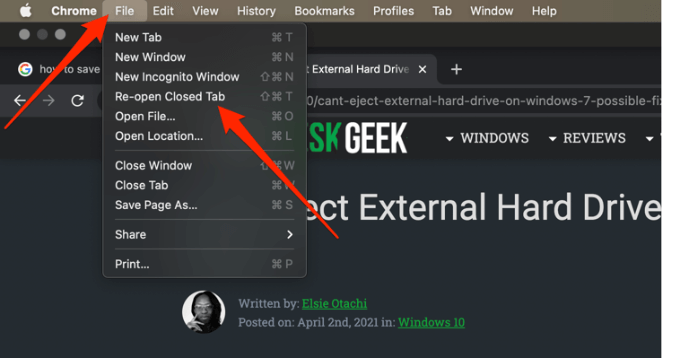
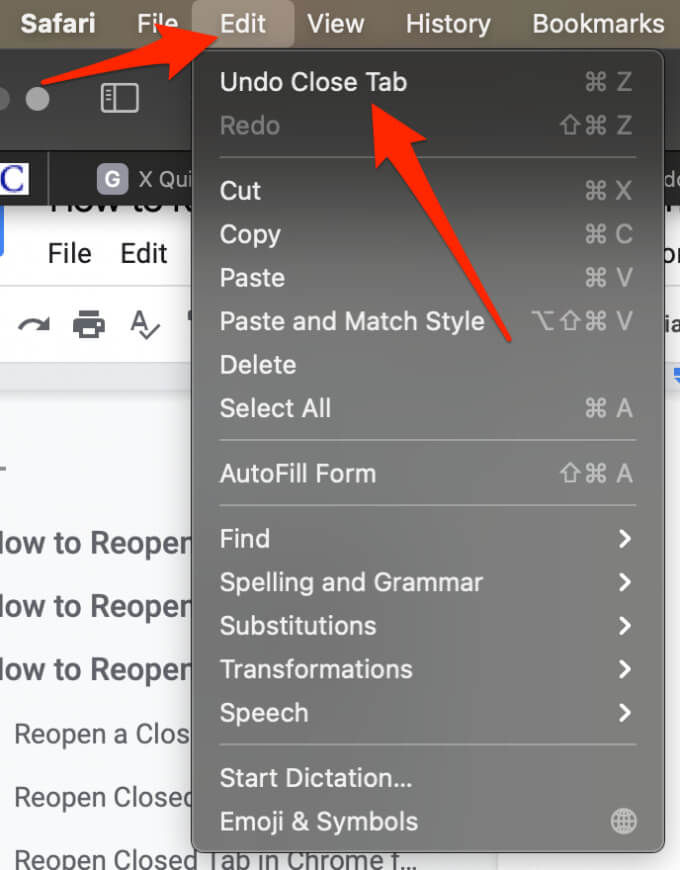
Using the Menu Bar
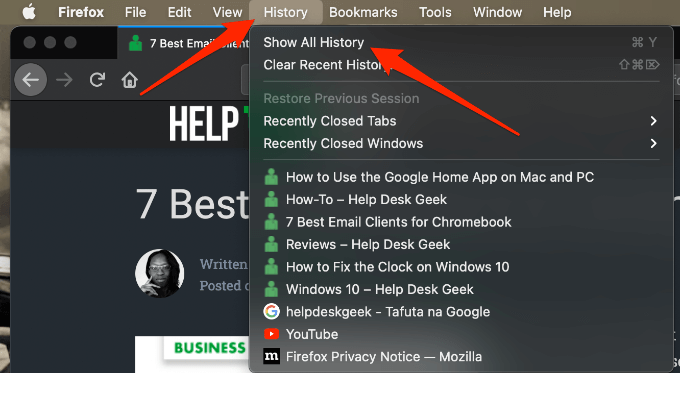
The menu bar on your Mac offers several features including the Undo Closed Tab feature.
Using the Browser History
How to Reopen a Closed Tab in Edge
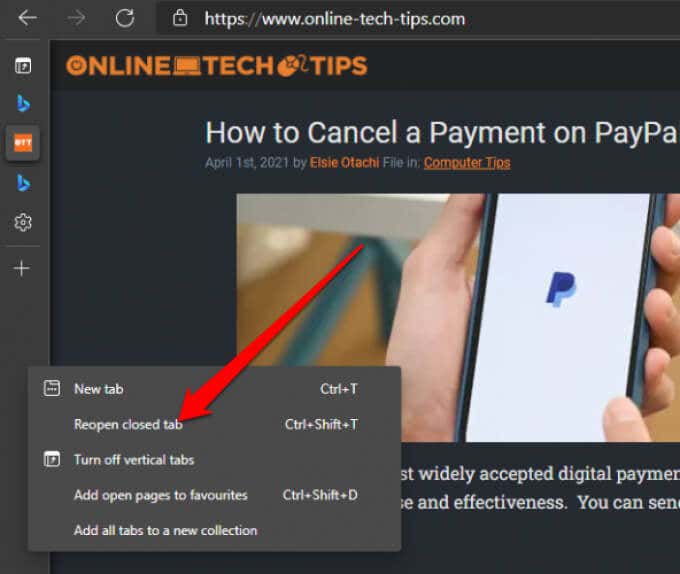
You can reopen closed tabs in the exact order in which you closed them using the shortcut Ctrl + Shift + T.
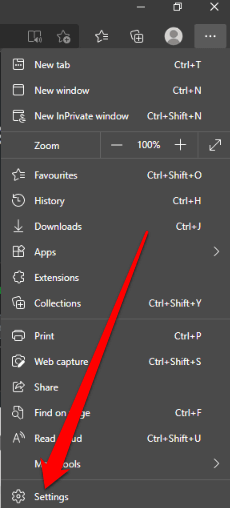
Using the Menu Bar
You can set up the Edge browser to open previously closed tabs each time you launch the browser. This way, you can pick up easily from where you left off. If you want to see your browsing history, press CTRL+H to open the History tab and find the tabs you closed recently. Note: These steps don’t work if you’re using Incognito mode.
How to Reopen a Closed Tab in Firefox
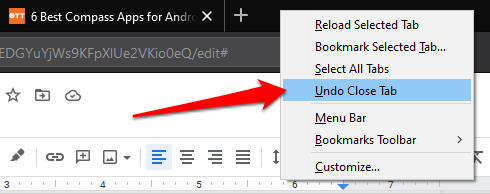
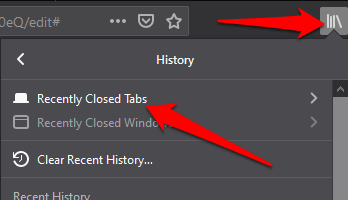
Reopening a closed tab on Firefox is pretty straightforward. You can use a keyboard shortcut or the Undo Closed tab feature on the menu bar.
Using a Keyboard Shortcut
Using the Menu Bar
We hope this guide helped you reopen closed tabs on your Windows or Mac.