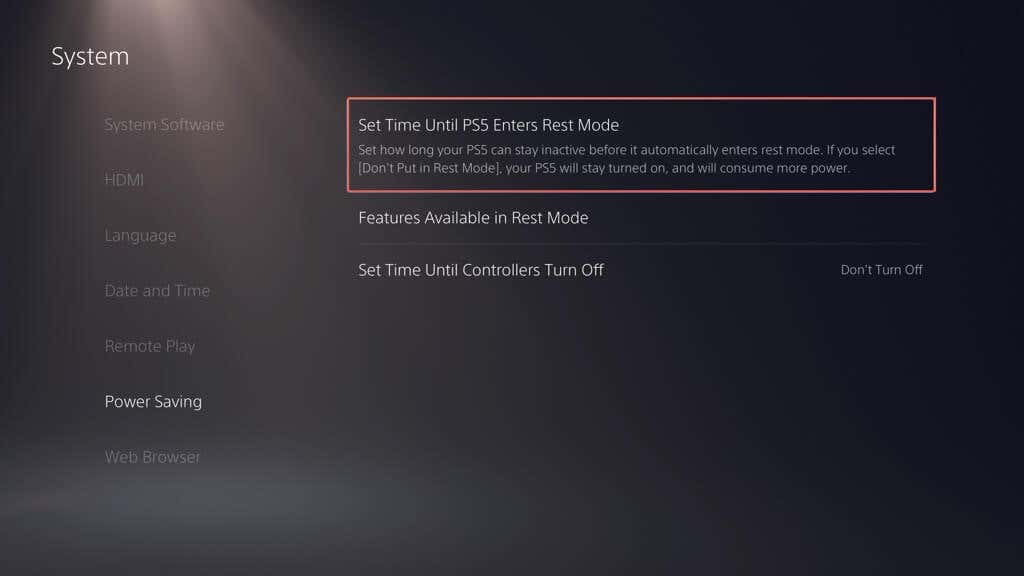
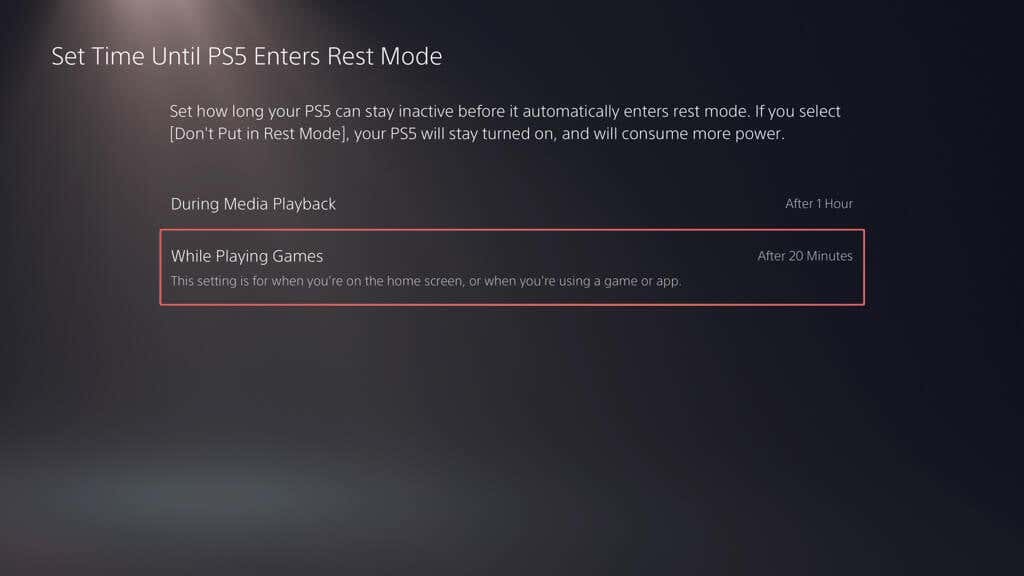
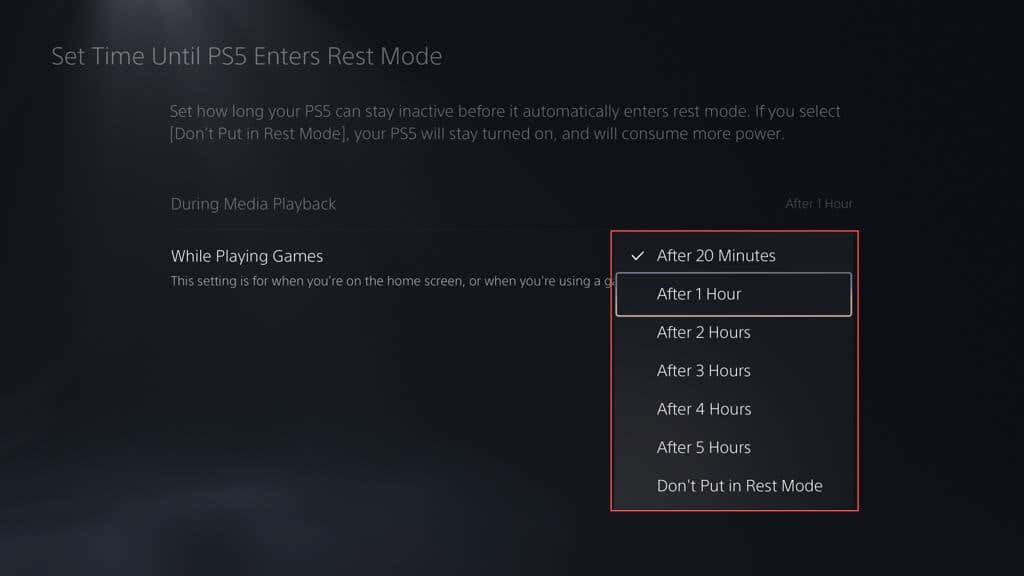
Your PS5 automatically enters Rest Mode after 20 minutes of inactivity. However, if you’d like to manually put the console into Rest Mode or adjust the automatic activation time, this tutorial will show you how.
How to Put Your PS5 in Rest Mode
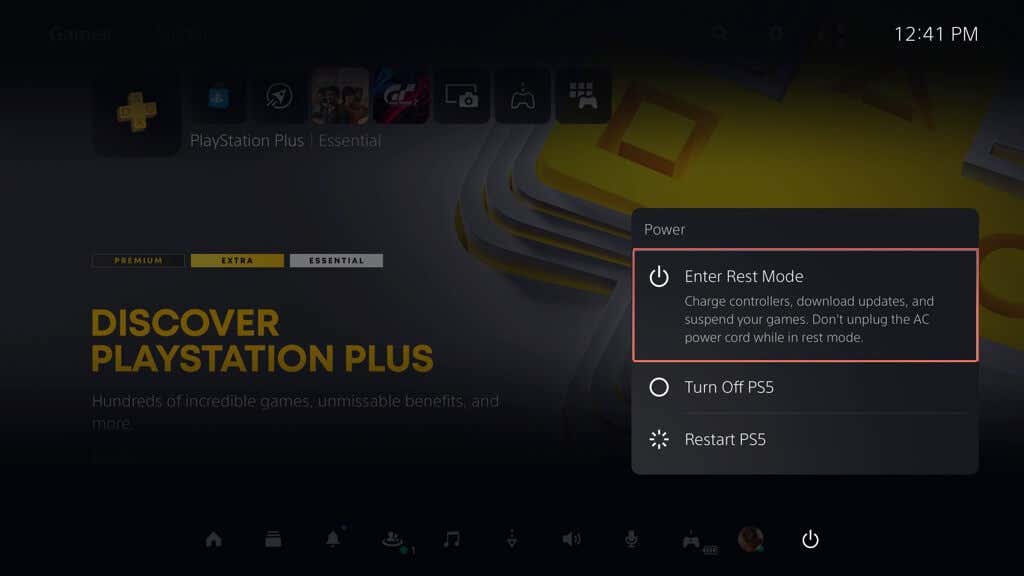
You can put your PS5 into Rest Mode whenever you want. If you have a game running, just pause or exit to the Home Screen, and then: Your TV or monitor screen goes black and the power indicator lights on the PS5’s casing flashes amber to confirm it’s in Rest Mode. Do not disconnect the power cable since the console still needs power—around 0.36 to 3.2 watts per hour—to remain in this state.
How to Get Your PS5 Out of Rest Mode
You have a couple of ways to get a PS5 console out of Rest Mode. Just press the PS button on the DualSense controller. Or, press the Power button on the console’s casing. The PS5 should beep and start up. If you entered Rest Mode with a game running in the background, select its icon on the Home Screen to resume playing immediately.
How to Change Rest Mode’s Automatic Timer
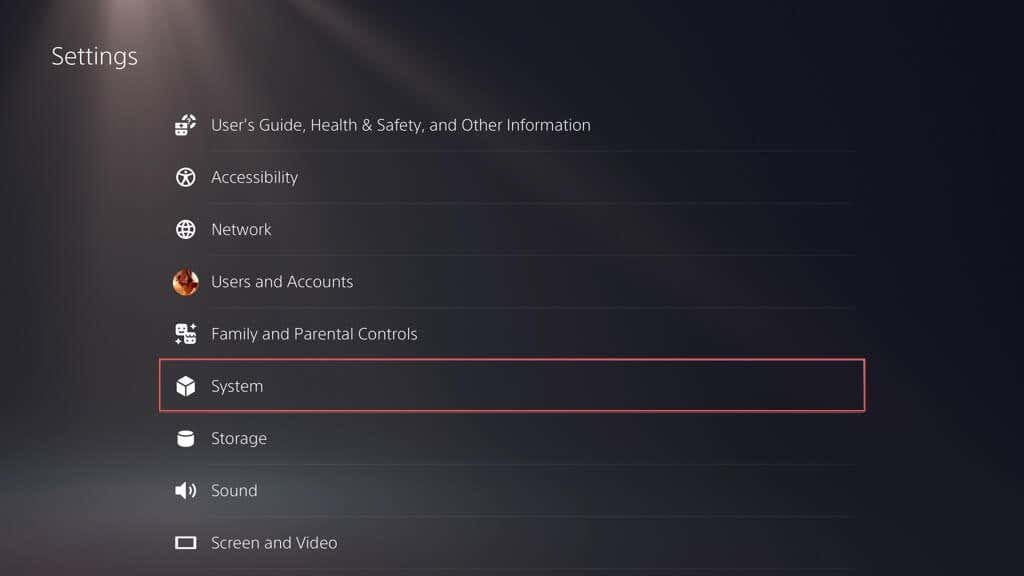
If you’d like to change how quickly the PS5 enters Safe Mode on its own:
Rest Your PS5 Console
Entering Rest Mode on your PlayStation 5 is not only useful from a power management perspective—it also increases the longevity of the console by preventing it from working extra hard to load everything from scratch for each new gaming session. Sure—it’s not ideal for every scenario. For example, if you’re troubleshooting the gaming console, looking to boot into Safe Mode, or plan not to game for days, shut down your PS5 instead.