Luckily, Google Play makes it easy to pause or cancel subscriptions, and this tutorial will walk you through the process. You’ll also learn how to request refunds for subscriptions on Google Play.
How to Cancel Google Play Subscriptions
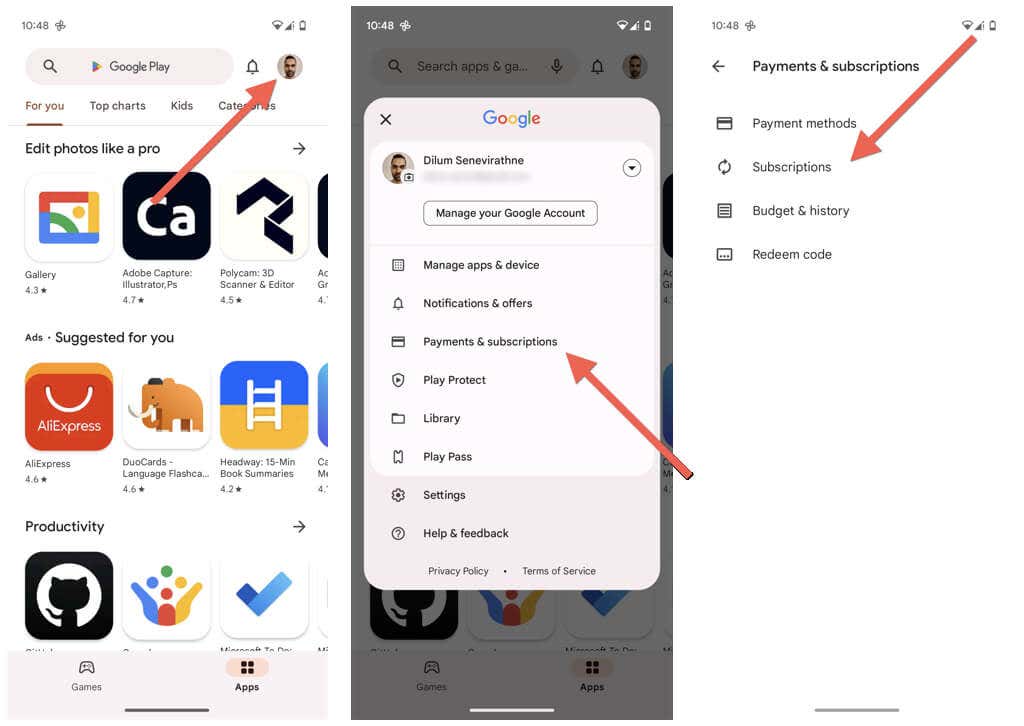
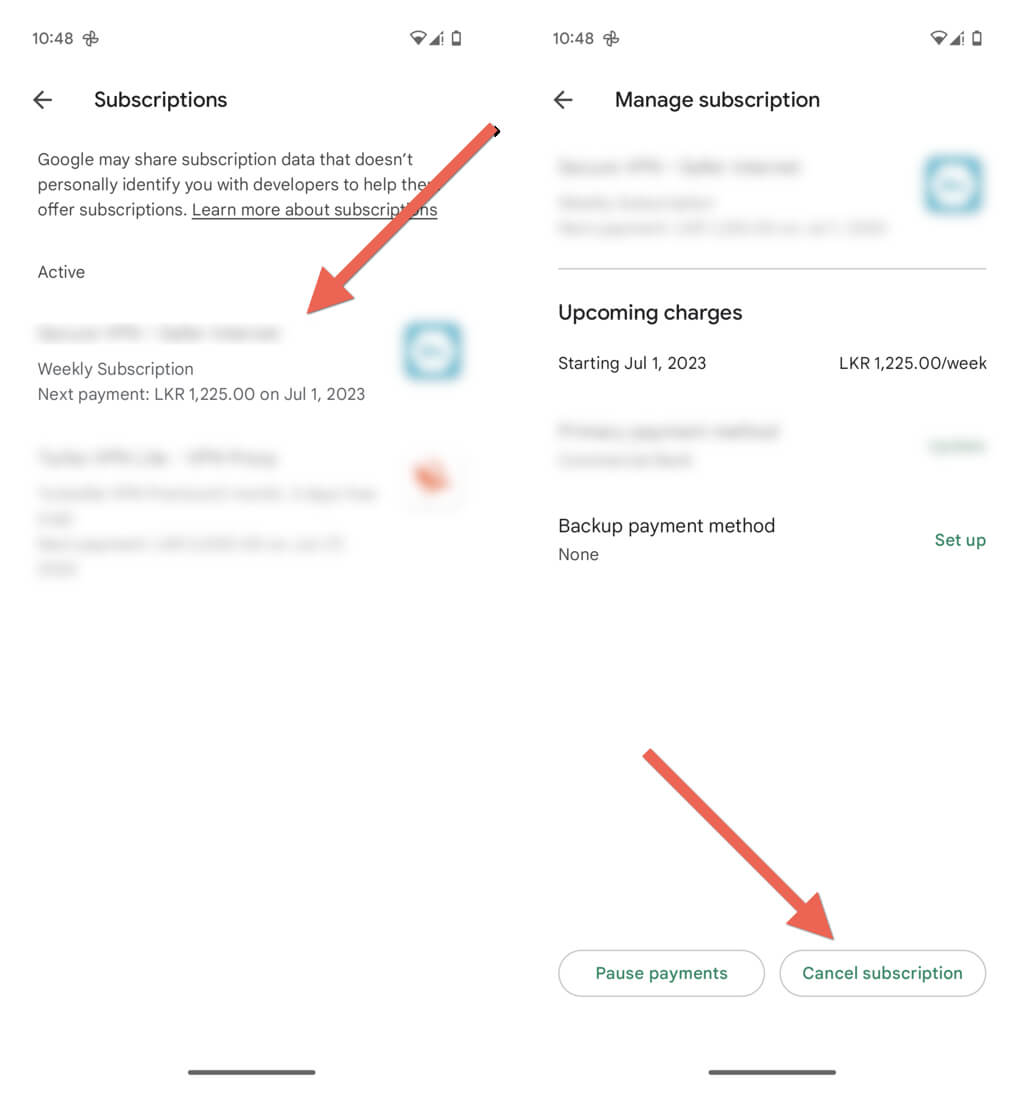
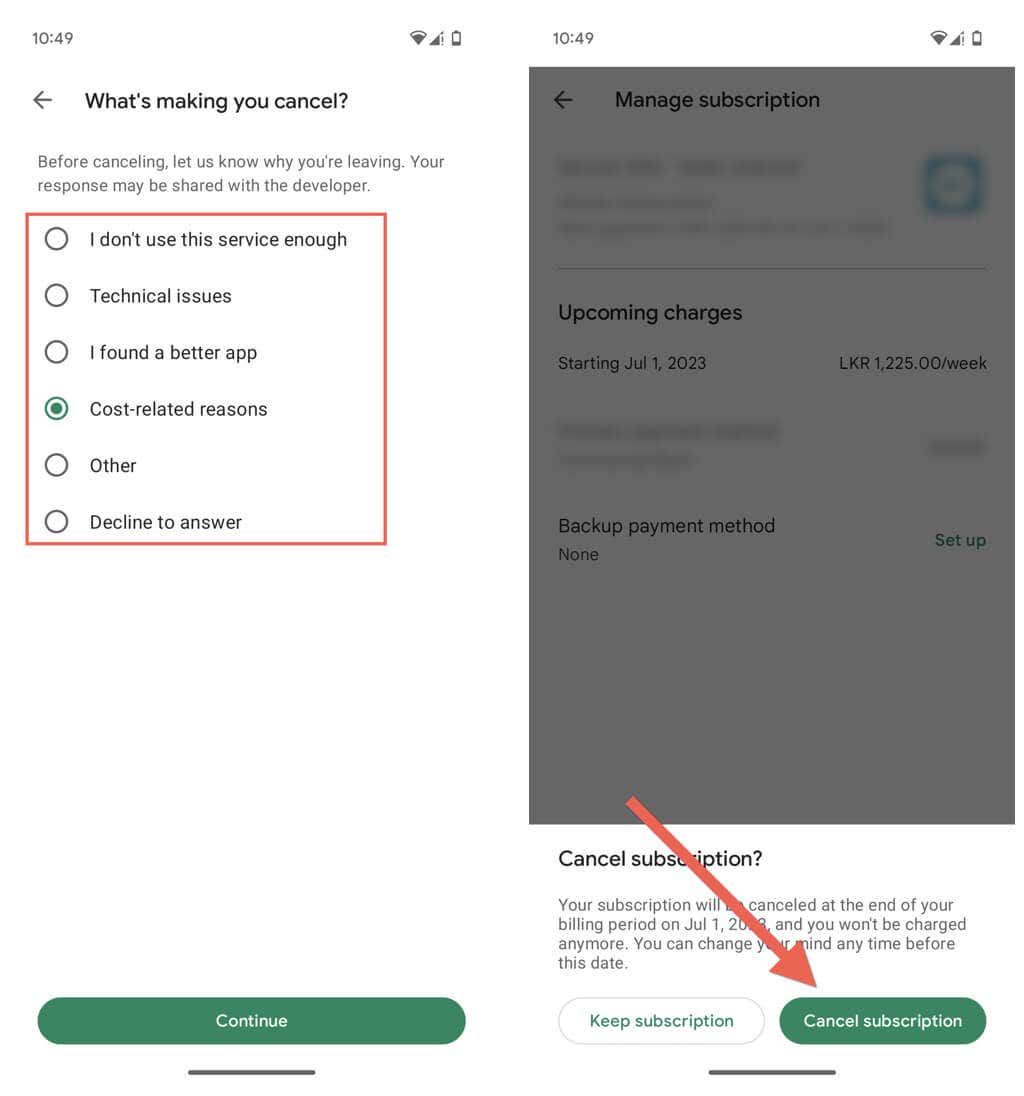
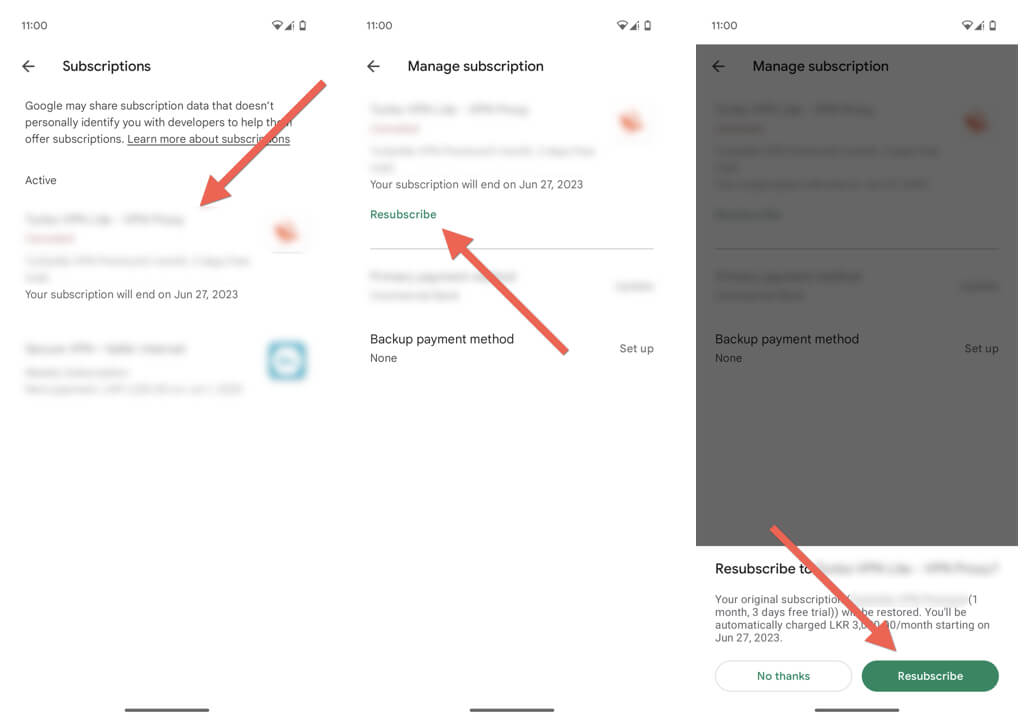
If you’ve decided to discontinue a Google Play subscription permanently, just deleting the relevant app from your Android phone won’t suffice. Instead, you must visit Google Play’s Subscriptions management console and cancel the subscription. Note: Despite canceling a subscription, you’ll have access to paid content until the end of the current billing period. For example, if you cancel halfway through a yearly subscription, you still have six months of access. To cancel a subscription to Google Play: If you change your mind and want to re-subscribe before or after the subscription expires:
How to Pause Subscriptions on Google Play
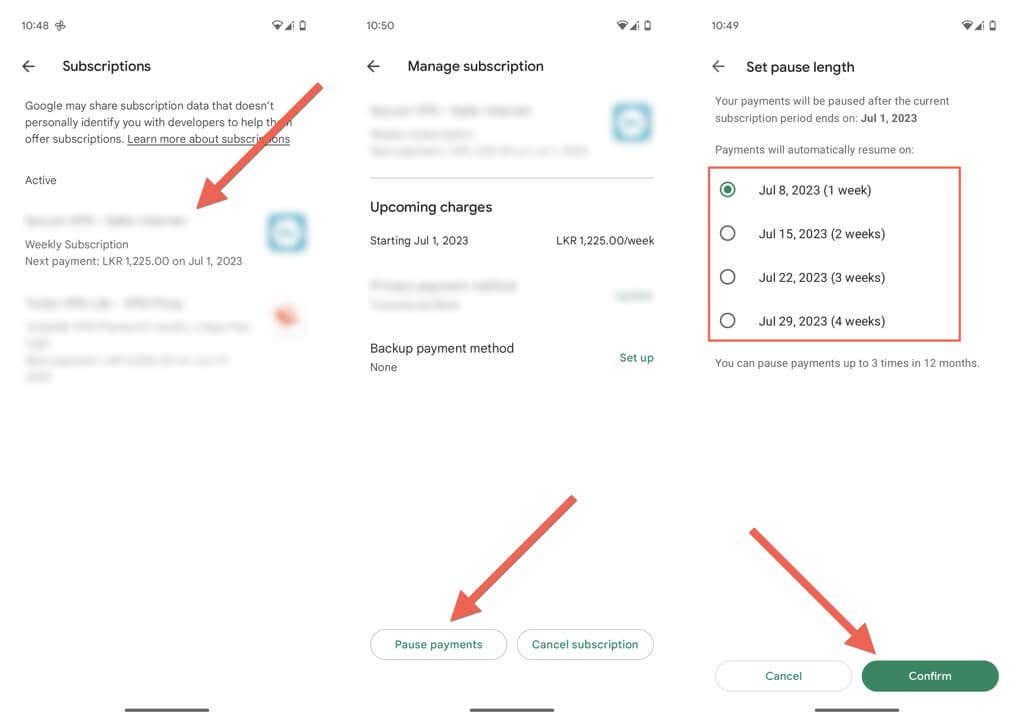
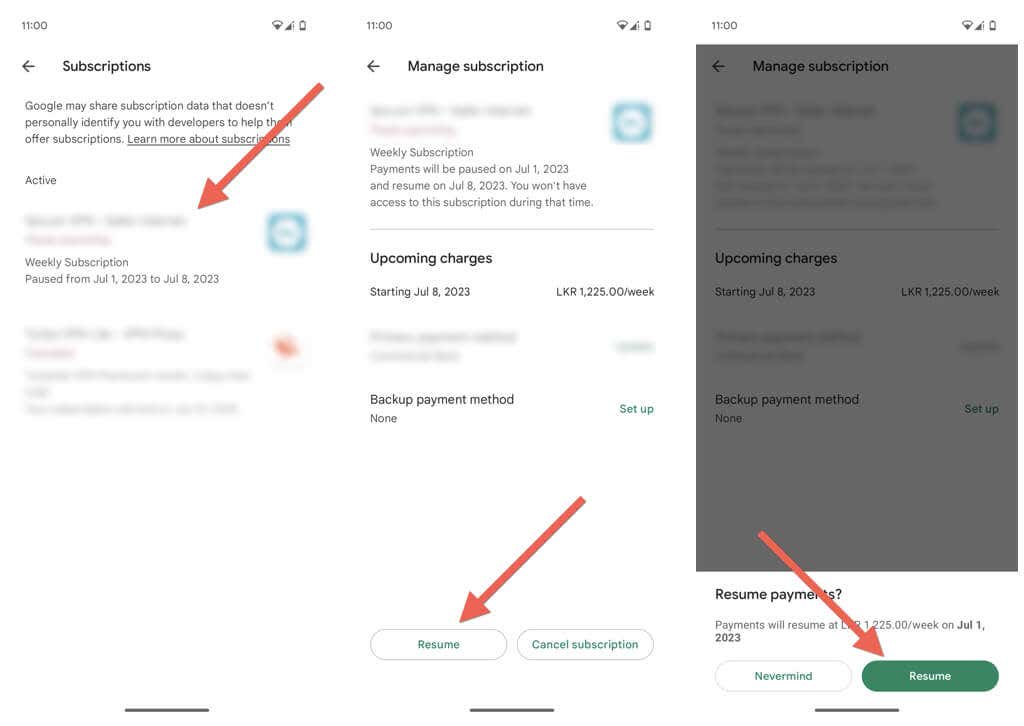
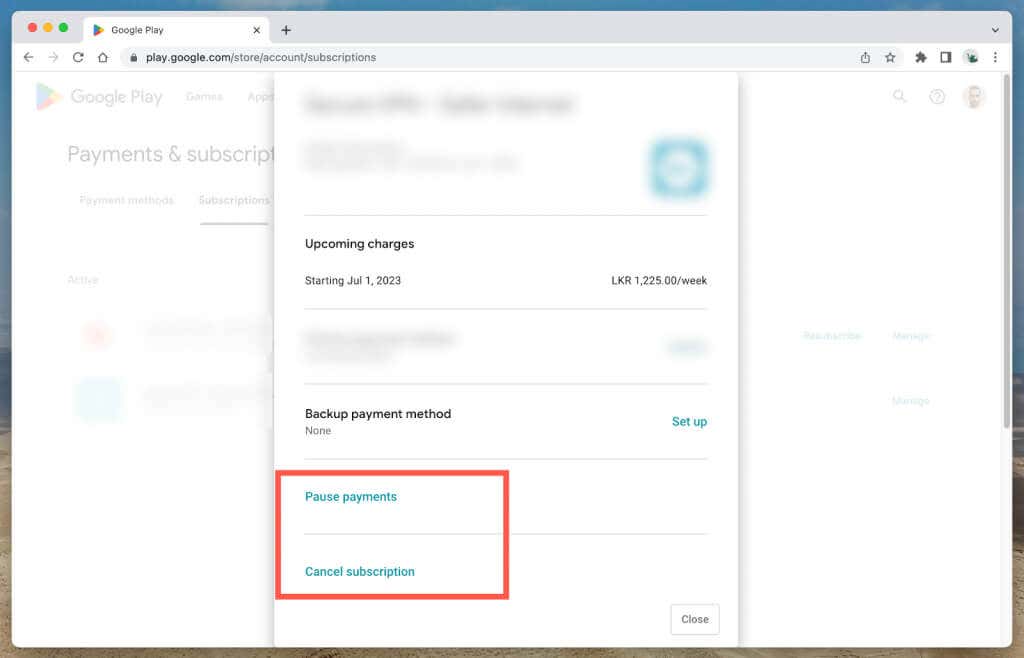
At times, you may want to temporarily halt a Google Play subscription without canceling it entirely. Pausing a subscription allows you to suspend payments for a specified period. To pause a subscription on Google Play: To restart the subscription before it automatically resumes:
How to Receive Refunds for Google Play Subscriptions
There are circumstances where you want a refund for a Google Play subscription. For example, it could be an accidental purchase, issues with the app or service, false advertising, etc. Requesting a refund for a Google Play subscription depends on whether it’s been less or more than 48 hours since purchase.
You can request a refund from Google if it’s been less than 48 hours since you subscribed to the app or service. You must contact the app developer for a refund if it’s been more than 48 hours since you subscribed to the app or service.
Before 48 Hours—Contact Google
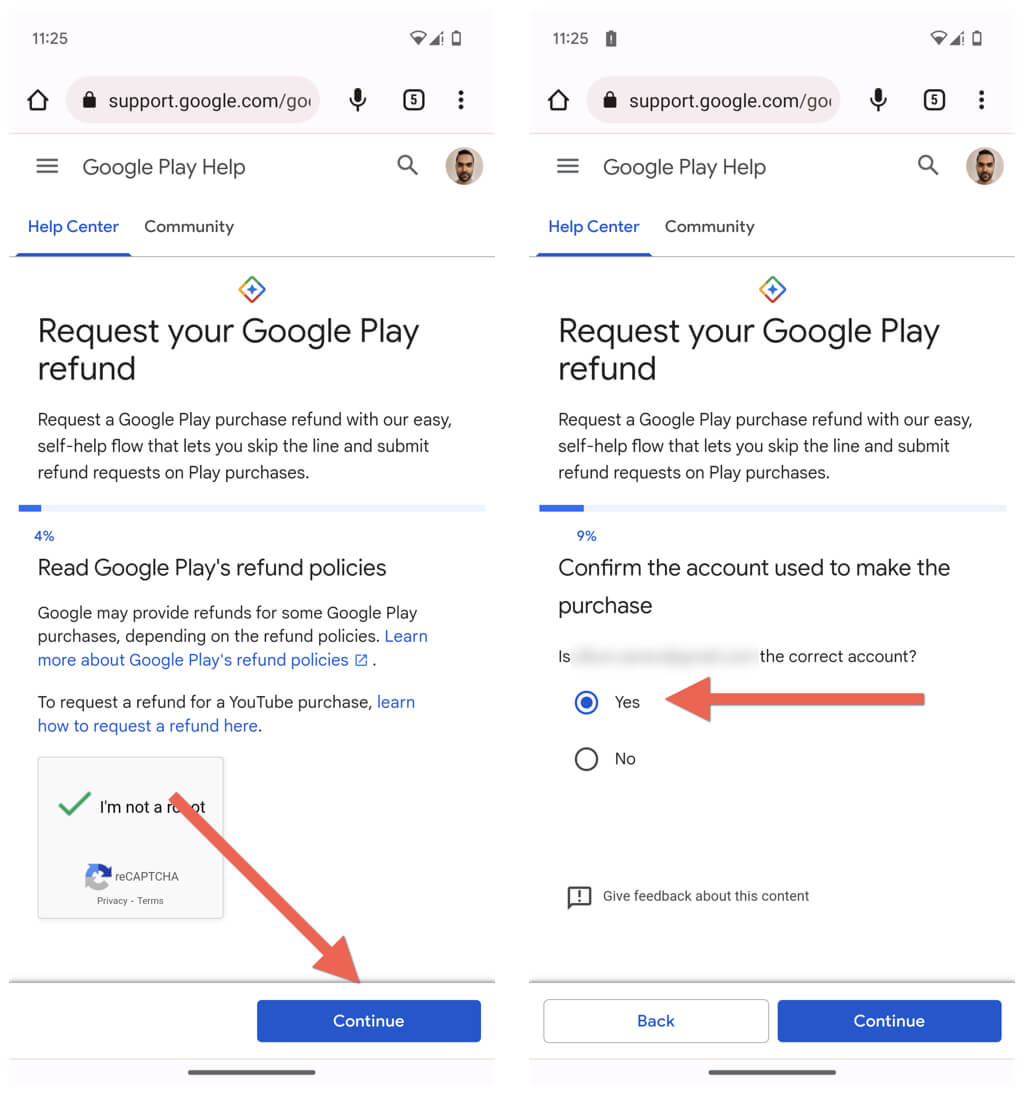
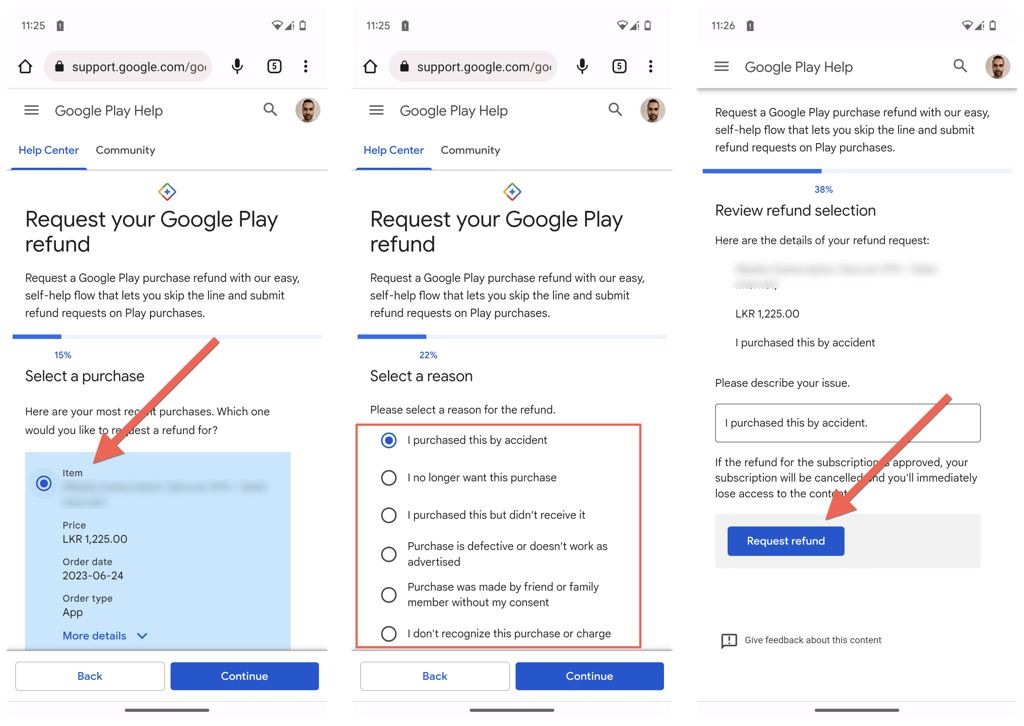
To request a refund from Google: Refund requests take up to four days to process. You’ll receive an email if Google decides to approve or decline the refund. Visit the Check your Google Play refund status page to check the request’s status. If you receive a refund, the amount will be credited to the payment method you used to make the subscription—Google Play balance, credit card, etc.
After 48 Hours—Contact the Developer
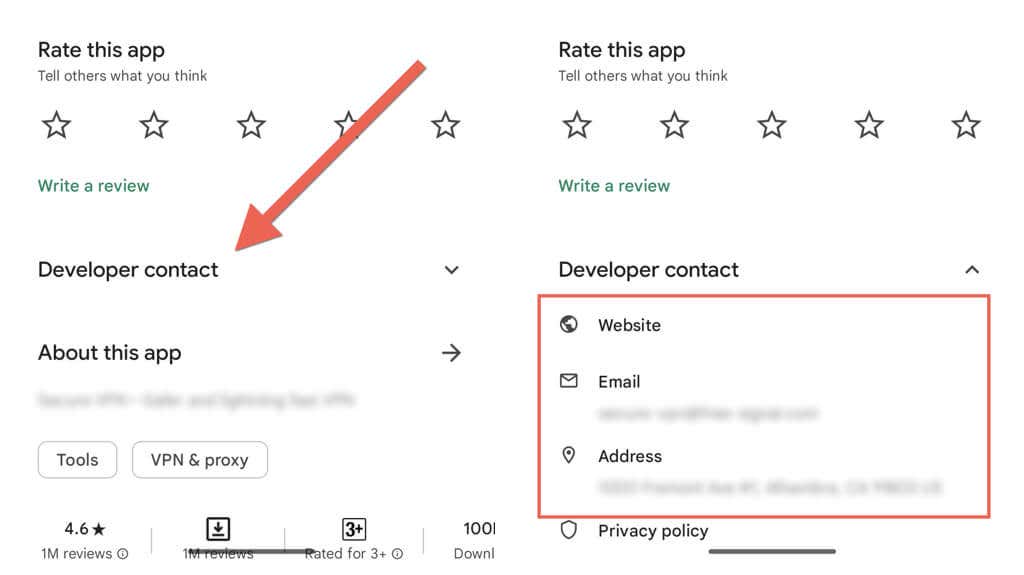
To contact the developer for a refund, you must:
How to Pause, Cancel, and Refund Subscriptions on Non-Android Devices
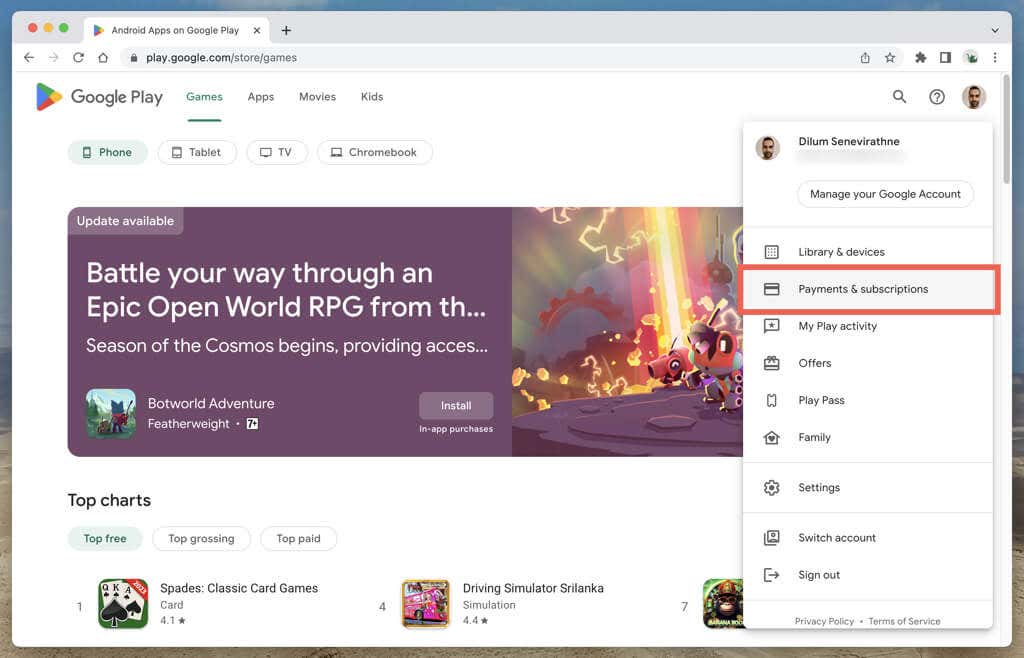
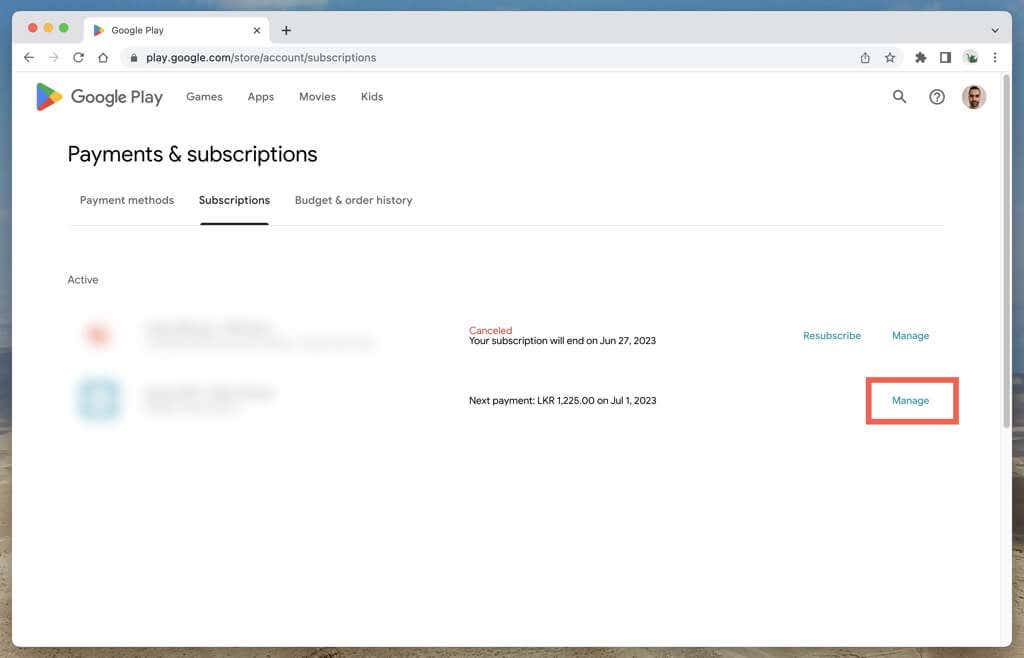
If you do not have access to your Android phone, don’t worry. You can pause, cancel, or refund subscriptions on any non-Android device via the web version of the Google Play Store. Here’s how: If you want to initiate a refund for a subscription:
Visit the Request your Google Play refund page if it’s been less than 48 hours since making your payment. Contact the developer—you can find the contact information on the app’s store page—to request a refund after 48 hours.
Take Control of Your Google Play Subscriptions
Knowing how to manage your Google Play subscriptions is essential to tailoring the digital experience on your Android device. Whether you want to pause a subscription, cancel it permanently, restart a paused or canceled subscription, or seek a refund when necessary, you have the power to take control.