An external hard drive or SSD is a practical and cost-effective solution. It ramps up available storage space, allowing you to fit more games and helping the console run smoothly and efficiently. This tutorial will provide a straightforward approach to setting up an external hard drive on the Sony PS5 and using it to move, install, and copy games.
Prepare for the Initial Setup
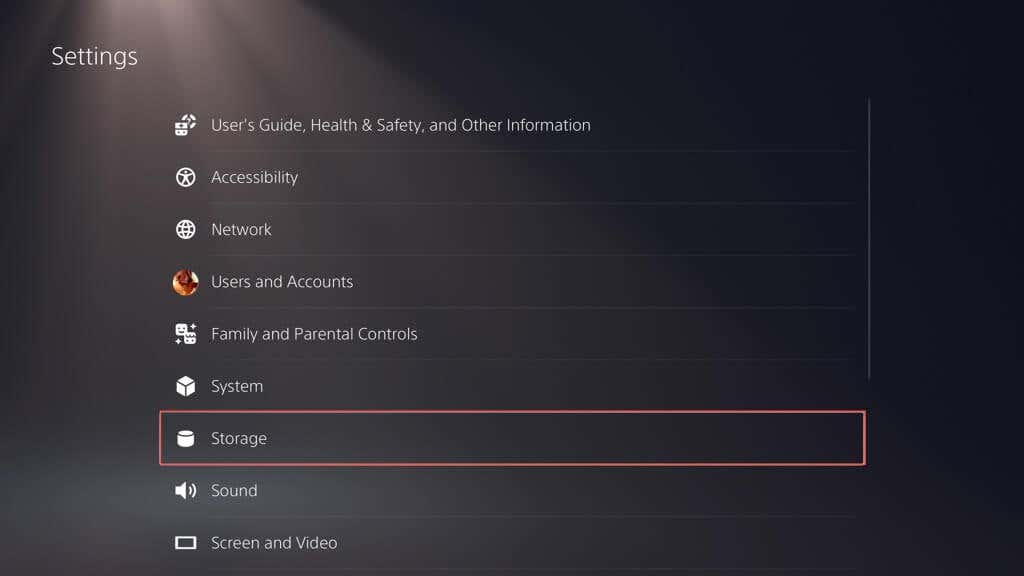
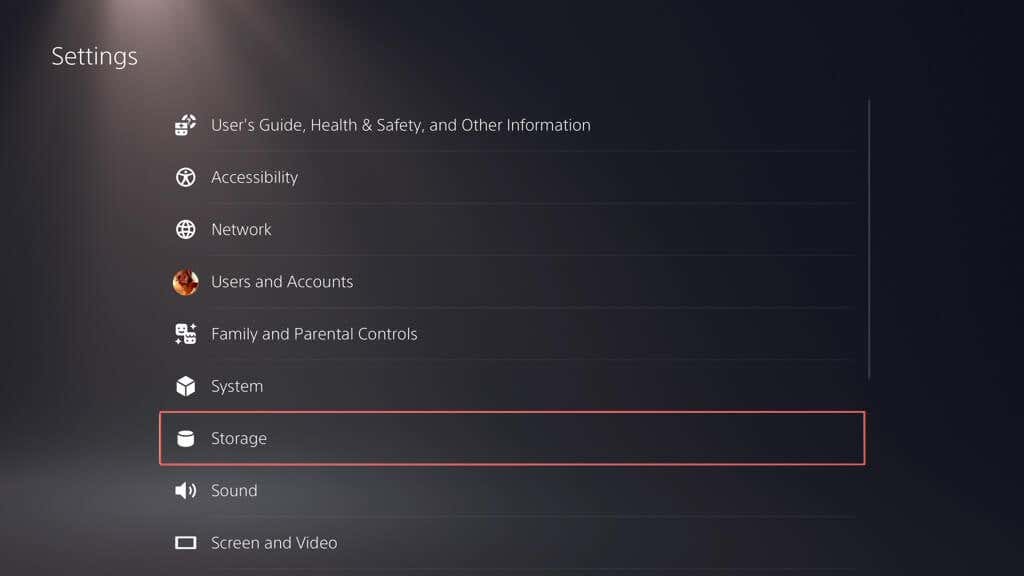
To extend the storage on your PS5, you must have an external hard drive or SSD that’s USB 3.0-compatible with a capacity of at least 250GB. Don’t worry if the drive is too big—the console handles sizes up to 8TB. Additionally, you need a USB-3.0-compliant cable to connect the external drive to your PS5. If you’re unsure, just use the cable that came with the drive’s packaging. It’s also necessary to free up the SuperSpeed USB-C port at the front or one of the USB-A ports at the rear of the console, depending on the cable your external drive uses. The forward-facing USB-A port is not compatible with extended storage media. As a final step, ensure your PS5’s system software is up-to-date. That improves hardware compatibility and resolves known issues with the extended storage setup process. Navigate to Settings > System > Software Update to update the system software.
Format the External USB Drive
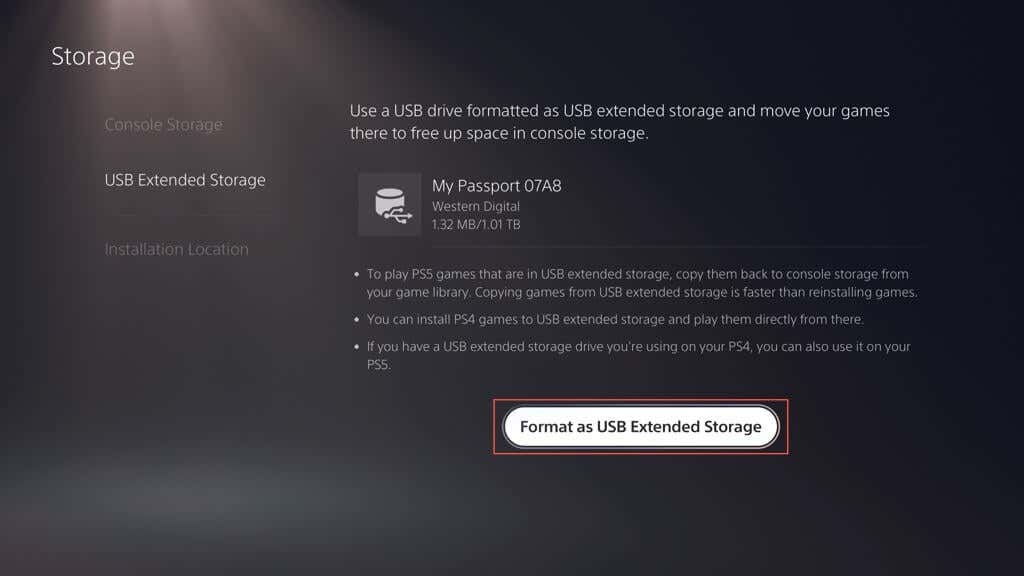
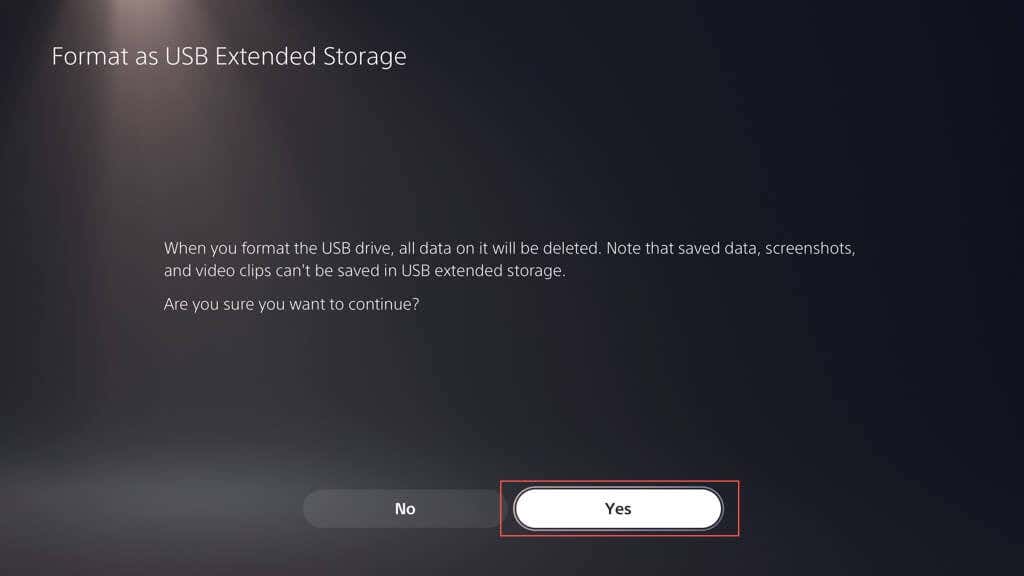
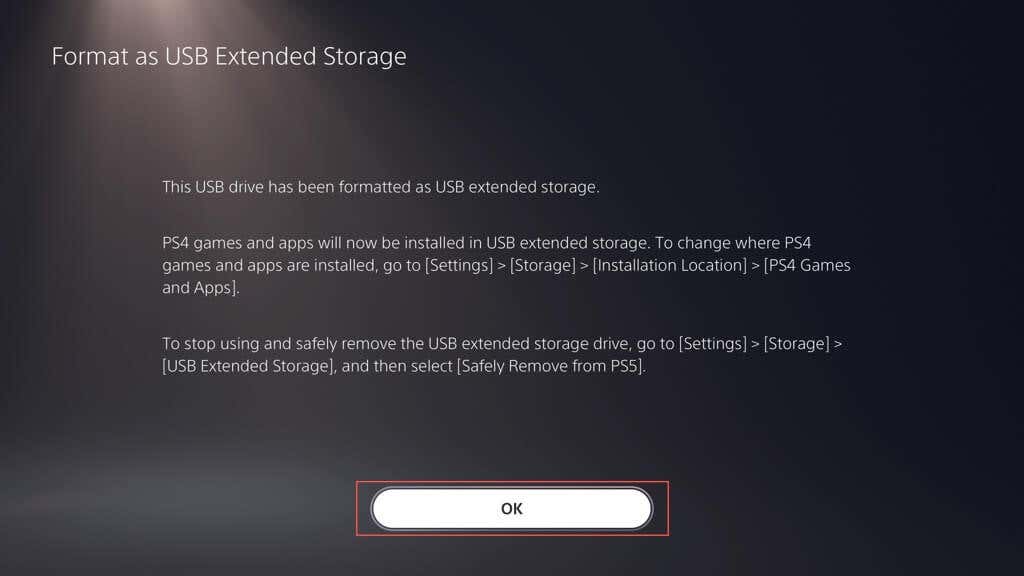
Assuming you have everything ready, it’s time to set up the external drive to work as an extended storage device with your PlayStation 5.
Warning: Back up any data on the external hard drive, as the PS5 requires erasing it before setup.
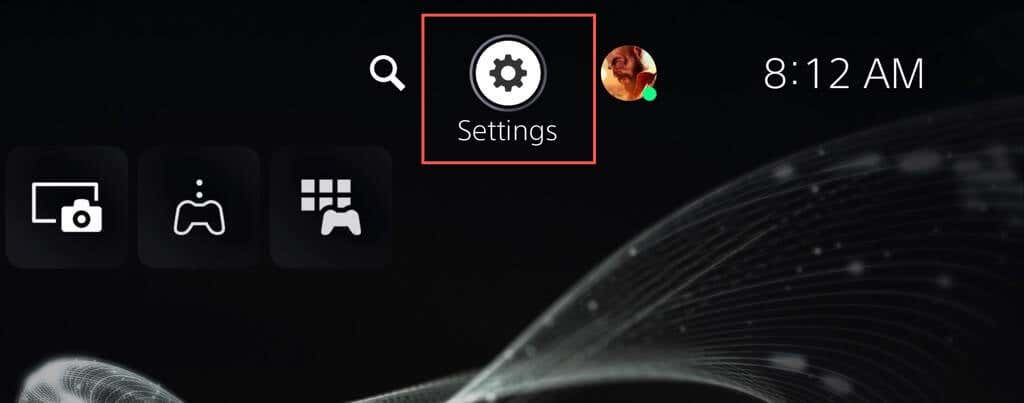
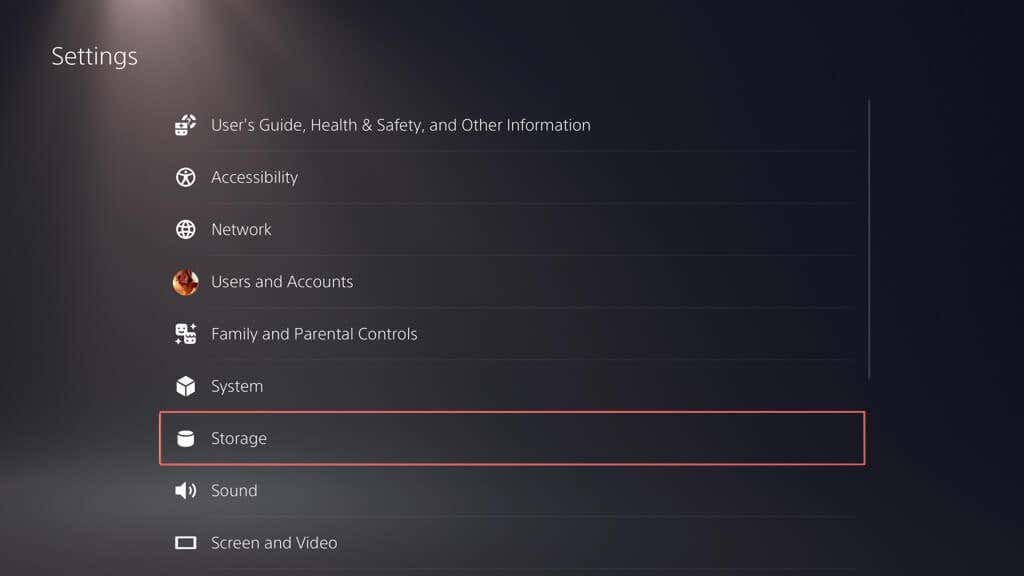
Begin by connecting the USB drive to the USB-C port on the front or a USB-A port on the rear of the console (there are two of them). Do not connect the drive through a USB hub. Then:
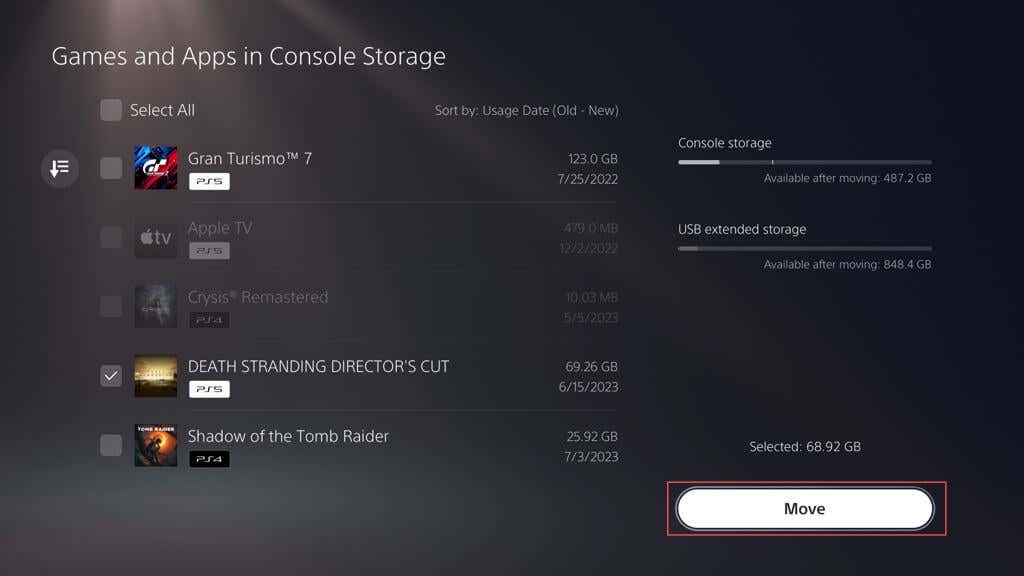
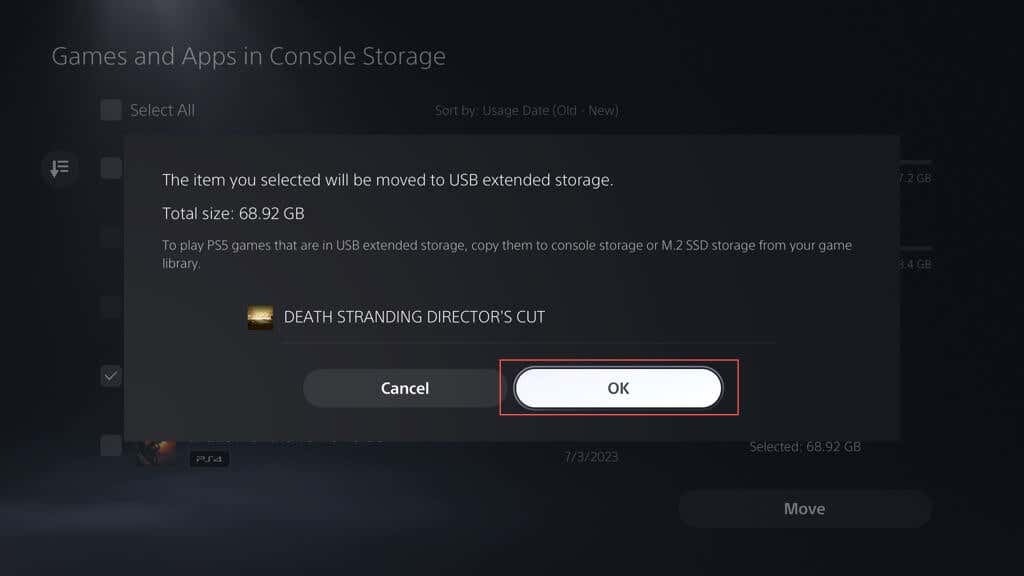
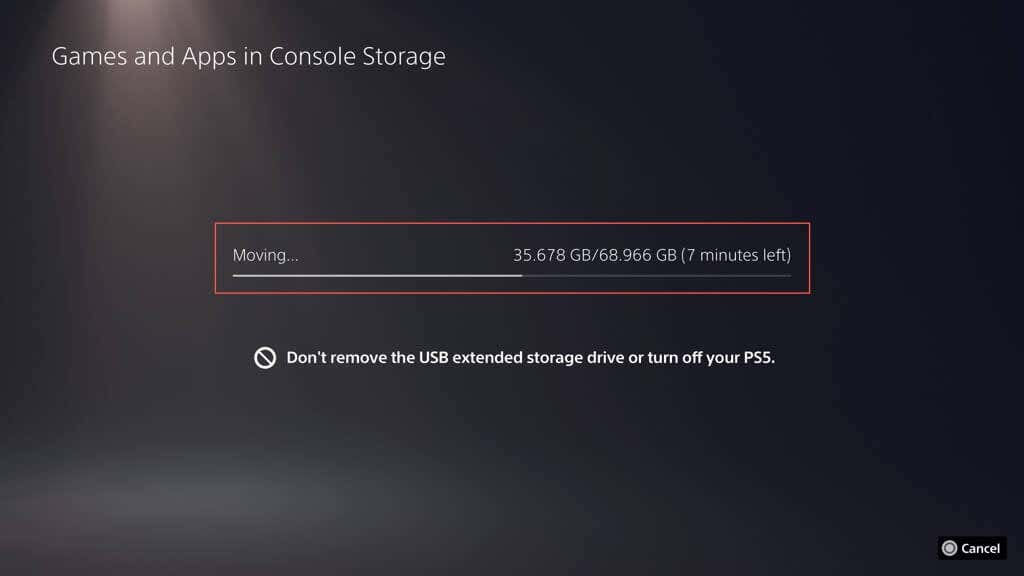
Move Games to the Extended Storage
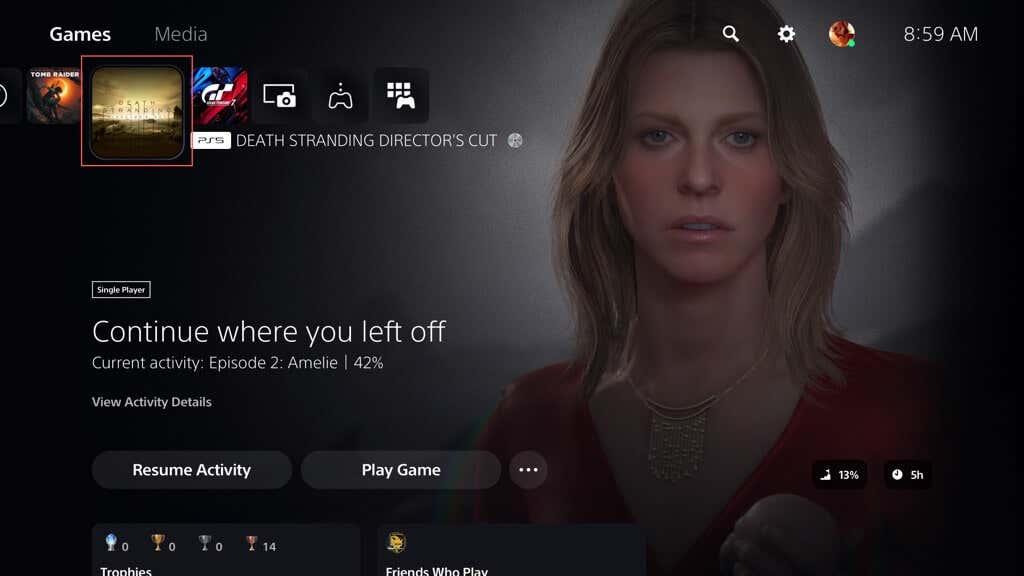
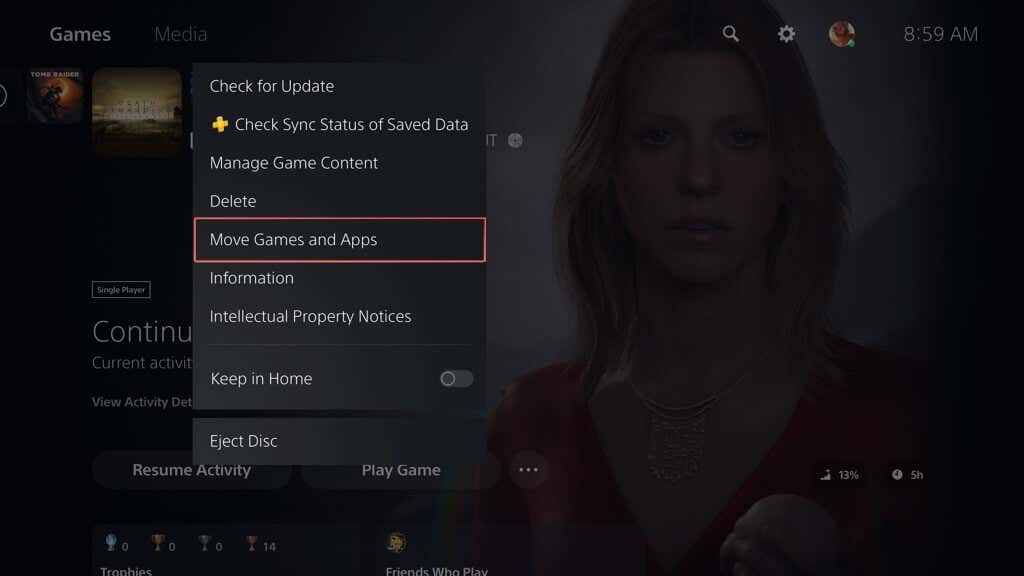
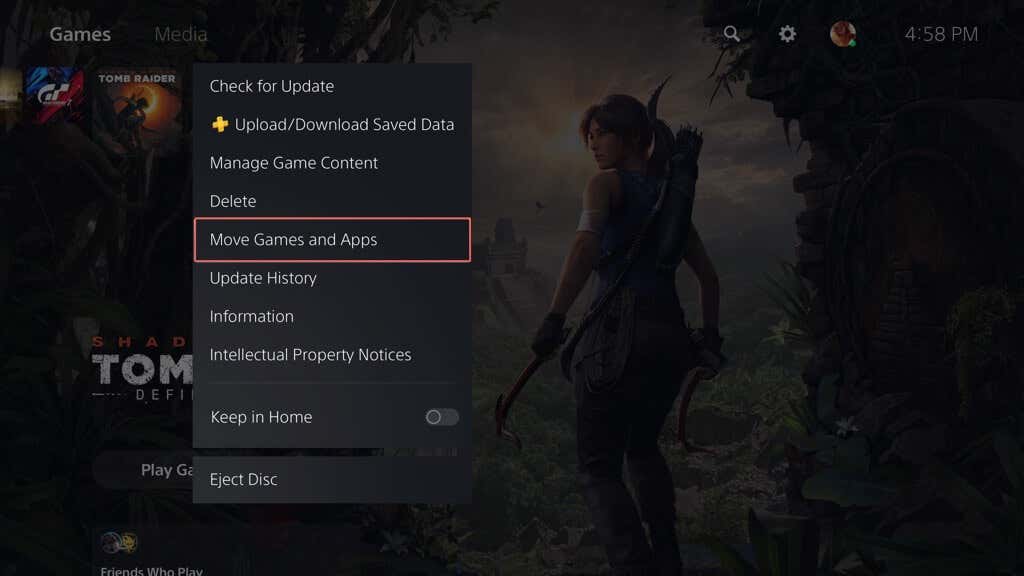
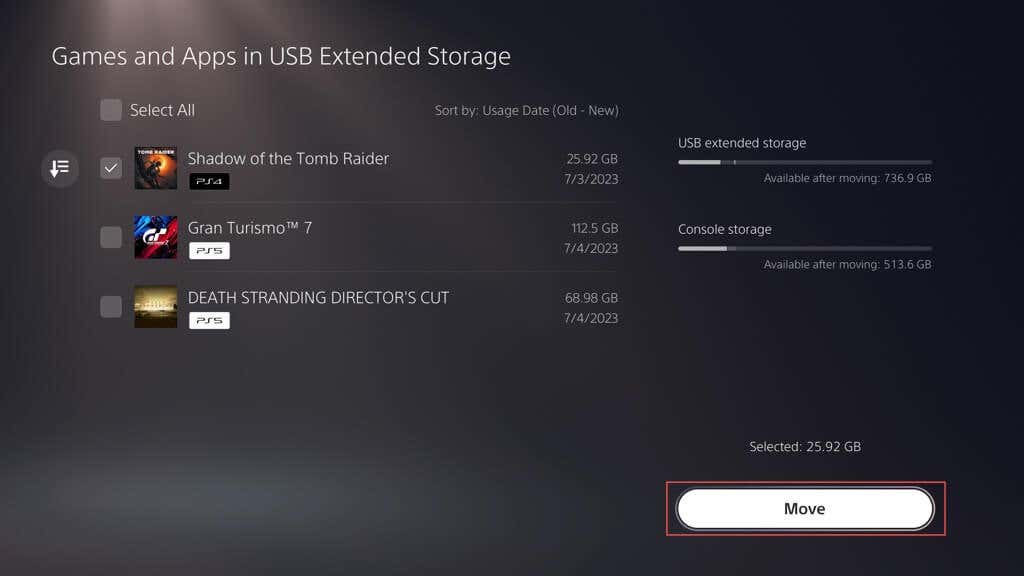
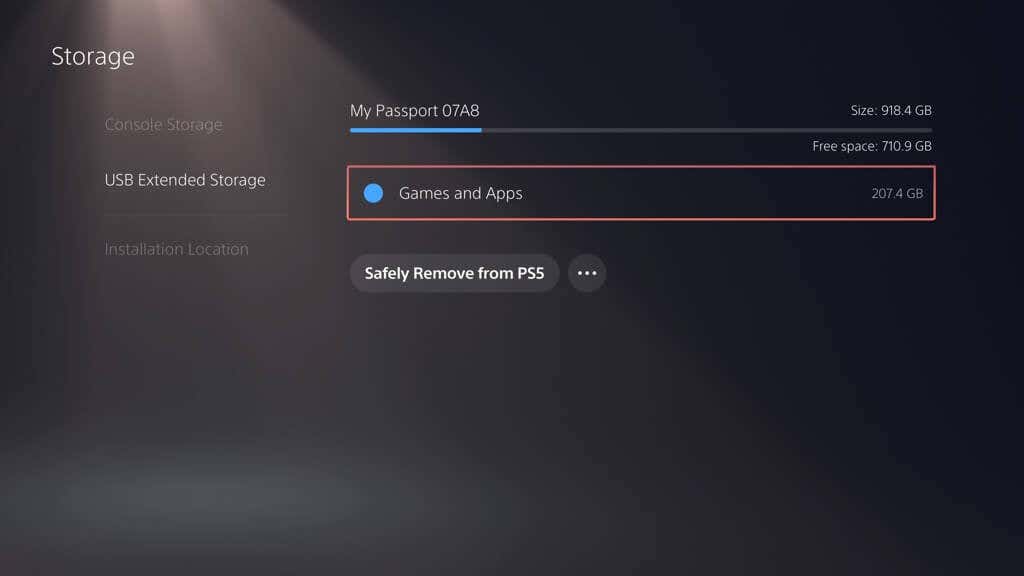
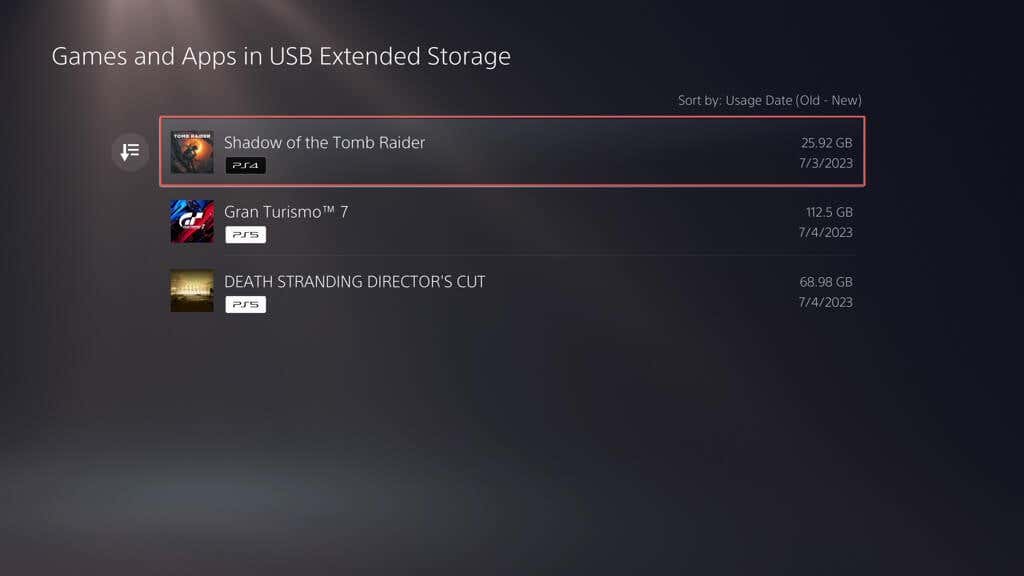
With the hard drive set up as an extended storage device on the PS5, you can start moving games to it immediately. Here’s how:
Install Games on the Extended Storage
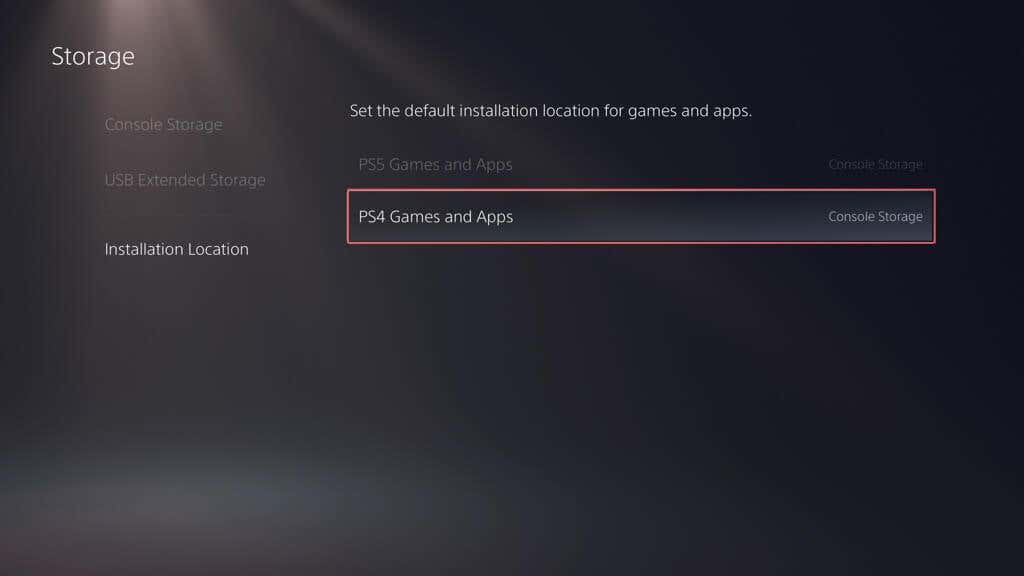
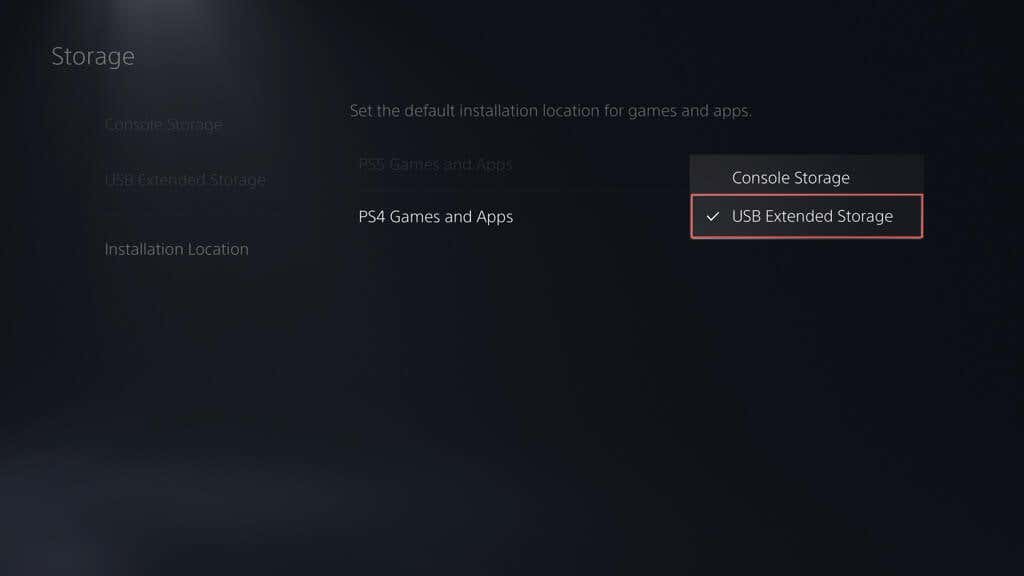
It’s possible to configure your PS5 to install games directly to its extended storage, but the functionality is restricted to PS4 versions of video games only. To set that up: Digital and disc-based PS4 games should automatically copy data to the external drive from now onward.
Copy Back Games to Internal Storage
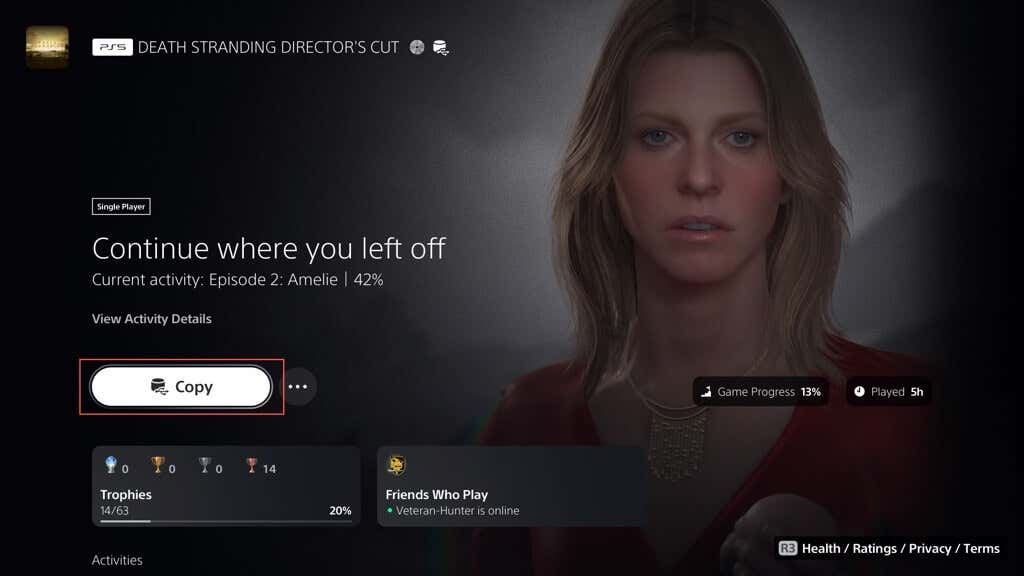
Developers design PS5 games to take advantage of the internal drive’s blazing-fast performance, so the console restricts you from playing them via extended storage. Hence, if you want to play a transferred PS5 game, you must copy it back. To do that: Unlike PS5 games, you can play PS4 games from the external storage drive. Just select Play on the Home Screen or Game Library. However, if you want to benefit from the internal storage’s enhanced read speed, here’s how to move them back:
Delete Games on the Extended Storage
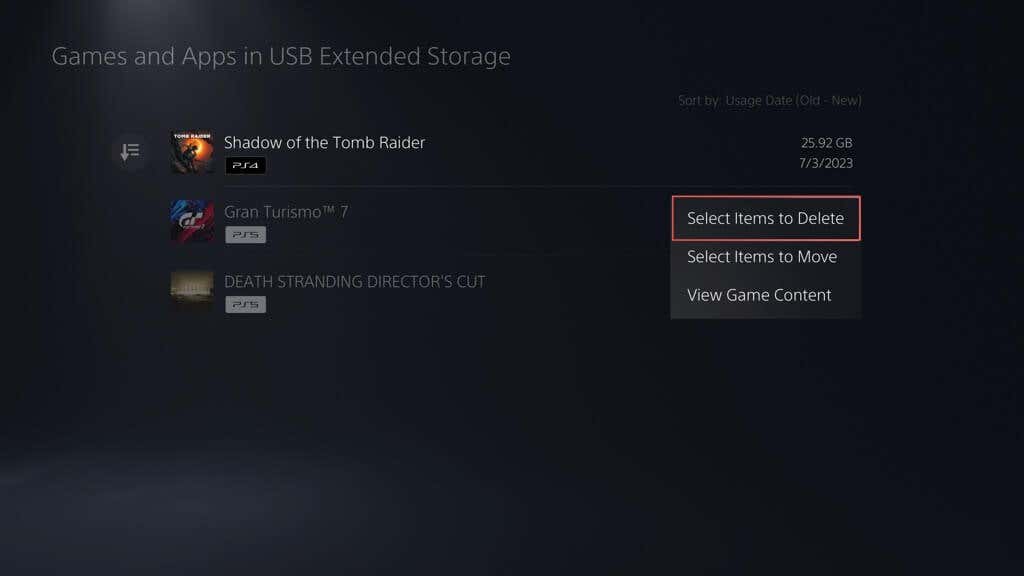
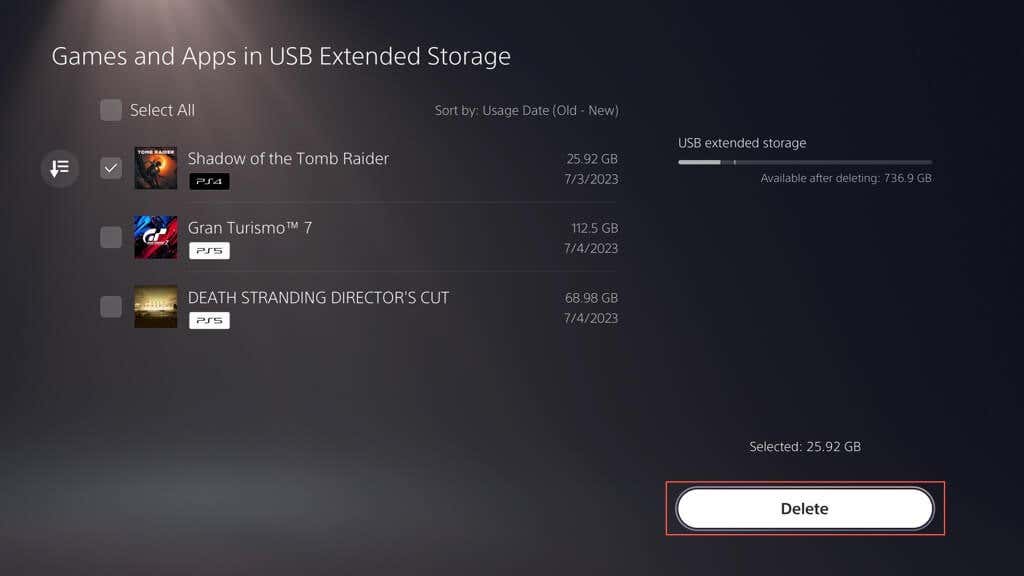
If your USB extended storage device begins filling up, you can delete games to free up space. Here’s how:
Remove the Extended Storage
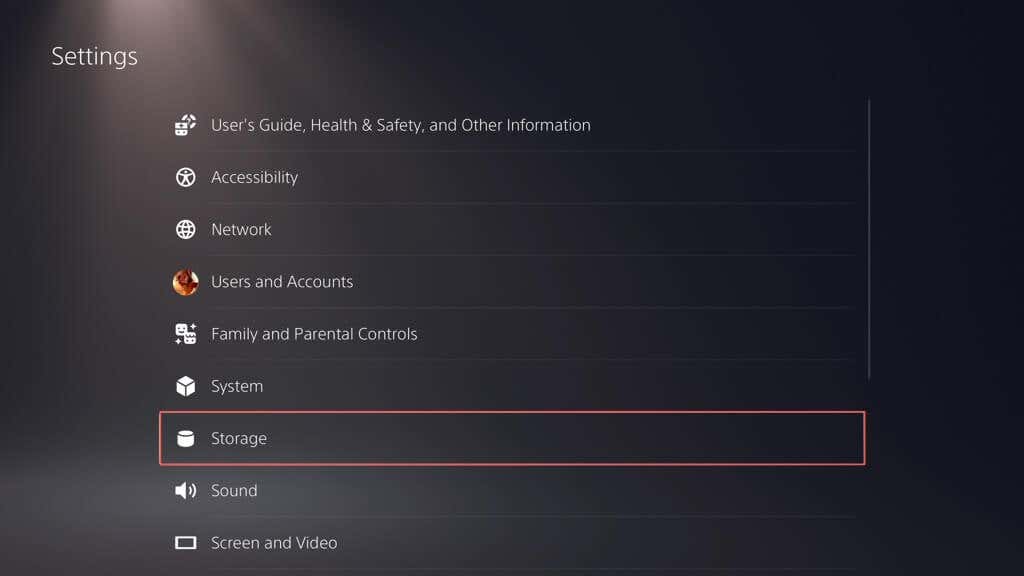
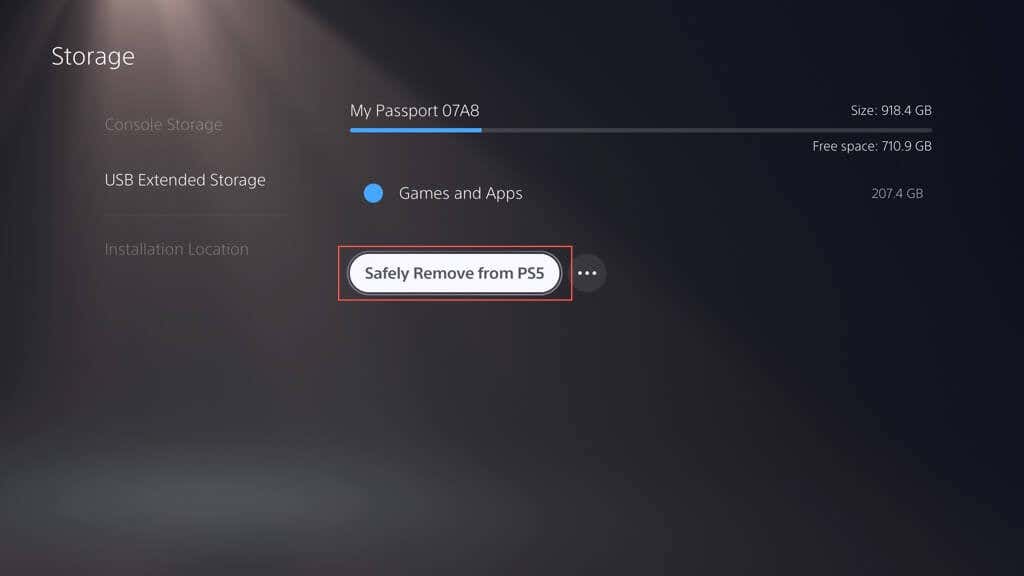
You must only unplug a USB extended storage drive after safely unmounting it first. To do that: Remember to plug the external drive back in whenever you want to move or copy back games.
You’ve Extended Your PS5’s Storage
That wraps it up! Boosting the PlayStation 5’s storage with an external hard drive or SSD is a smart move for any hardcore gamer. Granted, it doesn’t pack the same punch as slotting in an NVMe M.2 SSD, but it provides ample space for an expanding collection of games and puts the hassle of PS5 storage management in the backseat.