If you prefer, you can also check out our YouTube channel, where we posted a short video going over how to insert a signature in Google Docs:
How to Insert Your Digital Signature in Google Docs
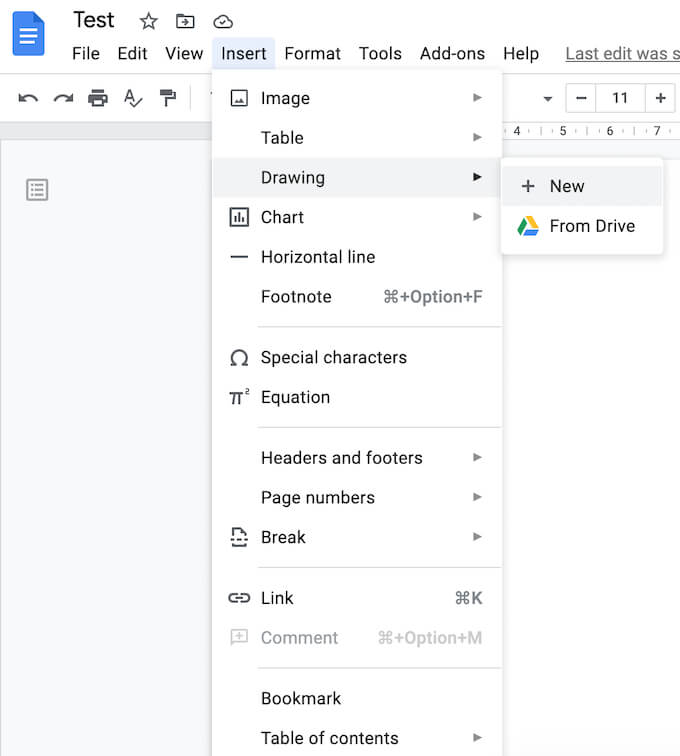
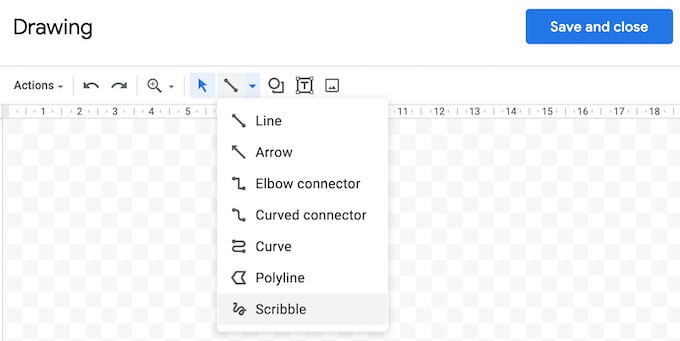
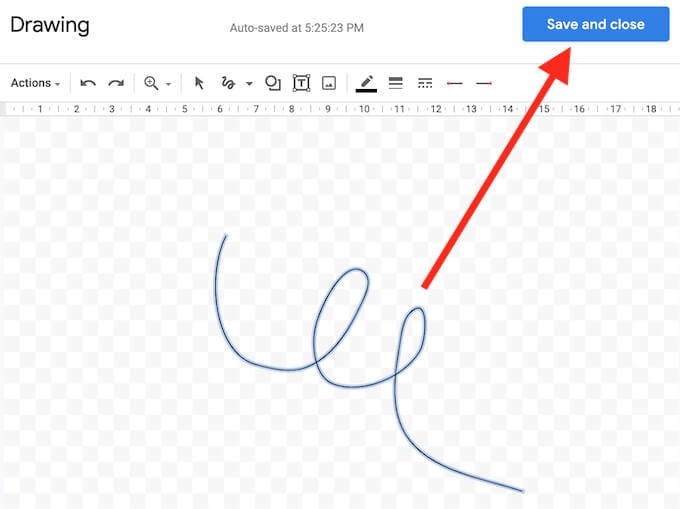
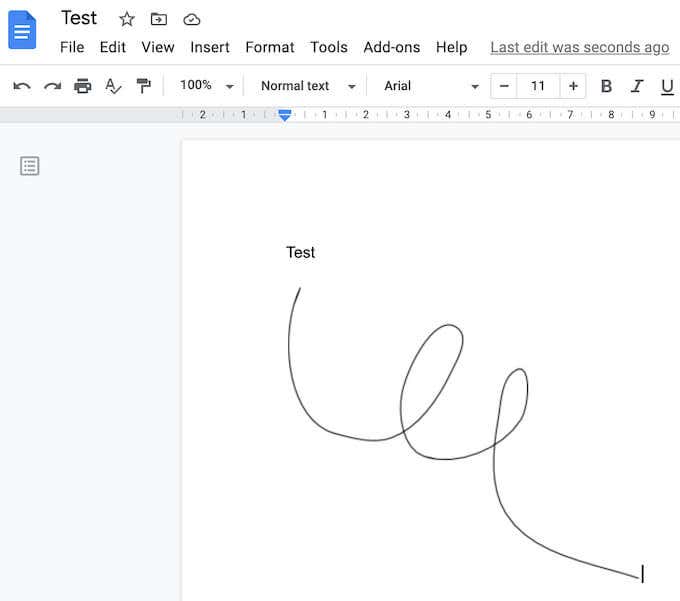
Google Docs has a built-in feature that you can use to insert a signature in your document. To electronically sign a document in Google Docs, follow the steps below. The signature will appear in your document in the space where you placed your cursor.
How to Edit Your Signature in Google Docs
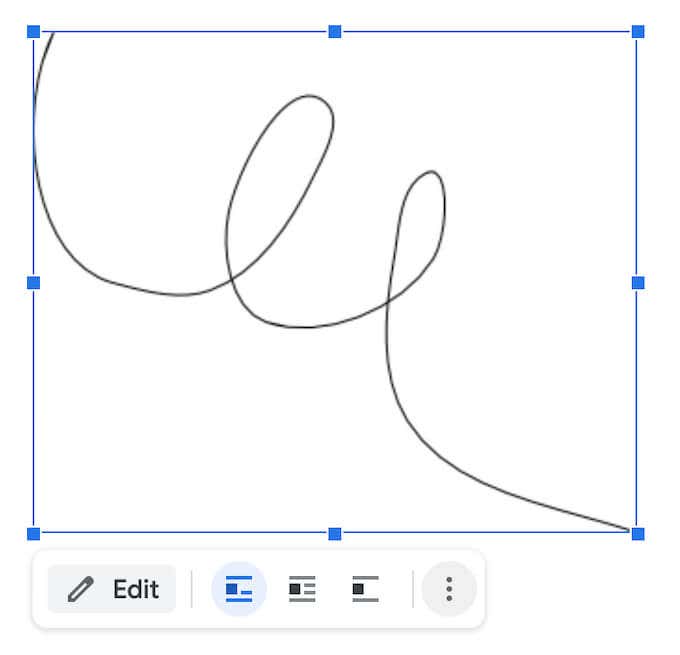
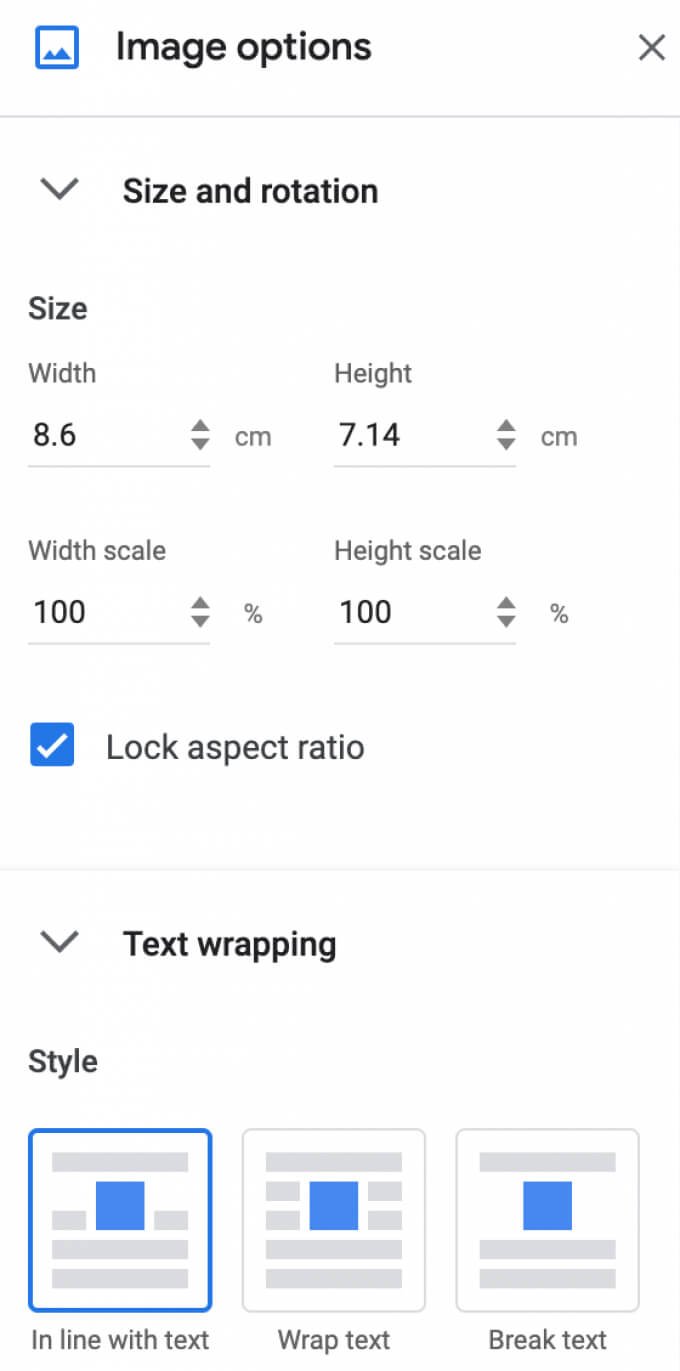
If at any point after creating your signature you decide that you want to change it, you can easily edit it right in your document. To change your signature, select it and then select Edit right under it. To access advanced editing options, select the other Editing menu via the three vertical dots under the signature. The parameters that you can change include:
Size & Rotation: Where you can edit the width and height of the signature Text Wrapping: Where you can choose whether you want to wrap your text around the signature or leave it on its own Position: If you want to move your signature
If you need to move your signature somewhere else, you can just drag and drop it anywhere in the document. You can erase your signature just like you do with any other element in Google Docs.
Sign Your Documents Without Interrupting Your Workflow
Do you often need to add a signature to your Google Docs? Which method do you use to do it, a built-in feature or one of the add-ons? Share your Google Docs practices with us in the comments below.