Why Is Your Printer Offline in Windows?
For the most part, a printer will get stuck “offline” if your computer cannot establish communication with the device. This could be due to loose cable connections, outdated printer drivers, problems with essential system services, etc.
How to Bring Your Printer Back Online
Start with the simple things: fasten the cable connection (for wired printers) and reboot your printer and computer. Reboot your router if the printer uses a wireless connection. If your printer is still offline, update its firmware, reinstall the printer, or update your PC’s operating system. The Windows Printer troubleshooting tool can also diagnose and fix system glitches affecting your printer’s status. Follow the recommended fixes below to get your printer online.
Check the Printer’s Cable or Network Connection
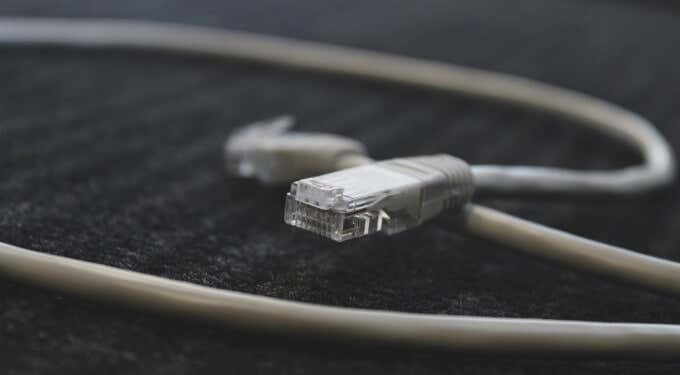
Before tweaking your PC’s settings, ensure the printer is correctly plugged into the power outlet and powered on. For wireless printers, ensure your PC and printer are on the same network. Some printers go into “Sleep mode” after minutes of inactivity. In Sleep mode, the printer will appear offline on your computer. Press the printer’s power button (or any button) to “wake” it up. Wait some seconds and check if that changes the printer status to “Online” on your computer. You also want to ensure that the cable connecting the printer to your computer or router fits correctly in the appropriate port. Likewise, connect the printer directly to your PC’s port, not through a USB hub. If the printer continues to appear offline, switch the printer to a different port on your computer or router. For wireless printer connections, reboot the router and reconnect the printer to the network.
Get Hints from the Printer’s Status Light
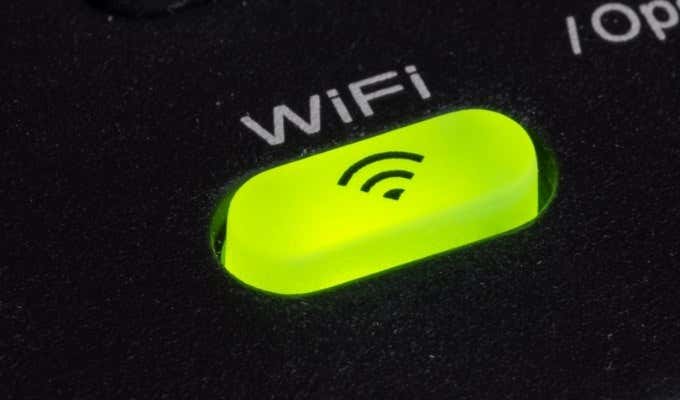
Windows will label your printer “Offline” if the device has a problem. One easy way to tell if your printer has an issue is to check its status lights. For instance, if the Wi-Fi light on a wireless printer flashes red, there’s most likely a problem with the Wi-Fi connection. Status lights could also indicate issues like firmware update failure or jammed paper in the cassette. Refer to your printer’s instruction manual or the manufacturer’s website to learn more about its status light indicators.
Disable Printer Offline Mode in Windows
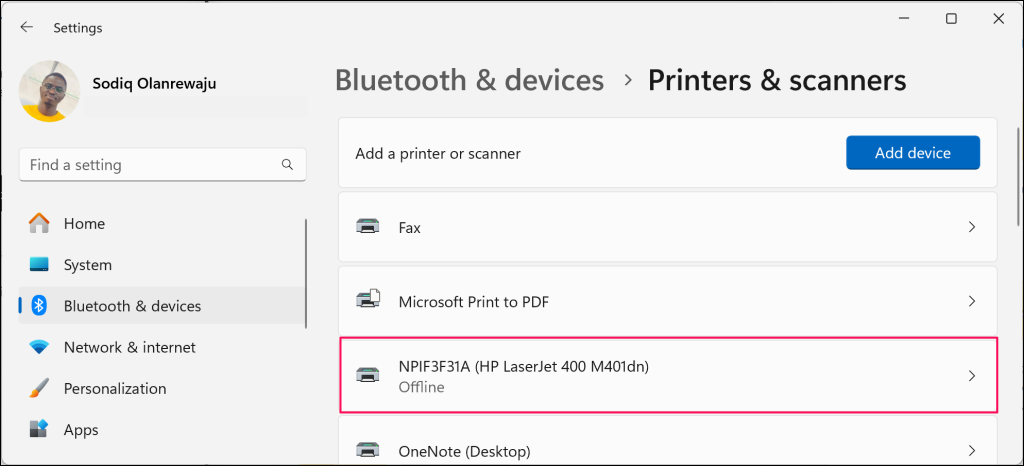
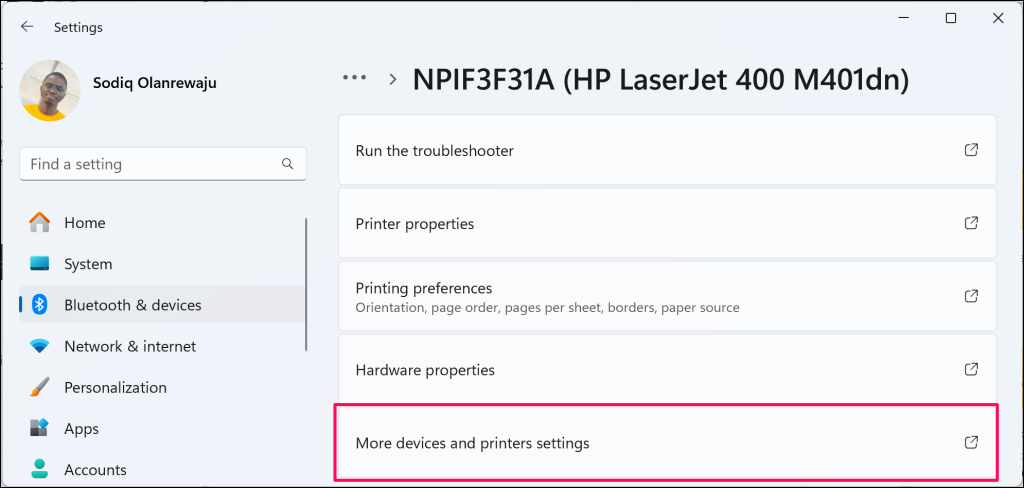
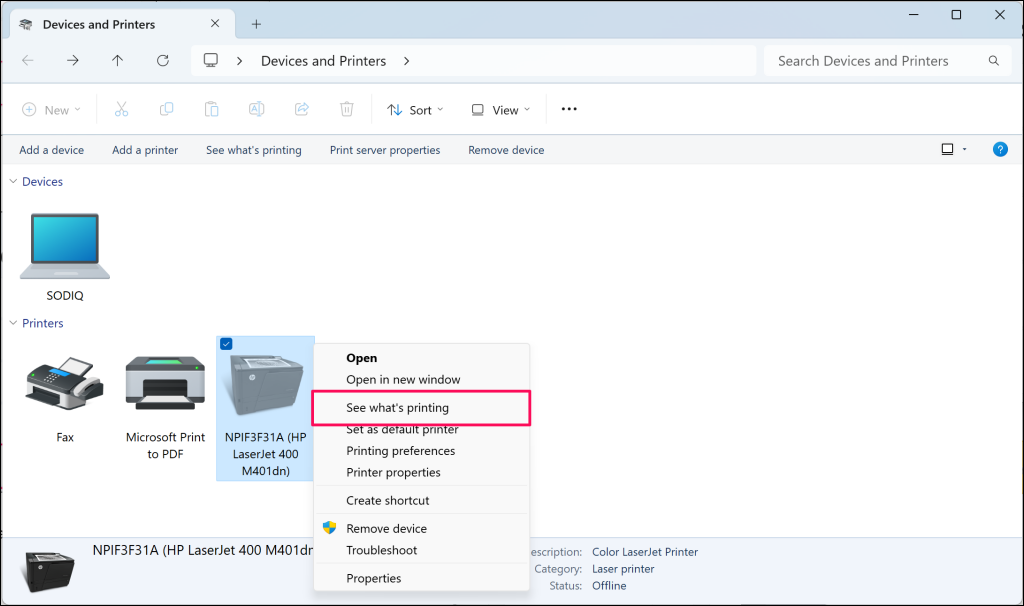
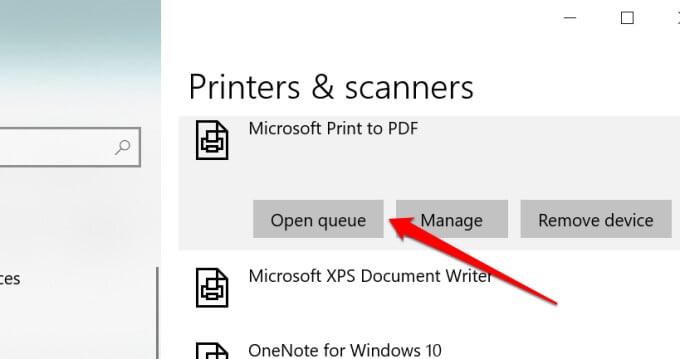
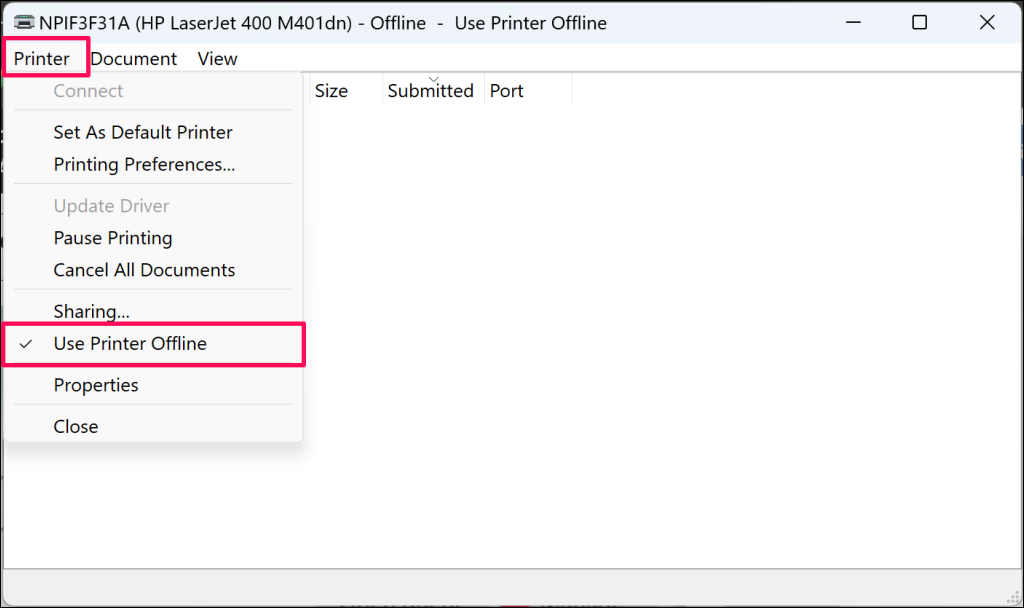
Windows will hold print jobs in a queue if your printer is in “Use Printer Offline” mode. Follow the steps below to check that your printer isn’t in offline mode. In Windows 10, head to Settings > Devices > Printers & scanners, choose the affected printer and select Open queue.
Restart the Printer
If nothing’s worked so far, shut down the printer, wait 30-60 seconds, and turn it back on. Alternatively, unplug the printer from the power source, wait 30 seconds, and plug it back in.
Reboot Your Computer
The problem could also be due to a temporary system glitch on your computer. Unplug or disconnect the printer, shut down your computer, turn it on again, and reconnect the printer.
Update Your Printer Firmware
Your printer can malfunction if there’s a problem with its firmware. If a firmware bug is the root cause of the problem, install the latest firmware version for the printer. You can download a firmware update directly from the printer, the manufacturer’s website, or via the printer software.
Run the Windows Printer Troubleshooter
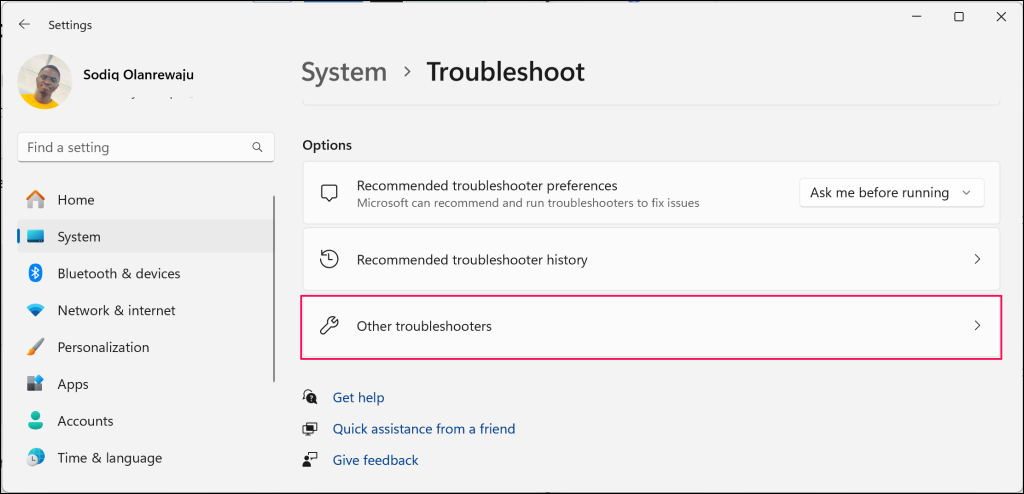
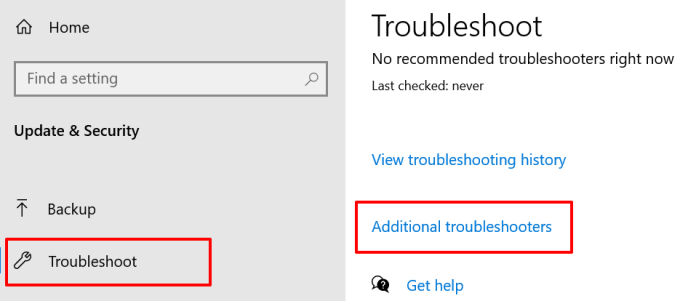
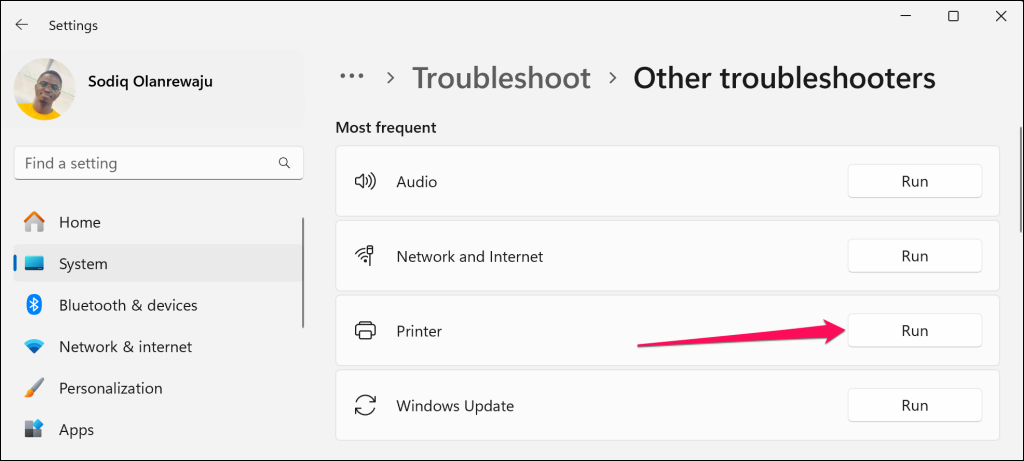
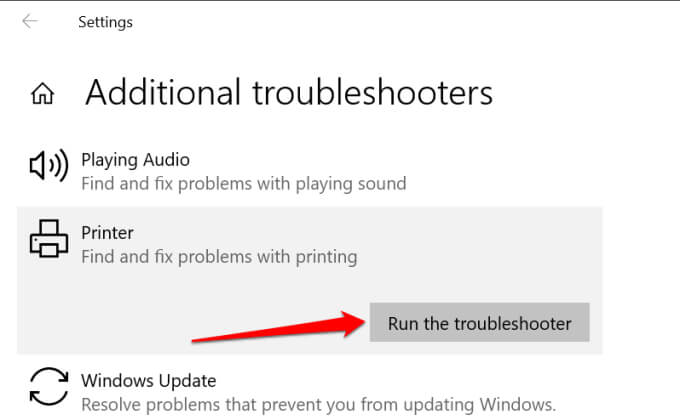
If you still haven’t gotten your printer online, let the Windows Printer troubleshooter help. It’s a built-in tool that finds and fixes printing-related problems on Windows devices. If your PC runs Windows 10, go to Settings > Update & Security > Troubleshoot and select Additional troubleshooters. In Windows 10, select Printer > Run the troubleshooter. The tool will check the Spooler service and print queue for errors, examine your network printer’s configuration, and run other troubleshooting checks. It recommends the appropriate solutions if it diagnoses any problem with the affected printer.
Troubleshoot with the Printer’s Software
Many printer brands have dedicated software that fixes printing-related issues on a computer. HP, for example, has a “Print and Scan Doctor” tool that diagnoses issues with HP printers on Windows devices. Contact your printer manufacturer to confirm if there’s an app for your printer model. Better yet, visit the “Support” or “Downloads” section of the manufacturer’s website to download the printer management app.
Restart the Windows Print Spooler
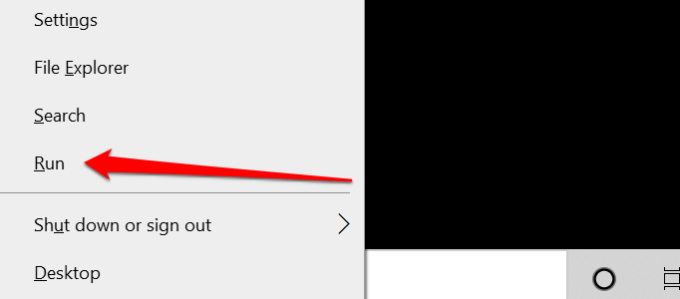
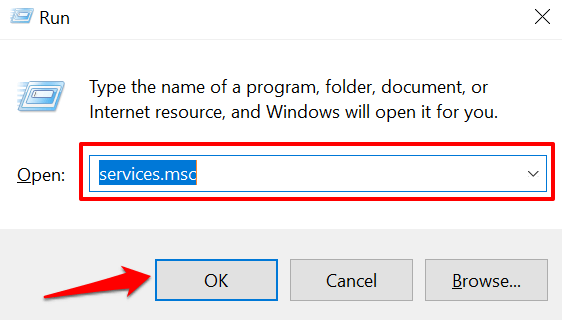
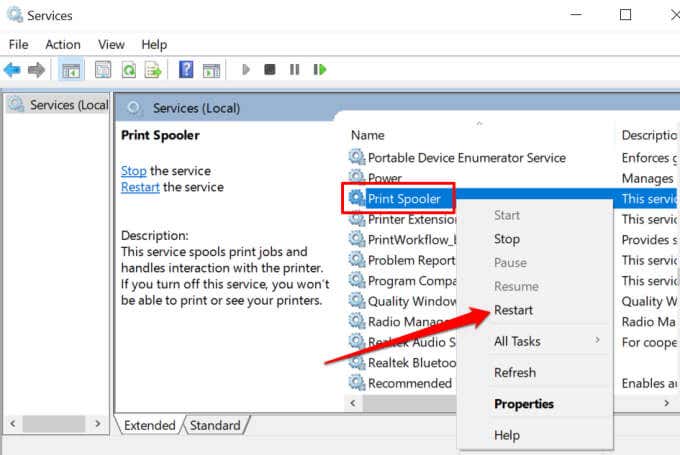
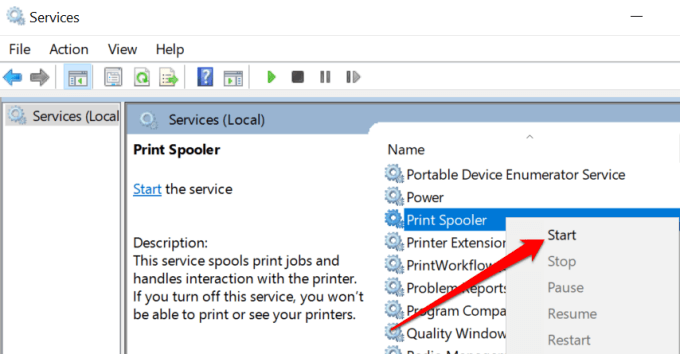
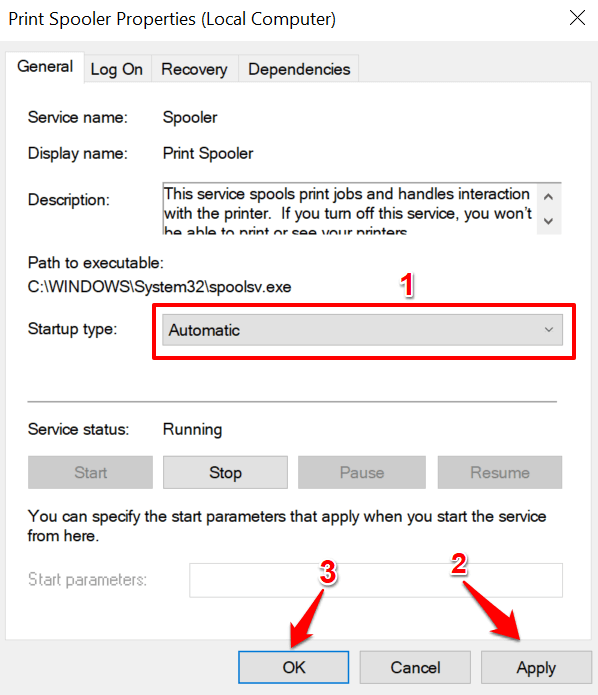
The Print Spooler is a critical system component that powers the execution of print jobs and the discovery of printers on Windows devices. Your printer may appear as “Offline” if the Print Spooler service isn’t running. Head to the Windows Services Manager and make sure everything’s in order. The Windows Services Manager will stop the process and restart it immediately. If the “Restart” is grayed out on the context menu, the Printer Spooler wasn’t running in the first place. Select Start to launch the service. Head to the Windows Printer menu (Settings > Devices > Printers & scanners) and check if your printer is online.
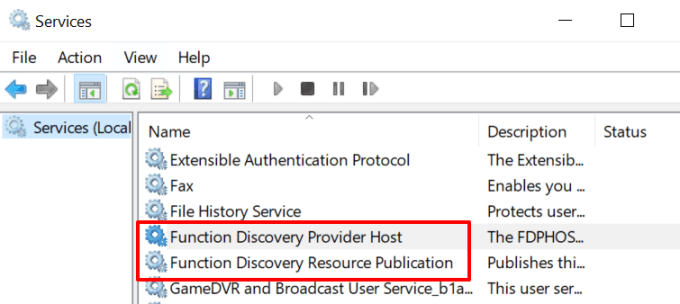
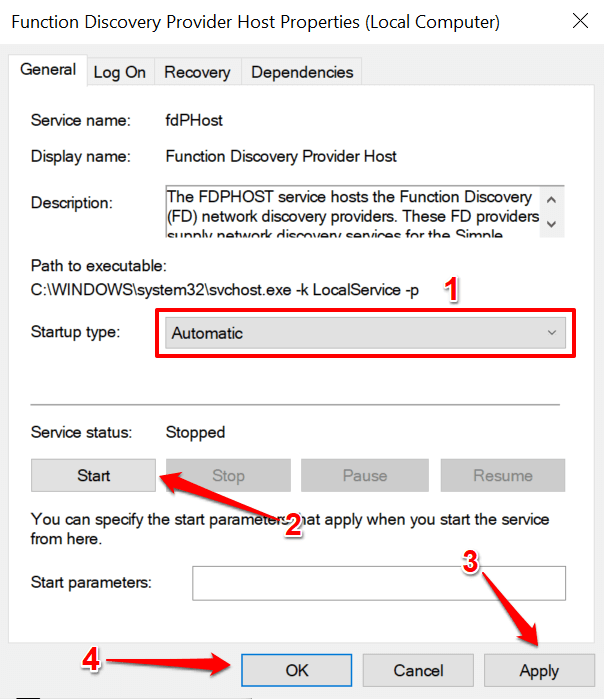
Change the Windows Function Discovery Services
If your (network) printer uses the Web Services for Devices (WSD) technology, ensure the Windows Function Discovery services run correctly on your Windows computer. These services help your computer detect network devices. If the printer stays offline, disconnect or unplug the printer, restart your PC, and check again.
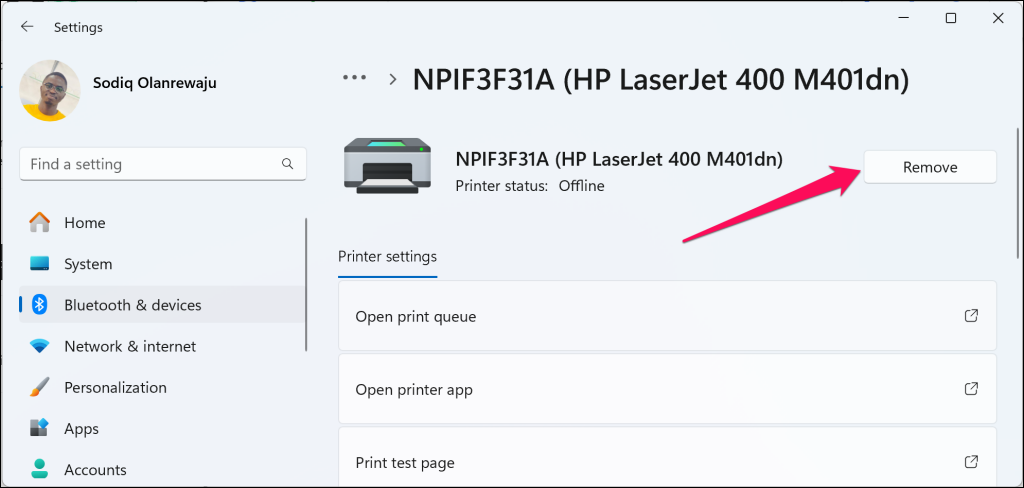
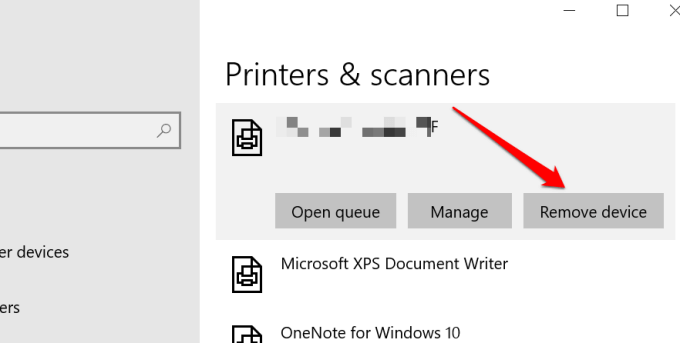
Remove and Reinstall Printer from Scratch
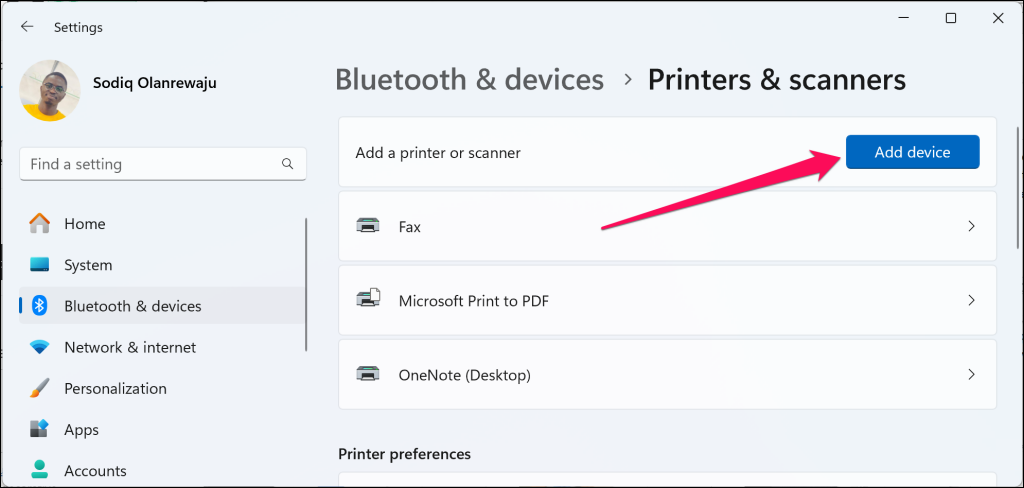
Sometimes, removing and reinstalling the printer from scratch is the best option to get your printer back online. Unplug or disconnect the printer from your PC and follow the steps below. On Windows 10 devices, head to Settings > Devices > Printers & scanners, choose the printer, and select the Remove device button. Restart your computer, plug in the printer cable, or connect it to your router/Wi-Fi network, and proceed to the next step.
Install Windows Updates
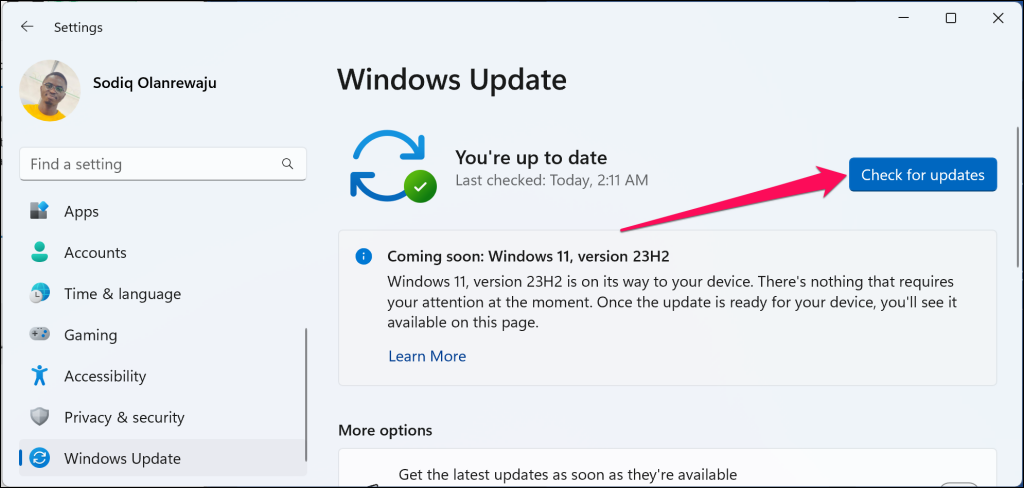
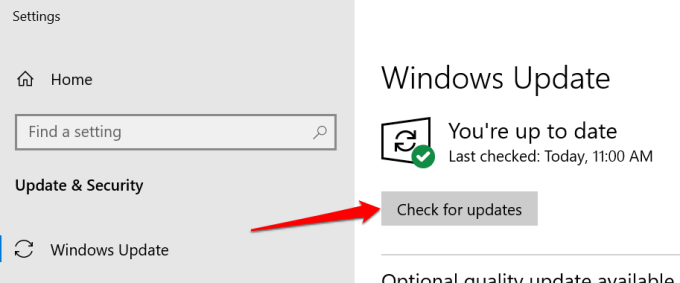
Windows automatically downloads and installs the latest drivers for your devices. If your printer is stuck in “Offline” status due to an outdated or buggy driver, installing the latest Windows Update could resolve the problem. Open the Settings app, choose Windows Update on the sidebar, and select the Check for updates button. For Windows 10 PCs, go to Settings > Update & Security > Windows Update and select Check for Updates.
Get Your Printer Back Online
We’re confident that one of these steps will get your printer back online. Otherwise, refer to our guide on fixing common printer problems.