These include editing your images using the built-in drawing tool and third-party tools like Adobe Express online. You can also change an image in Google Slides and import it back into Google Docs.
Using the Drawing Tool In Google Docs
The Drawing tool in Google Docs isn’t designed to be the best tool for image manipulation, but it’ll do the job if you need to create diagrams or enhance images.
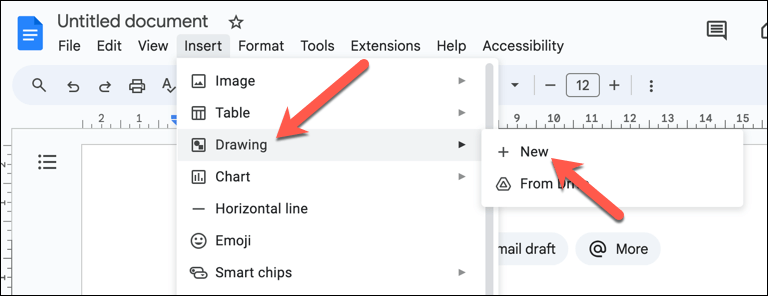
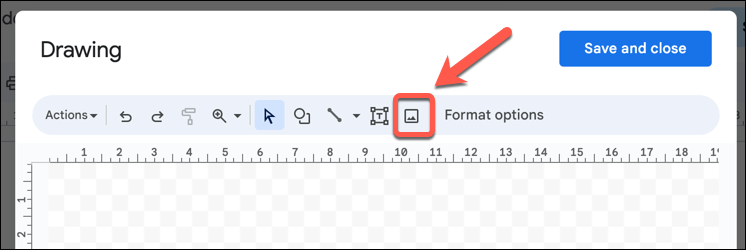
Technically, the Drawing tool is an extension of Google Drawings, a basic, standalone app for making diagrams and basic images. The Drawing tool allows you to make further changes to your images, such as rotating, cropping, and adding text.
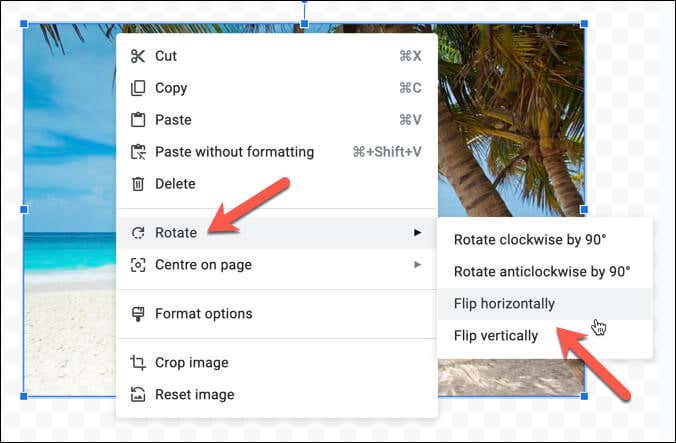
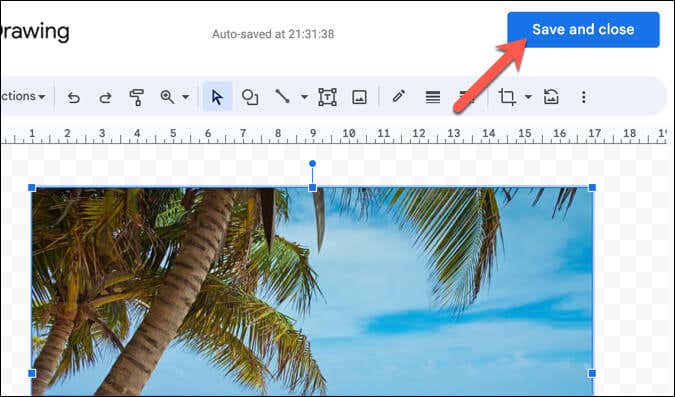
Most importantly, one feature it does allow you to do is to flip images, which you can use to edit your Google Docs images. To flip an image in Google Docs, follow these steps.
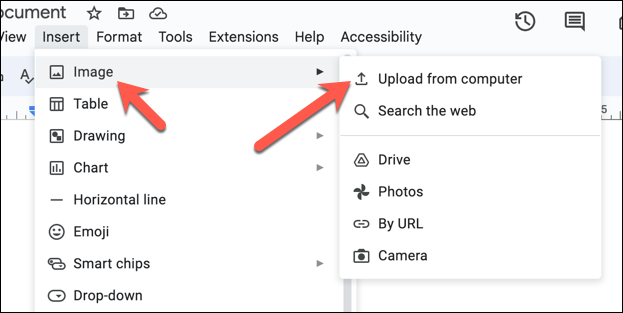
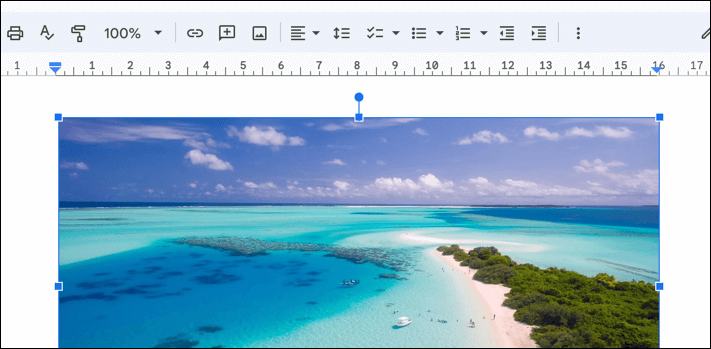
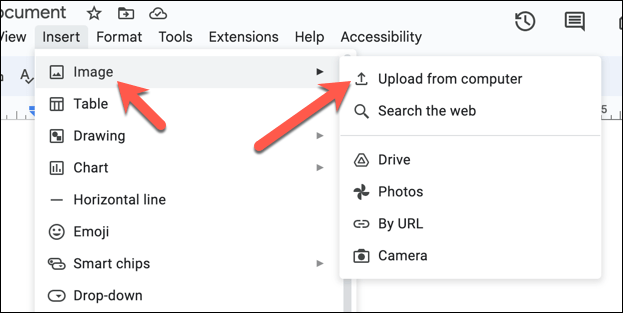
Once you’ve inserted the modified image, it’ll replace the original in your document.
Using the Free Image Flipping Tool in Adobe Express Online
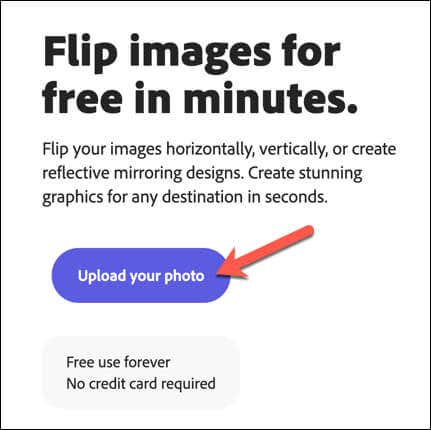
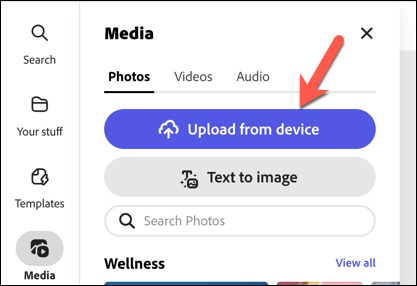
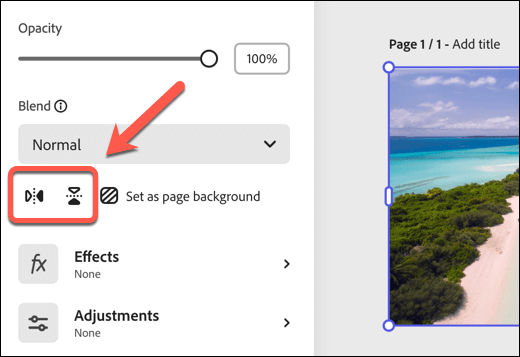
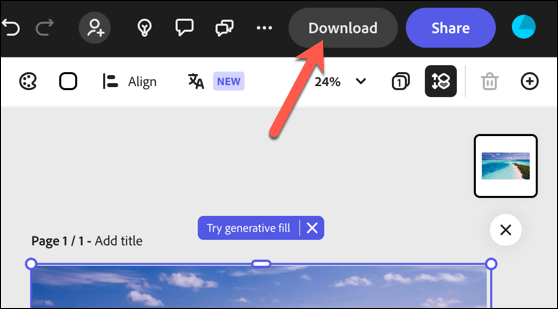
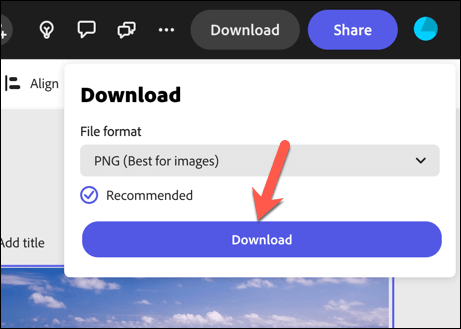
Adobe Express is an online, paid-for tool that you can use to edit images from your web browser. While much of its functionality requires payment, you can use some of its more basic features for free. That includes the ability to flip images, and the process is straightforward. To flip an image using Adobe Express, follow these steps.
Using the Flip Image Tools in Google Slides
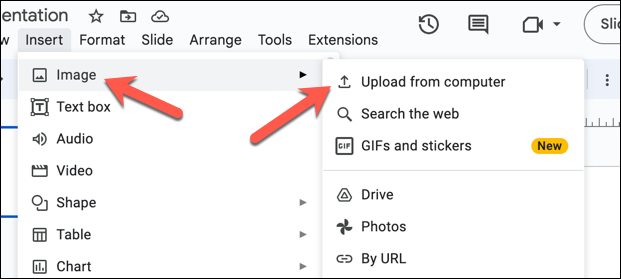
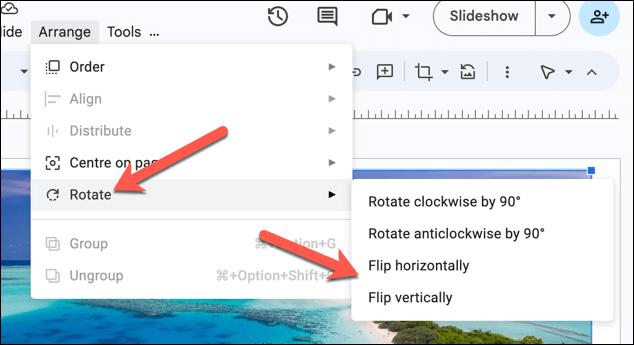
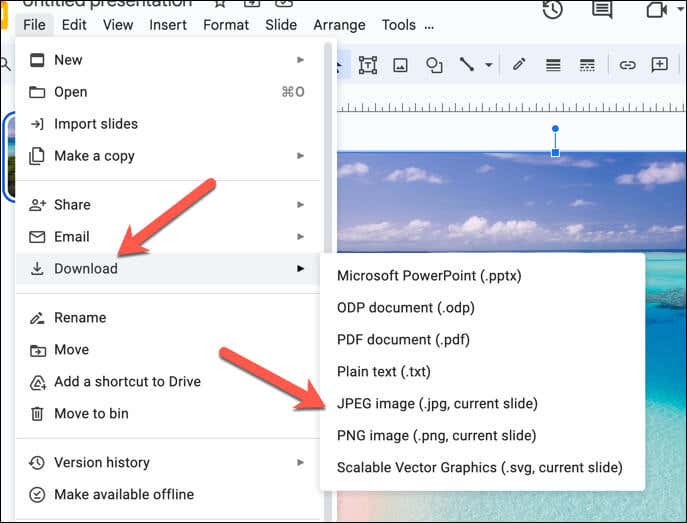
Can’t flip your images in Google Docs? Switch to another Google app instead—Google Slides. While Docs doesn’t have a button to press to flip your images, Google Slides does, and you can use this feature to help you flip your images before moving them back to your Docs document. To flip an image in Google Slides, follow these steps. At this point, your flipped image should be ready for Google Docs, maintaining the changes you applied in Google Slides.
Editing Images in Google Docs
Google Docs isn’t designed as a fully-fledged image editing tool, but you can quickly flip an image in your Google Docs document using the steps above. Have you got Microsoft Word? You can always flip an image in Word instead before importing the document (and your image) into Google Docs.