A few other reasons you get the above error are that your web browser cache is corrupted, your browser extensions are faulty, your mobile app is glitchy, and more.
Check If YouTube Servers Are Down
The first item to check when you can’t access YouTube is if the platform’s servers are down. If this is the case, you won’t be able to use other troubleshooting tips to fix your error, as YouTube itself has caused the problem. You can check if YouTube is down using the Downdetector site. This site will tell you if users are experiencing issues using the platform. If the platform is indeed down, wait until the developers fix the problem and bring the service back up.
On Desktop
If you’re experiencing YouTube’s “Something went wrong” error on your desktop, use the following troubleshooting tips.
Reload the YouTube Site
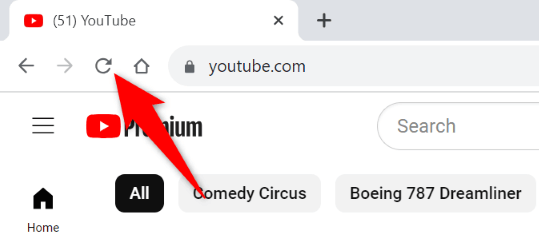
When you can’t access your favorite content, reload your current YouTube web page and see if that fixes your issue. This is because your web page or web browser may be experiencing minor glitches, which you can resolve by refreshing the page. You can do that by selecting the refresh icon beside the address bar in your web browser.
Clear Your Web Browser’s Cache Files
Your web browser’s corrupted cache files can cause many problems. Your current error may be the result of a bad browser cache. In this case, clear your browser’s cache files, and your issue will be resolved. Check out our guide on that topic to learn how to do it.
Turn Off Your Web Browser Extensions
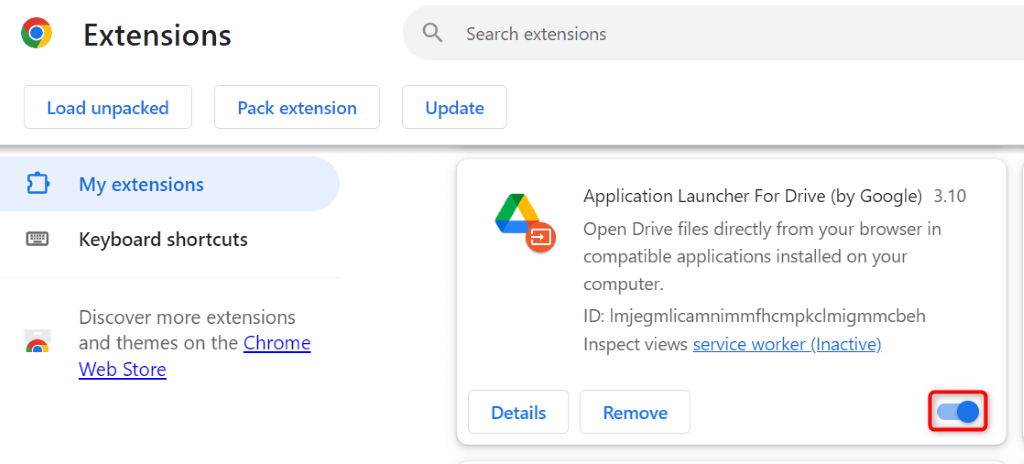
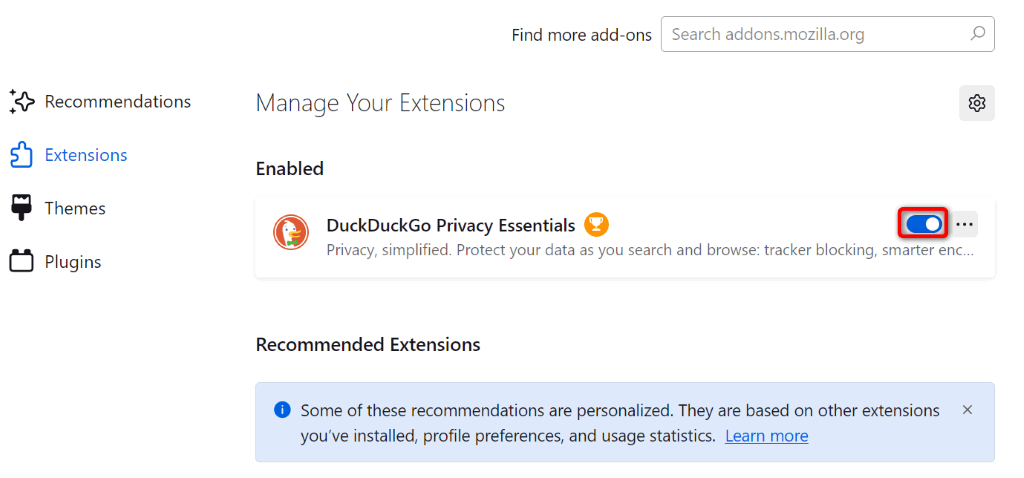
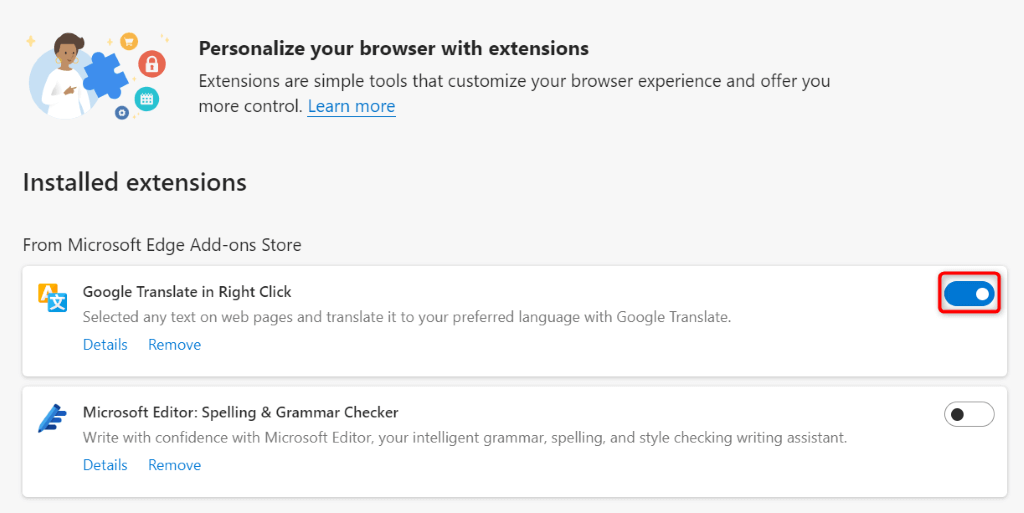
If you use extensions in your web browser, turn them off and see if that resolves your issue. This is because one or more extensions may be interfering with YouTube, causing the site not to work. You can turn off Google Chrome extensions by selecting the three dots in the top-right corner, choosing Extensions > Manage Extensions, and disabling all extension toggles. In Mozilla Firefox, select the three horizontal lines in the top-right corner, choose Add-ons and themes, and disable all add-ons. In Microsoft Edge, select the three dots in the top-right corner, choose Extensions > Manage extensions, and deactivate all extensions.
Use a Different Browser
If your issue isn’t fixed, use another web browser installed on your computer and see if YouTube works there. Your current web browser may be faulty, which you can verify by accessing the YouTube site in another web browser. If YouTube works fine in another web browser, reset your current browser’s settings to possibly fix your issue.
On Apple iPhone (iOS) and Android
If you’ve received the “Something went wrong” error in YouTube’s iPhone or Android app, the following troubleshooting tips will help.
Force Close and Relaunch YouTube
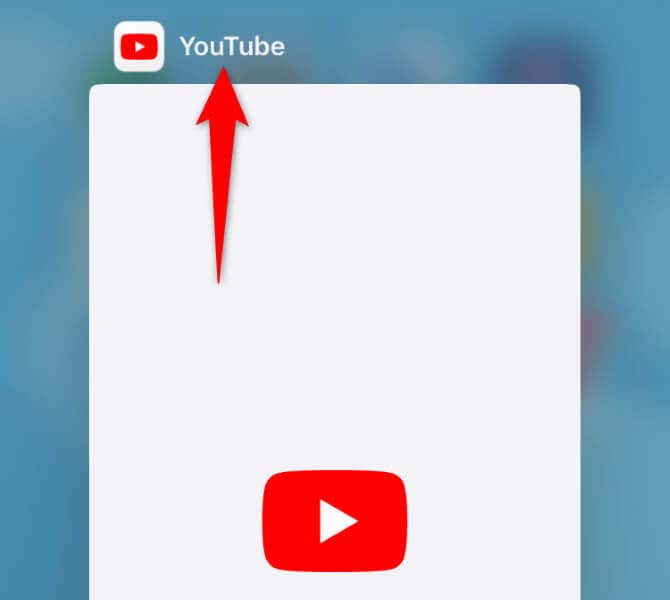
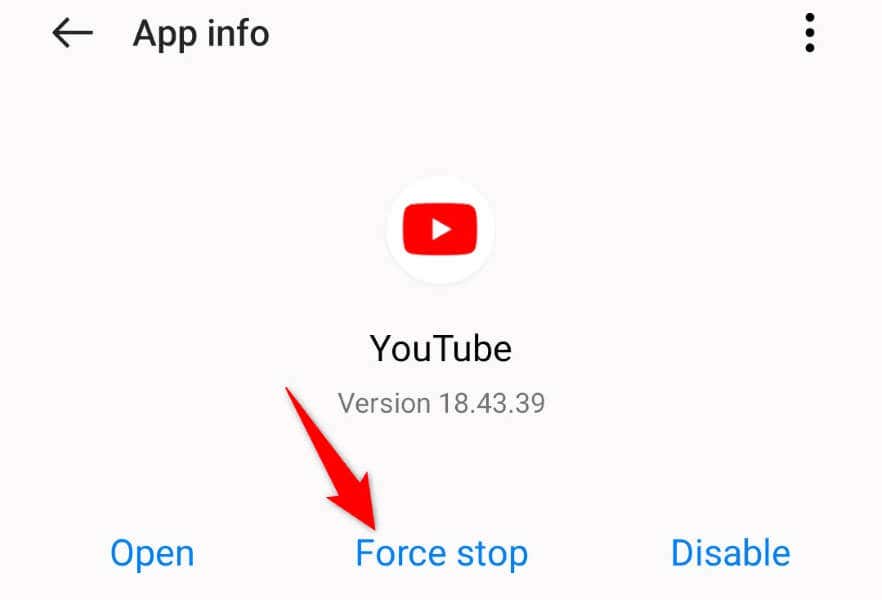
When YouTube doesn’t work as expected, force close and re-open the app to possibly fix your error. Doing this turns off and back on all the app features, fixing minor problems. On iPhone On Android
Turn Airplane Mode On and Back Off
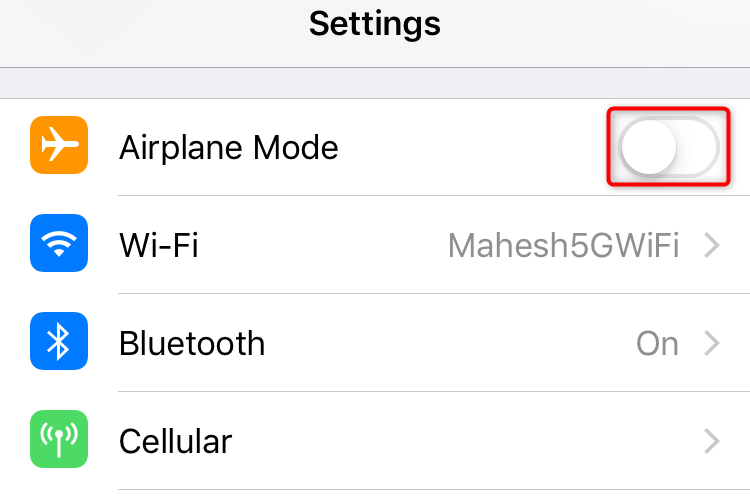
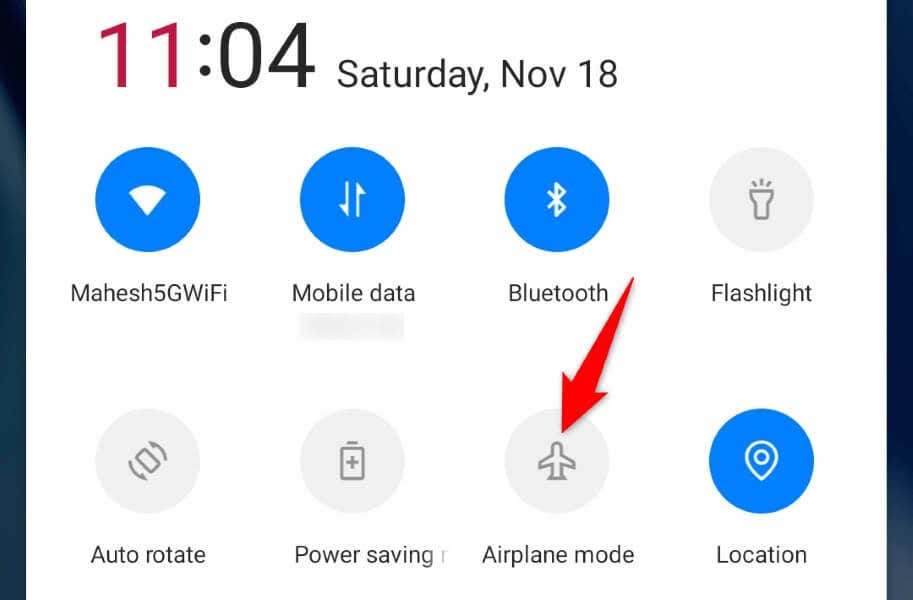
Another fix to apply is to enable and disable your phone’s airplane mode and see if that fixes your issue. Turning on the mode disconnects your phone from all networks, and turning off the mode restores those connections. This helps fix the connection issues that may be causing your problem. On iPhone On Android
Turn Off Your VPN
If you’re using a VPN on your phone, turn off that service and see if you can access YouTube. This is because certain platforms restrict what content VPNs can access, and this may be the case with YouTube on your device. How you turn off your VPN depends on what app you’re using. In most apps, you can launch the app and disable the main toggle to deactivate the service.
Update YouTube
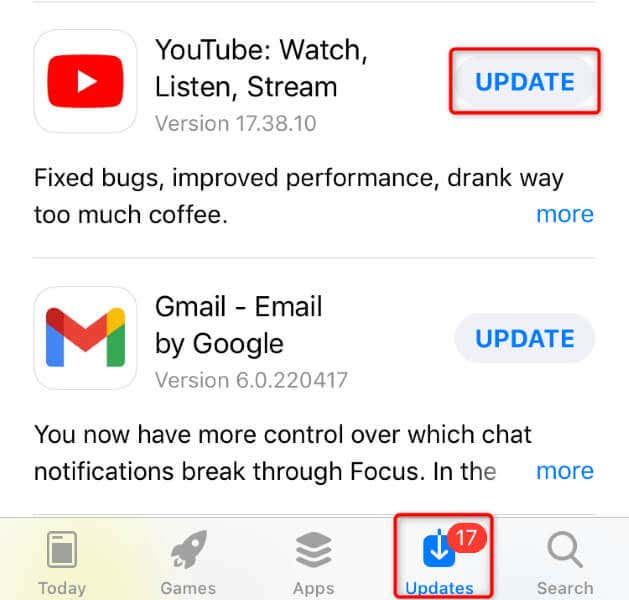
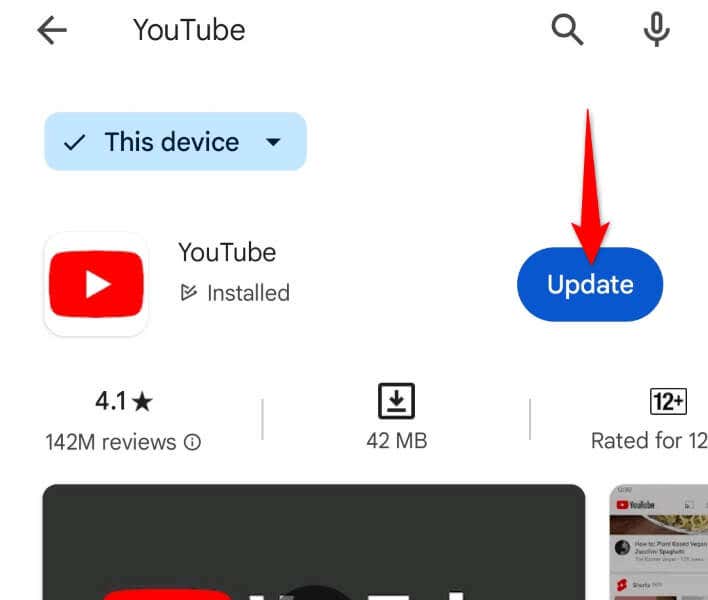
If you’re using an outdated YouTube app, that may be the reason you can’t access content in the app. In this case, update your app version, and your issue should be fixed. On iPhone On Android
Restart Your Phone
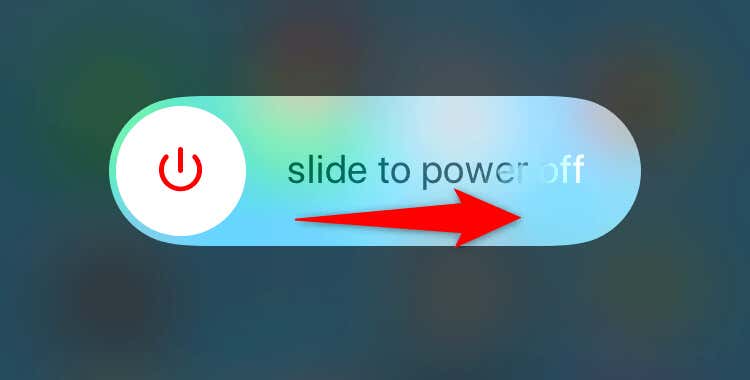
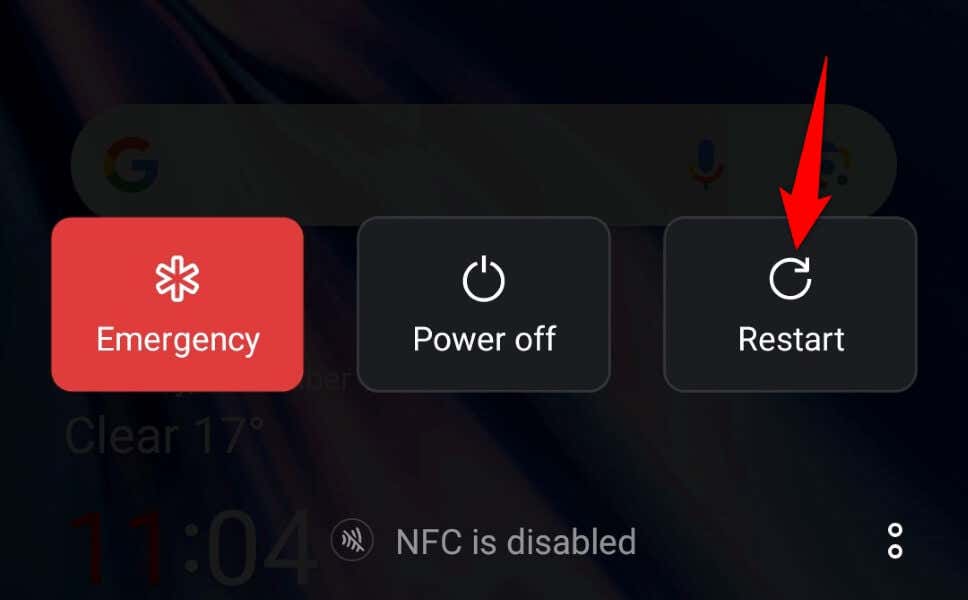
Sometimes, a minor issue on your phone can cause YouTube not to work as expected. In this case, turn off and back on your phone to possibly fix your error. Restarting the phone often helps fix many minor system problems. On iPhone On Android
Remove and Reinstall YouTube
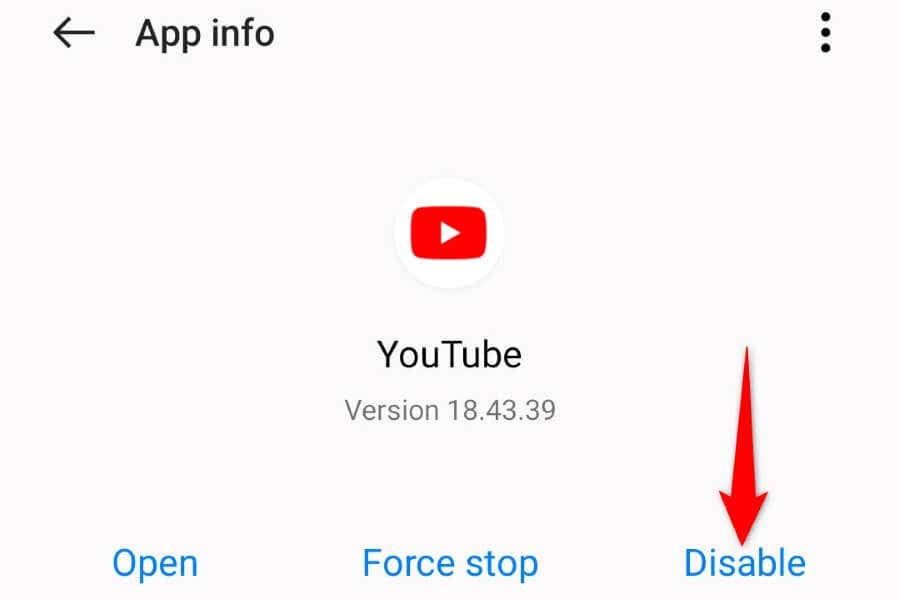
If YouTube still isn’t working, uninstall and reinstall the app to possibly fix your issue. Note that you can’t remove YouTube on some Android phones. In this case, you can disable and re-enable the app. On iPhone On Android
Reset Your Phone’s Network Settings
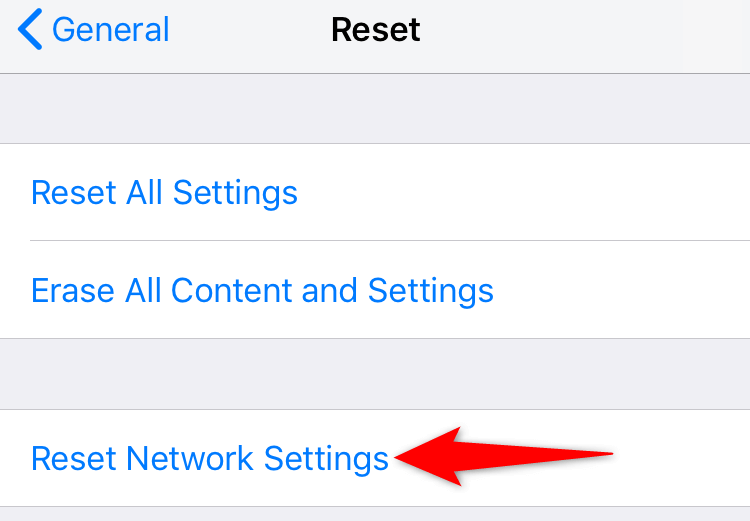
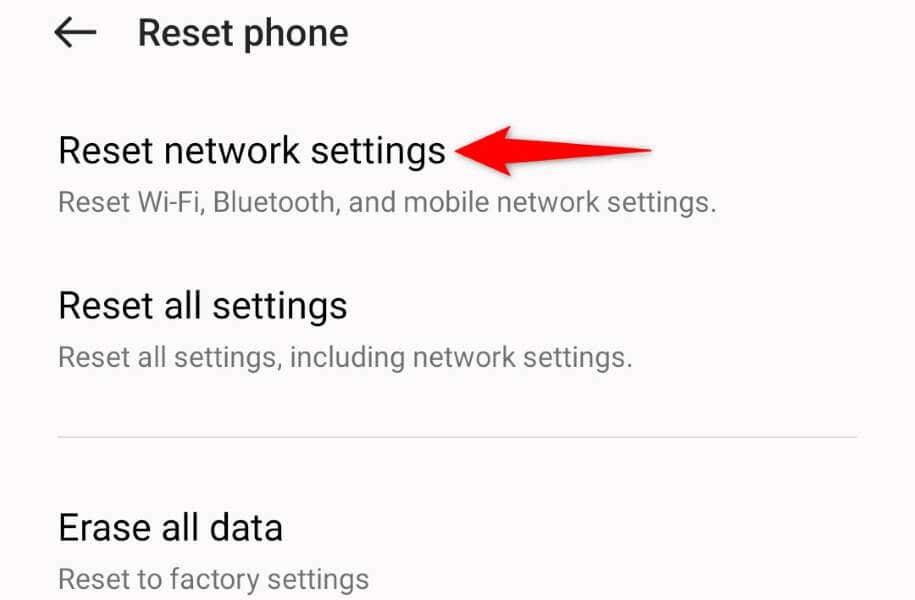
If your problem persists, reset your phone’s network settings. This is because your phone’s network settings may be incorrectly specified, causing YouTube not to connect to its servers. On iPhone On Android
Getting Rid of the YouTube Error to Watch Your Favorite Videos
YouTube’s “Something went wrong” error prevents you from playing your favorite YouTube videos on your desktop or mobile device. If the error doesn’t go away on its own, the methods outlined above will help you fix the problem. Once you’ve applied these fixes, YouTube will start working as expected, letting you watch all your favorite items.