Other reasons you can’t log in to your Snapchat account are that your app has a minor problem, your VPN isn’t working well with the app, your app cache is faulty, you’re using an outdated app version, and more.
Check if Snapchat Is Down
When you can’t log in to your account in Snapchat, the first thing to check is if the platform’s servers are down. Snapchat’s servers may be experiencing an outage, breaking various features of the app. You can use a site like Downdetector to check if Snapchat is down. If the site tells you that Snapchat is indeed experiencing problems, you have no option but to wait until the company resolves the issue and brings the service back up.
Quit and Relaunch Snapchat on Your Phone
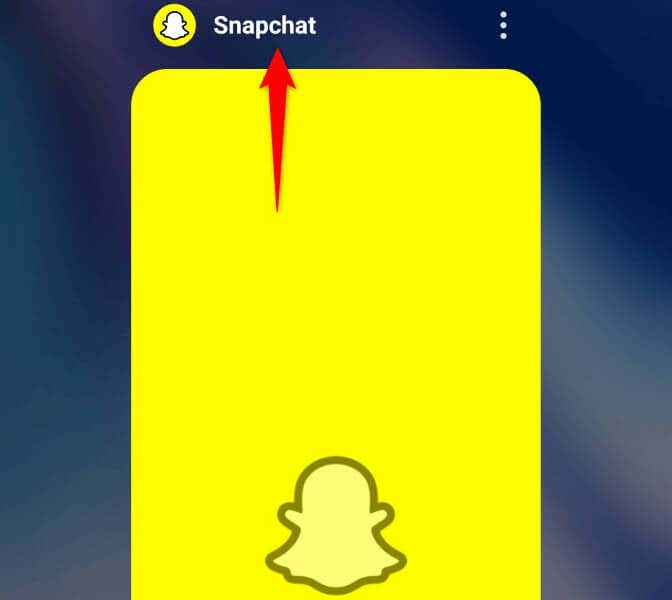
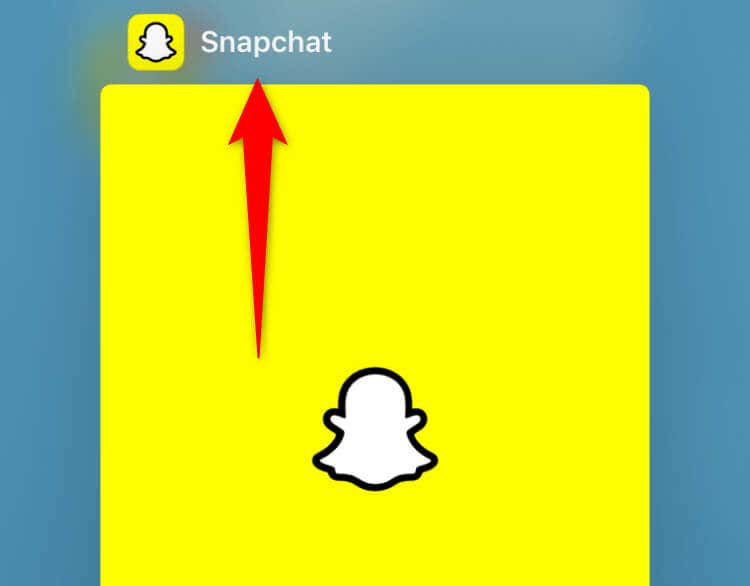
In case you haven’t already done so, close and reopen the Snapchat app on your phone to potentially fix your app problems. Your app may have minor glitches, which you can resolve by quitting and reopening the app.
On Android
On iPhone
Fix Snapchat Login Issue by Restarting Your iPhone or Android Phone
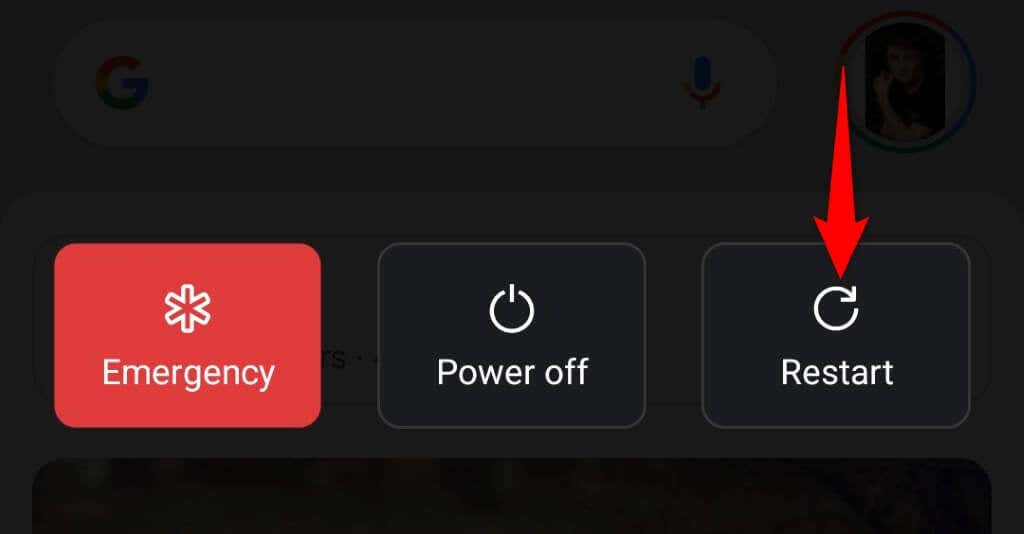
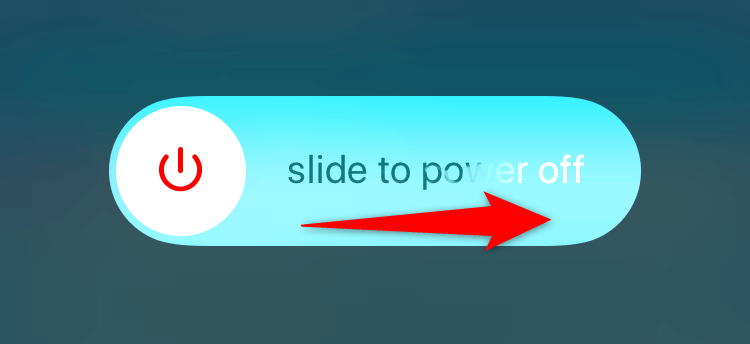
Sometimes, the issue isn’t with your apps but with your phone. Your iPhone or Android device may have a minor glitch, causing Snapchat to display a C14A error code. In this case, you can try to resolve your problem by restarting your phone.
On Android
On iPhone
Turn Off Your VPN to Resolve a Snapchat Error Code C14A
When you have issues using an internet-enabled app like Snapchat, turn off your VPN service and see if that resolves your issue. Sometimes, a VPN app isn’t compatible with your internet apps, causing your apps not to work. You can turn off your VPN by launching your app and disabling the service option. Then, open Snapchat and try to log in to your account. If you succeed in logging in to your Snapchat account, your VPN is the culprit. In this case, either choose a new location in your VPN or get a new VPN.
Clear Your Snapchat App Cache
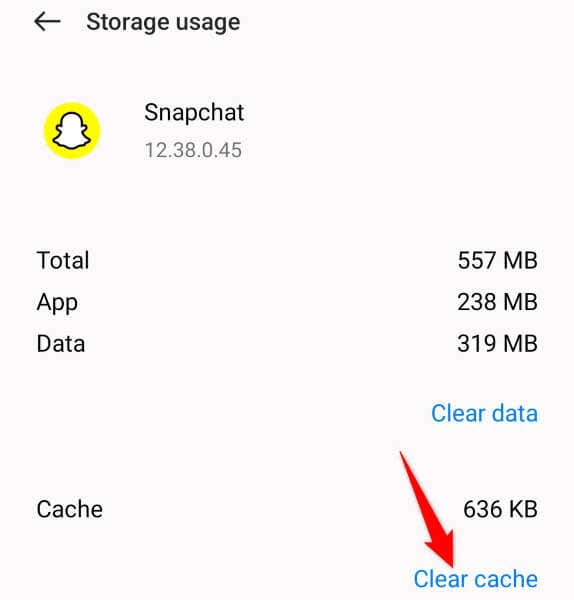
Nearly all apps create and store cache files on your phone to enhance your app usage experience. It’s possible Snapchat’s cache files have become corrupted, causing a C14A error in the app. In this case, clear your app’s cache files, and your issue will be resolved. You don’t lose your messages or other account data when you do this. Note that clearing an app’s cache is only possible on an Android phone.
Fix Snapchat Support Code C14A by Updating Your App
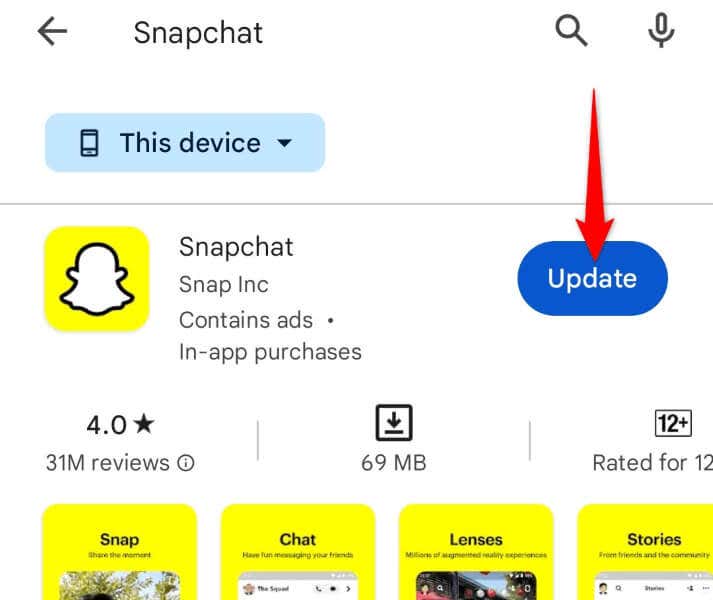
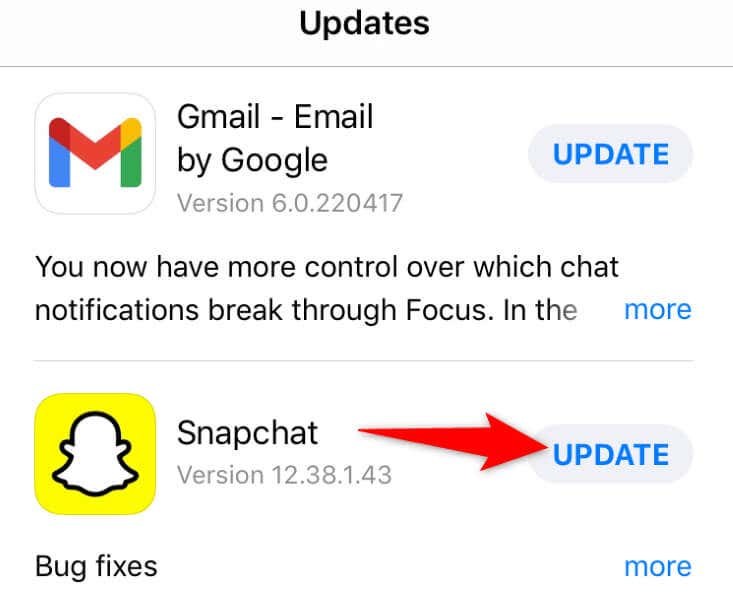
One possible reason you get a C14A error is that your Snapchat app version is outdated. Older app versions often cause many issues, and one way to fix those issues is to bring your apps to the latest version.
On Android
On iPhone
Uninstall and Reinstall Snapchat
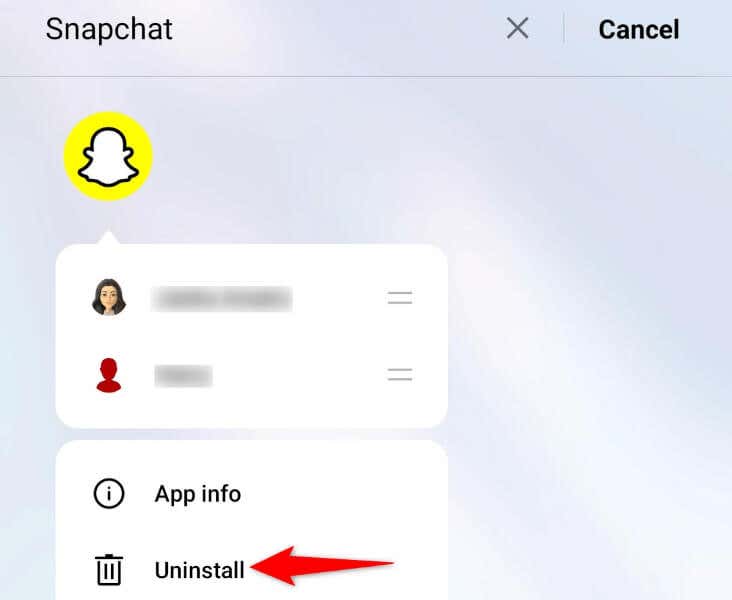
If you continue to get a C14A error while trying to sign in to your account in Snapchat, reinstall your app to possibly fix your issue. This is because your app itself may be faulty, preventing you from accessing your account.
On Android
On iPhone
Contact Snapchat Support
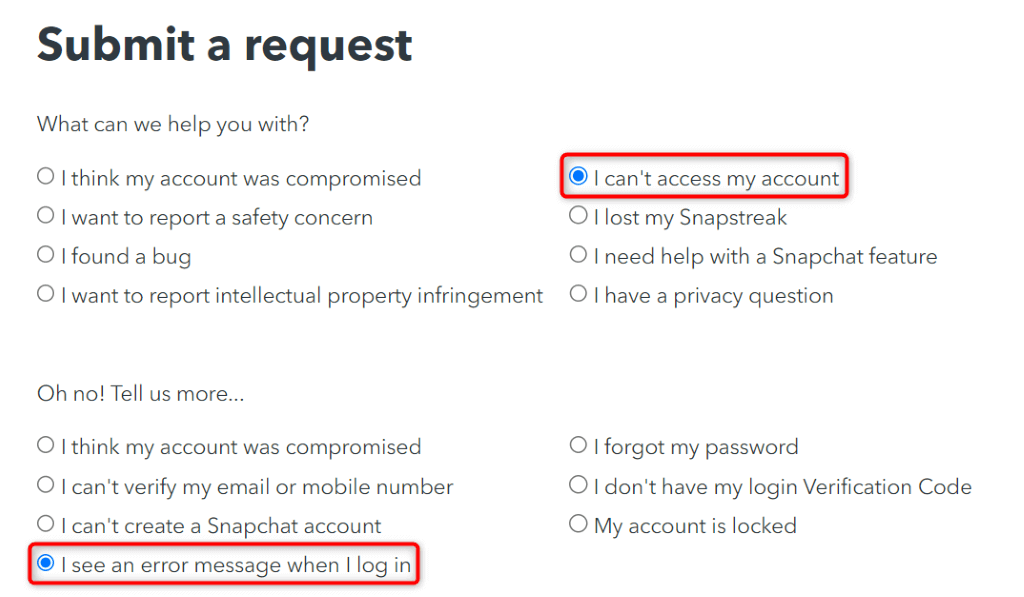
If the above methods haven’t resolved your issue, your last resort is to contact Snapchat’s support team. The issue may not be on your end but on Snapchat’s end, which the company’s support team can help you with.
Bypass the C14A Error and Log In to Your Snapchat Account Successfully
Snapchat’s login error C14A prevents you from accessing your account and using the app’s various features. This error occurs for various reasons, as explained above. Luckily, you can resolve the issue and sign in to your account successfully using the methods above. When you’ve fixed your login issue, you can start sending GIFs, Snaps, and messages from Snapchat on your phone.