Restart Your Router
When you encounter a network-related issue, you should first reboot your router. Doing so turns off all of your router’s features and reloads them, fixing minor problems with the device. You can reboot most routers by pressing the Power button on the device. If your router doesn’t have one, use the power socket switch to turn the router off and back on. A few routers also allow you to perform a restart through the device’s browser-based settings page. Once you’ve rebooted your router, relaunch Chrome and try to access your sites.
Run Windows’ Network and Internet Troubleshooter
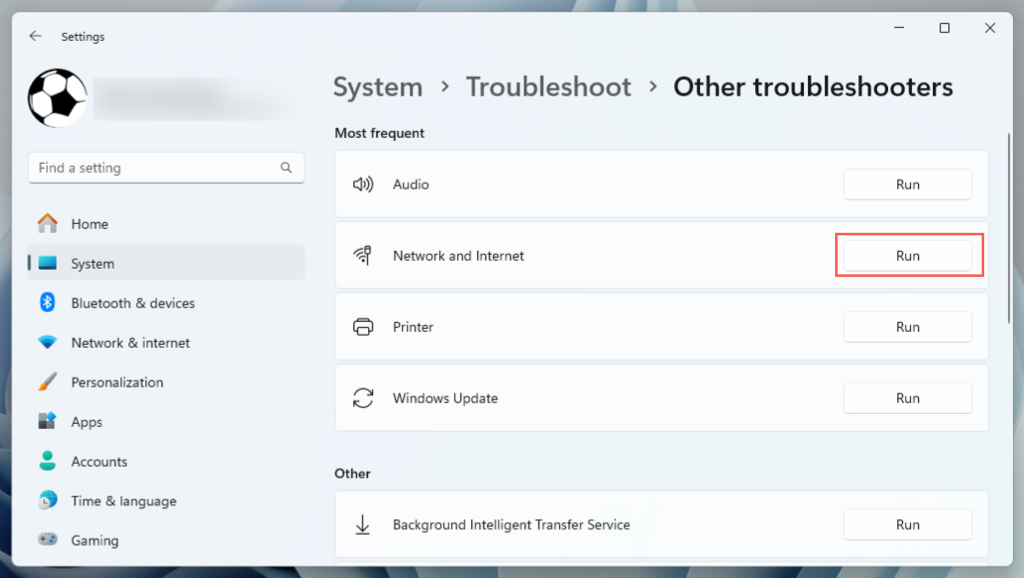
Microsoft’s Windows 11 and 10 operating systems include many troubleshooters. These tools allow you to find and fix various issues on your system. You can use one of these—the Network and Internet/Internet Connections troubleshooter—to detect and resolve problems with your connection. These tools run independently for the most part, so you don’t have to do much except for launching the tool and choosing a few options.
Turn Off Your Firewall
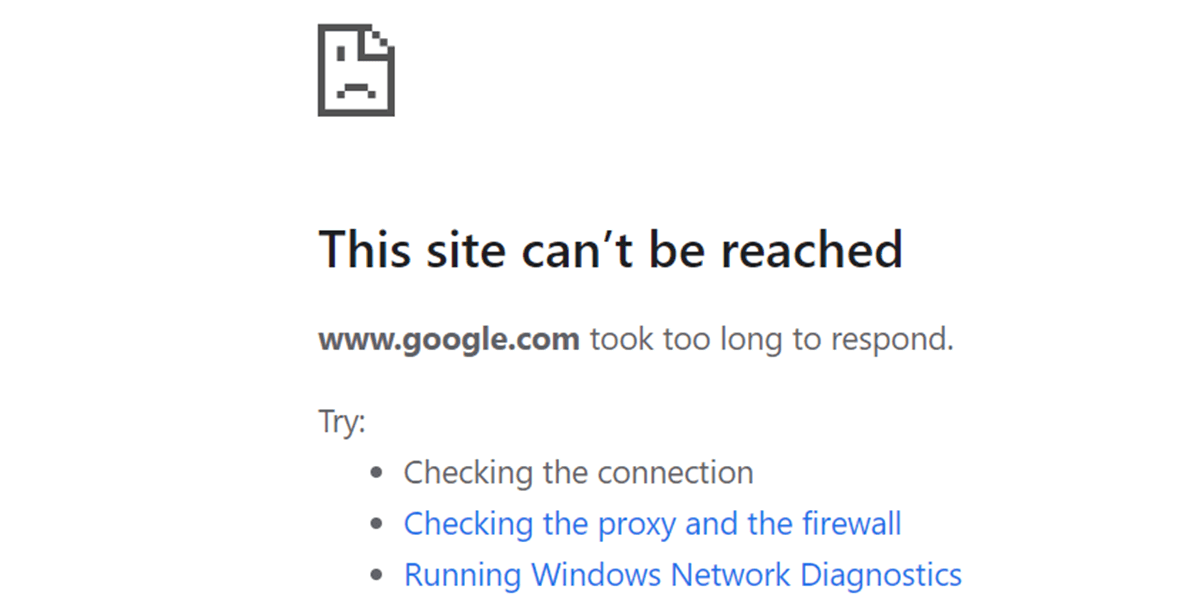
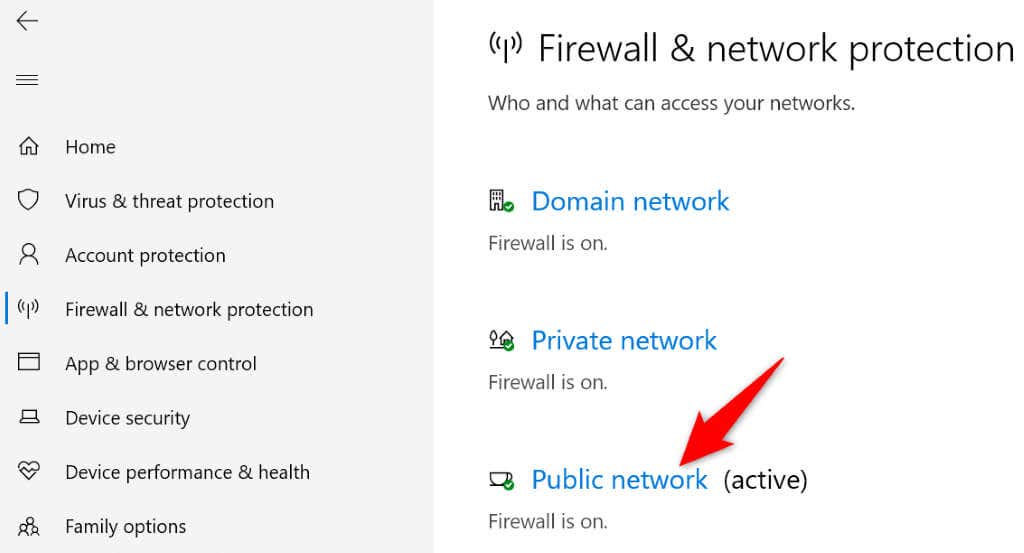
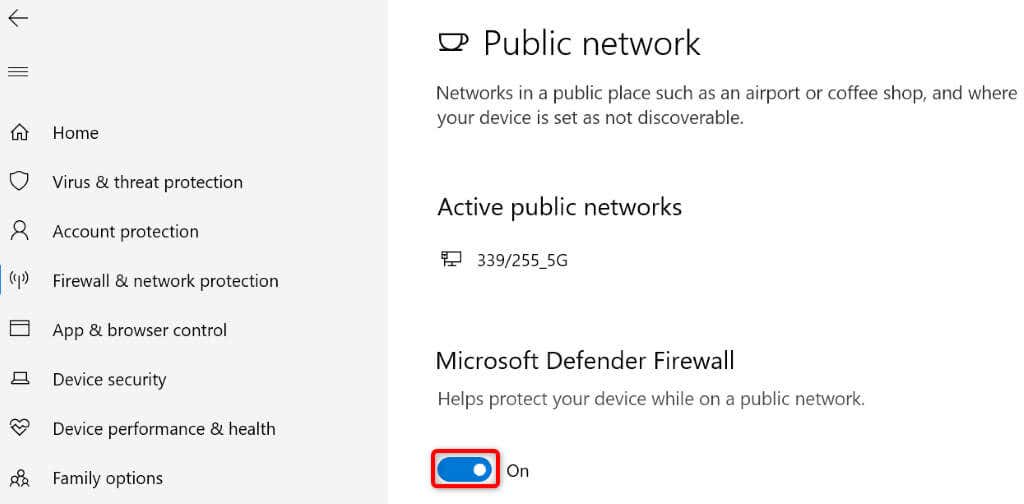
One reason you get the “This site can’t be reached” Chrome error is that your firewall is blocking your connection to the site. This usually happens when the firewall detects the site as a malicious item. You can turn off your computer’s firewall to check for that. Here’s how to turn off the default Microsoft Defender Firewall on Windows: If you use a third-party firewall, you should find an option to deactivate it within the user interface. If you have any trouble, check its support documentation for instructions.
Turn off Your Antivirus Program
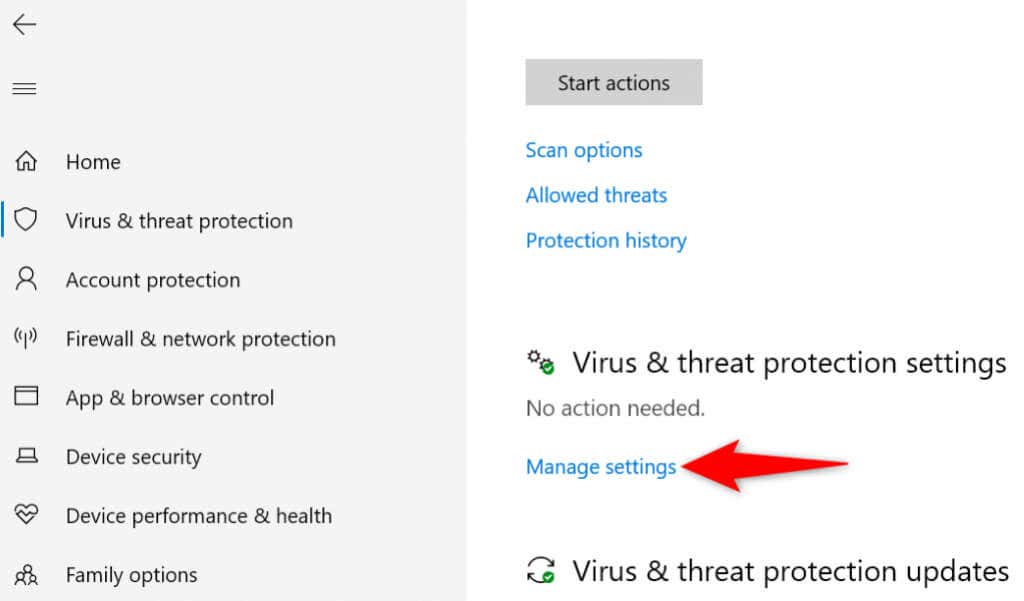
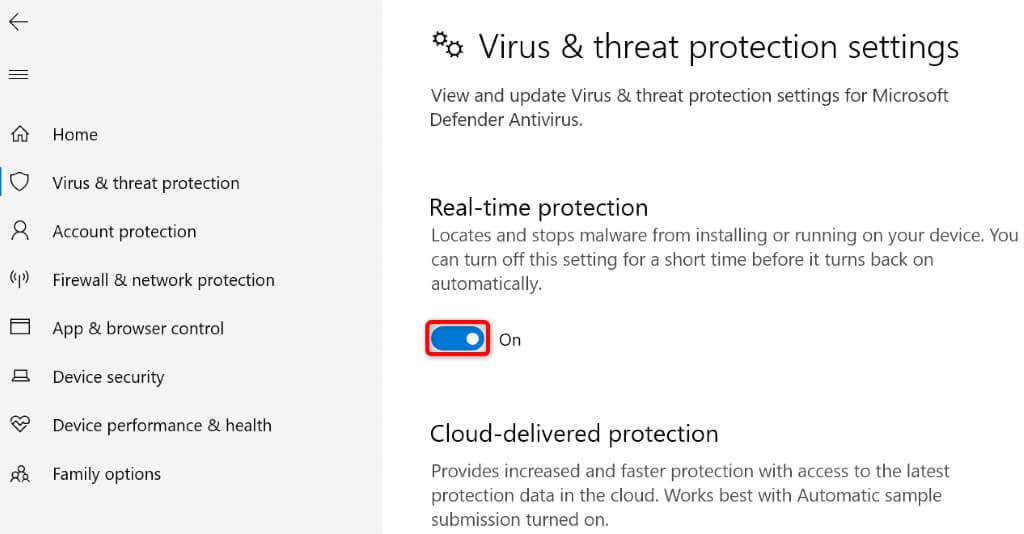
Your antivirus program may have detected the site as a potential threat, blocking access. In this case, you can turn off your antivirus protection and see if that resolves the issue. You can turn off Microsoft Defender Antivirus protection as follows: Similarly, you can pause any third-party antivirus solution through its user interface.
Clear the Google Chrome Cache
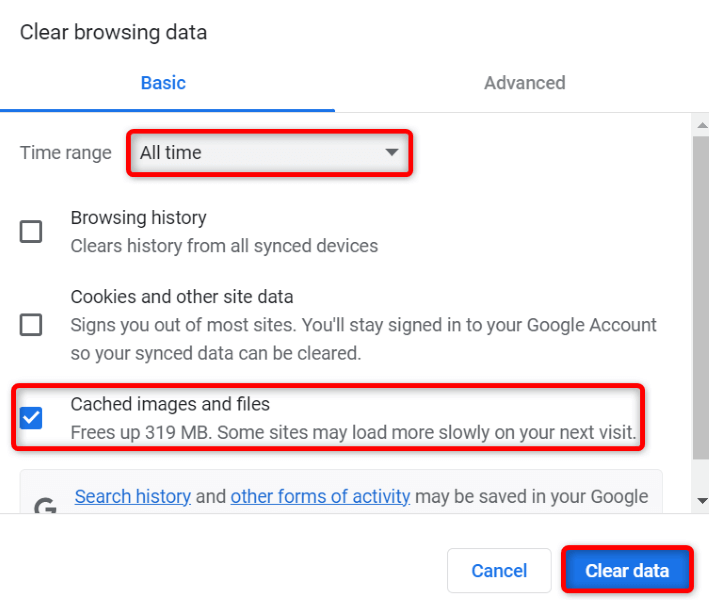
Your Chrome browser caches various forms of web content to improve your overall surfing experience. Sometimes, this cached content becomes corrupt, causing random issues with the browser. Your “This site can’t be reached” error may result from a bad Chrome cache. In this case, you can clear your web browser cache and resolve your problem. This doesn’t affect browsing history, login sessions, saved passwords, or other items.
Delete Your DNS Cache
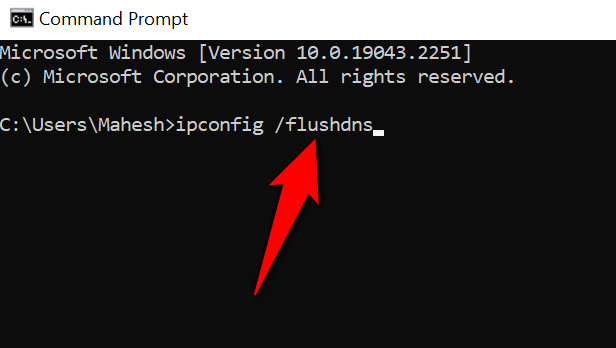
Your computer stores DNS (Domain Name System) data to help web browsers quickly translate domain names to IP addresses. Sometimes, this cache corrupts, preventing your browsers from reaching desired web locations. In this case, you can clear your system’s DNS cache and resolve your issue.
Use Alternate DNS Servers
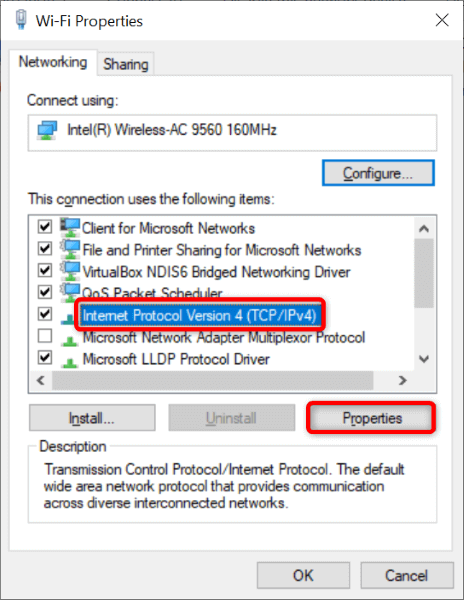
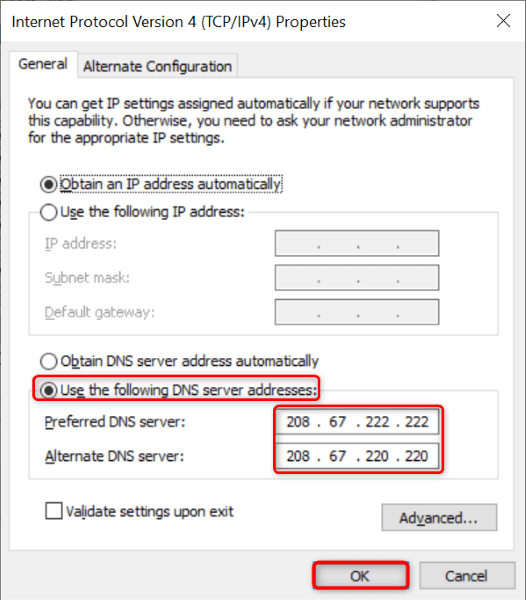
A possible reason Chrome displays the “This site can’t be reached” error is that your current DNS servers are facing an outage. If this happens too often, it’s a good idea to move to alternate DNS servers. A good option is OpenDNS’ free DNS servers. Here’s how you can make that change on your Windows PC:
Update Google Chrome
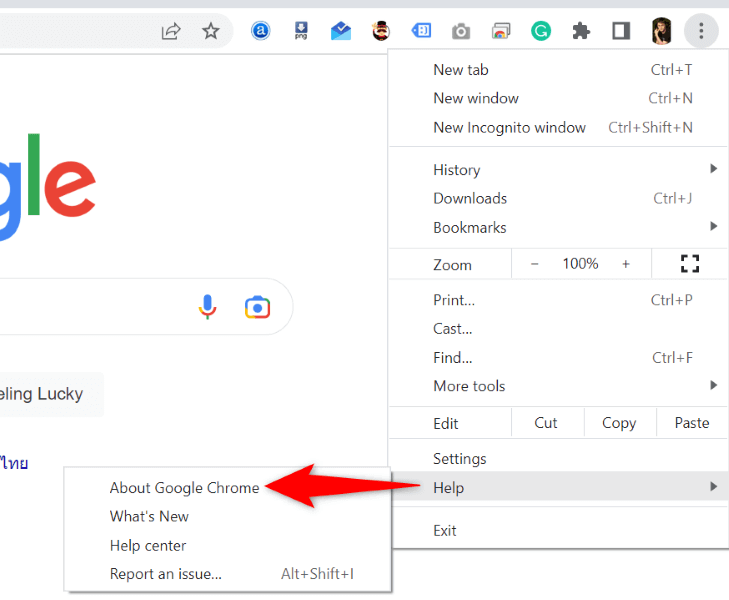
Google often pushes new updates for its Chrome browser, so your browsing experience remains as bug-free as possible. Your “This site can’t be reached” error may result from an outdated Chrome app. In this case, update your web browser, and your issue will likely be resolved.
Factory-Reset Google Chrome
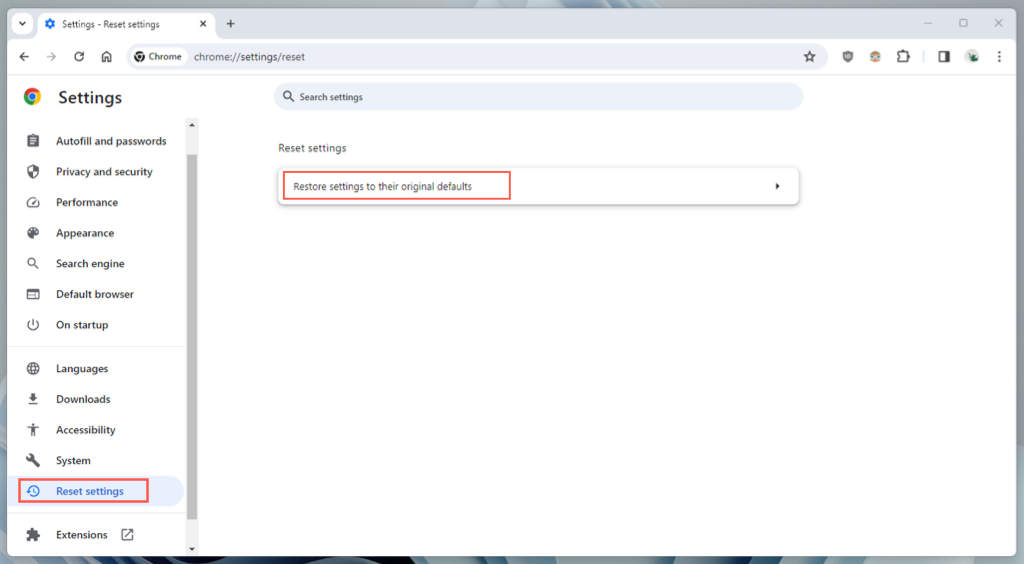
If you still can’t get past the “This site can’t be reached” error message, reset your Chrome browser to factory settings and see if that resolves the issue. The reset process wipes off all your custom options, fixing incorrectly specified configurations. Note that you’ll lose all your saved data in Chrome when you reset the browser.
Reach the Unreachable in Google Chrome
Various factors can cause the “This site can’t be reached” error in Google Chrome on your computer. If you run into this error and aren’t sure how to fix it, make a few network and browser changes on your system, as described above. Your issue will then be fixed, and you’ll be able to resume your browsing sessions.