1. Simply Wait for a While
There’s a big possibility that error 16 occurred due to a minor glitch in the Steam app, Steam services, or even your PC. Waiting a few minutes before you retry whatever you were doing in the app should resolve the issue.
In most cases, Error 16 is that simple to resolve. But if Error 16 keeps popping up, you should perform some of the slightly more complicated methods described below.
2. Check Your Network Connection
Another common reason for Steam Error 16 is a slow or disrupted internet connection. If you’re updating your account information and the internet stops working, the Steam app won’t be able to save your details and will display Error 16.
If this is the case, you must check your internet connection and ensure it’s in working order. Restart your router or reconnect to the WiFi network you’re using, and try whatever you were doing on Steam again.
3. Close Conflicting Apps
Some apps you use on your device conflict with Steam, causing error 16. If you suspect this is why you’re experiencing the Steam Error, try closing all the apps and services running in the background and see if this fixes the issue.
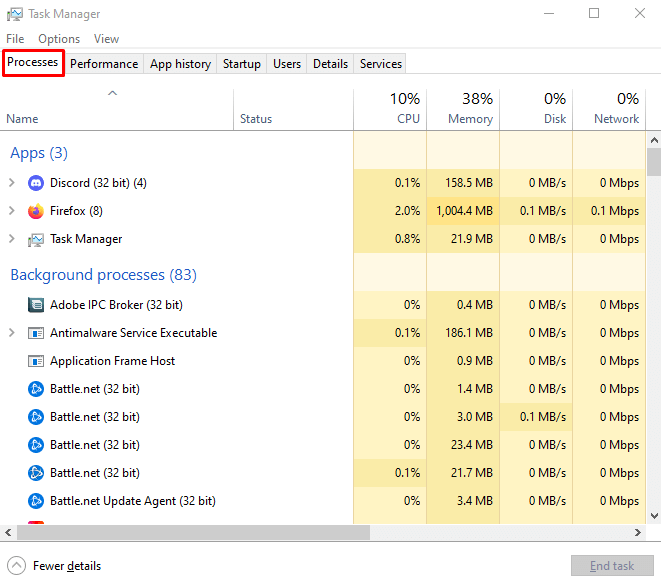
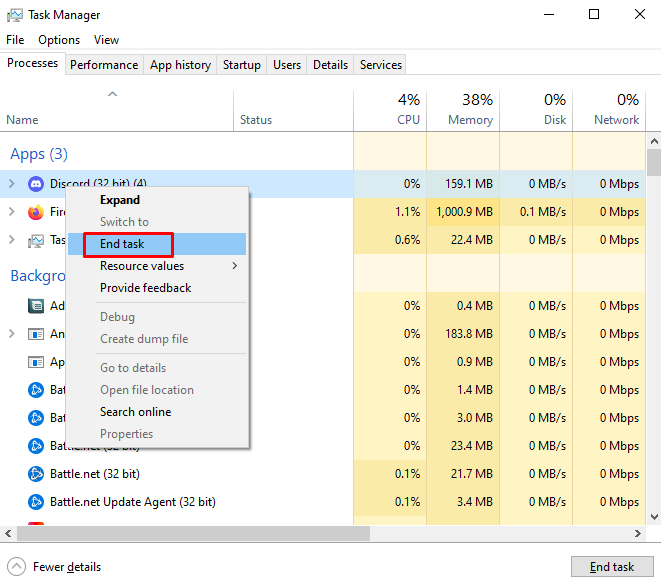
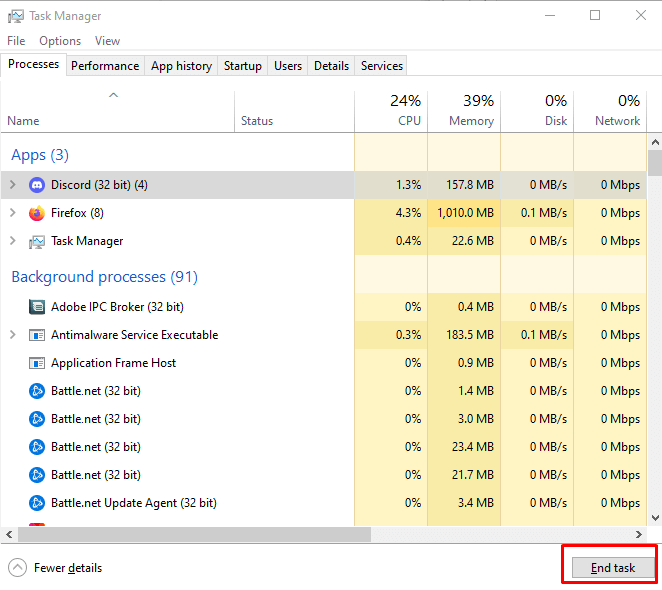
You can close all running processes with Task Manager if you’re using Windows OS:
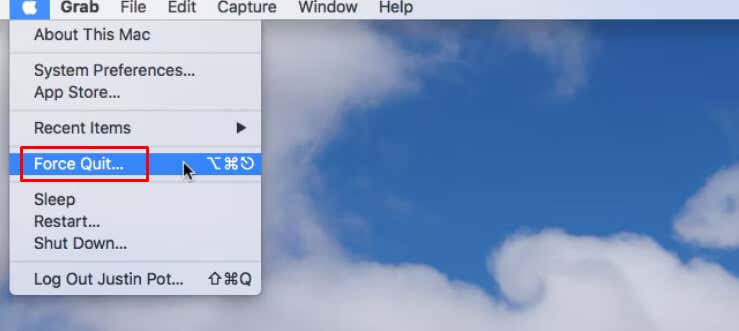
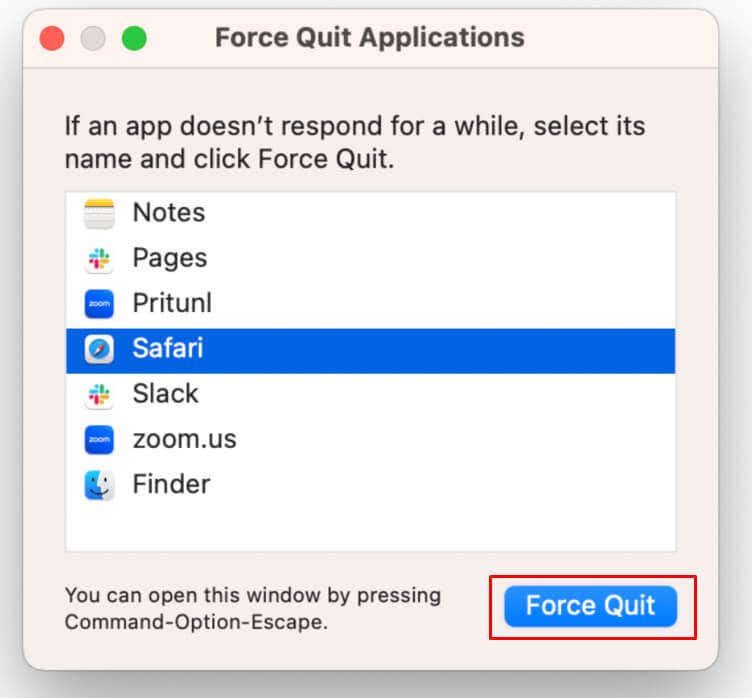
If you’re using macOS, you can quit the running apps with the Force Quit tool. You’ll find it in the menu bar of the Apple logo in the upper left corner of the screen. Alternatively, you can use the keyboard shortcut Command + Option + Esc to open this tool.
When the Force Quit window opens, select the apps you want to close and click the Force Quit button.
4. Update Steam, your OS, and Graphic Drivers to the Latest Versions
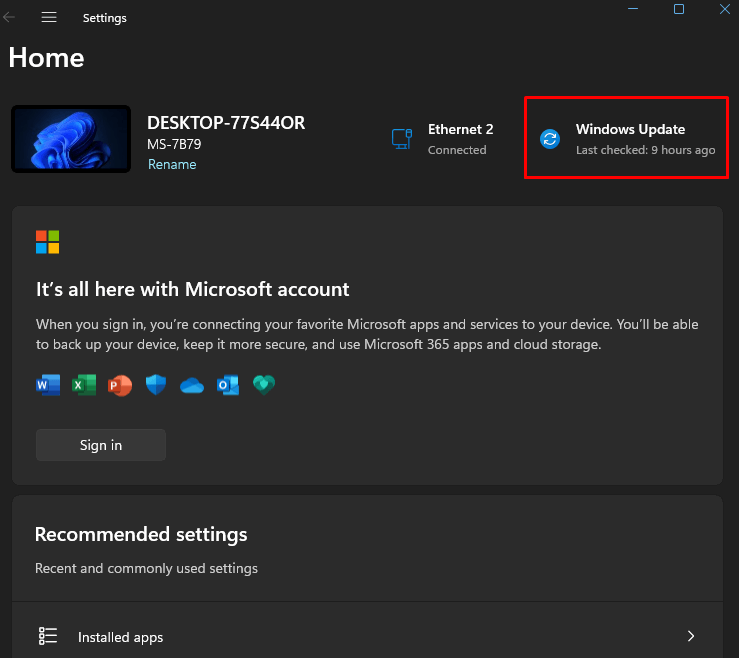
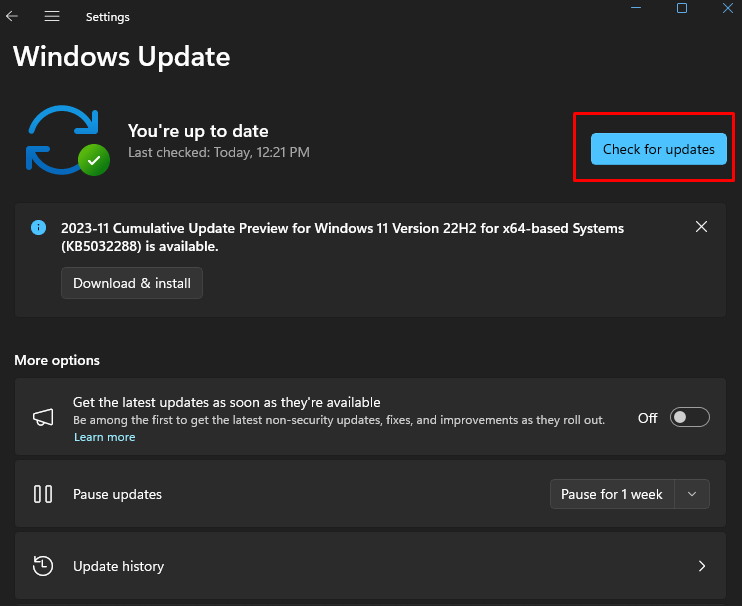
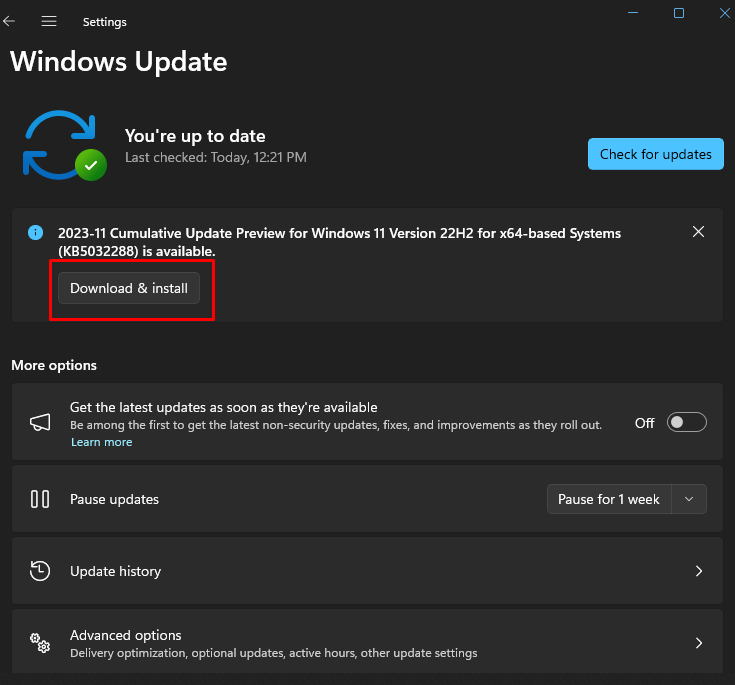
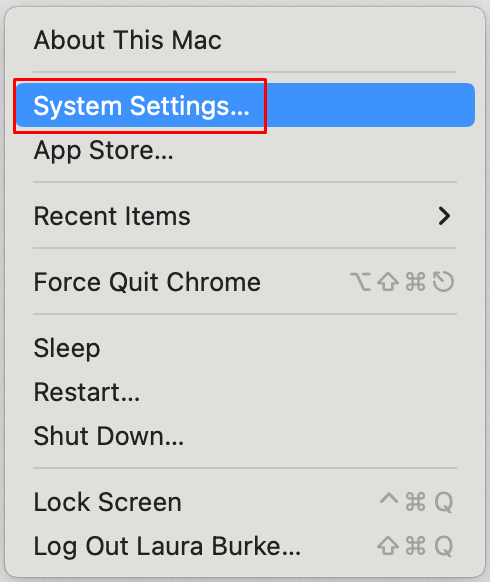
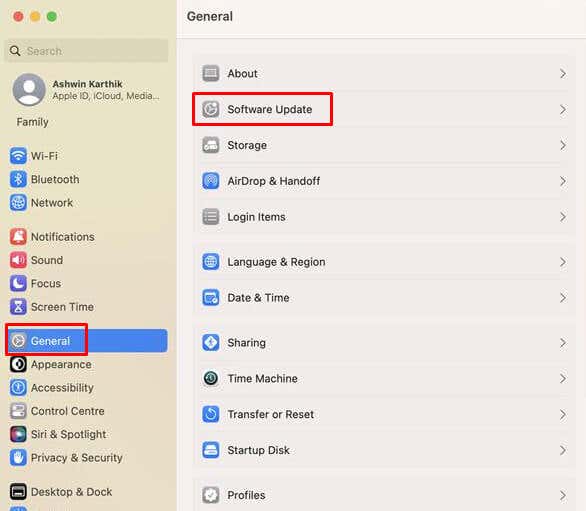
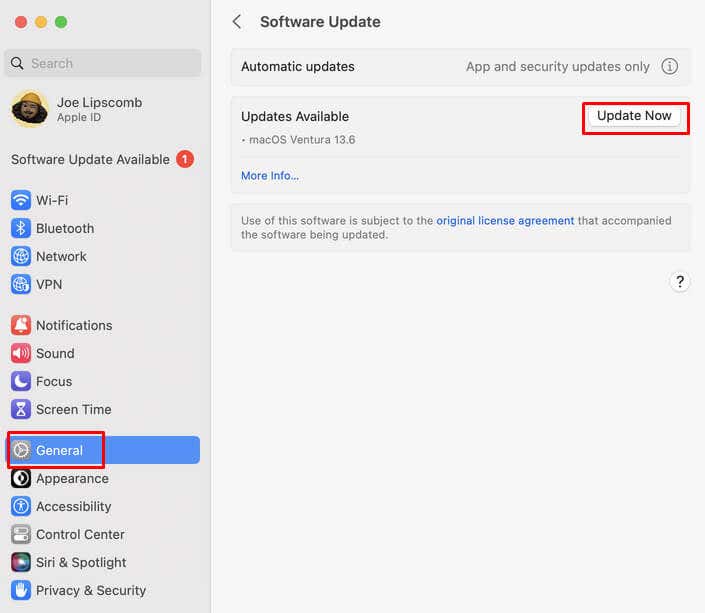
For game clients such as Steam, you must keep your system up to date. To do this, you’ll need to install its latest version. Check if there are any pending OS updates and install them. This process will depend on which operating system you’re using.
Updating Your OS
For Windows: Once the process is finished, go back to Steam and see if you’re still getting Error 16 message. For macOS:
Updating Graphics Drivers
The best way to update graphics drivers is to visit the website of the graphic card manufacturer you’re using (such as Intel, NVIDIA, or AMD), and check for the latest versions to download and install on your PC. Just make sure to install the correct version of drivers for the operating system you’re using.
Update the Steam App
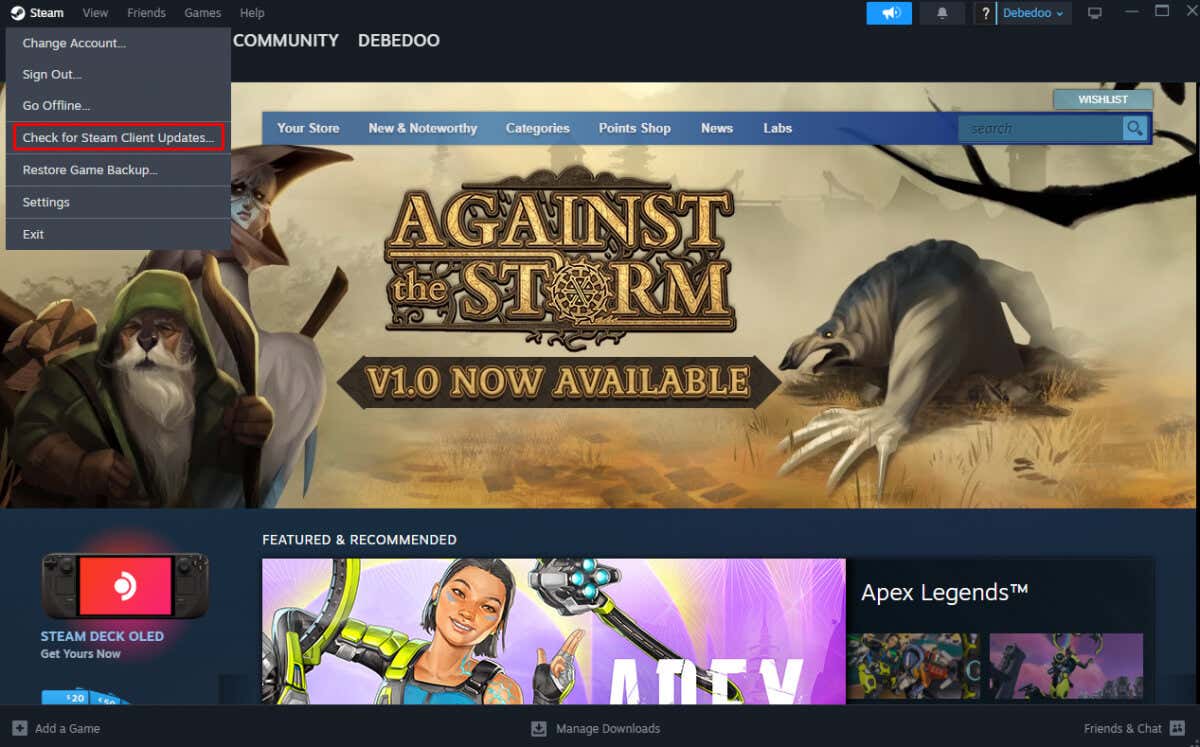
Typically, Steam automatically downloads and installs any available updates when you launch the app. But if this doesn’t happen, do it manually. Here’s how: And that’s it. Steam will automatically find and install any missing updates. See if this fixed the issue.
5. Re-install Runtime Libraries
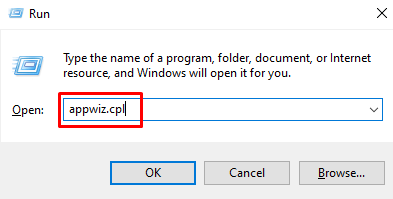
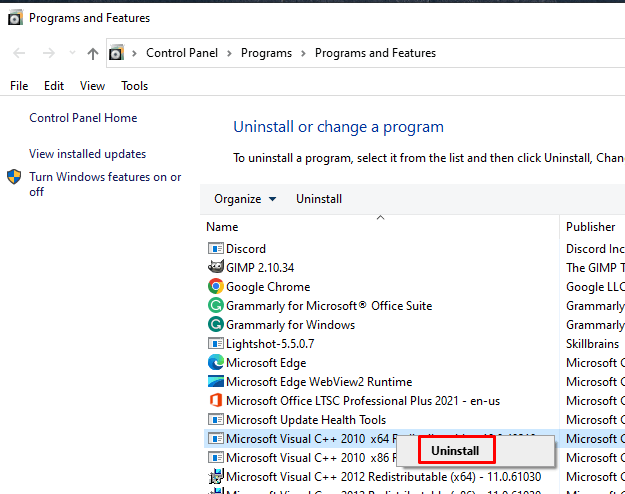
Corrupted files associated with Microsoft Visual C++ sometimes cause Steam to display Error 16 or even Error 80. Reinstalling the Visual C++ package on your device should help with this issue. Here’s how: Check if this helped with Steam Error 16.
6. Run Disk Cleanup
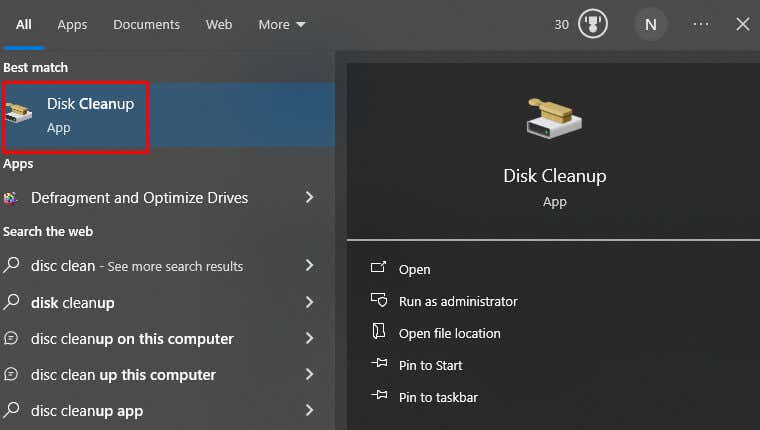
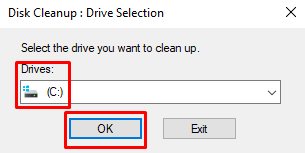
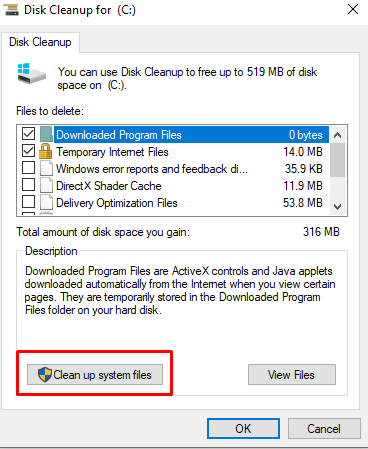
If you’re still experiencing Steam Error 16, perhaps your device simply doesn’t have enough storage space. Deleting unnecessary files and programs might help with this. Run a disk cleanup to get rid of temporary files. This is a semi-automated process and the Disk Cleanup app will scan your device and decide which files are safe to delete instead of you. Here’s what you need to do: Hopefully, this will help with Steam Error 16. If you’re using macOS, there are several tools available to you that can help you free some storage space. You can use the Optimize Storage function to delete files purchased on iTunes. Empty Trash Automatically feature will permanently delete all items in the trash bin after 30 days. Finally, the Reduce Cluster tool will help you go through your Mac’s files and help you decide which files can be moved to the Cloud or an external drive if you wish.
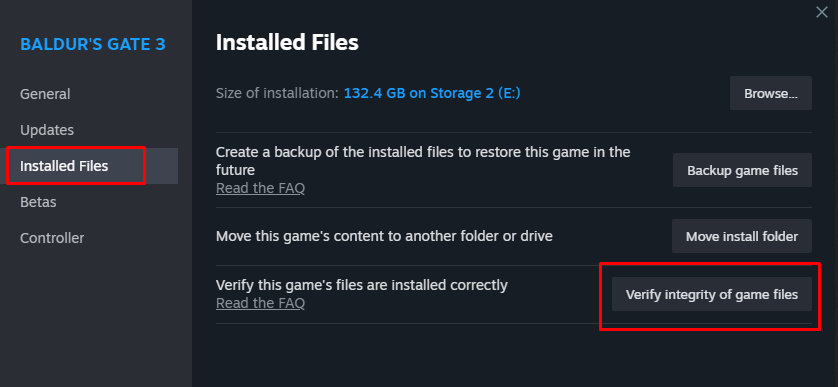
7. Authenticate The Integrity of Steam Files
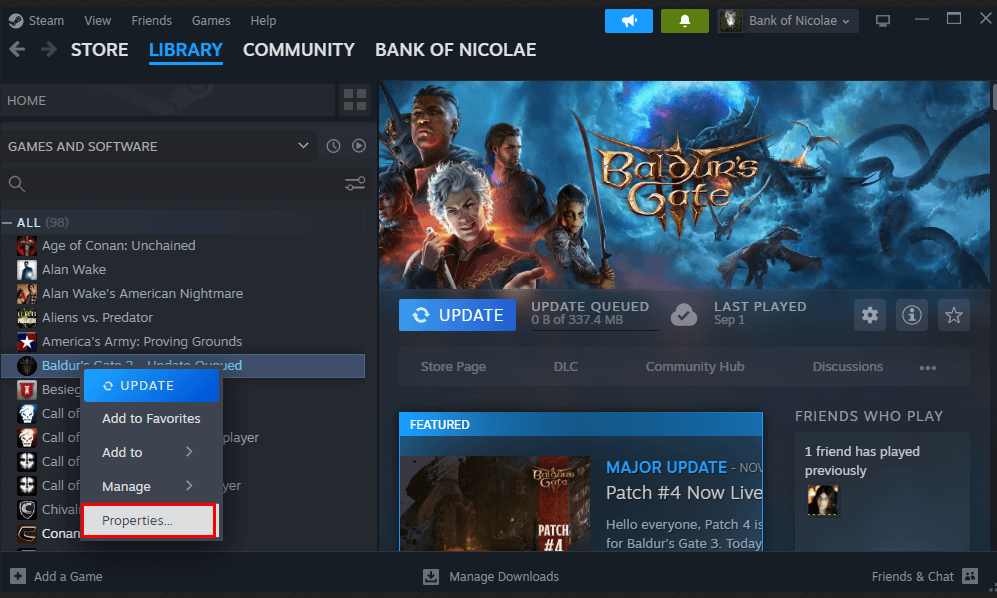
If there’s an issue with the integrity of the Steam files, Steam may display Error 16. To tackle this: When the process is done, open Task Manager and end all tasks related to Steam. Restart your PC, and once the system is up run Steam to see if the Error 16 problem persists.
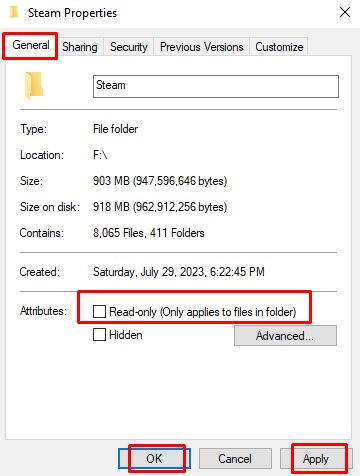
8. Check Security Permissions for the Steam Folder
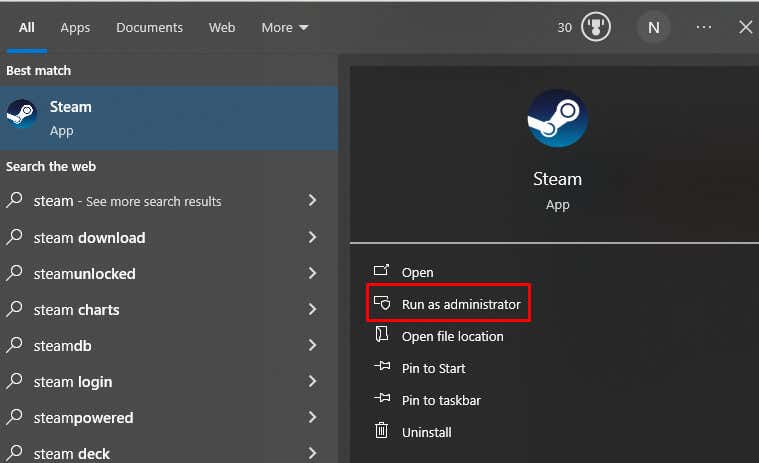
It might be that the wrong security permissions for Steam are causing it to display Error 16 for you. Checking the Steam Folder’s security permissions on Windows is very easy: Restart the Steam app and see if this fixes the issue.
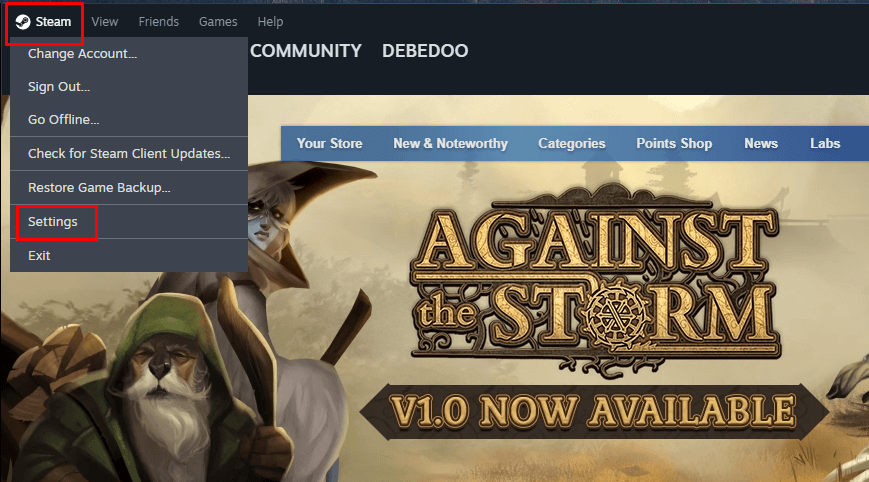
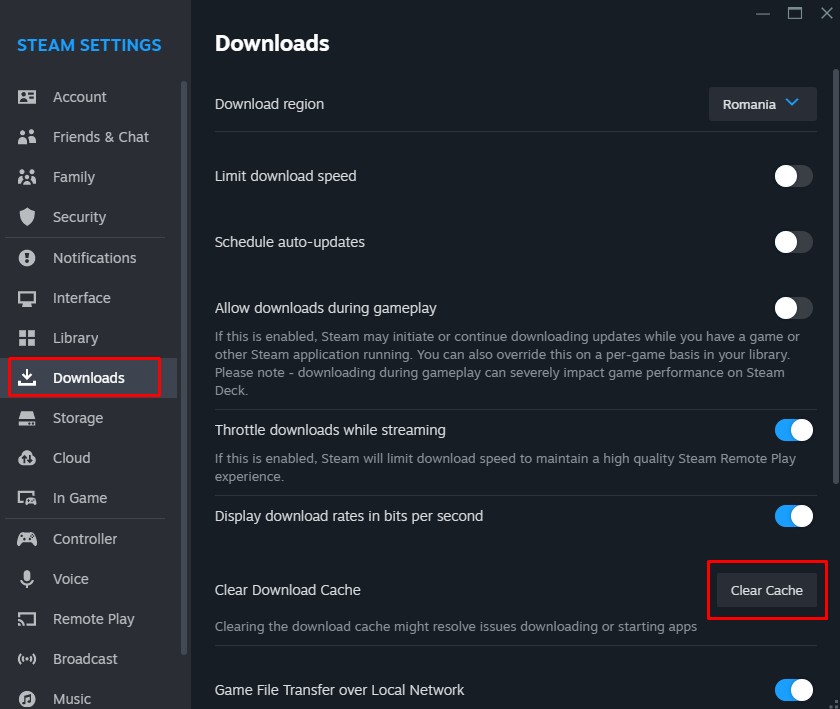
9. Clear Steam’s Cache
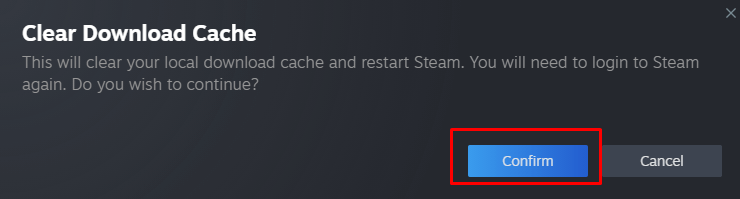
Steam is using cache files to enhance your experience with the app. However, these files can get corrupted and cause problems such as Steam Error 16. Follow these steps to clear the cache:
10. Reinstall the Steam App
If the Steam app core files are corrupted you might get the error 16 message. However, clearing the cache won’t help you if this is the case. You’ll have to uninstall and reinstall the Steam app.
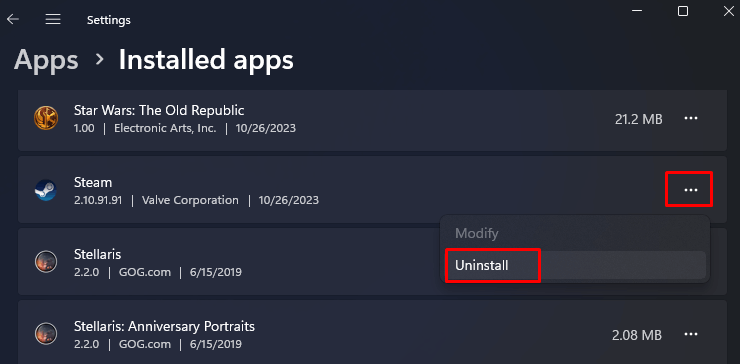
On Windows 11:
Go to Settings, then select Apps, and finally Installed Apps. Click the three dots next to the Steam and select Uninstall. Select Uninstall again in the prompt.
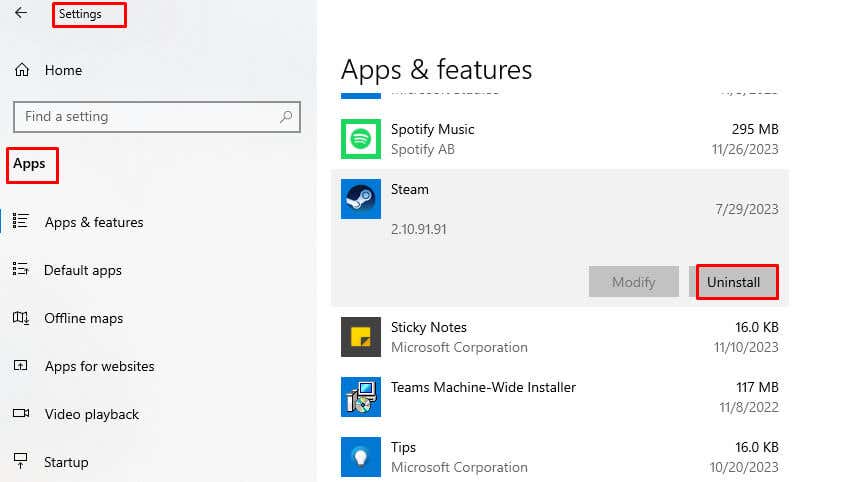
On Windows 10:
Head to the Settings and select Apps. Select Steam from the list and then click on the Uninstall button. Confirm when prompted.
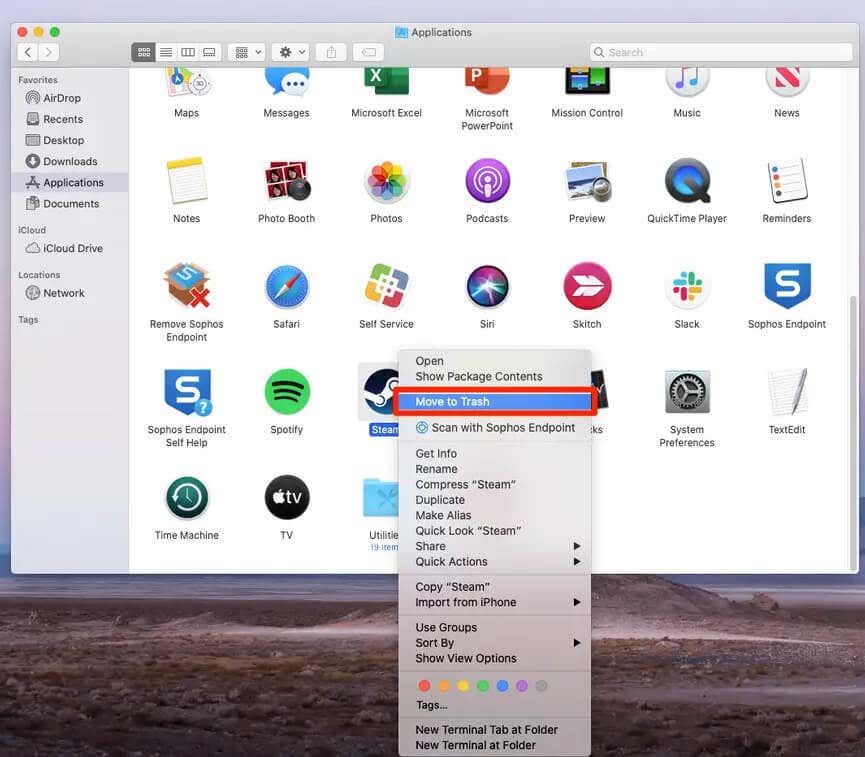
On Mac:
Head to the Finder and then click Applications. Right-click the Steam app and select Move to Trash.
Occasional errors are inevitable, but your ability to troubleshoot and apply these fixes ensures a smoother gaming experience on the Steam platform. Whether you’re an avid gamer or just diving into the gaming world, resolving Error 16 is a crucial step toward uninterrupted gameplay and a hassle-free Steam experience.