What Causes the Spotify Error 409?
Error 409 is most commonly caused by a conflict with your account or a Spotify server. That said, it can also be caused by the following reasons:
Using an incorrect password when updating your Spotify account. Trying to update your Spotify account with an email that’s already in use by another account. Creating a new account with an already registered email. Corrupted registry entries and files. Outdated operating system on your device.
Now let’s see what you can do to attempt to fix the Spotify error code 409.
1. Check Your Spotify Login Details for Mistakes
The most common reason why Spotify users experience Error 409 when trying to log in is that they’re using incorrect login credentials. To remedy this, simply try logging in again, but be mindful of what you’re typing. The smallest mistake in the email or password could trigger the error.
Make sure that the caps lock is off and that all the keys on your keyboard are working correctly. If you’re having trouble remembering the password, you can try resetting it and using a new one to log into Spotify.
Finally, if you’re able to log in to the web version of Spotify but can’t log into the app with the same credentials, the problem might be with your device. If this is the case, continue reading.
2. Restart Your Device
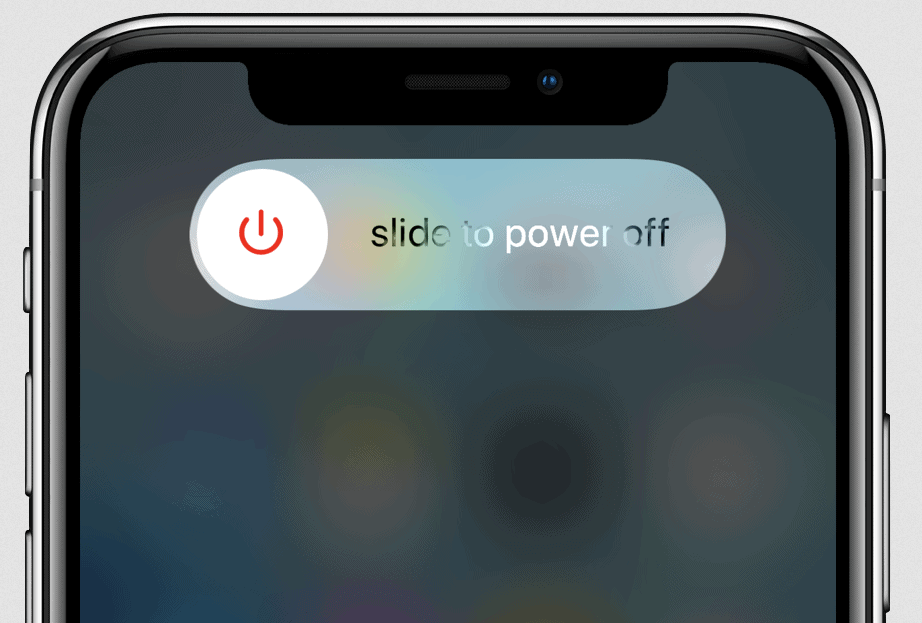
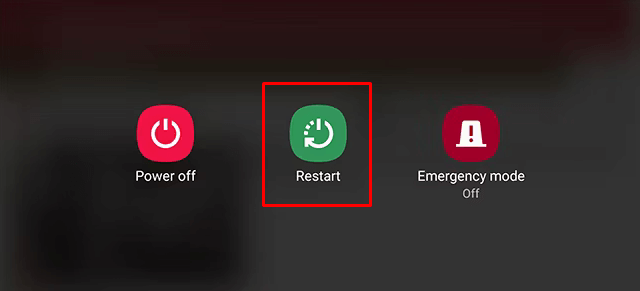
If your login issue persists, it could be a sign that your device is experiencing a glitch. A simple restart takes care of all minor glitches on smartphones. So go ahead and try turning your device off and on again. To restart the iPhone X or later versions, press and hold the Volume Up + Side button or Volume Down + Side button. When a slider appears on the screen, drag it to turn off your iPhone. To turn it on again, press and hold the side button. If you’re using an Android, press and hold the Power button and select restart. When your smartphone turns on, try launching the Spotify app and logging into your account.
3. Update the Spotify App
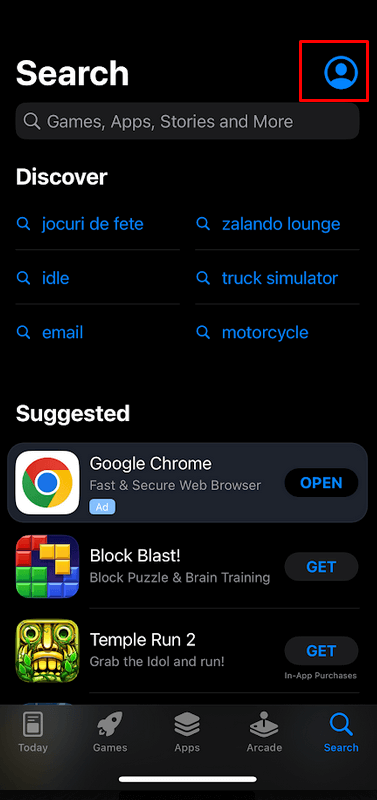
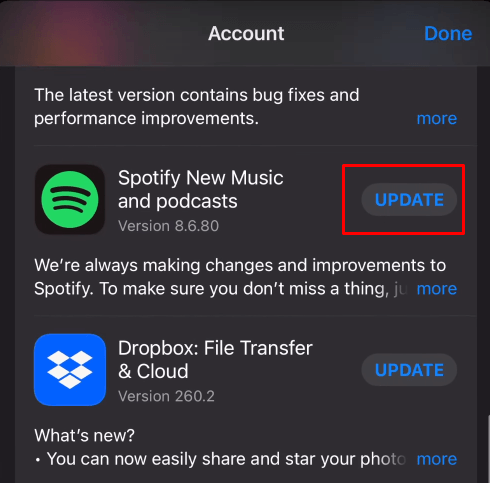
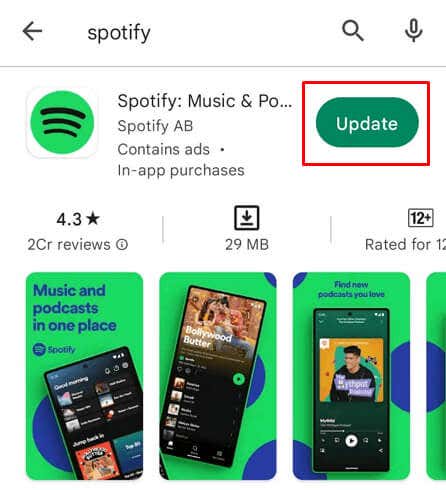
Sometimes, it’s the Spotify app that causes Error 409 to pop up. You can fix this issue if you simply update Spotify to the latest app version.
On an iPhone:
On an Android:
4. Reset the Spotify App on Windows
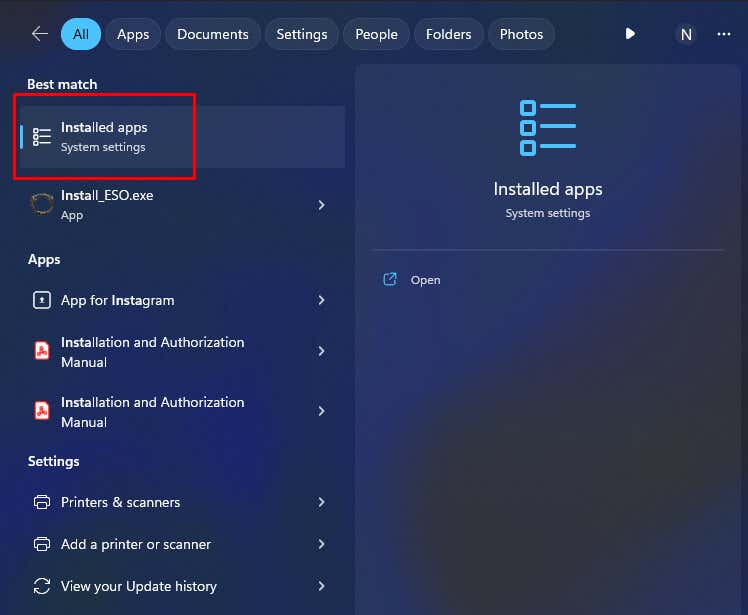
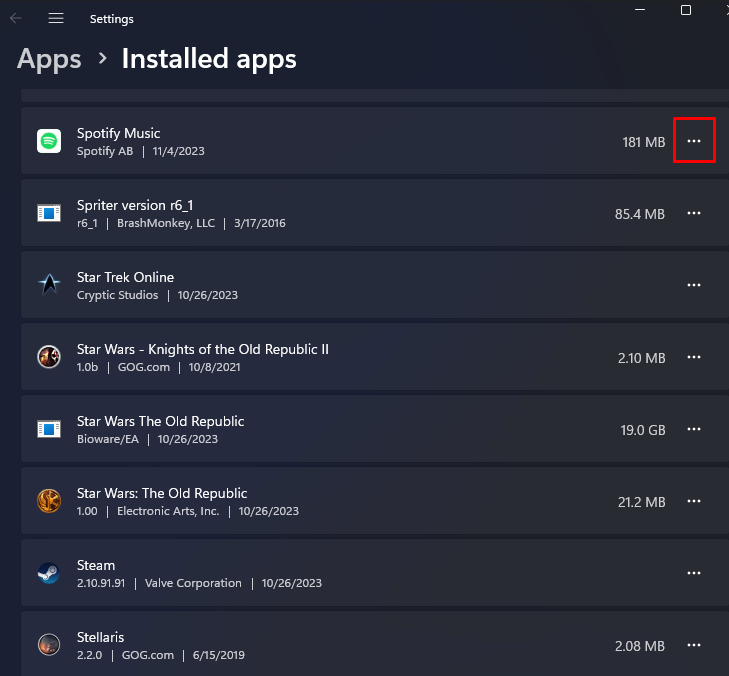
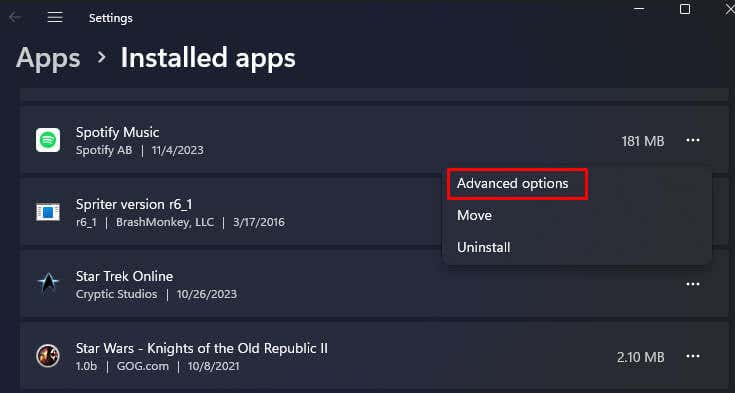
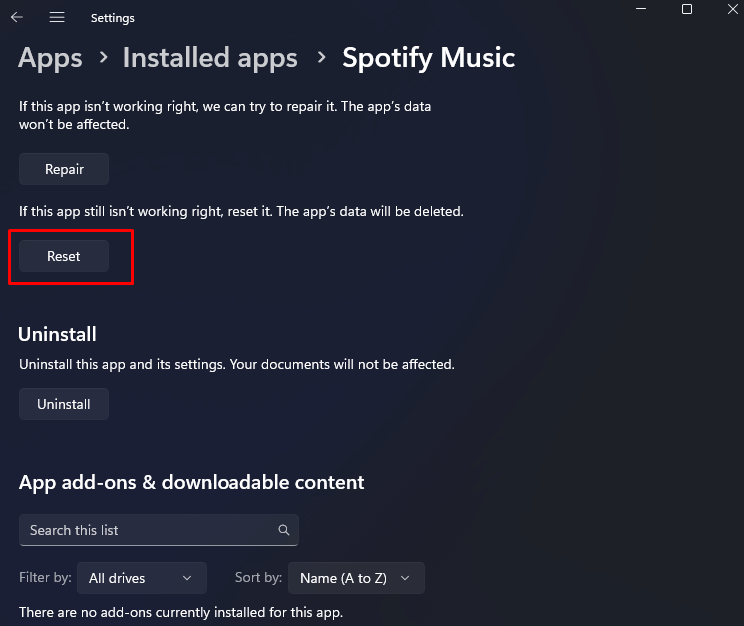
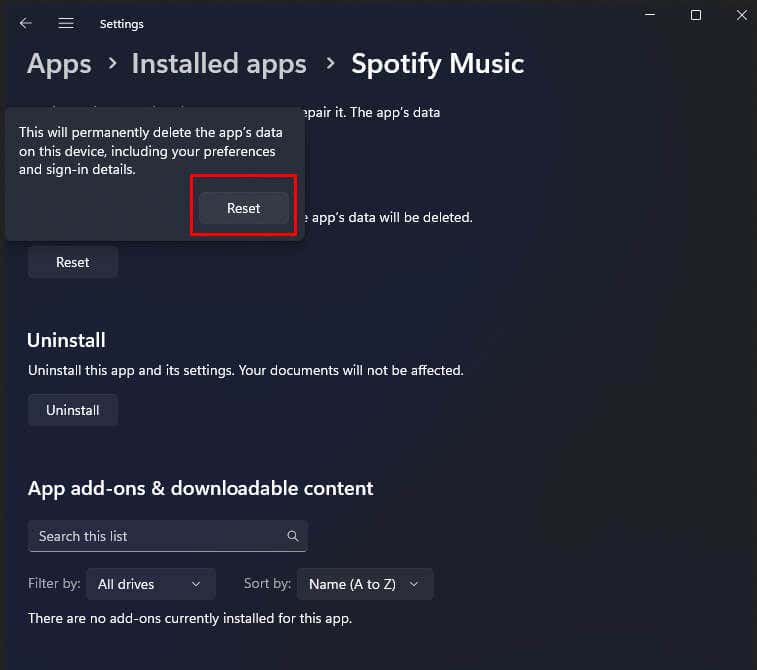
If you’re experiencing login error 409 on your Spotify desktop app, you could try resetting the app and see if this fixes the issue. Windows allows users to reset all the apps downloaded from the Microsoft Store. Here’s how to do it: Resetting the Spotify app will get rid of all the cache files, including the login information.
5. Clear Spotify App Cache
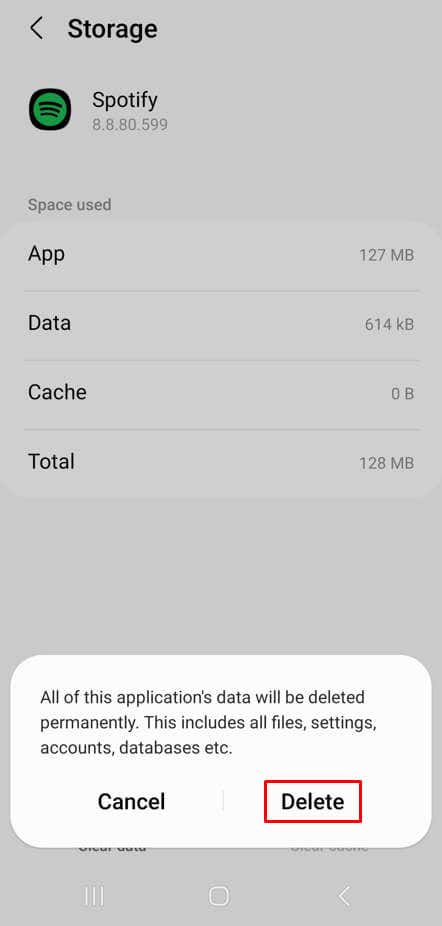
Corrupted files in the Spotify cache folder can cause the login error 409. Since the cache files are temporary data generated by the apps to reduce their load time, the apps can work just fine without them. They’ll just generate the new cache data the next time you run them.
This section will teach you how to clear the cache on iOS, Android, and Windows operating systems.
Clear Cache on iOS Devices
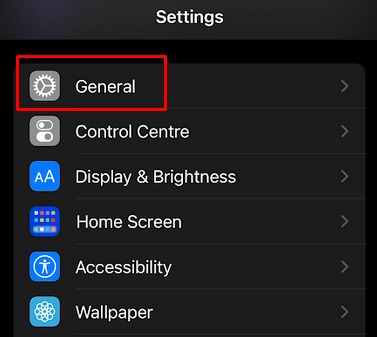
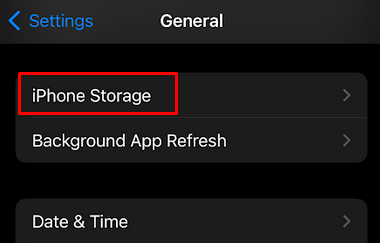
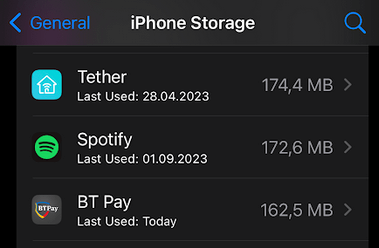
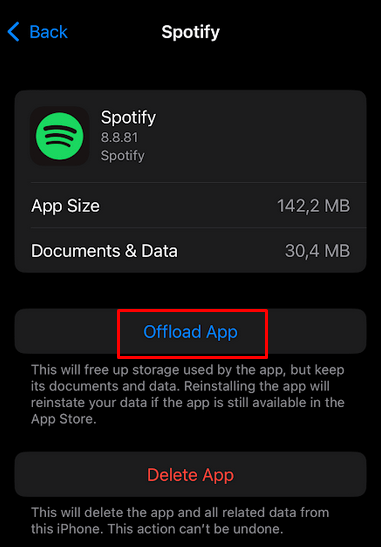
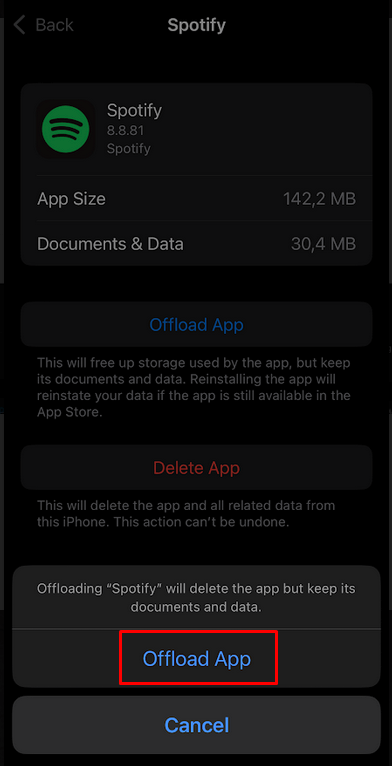
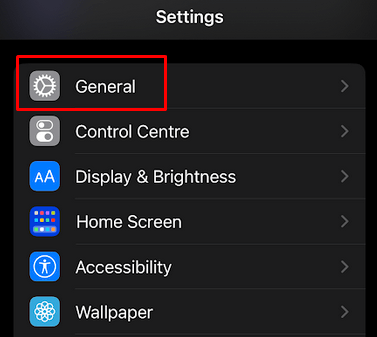
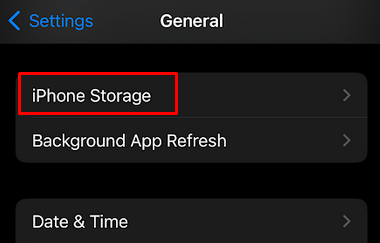
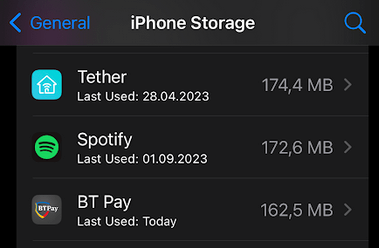
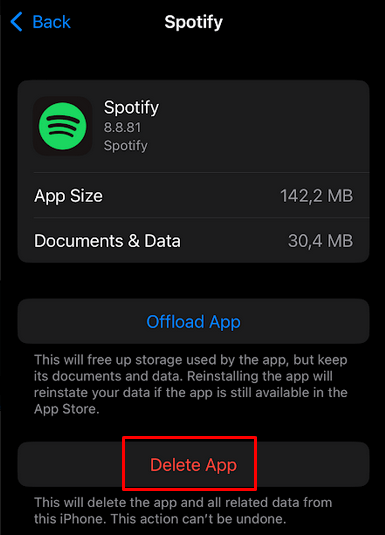
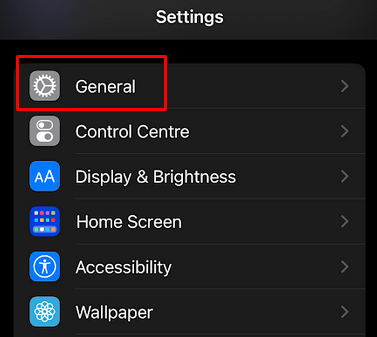
Unfortunately, there’s no direct way to clear the app cache on iOS devices. You’ll have to do it through the Settings app because you won’t be able to navigate to the Spotify settings due to error 409.
By doing this, you’ll remove all the app data, including the Spotify app itself. Now you’ll have to go to the App Store and reinstall Spotify.
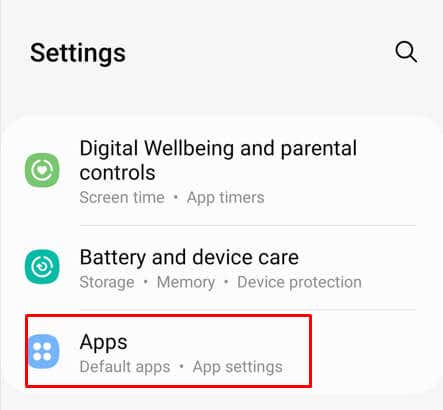
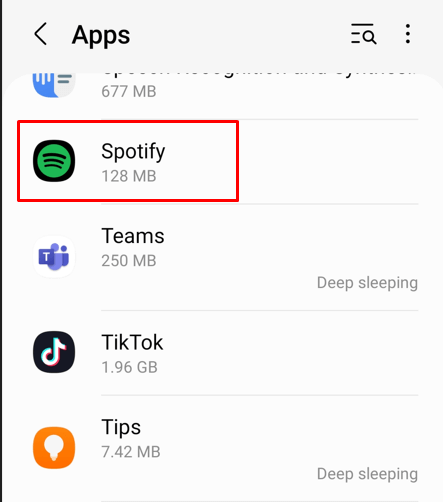
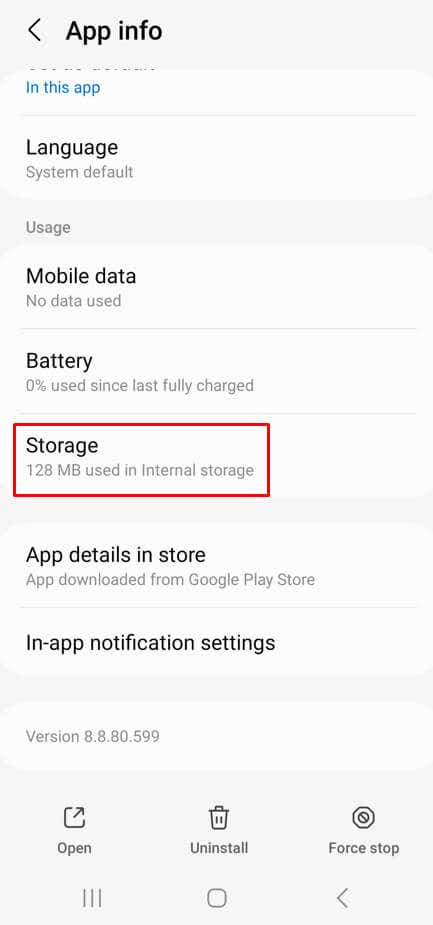
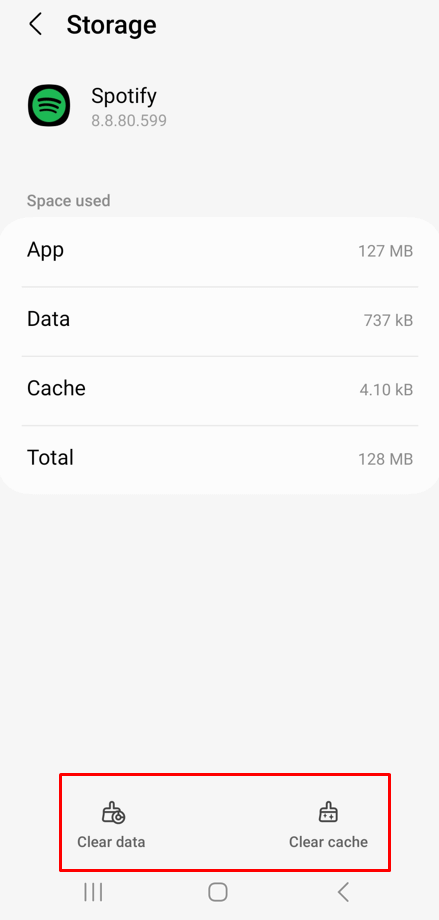
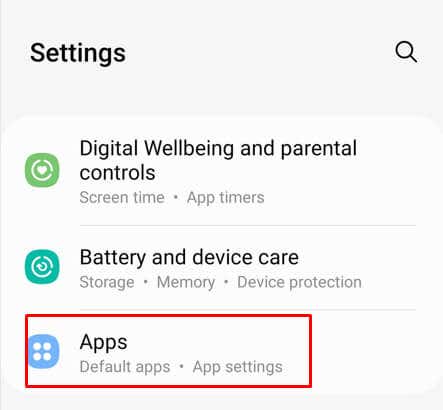
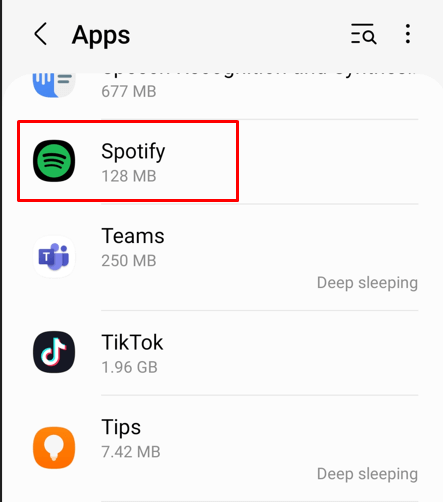
Clear Cache on Android Devices
Launch Spotify and try to log in to see if you’ll encounter the 409 error.
Clear Cache on Windows
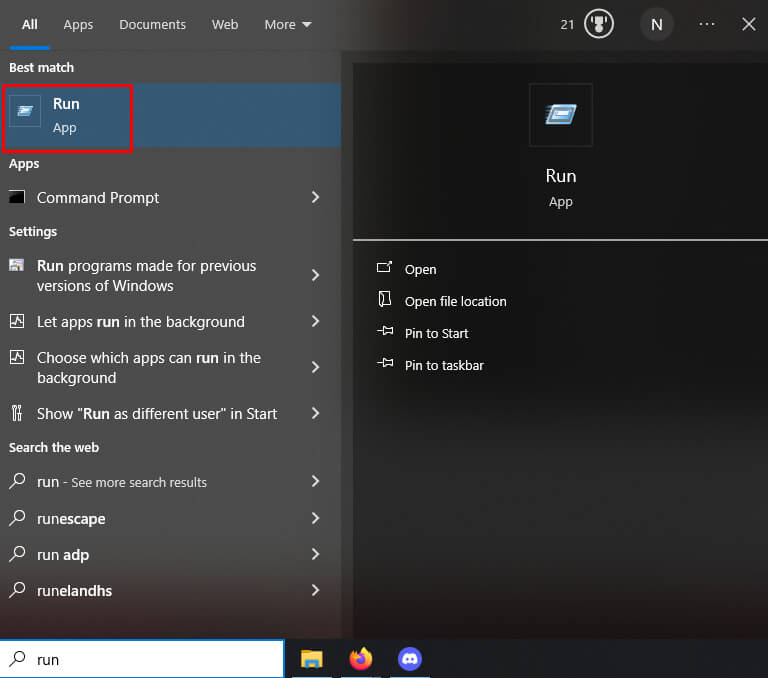
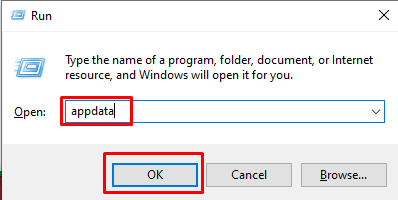
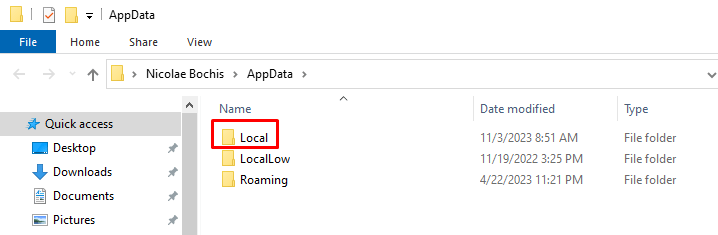
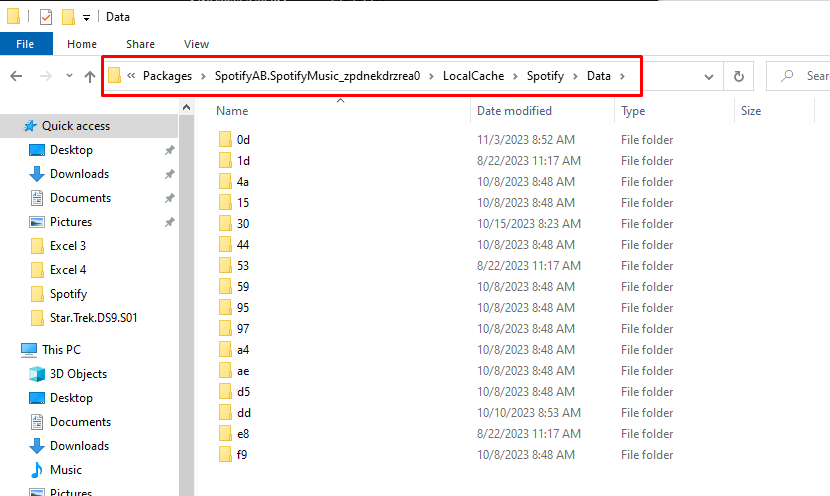
Although you can clear Spotify cache through the Reset app method, you can also do it manually on a Windows PC. Here’s how: Launch Spotify and try logging in with your account credentials to see if this fixed the issue.
6. Reinstall the Spotify App
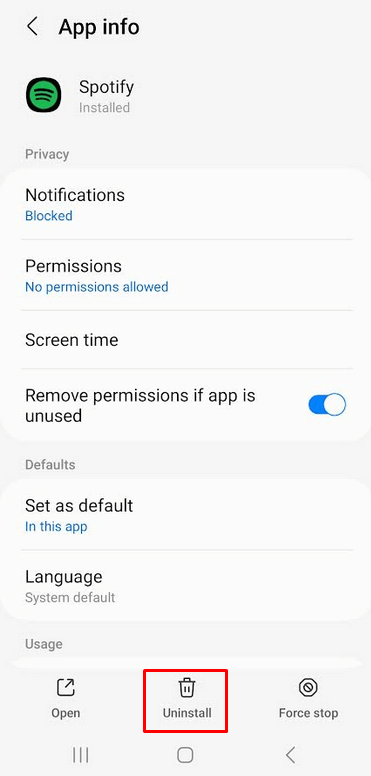
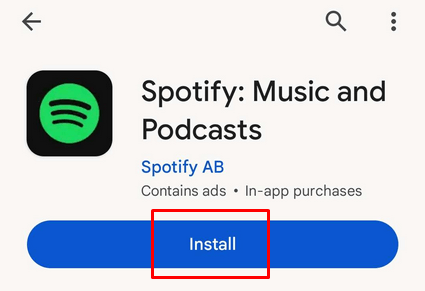
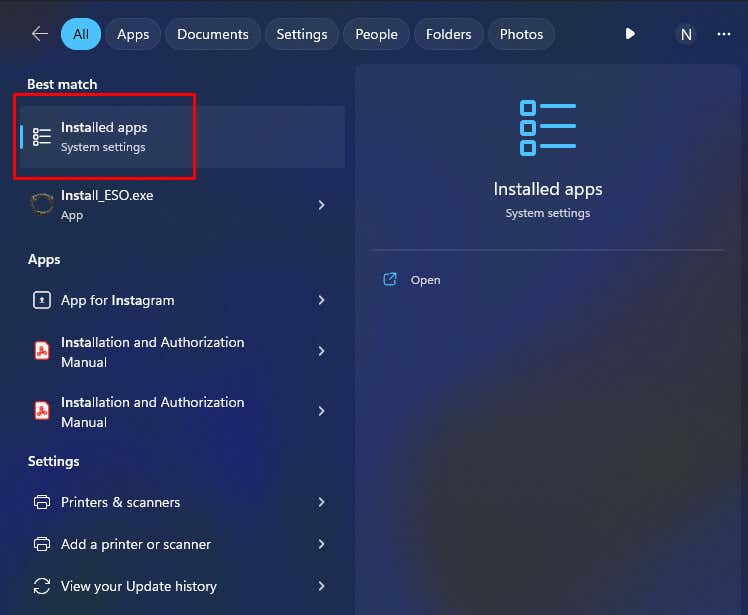
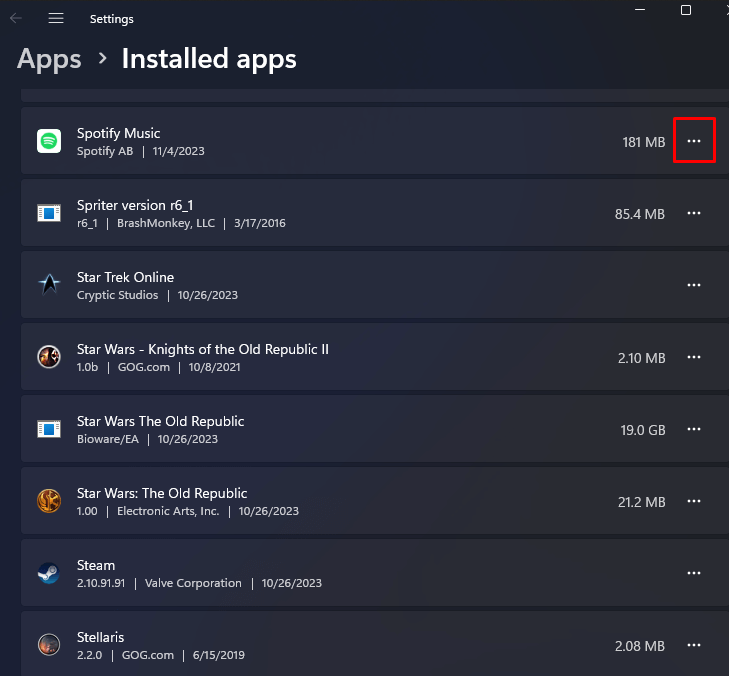
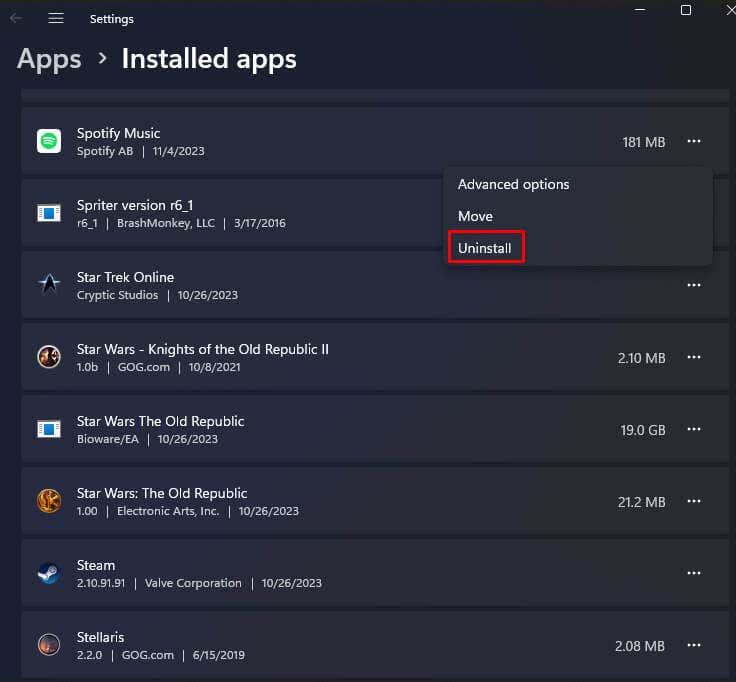
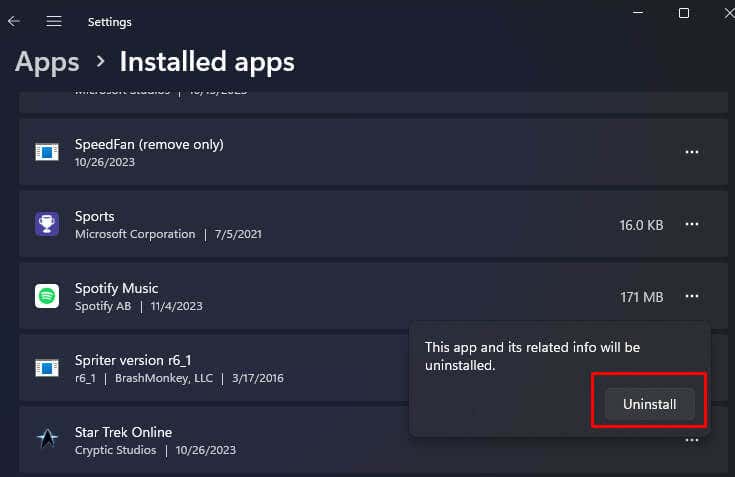
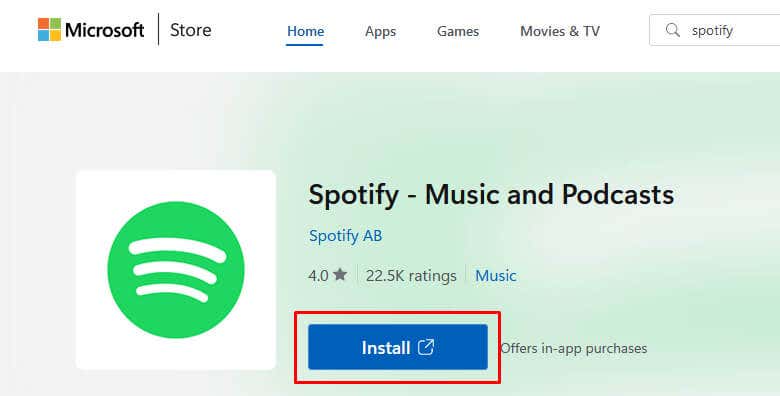
If updating the Spotify app on your smartphone didn’t help with the issue, nor did deleting the cache files, the problem might be in its core files. If this is the case, the only way to get rid of error 409 is to completely remove the app from your device, and install it again. That way, all the core files will be removed.
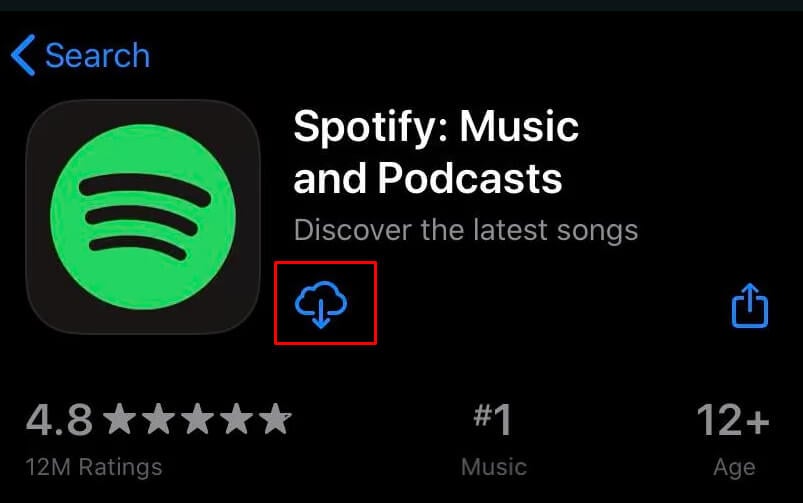
Reinstall Spotify on iOS
Reinstall Spotify on Android
Reinstall Spotify on Windows
7. Update Your Device’s Operating System
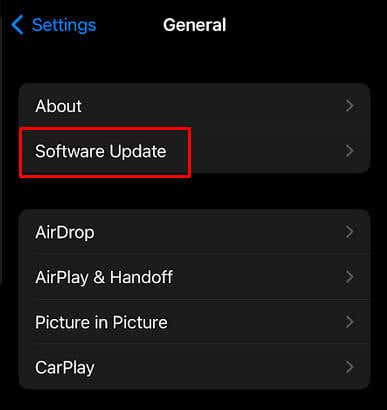
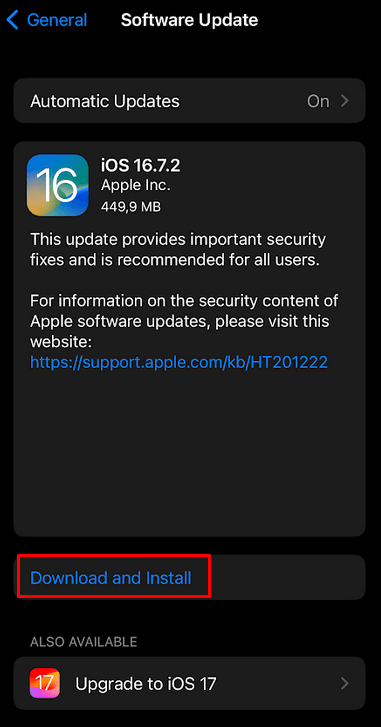
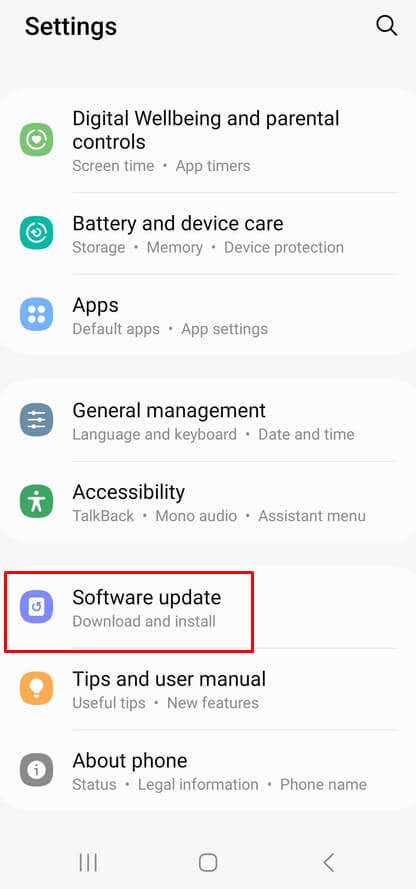
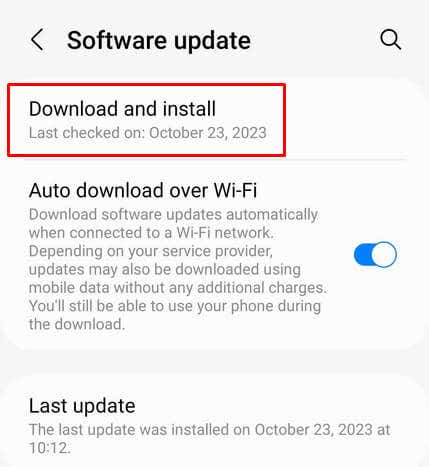
Sometimes, it could be that a bug in your device’s operating system is causing the Spotify login error 409. If that’s the case, you can try fixing the issue by updating the OS to the latest version. New versions of OS come with the fixes for the known bugs and typically fix the issues with the apps you might be experiencing.
Update iOS
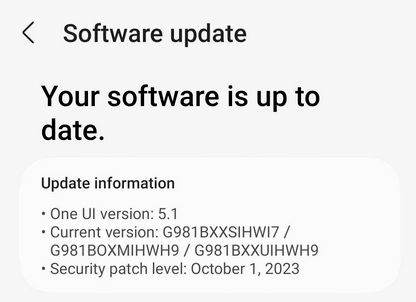
Update Android
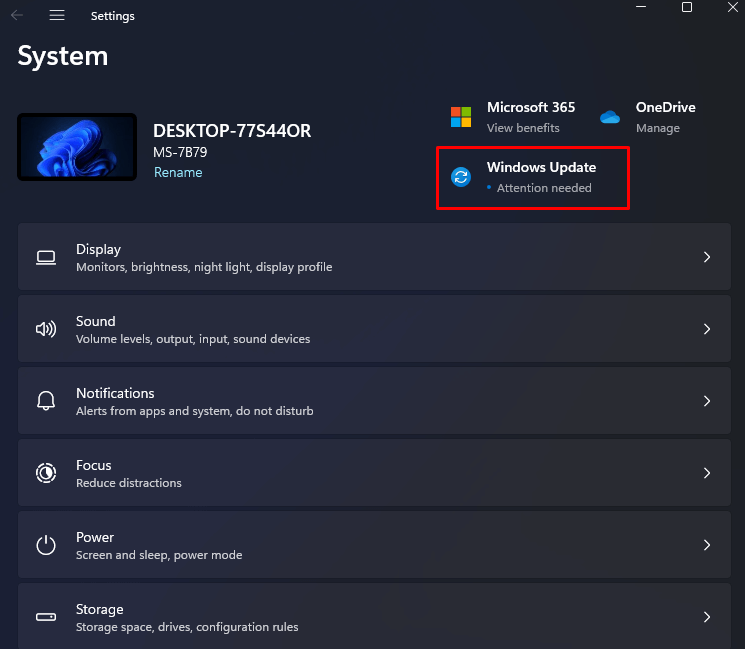
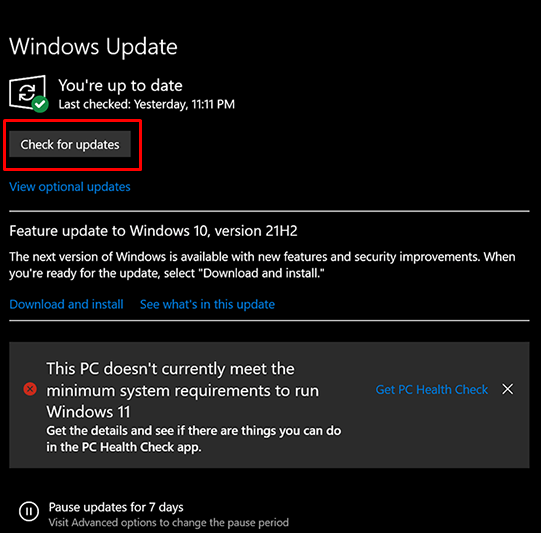
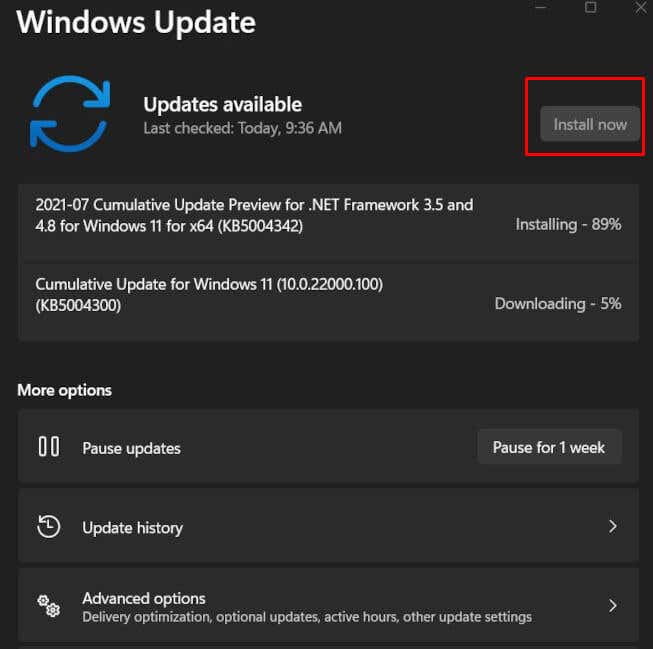
Update Windows
8. Check the Firewall Settings on Windows
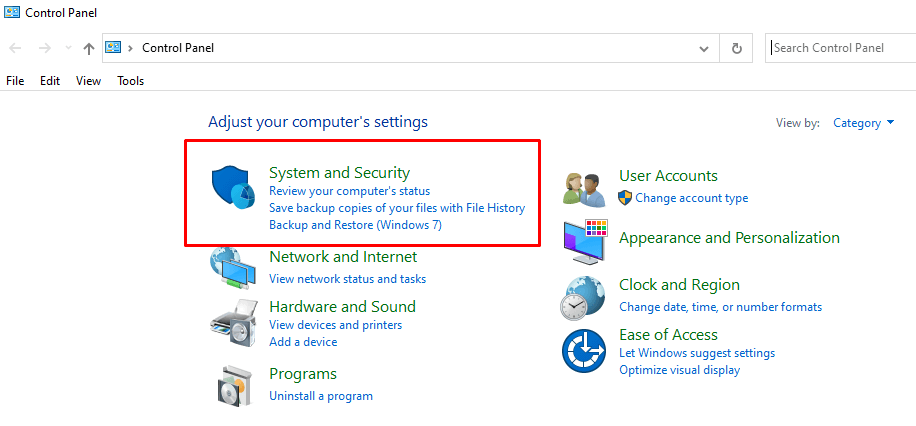
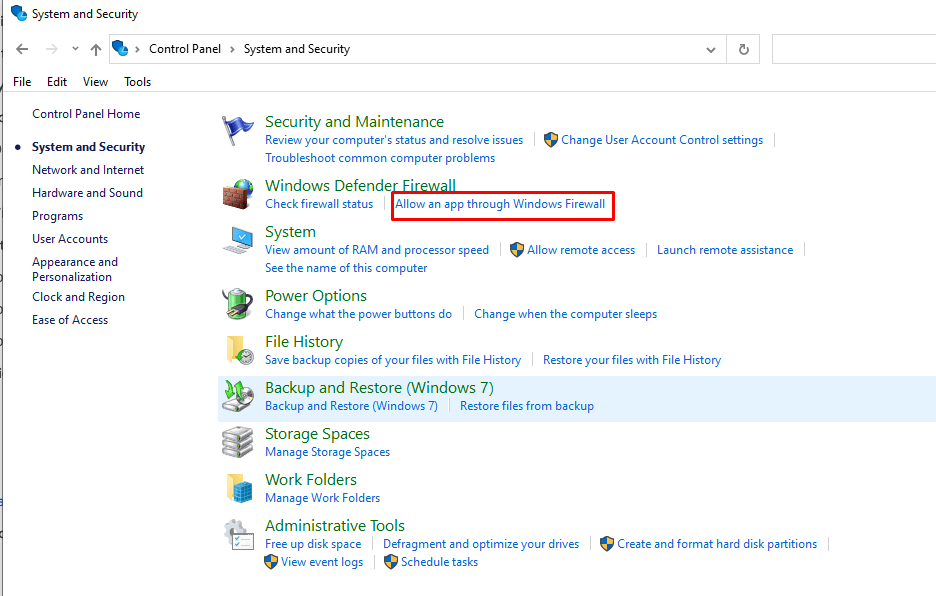
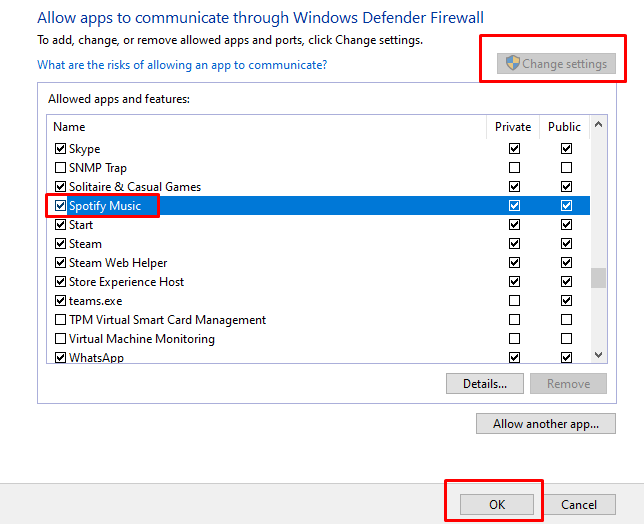
A firewall sometimes prevents some of the services from functioning properly. It could be causing Spotify Error 409. Try turning the firewall off to see if this will allow Spotify to work without interference. You can also set Spotify as one of the allowed Firewall apps so that the software won’t block Spotify anymore. Here’s how:
9. Disable the VPN on Your Device
Finally, if you tried all of the above and none of the offered solutions worked for you, check if you are currently using a VPN service. Due to the nature of VPNs, they can prevent some apps from communicating with Spotify’s servers. The result would be the login fail error 409. Try disabling your VPN to see if this fixed the issue. Tackling the Spotify “Login Failed” Error 409 can be a head-scratcher, so make your way through our troubleshooting guide to find the solution. By addressing common culprits like login credentials, network configurations, and app updates, you’re now equipped with a comprehensive toolkit to troubleshoot and bid farewell to pesky error messages.