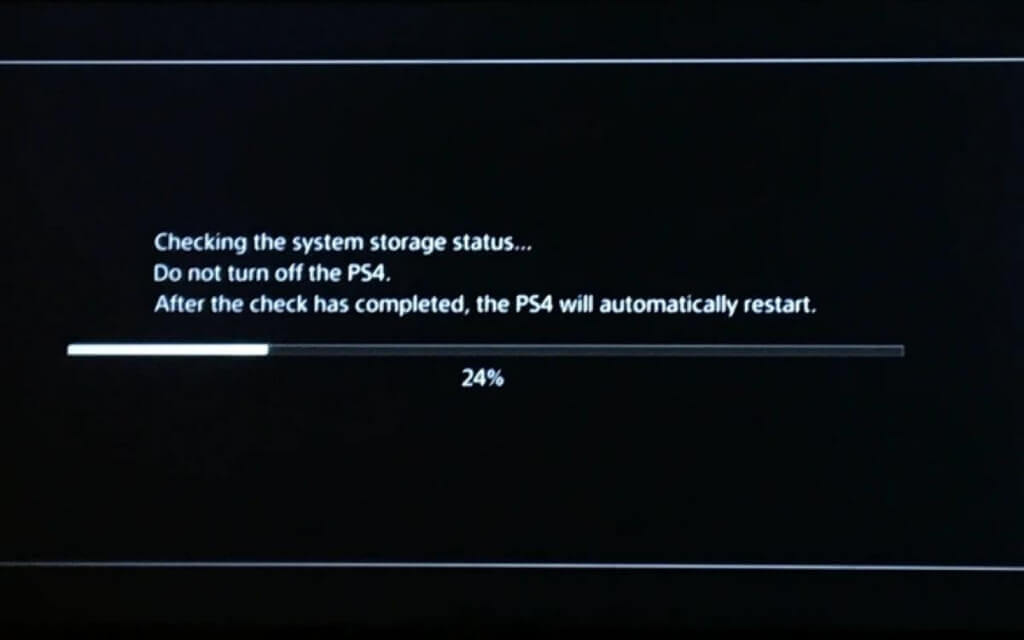
But suppose your PS4 constantly gets stuck on “Checking System Storage Status” for a prolonged period or loops into the same screen. In that case, it might suggest an issue with the hard disk drive, such as the device firmware having difficulties accessing or recognizing the data inside. Before concluding that the hard drive is failing, you can try several troubleshooting steps to resolve the issue and get past the PS4’s “Checking System Storage Status” screen. At the very least, you should be able to get out of the boot loop and back up any data before replacing the storage unit.
Wait It Out
When dealing with startup errors on the PS4, it pays to be patient. For example, the console might be executing multiple tasks in the background to rectify problems with the file system, especially if it has detected numerous errors. We recommend leaving the console alone for at least an hour before moving on.
Perform a Power Cycle
If you’ve tried waiting but the “Checking System Storage Status” progress indicator appears frozen on your PS4, it’s time to initiate a power cycle.
A power cycle resolves unexpected problems caused by hardware-related glitches. Disconnecting USB accessories also ensures no external devices interfere with the boot process.
Boot Into Safe Mode and Troubleshoot
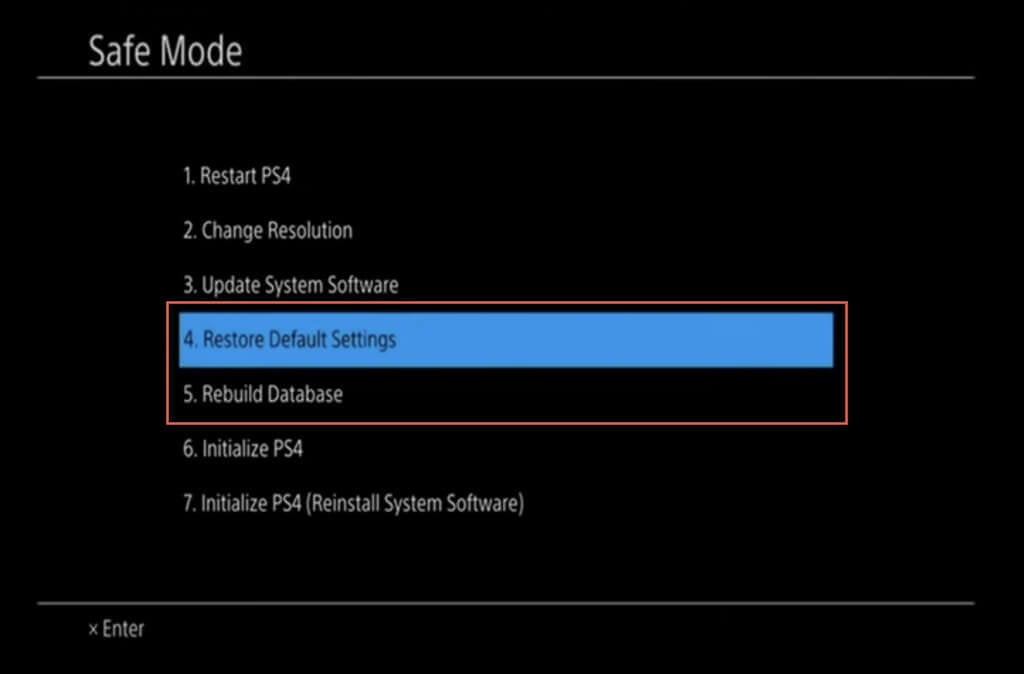
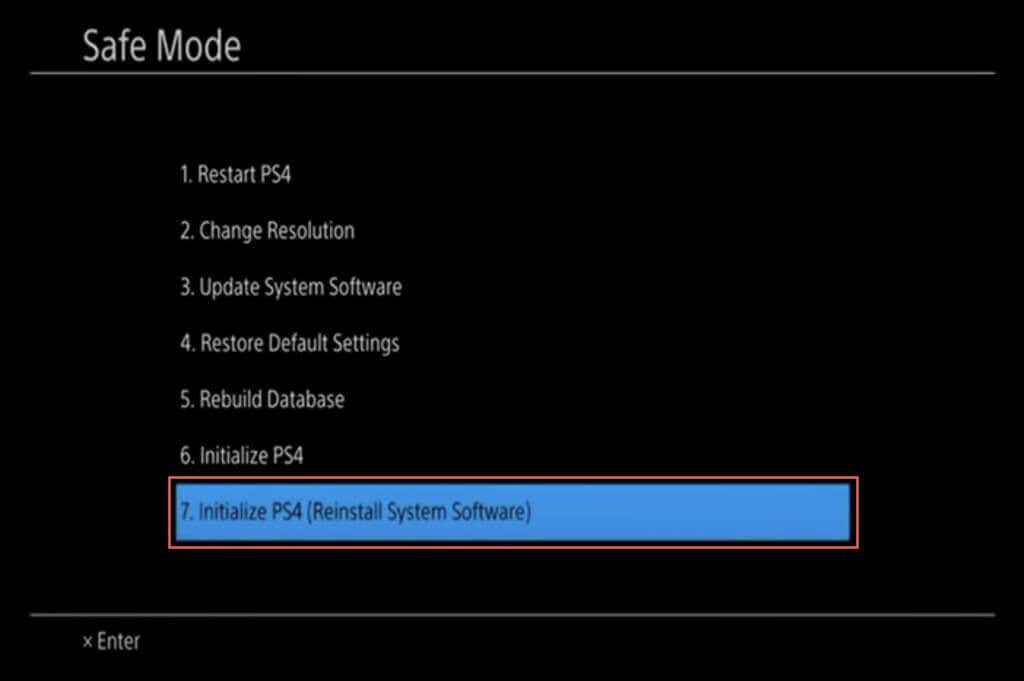
Safe Mode is a special environment on the PS4 that allows you to start your console with basic functionality and access various troubleshooting tools. If the problem persists despite a power cycle, you must troubleshoot the PS4 in Safe Mode.
Enter PS4 Safe Mode
To boot your PS4 into Safe Mode, you must:
Troubleshoot in PS4 Safe Mode
Safe Mode offers numerous ways to troubleshoot a malfunctioning PS4. Still, the two options below are the most relevant when resolving a persistent “Checking System Storage Status” screen or boot loop.
Restore Default Settings: Resets the PS4 to its original settings without deleting your data and fixes problems stemming from a broken settings configuration. Rebuild Database: Scans the console’s hard drive and creates a new database of all content. The operation takes several hours but generally fixes startup errors caused by data corruption.
Reinstall the PS4 System Software
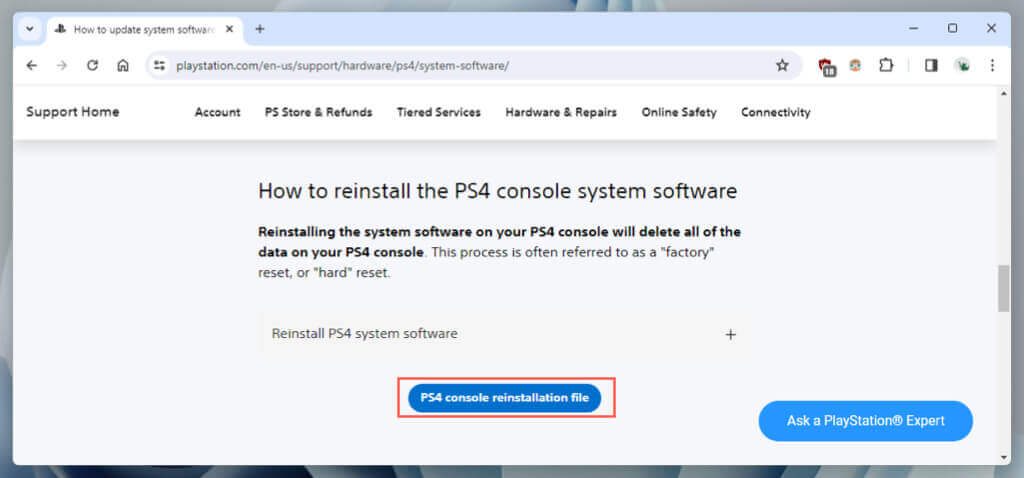
If your PS4 repeatedly boots into the “Check System Storage Status” screen despite performing the fixes above, it’s time to reinstall the console’s system software. You’ll lose all your data. However, if you have a backup of your saved files and media, you can restore everything afterward.
Create a USB Flash Drive
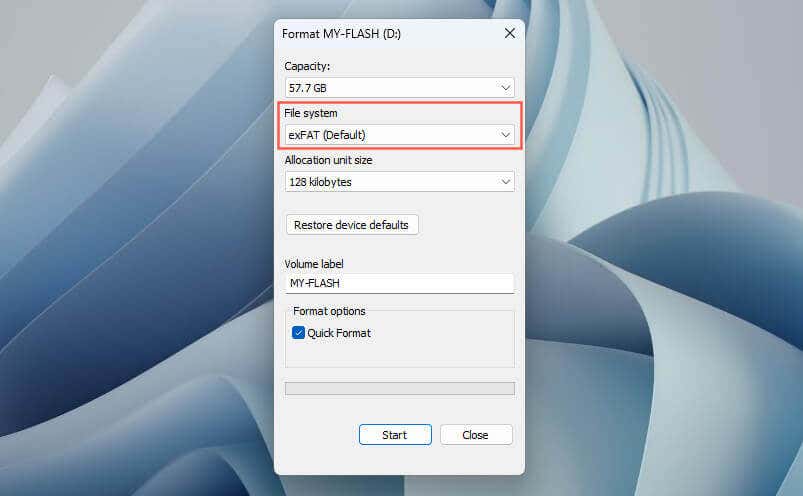
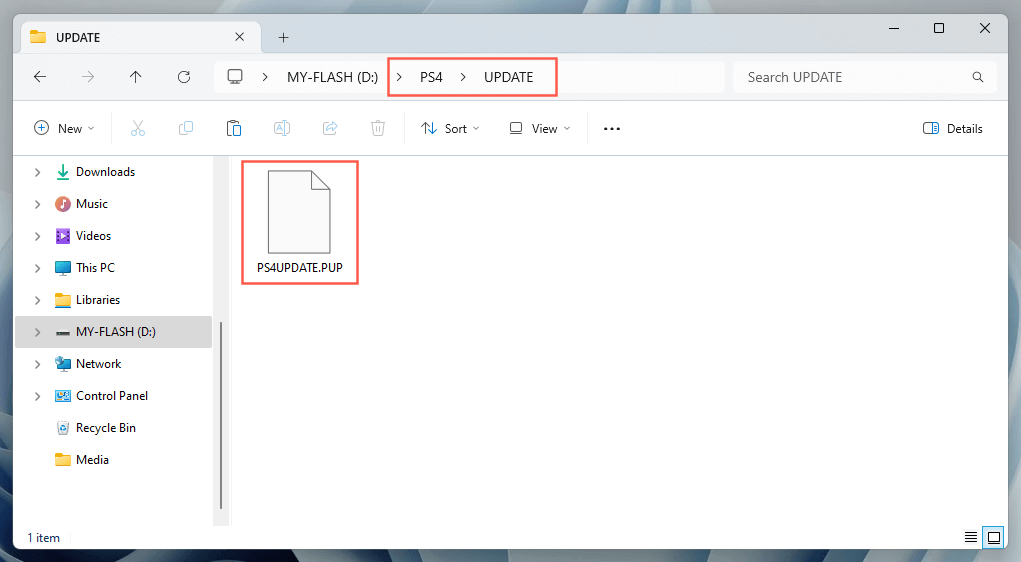
To reinstall the system software on your PS4, you must prepare a USB flash drive containing the console’s system software using a PC or Mac computer. To do that: PC: Right-click the flash drive in File Explorer and select Format. On the Format dialog, set File system to exFAT and choose Start. Mac: Open the Launchpad and select Other > Disk Utility. On the Disk Utility app, Control-click the flash drive, choose Erase, set Format to exFAT, and select Erase again.
Reinstall the PS4 System Software
You must now reinstall the system software on your PS4 via USB. Here’ show: If you have any backed-up data on another USB drive, connect it and go to Settings > System > Back Up and Restore > Restore PS4 to copy the data. If your data is backed up to PlayStation Plus, go to Settings > Application Saved Data Management > Saved Data in Online Storage and select Download to System Storage to download the data.
Replace the PS4 Storage Drive or Contact Sony
If the PS4’s “Checking System Storage Status” boot loop recurs randomly or constantly, you’re likely dealing with failing internal storage.
If you’re up to replacing the hard drive, you need a new 2.5-inch SATA drive (HDD or SSD), a Phillips screwdriver, and a USB drive with the latest PS4 firmware (check the section above for instructions).
Next, check Sony’s PS4 hard drive replacement tutorial for steps and illustrations on replacing the hard drive since the steps differ on the original PS4, PS4 Slim, and PS4 Pro models. Luckily, the process is uncomplicated and involves:
If your PS4 is still under warranty or you are unsure about replacing the hard drive, contact PlayStation Support. Sony could offer repairs or replacement services, depending on your warranty status and the nature of the issue.
Back-Up Your PS4’s Save Files and Media Regularly
Dealing with a PS4 stuck in a “Checking System Storage Status” boot loop can be challenging. Start with straightforward solutions like waiting it out or performing a power cycle. If these don’t work, perform advanced troubleshooting in Safe Mode. Finally, consider hardware solutions like replacing the storage drive or seeking assistance from Sony.
If you get the console working without resorting to any drastic fixes, it’s best to continuously back up the data on the HDD—if you aren’t doing that already. If the hard drive is failing, it’s just a matter of time before the error crops up again.