In this troubleshooting guide, we’ll explain what causes error code 3205 on Paramount Plus, then cover five easy ways to fix it.
What Causes Paramount Plus Error Code 3205?
The error code 3205 on Paramount Plus usually pops up just as you try to stream a video. It’s a playback error caused when the video player becomes stuck in an endless loading loop. Users often see a “Video Unavailable” message on the playback screen just before the glitch occurs. There are several reasons why you might be experiencing the 3205 error code, including:
How to Fix Paramount Plus Error Code 3205
Here are five ways you can fix the Paramount Plus 3205 error code:
1. Restart the Web Browser, Paramount Plus App, and Device
The easiest way to fix this error is by simply restarting the program you’re using to stream Paramount Plus, whether that’s a web browser (like Firefox, Google Chrome, or Safari) or the official app. If this doesn’t work, try relaunching your device entirely. Simply reboot your mobile device, smart TV, or streaming device (like a Roku, Firestick, or Fire TV), then try to load a video again.
2. Troubleshoot Your Internet Connection
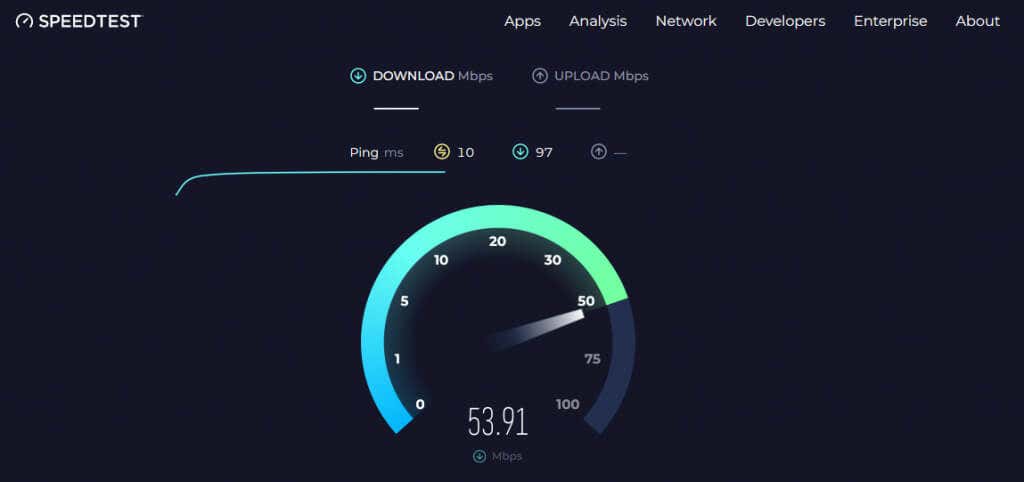
The next thing to do is ensure your internet is running correctly. To watch Paramount Plus well, you need an internet speed of at least 4 or 5 Mbps. You can check the speed of your internet connection with a speed test site. If your internet isn’t running as expected, reset your router. If that doesn’t work, troubleshoot your internet connection or contact your internet service provider (ISP).
3. Clear Your Browser and Paramount Plus App Cache
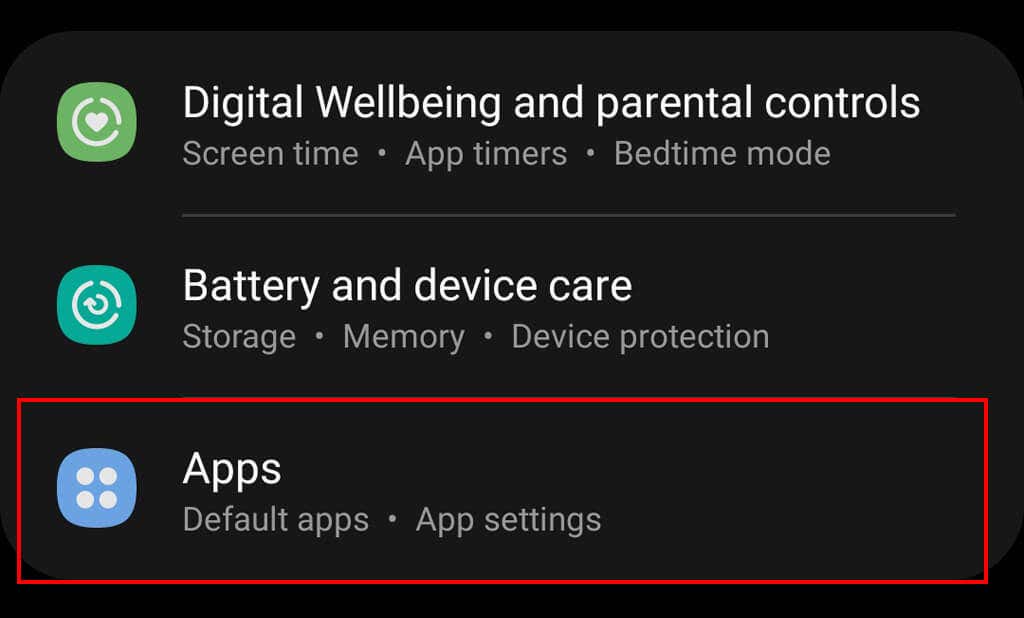
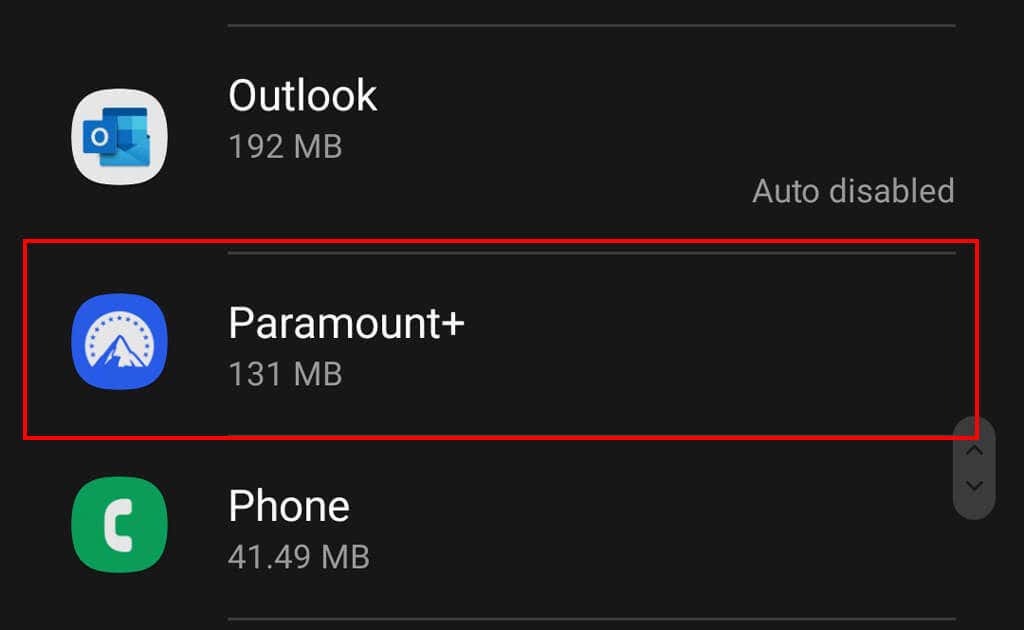
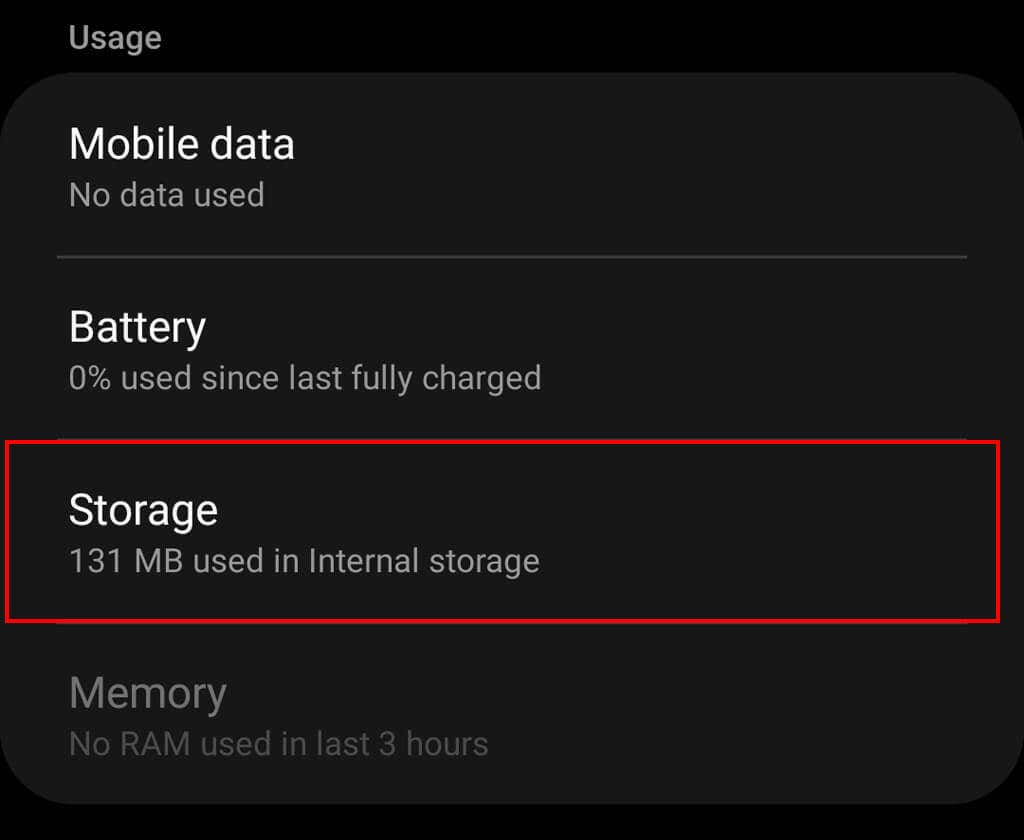
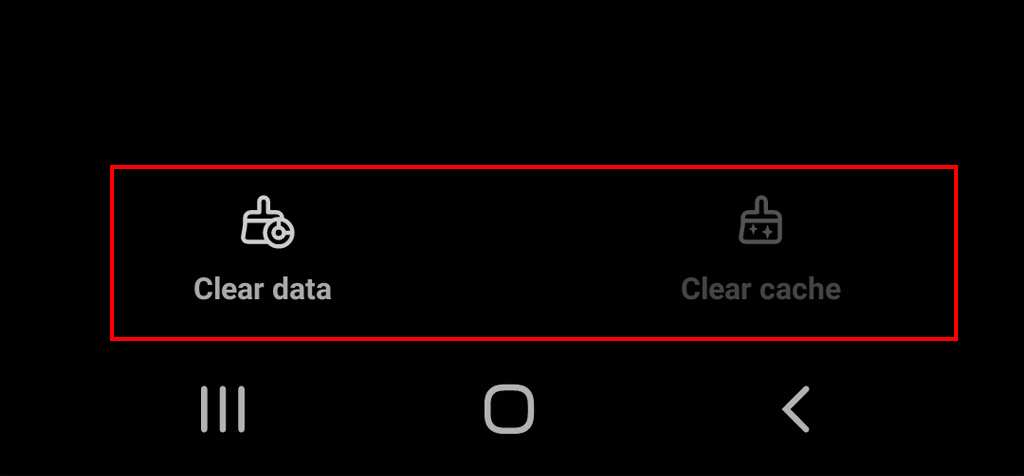
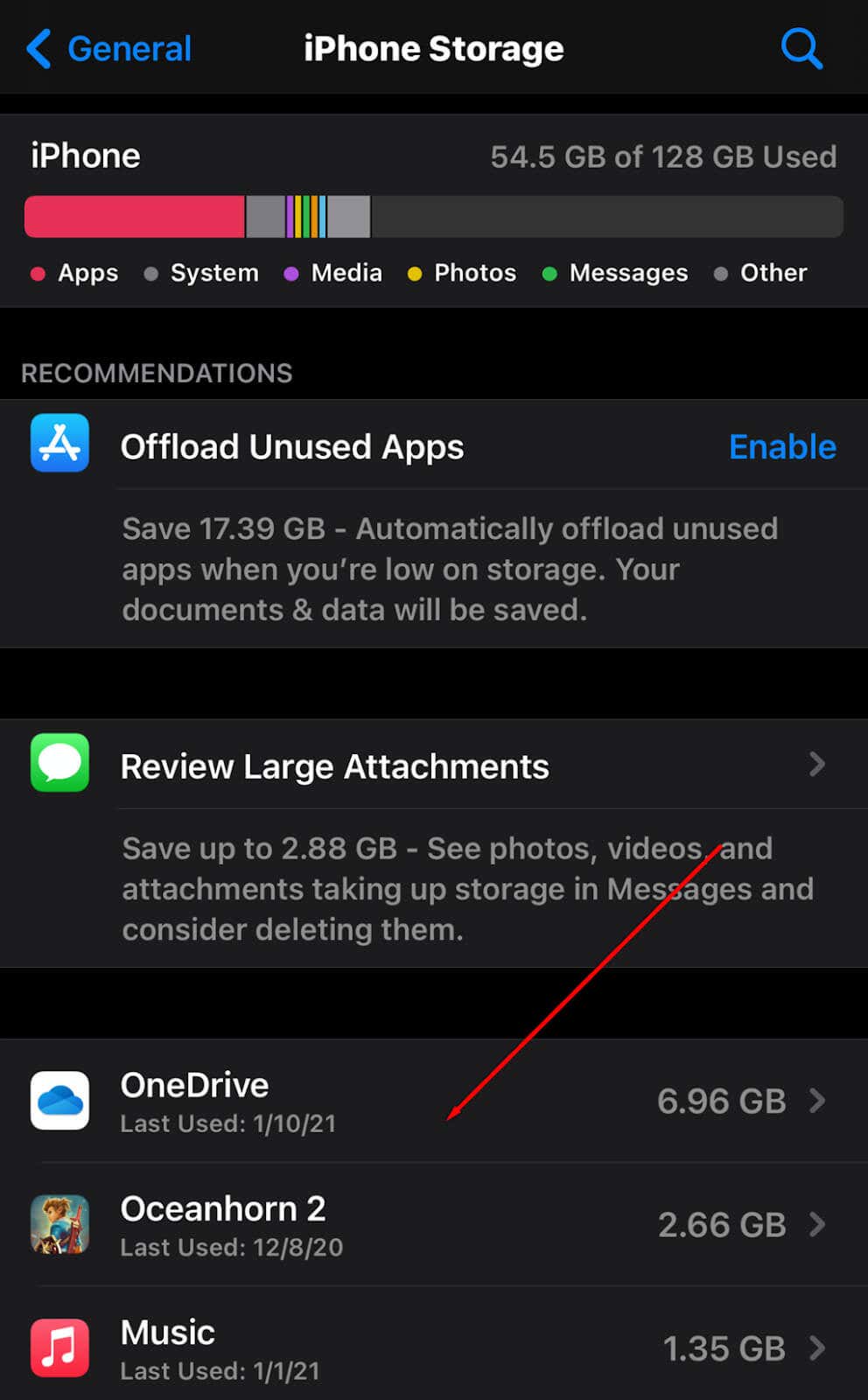
Clearing your browser’s cache, history, and cookies can help resolve many glitches and improve your streaming experience. Here’s how you can clear the cache of all major web browsers. If you’re streaming via the Paramount Plus app, clear its cache. If you’re using an Android device like a smartphone or Android TV, here’s how to clear the app’s cache: If you’re using an iPhone: Note: You should also ensure that you have the latest version of your web browser. Update your browser if it’s an older version.
3. Disable the Ad Blocker
As mentioned above, ad blockers can cause several problems with streaming services. To see whether your ad blocker is causing the 3205 error code, try turning it off and loading Paramount Plus again. If the video loads without a hitch, your ad blocker is the culprit. To fix this problem, turn your ad blocker off temporarily while you use Paramount Plus — most ad blockers can add websites as exceptions.
4. Force Stop the Paramount Plus App
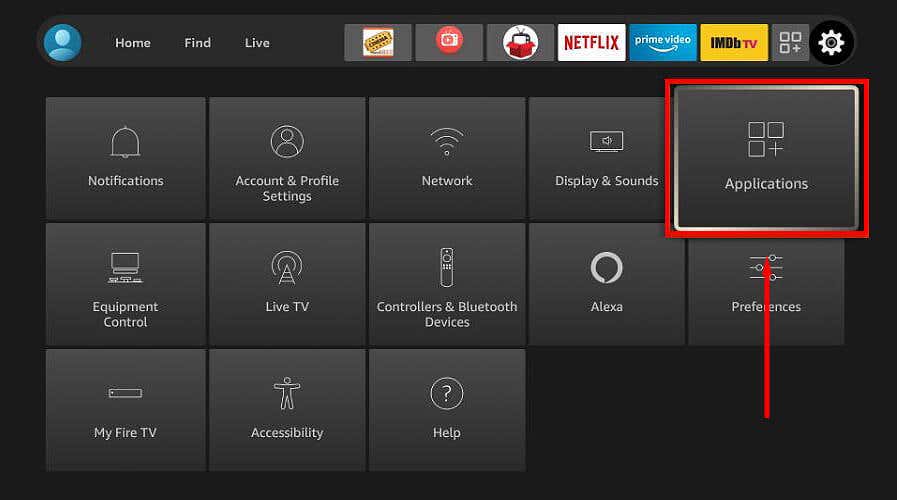
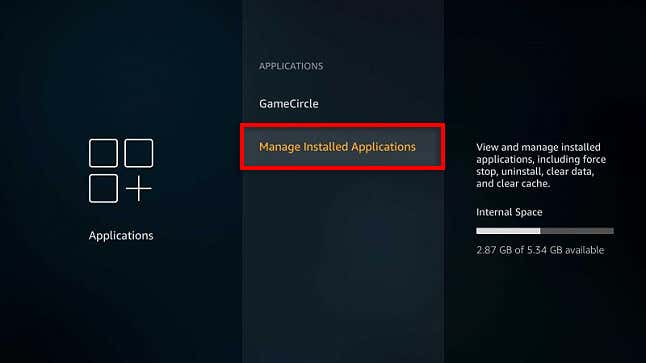
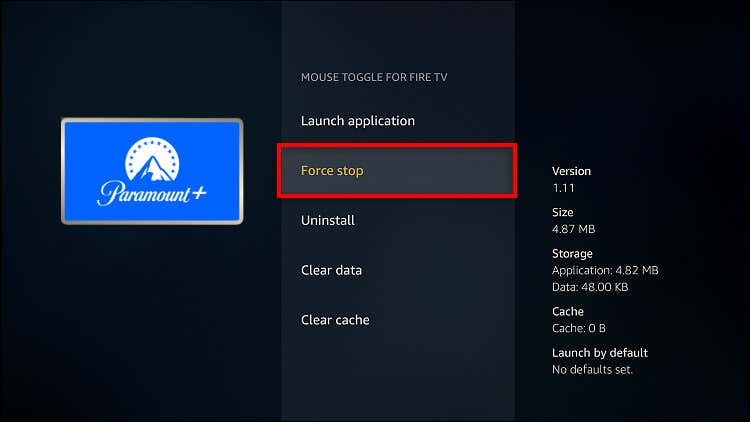
Another thing to try is force-closing your Paramount Plus app. This shuts down the app completely, letting you restart it in its default state. To force stop Paramount Plus on a smart device like a Samsung TV: Note: If this doesn’t work, uninstall and reinstall your Paramount Plus app.
5. Update Your Device Firmware
An outdated streaming device or smart TV may cause the Paramount Plus app to work incorrectly. To correct this, try updating your device firmware to the latest version. Usually, this option can be found in the settings menu of your device.
Stream in Peace
Video streaming platforms like Paramount Plus and Disney+ have become popular Netflix alternatives over the last few years, but they aren’t immune to playback issues. Hopefully, this guide has helped you get your Paramount Plus app working correctly so you can go back to streaming your favorite TV shows.