Close and Relaunch Your Web Browser
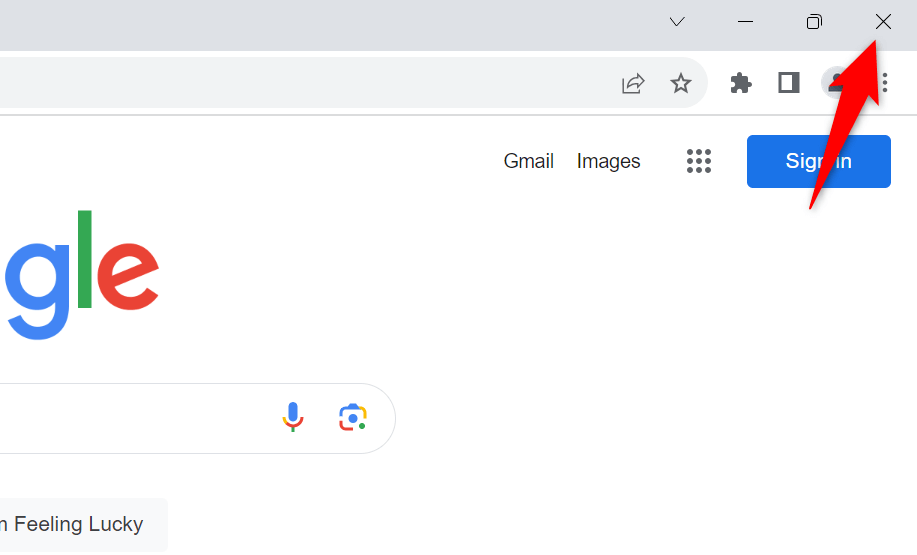
The first fix to apply when your cursor disappears on Google Docs is to quit and re-open your web browser. This helps resolve minor glitches with your browser, some of which may be causing your cursor problem. Make sure you’ve saved your unsaved work before quitting your browser. You can restart your Google Chrome, Mozilla Firefox, Microsoft Edge, or another browser by selecting X in the browser’s top-right corner. Then, open your PC’s Start menu, find your browser, and select it in the search results. If a browser refuses to quit, use the Task Manager to force-close your browser.
Prevent Windows From Hiding Your Cursor When You’re Typing
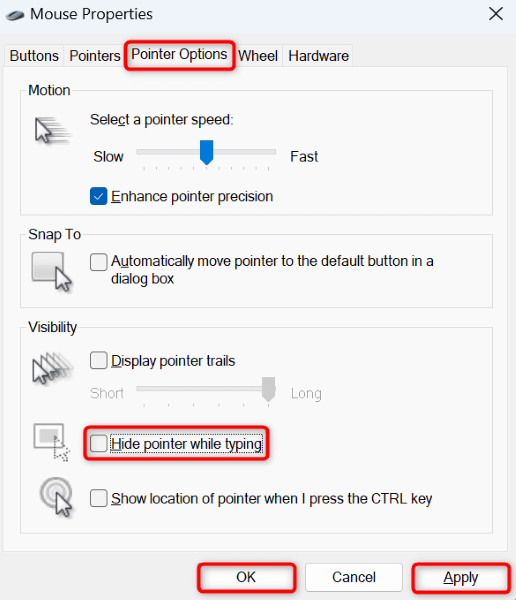
Windows offers an option that allows you to hide your cursor when you’re typing something on your computer. You or someone else may have enabled this option, causing the cursor to disappear while typing on Google Docs. In this case, turn off that option, and your issue should be resolved.
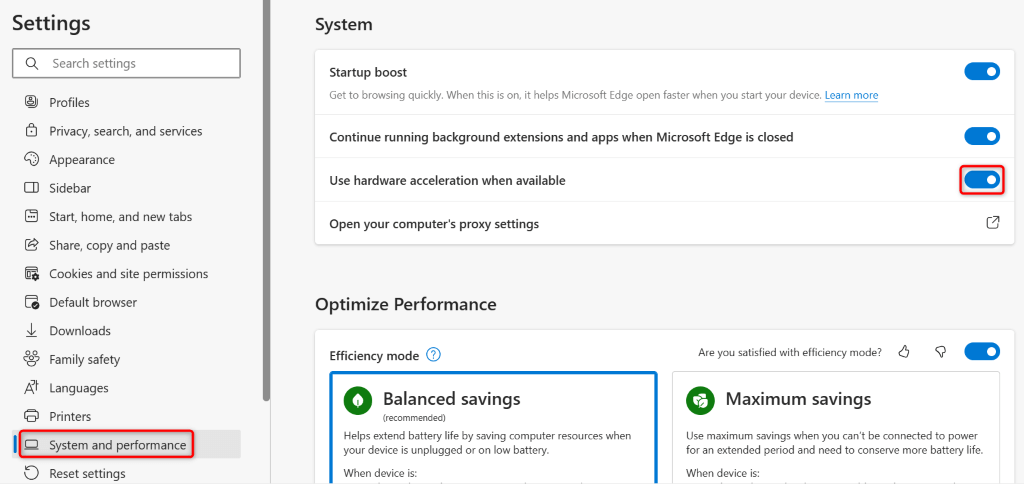
Turn Off Hardware Acceleration in Your Web Browser
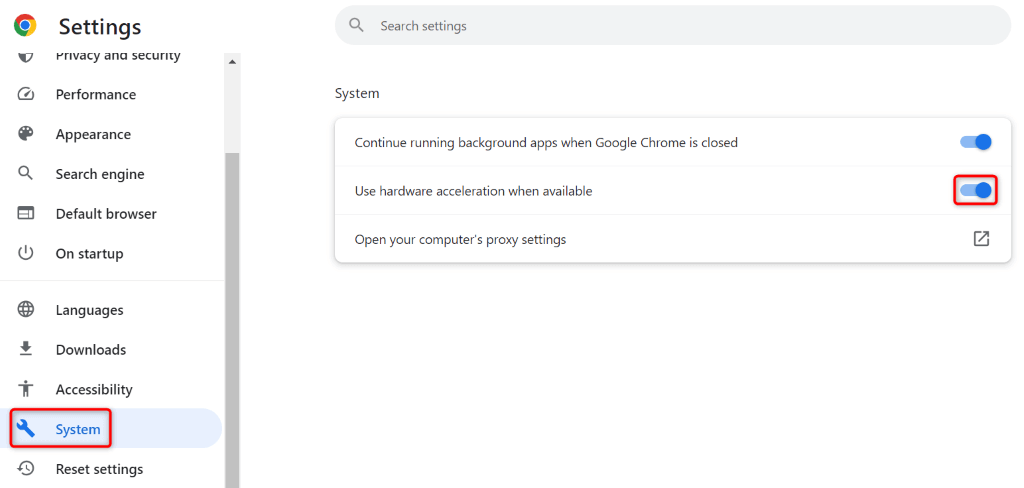
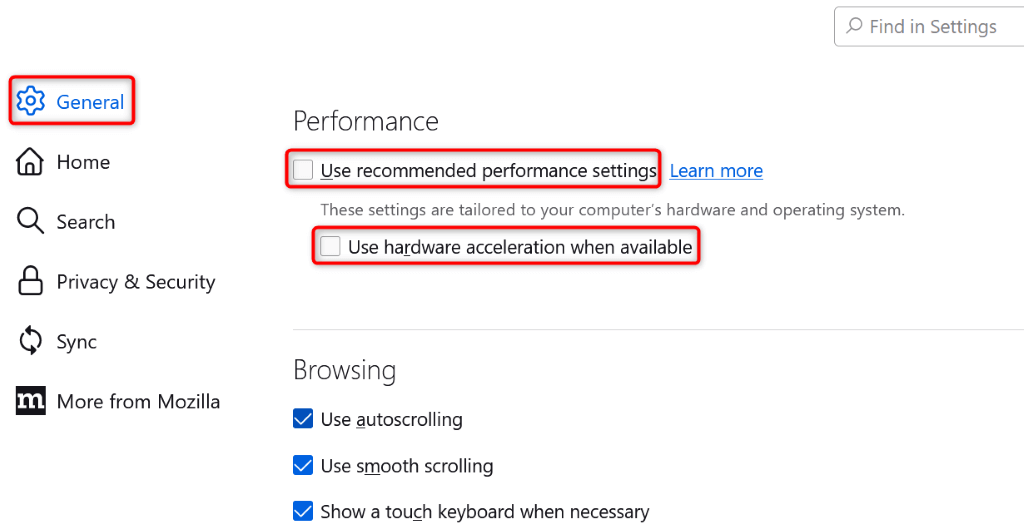
The hardware acceleration feature enhances your web browser’s performance, but sometimes, this feature causes issues. This option being enabled may be the reason your cursor disappears on Google Docs. In this case, turn off the feature and see if that resolves your cursor issue.
Google Chrome
Mozilla Firefox
Microsoft Edge
Update Your Web Browser
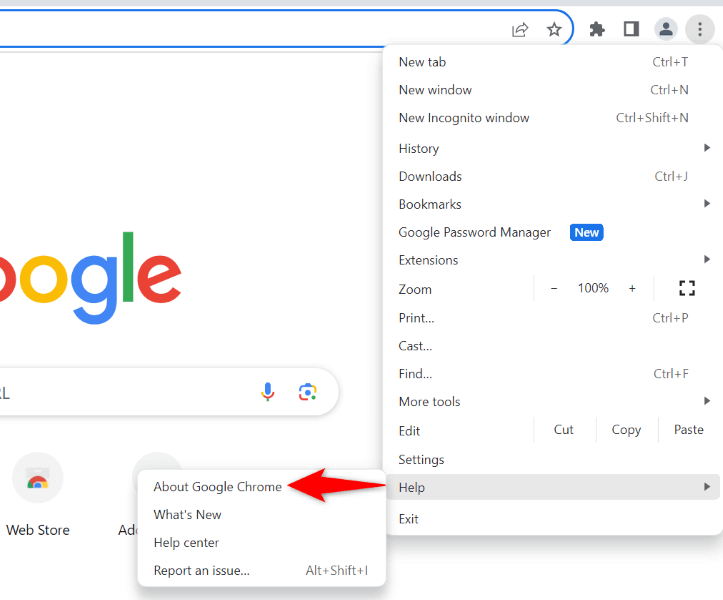
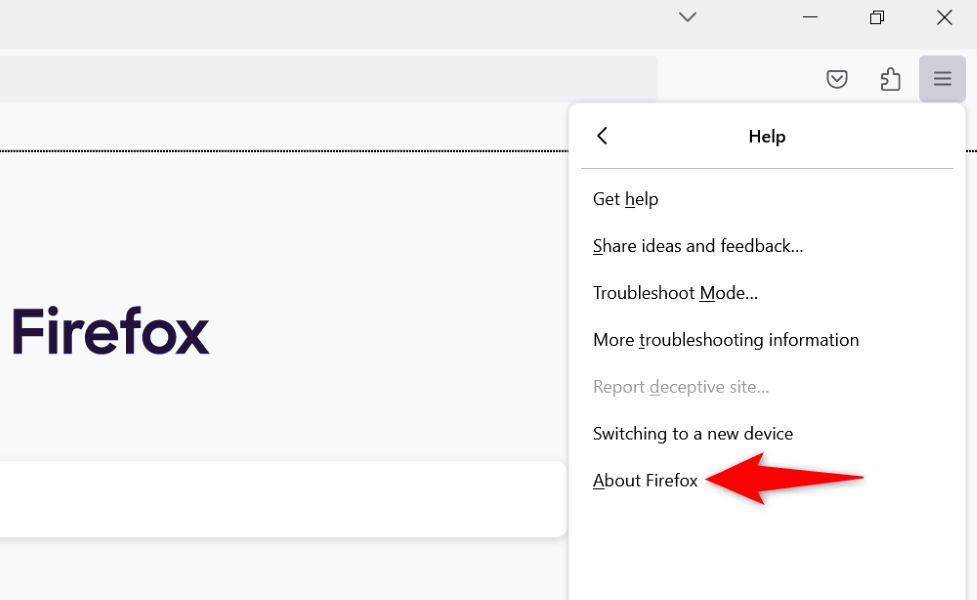
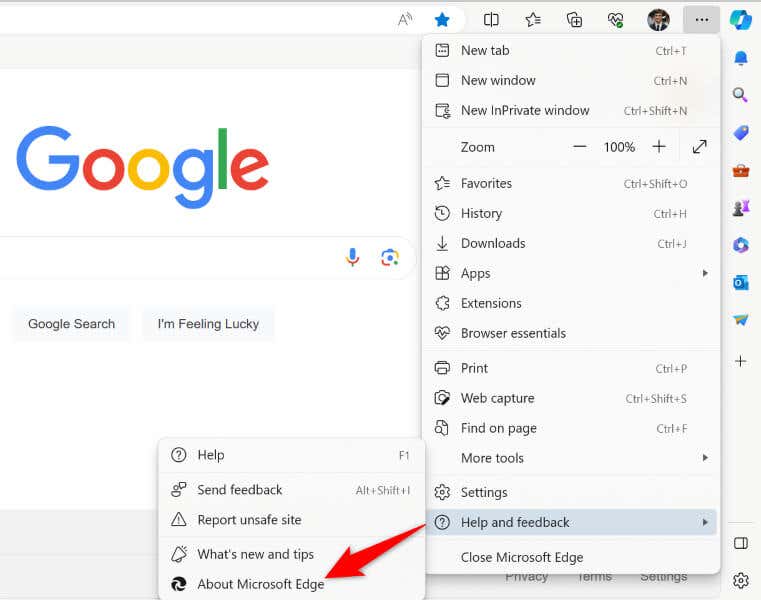
If your web browser version is outdated, that may be why you have issues with the sites in your browser. Outdated browsers often have many bugs, which you can fix by updating your browser to the latest version.
Google Chrome
Mozilla Firefox
Microsoft Edge
Change Your Cursor’s Color on Windows
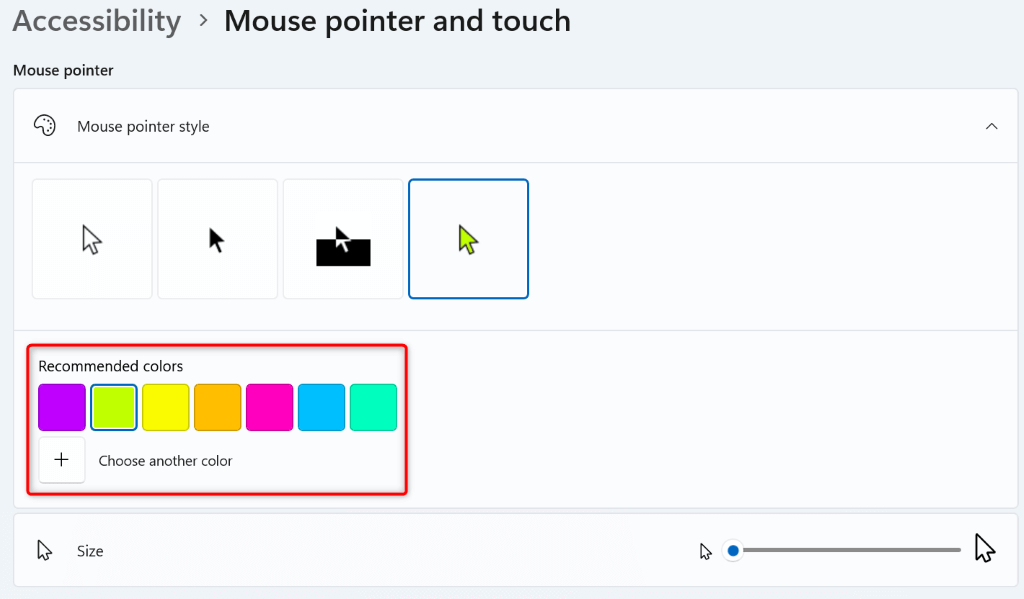
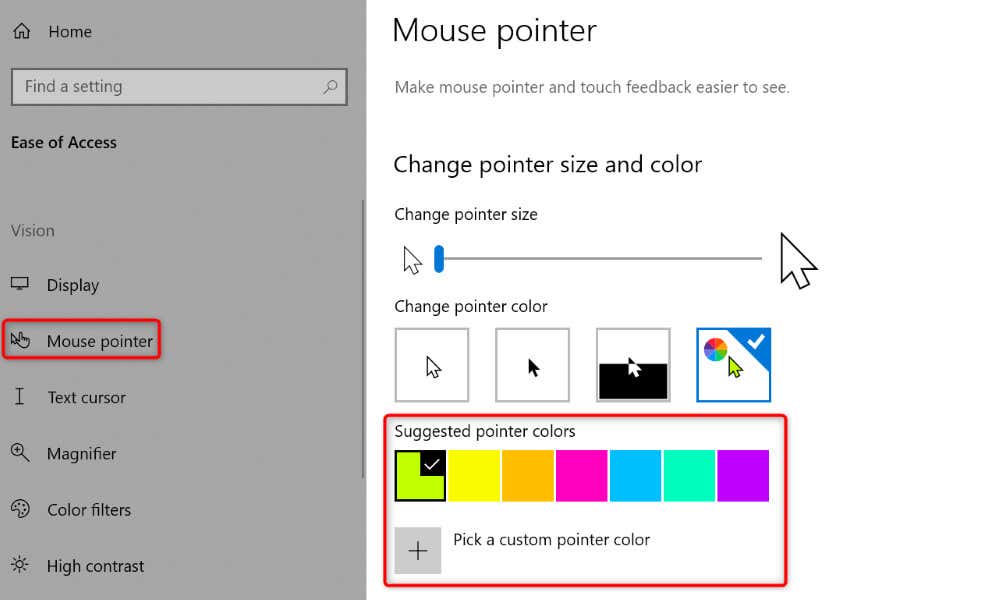
If your cursor remains invisible on Google Docs, change the cursor’s color so you can easily spot it on your screen. Note that this is a universal change, meaning you’ll see your cursor’s new color everywhere on your system and not just on Google Docs.
On Windows 11
On Windows 10
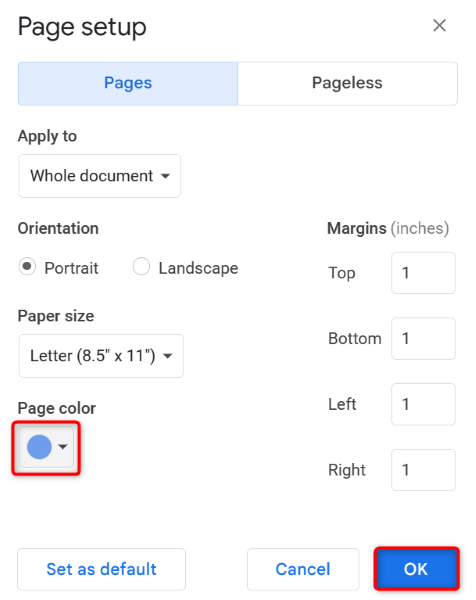
Change Your Google Docs Document’s Page Background Color
One reason you can’t see your cursor on Google Docs is that both the Google Docs page background color and the cursor color are the same. In this case, if you don’t wish to change your cursor’s color, you can switch to a different page color on Google Docs to ensure your cursor remains visible. If you’ve changed your page’s color to black and your document’s text has become invisible, change your font color to see your text again.
Bring Back Your Disappeared Cursor on Google Docs
There are various reasons for your cursor errors when you’re working with Google Docs. You can try basic fixes like restarting your web browser to potentially fix your problem. If that doesn’t work, you have a few other ways to resolve your issue.