Sometimes, YouTube doesn’t let you open videos in a new tab because your web browser has a faulty extension or adblocker, your web browser cache is corrupted, or your web browser configuration is faulty.
Use an Alternate Way to Open Videos in New Tabs
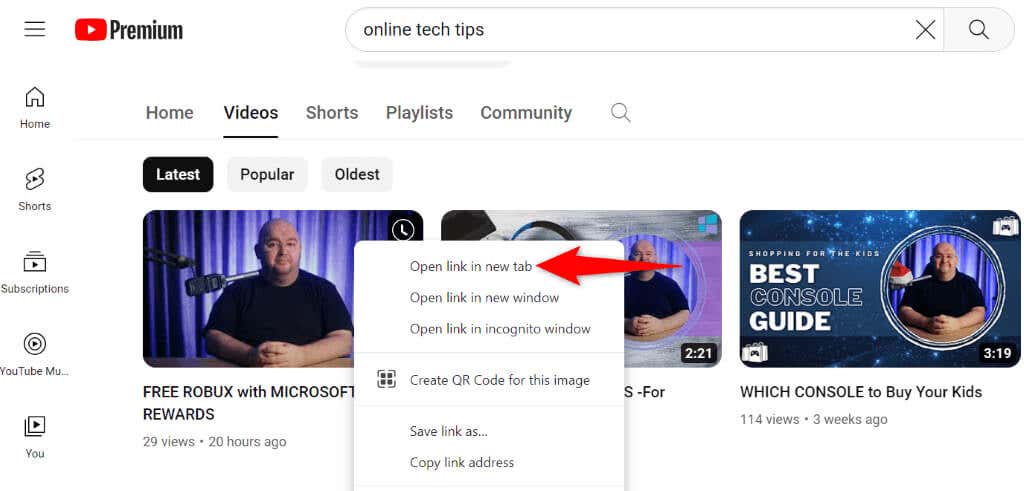
There isn’t only one way to launch YouTube videos in a new tab; you have at least two ways. When one method doesn’t work, use the alternate one. The first method is to press and hold down the Ctrl key on your keyboard and Left-Click the video you want to open in a new browser tab. This key and click combination tells your browser to open the selected link (video, in this case) in a new tab. If you’ve tried that method but to no avail, the alternate method is to right-click the video and select Open link in new tab. This launches the selected video in a new tab.
Turn Off YouTube’s Video Previews
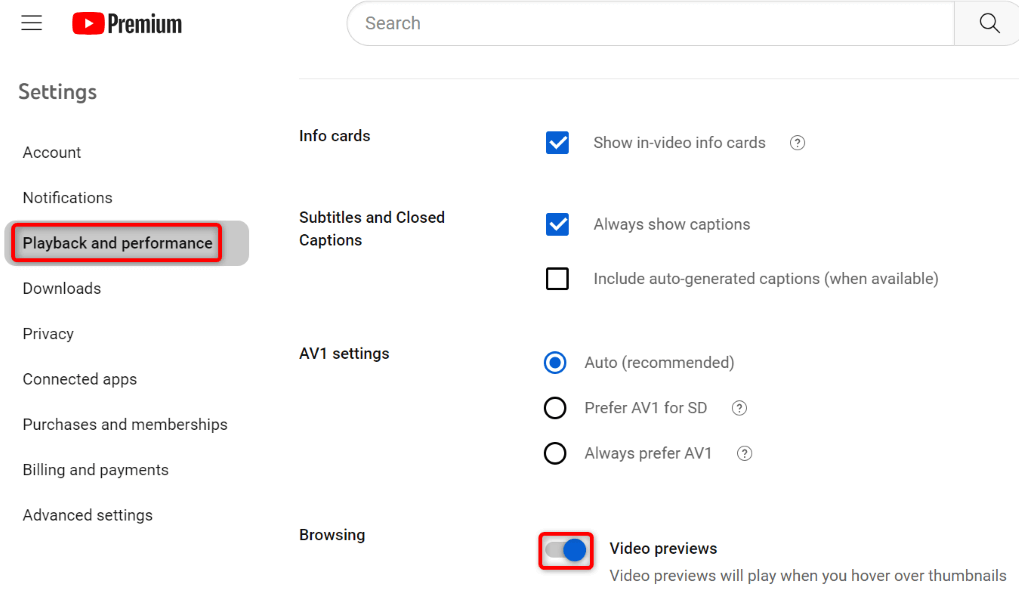
If you’ve noticed, YouTube plays video previews when you hover over a video. Sometimes, this causes the site not to open videos in new tabs. In this case, turn off video previews and see if your issue is resolved.
Use Another Web Browser
If the issue persists, try using another web browser on your computer and see if you can open videos in new tabs. This method can help you identify any problems with your current web browser. If you’re currently with Edge, switch to Firefox, open YouTube, and see if you can open videos in new tabs. If the problem persists, use the following troubleshooting tips in your current and previous browsers.
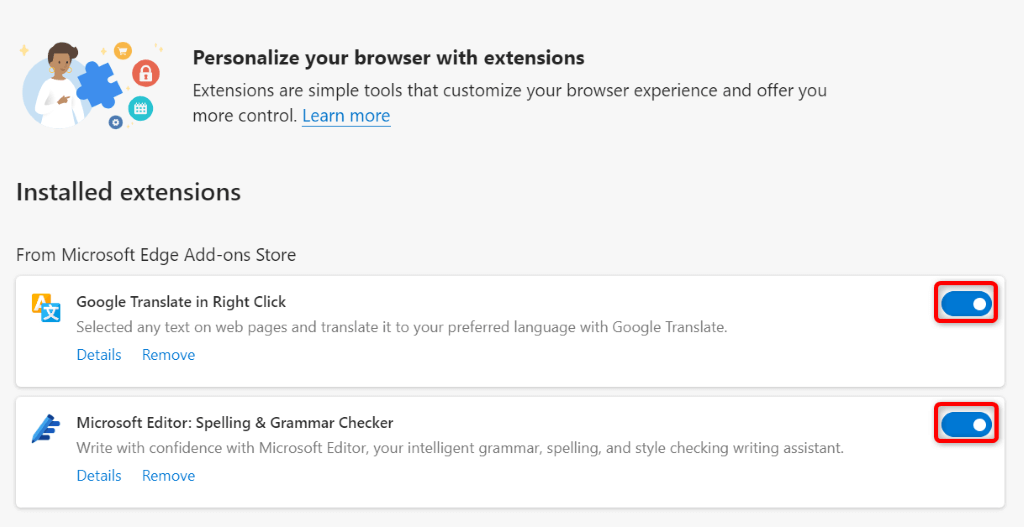
Turn Off the Web Browser Extensions and Adblockers
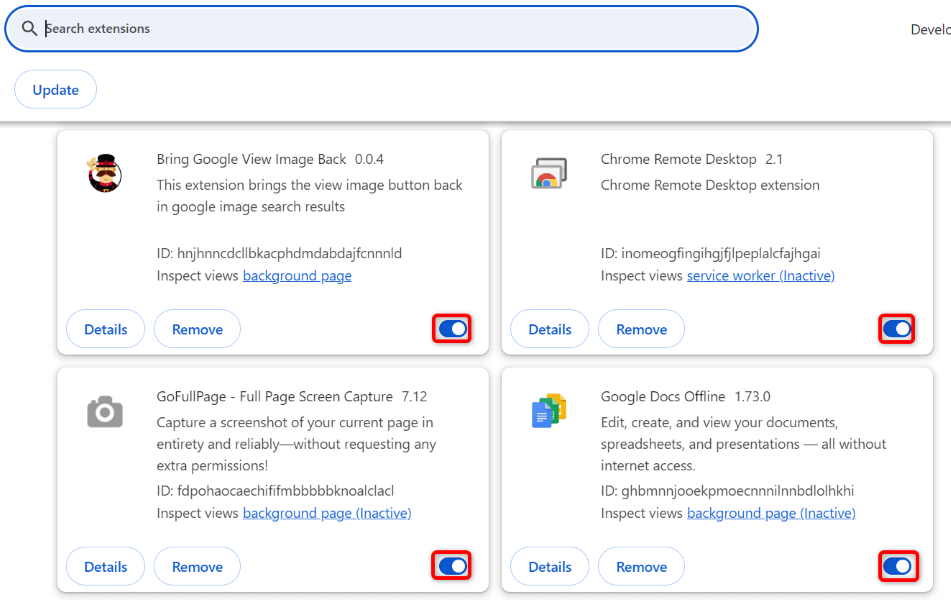
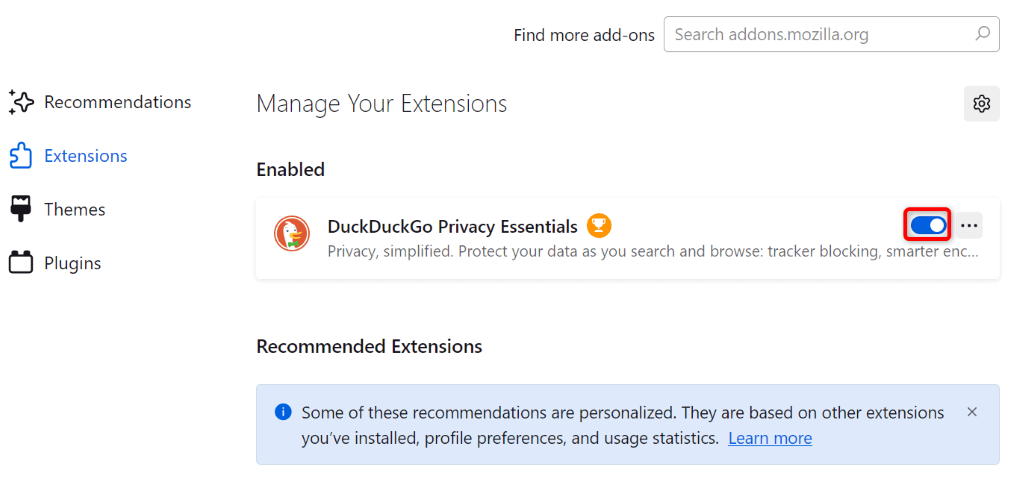
If you’ve installed ad blockers and extensions in your web browser, they might interfere with YouTube and break some of the site’s functionality. Verify that by turning off all your browser’s installed extensions and adblockers.
In Google Chrome
In Mozilla Firefox
In Microsoft Edge
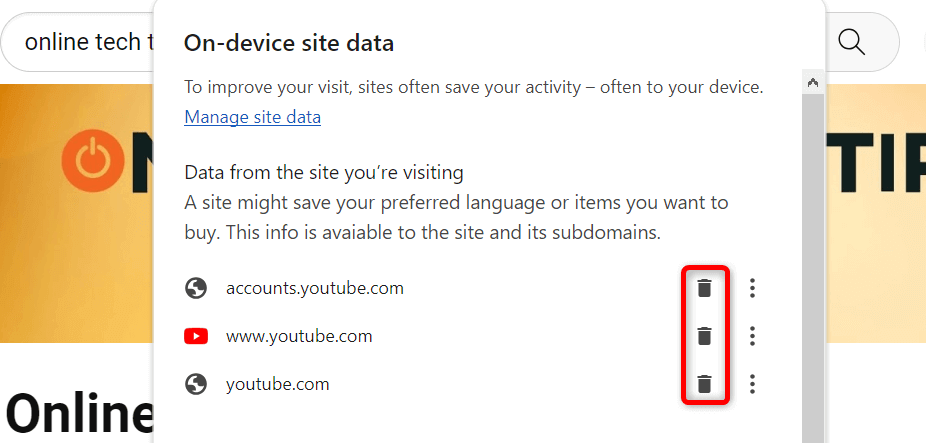
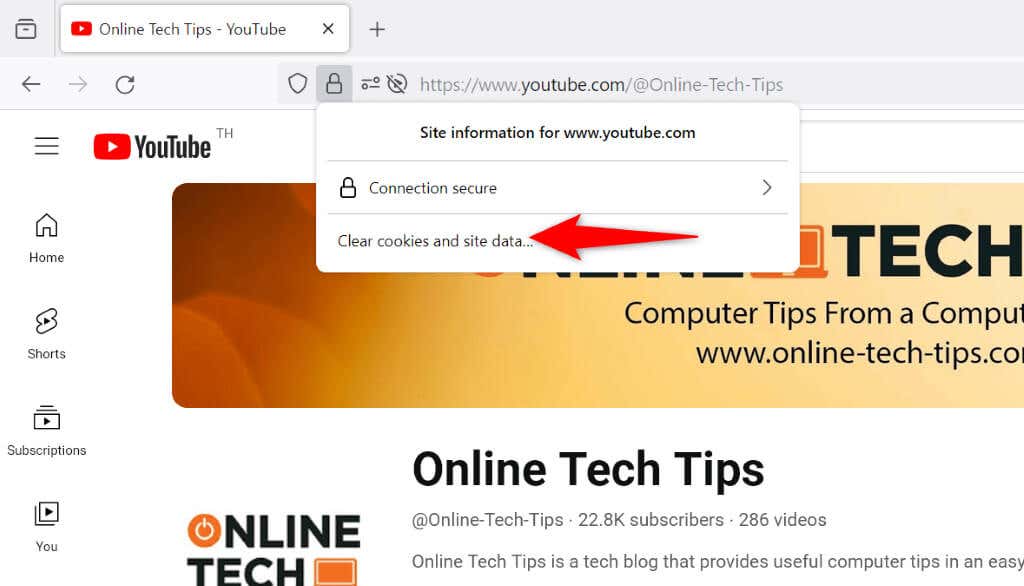
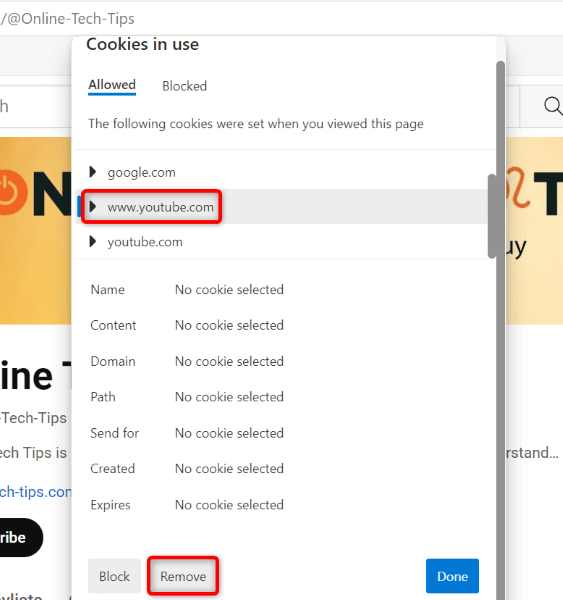
Clear Your Browser’s Cache and Cookies
If your web browser’s cache or cookies are corrupted, you might be unable to open YouTube videos in new tabs. In this case, clear the cache and cookies for YouTube and Google in your web browser.
In Google Chrome
In Mozilla Firefox
In Microsoft Edge
Reset Your Web Browser
If your web browser’s configuration is faulty, that might be the reason you can’t open videos in a new tab. This usually happens when a browser option is misconfigured. You can fix that by resetting your Chrome, Firefox, or Edge web browser. This will restore all the browser settings options to their default values.
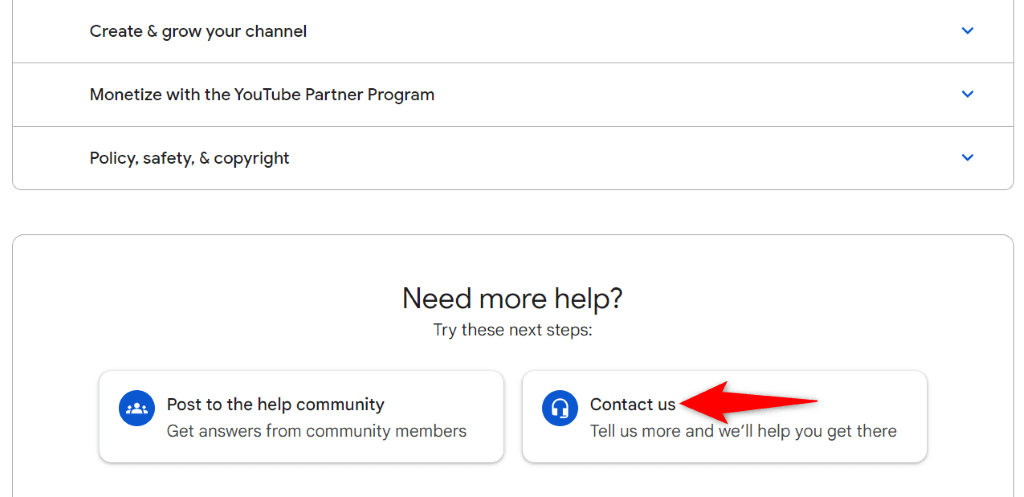
Contact YouTube Support
If you still have the issue, reach out to YouTube’s support team to see if they can help.
Temporary Workaround: Manually Paste the Video Link in a New Tab
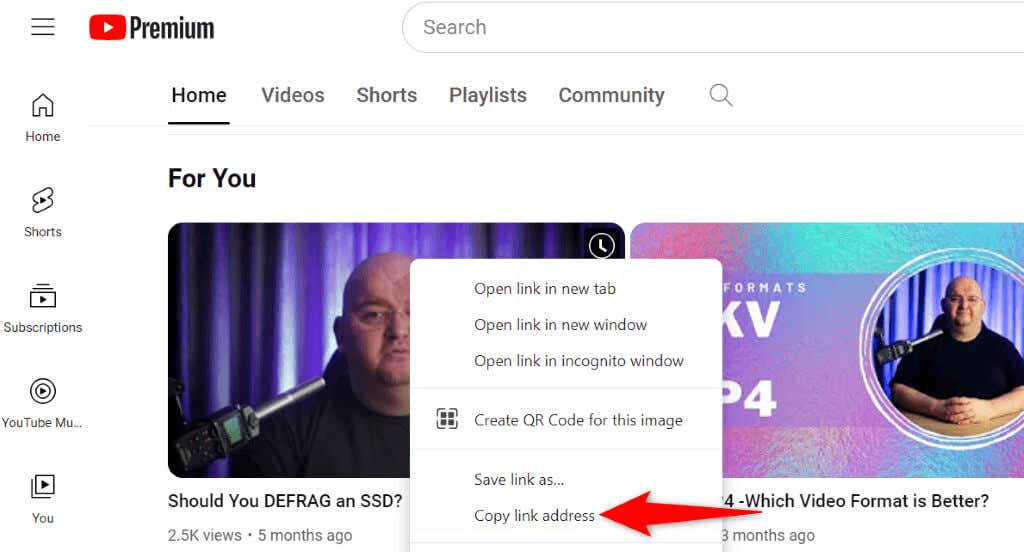
A temporary workaround you can use to open videos in new tabs is to copy the video link and manually paste the link into a new browser tab. This launches your selected video in a new tab of your web browser. You can copy a YouTube video’s link by right-clicking the video and selecting Copy link address. Then, open a new tab, select the address bar, paste the copied link, and press Enter. Of course, this method isn’t as convenient as the Ctrl + Left-Click or the context menu method, but at least you have something to use until your issue is fixed.
Force YouTube to Launch Videos in New Web Browser Tabs
YouTube fails to load videos in new browser tabs for various reasons. If the issue persists, apply the methods outlined above to resolve the problem.