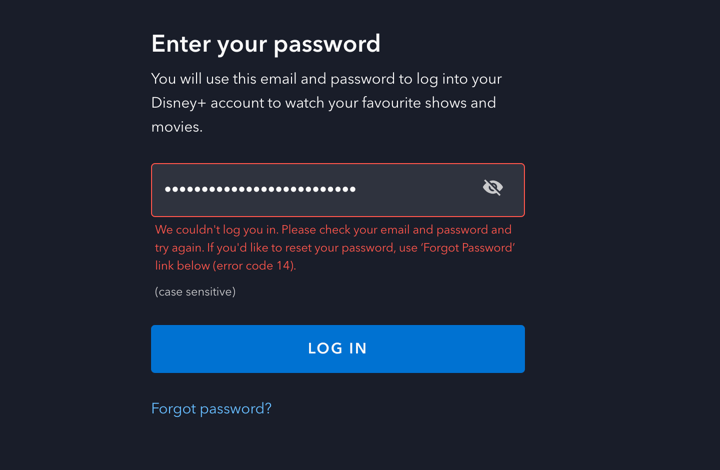
Error code 14 on Disney+ is an error that will stop you from signing in. If you can’t sign in, you can’t watch your favorite content, so you’ll need to identify the cause and troubleshoot the problem. To resolve this error code, follow the steps below.
What Causes Disney Plus Error Code 14?
Error code 14 on Disney Plus is a login error. You’re most likely to see this error if you enter the wrong email or password for your account. For instance, this might happen after a recent password change. If you changed your password for other Disney services like Disney.com or ESPN+, you’ll also need to use the new password for Disney Plus. This is assuming that it was you who changed your password in the first place.
Check Your Details are Correct on the Disney Plus Website
The first thing you should do when you see error code 14 on Disney Plus is the most obvious: check that you’re using the correct email and password for your Disney Plus account.
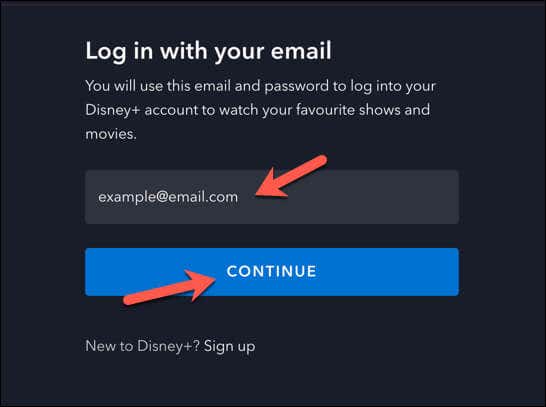
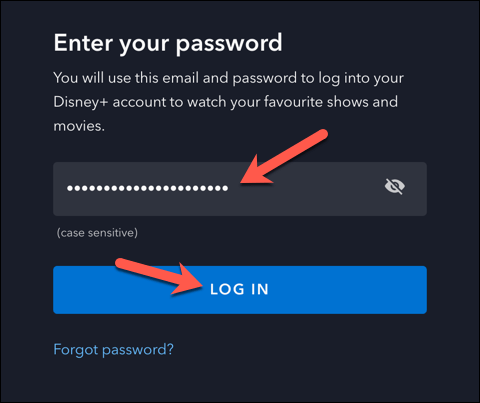
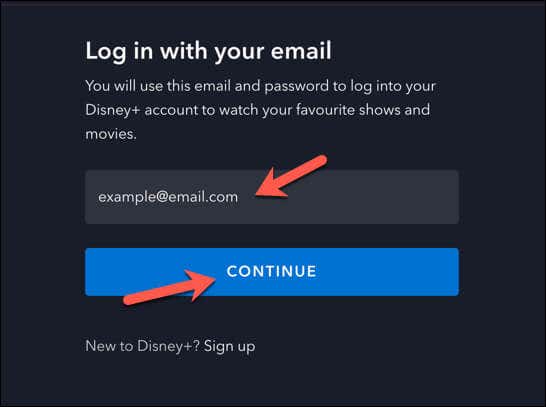
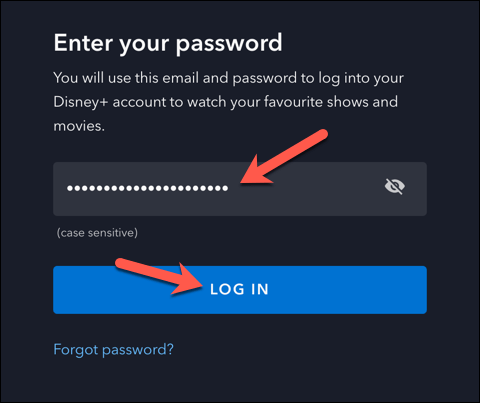
To check your details are correct on the Disney Plus website, follow these steps.
If you can log in successfully, you know your details are correct. You can then reuse them in other Disney+ apps.
However, if you see an error message, you might have entered the wrong email or password. You’ll need to check your subscription is still active and, if necessary, reset your password using the steps below.
Reset Your Disney Plus Password
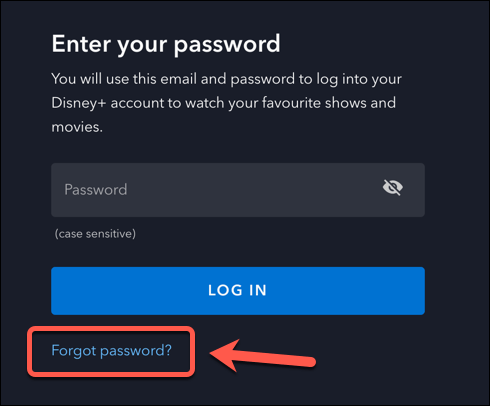
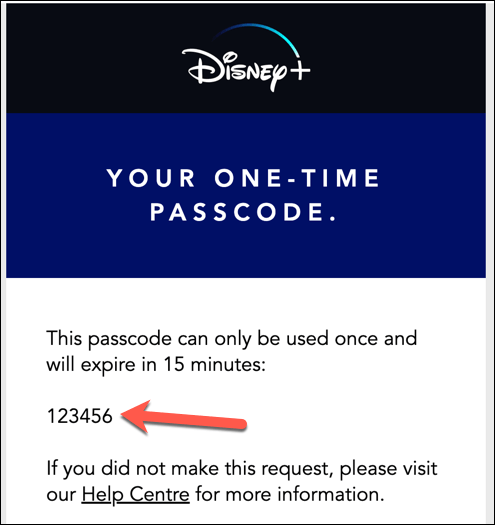
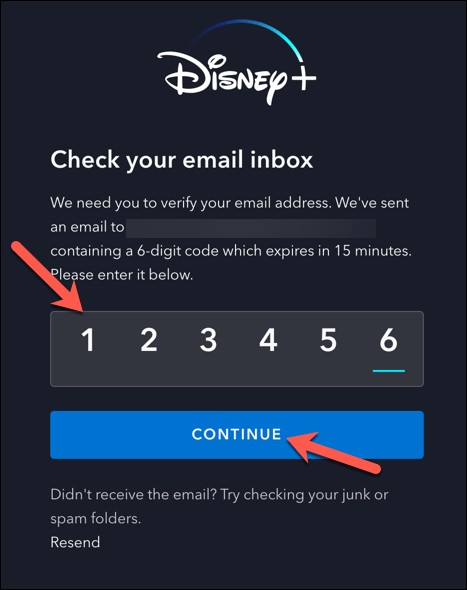
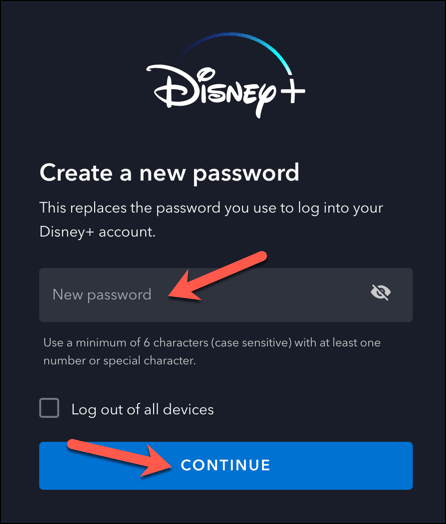
You’ll probably need to reset your password if you can’t sign in. Once you’ve restored access to your account, you should see the error disappear (unless there’s a deeper issue at fault). To reset your Disney Plus password, follow these steps:
Log Out of All Signed In Disney Plus Apps
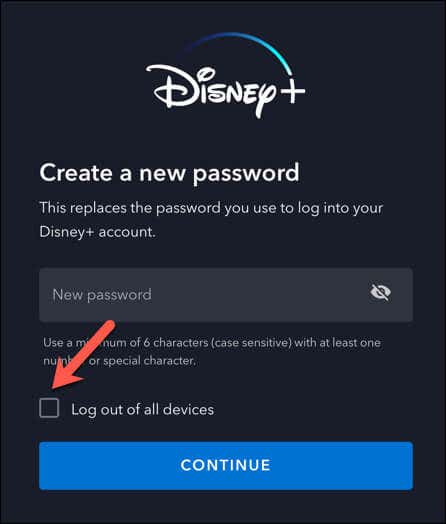
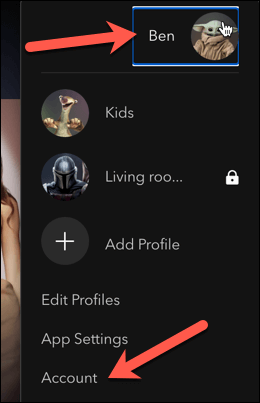
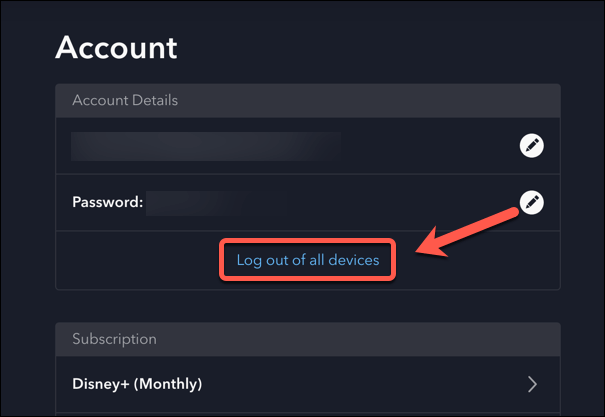
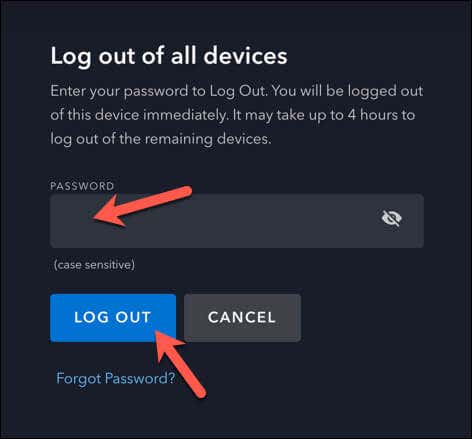
Depending on your subscription and locale, you can only sign in and stream on a limited number of devices on Disney Plus. If you reach this limit, you might see errors like error code 14 appear on Disney Plus to stop you from using the service. If this happens, it might be time to log out of your existing devices. You can then sign in, one by one, into Disney Plus on the devices you want to use. To do this, follow these steps. Once you’ve signed out, you must sign in again on all devices using your Disney Plus account details. The problem with error code 14 on Disney Plus should (hopefully) be resolved.
Reinstall the Disney Plus App
If you’re using an older version of the Disney Plus app but updating the app hasn’t fixed the problem with error code 14, remove and reinstall it.
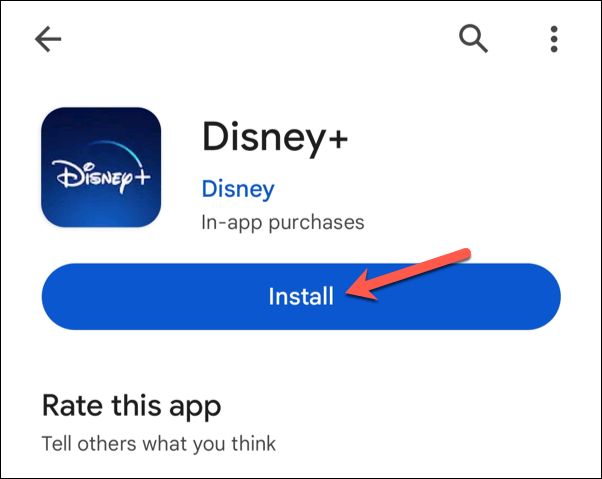
Android users can visit the Disney+ app in the Google Play Store to do this. Tap Uninstall to remove the app, wait for the process to complete, then tap Install to install it again. Launch the app afterward—you’ll need to sign in again.
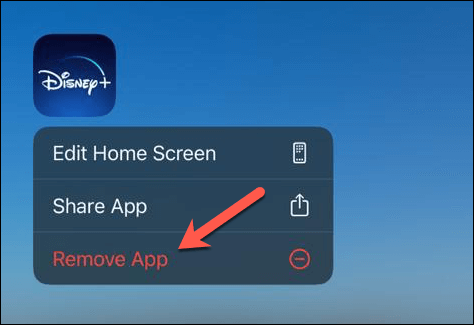
iPhone users have different instructions to follow. Tap and hold the Disney+ icon on your home screen before tapping Remove App to remove it.
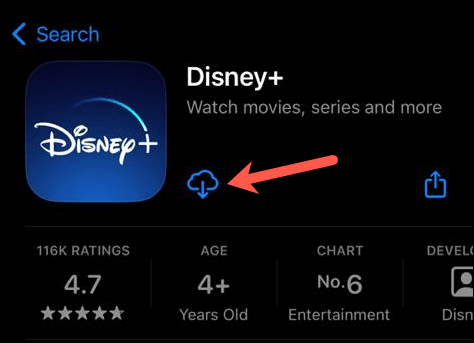
Next, visit the Disney+ app page in the App Store before tapping the Install icon to install the app again. Once installed, sign in using your account details.
On Windows and macOS, you can clear your browser cache as an alternative. This will ensure you load the latest version of the website, but like mobile users, you’ll need to sign in again afterward.
Try Another Streaming Device:
If you’re still seeing Disney Plus error code 14 appear, it could be a problem local to your device. If that’s the case, it’s worth trying another streaming device to rule this out (and to fix the problem). Disney Plus is supported on several devices, including smart home devices like Apple TV and Roku. It’s also supported on Android, iPhone, and iPad devices and from your web browser on your PC or Mac. If at least one device signs in using your account details, then the details aren’t at fault—it’s the app or the device you’re using. You’ll need to reinstall the app, check your internet connection, and switch to another device entirely to start streaming again.
Check Your Disney Plus Subscription Is Active
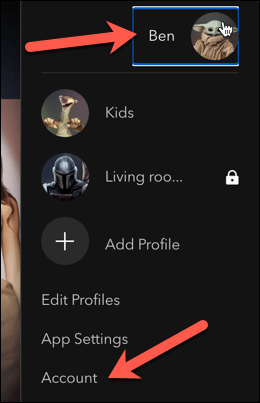
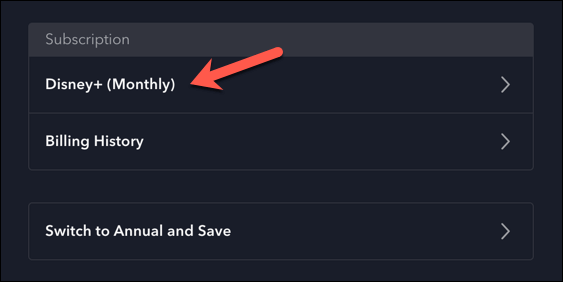
Reset your password, but still seeing error code 14 on Disney Plus? If so, you should check that your subscription is still active and valid. You can only do this if you’ve been able to sign in by resetting your password. To check your Disney Plus subscription is active, follow these steps.
Contact Disney Plus For Support
Still seeing error code 14 on Disney Plus, no matter what you try? You might need to contact Disney for additional support, as it could be a deeper problem with your account.
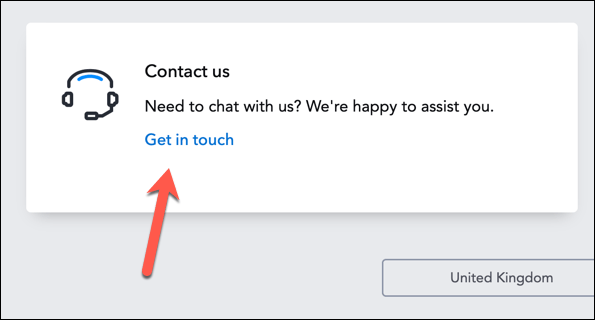
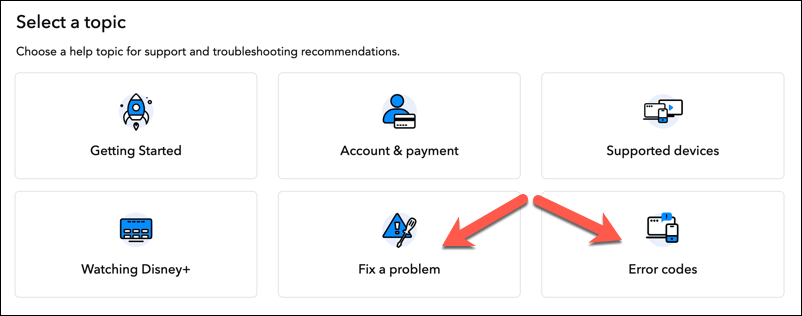
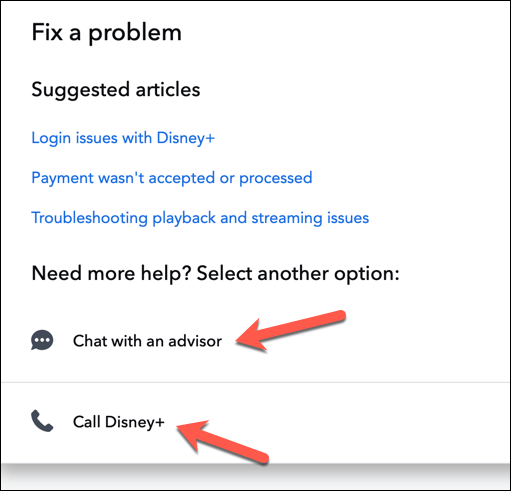
You can speak to Disney Plus via the Help Center area of the website.
Once you contact Disney Plus representatives, explain the problem and mention error code 14. If an account issue or unusual problem is at fault, they can help you resolve it.
Fixing Disney Plus Error Codes
It may be annoying, but Disney Plus error code 14 is a common login error you can usually fix by following the steps above.
If Disney Plus still isn’t working, you might need to consider further troubleshooting steps. For instance, services like Disney will often block VPNs, so you may need to disconnect from your VPN service on your device.