The problem is when the system UI isn’t responding, it won’t restart and the error occurs frequently. If this is happening to you, you’ll need to troubleshoot the issue more closely to try and identify the cause and fix it on your Android phone or tablet.
Force Restart Your Device
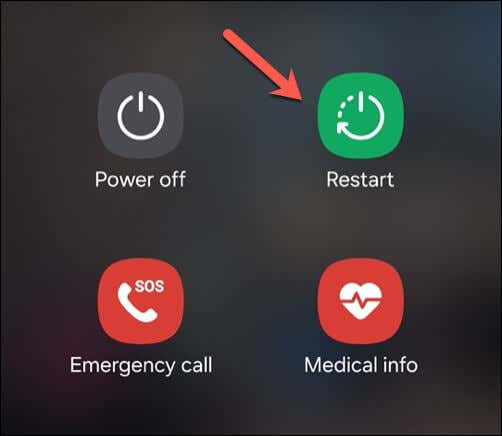
A forced restart on your Android device can often resolve problems you can’t easily diagnose. Simple and straightforward to do, restarting will clear your devices’ active memory and should (usually) fix any temporary issues with your system UI. To perform a force restart on your Android device, follow these steps. If your system UI has completely frozen, preventing you from seeing the power options menu, press and hold the power button until your device is forced to either power off or restart. If it powers off, wait until the device switches off before pressing the power button again to turn it back on. Few Android devices nowadays have removable batteries, but if your device does, you can also remove the battery to force the device to turn off, replace the battery, and press the power button to switch it back on.
Check for Android System Updates
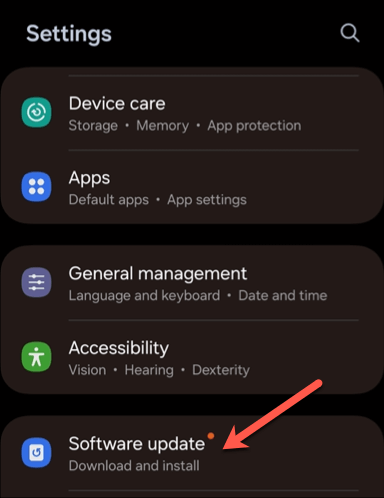
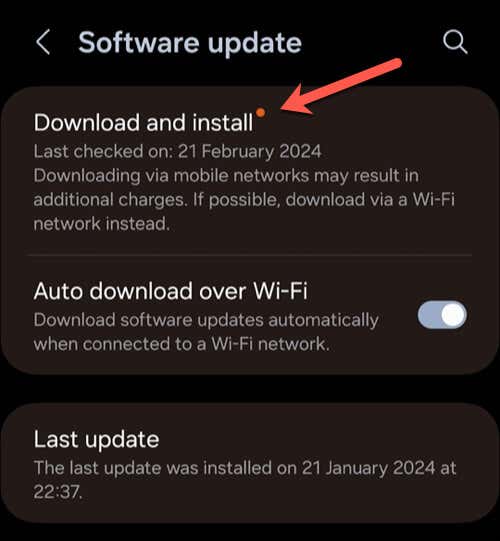
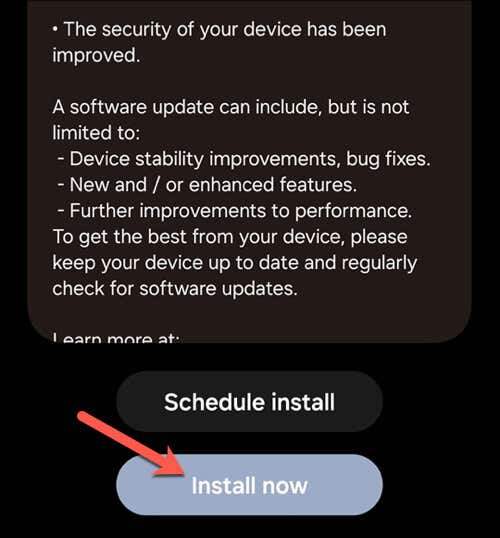
Android device updates help to improve the performance and stability of your device. Software updates usually contain bug fixes that can resolve system issues that you might not have been previously aware of, like the system UI isn’t responding error that you might be seeing.
The menus on your Android device may look slightly different from the ones we’ve outlined below, but the steps should be very similar. To check for Android system updates, follow these steps.
Reset App Cache and Data
Your system UI is just a series of apps running in your Android device’s background. Unfortunately, you cannot ‘reset’ this without resetting your device.
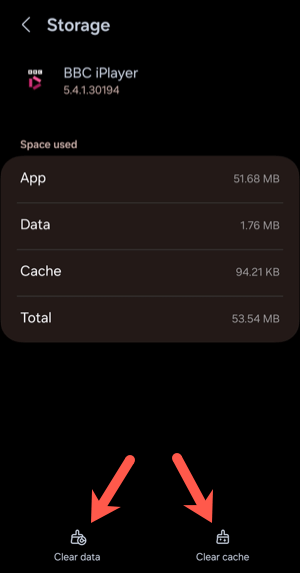
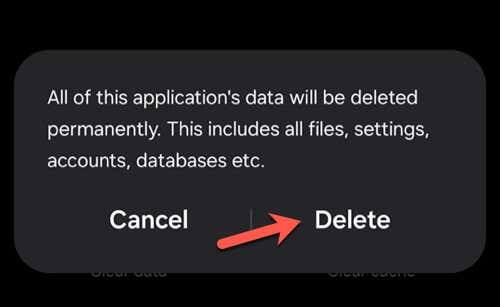
However, if an app you’re running is causing your Android system UI to stop responding, you can reset the cache and data for that app. This’ll reset the app to its default preferences, losing any settings you’ve changed or logins you’ve added since installing it, but could resolve the issue.
Before proceeding, it’s a good idea to ensure that you’ve updated the app so that it has all available bug fixes installed.
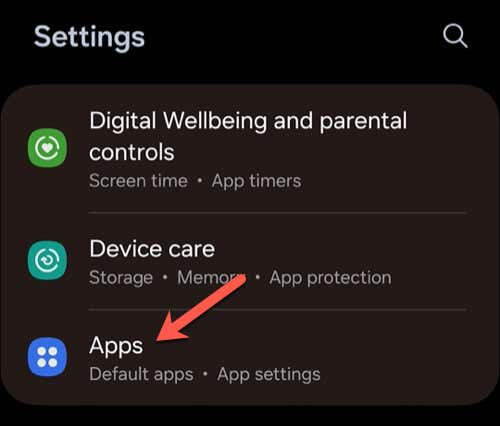
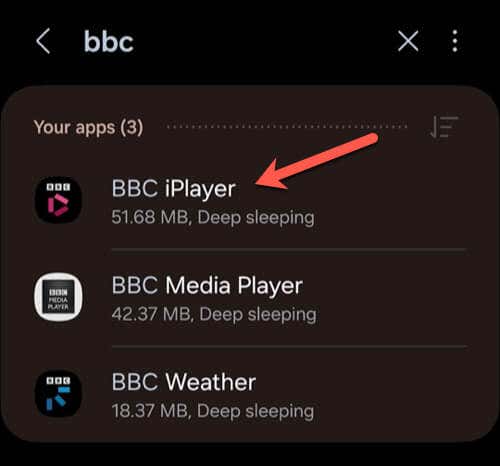
To reset your app cache and data, follow these steps.
Remove Any Recently Installed Apps
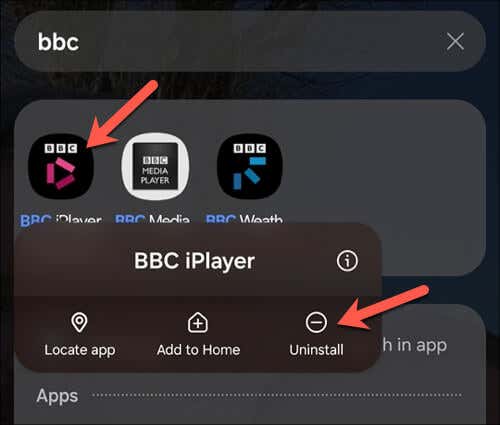
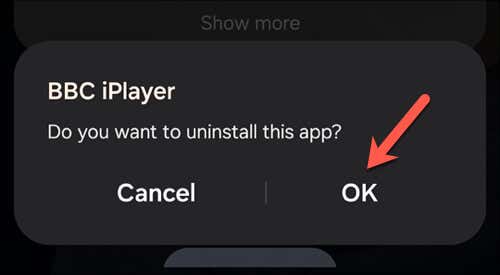
You can’t always fix an app if it’s causing you problems. If your Android device displays the system UI isn’t responding” error, and you’re confident that an app you’ve installed recently is causing the problem, it’s time to remove it.
To remove recently installed apps, follow these steps.
Restart your phone afterwards, just to make sure that your system memory has been cleared. Once the phone restarts, try using your phone as you normally would, repeating any previous steps that may have caused the system UI to stop responding.
If removing the app hasn’t fixed the problem, consider any other apps you’ve installed recently, as you may need to try and remove them, too.
Perform a Factory Reset
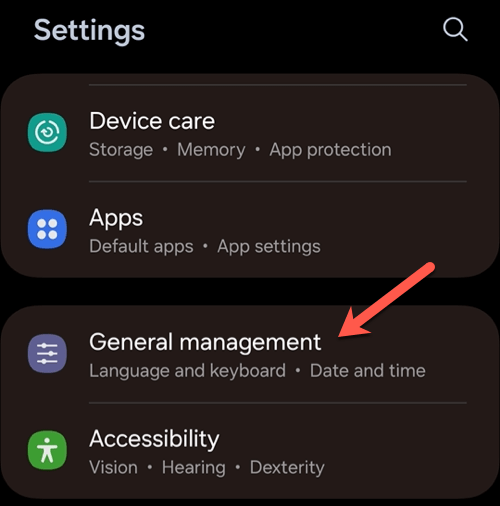
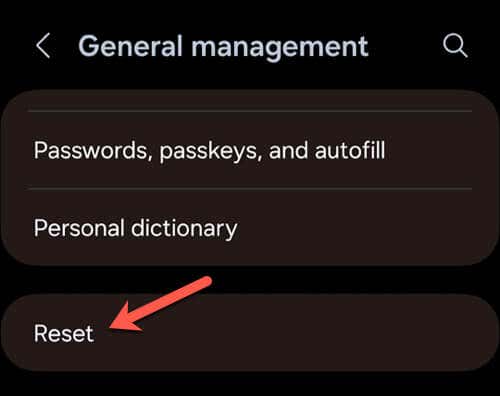
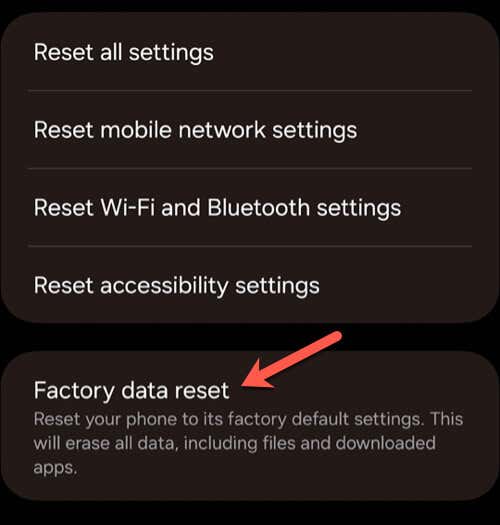
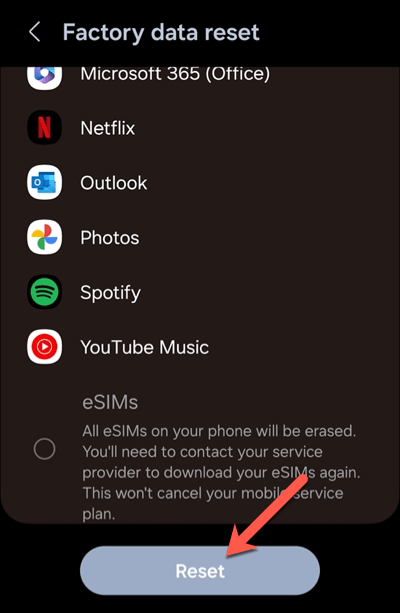
If nothing else works, you might need to perform a factory reset on your Android device. This will erase all of your data from your device and restore your device to its factory default settings. Before proceeding, make sure you’ve backed up any of your important data—you won’t be able to retrieve them later.
Follow these steps to perform a factory reset on Android. Your device interface might look different, but the steps themselves should be quite similar.
After the reset, your device will start as if it were new, without any previously installed apps or personal settings. You’ll need to set it up from scratch, including signing into your Google and other accounts.
This should fix the system UI errors. However, if the problem continues, you may need to consider whether hardware issues are at fault. If that’s the case, you’ll need to look at contacting the manufacturer or retailer for a repair or warranty claim.
Fixing Android System Errors
When the system UI isn’t responding on your Android phone or tablet, don’t panic—-just give it a few moments and see if the problem resolves itself. In most cases, your device needs some extra time to catch up. The steps above should help you troubleshoot the issue if it requires a bigger fix. Had enough Android errors and want to switch sides? If you’ve just bought an iPhone, you can easily move your data from Android to iPhone (although there are a few barriers). However, moving from one Android to another is much simpler.