Some other reasons Chrome has issues loading your sites are that your VPN or proxy server isn’t working correctly, Chrome’s cached data is corrupted, Chrome’s configuration is faulty, and more.
Set the Correct Date and Time on Your Computer
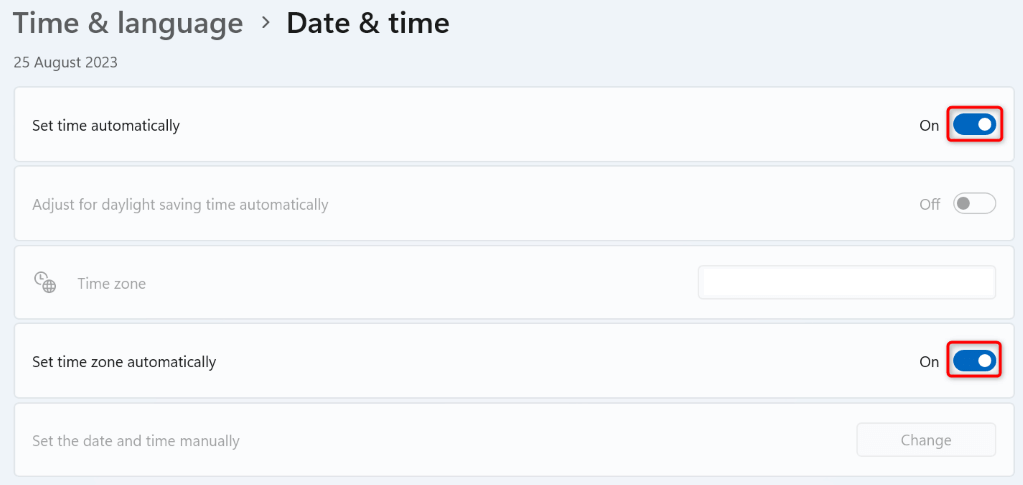
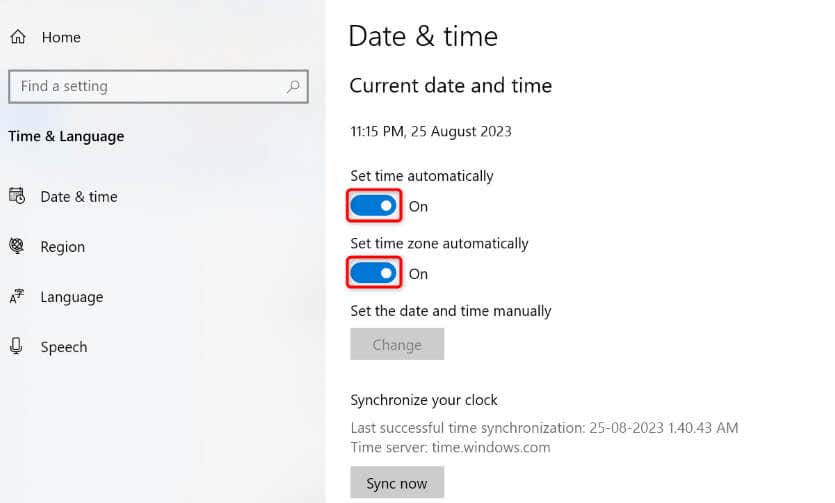
When you encounter a “Your clock is ahead” Chrome error, check and ensure your computer is using the correct date and time settings. You or someone else may have modified these settings, making your machine use the incorrect date and time. In this case, set your PC’s time and date on the automatic mode so you always have the correct settings on your computer.
On Windows 11
On Windows 10
Turn Off the VPN or Proxy Server on Your Computer
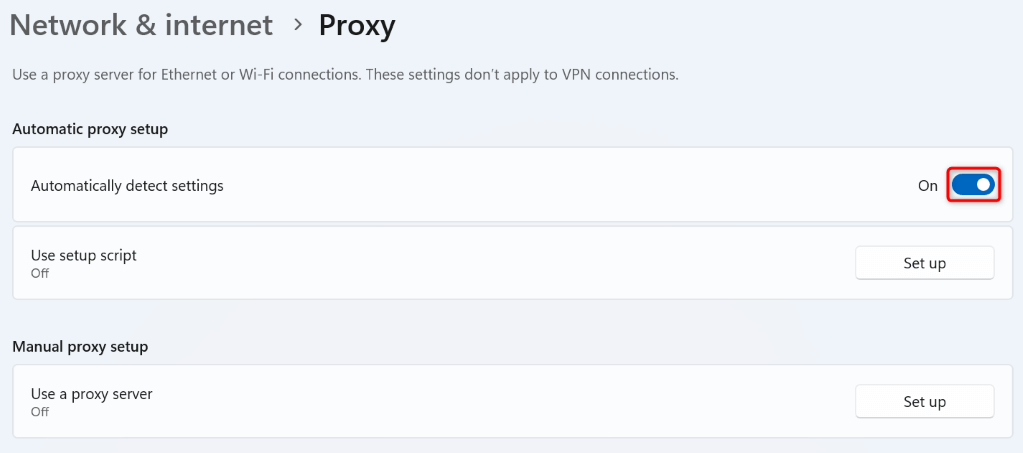
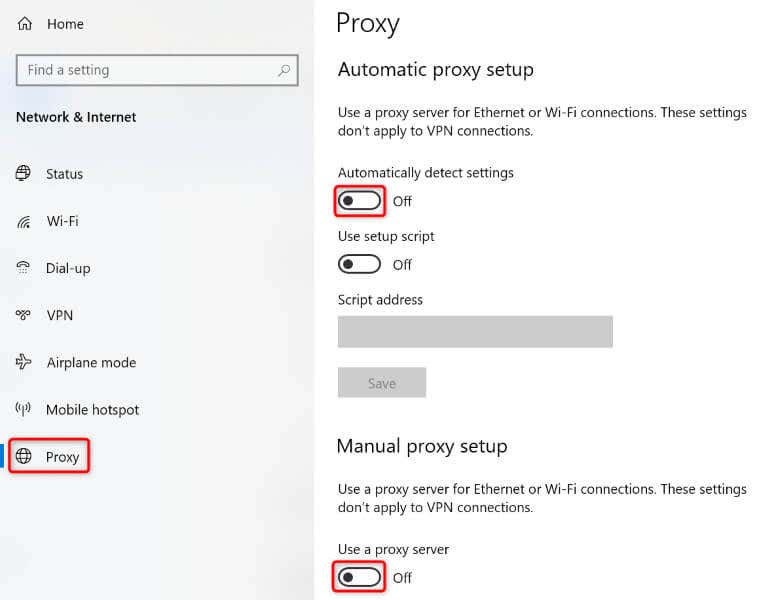
If you’re using a VPN or proxy server on your computer, turn these items off and see if that resolves your issue. Sometimes, your web browsers can’t load sites because your VPN or proxy server isn’t working correctly. You can turn off your VPN by launching your app and toggling off the main option. If you’re using a proxy server on your PC, use the following steps to turn that server off:
On Windows 11
On Windows 10
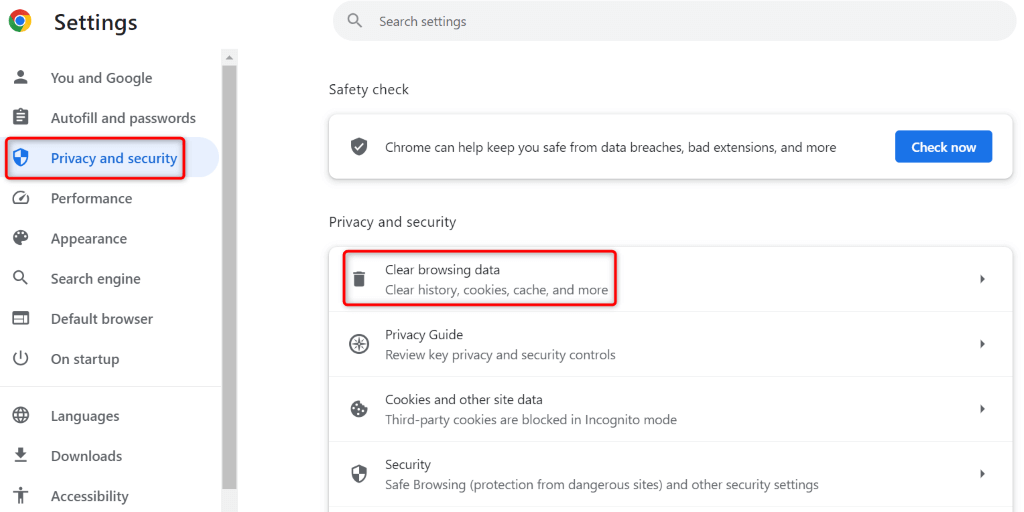
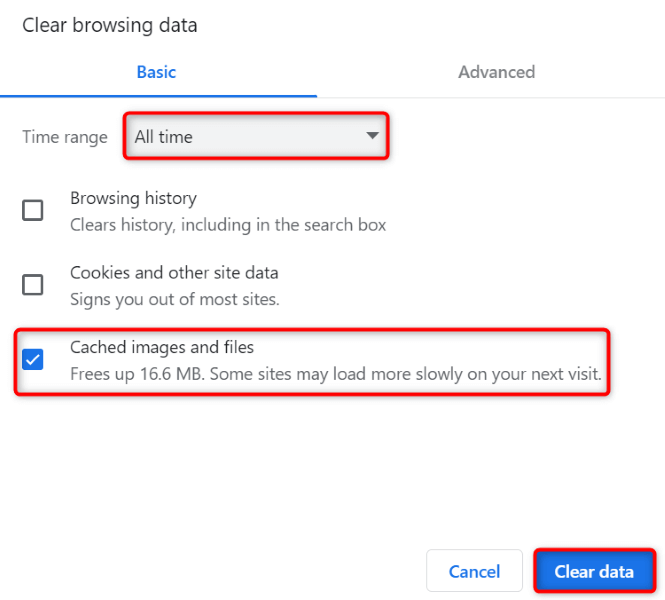
Clear Chrome’s Saved Browsing Data
Chrome caches various files in the browser to improve your surfing sessions. Sometimes, this cached data becomes corrupted, causing your browser to be unable to load your sites. This may be the case with you. In this case, clear Chrome’s saved browsing data to potentially fix your issue.
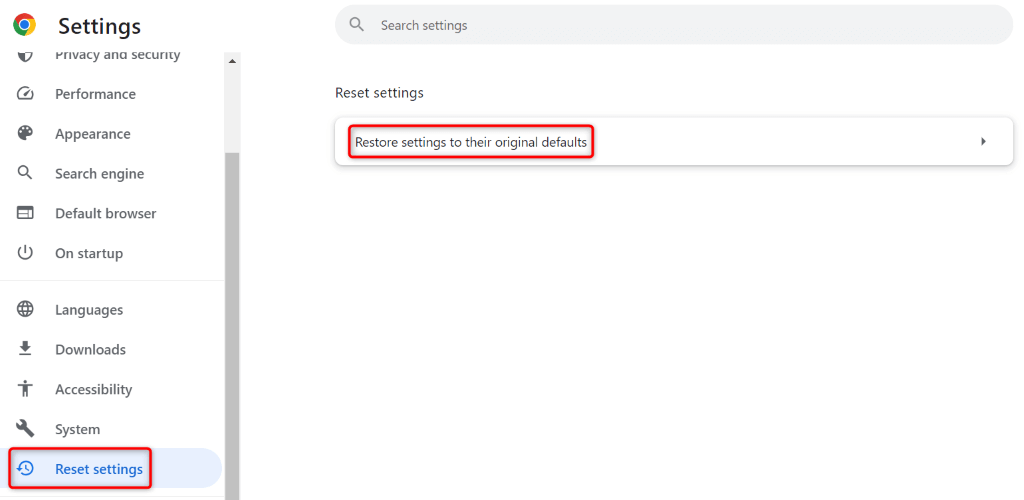
Reset Your Chrome Browser Settings
If your “Your clock is ahead” error persists, Chrome’s browser settings might be faulty. You or someone else may have specified Chrome settings incorrectly, making the browser unable to load your sites. In this case, reset Chrome to the factory settings to potentially fix your issue. Doing so deletes all your custom settings and lets you set up your browser from scratch. Note that you don’t lose your bookmarks, browsing history, and saved passwords when you reset Chrome.
Replace Your Computer’s CMOS Battery
If your computer doesn’t retain the correct date and time when you give your machine a reboot, your computer’s CMOS battery might be faulty or dead. This battery allows your machine to retain the correct date and time settings, even when you’ve turned off your PC. In this case, you may have to replace your current CMOS battery with a new one. You’ll have to open your PC’s physical compartment, take the existing CMOS battery out, and place the new one in. If you aren’t experienced in performing such tasks, we highly recommend you seek the help of a technician to perform the procedure. This is to ensure you don’t end up damaging other parts of your machine.
Make Chrome Ignore the SSL Certificate Warnings
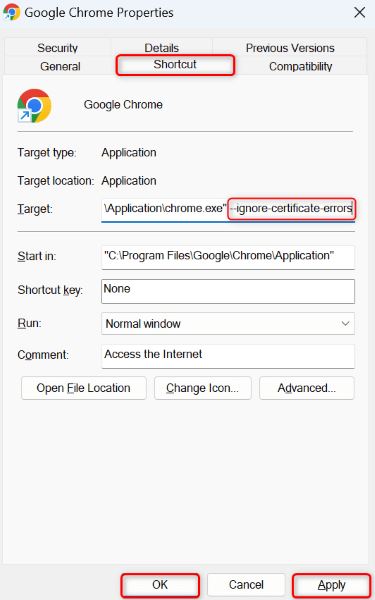
If your issue remains unresolved, but you must access your site, you can get Chrome to ignore the SSL certificate warnings and load your site anyway. This resolves your issue for the time being and lets you access your site’s contents. You’ll add a parameter to your Chrome desktop shortcut to make the browser ignore certain warnings. Note that this is a temporary workaround, and you should look into resolving your issue.
Many Ways to Resolve a Clock Error in Your Google Chrome Browser
Chrome’s “Your clock is ahead” error can drive people crazy as the issue doesn’t let you access any sites in your browser. If this error message doesn’t go away despite multiple attempts to access your site, the above-mentioned methods will help you resolve your problem. When you’ve fixed the issue, Chrome will load your sites just as it should, letting you access all your favorite content. Happy browsing!