Some reasons you have trouble placing calls on your phone are that your SIM card is improperly installed or damaged, the phone’s data roaming option is disabled, your phone can’t find the correct cellular network to connect, your device’s operating system has a minor glitch, and more.
Check if Your Phone Has Network Coverage
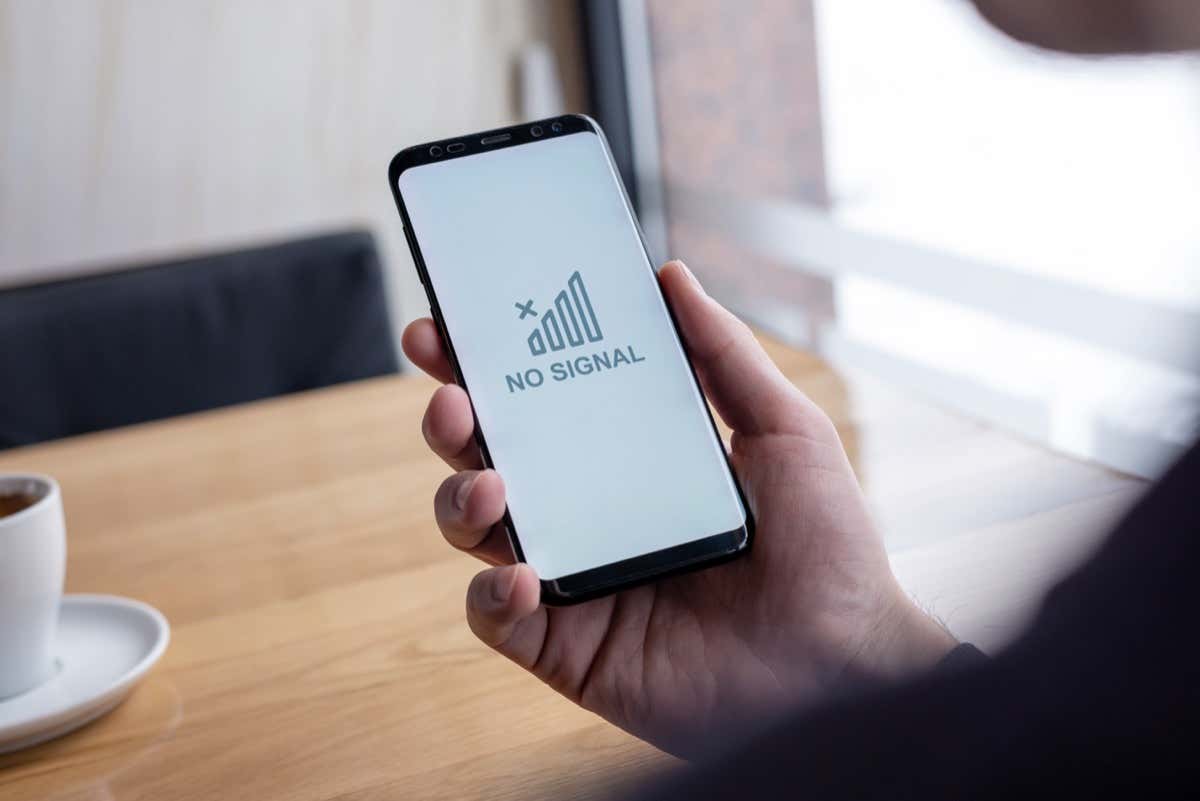
When you can’t make phone calls from your phone, the first thing to check is if your phone has network coverage. You can’t make or receive calls when your phone is outside the coverage area. If your phone’s coverage bar doesn’t show any bars, which indicates your phone isn’t connected to your carrier, move around in your area and see if you get the network. If your error continues even after receiving network signals, follow further fixes below.
Enable and Disable Your Phone’s Airplane Mode
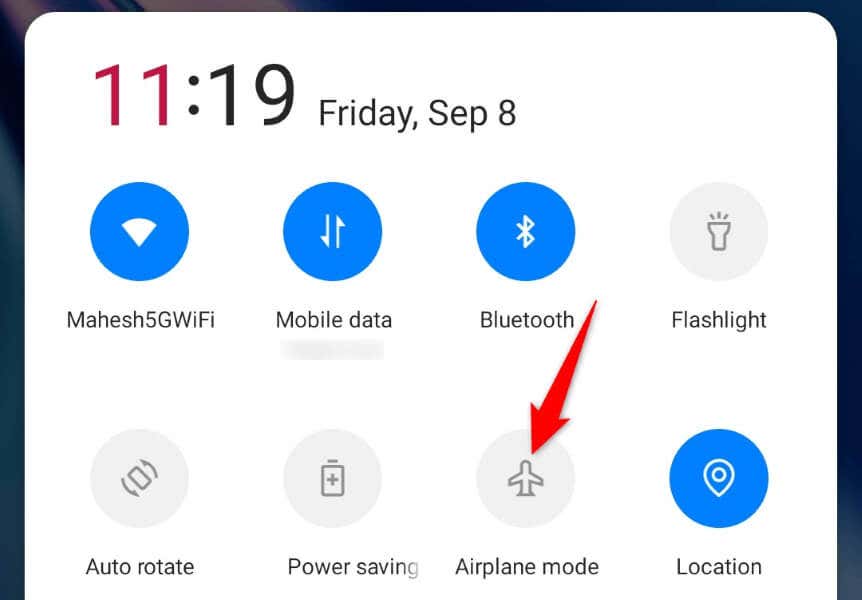
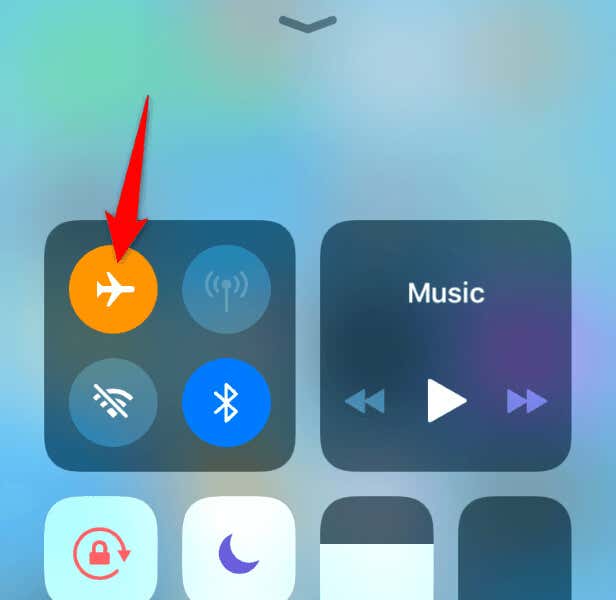
When your phone experiences connectivity issues, you can toggle your phone’s flight mode on and off to resolve your problem, hopefully. This is because turning on flight mode disconnects your phone from all networks, and turning the mode back off re-connects your phone to your networks, fixing your issue.
On Android
On iPhone
Remove and Reinsert the SIM Card Into Your Phone
If your SIM card is improperly installed or damaged, that may be why you can’t make phone calls from your device. A damaged or incorrectly placed SIM card prevents your phone from connecting to your carrier, preventing incoming and outgoing calls. You can check your SIM card’s condition by removing the SIM tray from your phone and the card from the tray. If your card’s condition looks good, place the card properly on the tray, push the tray back into your phone, and try to make a phone call. Also, you can get a replacement SIM card from your carrier if your current card is damaged.
Restart Your iPhone or Android Phone
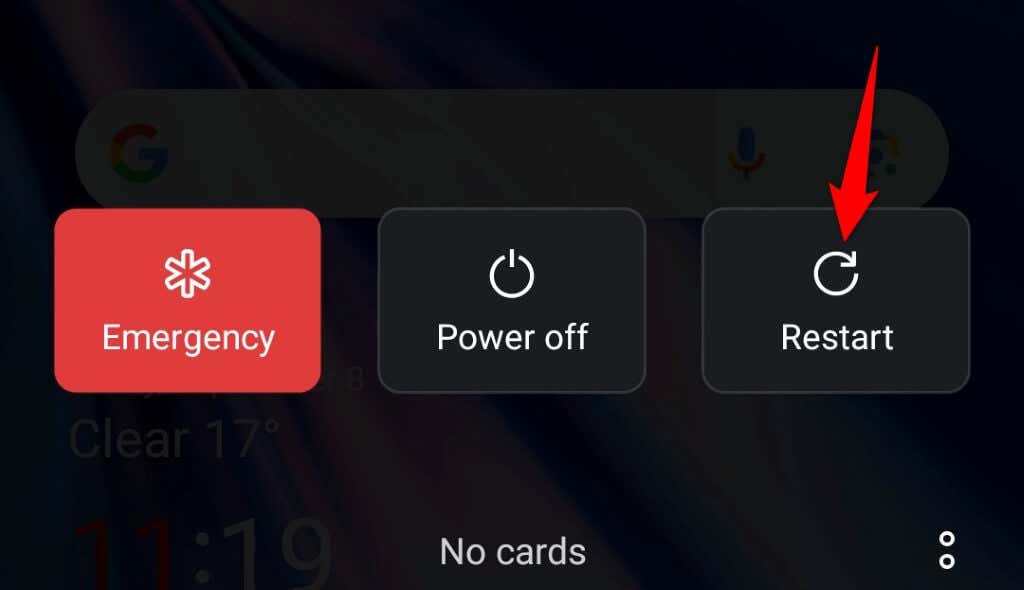
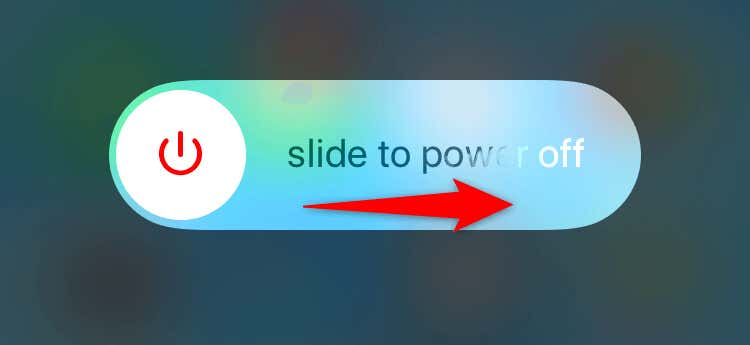
Sometimes, your phone’s minor glitches cause your call features to stop working. This may be the case with your phone, preventing you from placing calls. You can fix many minor system issues on your iPhone or Android phone by restarting it.
On Android
On iPhone
Turn On Data Roaming on Your Phone
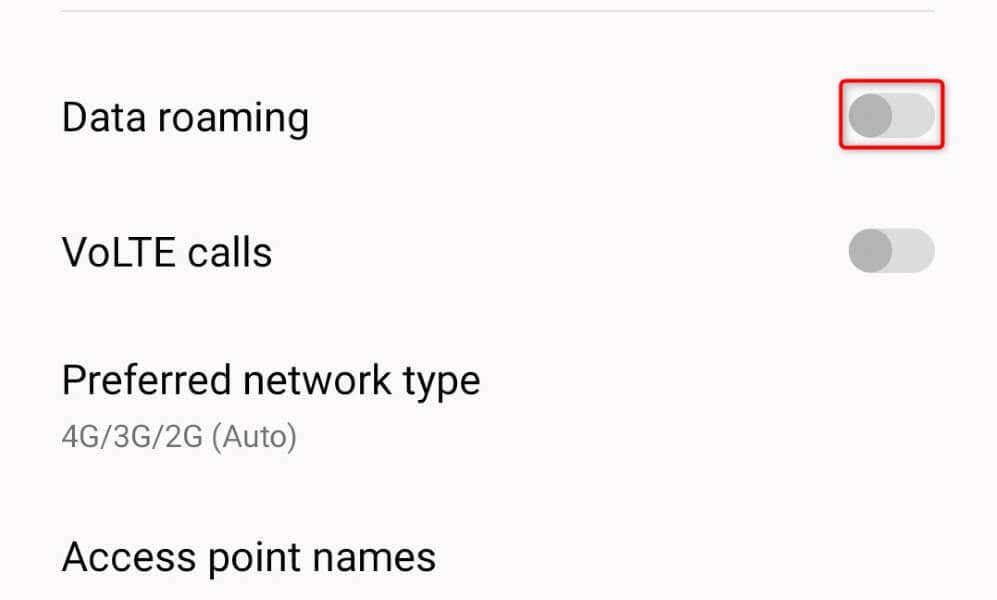
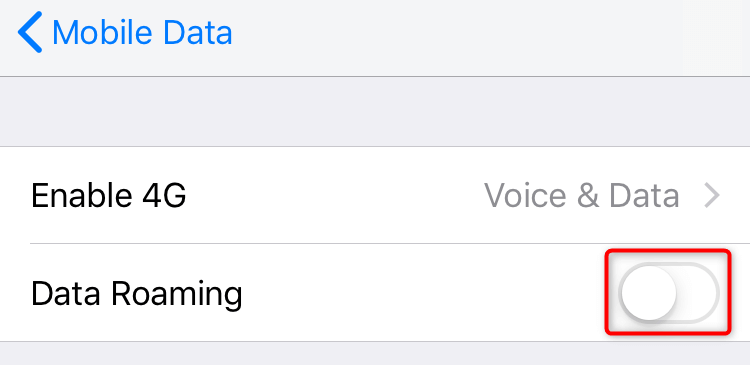
Some carriers require you to enable data roaming to place phone calls. If you’ve turned off this option on your phone, turn the option on to resolve your issue. Note that your carrier may charge a fee for using data while roaming. Get in touch with your network provider to learn more about the costs.
On Android
On iPhone
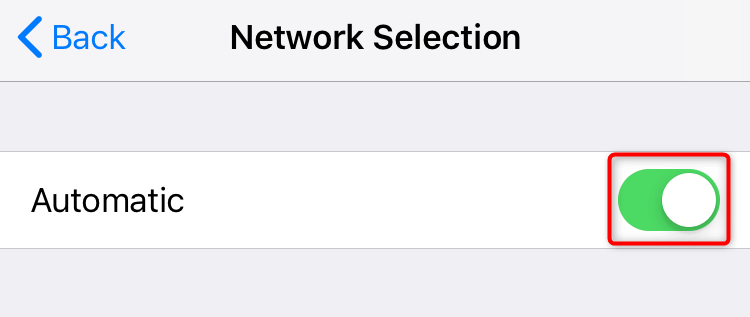
Choose Your Network Operator Manually
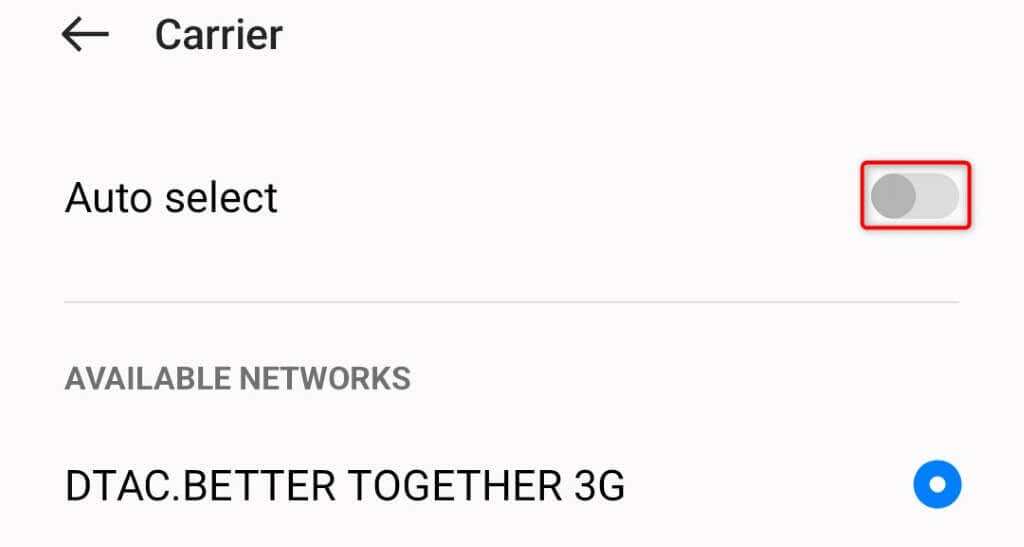
By default, your phone automatically finds and connects to your cellular provider. However, it’s worth choosing the provider manually when you have trouble placing calls on your phone. It’s possible your phone is confused about what carrier to choose, which you can fix by selecting the carrier manually.
On Android
On iPhone
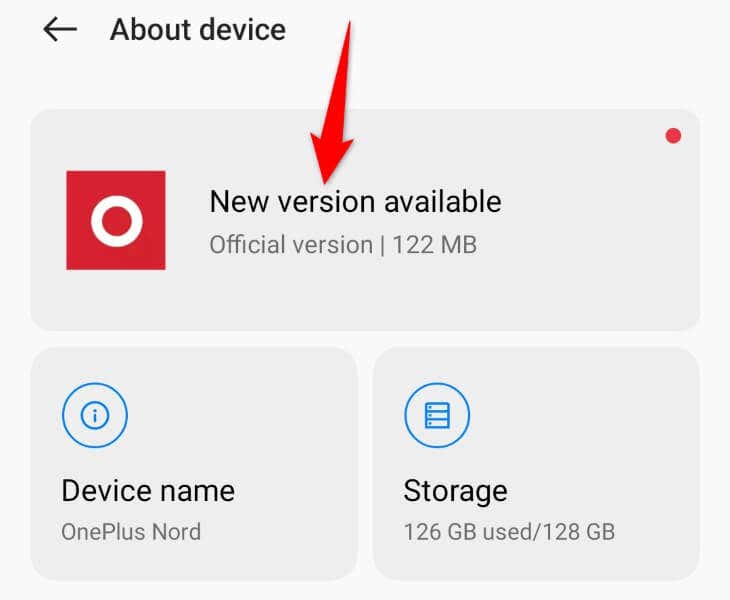
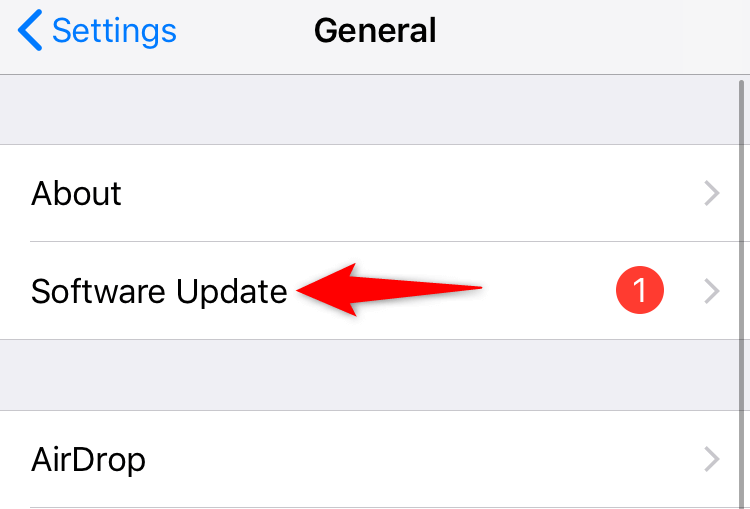
Update iOS or Android on Your Phone
If your phone is using an old iOS or Android version, that can cause various issues on your device. An outdated operating system version may be why you can’t make phone calls from your phone. In this case, update your phone’s operating system to resolve your call error.
On Android
On iPhone
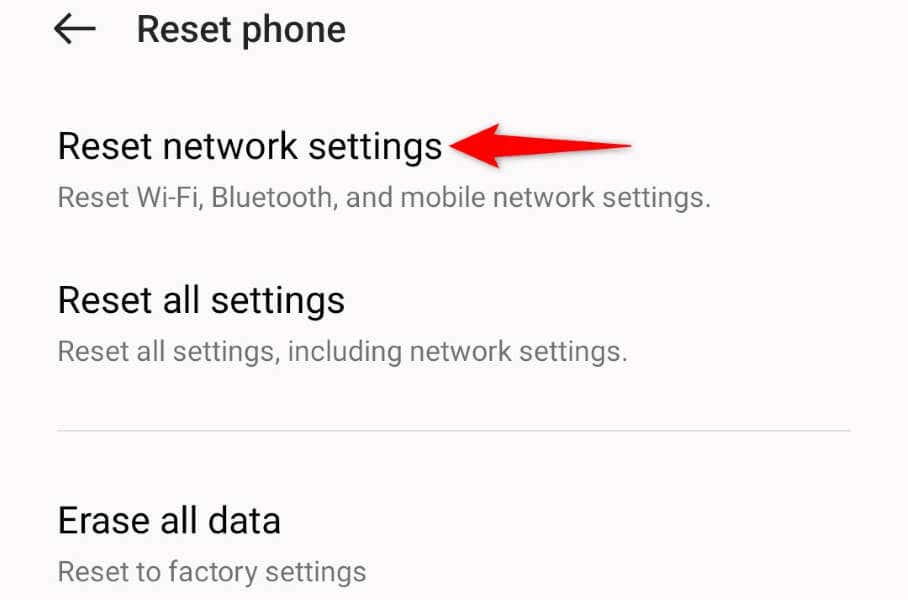
Factory Reset Network Settings on Your iPhone or Android Phone
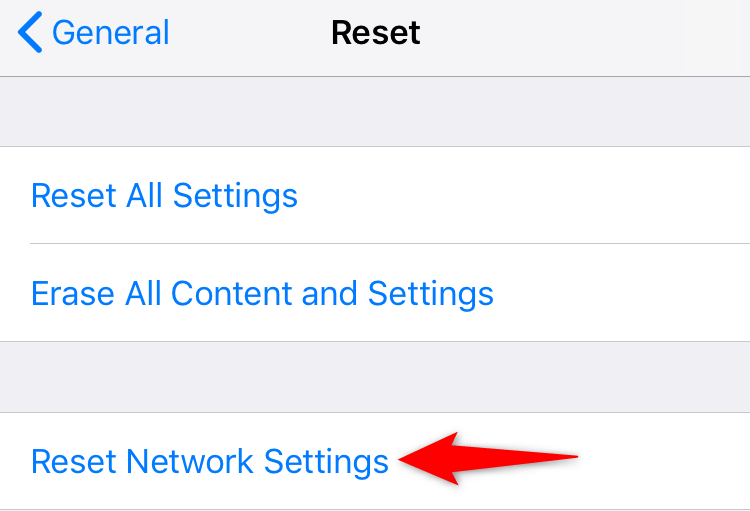
If your phone still can’t make calls and you continue getting a “Cellular network not available for voice calls” error, your network settings might be incorrect. You or someone else may have modified your phone’s network configuration incorrectly, causing the phone not to make calls. In this case, you can reset your device’s network settings to fix your issue potentially.
On Android
On iPhone
Contact Your Network Provider
If your “Cellular network not available for voice calls” error persists, your last option is to contact your carrier. Something may be wrong on your carrier’s end, causing your call issue. You can verify that and seek a solution to your problem by contacting your specific network provider. You can reach most providers online using their official websites.
Solve the Cellular Network Error Stopping Your Calls
You can’t make calls and get an error on your iOS or Android device for many reasons. Your carrier may have issues on its end, or your phone may be suffering from a bug. Either way, you can use the above mentioned methods to fix your error and start placing your calls.