Some reasons for loading Google Chat properly are that your web browser’s JavaScript feature is disabled, your browser app is outdated, your login session for the site has a problem, your browser extensions are faulty, and more.
Fix Your Internet Connection Problems
The most common reason you can’t access Google Chat is that your internet connection isn’t working. The connection may have suddenly stopped working, causing you to be unable to load your site. In this case, check your network connection’s status by opening a new tab in your web browser and launching a non-Google Chat site. If your browser doesn’t load the site, your internet connection is the culprit. You can try to fix your connection issues by restarting your router. If that doesn’t work, contact your internet service provider (ISP) for help.
Hard-Refresh Google Chat’s Site in Your Web Browser
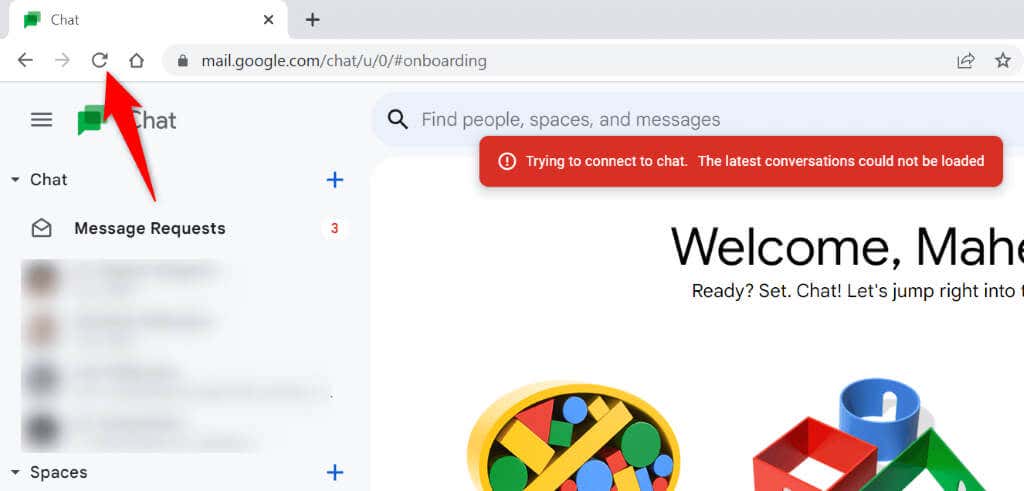
If your internet connection is working, the next fix to apply is to hard-reload the Google Chat site in your web browser. Doing so overrides your browser’s saved cache content, allowing you to load the site from scratch. This helps fix the issue if a bad cache caused it. You can hard-refresh a site in your web browser by pressing and holding down the Shift button and selecting the refresh icon beside the address bar. You should be able to access your site and the site’s chat features when hard-refresh is finished.
Enable JavaScript in Your Web Browser
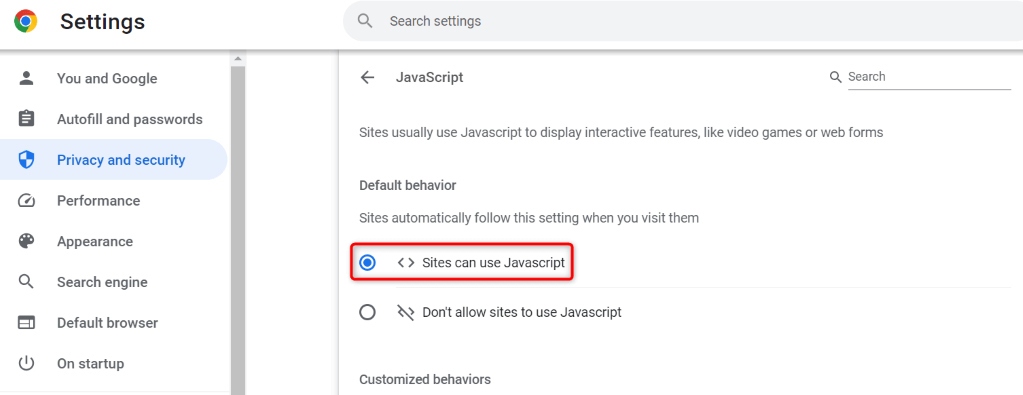
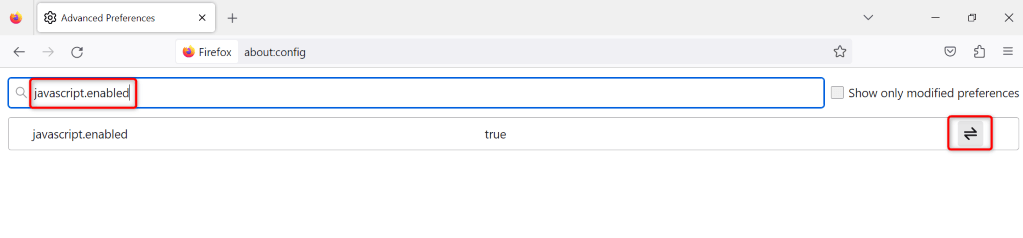
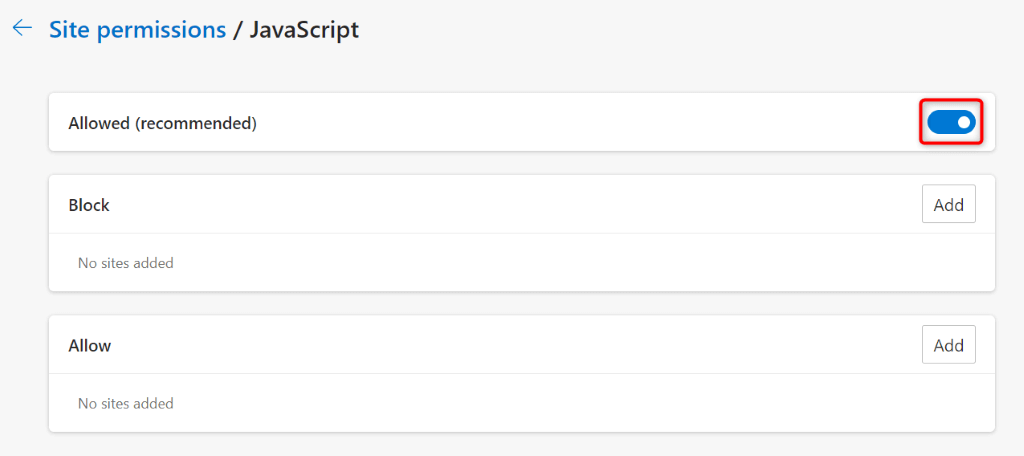
One reason Google Chat fails to load is that your web browser’s JavaScript option is turned off. Many sites rely on this technology to function, and these sites can’t work correctly if the feature is disabled in your browser. Luckily, it’s easy to turn on the feature in your various web browsers. We’ll show you how.
Google Chrome
Mozilla Firefox
Microsoft Edge
Update Your Web Browser and Use Google Chat
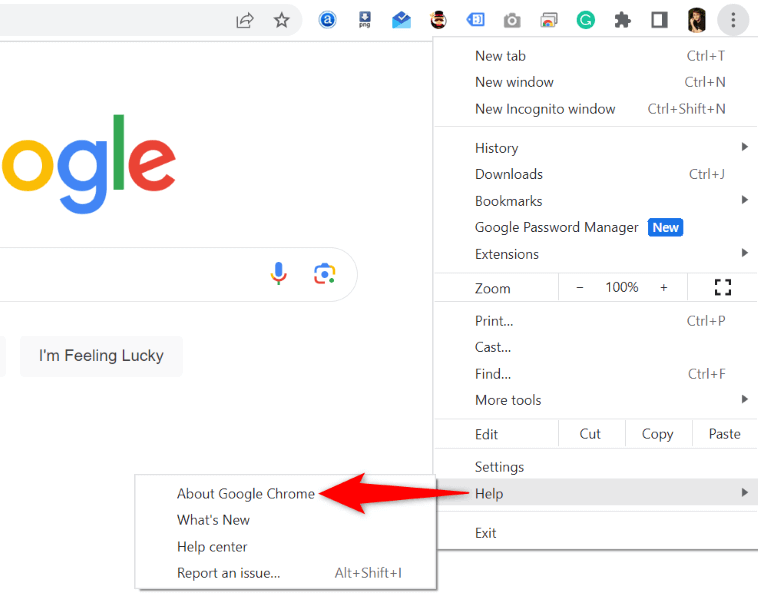
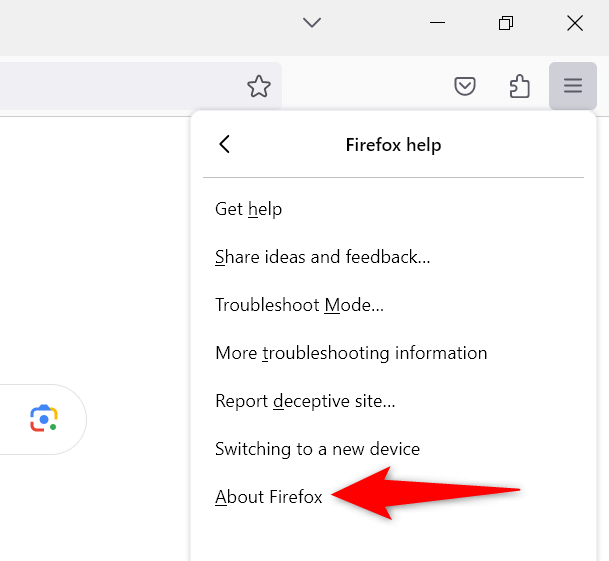
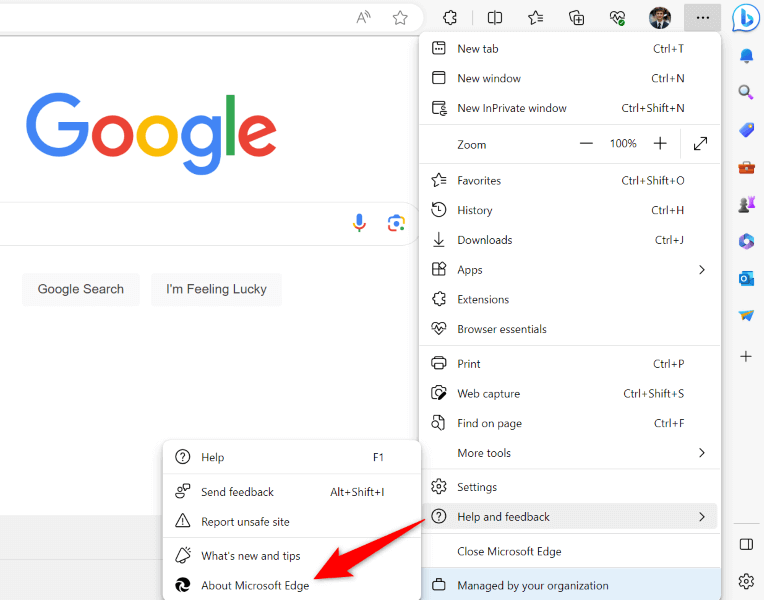
Outdated web browser versions are often the reason you can’t access your sites. You may be using an old version of a browser on your computer. This version may likely have many bugs, causing the sites to be unable to load correctly. In this case, you can update your web browser to fix your issue.
Google Chrome
Mozilla Firefox
Microsoft Edge
Sign Out and Back Into Your Google Account on the Chat Site
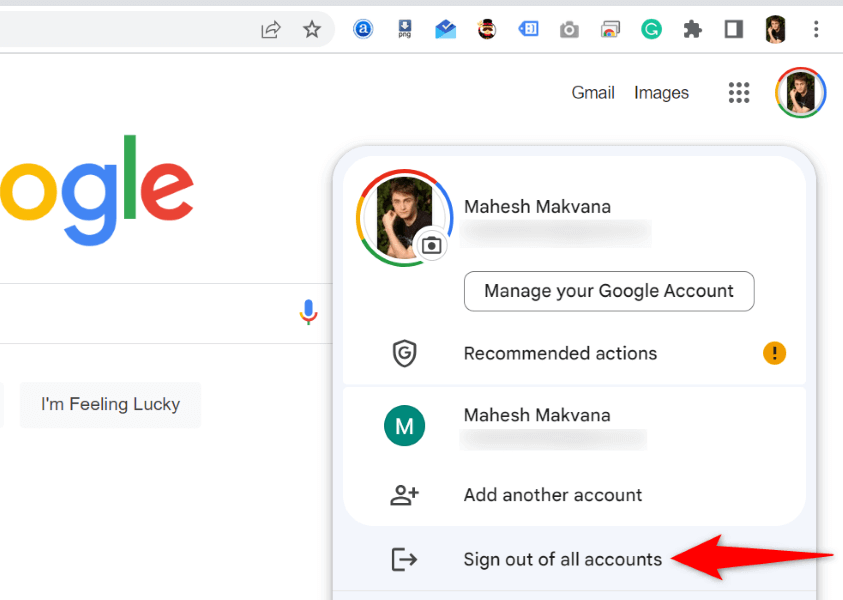
Sometimes, an issue with your login session causes your site not to load. This may be why you can’t access Google Chat in your browser. You can try to fix that issue by logging out and back into your account on the site.
Clear Google Chat’s Cookies and Site Data in Your Web Browser
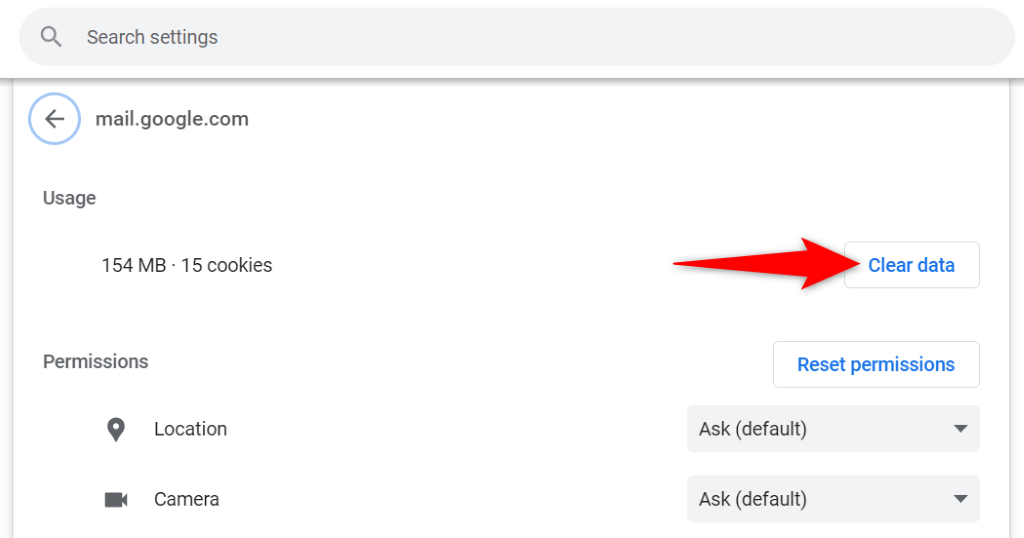
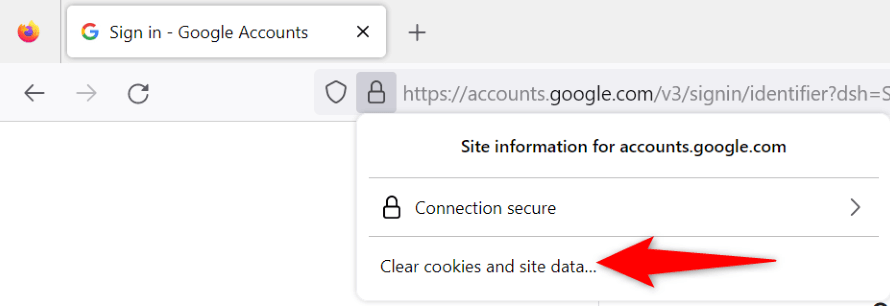
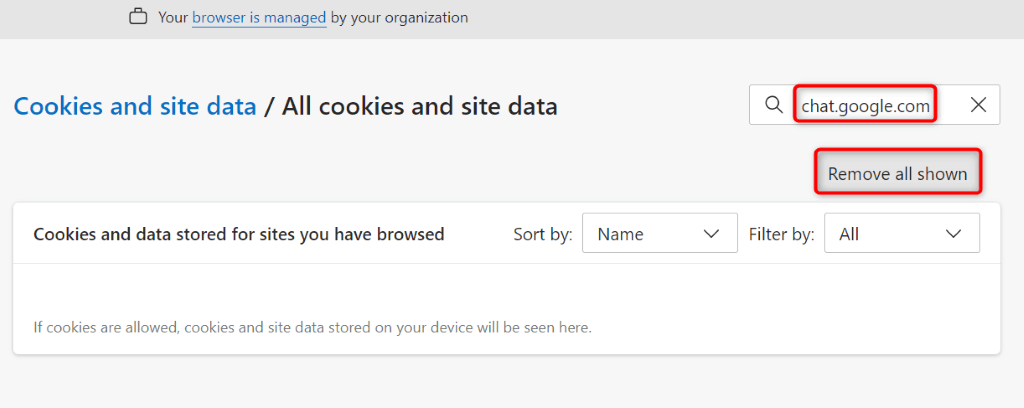
Your web browser saves cookies and various other items when you access a site. When you have trouble loading a site, it’s a good idea to clear this saved content to possibly fix your issue.
Google Chrome
Mozilla Firefox
Microsoft Edge
Turn Off Your Web Browser Extensions
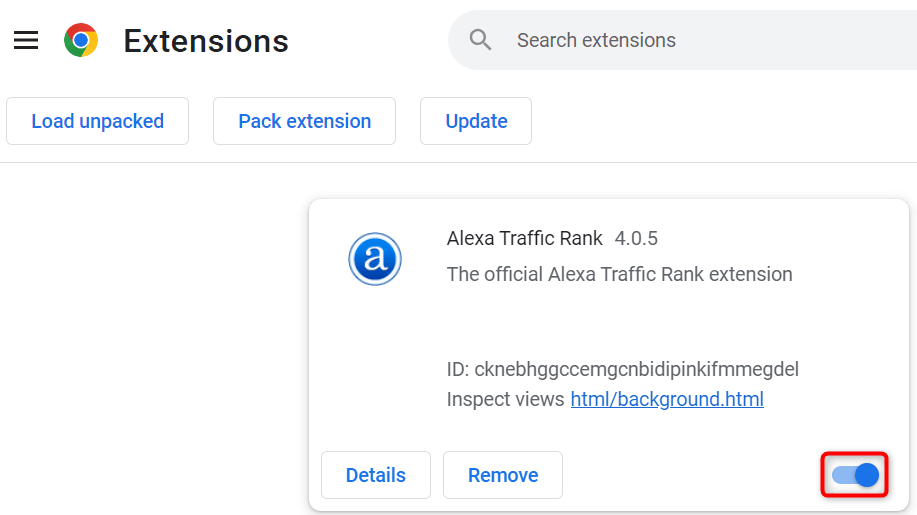
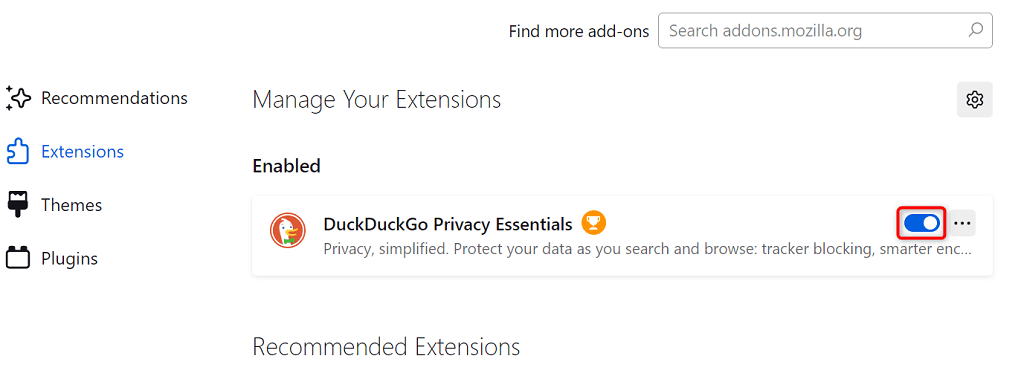
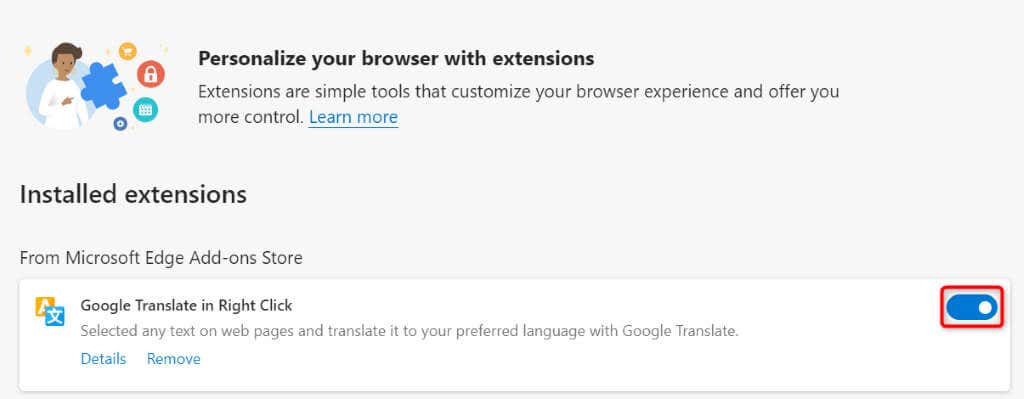
If you still get an “Unable to connect to chat” error on Google Chat, an extension installed in your web browser may be causing the issue. Sometimes, your browser extensions get corrupted or become broken for various reasons, causing your sites not to load correctly. You can verify and fix that by turning off all your browser extensions and re-enabling one extension at a time to find the culprit. You can then remove the culprit item to resolve your issue.
Google Chrome
Mozilla Firefox
Microsoft Edge
Troubleshooting Google Chat App’s Issues to Resume Your Online Conversations
Google Chat’s access errors prevent you from loading and replying to your online chat messages. If your issues persist and you can’t access the site, the methods offered above should help you fix your problem. These solutions fix the very items that may be causing your error, letting you regain access to your favorite chat platform.