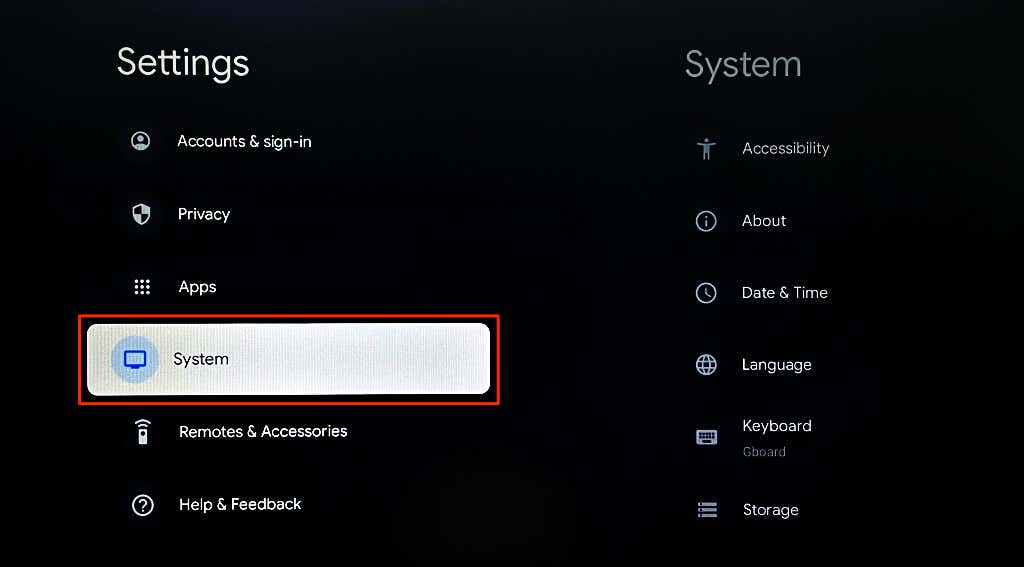
Follow the troubleshooting recommendations in this tutorial to get your mobile device linked to your Chromecast.
Troubleshoot Network or Connectivity Issues
Your phone and Chromecast must be on the same Wi-Fi network when setting up the Google Home app. Check your phone and Chromecast’s settings and ensure they connect to the network. You also want to ensure that the network has internet access. Visit any website in your browser, download a file, or try steaming a video. Reboot your Wi-Fi router or contact your internet service provider if devices connected to the network don’t have internet access. Additionally, check your router’s MAC address filtering settings and remove any restriction placed on your phone or Chromecast. We also recommend turning off your Chromecast and phone’s Wi-Fi and turning it back on. That will refresh your devices’ Wi-Fi connection and possibly resolve connectivity glitches. Delete and reconnect your devices to the network if the “Could not communicate with your Chromecast” error persists.
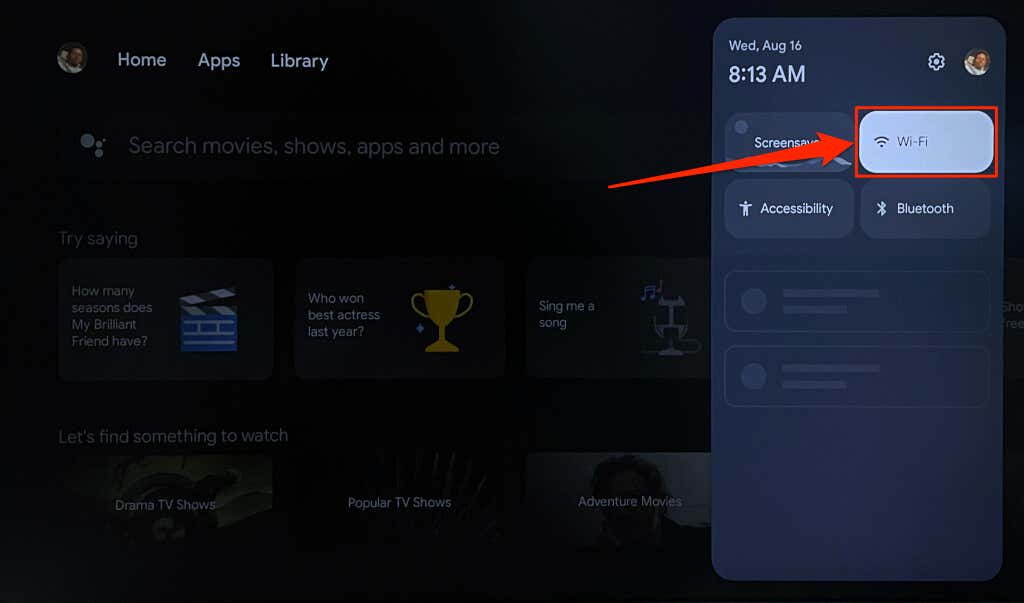
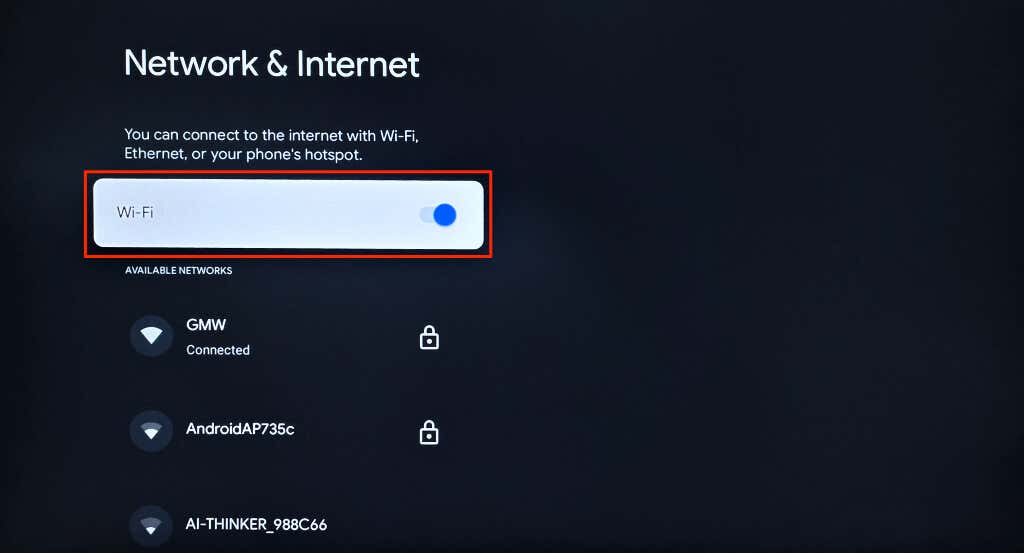
Re-Enable or Forget Wi-Fi on Chromecast
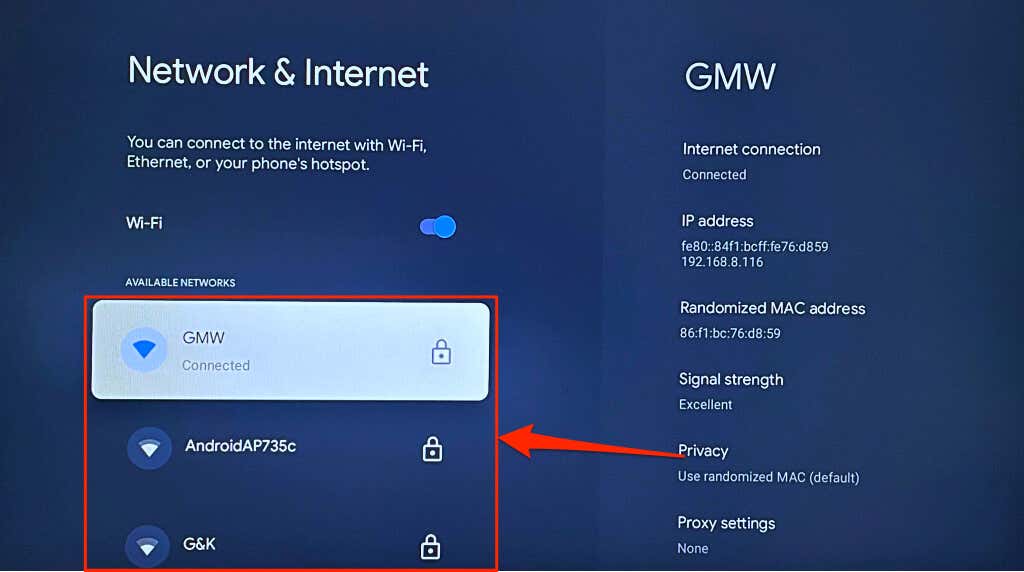
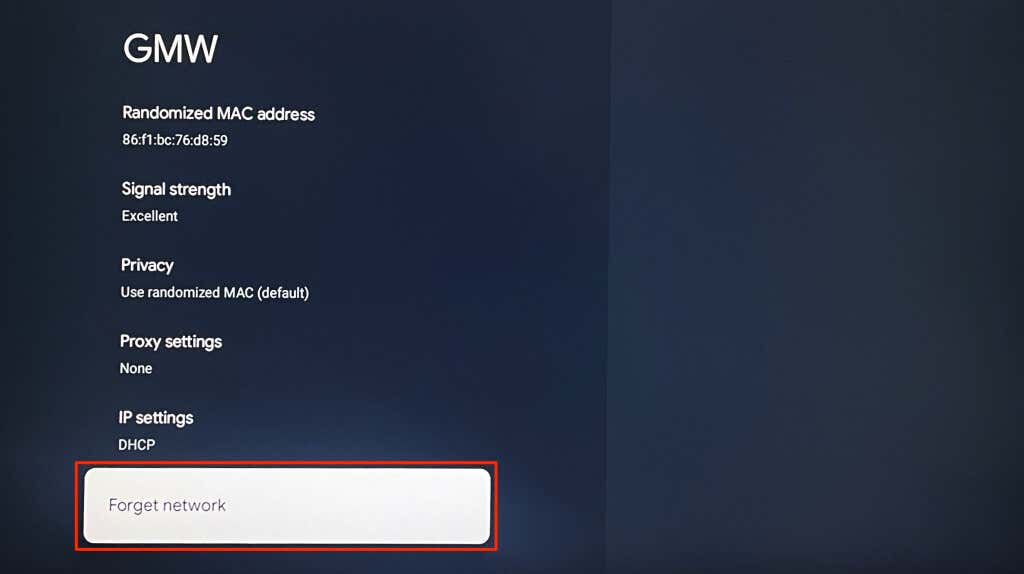
Delete and reconnect your Chromecast to the network if the Google Home app still doesn’t detect the streaming device.
Re-Enable or Forget Wi-Fi on Android
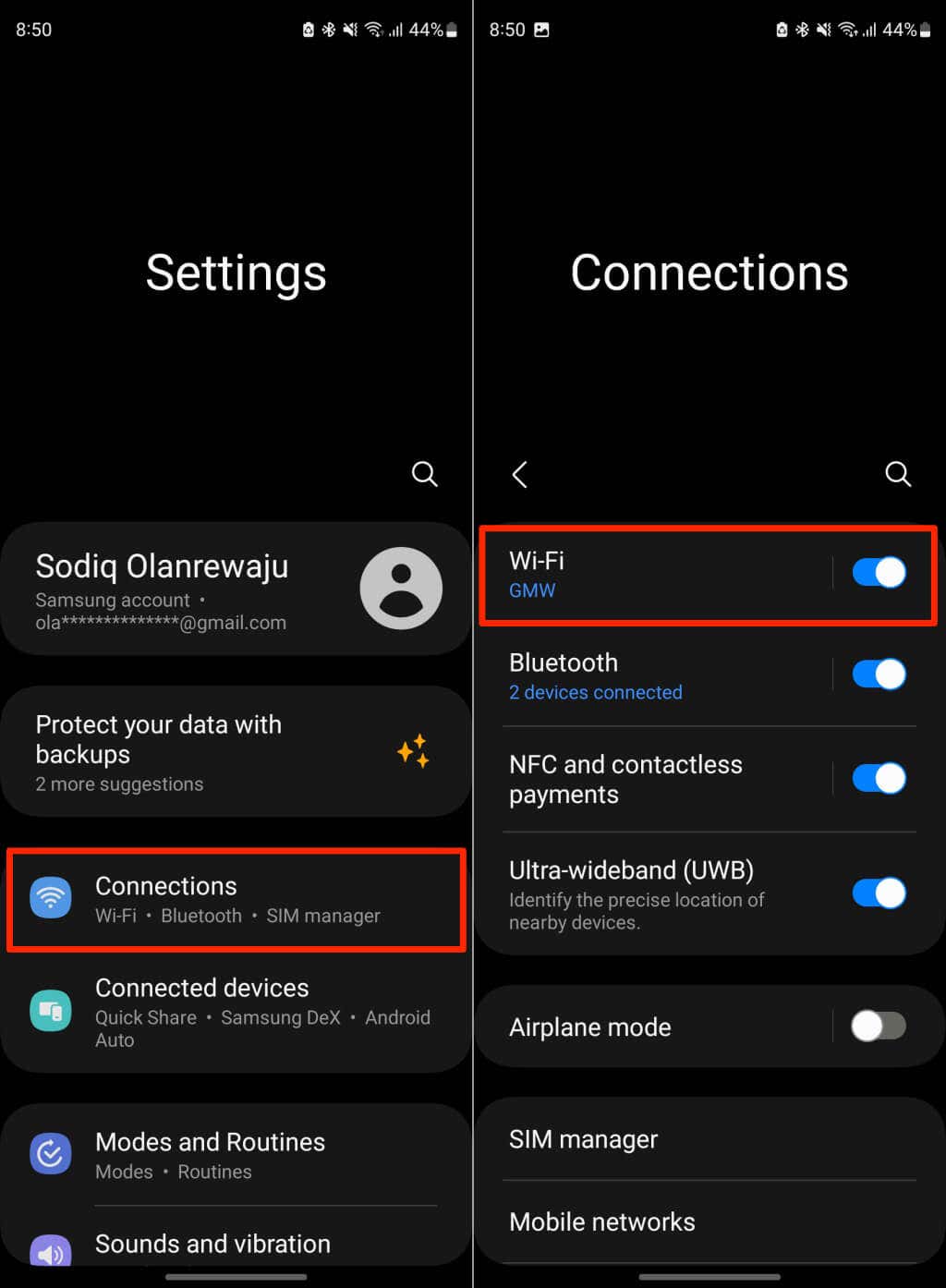
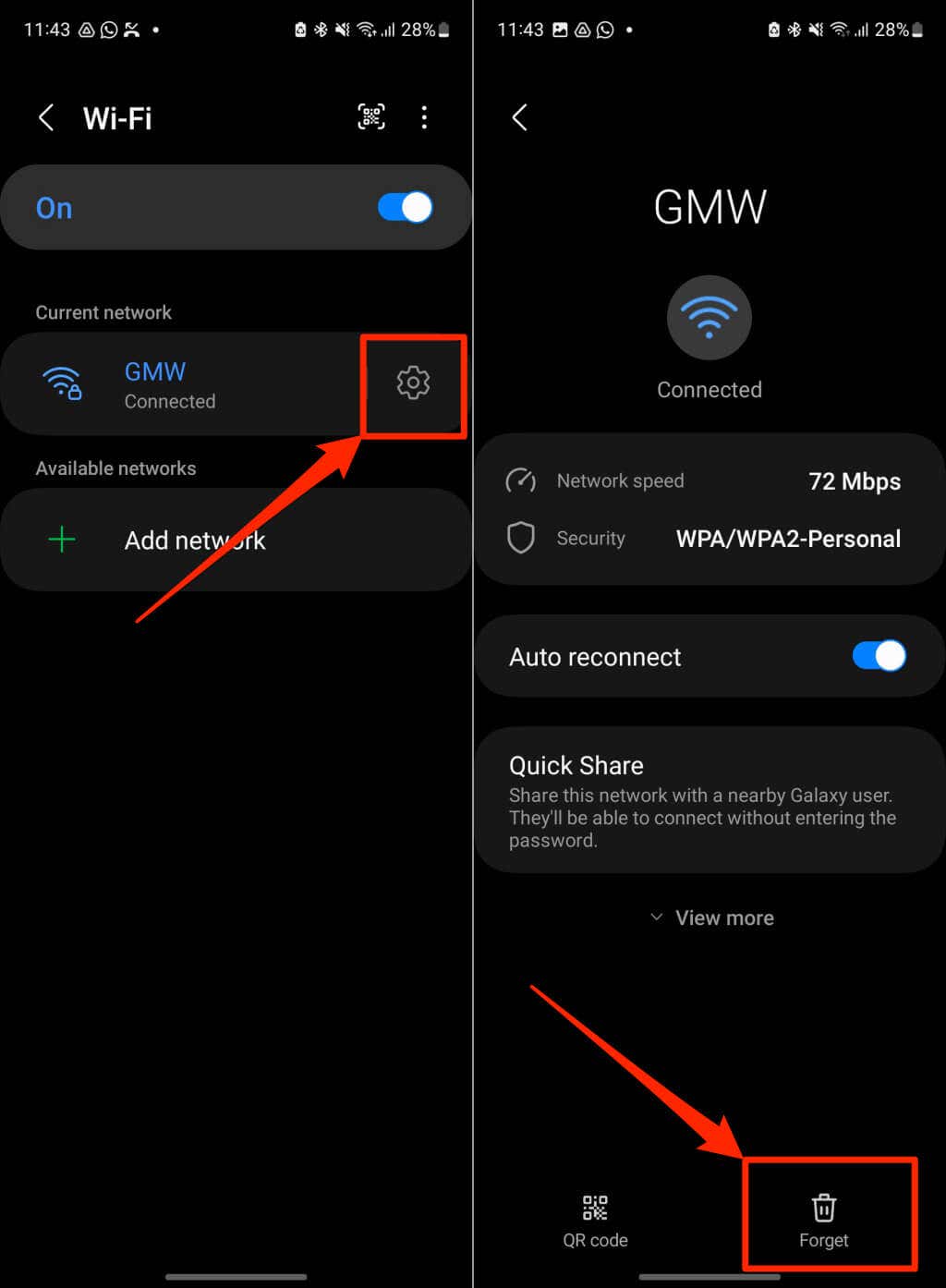
Go to Settings > Network & Internet > Internet, turn Wi-Fi off, and turn it back on to reconnect to the network. If your phone doesn’t run stock Android, head to Settings > Connections and toggle off Wi-Fi. Re-enable your device’s Wi-Fi and rejoin the network. Delete and re-add the network if the Google Home doesn’t connect to your Chromecast. Tap the Cog/Settings icon next to the network you want to forget and select Forget. Reconnect your phone to the network, open the Google Home app, and retry the Chromecast setup.
Re-Enable or Forget Wi-Fi on iPhone/iPad
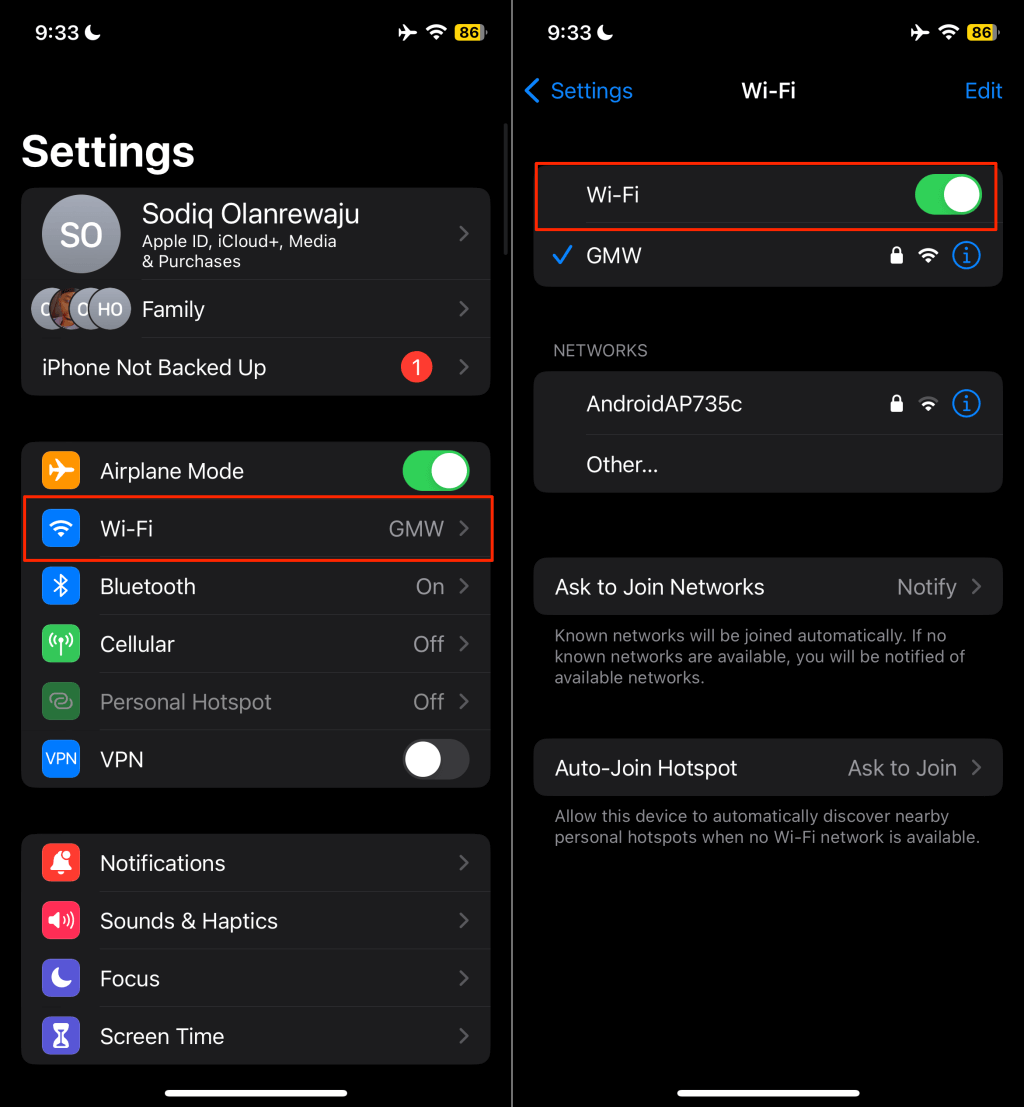
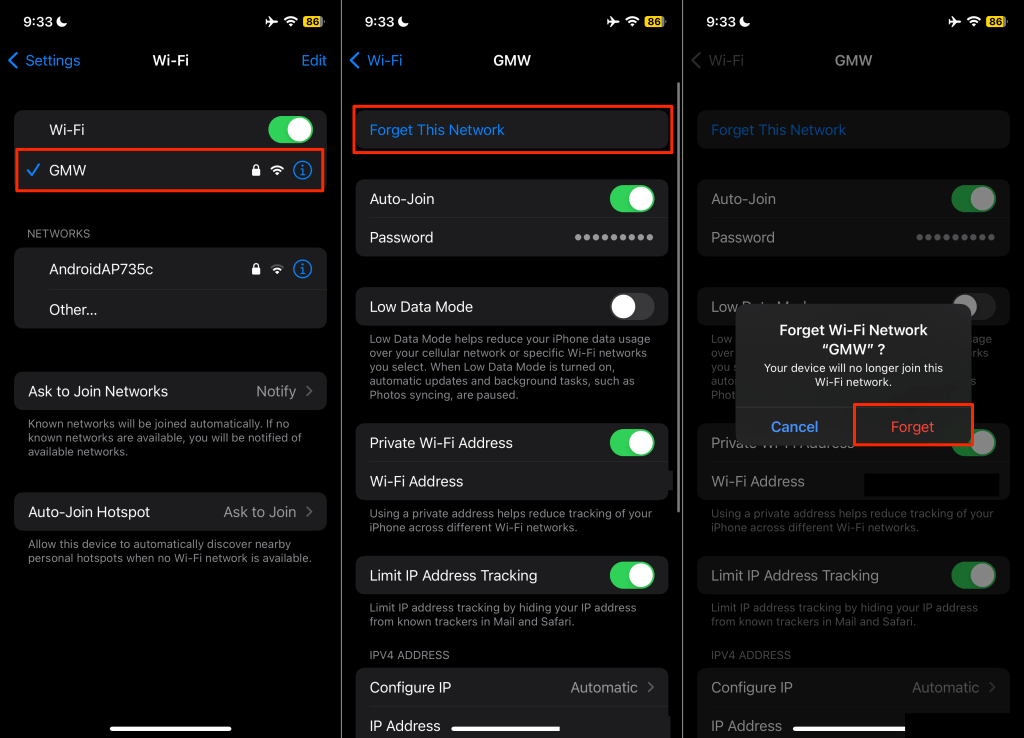
Head to Settings > Wi-Fi, turn off Wi-Fi, and toggle it back on. To delete the network, tap the network name, select Forget This Network, and tap Forget on the pop-up. Switch (your phone and Chromecast) to a different Wi-Fi network if the “Could not communicate with your Chromecast” error persists. Resetting your phone’s network settings can also fix internet connection problems.
Check Bluetooth Settings and Location Permission
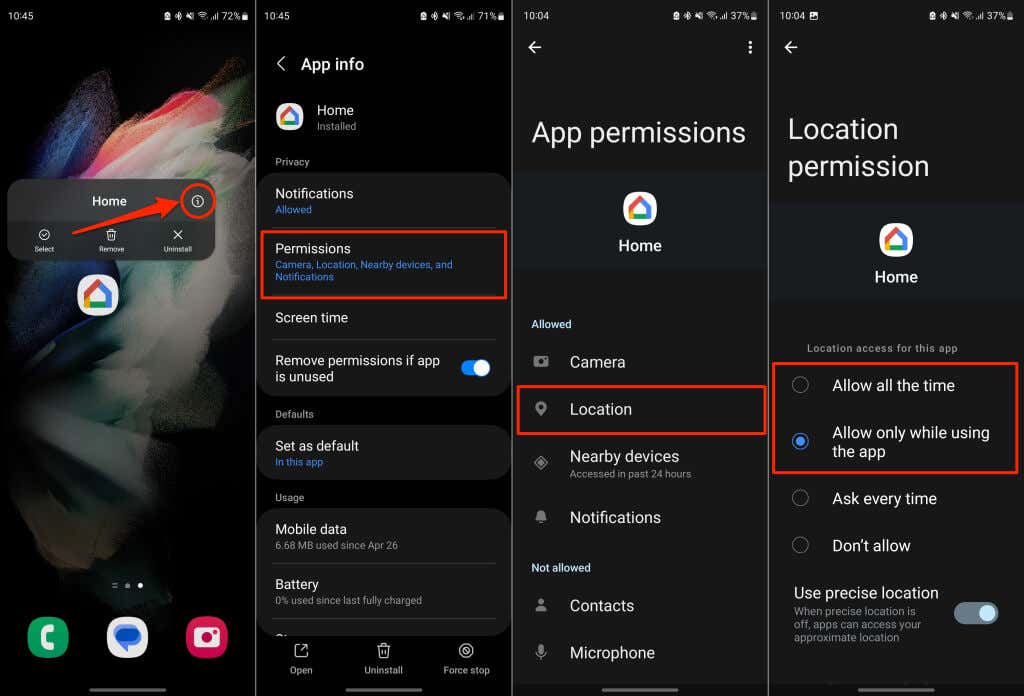
The Google Home app uses your phone’s Bluetooth and location to establish communication with Chromecast devices. Turn on your device’s Bluetooth and ensure Google Home has location permission.
Enable Google Home Location Permission (Android)
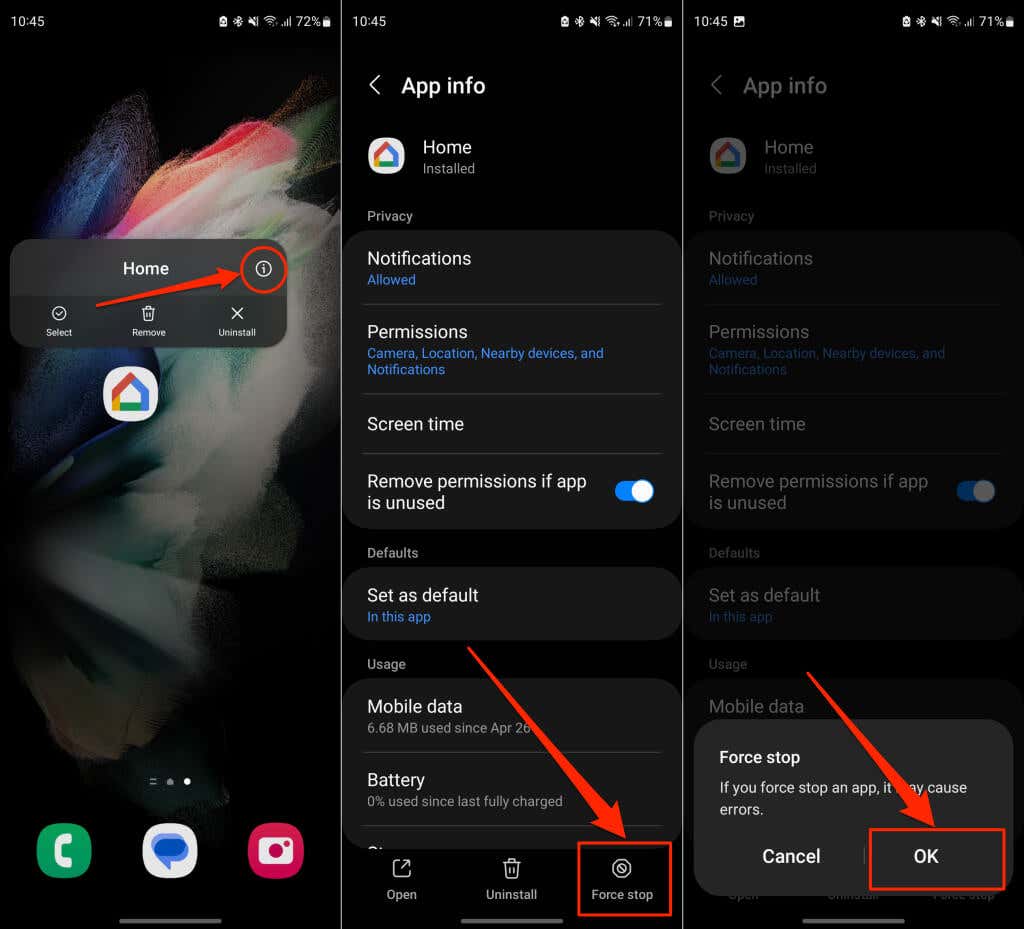
Close or force-close the Google Home app and follow these steps.
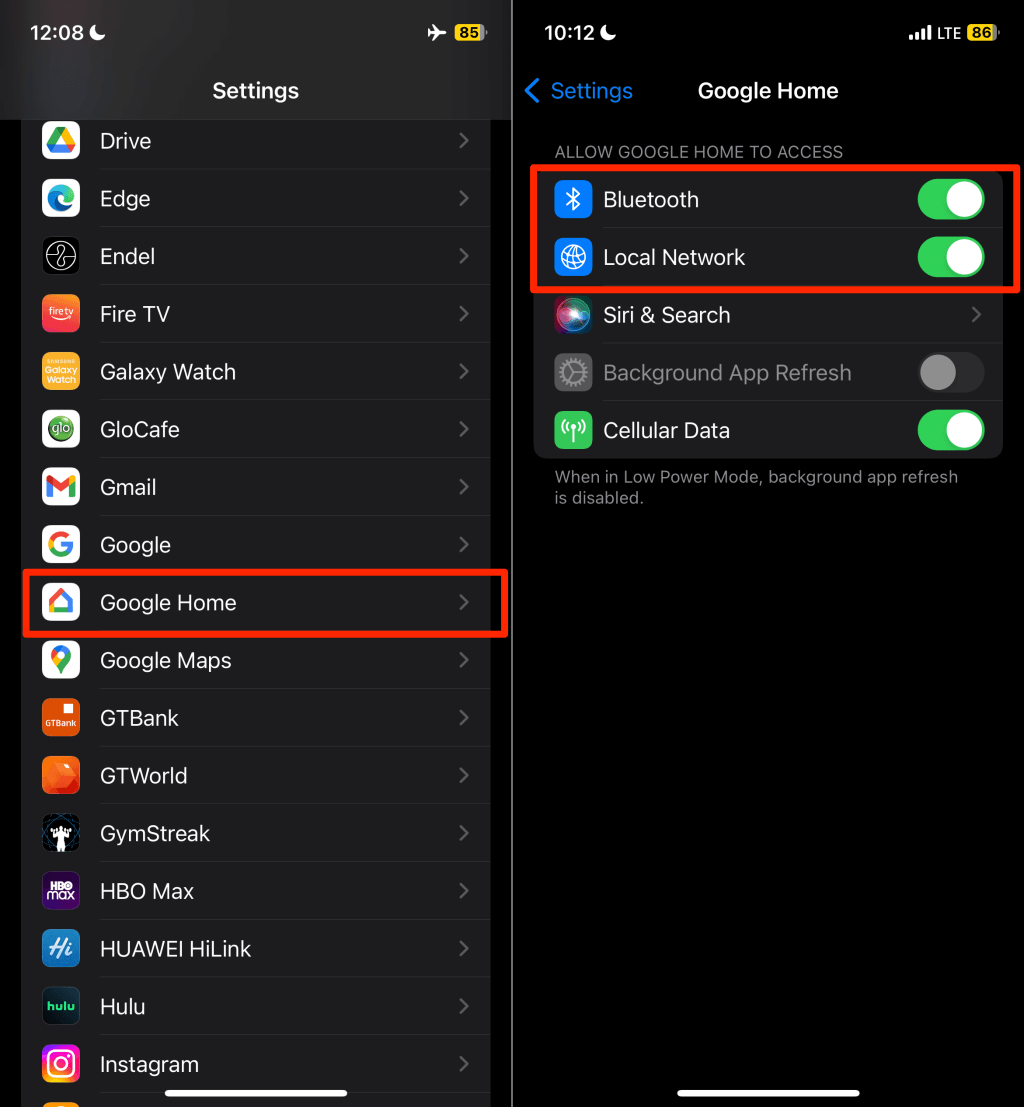
Configure Google Home Location Permissions (iPhone/iPad)
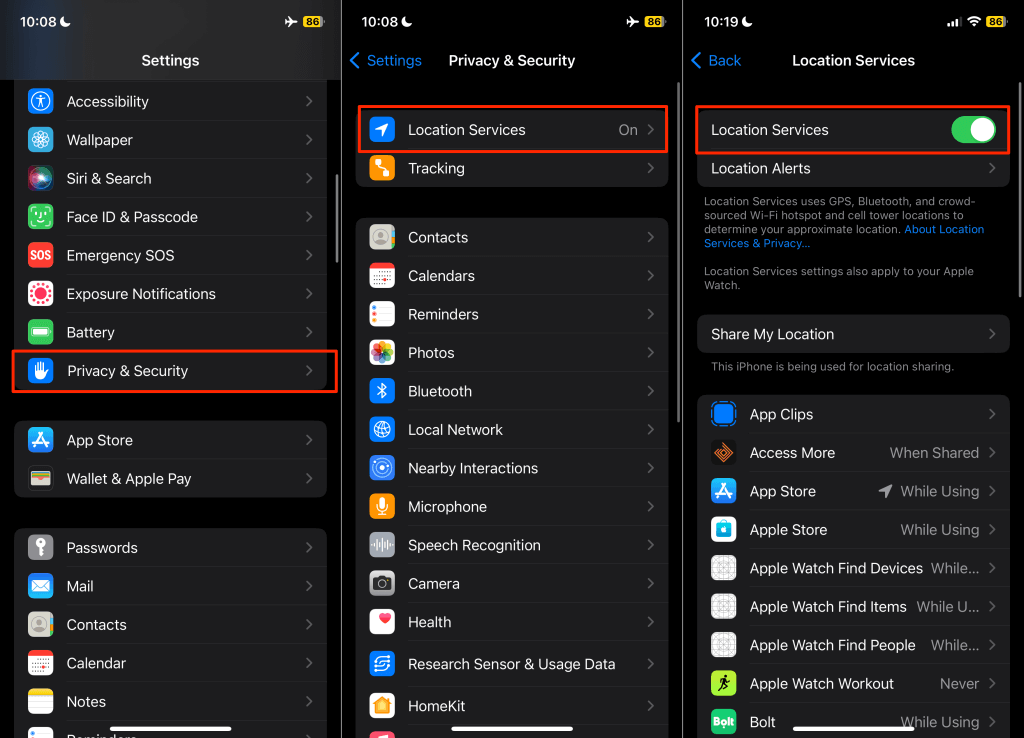
Open the Settings app, select Google Home, and toggle on access to Bluetooth and Local Network. Afterward, head to Settings > Privacy & Security > Location Services and turn on Location Services.
Restart Google Home and Clear the App Cache
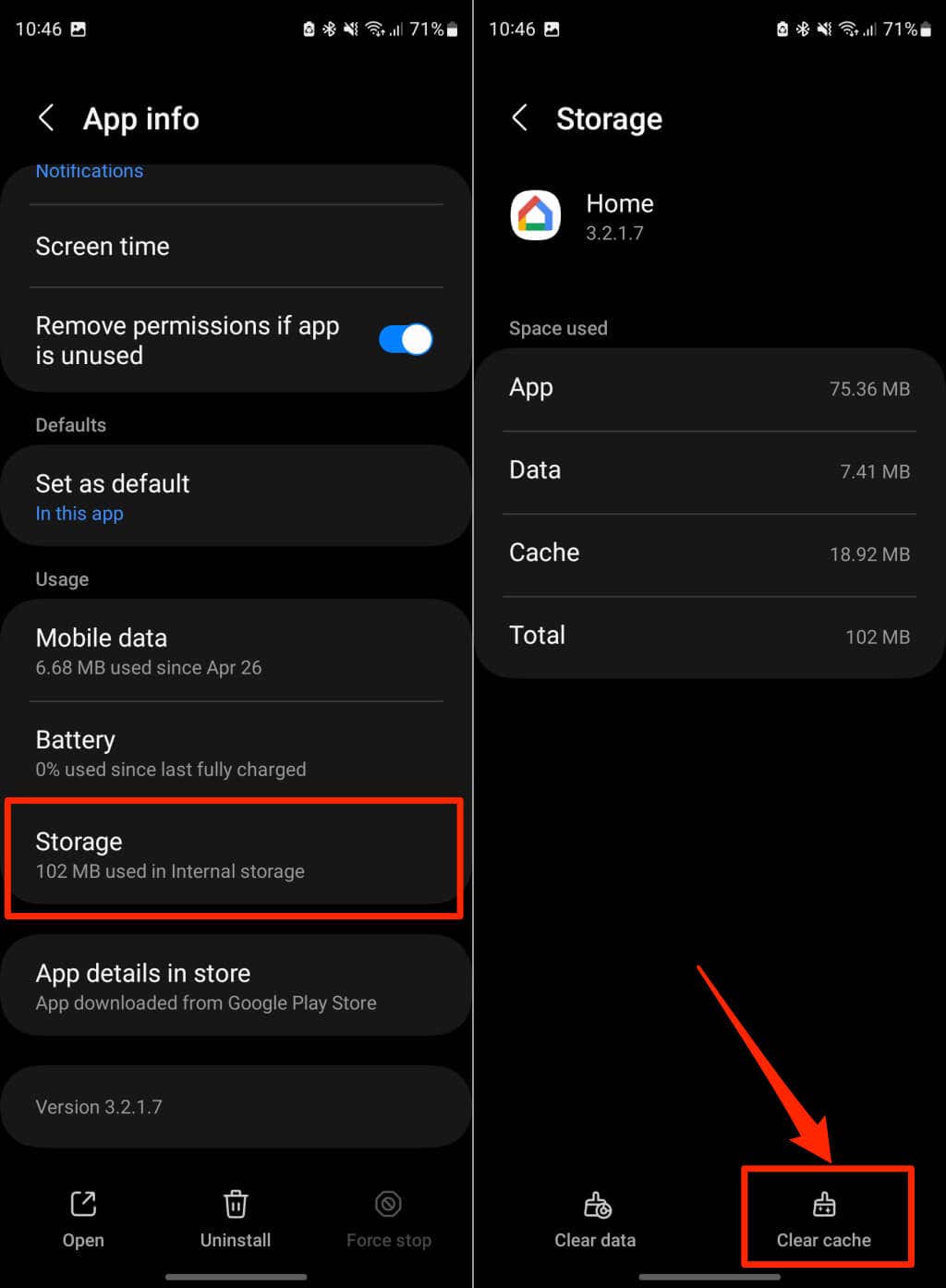
Clearing the cache data of a malfunctioning app can get the app working correctly again. If you’re getting the “Could not communicate with your Chromecast” error on an Android device, force close the Google Home app and clear its cache data. Open the Google Home app and check if it successfully connects to your Google Chromecast device. Update the Google Home app if the communication error persists.
Update or Reinstall the Google Home App
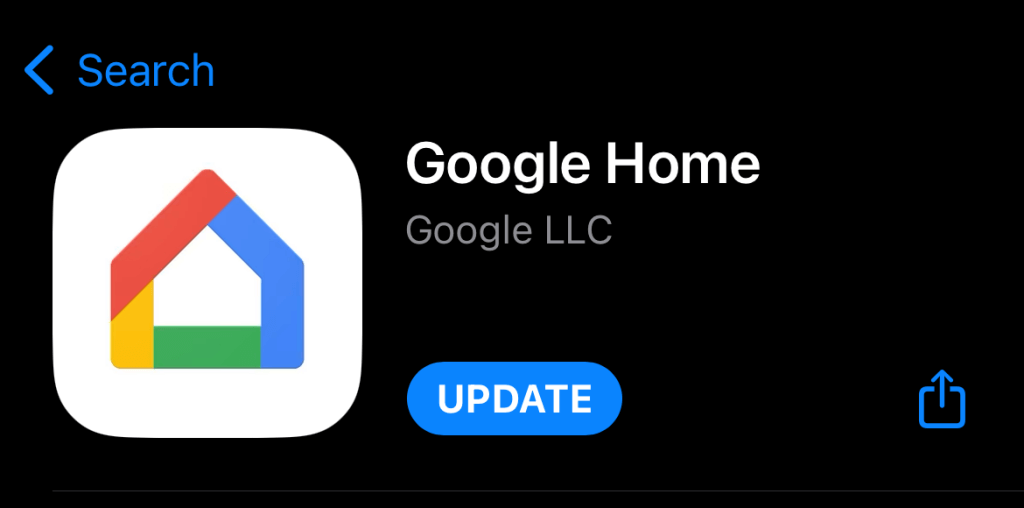
Ensure you have the latest version of the Google Home app. Older or outdated versions could contain bugs that break certain functionalities. Open your device’s app store and check for an update to the Google Home app. Search for “google home” in the Google Play Store (Android) or App Store (iOS) and tap Update on the Google Home app page.
Update Your Phone
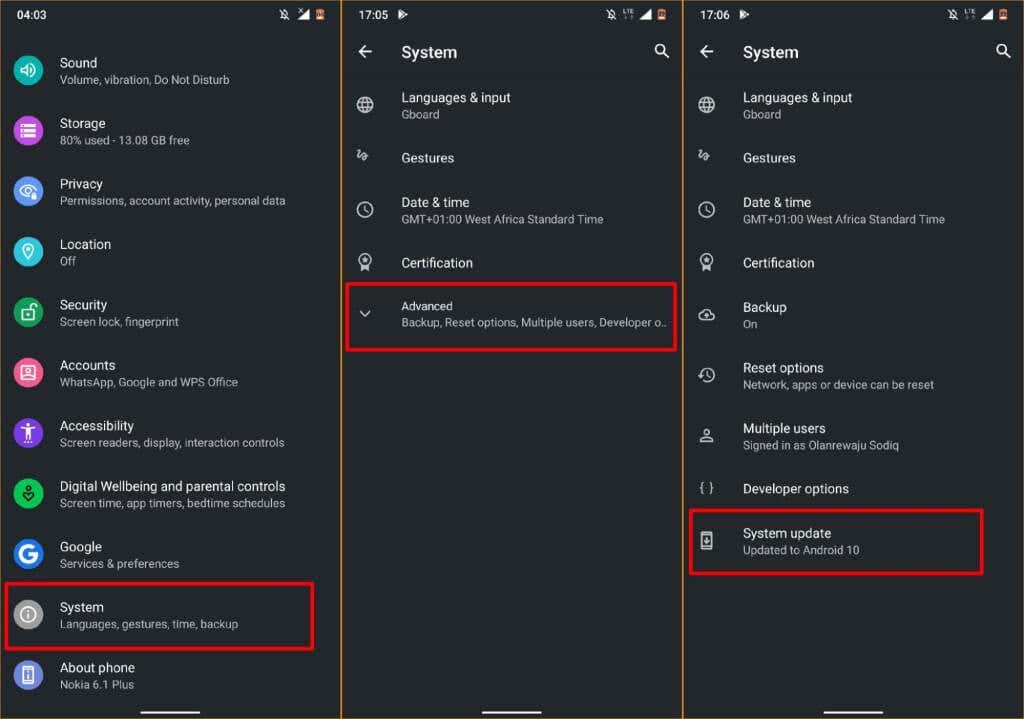
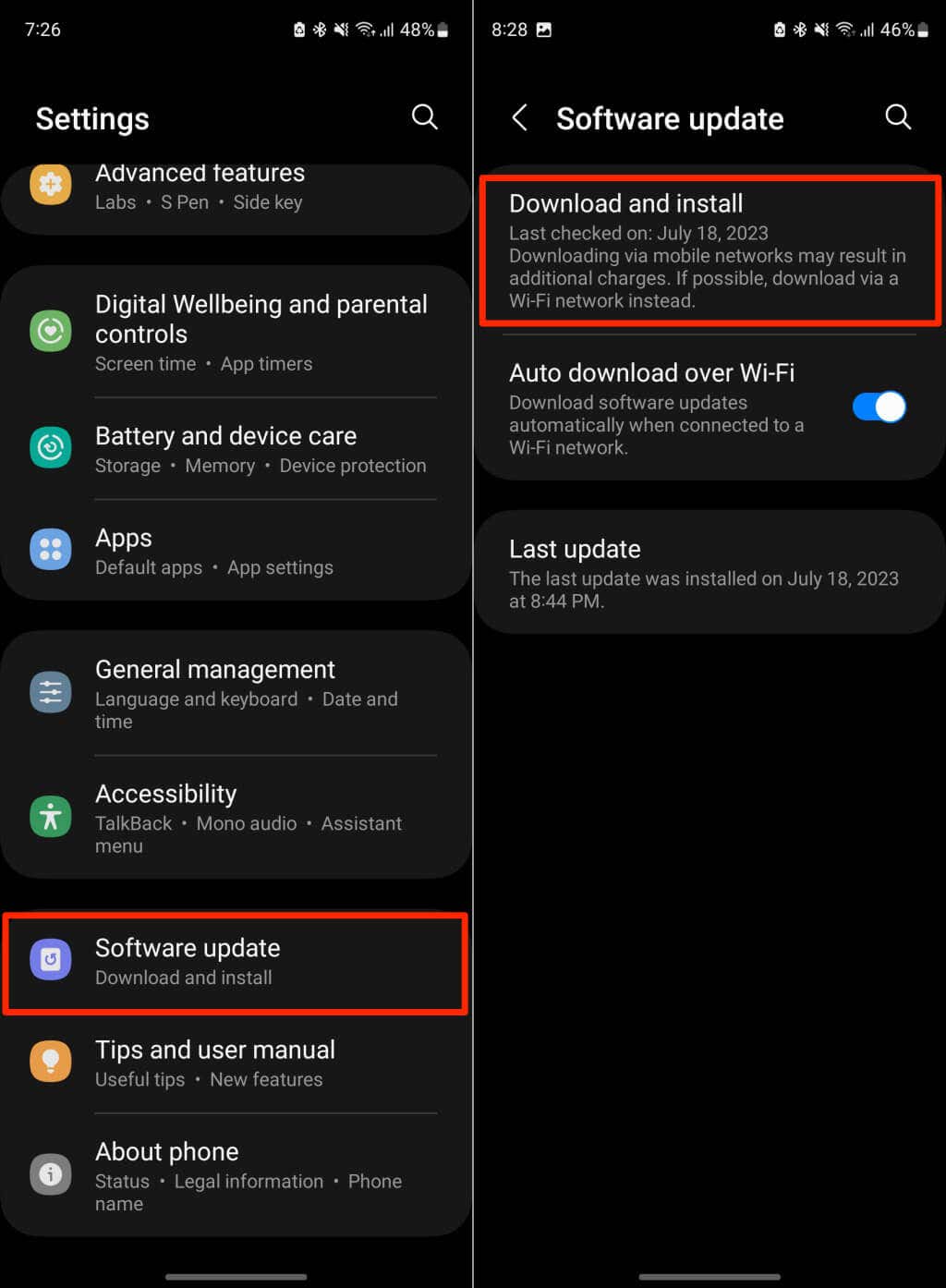
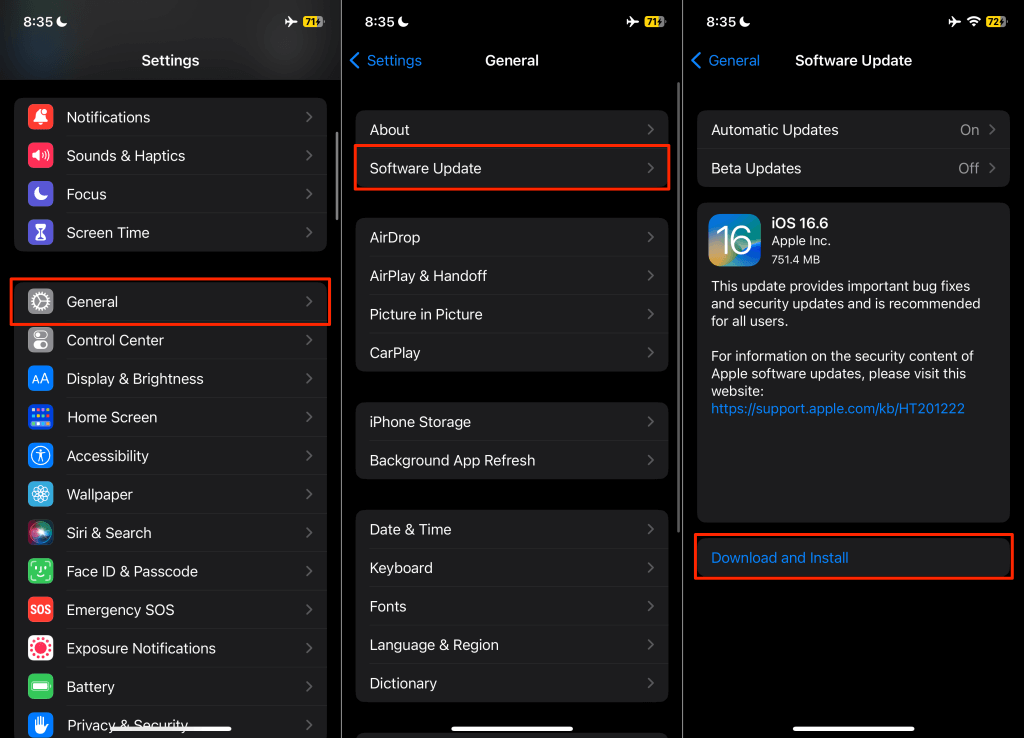
Android and iOS updates can resolve connectivity issues and help applications perform optimally. Check your phone’s settings menu and install available software updates. Go to Settings > System > Advanced > System update and wait for your device to scan for software updates. On Samsung devices, head to Settings > Software update > Download and install to update the operating system. If you use an iPhone or iPad, head to Settings > General > Software Update and tap Download and Install.
Restart Your Chromecast
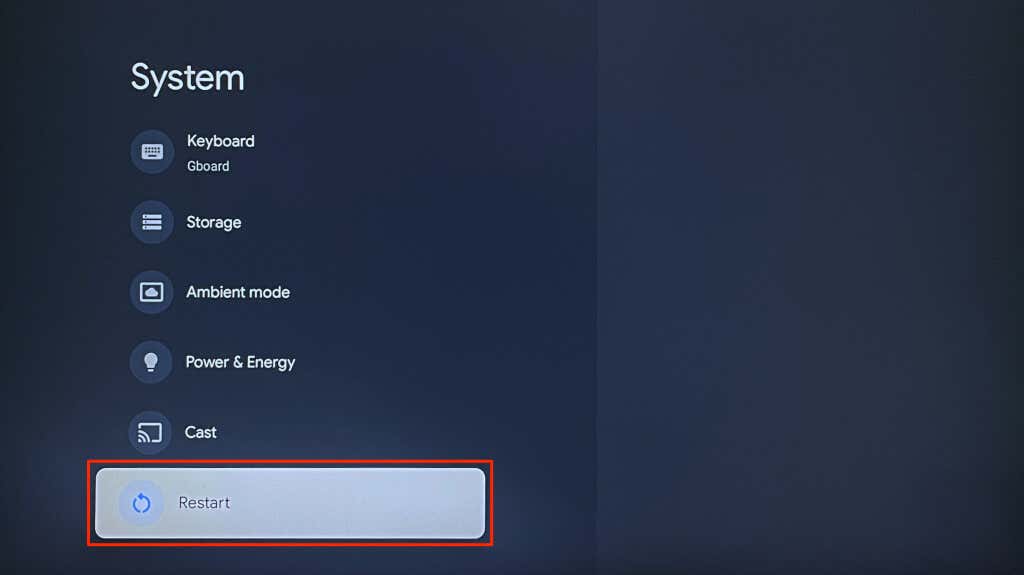
Rebooting your Chromecast can restore the streaming device’s visibility in the Google Home app. You can also perform a hard reboot by turning your Chromecast’s power supply off and back on. Alternatively, unplug the power cable, wait 5-10 seconds, and reconnect the cable to the power source. Connect your phone and Chromecast to the same Wi-Fi network and check if the Home app connects to your Chromecast.
Update Your Chromecast
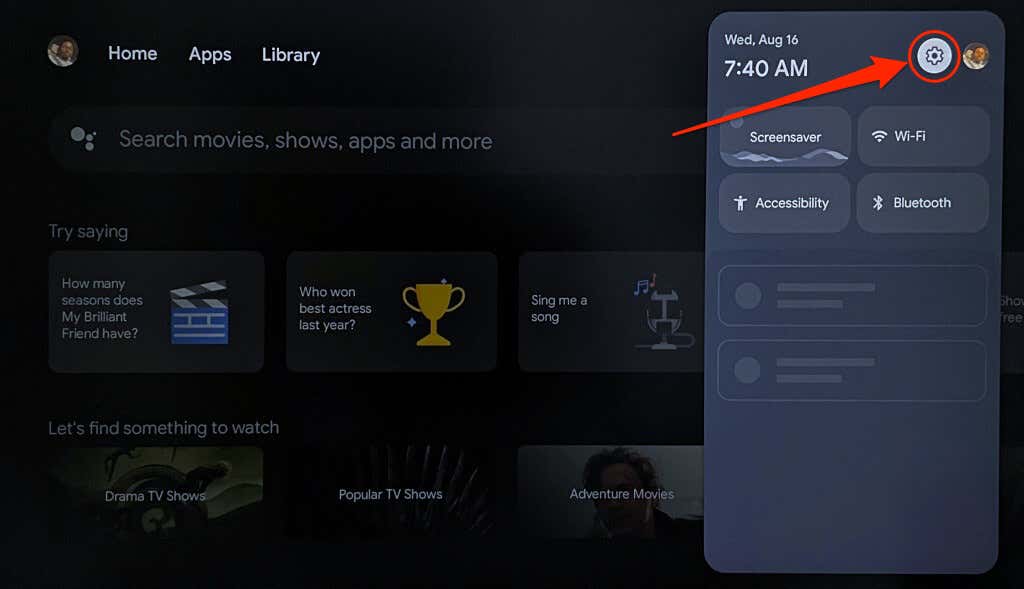
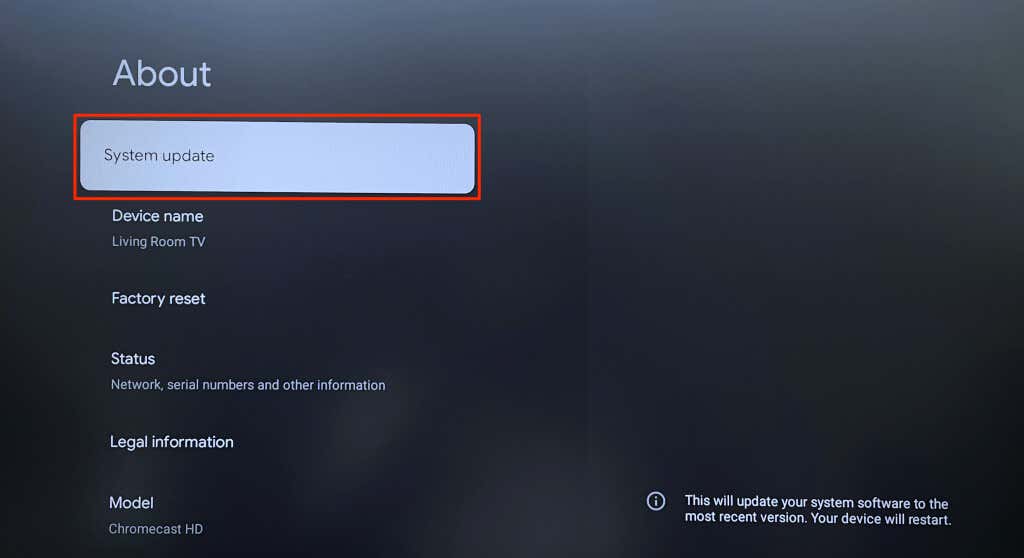
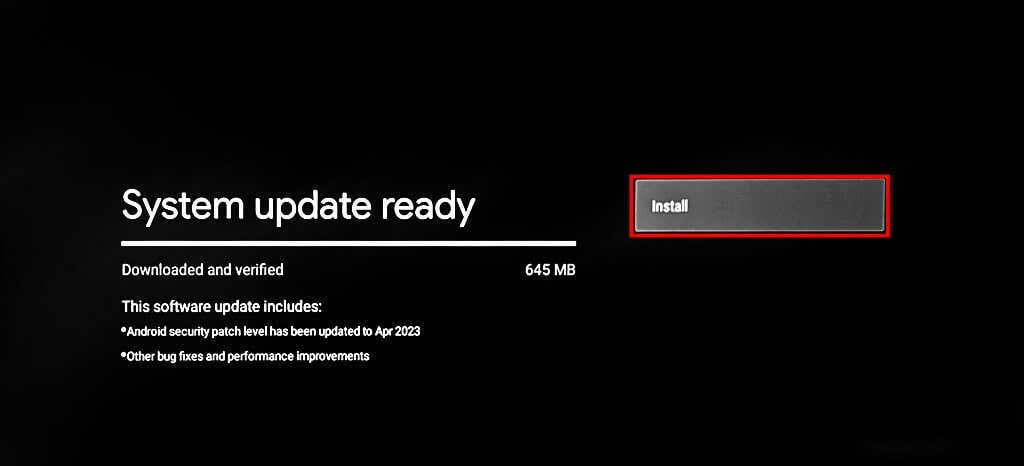
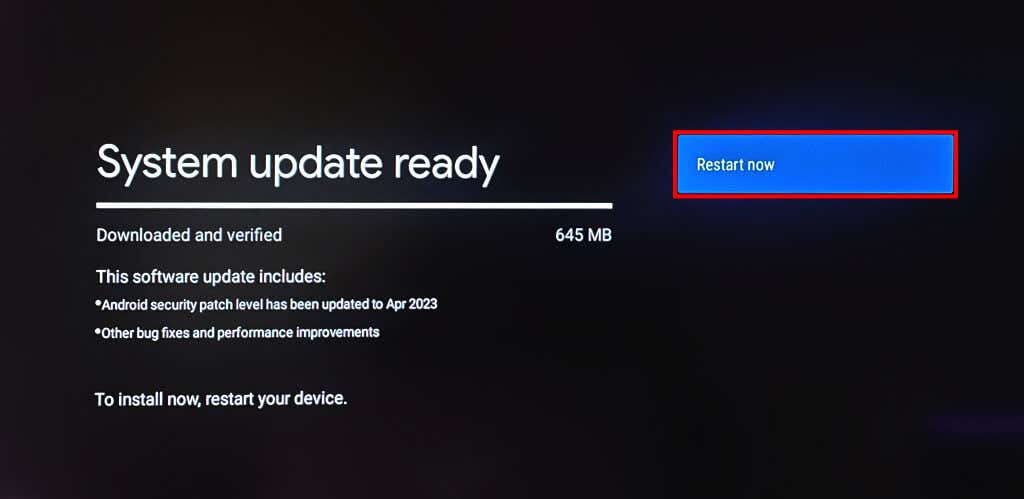
Google occasionally rolls out updates containing bug fixes and feature improvements to Chromecast devices. Updating the streaming device’s software/firmware might resolve the issue if Google Home doesn’t connect to your Chromecast.
Factory Reset Your Chromecast
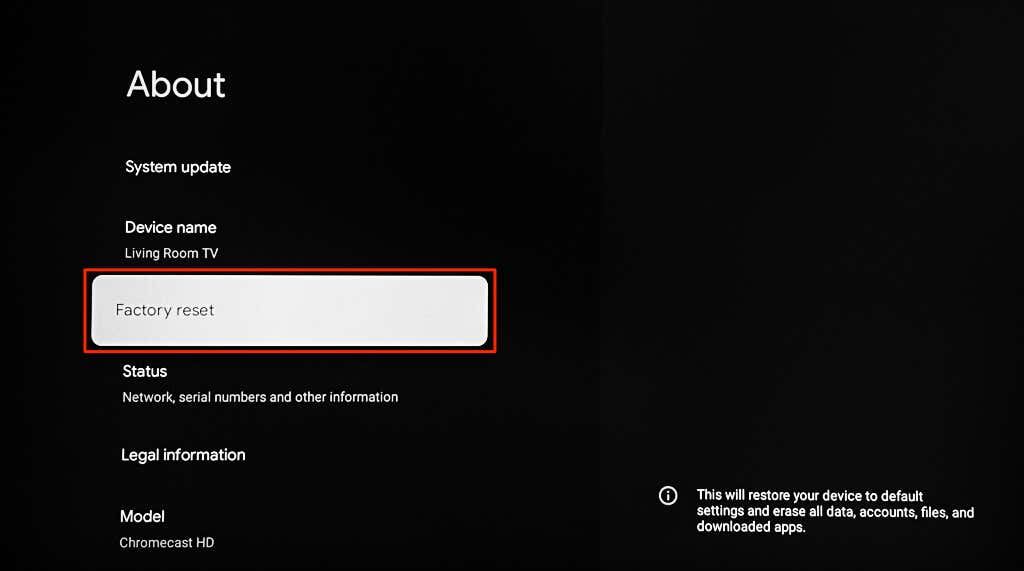
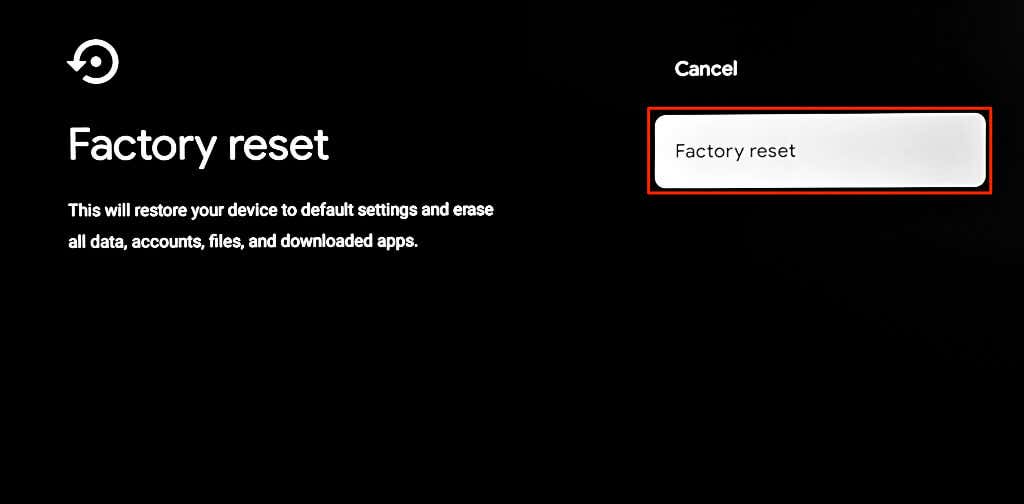
Factory resetting your Chromecast wipes all data (app, files, settings, account, etc.) on the streaming device. Perform a factory reset only after exhausting all troubleshooting options.
Factory Reset Chromecast Using Chromecast Voice Remote
Follow the steps below to reset the Chromecast with Google TV using the Voice Remote.
Factory Reset Chromecast Using Physical Button
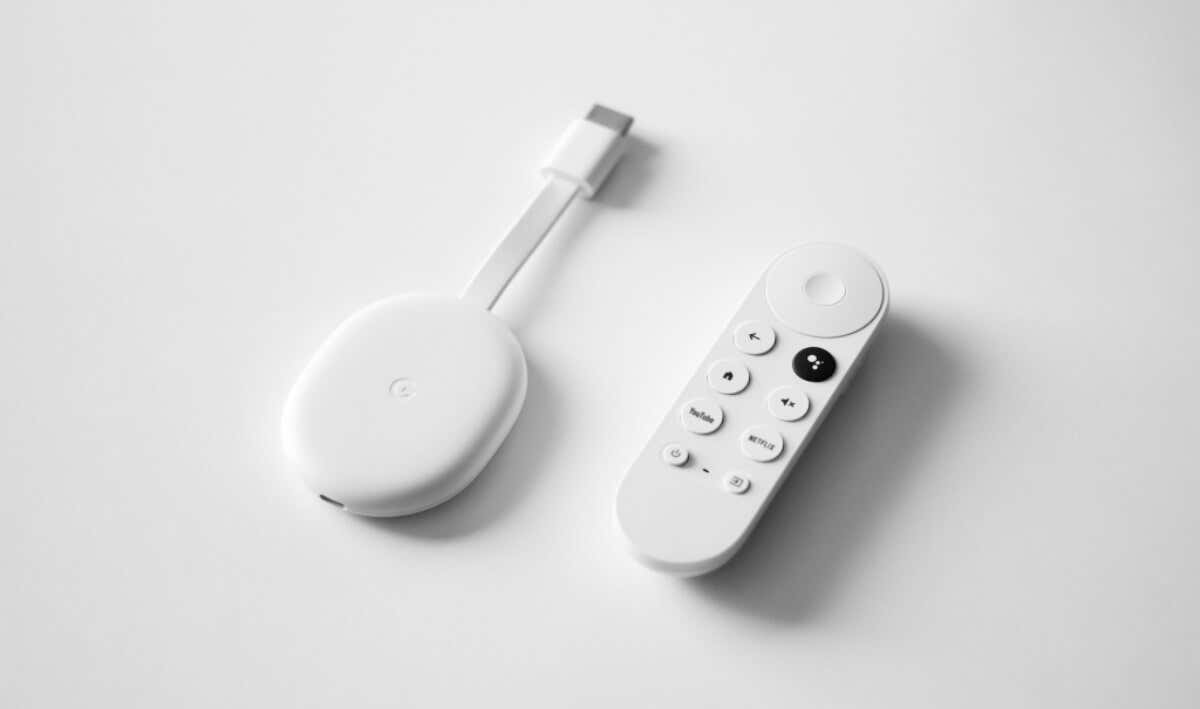
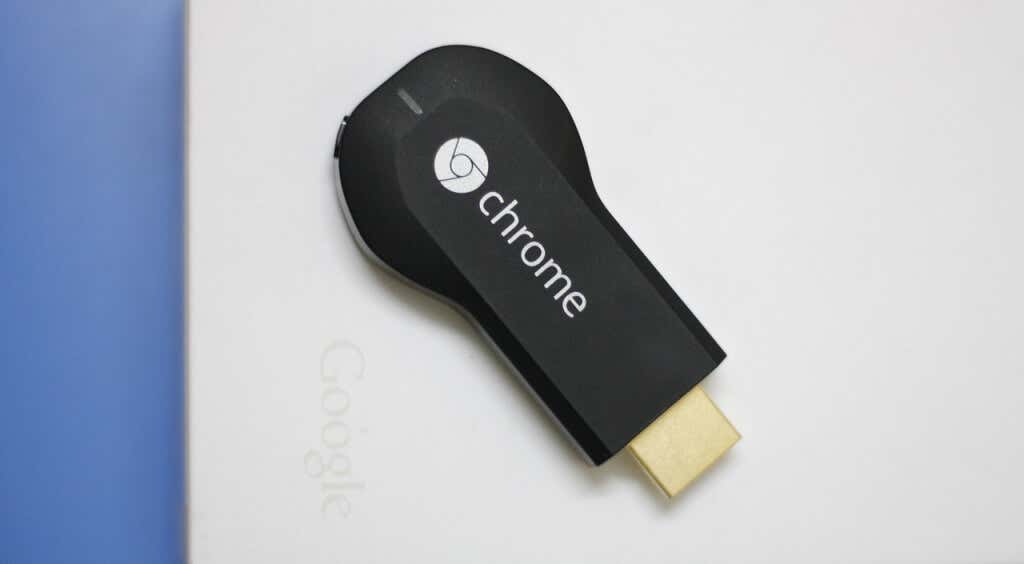
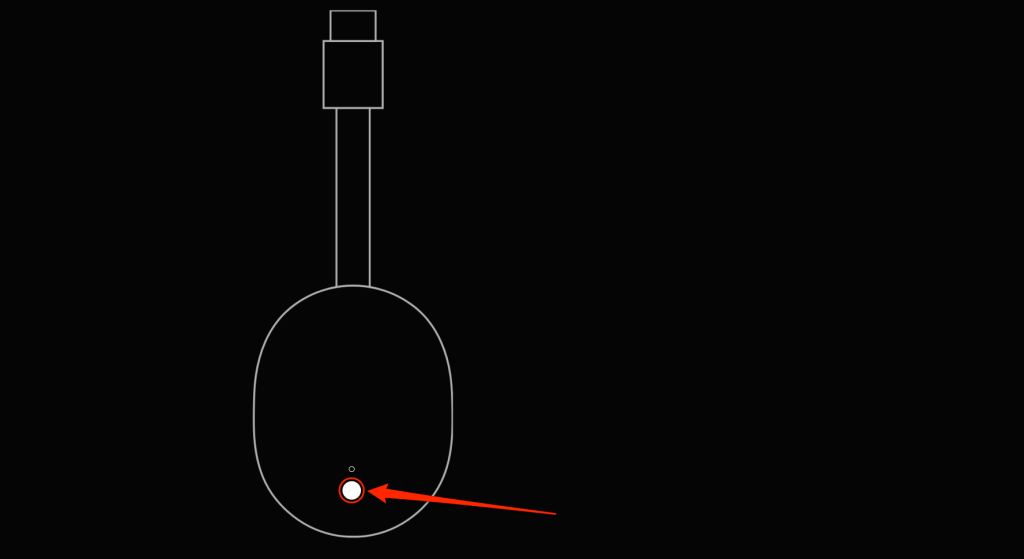
Chromecasts have a physical button for initiating a factory reset. The location of the reset button will vary depending on your Chromecast model/generation. The Chromecast with Google TV has its reset button on the back, while older models/generations have theirs on the side. To reset your Chromecast, plug it into a power source, then press and hold the reset button. Keep pressing the button when the Chromecast LED light blinks yellow/orange. Release the reset button when the light turns white and your Chromecast restarts. Connect your phone and Chromecast to the same network, open Google Home, and check if the app detects your Chromecast.
Link Google Home to Chromecast
Contact Google Support if Google Home keeps displaying the “Could not communicate with your Chromecast” error—especially if it’s your first time setting up the Chromecast. There’s a chance that your Chromecast has factory defects. Contact the seller or send it back for a replacement unit.