Some other reasons Discord rejects your GIF are that your Discord app has a minor glitch, your login session in the app is problematic, your app version is obsolete, your app’s core files are corrupted, and more.
Close and Relaunch Your Discord App
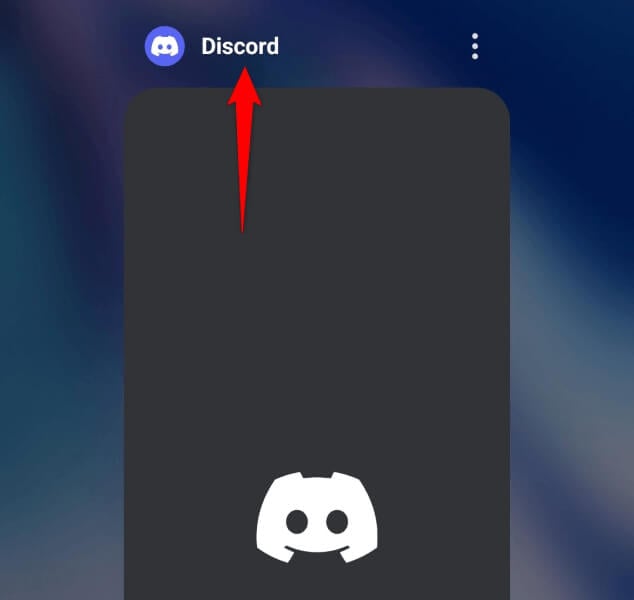
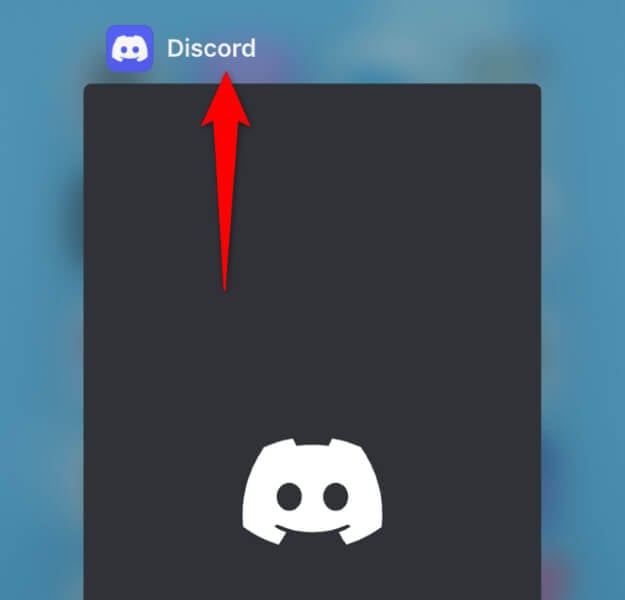
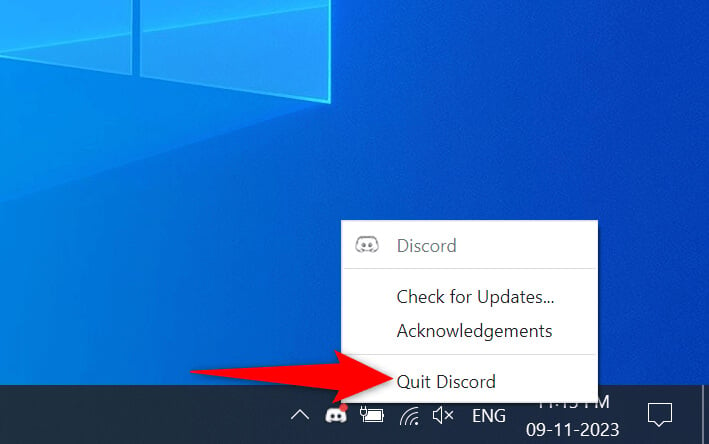
One reason Discord displays a GIF error is that your app has a minor glitch. In this case, you can close and re-open your app to possibly fix your issue.
On Android
On iPhone
On Windows
On Mac
Reduce Your GIF’s File Size to Fix the Discord GIF Issue
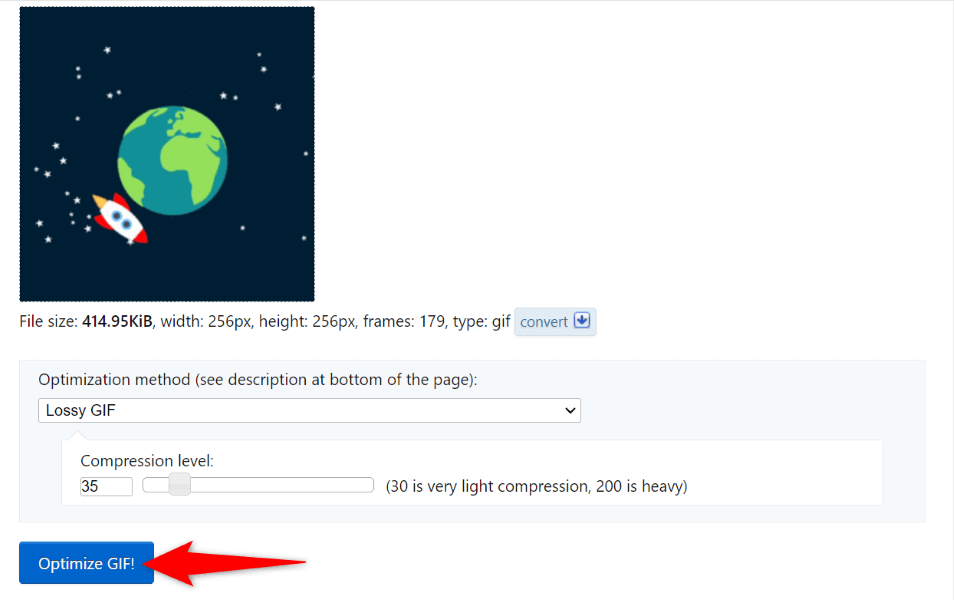
Discord only supports GIFs that are 256 KB or smaller in size. If your image surpasses this file size limit, that’s the reason you can’t upload your image. In this case, reduce your image’s size so it’s under the allowed limit, and you can upload it on the platform. One way to optimize your GIF image is to use a web-based tool like Ezgif. You can play around with various optimization options on the site to ensure your image size is within Discord’s allowed GIF size limit.
Change Your GIF Image’s Dimensions
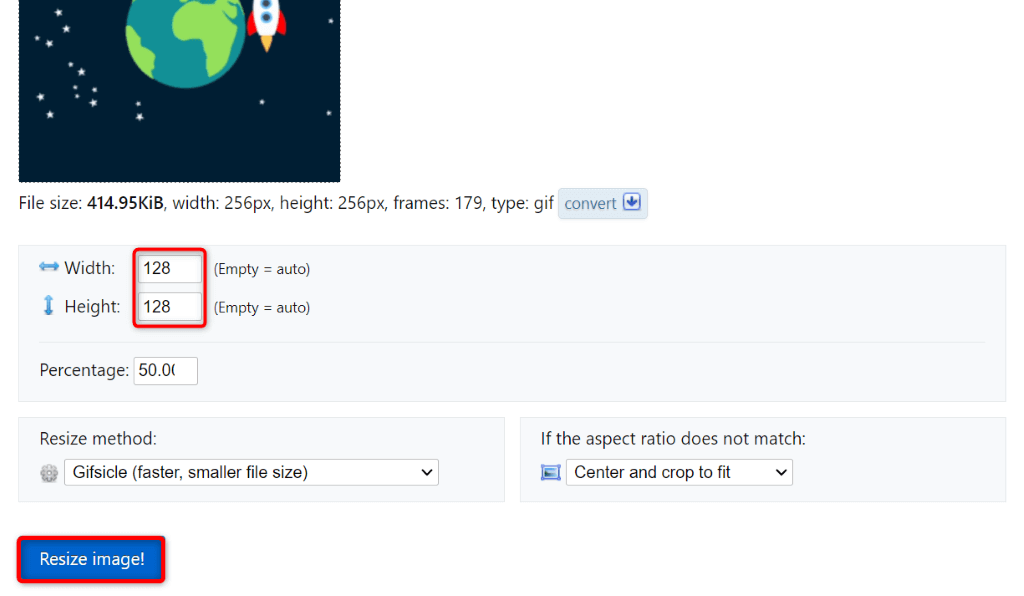
Another limitation Discord has for GIF images is that your images must be 128 x 128 pixels or smaller in dimensions. Any GIFs larger than this can trigger a “Cannot resize GIF” error. In this case, you can resize your image to follow Discord’s dimension guidelines. You can use a tool like Ezgif to do that.
Clear Discord’s Cache on Your Device
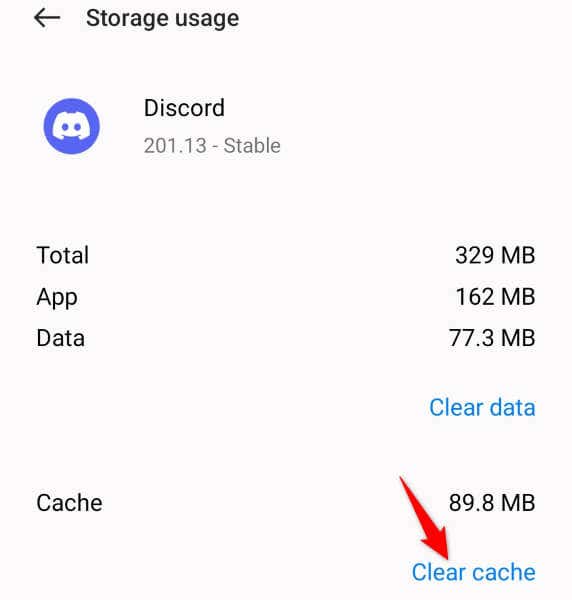
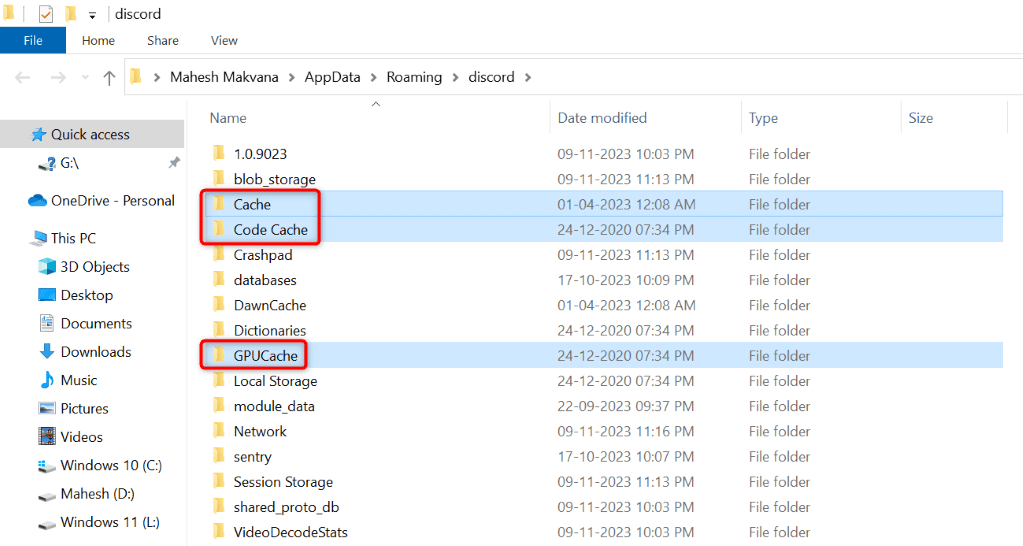
If your GIF image’s size and dimensions are under Discord’s allowed limit, but the app keeps displaying the above error, your app’s cache files may be corrupted. These cache files help the app improve the user experience, but you can run into various issues if these files become corrupted. One way to fix that issue is to clear your Discord cache. Doing so doesn’t delete your account data. Note that you can’t clear an app’s cache on the iPhone; you must uninstall the app to delete the app’s cached data.
On Android
On Windows
On Mac
Sign Out and Back Into Your Discord Account
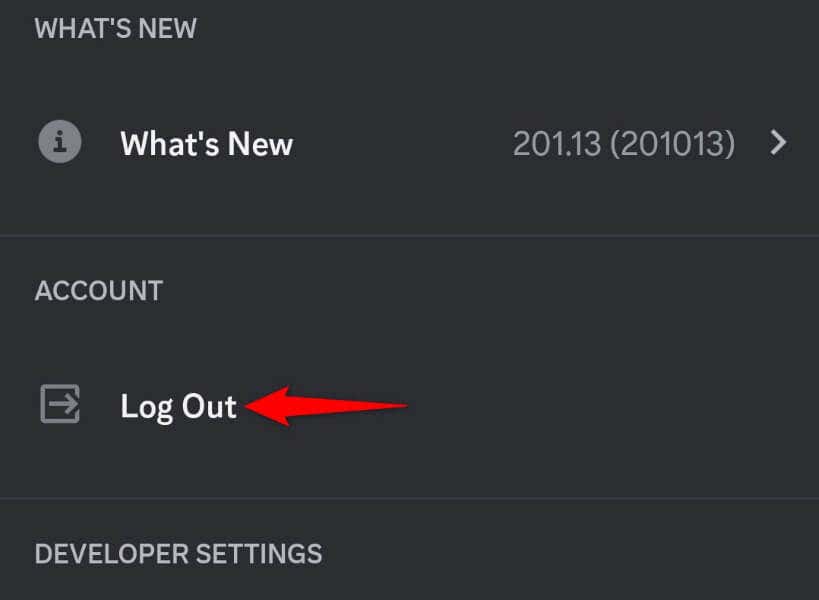
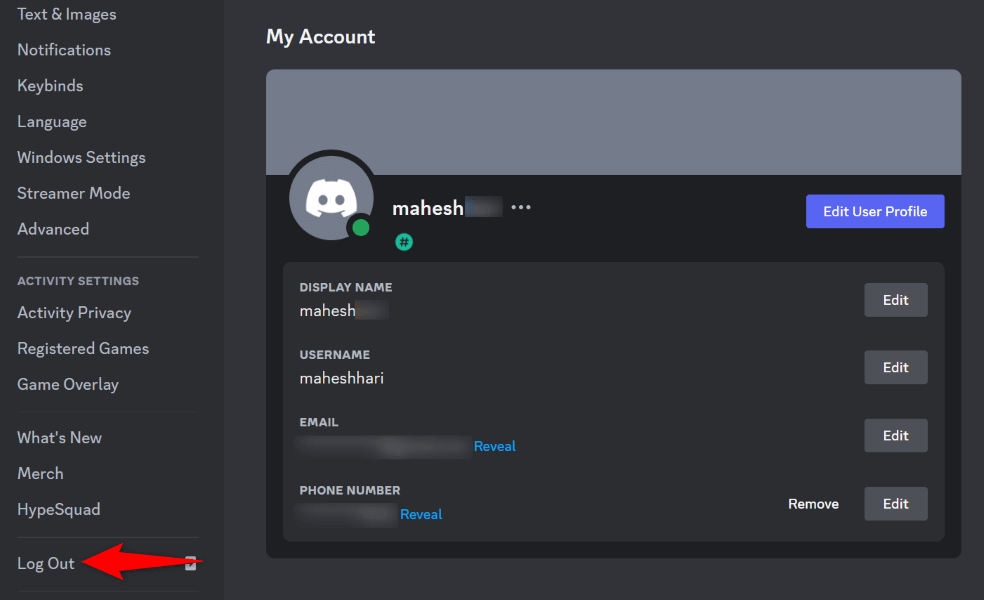
If clearing the cache didn’t resolve your issue, your login session in the Discord app may have a problem. In this case, log out and back into your account in the app to fix your issue.
On Android and iPhone
On Windows and Mac
Update Your Discord App
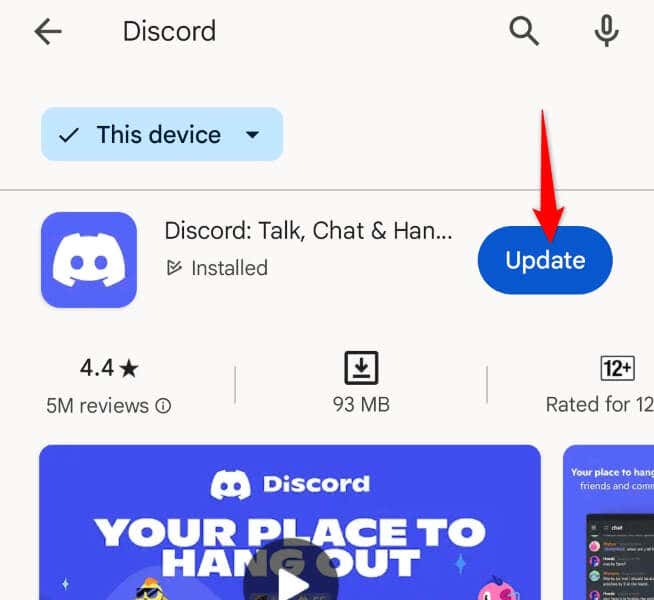
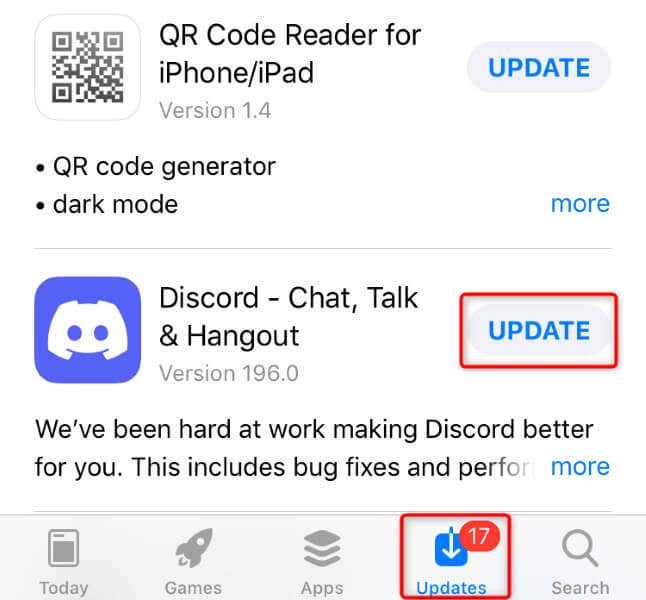
If you’re using an old version of Discord, that may be why you have trouble uploading GIF images. Old app versions can cause various issues, including preventing you from adding new content, breaking the search function, and so on. In this case, update your app version, and your issue should be fixed.
On Android
On iPhone
On Windows and Mac
Remove and Reinstall Discord on Your Device
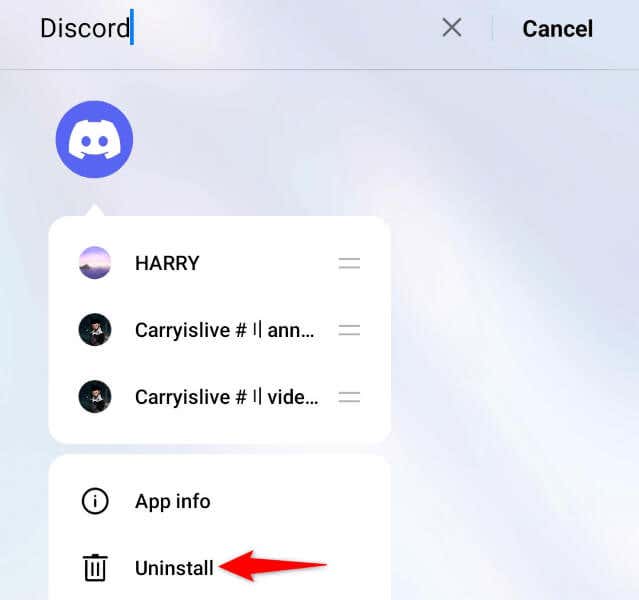
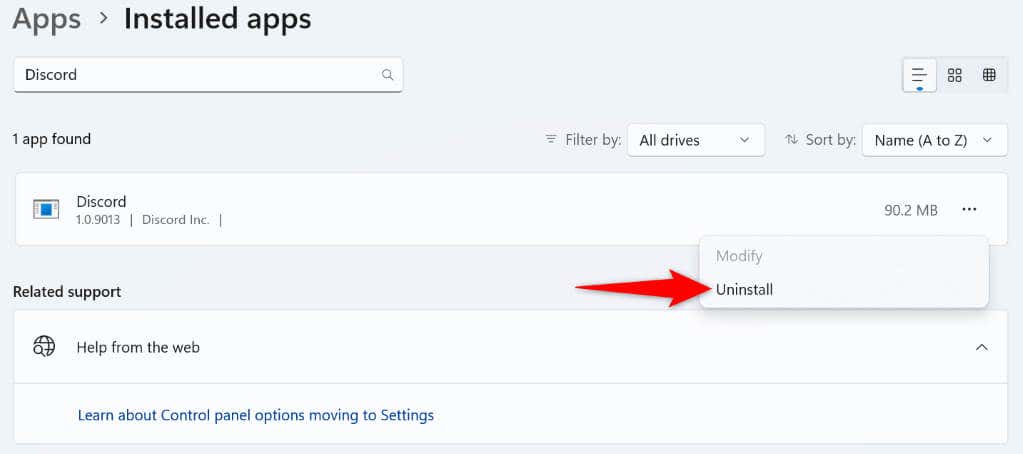
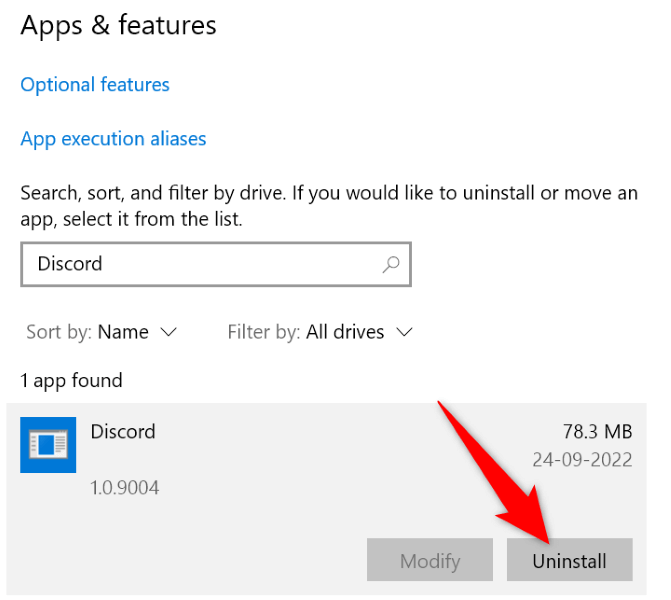
If you still have trouble uploading GIFs on Discord, your app’s core files may be damaged. Such damage can cause various app features not to work. In this case, uninstall and reinstall your app to fix your issue. Note that you don’t lose your account data when you reinstall the app.
On Android
On iPhone
On Windows
On Mac
Contact Discord Support
If nothing else works, your last option is to contact Discord’s support team and seek a solution. This is because there may be an issue on Discord’s end, preventing you from uploading your GIF files. You can reach out to Discord by visiting the Discord support site, filling out the given form, and submitting the form. Discord should get back to you with a resolution of your issue.
Upload GIFs Without Errors on Discord
Sharing animated GIFs is a great way to make your conversations interesting on any platform, including Discord. If you have problems uploading animated images on your Discord server or DM, use the guide above to fix your issue. The above methods ensure your GIF follows the platform’s guidelines and your app has no technical problems. Enjoy!