Why Can’t You Delete Some Apps?
The three main reasons you can’t uninstall a particular app are:
It’s a system app. These are necessary for your phone to function. They generally play critical roles, and you want to keep these around. It’s a preinstalled app. Preinstalled apps are installed on your device before you buy it. Even if you factory reset your phone, these apps will remain. A classic example of a preinstalled app that many users try to remove is Samsung Pay. Administrator privileges protect it. Some apps require admin privileges to function, which can protect them from being uninstalled.
How To Disable Apps
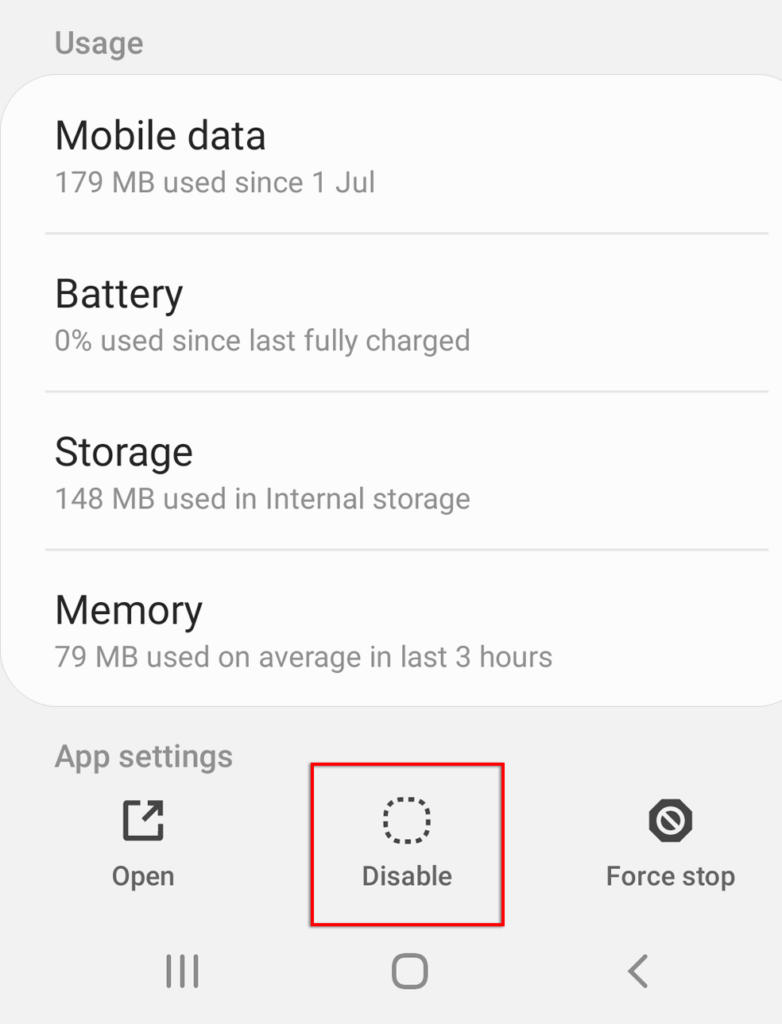
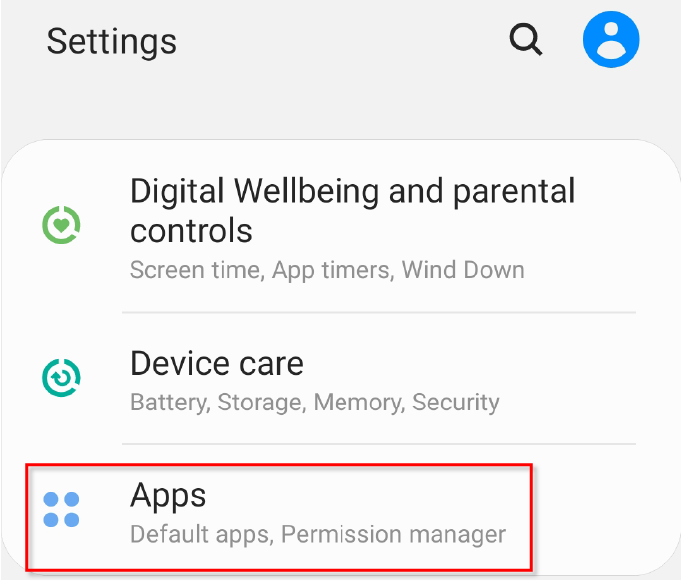
Some preinstalled apps just won’t budge. Instead of going through a lengthy process to uninstall them manually, you can disable them. Disabling an app prevents it from using system resources, but it remains installed and still takes up space on your hard drive. To disable an app: Some apps won’t allow you to disable them. If this is the case, try the following methods to uninstall them.
How To Delete Apps With Administrator Privilege
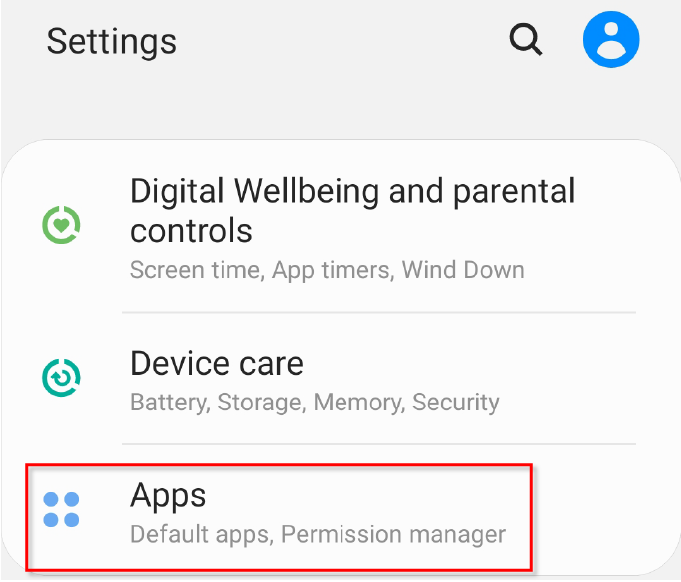
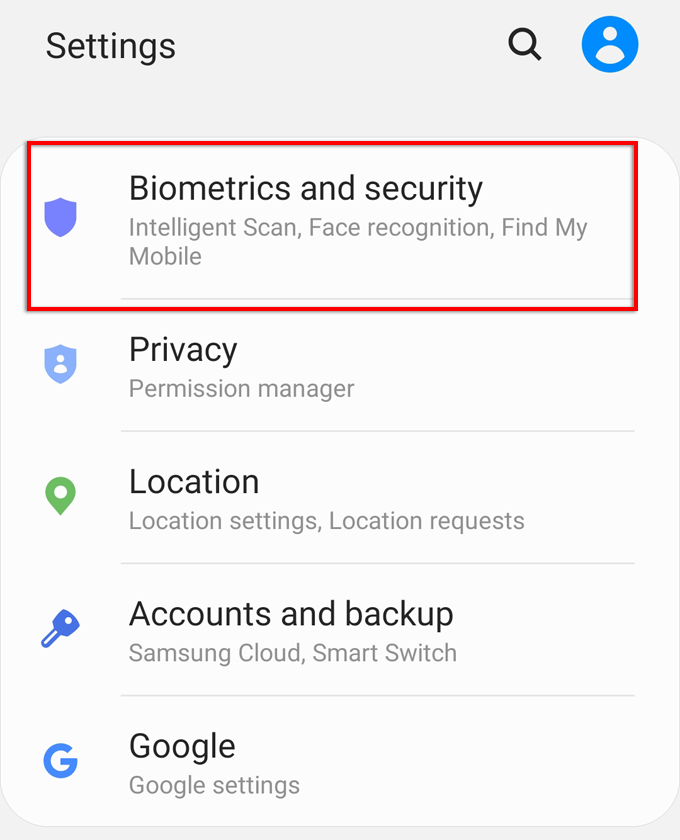
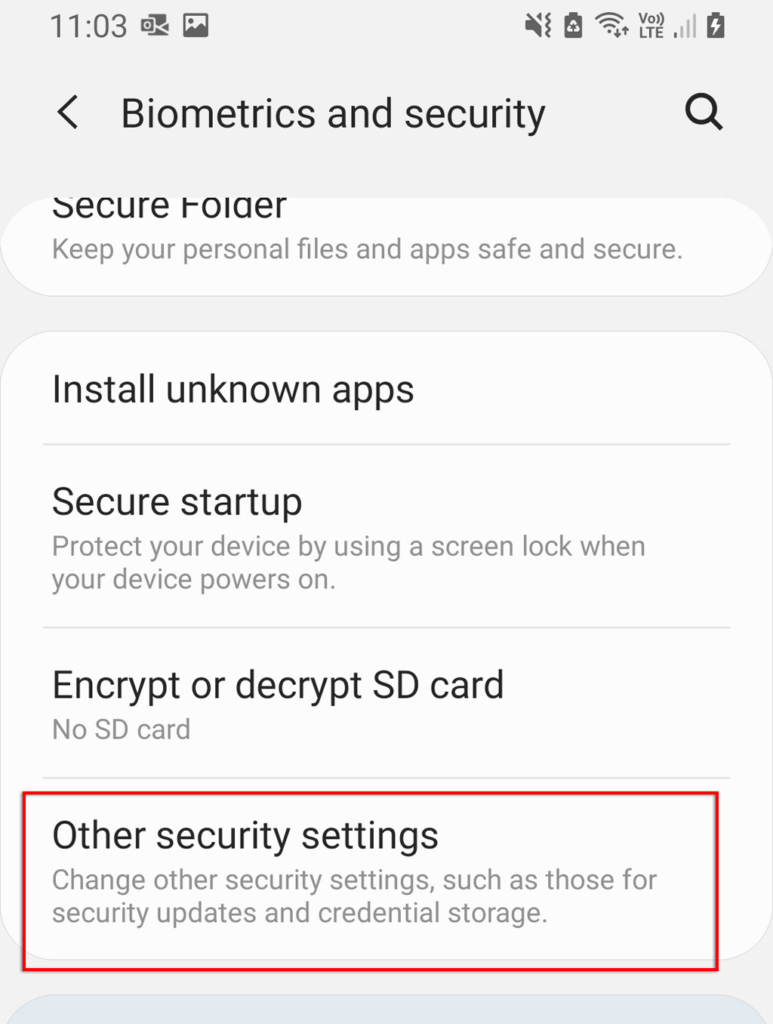
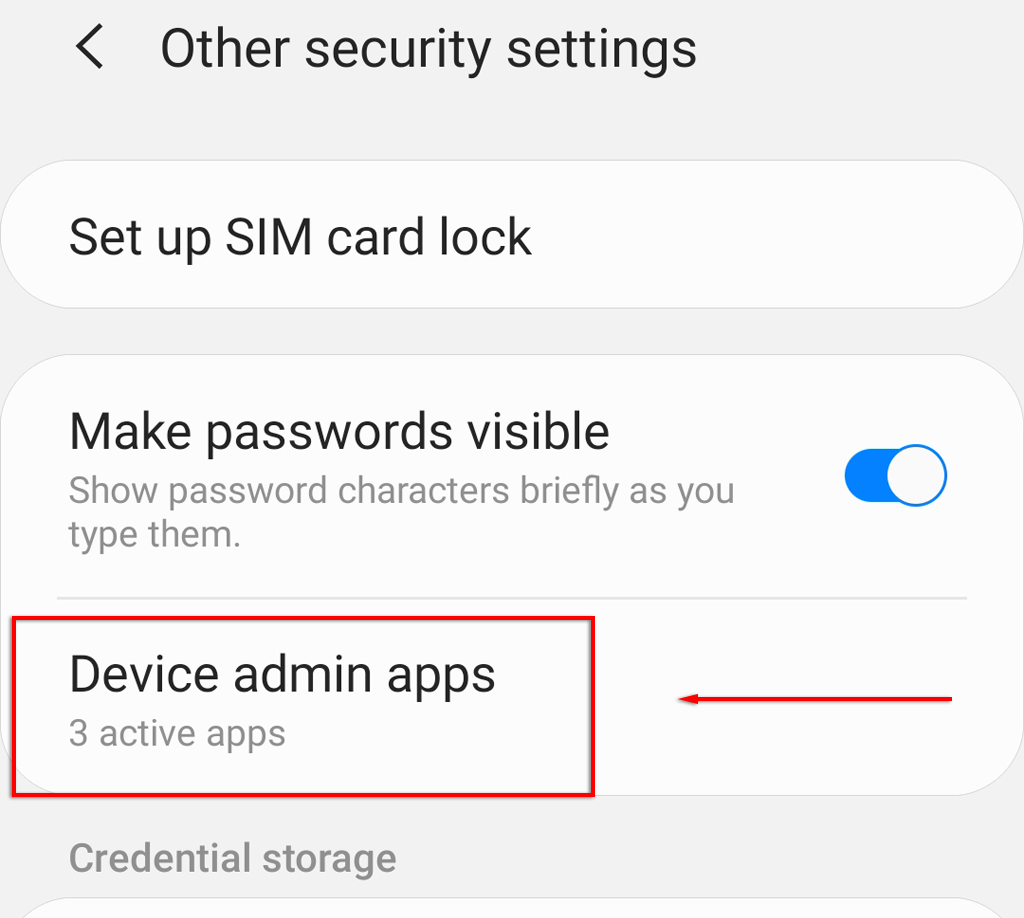
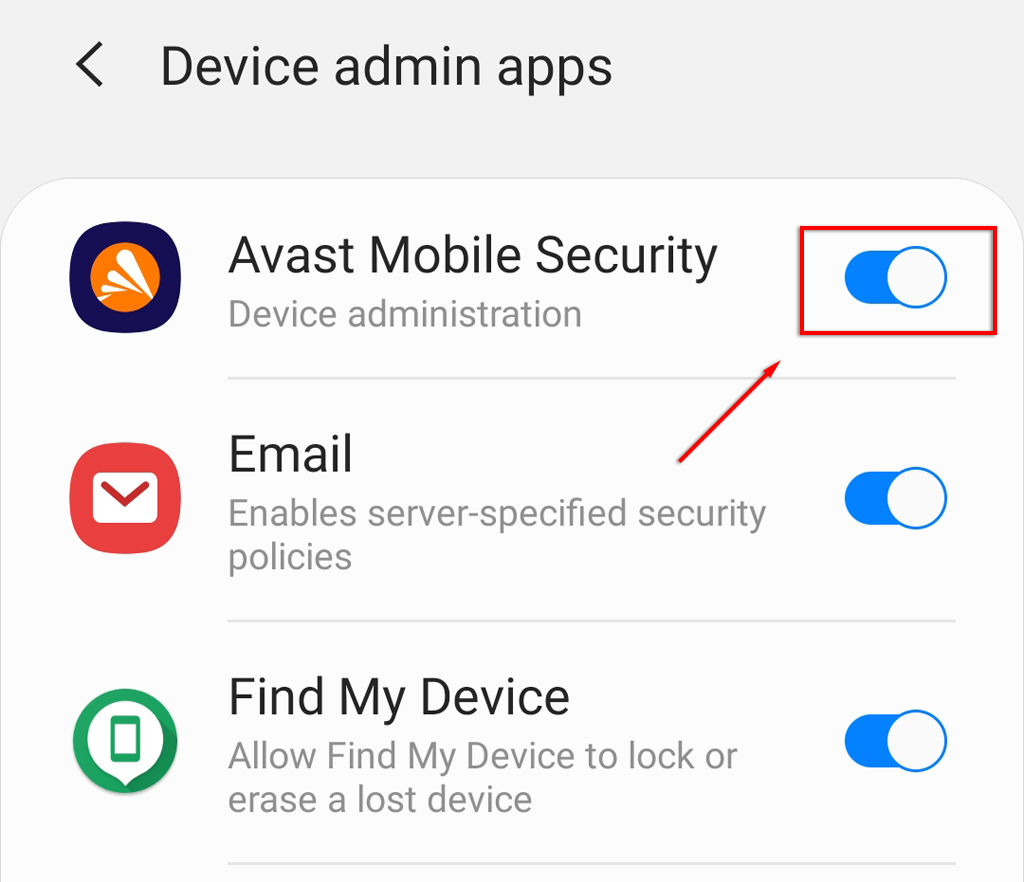
Some apps are granted Android administrator access. These will prevent you from uninstalling them unless you revoke their administrator privilege. Sometimes, malware can use administrator privileges to wreak havoc on your phone. If you’re concerned you have malware, check out our guide for removing it. To do so:
How To Delete Apps with Android Debug Bridge (ADB)
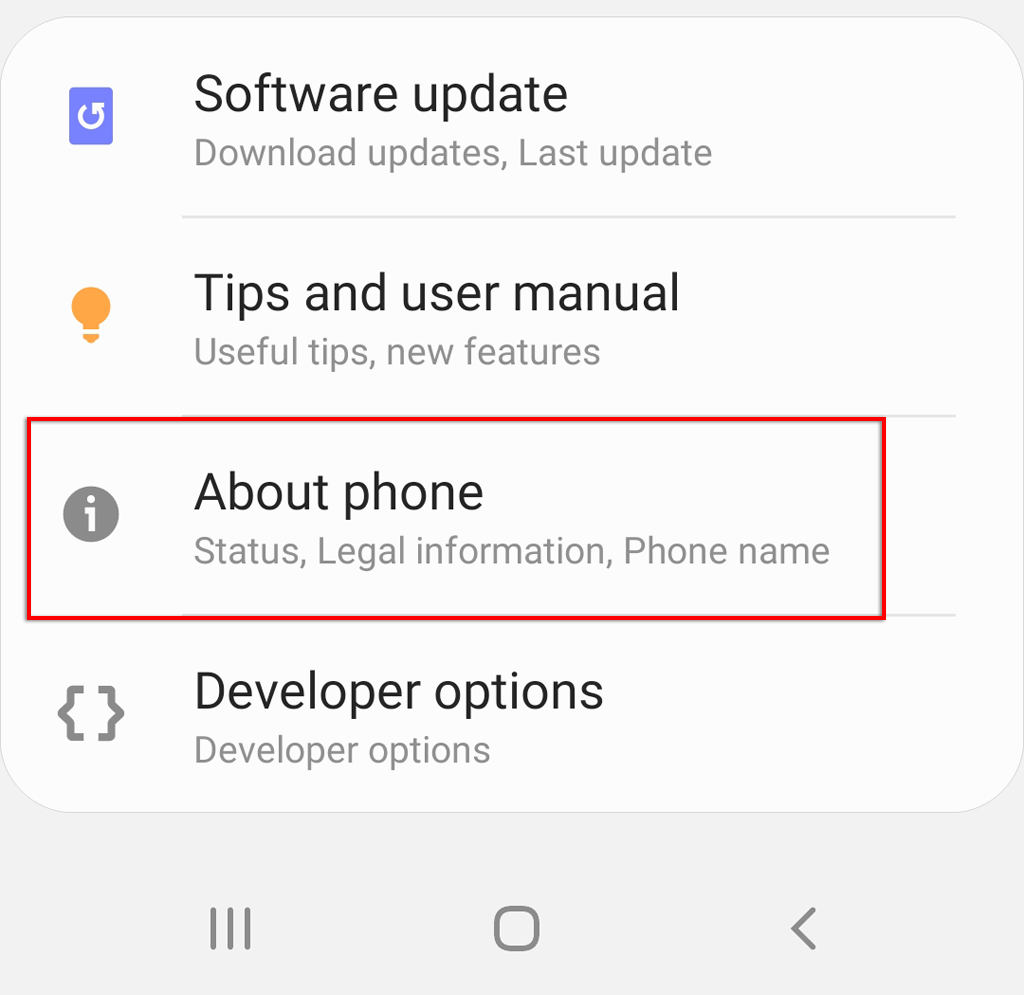
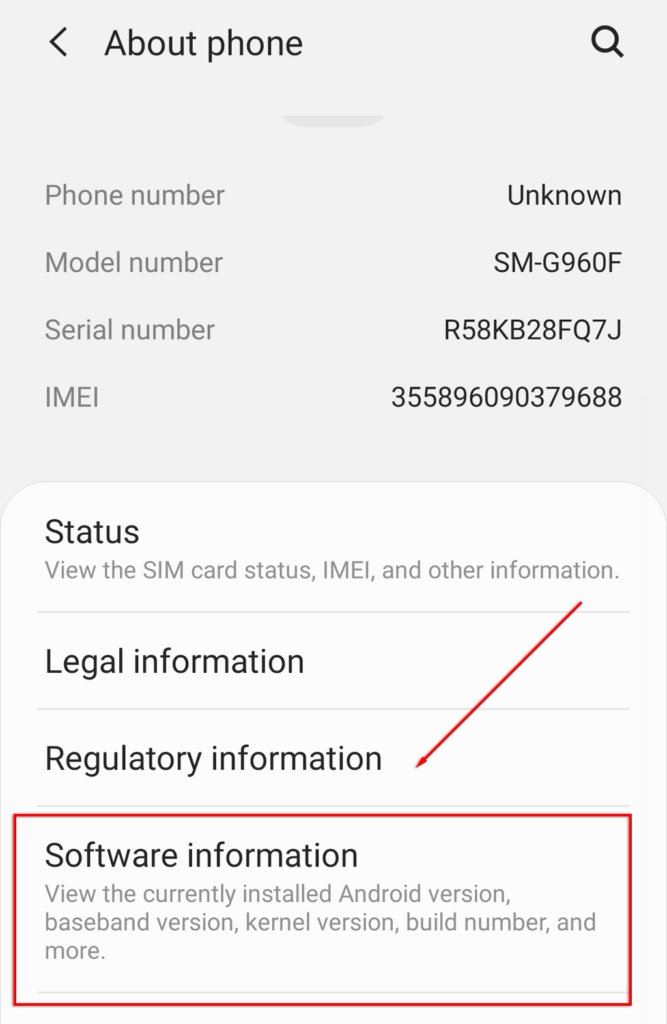
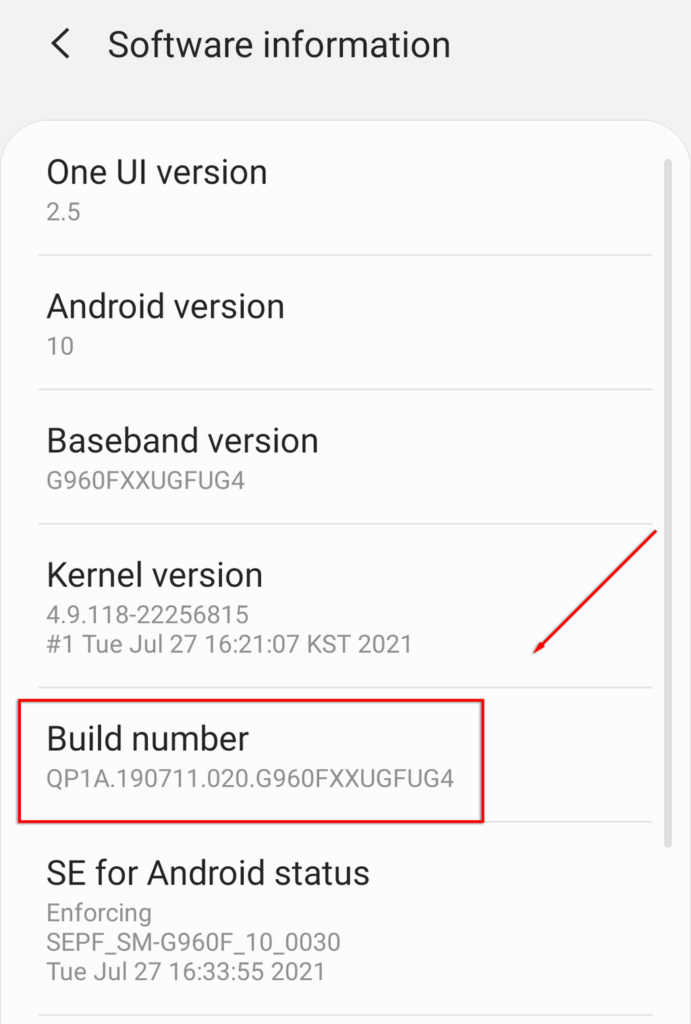
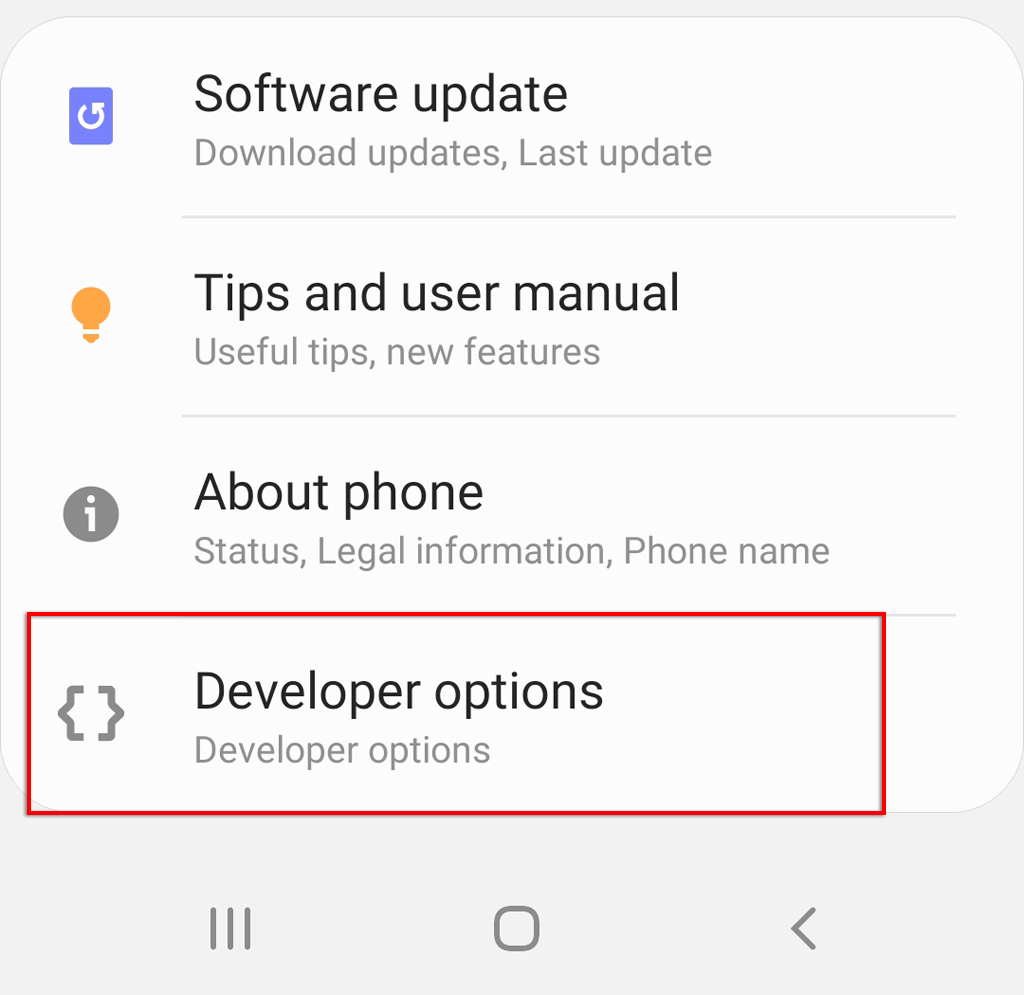
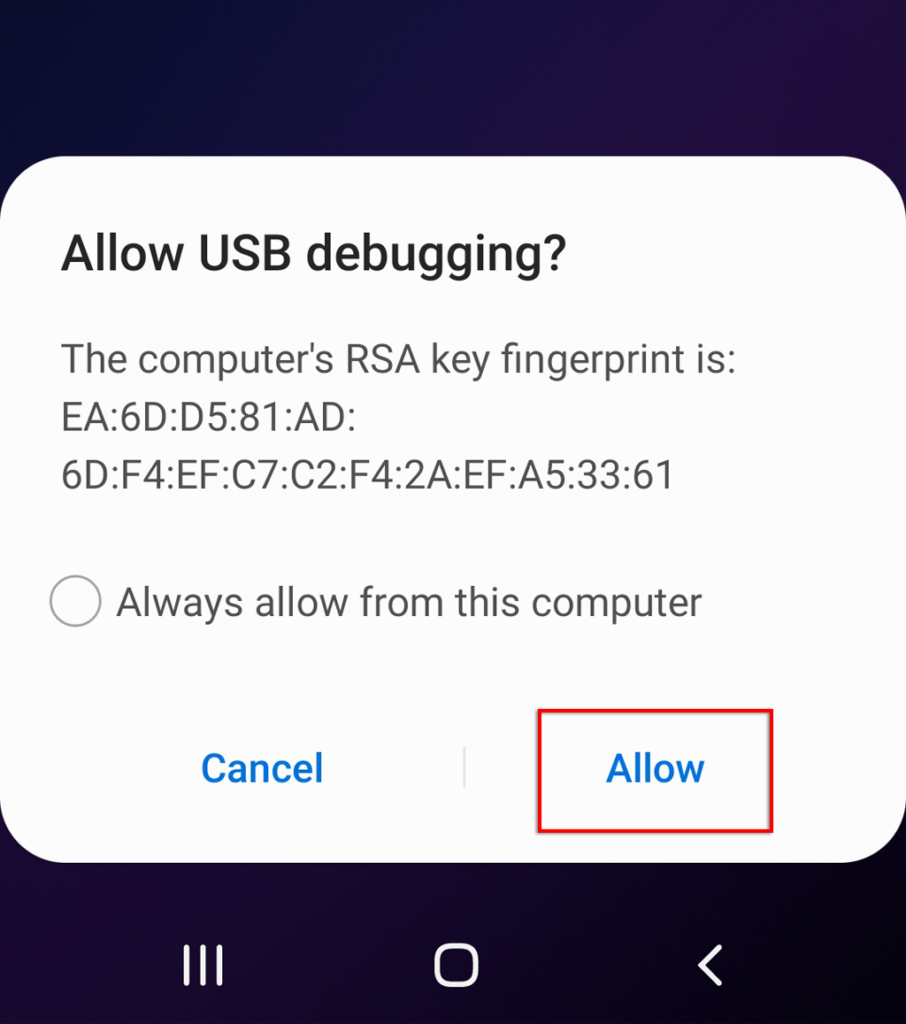
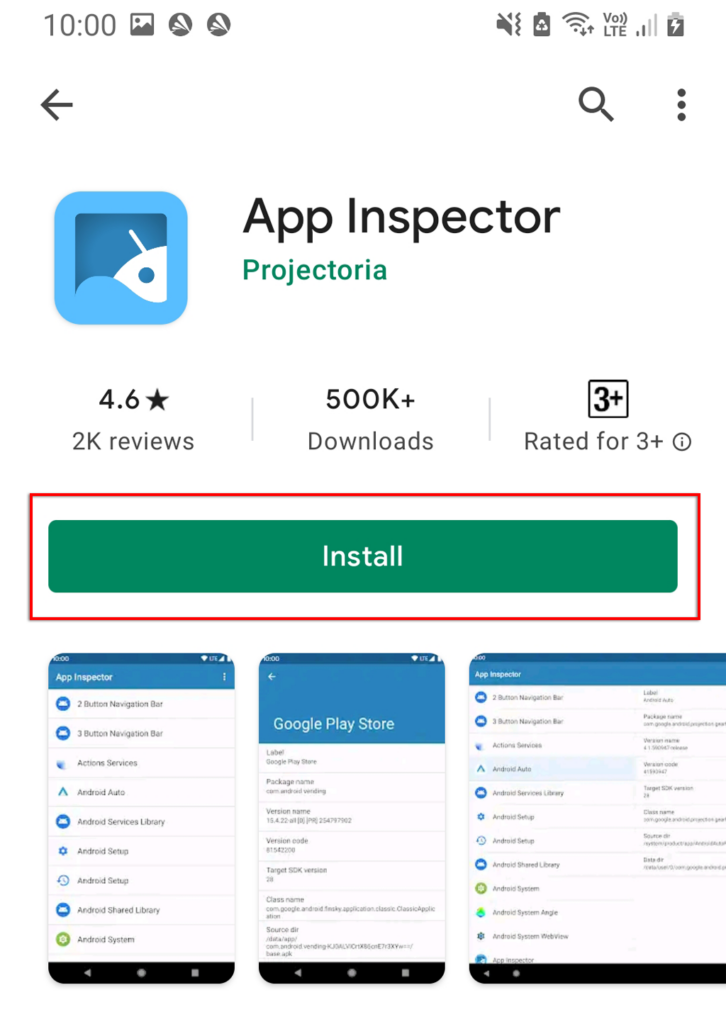
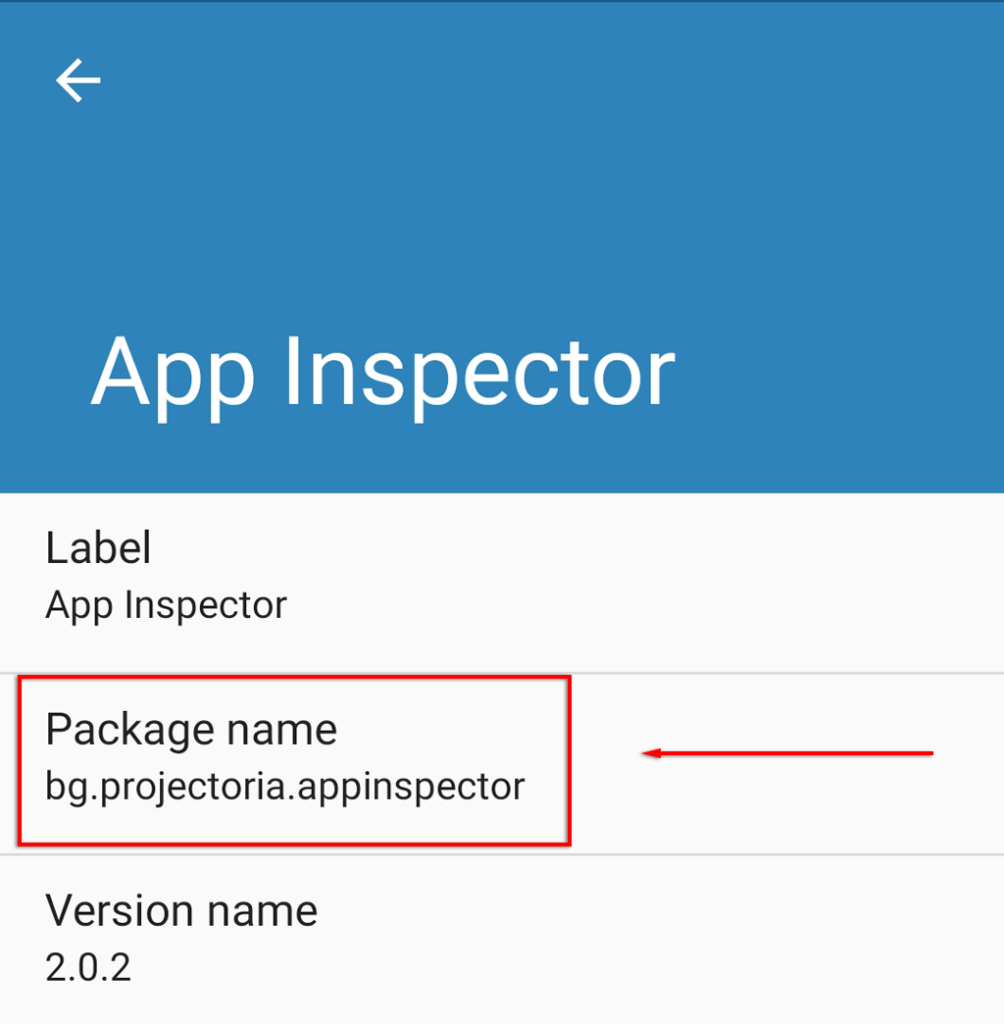
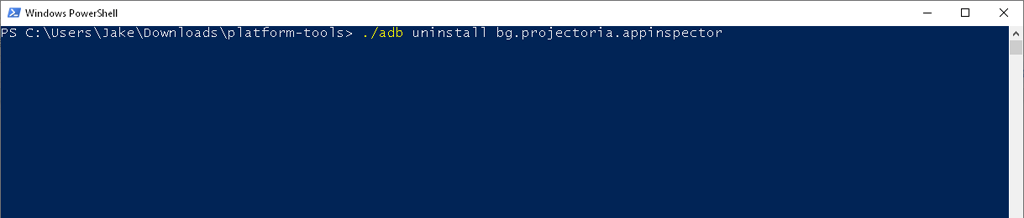
This is the lengthiest option but is guaranteed to uninstall any app from your Android phone. We recommend you use caution if you try this approach because uninstalling the wrong apps can break several of your phone’s functions. Note: You can use ADB to install apps as well. First, you need to enable USB debugging on your phone. To do this: Next, you will need to retrieve Android’s SDK Platform Tools. Head to the official Android ADB software download page and download the package for your operating system. Android provides software for Windows, Mac OS, and Linux. Extract the files from the downloaded archive. You must know the app’s package name to uninstall apps using this software. It isn’t easy to find the package name, but luckily, the App Inspector can reveal it for you. To install it and find the app’s package name, do the following: Next, use the Command Window (or Terminal on Mac) to access your phone via ADB. To do this: For example, if you want to uninstall App Inspector, you would type:
./adb uninstall bg.projectoria.appinspector
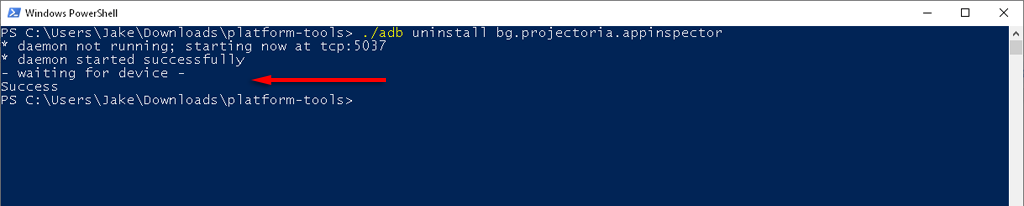
If successful, the window should display a message saying “Success.” And that’s it – your app will now be uninstalled.
Stubborn Apps Begone!
Hopefully, one of these methods helped you remove that stubborn app. Using the ADB tool takes the longest to set up, but it’s easy to clear all those unused apps quickly once you do.