Create an Event From an Email
You have two simple ways to create a Google Calendar event from an email in Gmail. One method is ideal for when you’re composing a new message, while the second works well if you’re replying, forwarding, or composing a new email.
Create an Event From a Received Message
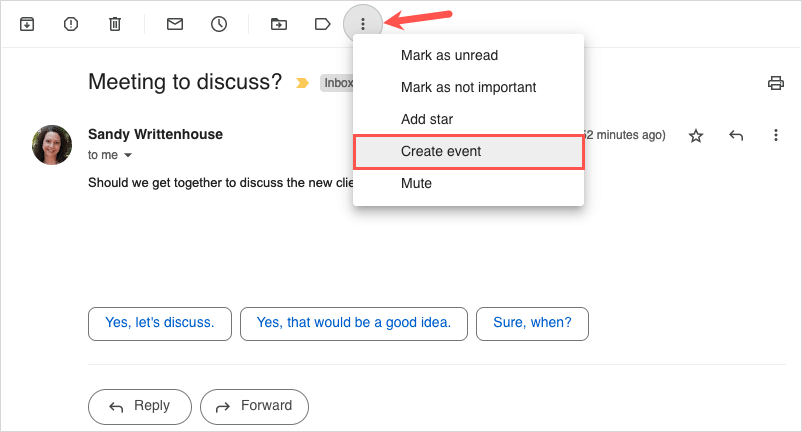
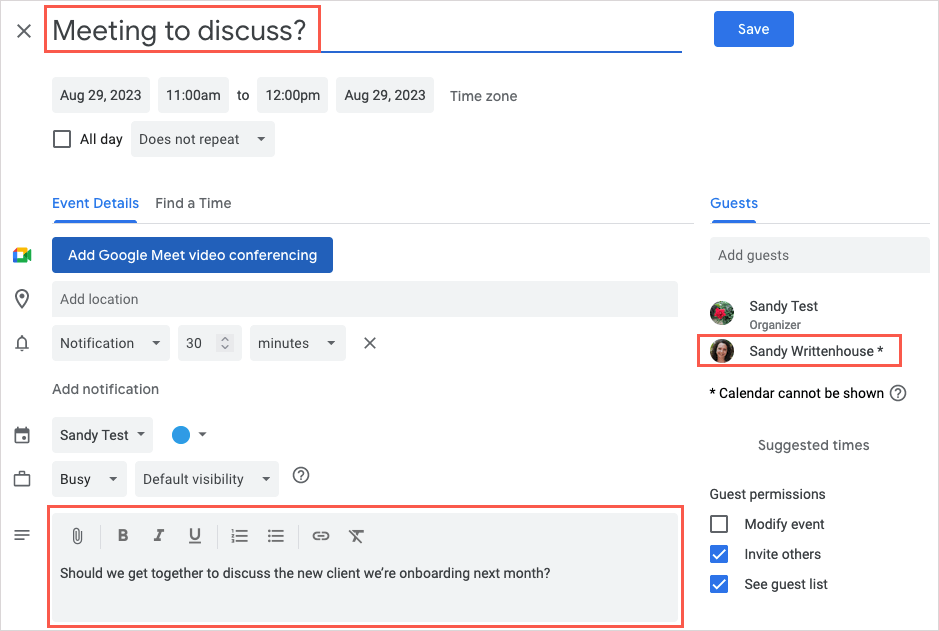
When you receive an email that prompts an event, you can set one up in Google Calendar in just a few steps.
Create an Event for a New Message, Reply, or Forward
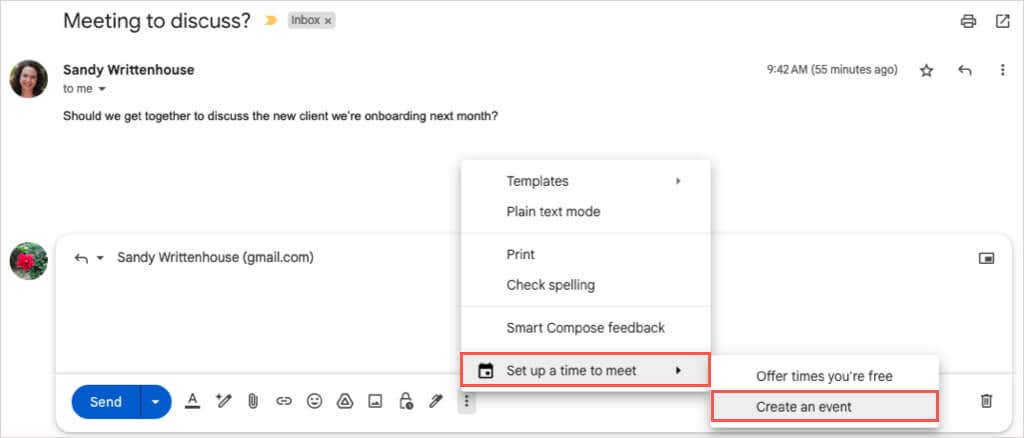
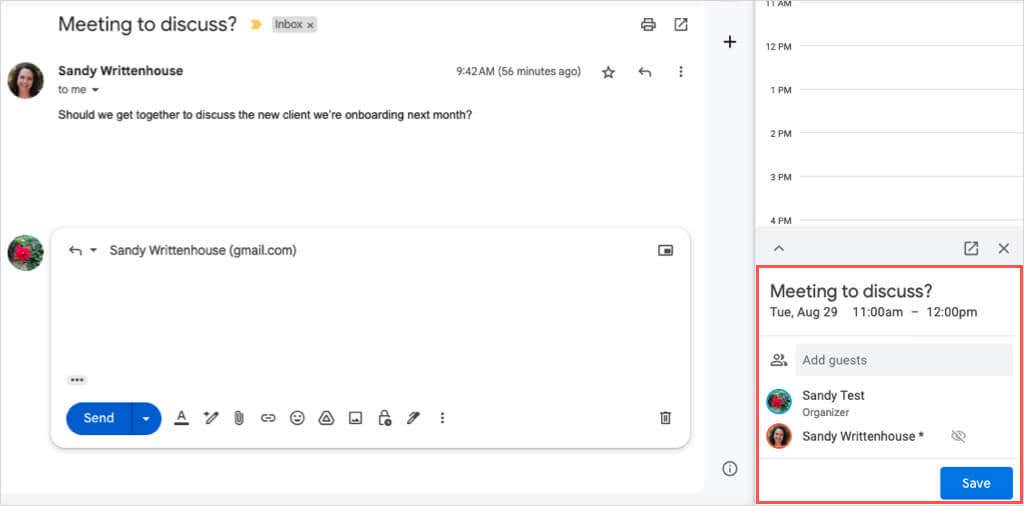
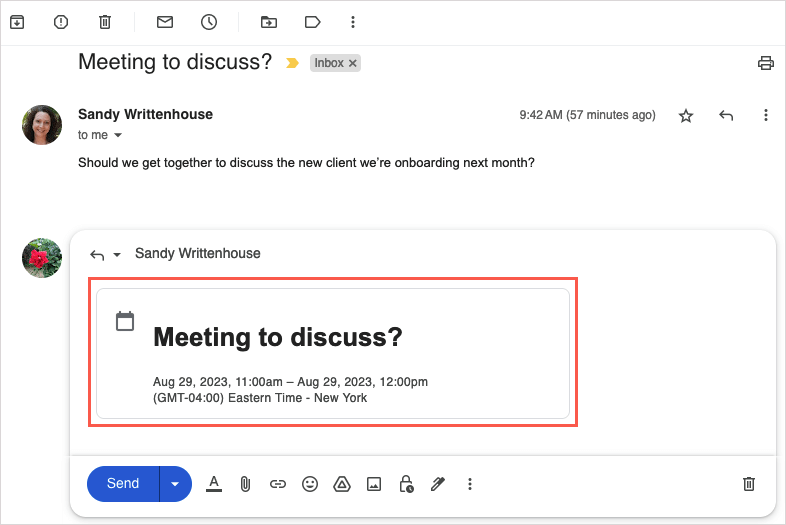
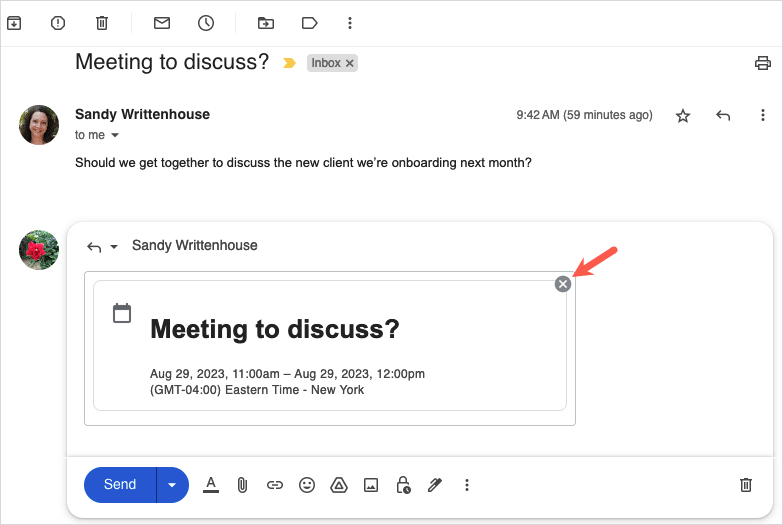
If you’re composing a new message, replying, or forwarding an email, you can create a Google Calendar event easily. If you want to remove the event from the email, use the X in the top right corner.
Send Available Times and Create an Event
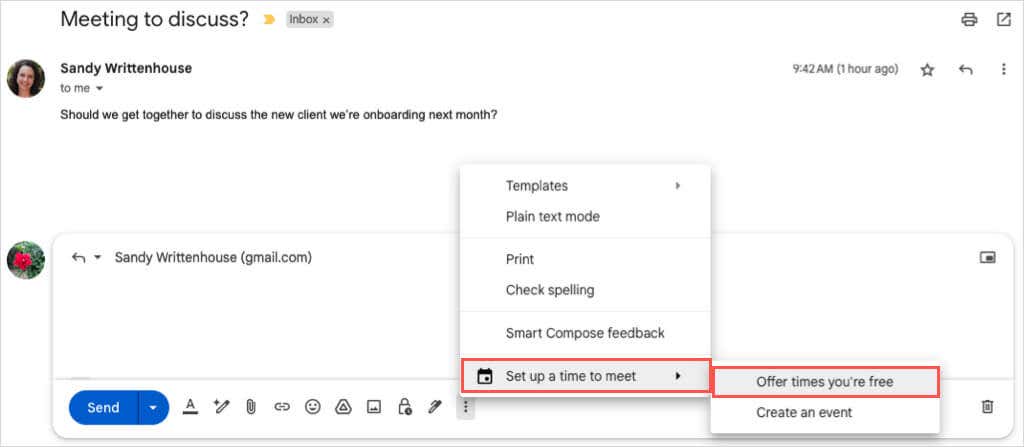
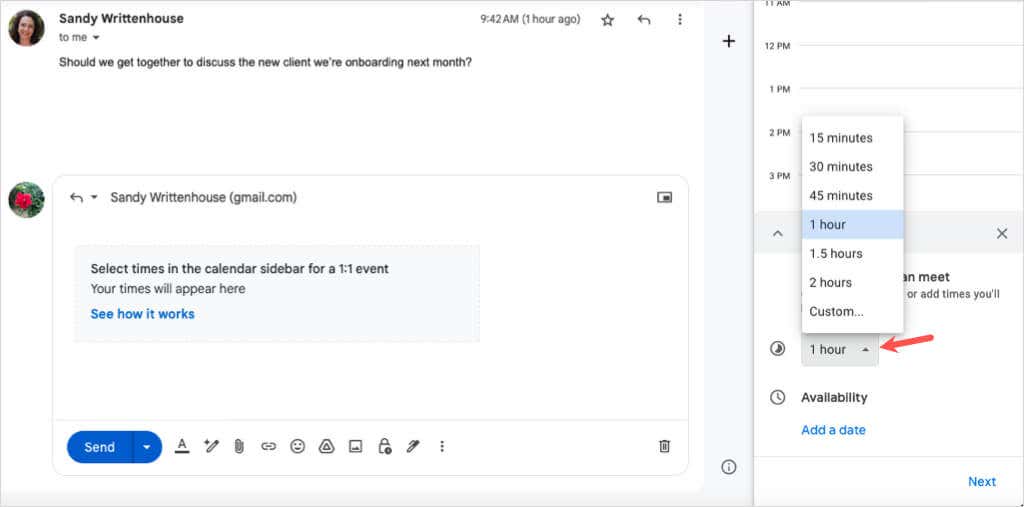
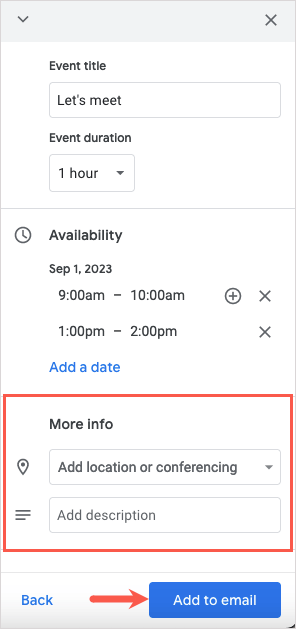
Another handy time-saving feature for scheduling events from Gmail allows you to send times that you’re available to your recipient. They can then select a time to create the event in Google Calendar.
The feature is available to all Google Workspace customers as well as those with personal Google accounts.
To use this scheduling option, here are a few things to keep in mind:
The feature currently only works for one-on-one meetings. If you include multiple recipients, only the first person to respond will become an event guest. You can only use the feature for your primary Google Calendar, as of this writing.
Note that Google could update these limitations at any time.
Send Your Free Times
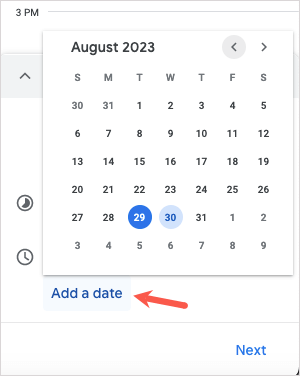
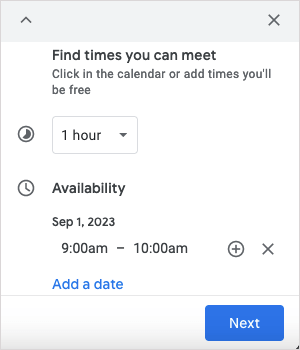
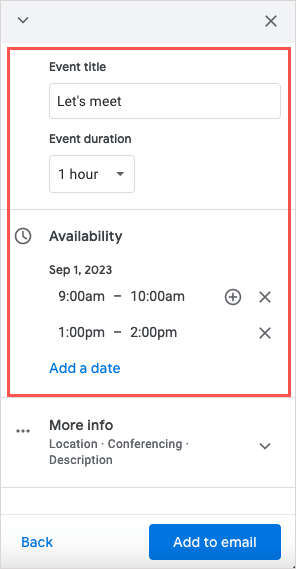
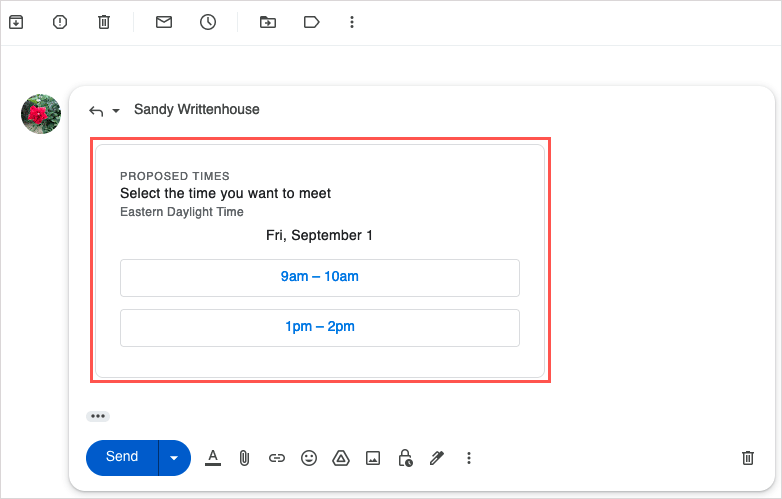
You can send selected times to your recipient in a new email, reply, or forward the same way.
Create the Event
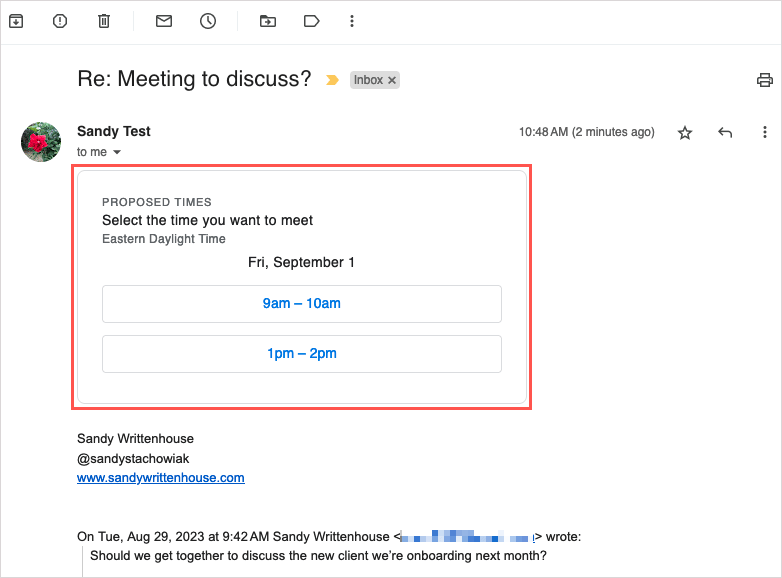
After you follow the above steps to send available times to your recipient, they can select one of the date and time slots in the email to accept and schedule the event.
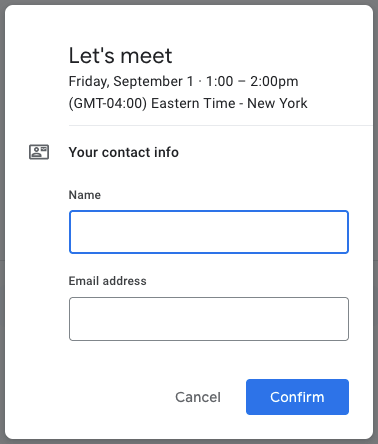
They’ll then see a pop-up message asking for their name and email address. They then select Confirm.
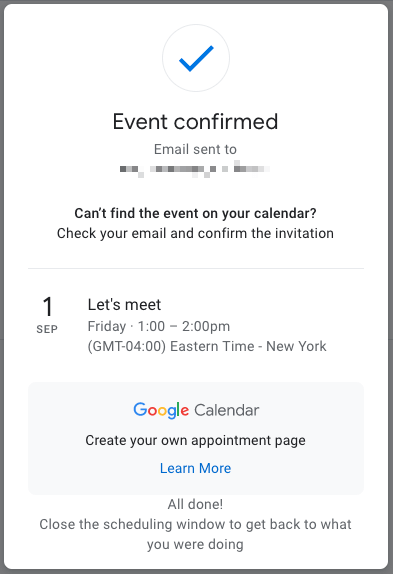
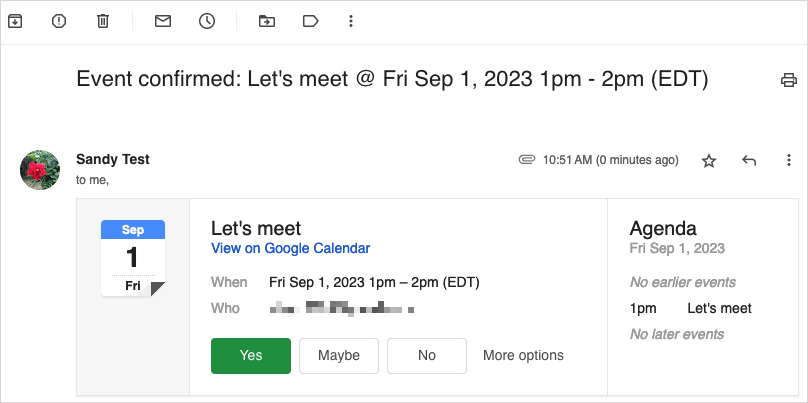
They’ll receive a confirmation message with the date and time, and you’ll get an email letting you know.
To accept the time they selected and save the event, select Yes. Alternatively, choose No to decline or Maybe if you’re unsure.
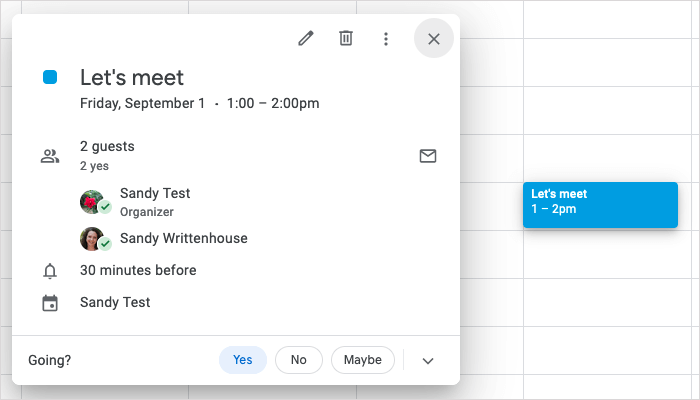
If you accept, you’ll see the event pop open in Google Calendar, saved and confirmed.
Gmail Makes Scheduling Simple
Whether you create your event from an email you’re composing or reply to a recipient with your available times, the integration with Gmail and Google Calendar makes scheduling a breeze. For more, look at these pro tips for using Google Calendar.